Change the price of a product
You can change the price of any product on your platform at any time. These steps are for the platform admin.
Steps to change the price of a product
-
In the side menu of the dashboard, under Store, click Products.
-
Click the ⋯ (Actions) button at the end of the row of the product whose price you want to change.
-
Click Edit.
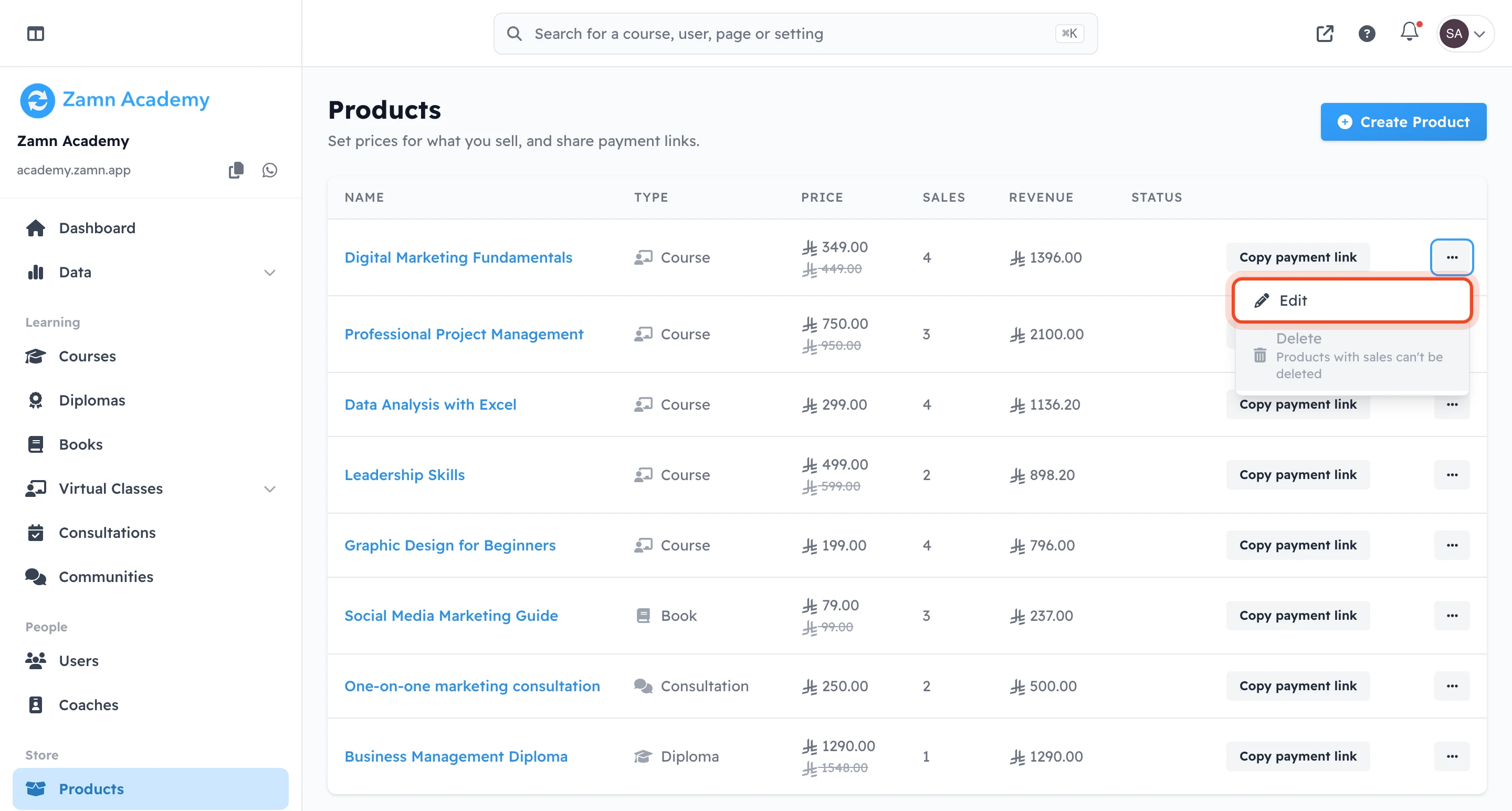
You can also click the product name to open the edit form.
-
Change the price:
- Price: the sale price of the product in Saudi Riyals, including tax if applicable.
- Price before reduction (optional): shown as the product price before the discount. Leave it empty if there is no discount.
-
Click Submit.
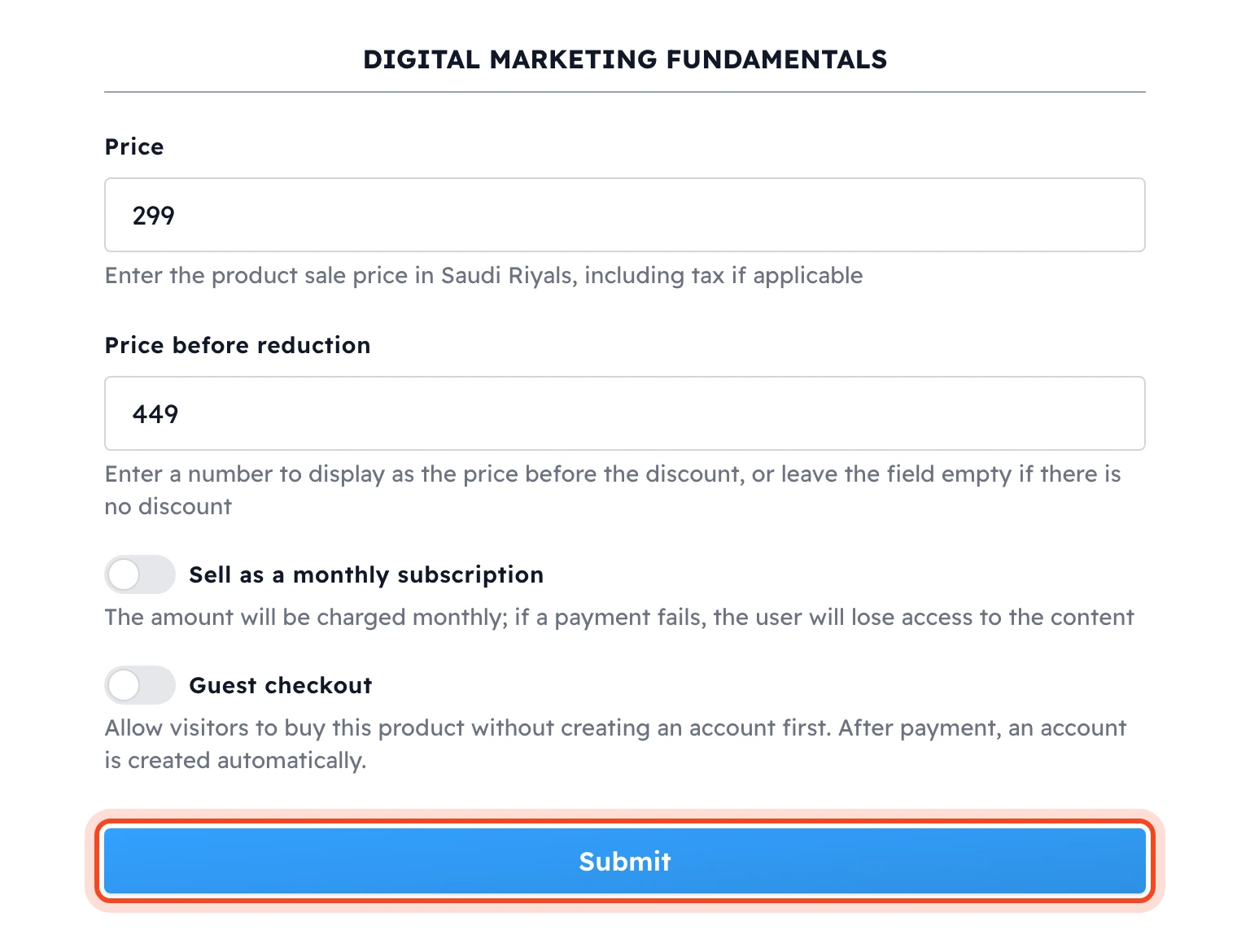
If you applied for ZamnPay, the price cannot be less than the Zamn commission. If it is less, the new price is not saved, and a message shows the commission value.
If you did not apply for ZamnPay, you can set the price to 0. If Zamn Wallet is active on your platform, a signed-in customer then gets the product for free, with no payment page. If it is not active, the customer sees the message "Payment is not currently available. Please contact the platform administration for assistance."