Turn on guest checkout
The Guest checkout feature lets your customers buy and book products right away, with no need to create an account or sign in to the platform first. After payment, an account is created for the customer automatically.
Customers see this option only on the products where you turn it on, in the settings of each product.
An online payment gateway (ZamnPay) must be set up before you can turn on guest checkout.
Guest checkout does not work for a product with a price of 0. The customer must sign in first, and then gets the product for free.
Steps to turn on guest checkout
-
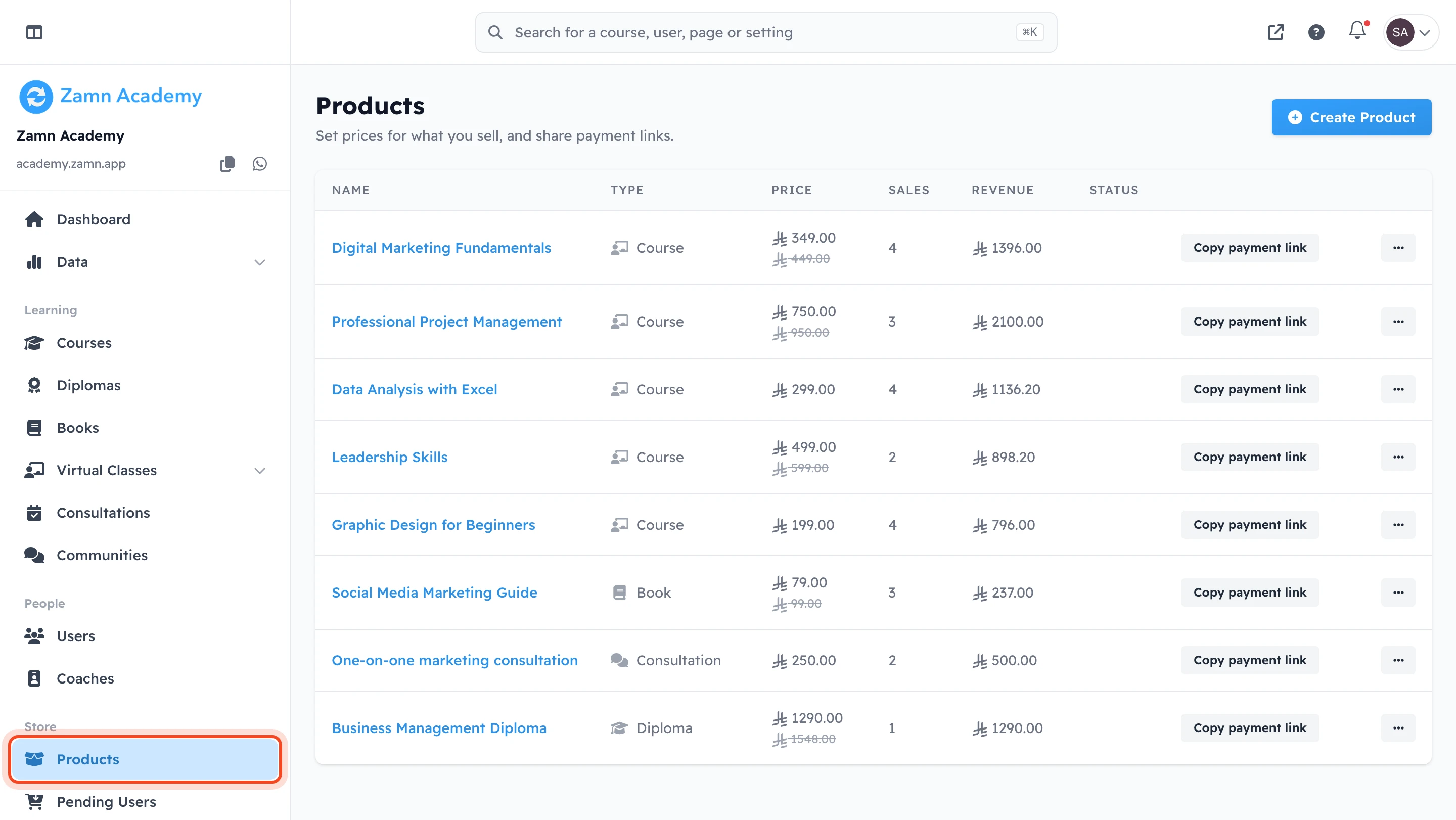
In the side menu of the dashboard, under Store, click Products.
-
Click the ⋯ (Actions) button at the end of the row of the product you want.
-
Click Edit.
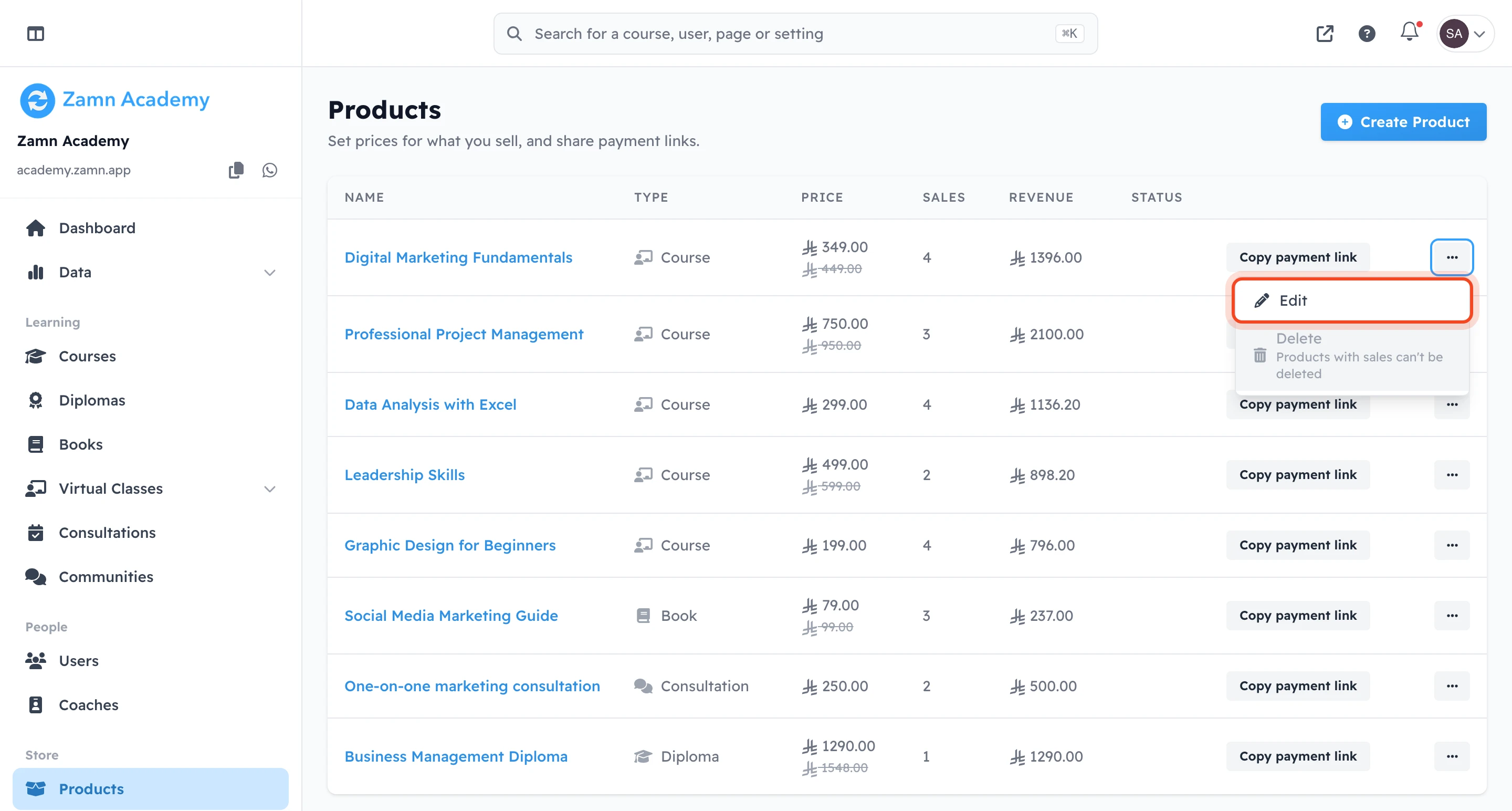
You can also click the product name to open the edit form.
-
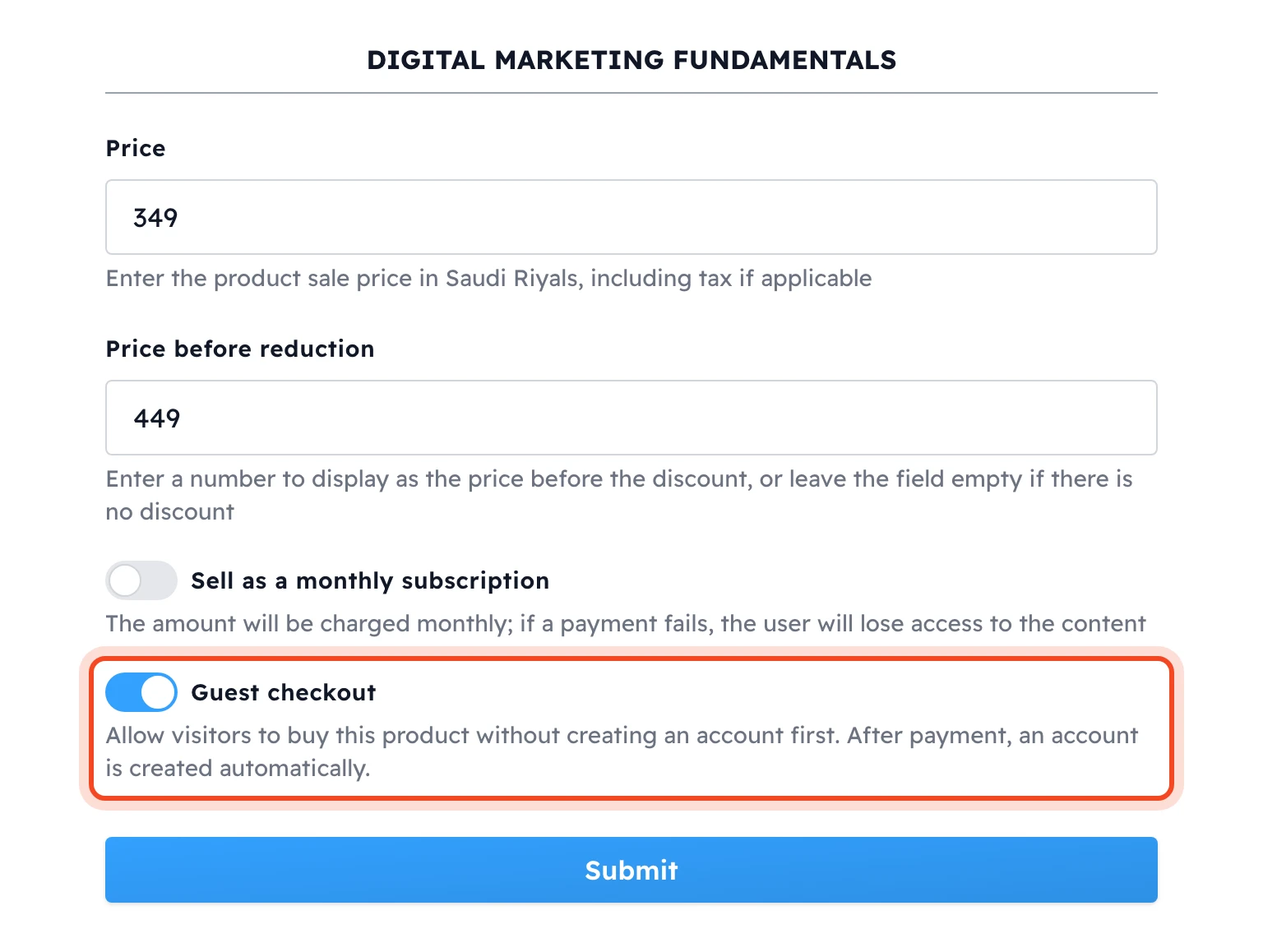
Turn on Guest checkout.
-
Click Submit at the bottom of the form to apply the settings.
What the buyer sees after you turn on guest checkout
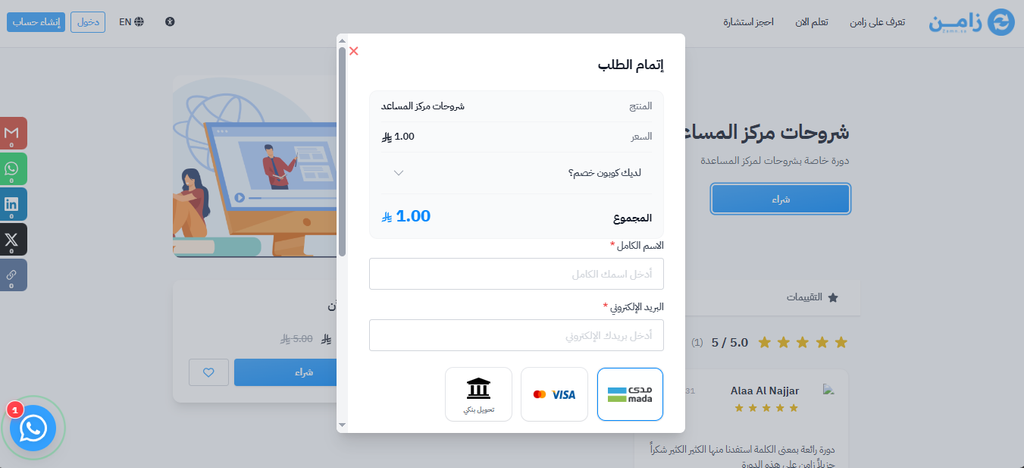
After you save the changes, customers can buy the product as visitors right away. They only need to enter their Full Name and Email, then pay to complete the order.