Sell products with subscriptions
You can sell your products with a monthly subscription instead of a one-time payment. These steps are for the platform admin.
The subscription is always monthly. The price shows with /monthly next to it on the course page and on the checkout page. Still, it is best to also say it in the product details, so the subscriber understands it before subscribing.
After you create the course and add content to it, you can turn it into a product for sale by following these steps:
Steps to turn on subscription selling
-
Sign in to your platform dashboard.

-
In the side menu of the dashboard, under Store, click Products.
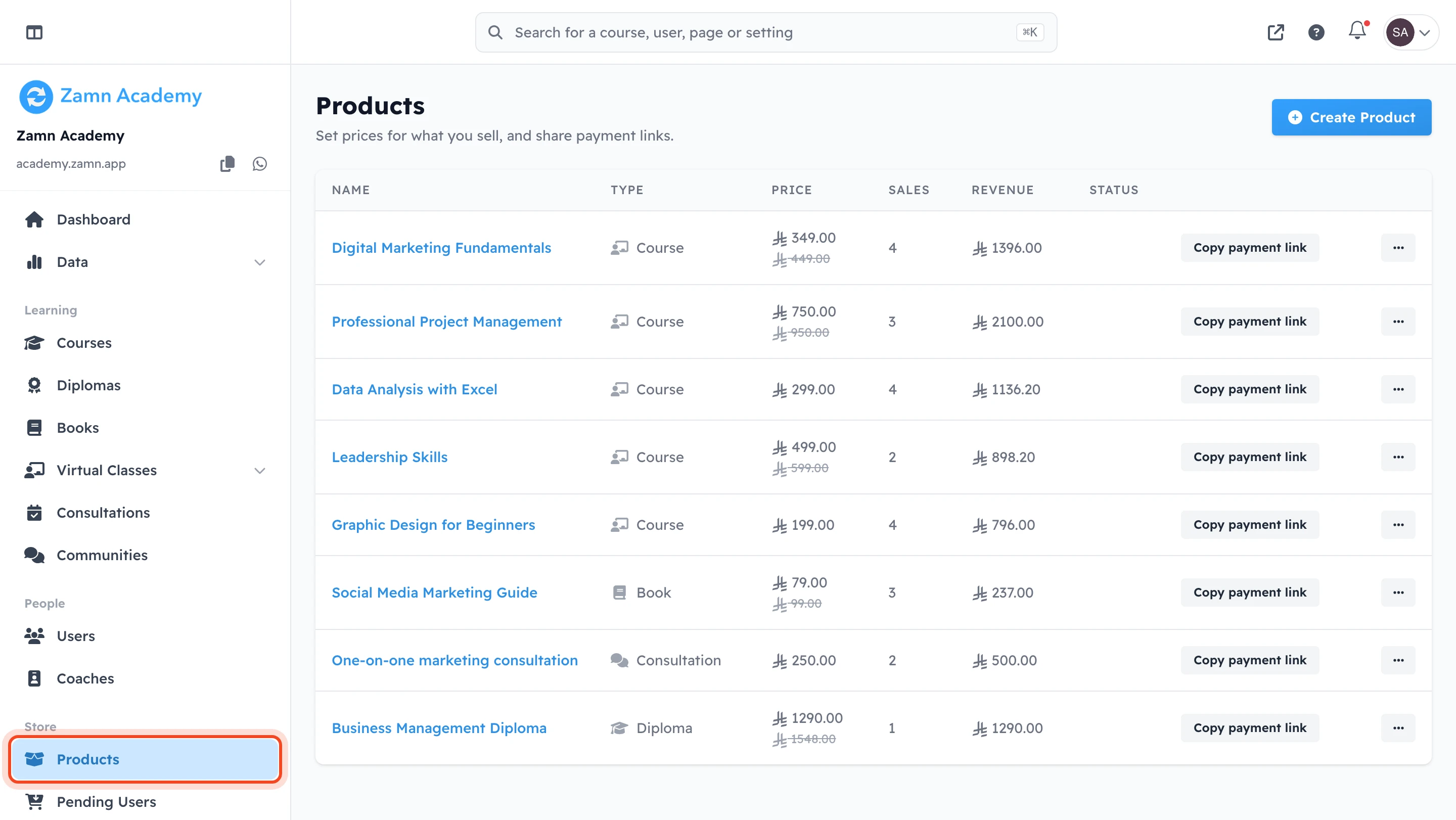
-
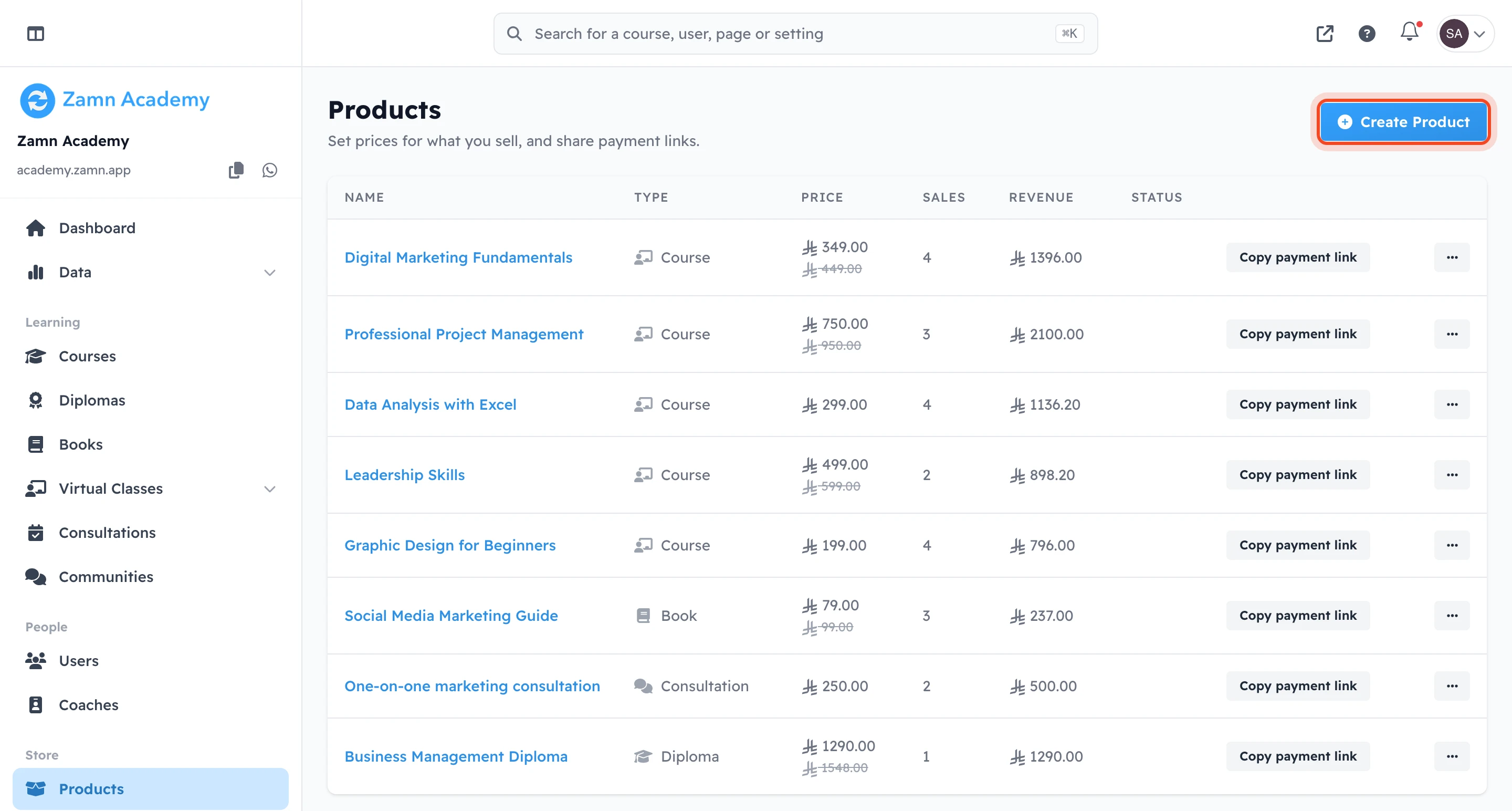
On the Products page:
- Click Create Product, then choose the product type and the product, and enter the price,
- Or click the ⋯ (Actions) button at the end of the row of an existing product, then click Edit.
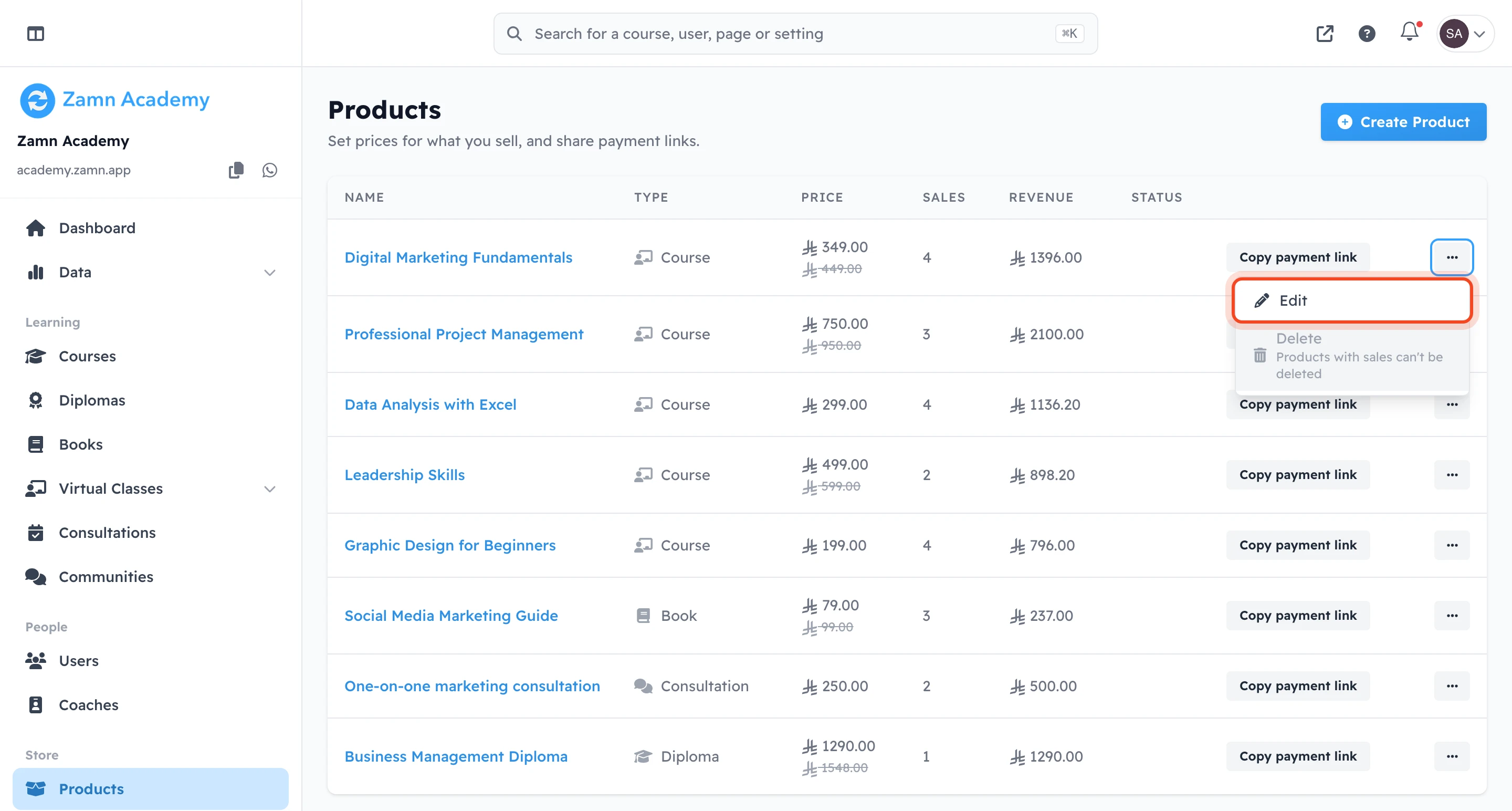
-
Turn on Sell as a monthly subscription. The amount is charged to the subscriber every month, and if a payment fails, they lose access to the content.
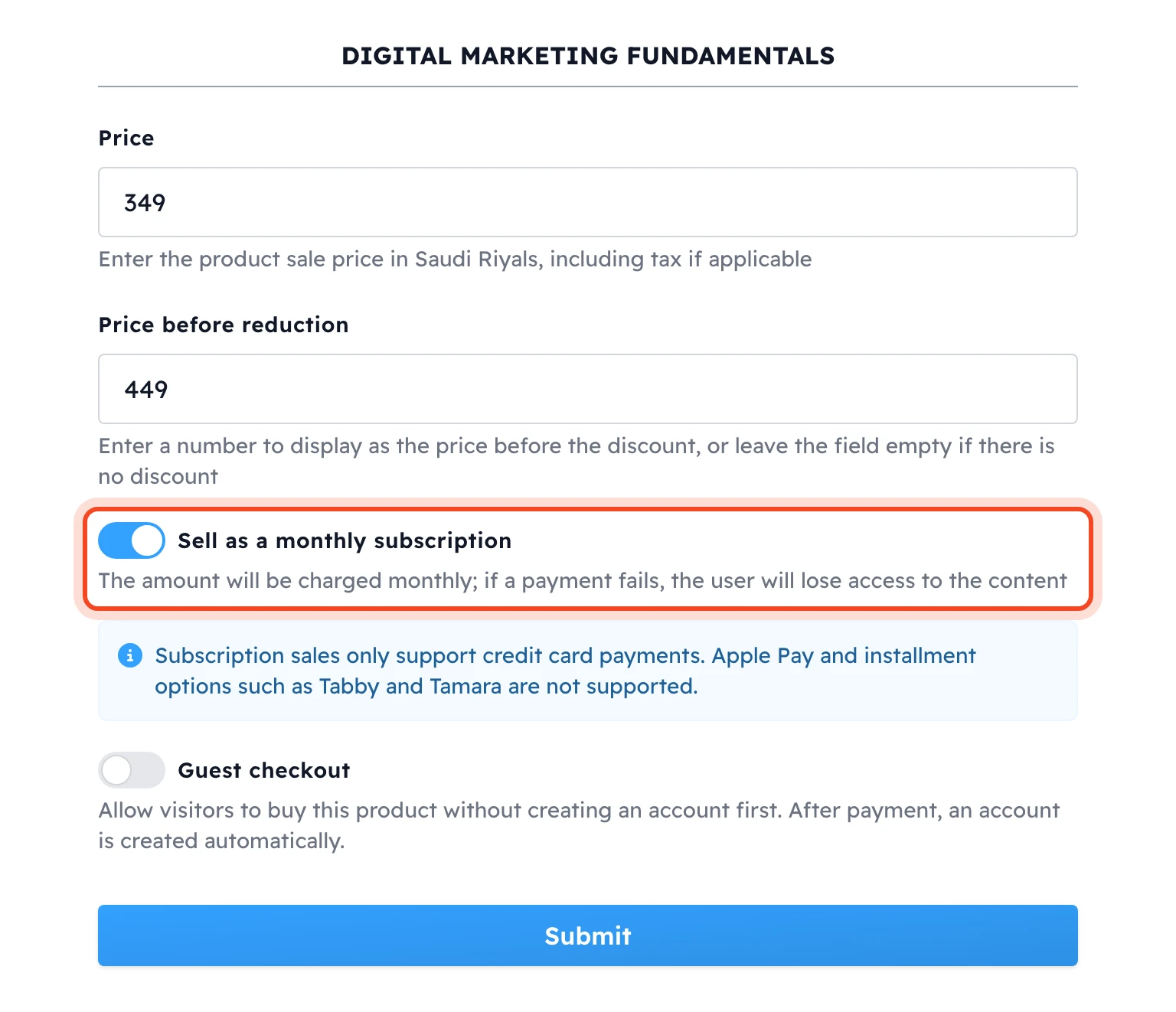 Note
If Zamn Wallet is active on your platform, the Sell as a monthly subscription option does not show. If your payment gateway does not support subscriptions, you cannot turn the option on, and a message asks you to contact support.
-
Click Submit.
After you turn it on, your website shows a Subscribe button instead of a Buy button. On the checkout page, the buyer sees this line: "Your subscription renews automatically every month. You can cancel it anytime from your account."
Subscription sales only support credit card payments. Apple Pay and installment options such as Tabby and Tamara are not supported.
Follow your subscribers
-
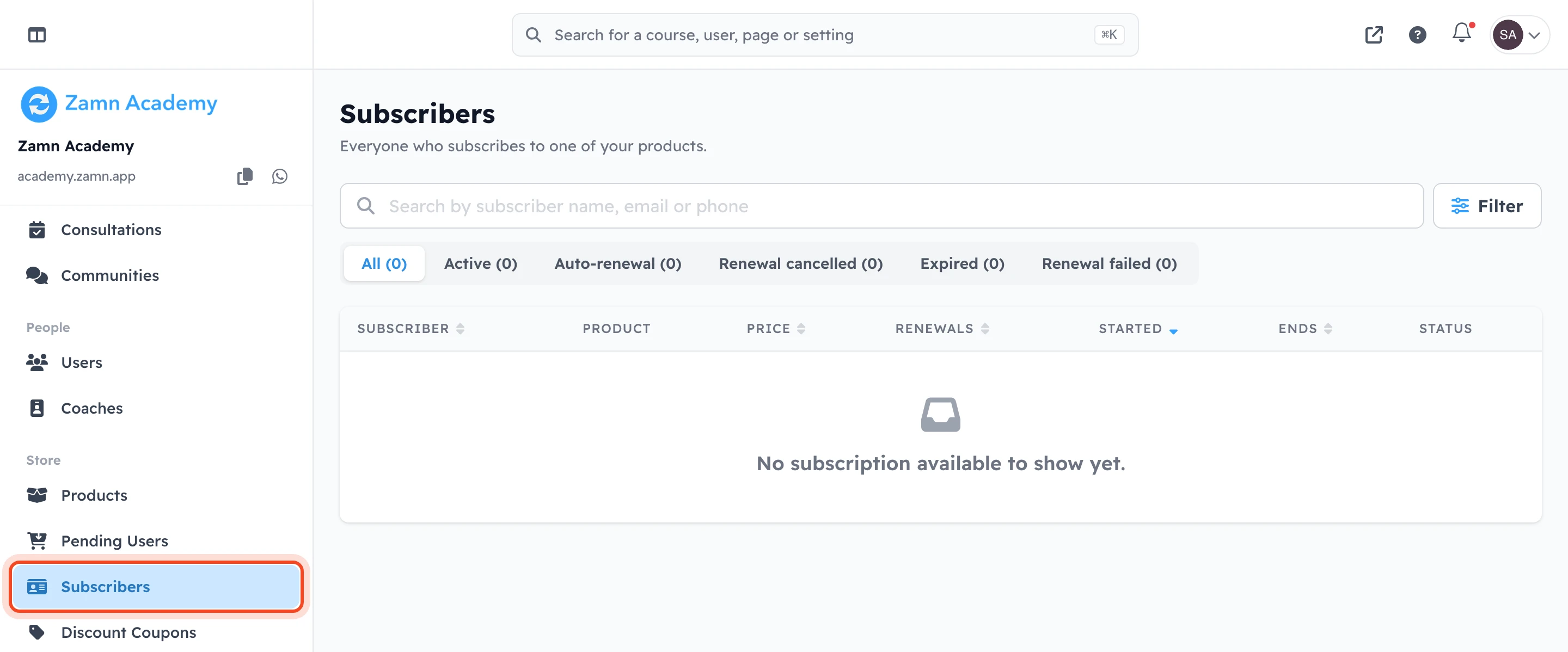
In the side menu of the dashboard, under Store, click Subscribers.
-
Use the tabs to see the subscriptions by status: All, Active, Auto-renewal, Renewal cancelled, Expired and Renewal failed. Each tab shows how many subscriptions it has.
-
You can search by subscriber name, email or phone, or click Filter to show one product.