Zamn Wallet
Zamn Wallet is a fast and safe payment method, and a simple way to accept online payments. With it, you can sell courses, e-books, consultations and diplomas on your platform without signing up for any outside payment service. Your customers' payments collect in your Zamn wallet, and you withdraw them from your dashboard.
When you turn on Zamn Wallet, your customers can pay online for your digital services with many payment methods, including:
- Apple Pay
- Visa
- Mastercard
- Mada
These options give your customers more choice and make it easier for them to pay for your services.
Zamn Wallet is for users outside Saudi Arabia. You do not need a Saudi bank account or a commercial register. If the account owner is a Saudi citizen, use ZamnPay instead, to get your payments straight into your bank account.
You can use only one of the two. When ZamnPay is active, or its request is under review, the Zamn Wallet card is dimmed and you cannot open it. To change this, contact support.
How to turn on Zamn Wallet
-
In the side menu of the dashboard, under Account, click Settings, then go to the Payment Methods page.
-
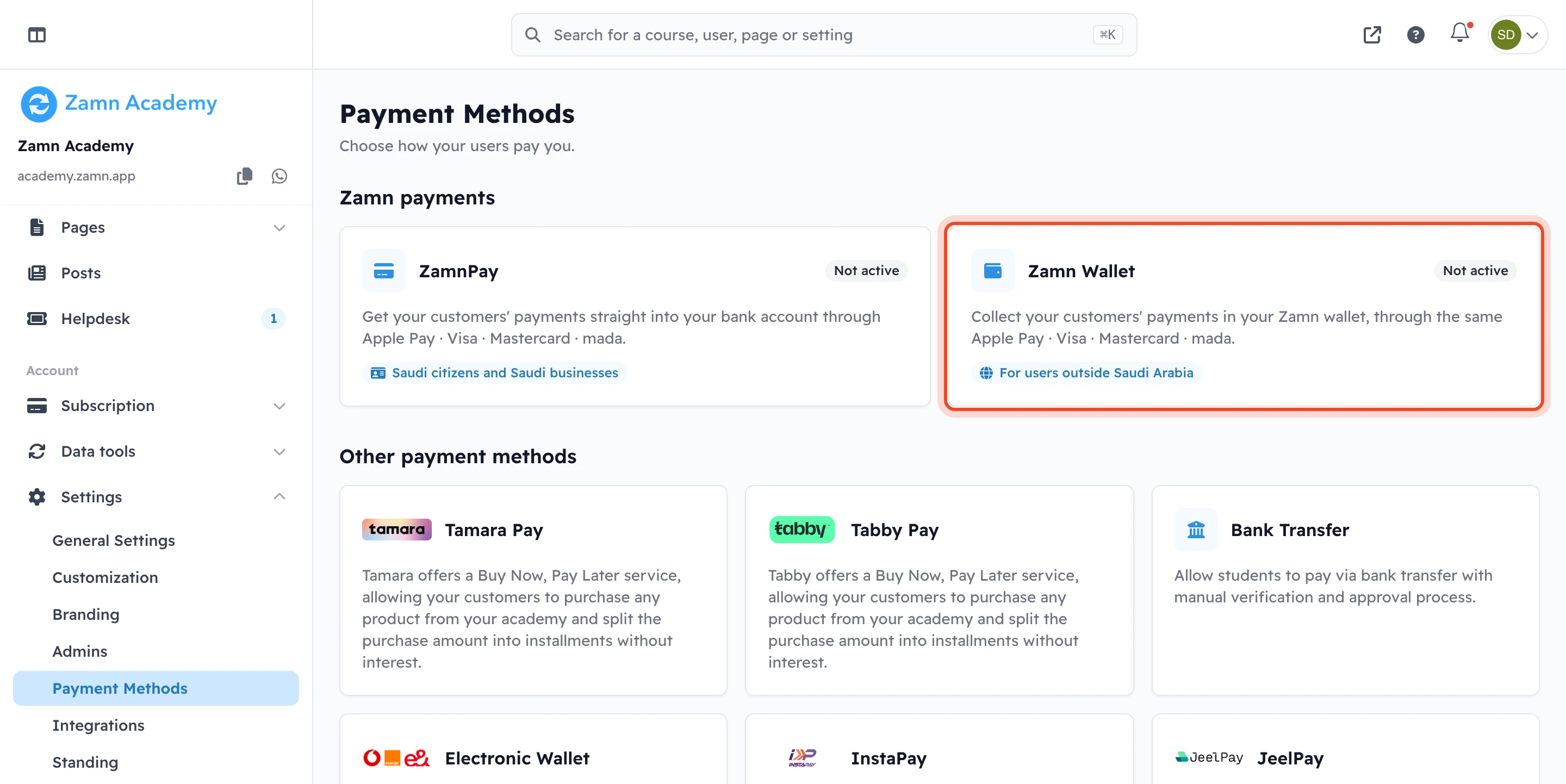
Under Zamn payments, click the Zamn Wallet card.
-
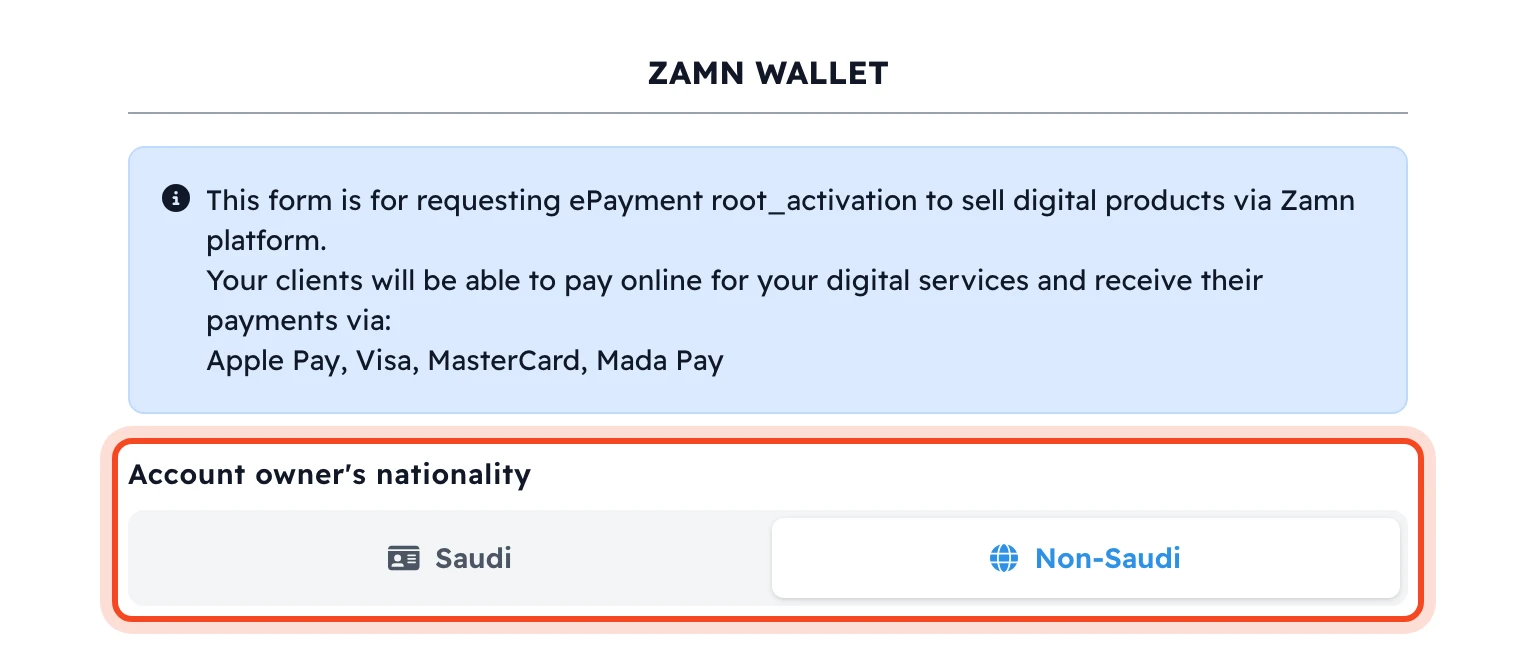
Under Account owner's nationality, choose Non-Saudi. The wallet form shows under it. If you choose Saudi, you see the Activate ZamnPay button instead of the form.
-
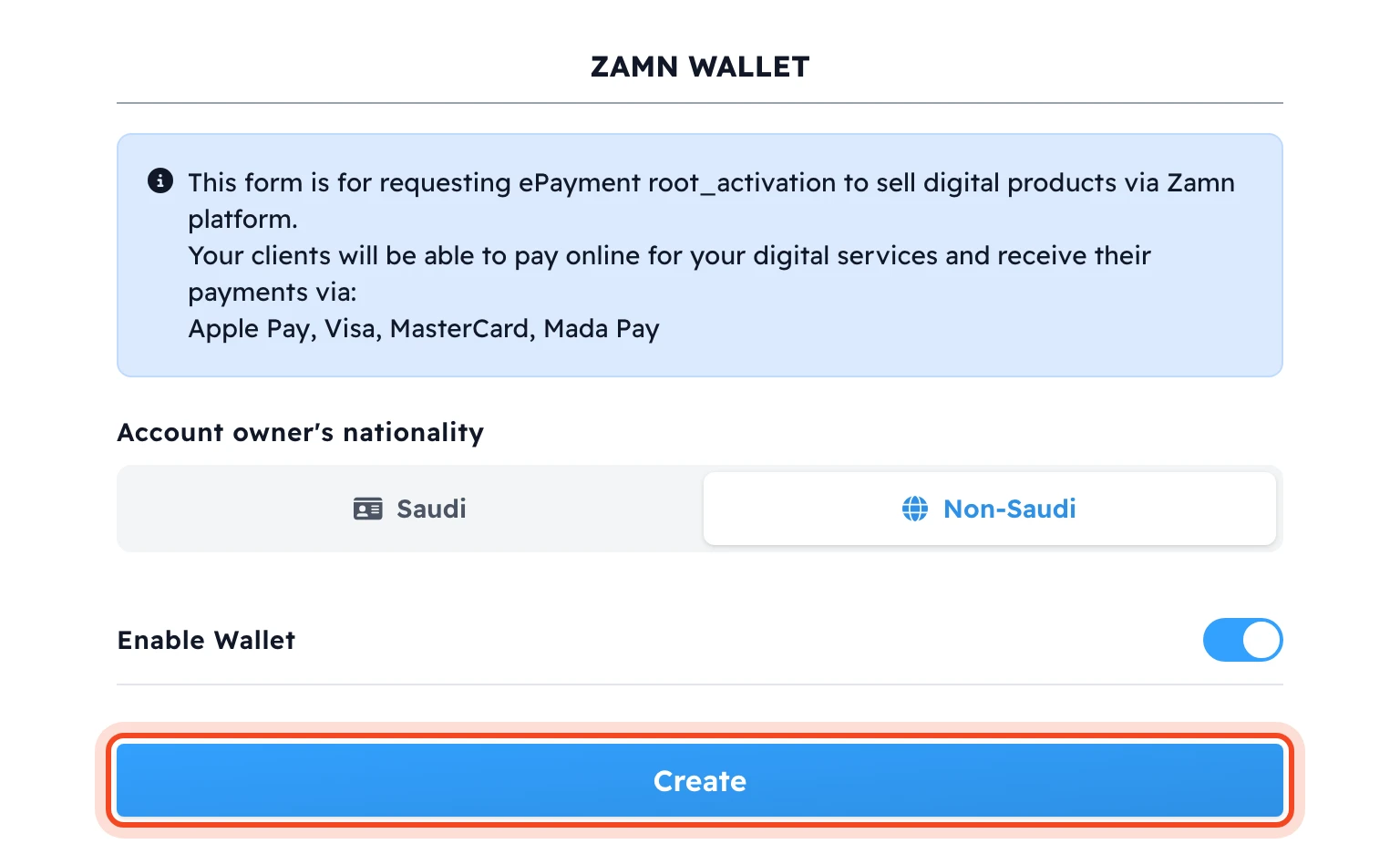
Turn on Enable Wallet.
-
Click Create to send the activation request. The request is then reviewed by the Zamn team. Until the request is approved, the Zamn Wallet card shows Under review. After approval, it shows Active.
Zamn Wallet does not add VAT to your prices. Your customers pay the price you set for the product. If you added a VAT registration number to your platform (read how), your customers can download a receipt for each payment, and the receipt is an Invoice with no VAT lines. Without this number, receipts do not show.
Withdraw your wallet balance
You follow your wallet balance and ask to withdraw it from the Wallet Settlements page.
-
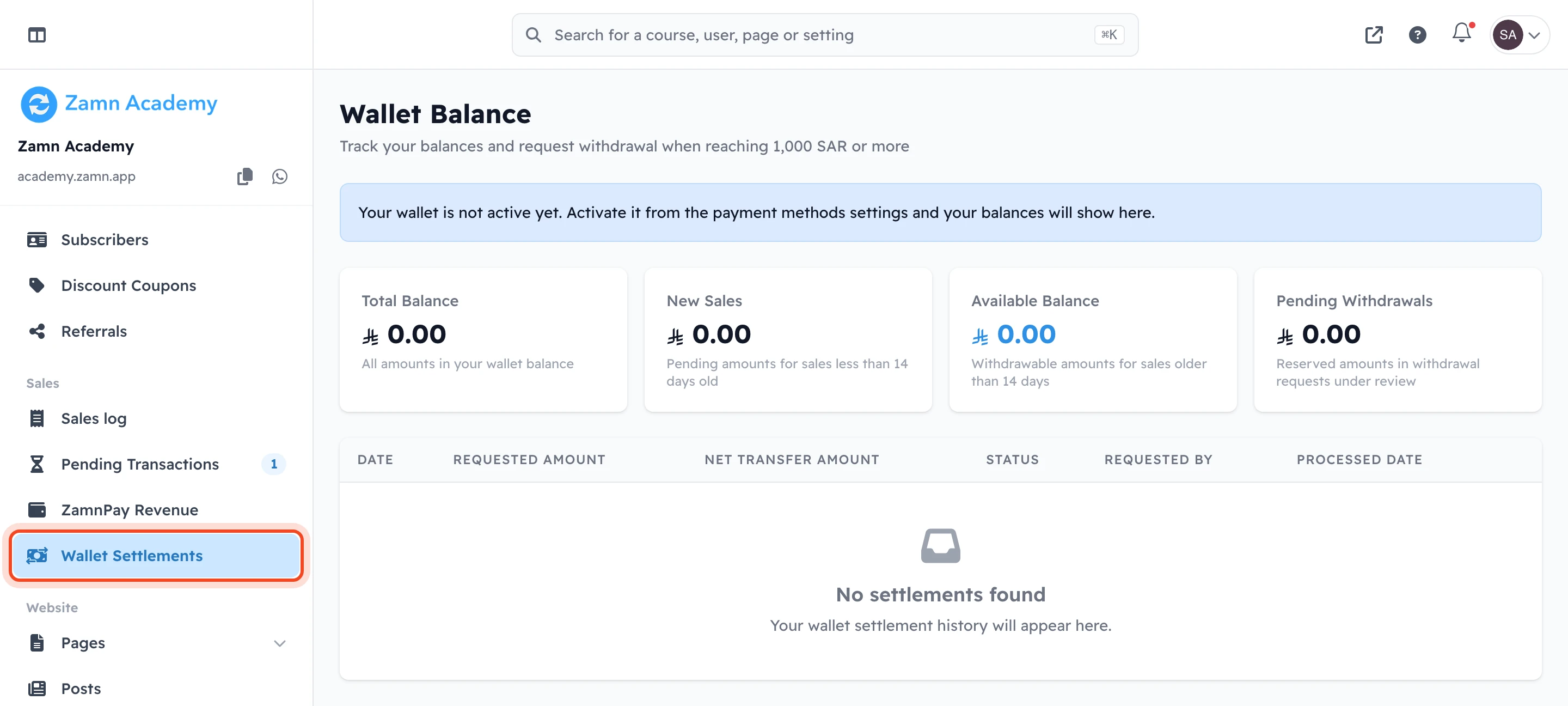
In the side menu of the dashboard, under Sales, click Wallet Settlements. The Wallet Balance page opens.
-
Check your balance in the four cards:
- Total Balance: all the amounts in your wallet.
- New Sales: sales less than 14 days old. You cannot withdraw them yet.
- Available Balance: sales older than 14 days. This is the amount you can withdraw.
- Pending Withdrawals: amounts in withdrawal requests that are under review.
-
When your Available Balance reaches 1,000 SAR or more, click Withdraw Balance at the top of the page.
-
In Select withdrawal amount, enter the amount you want. The form shows the Transfer Fee (57.5 SAR) and the Estimated Net Transfer.
-
Tick the three boxes to agree to the transfer fee and to the bank terms, then click Submit Request.
Your request shows in the table on the same page, with the status Pending. The Zamn team reviews it, and the status changes to Approved or Rejected. To see a request, click its date. An approved request shows the Transfer Receipt, and a rejected one shows the Rejection Reason.
- Until your wallet is active, the page shows "Your wallet is not active yet" and you cannot withdraw.
- You can have only one withdrawal request at a time. You can ask for a new one after your current request is reviewed.