ZamnPay Revenue
On the ZamnPay Revenue page you follow each payment that your customers made with ZamnPay: how much they paid, the fees, what goes to your bank account, and whether the money was deposited. This guide is for the platform admin.
Only the admins of your platform see this page. Coaches and course authors do not see it.
Open the ZamnPay Revenue page
-
In the side menu of the dashboard, under Sales, click ZamnPay Revenue. The ZamnPay Revenue (Beta) page opens, with the newest payments first.
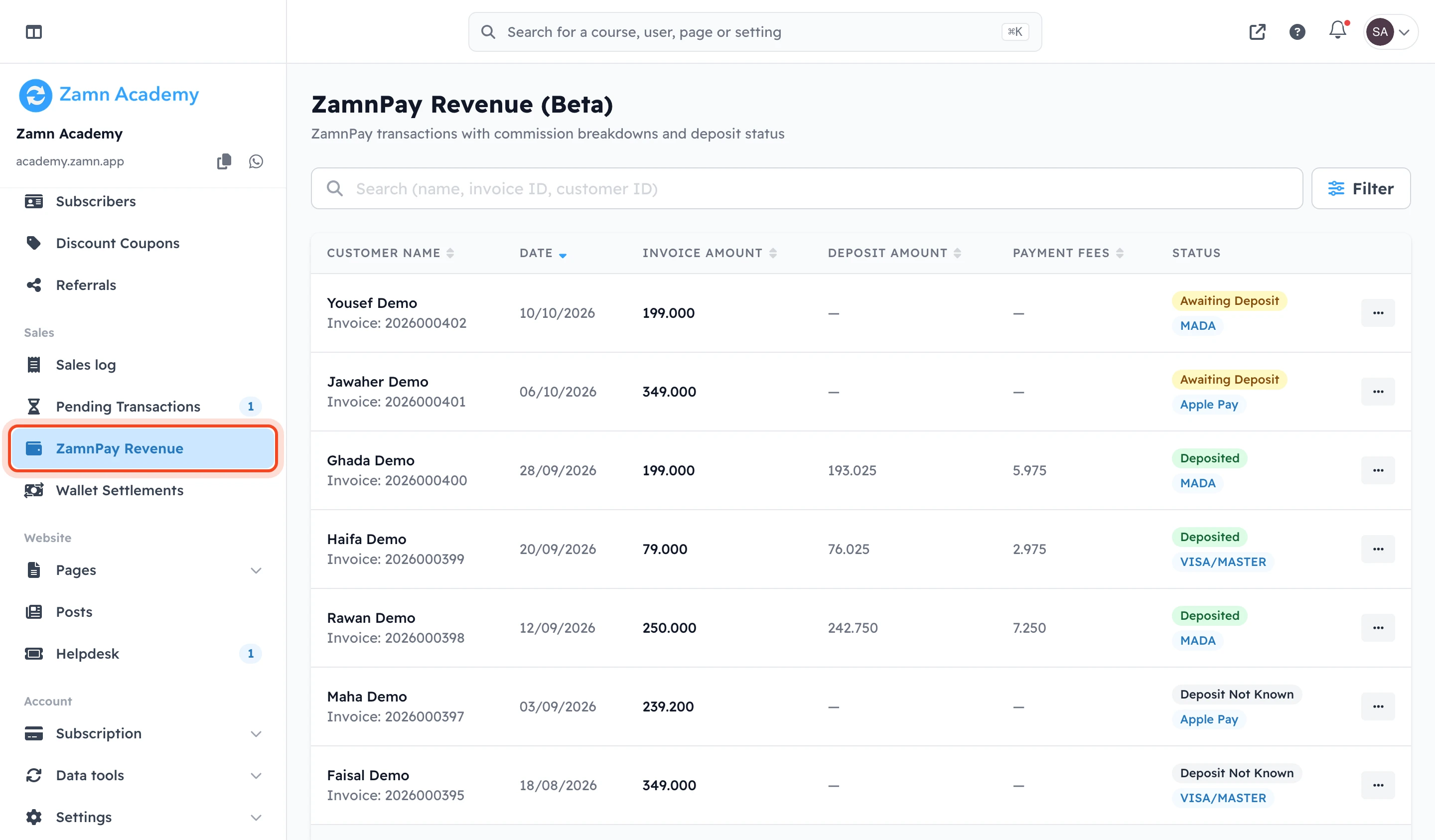
If you have no ZamnPay payments yet, the page shows No Transactions.
What each row shows
Each row is one payment. A subscription product has a row for each payment, so each renewal has its own row.
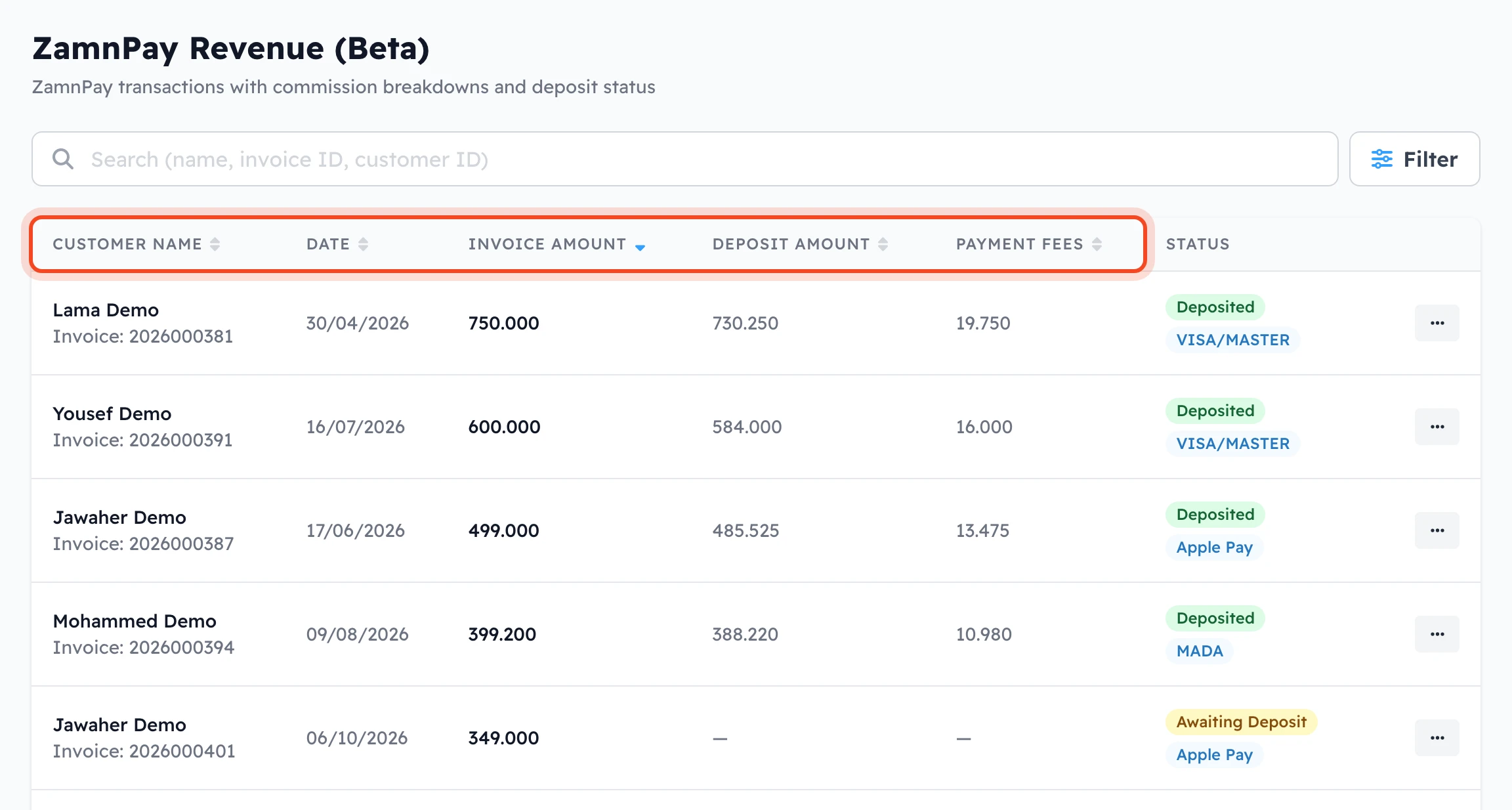
- Customer Name: the buyer, and under the name the invoice number (Invoice:).
- Date: the day of the payment.
- Invoice Amount: what the customer paid.
- Deposit Amount: what goes to your bank account from this payment.
- Payment Fees: the fees and commission taken from the payment. It is the Invoice Amount minus the Deposit Amount.
- Status: where the money is now (see the next section). Under it you see the payment method, like MADA, VISA/MASTER or Apple Pay. If the method is not known, a payment row shows ZamnPay, and a refund or Dhamen row shows Not Specified.
- A dash (—) in Deposit Amount and Payment Fees means these amounts are not known yet. They show after the deposit.
- On a small screen, like a phone, some columns are hidden. The invoice amount then shows under the customer name.
Payment status
Zamn checks the deposits to your bank account once a day, and updates the status of each payment:
- Awaiting Deposit (yellow): the customer paid, and the money has not been deposited to your bank account yet.
- Deposited (green): the money is in a deposit to your bank account.
- Deposit Not Known (grey): the payment was made before a deposit that came without its list of payments. So Zamn cannot tell if this payment is in that deposit. Check your bank account statement to be sure.
- Refund (red): money that was given back to a customer. Read the next section.
Refunds
When a ZamnPay payment is given back to the customer, the refund shows as its own row, with the Refund status and the refund date. Its Invoice Amount and Deposit Amount are minus amounts, because the money is taken from your deposit, and its Payment Fees is 0. The row of the first payment stays as it is.
In this example, the customer paid for a consultation, and the payment was refunded four days later. Searching for his name shows both rows:
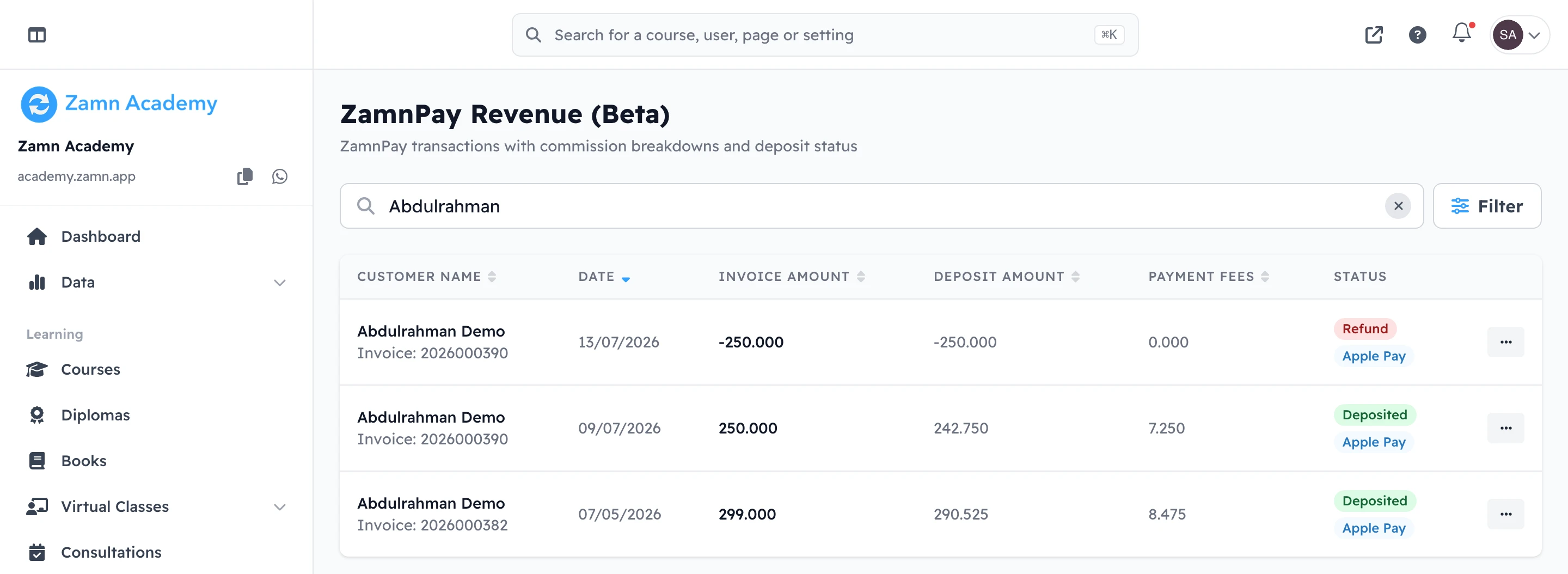
A refund shows on the page after Zamn finds it in a deposit. If Zamn cannot match the refund to the customer's payment, the row shows no customer name.
See the invoice of a payment
-
Click the ⋯ (Actions) button at the end of the payment row.
-
Click View Invoice. The invoice opens in a new tab.
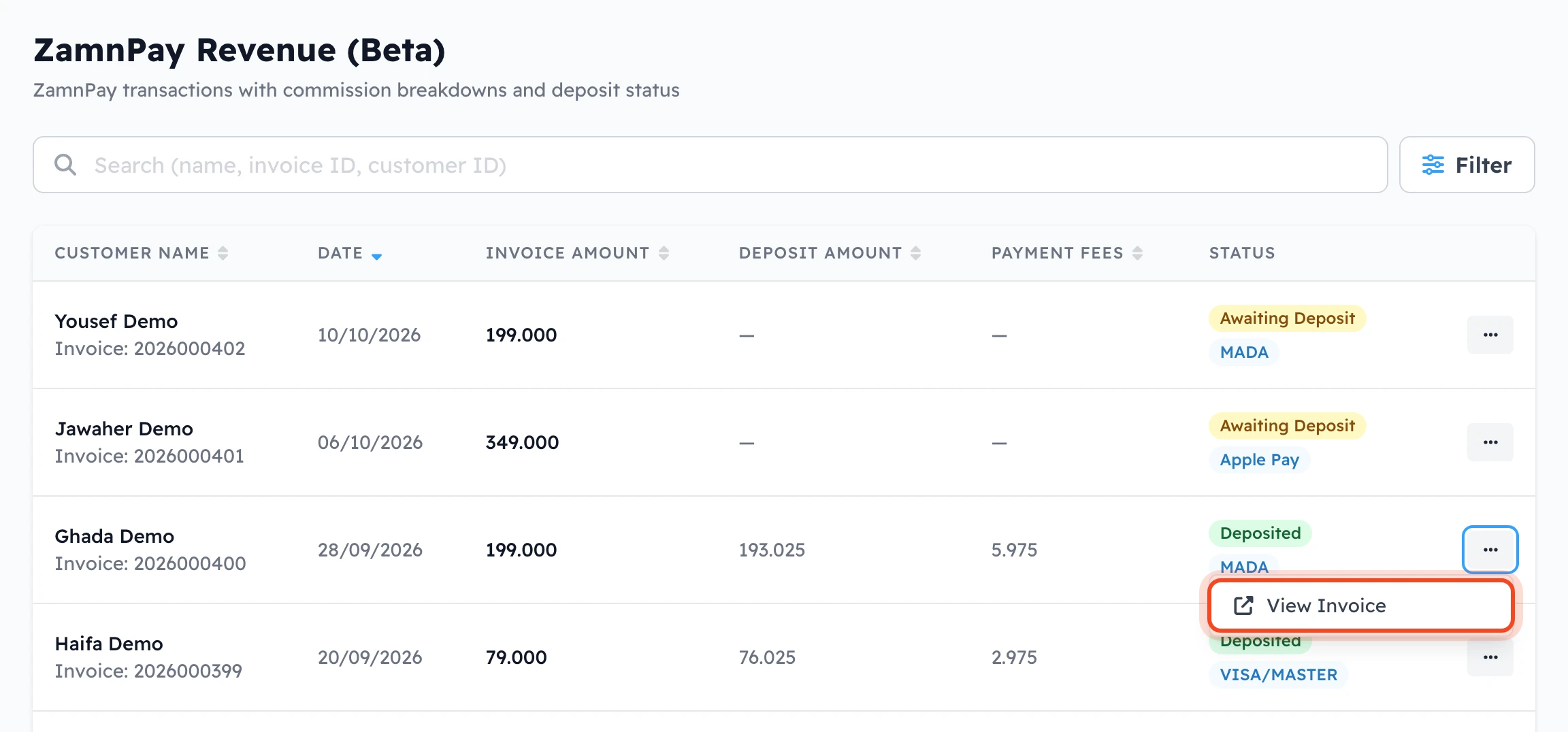
View Invoice is grey when the invoice cannot be opened yet:
- Available after the deposit: the payment is still Awaiting Deposit.
- This payment has no invoice: Zamn has no invoice for this payment.
Search, filter and sort
-
To find the payments of one customer, type their name or email in the search box. You can also search by the invoice number or the customer ID (the user number). The table changes as you type.
-
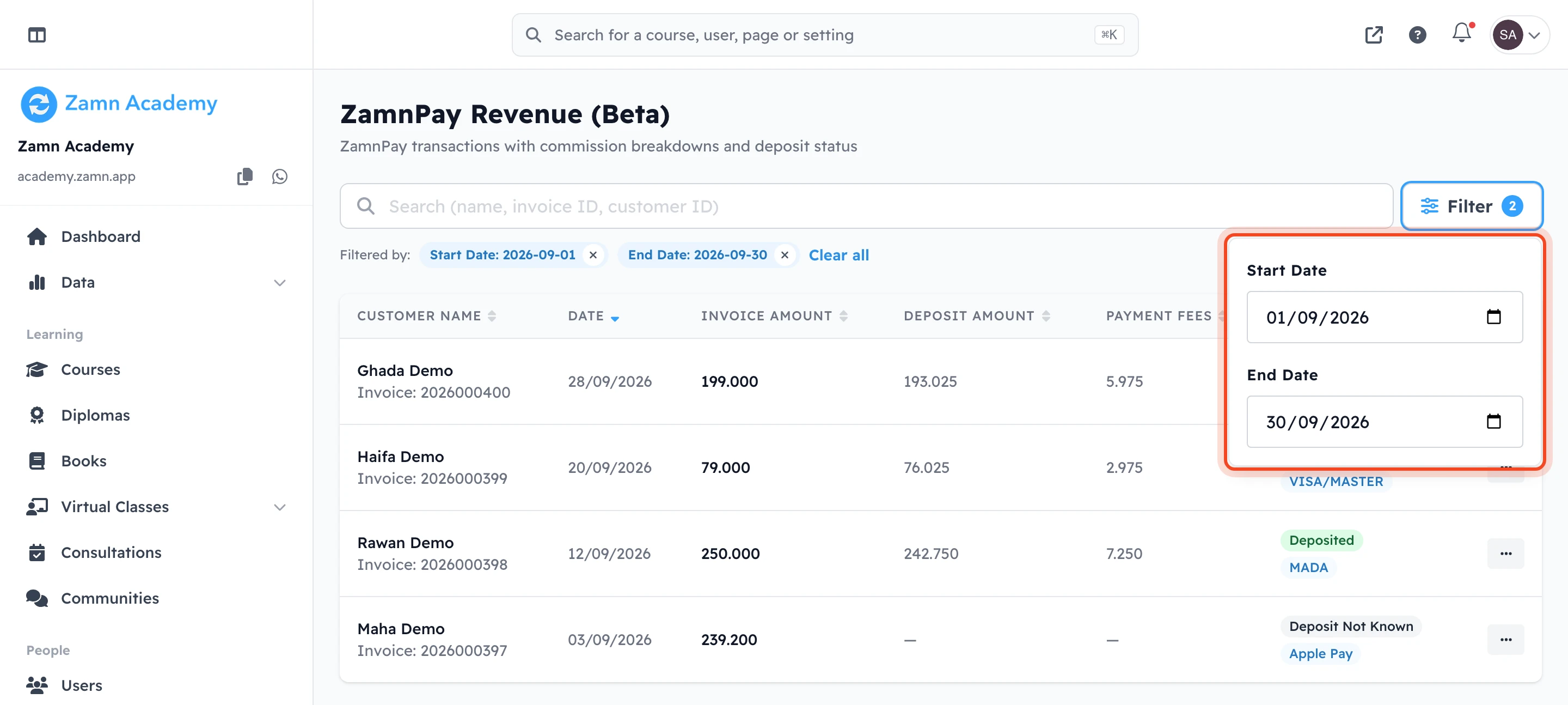
To see the payments of a period, click Filter, then choose a Start Date and an End Date. The dates you chose show next to Filtered by:. To remove one, click the × next to it, or click Clear all.
-
To sort the table, click Customer Name, Date, Invoice Amount, Deposit Amount or Payment Fees at the top of the table. Click it again to change the order. Payments with a dash (—) in that column always stay at the end.
If you have many payments, use the page numbers under the table.
To download all your ZamnPay payments as a file, go to Data tools > Exports, click New Export, then click Export next to ZamnPay Revenue in the Money group. Learn more: Reports and exports.