How to access users
The Users page shows everyone who signed up on your platform, by type. It makes it easy to manage users and find them quickly.
The page lists all users on the platform in a table, with each user's name and the last time they signed in (Last seen).
-
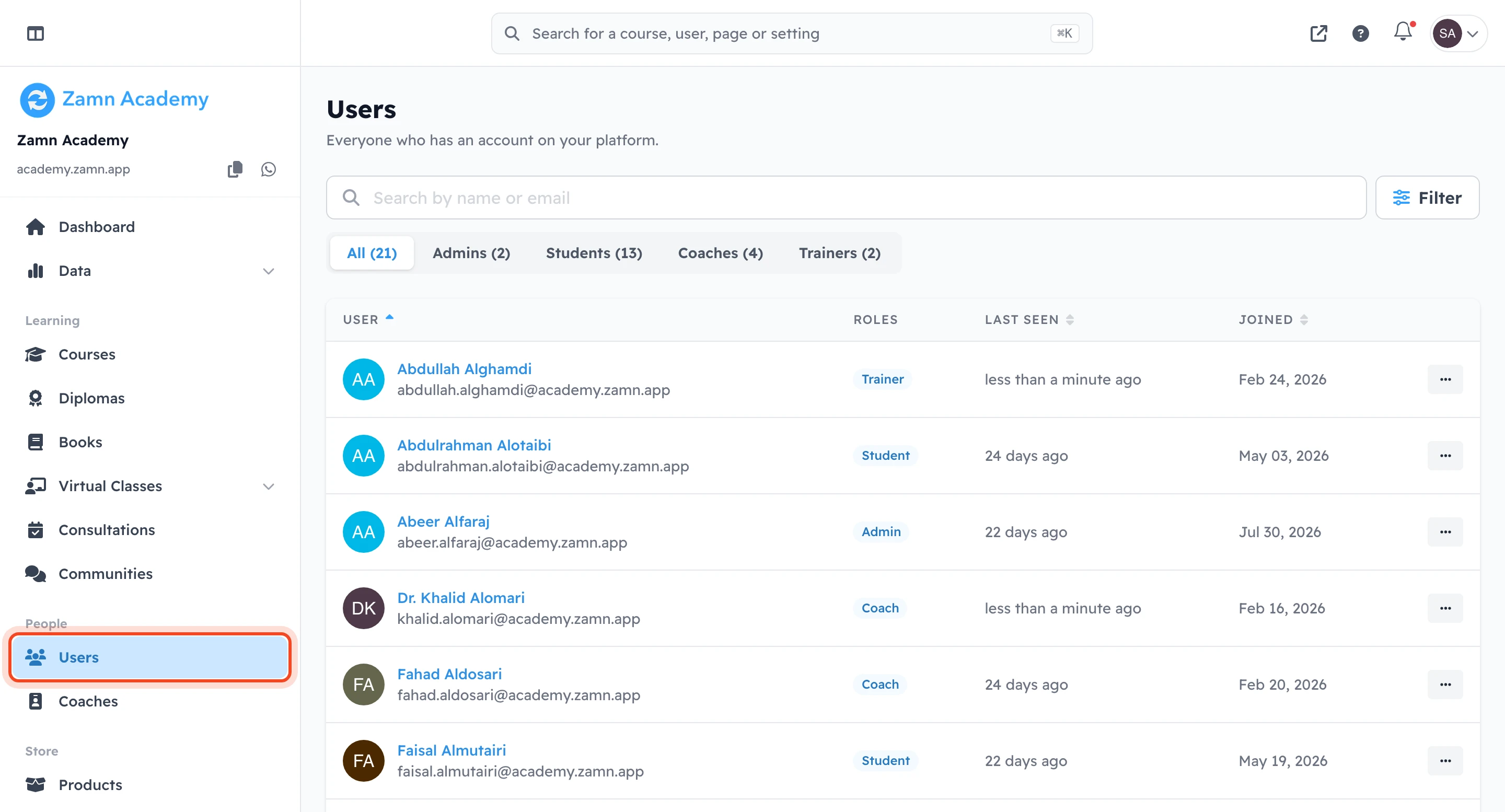
In the side menu of the dashboard, under People, click Users.
-
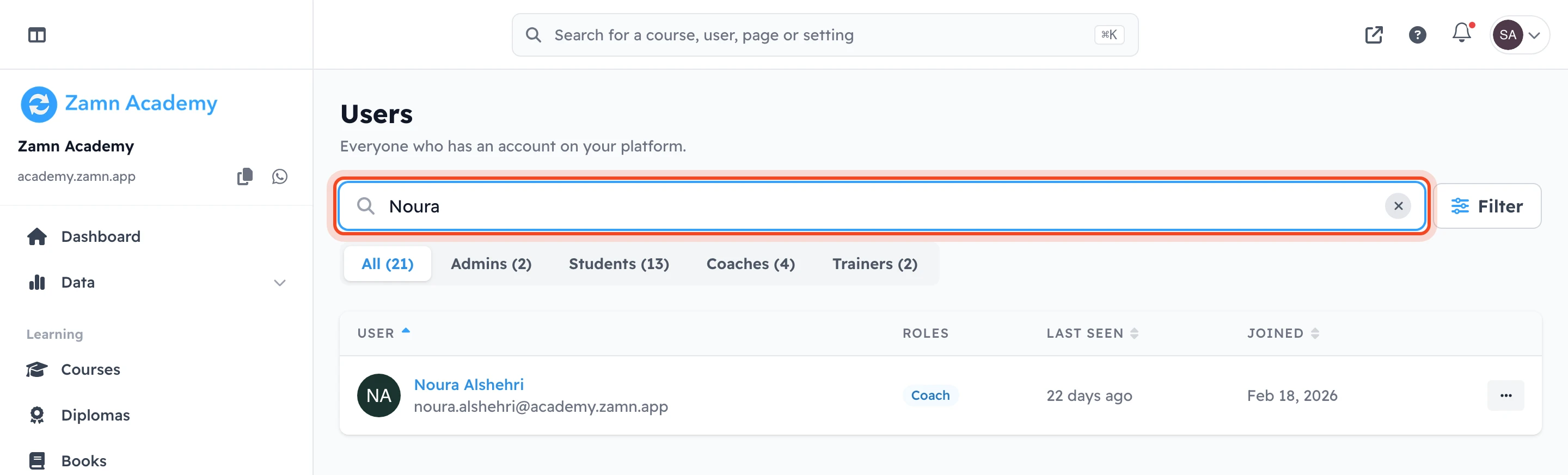
Use the search box at the top of the page to find a user by name or email.
-
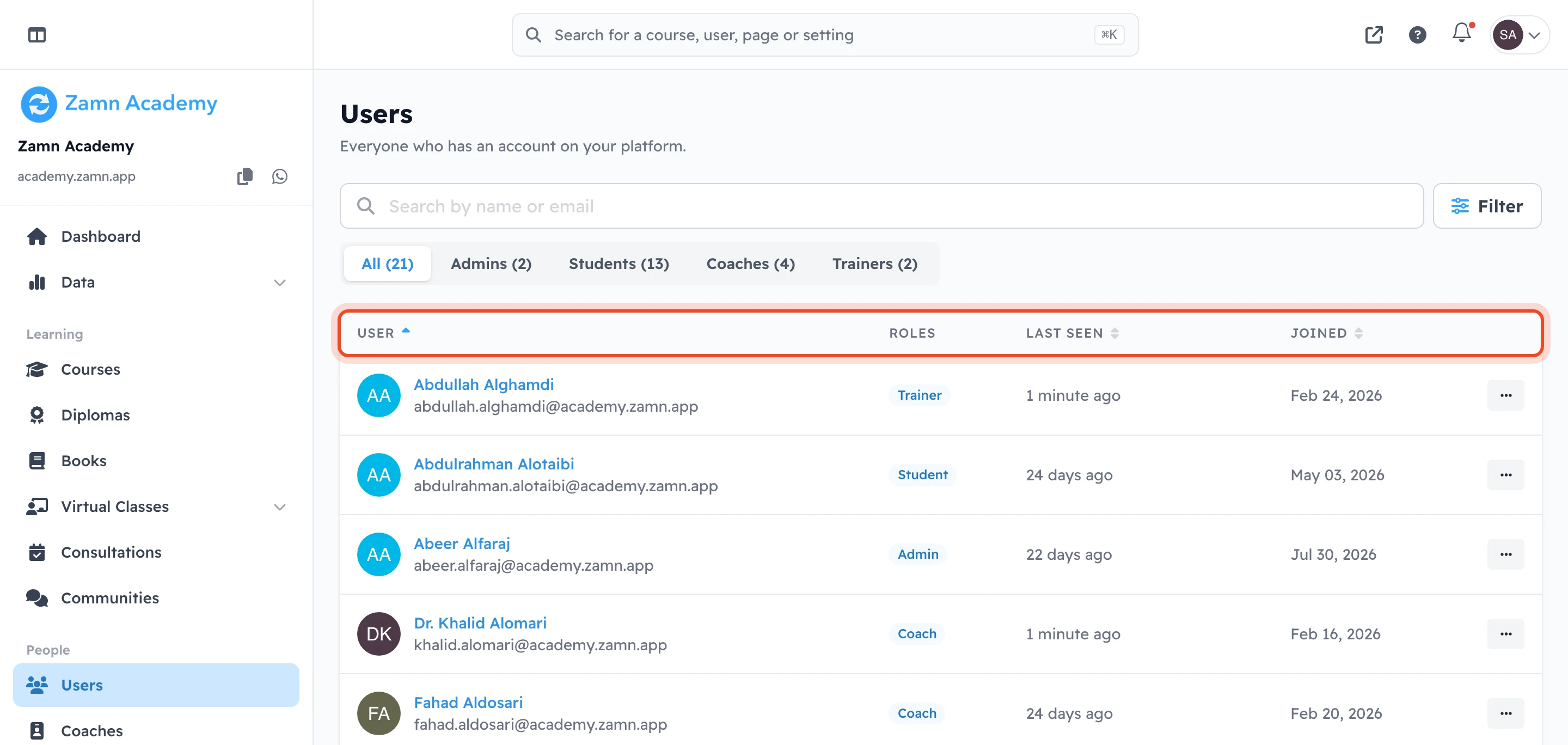
To sort users, click the User, Last seen or Joined column header. Click the same header again to flip the order.
-
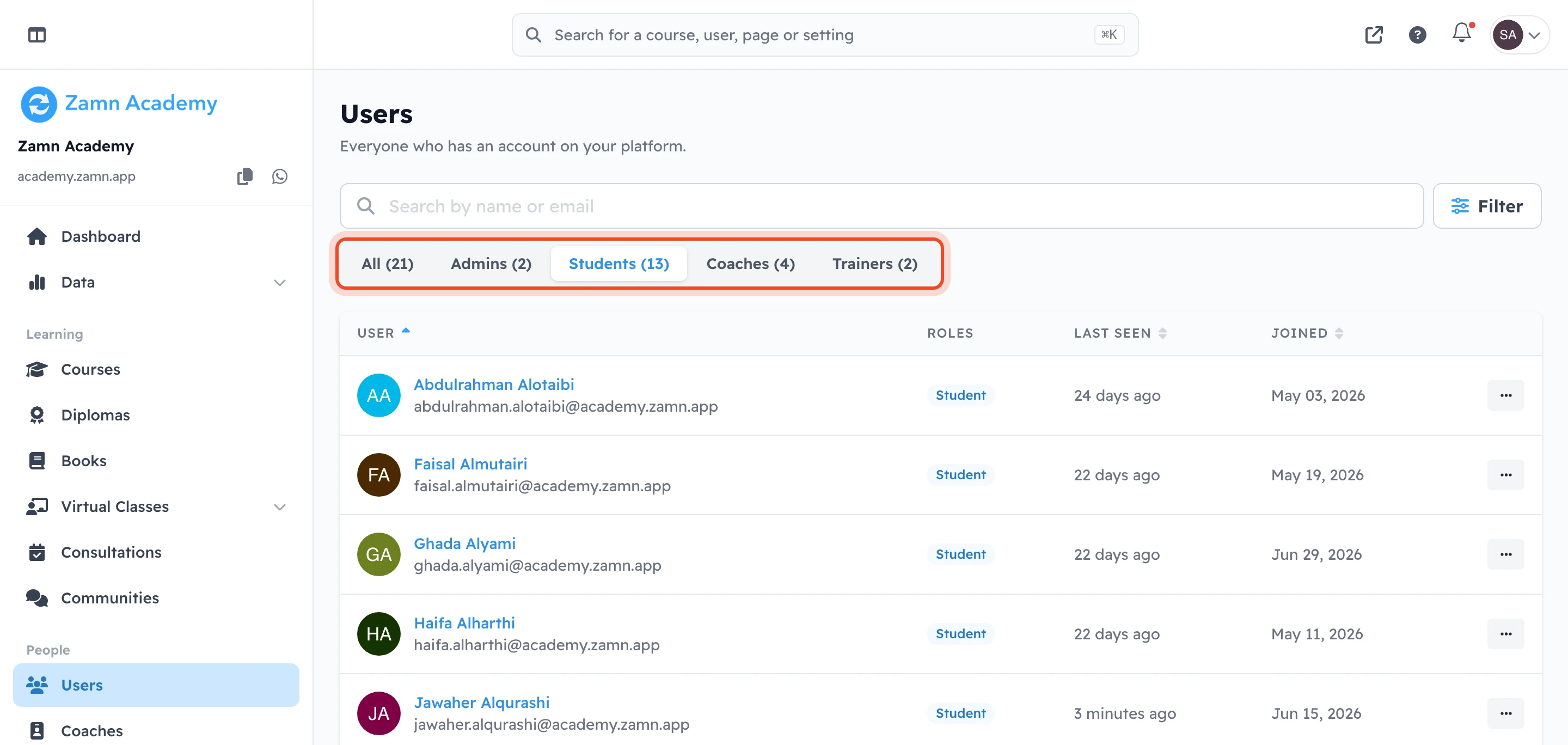
Use the tabs to show users by type: All, Admins, Students, Coaches and Trainers. Each tab shows how many users it has.
-
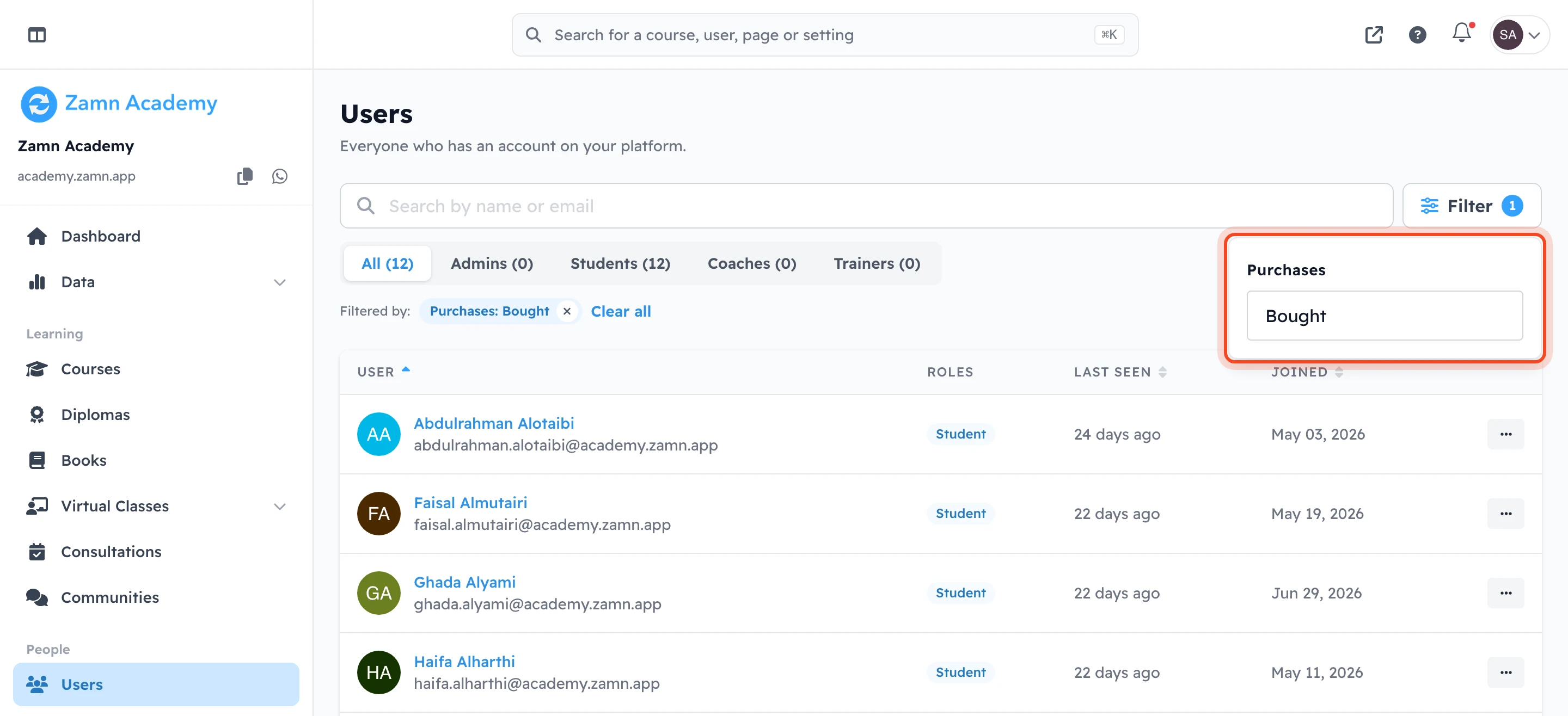
To see only the users who bought something, click Filter, then choose Bought in the Purchases list. Choose Never bought to see the users who never bought anything.
-
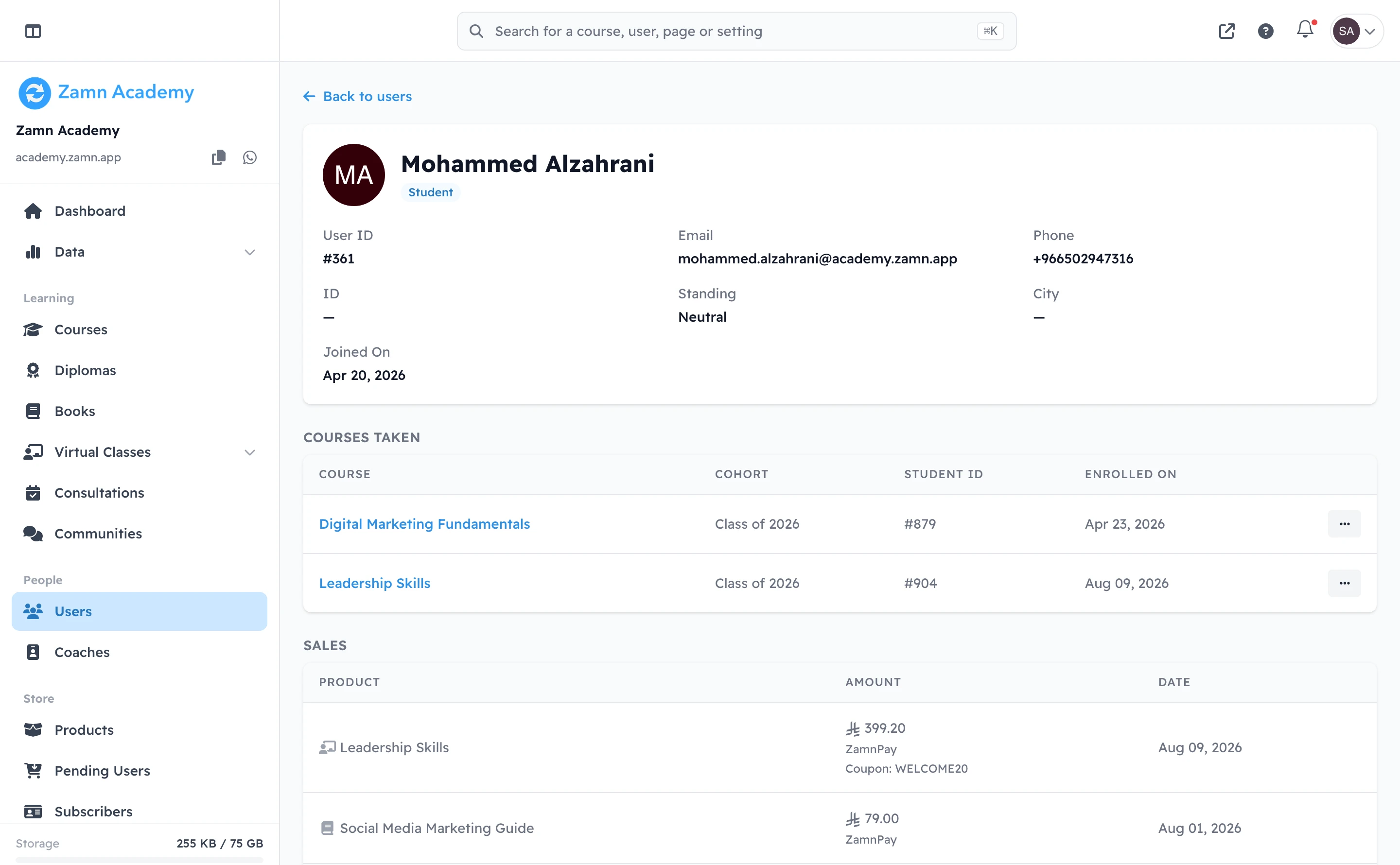
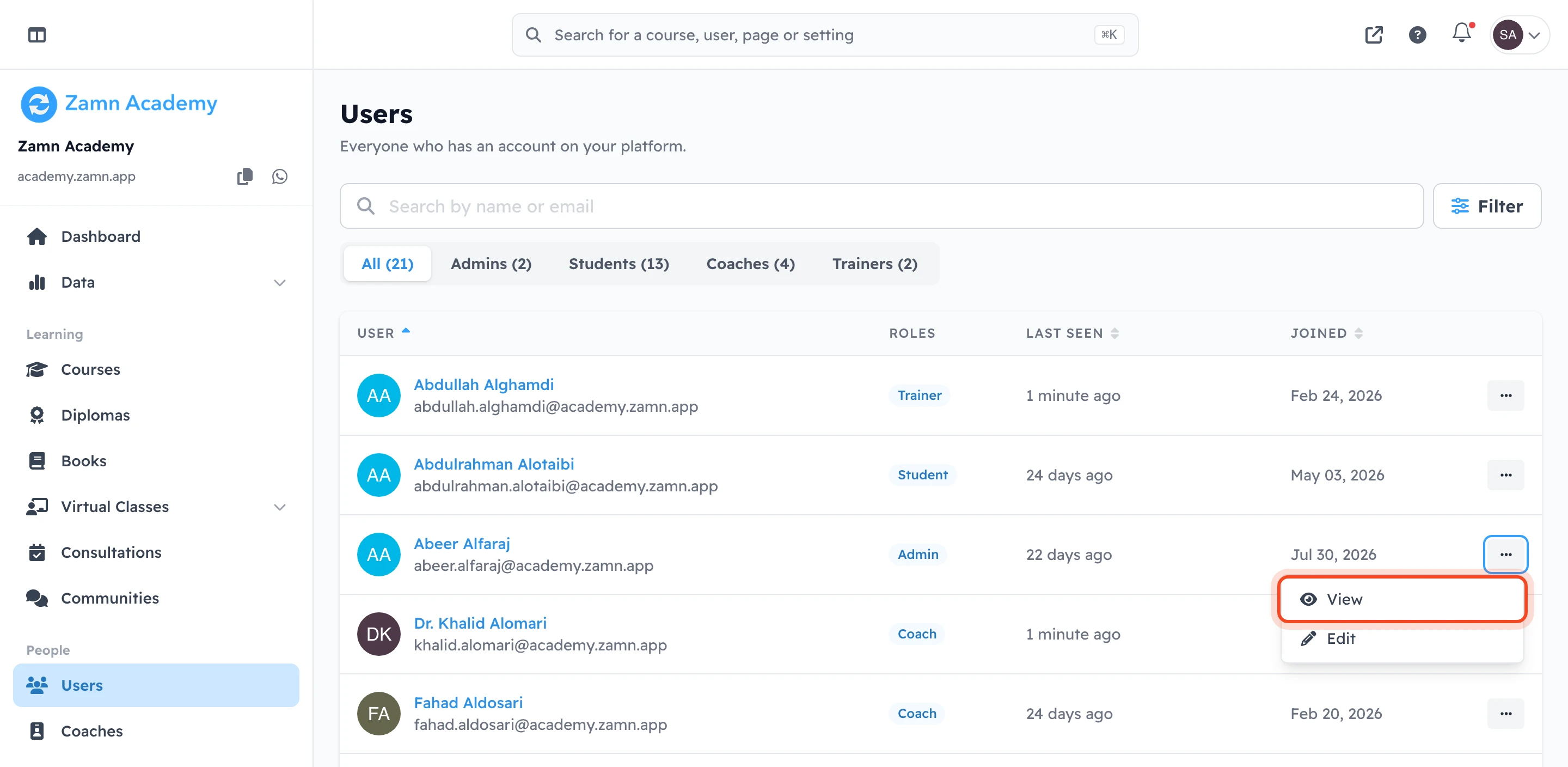
To open a user's page, click their name, or click the ⋯ (Actions) button at the end of their row, then click View.
The user page shows the user's details at the top. Under them, the Courses taken section shows the courses the user is taking, the Sales section shows what the user bought, and the Coaching and training section shows the courses they coach or train. A section shows only when the user has something in it.