Safe Exam Browser
What is the Safe Exam Browser?
The Safe Exam Browser is a web browser for taking tests online safely. It turns any computer into a secure workstation, controls access to apps and websites, and stops students from using resources that are not allowed.
This feature is available on the Pro and Organizations plans, on platforms linked to the National eLearning Center (NELC), and during the free trial. On other plans, the page shows a message asking you to upgrade your plan.
How to turn on the Safe Exam Browser
-
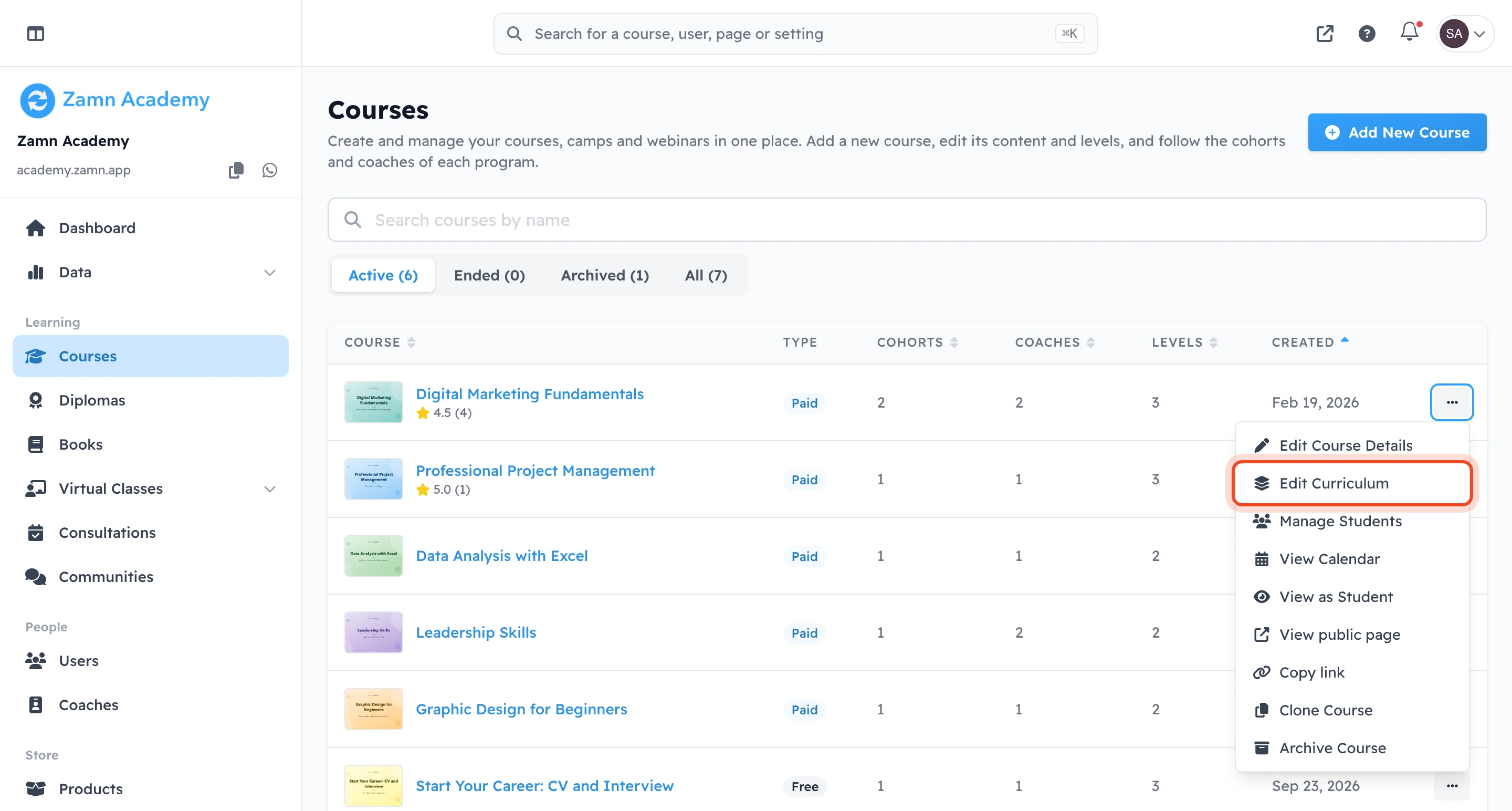
Go to the Courses page. Click the course name, or click ⋯ at the end of its row, then click Edit Curriculum.
-
From the course dashboard, choose Exam Browser.
noteIf the course has no test with advanced questions, the page shows No exam targets in this course and a Go to curriculum button. Add a target whose completion method is Advanced questions reviewed by coach, then come back to this page.
-
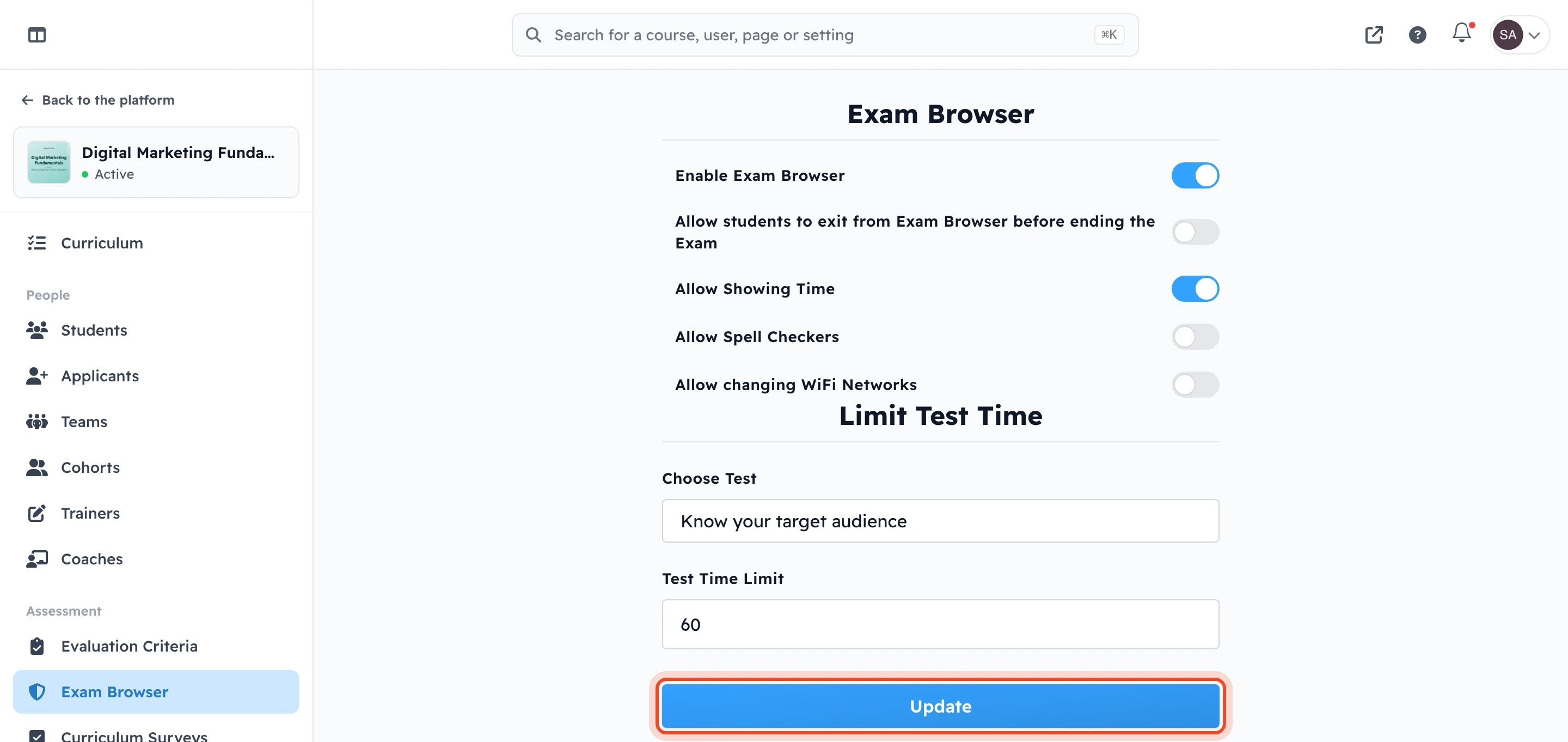
Turn on Enable Exam Browser. After you turn it on, you can set these options:
- Allow students to exit from Exam Browser before ending the Exam.
- Allow Showing Time.
- Allow Spell Checkers.
- Allow changing WiFi Networks.
-
From the Choose Test list, pick the test. The list shows only targets that have advanced questions.
-
Enter the Test Time Limit in minutes.
-
Click Update to save.
When the set test time ends, the student cannot take the test again until 24 hours have passed. The test time resets automatically after that.
The test from the student's side
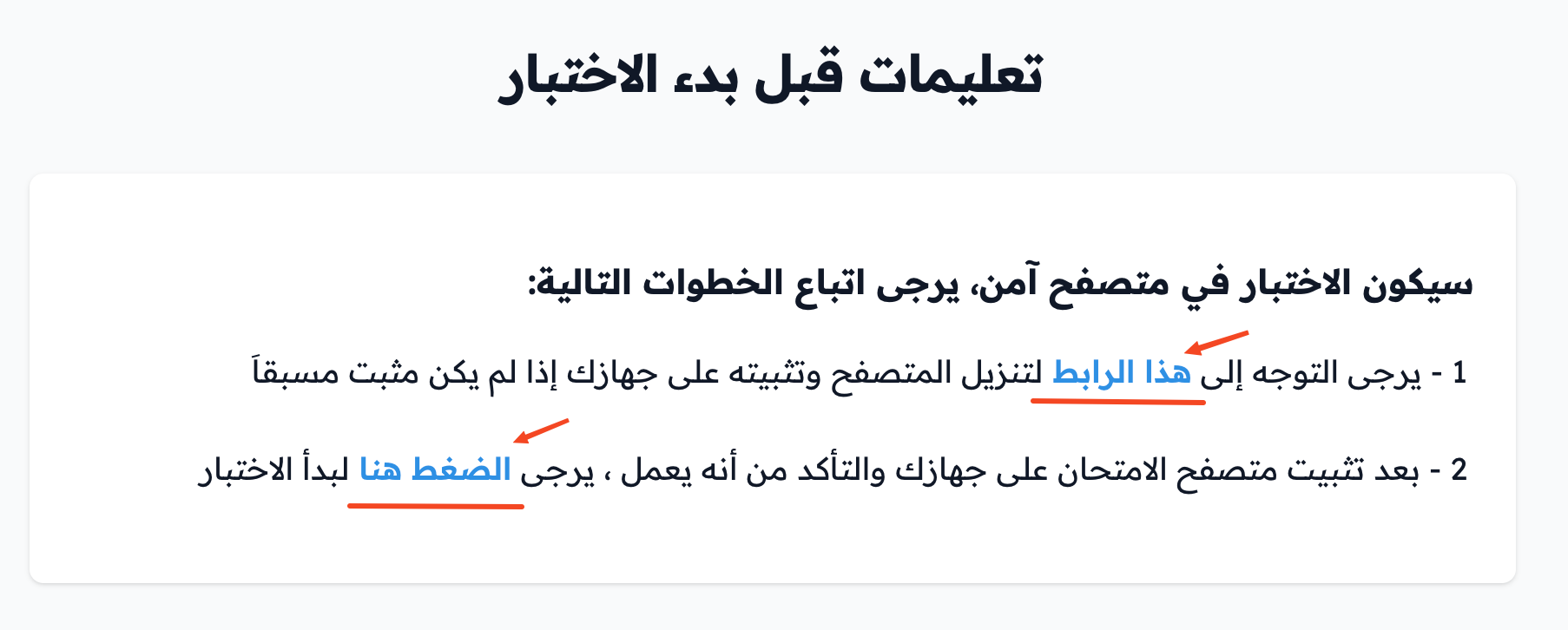
The student must follow these instructions to take the test in the Safe Exam Browser:
-
Download and install the secure browser on their device from This link, if it is not installed yet.
-
Click Click This Link to start the test.