Activity log
The activity log shows the important actions that happen on your platform: who did them, on what, and when. For example, it tells you who deleted a room or added a new admin. This page is only for platform admins. Coaches and trainers cannot see it.
Open the activity log
-
In the side menu of the dashboard, under Account, click Data tools.
-
Click Activity.
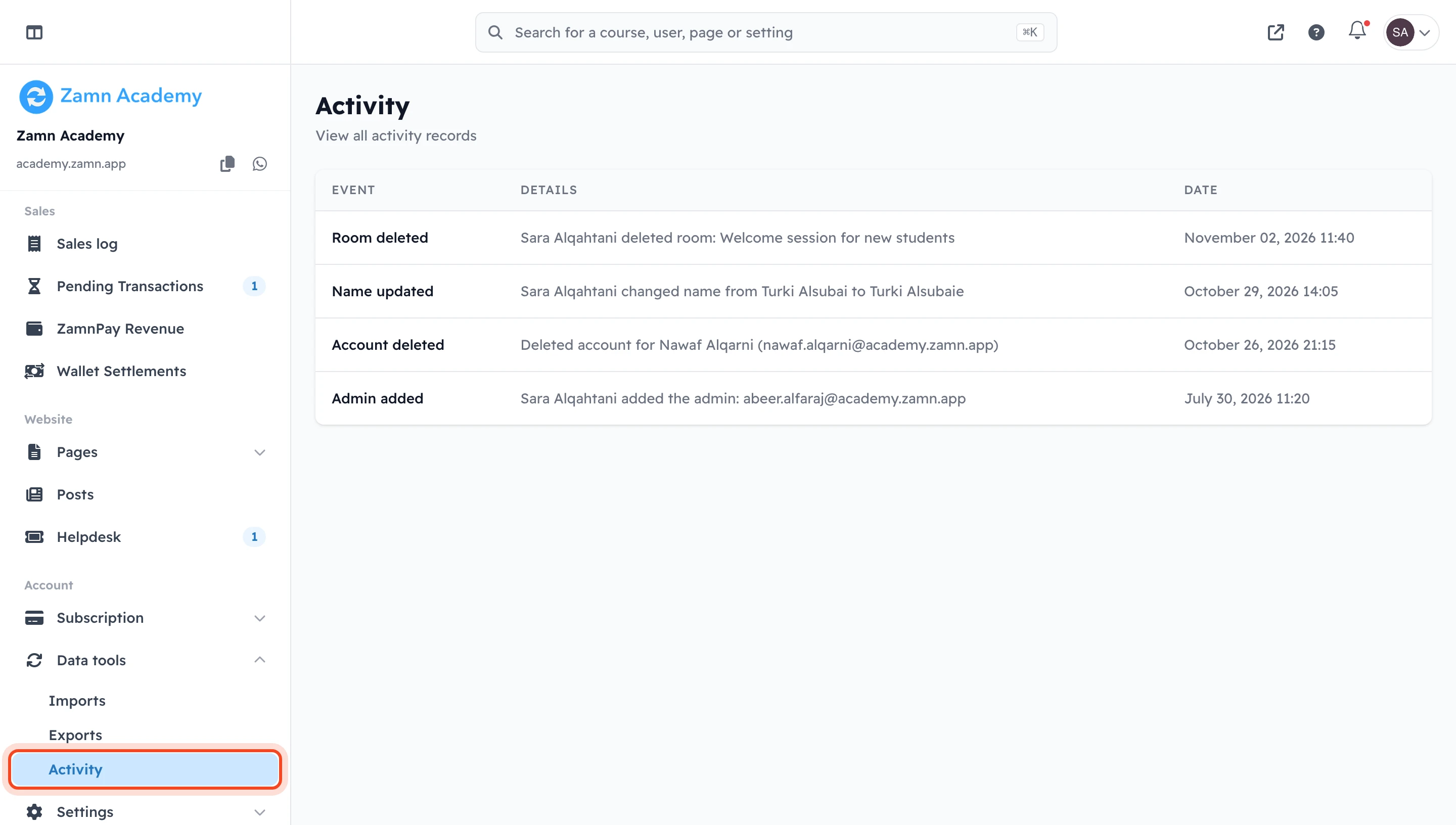
Read the log
The log is a table with three columns:
- Event: the type of action, like Room deleted or Admin added.
- Details: for most events, who did the action and on what, like the name of the deleted room or the email of the new admin.
- Date: the day and time of the action.
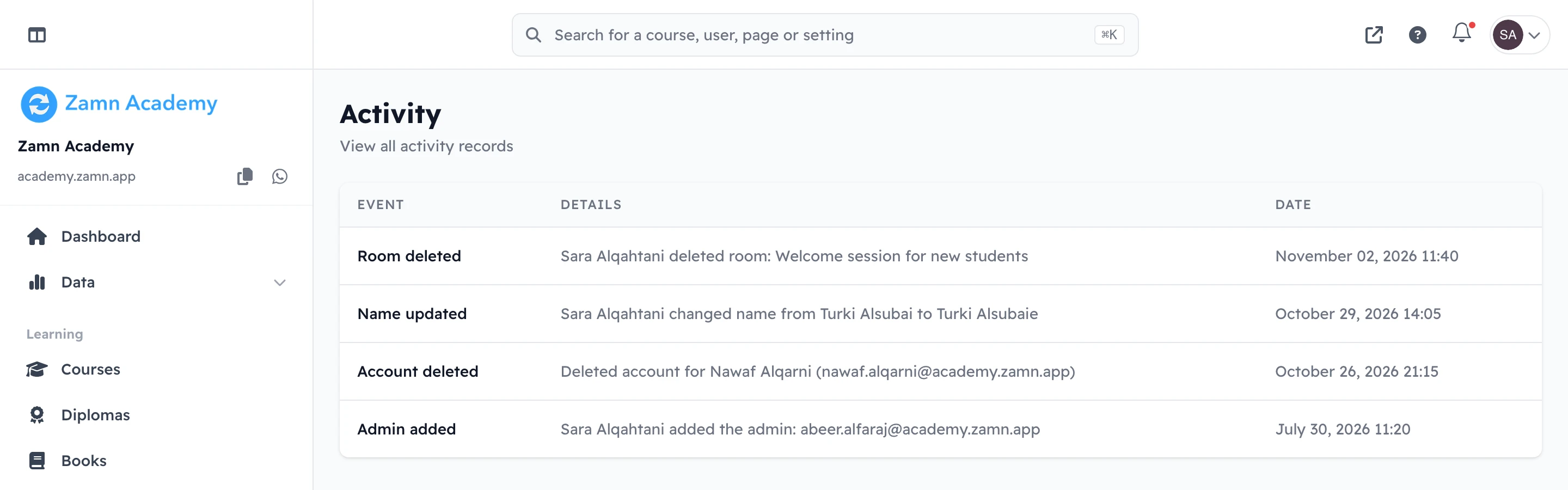
The newest events show first. Each page shows 24 events. To see older events, use the page numbers under the table. If nothing has happened yet, the message No activity records found shows.
You cannot edit or delete the events in the log. If the account of the person who did an action was deleted, Deleted User shows in place of their name.
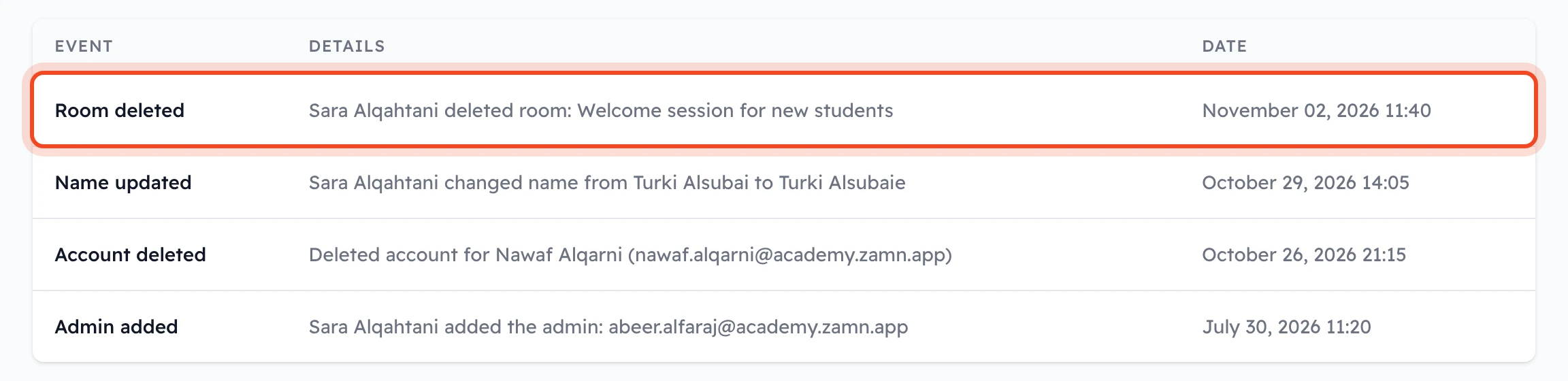
Find out who deleted a room
When an admin deletes an online room, a row with the event Room deleted shows in the log. The Details column shows who deleted it and the room name. The room name stays in the log even after the room is gone.
Events the log records
- Admin added: an admin adds a new admin to the platform.
- Admin removed: an admin is removed on the Admins page, by another admin or by the admin themselves.
- Room deleted: an admin deletes an online room.
- Recording deleted: an admin deletes a room recording. The details show the recording ID.
- Student dropped out: an admin clicks Dropout Student to remove a student from a course.
- Name updated: a user changes their name in their account settings, or an admin changes a student's name in the student's details in a course. The details show the old name and the new name.
- Email updated: a user changes the email of their account and confirms the new email. The details show the old email and the new email.
- Account deleted: a user deletes their account. The details show their name and email.
- Maintenance mode toggled: an admin turns maintenance mode on or off in General Settings.
- Parent added and Parent removed: an admin links a parent to a student, or removes them.
- Parent access toggled: an admin turns Parent Access on or off in General Settings.
For the last four events (maintenance mode, parent added, parent removed and Parent Access), the Details column is empty.
If your platform is connected to the National eLearning Center, the log also shows each learning event that Zamn sends to the center, with the student's name and the course or lesson in the Details column: Course registered, Course initialized, Course progressed, Lesson attended, Lesson completed, Video watched, Quiz attempted, Module completed, Course completed, Course rated, Certificate earned.