Abandoned cart
Exporting abandoned cart data shows you the customers who added products to their cart but did not finish paying. This helps you contact them and encourage them to complete their order.
How to get the abandoned cart list
-
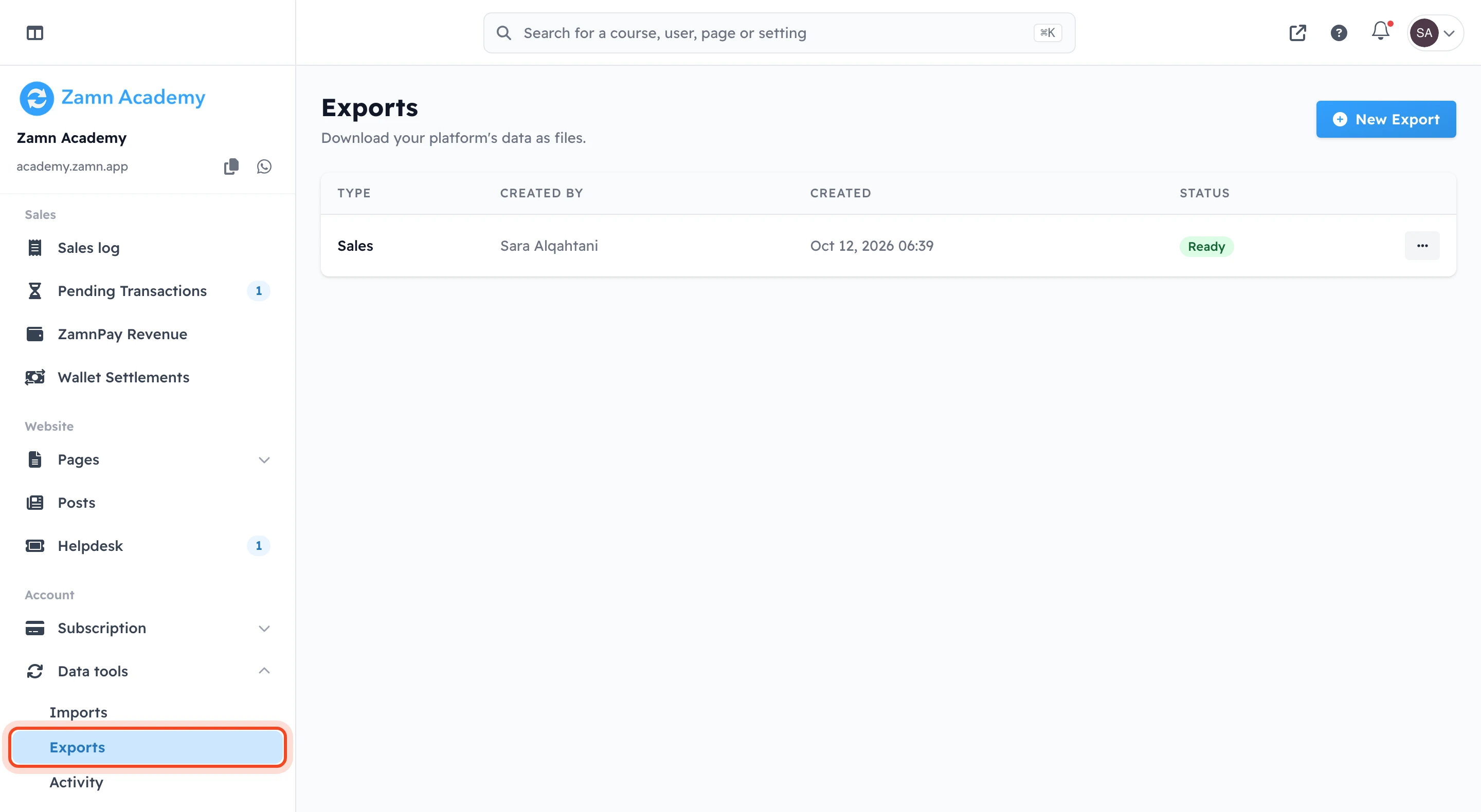
In the side menu of the dashboard, under Account, click Data tools.
-
Click Exports.
-
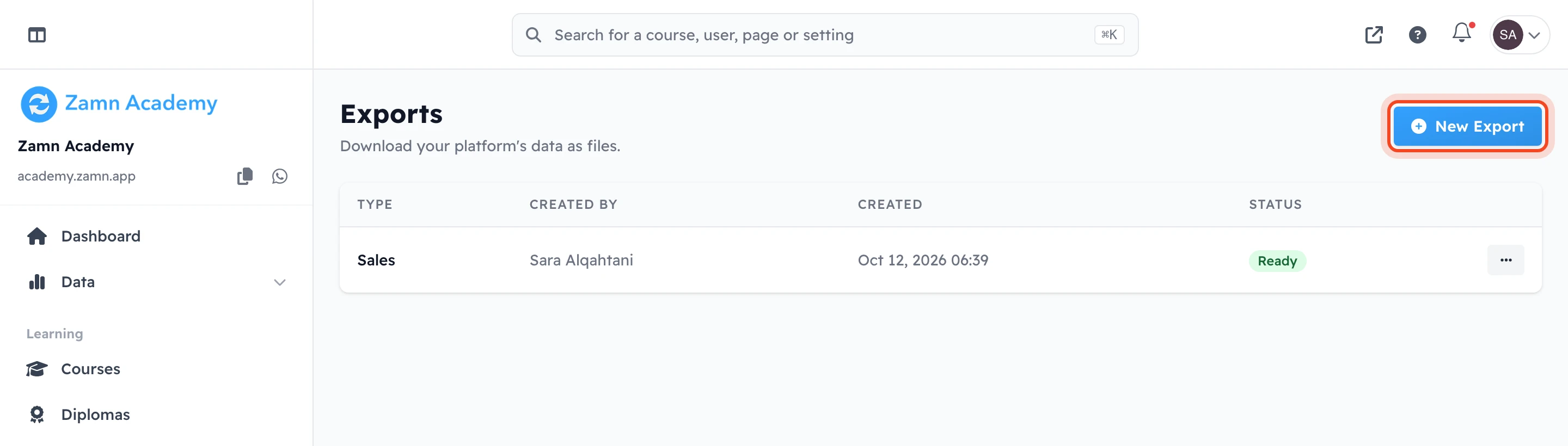
Click New Export. A side panel opens with the export types.
-
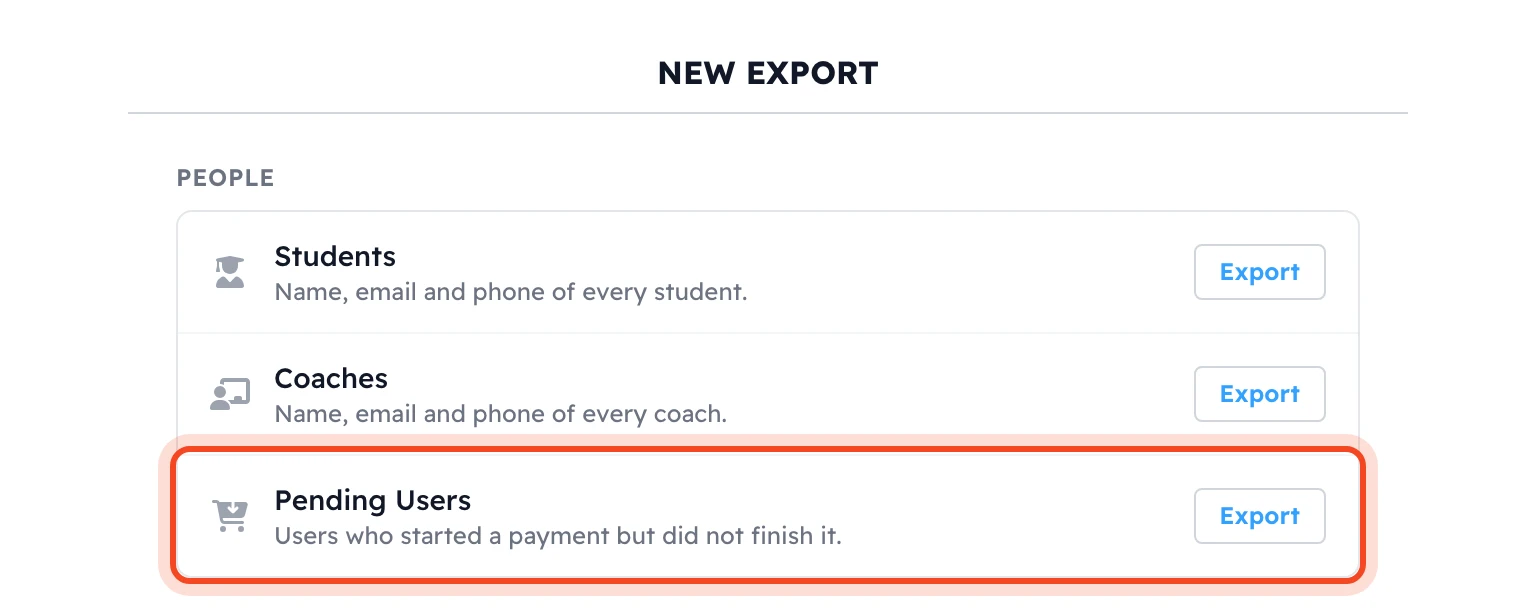
Under People, click Export next to Pending Users.
-
A message tells you that the export is being processed. The file shows right away as a row in the exports table, with the status Preparing. Wait until its status is Ready.
-
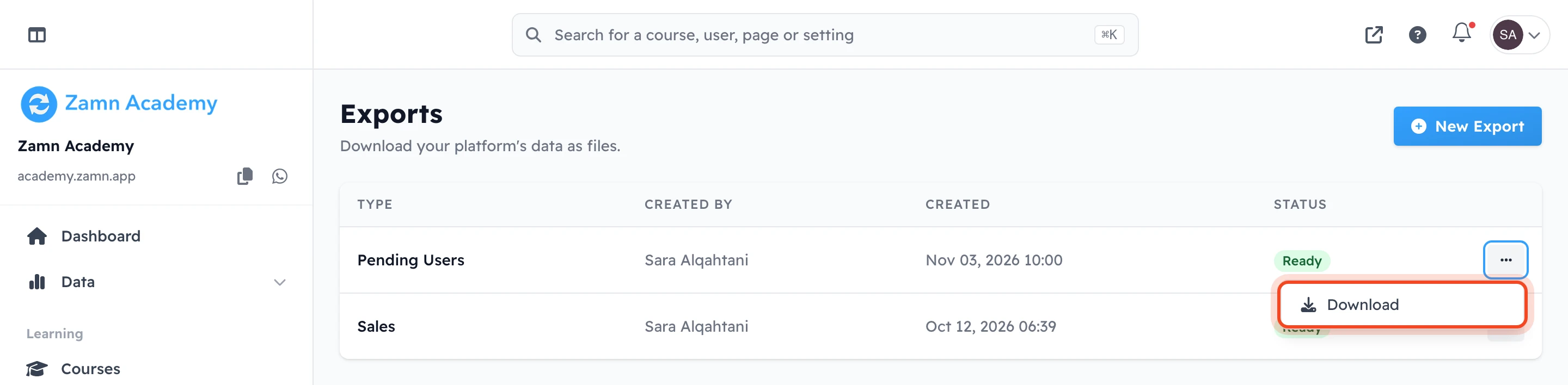
Click the ⋯ (Actions) button at the end of the file's row, then click Download.
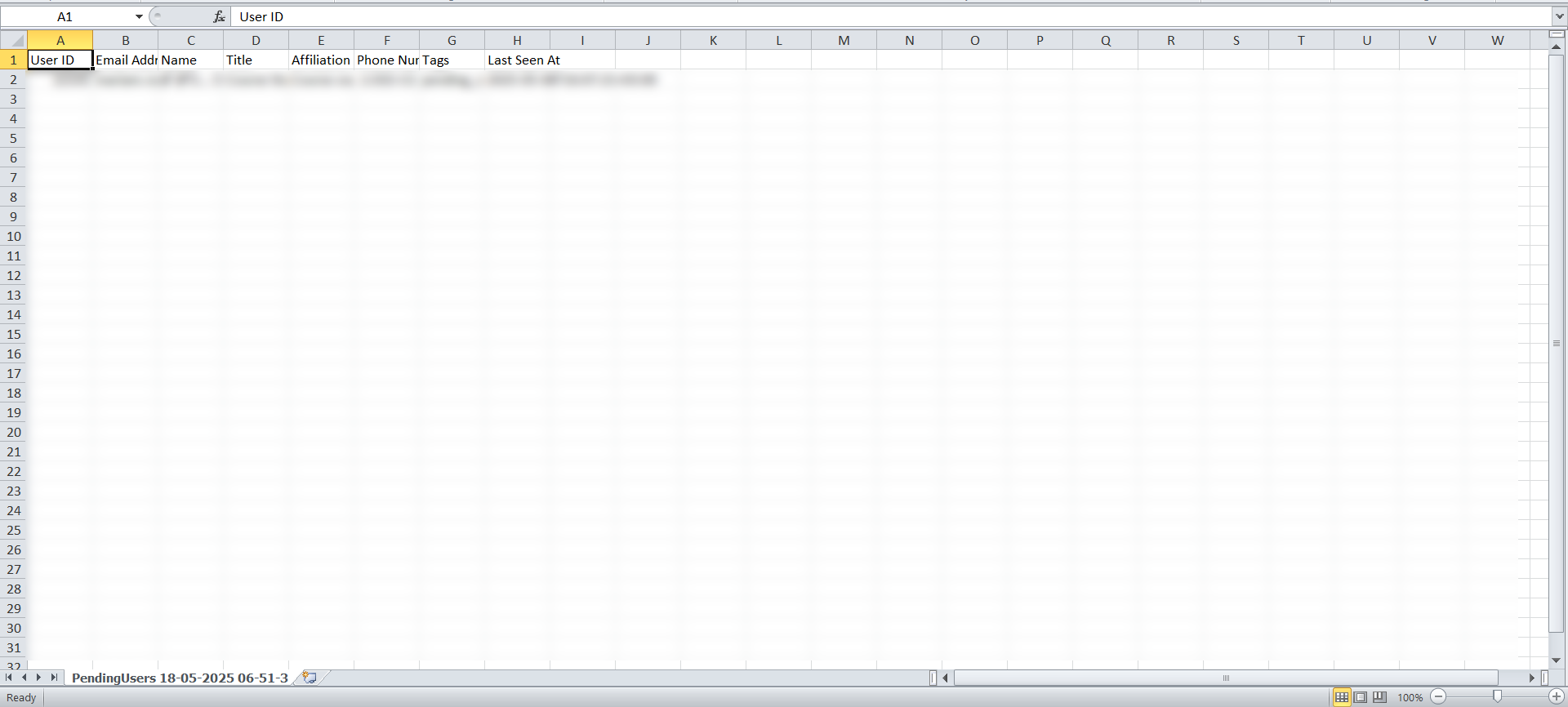
The exported file lists the customers who left products in their cart without finishing the purchase, with the products each customer is waiting to pay for (Waiting To Pay For). This makes it easy to follow up with them and target them again.
View the list on the Pending Users page
You can also see the same customers in the dashboard, without exporting a file.
- In the side menu of the dashboard, under Store, click Pending Users. The table shows each customer, the product they are waiting to pay for (Waiting to pay for), when they started (Started) and when they were last seen (Last seen).
- To find a customer, type their name, email or phone number in the search box.
- To see the customers of one product only, click Filter, then choose the product in the Product list.