Add content to a course and its types
Zamn lets you add different types of content to a course, such as text, images, videos and files. This article shows you how.
Steps to add content to a course
-
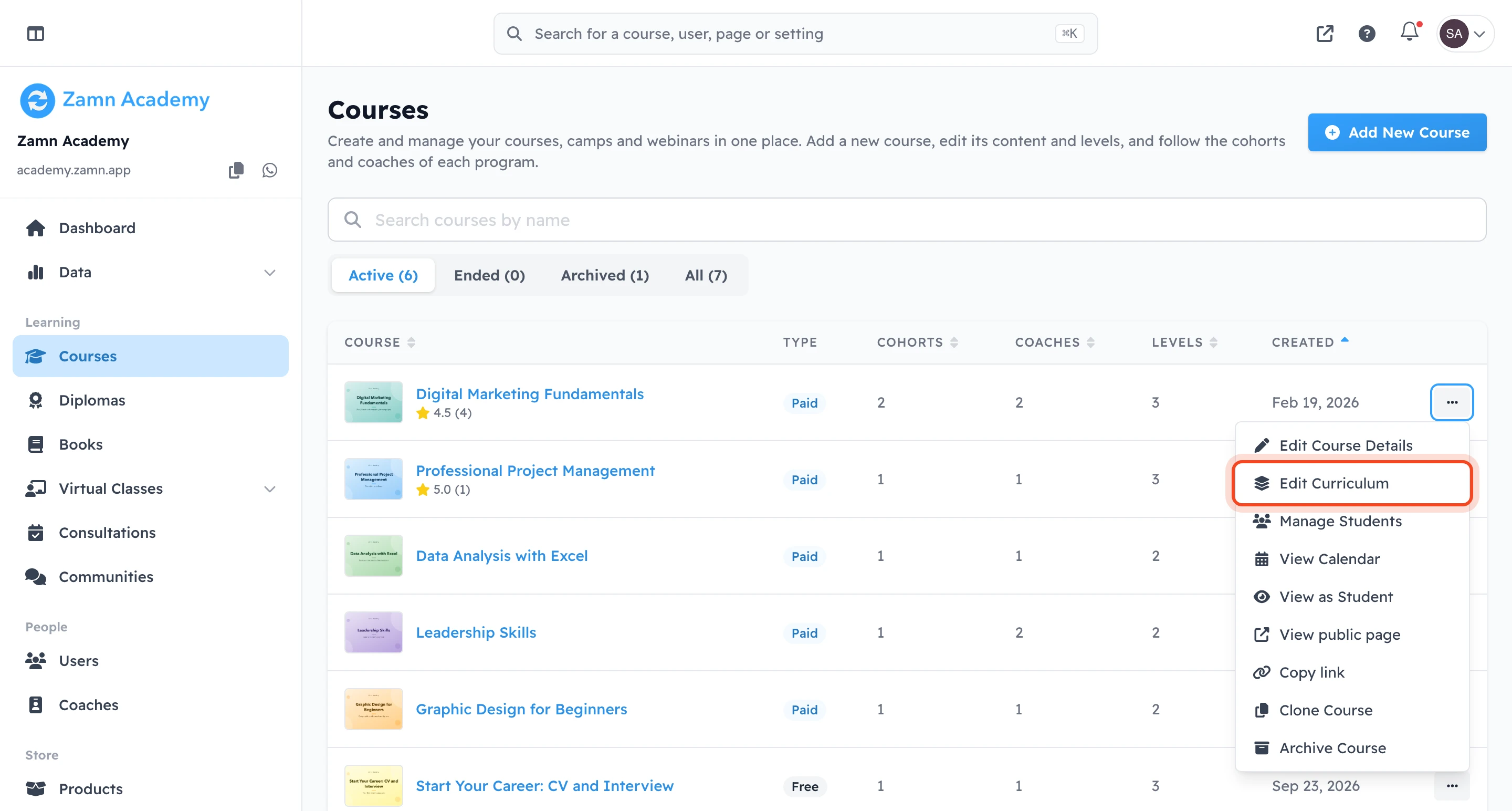
Go to the Courses page. Click the course name, or click ⋯ at the end of its row, then click Edit Curriculum.
-
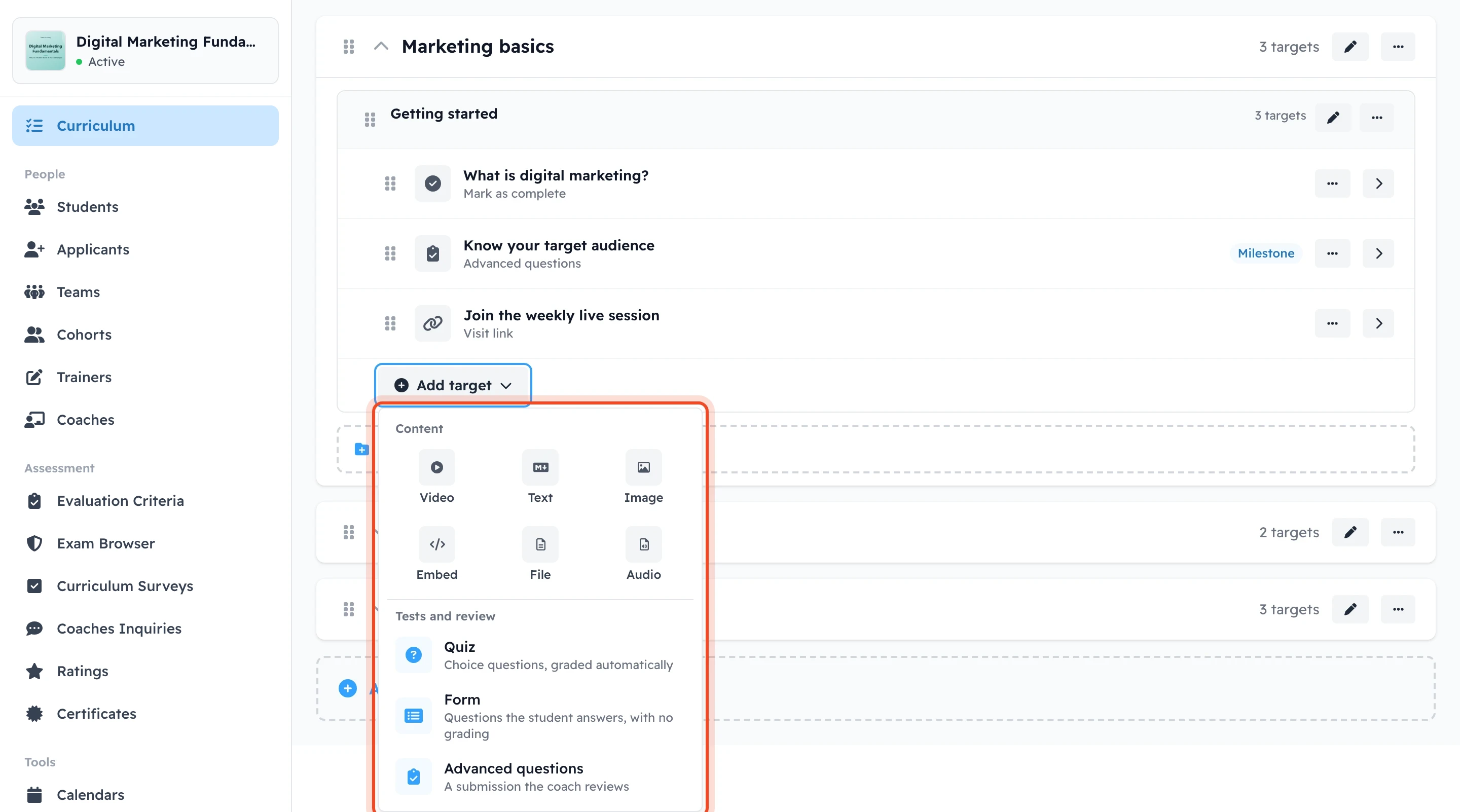
On the Curriculum page, click the name of an existing target to edit it. To make a new target, click Add target at the end of a target group, then choose the type of the target. The new target is a Draft, and it opens right away.
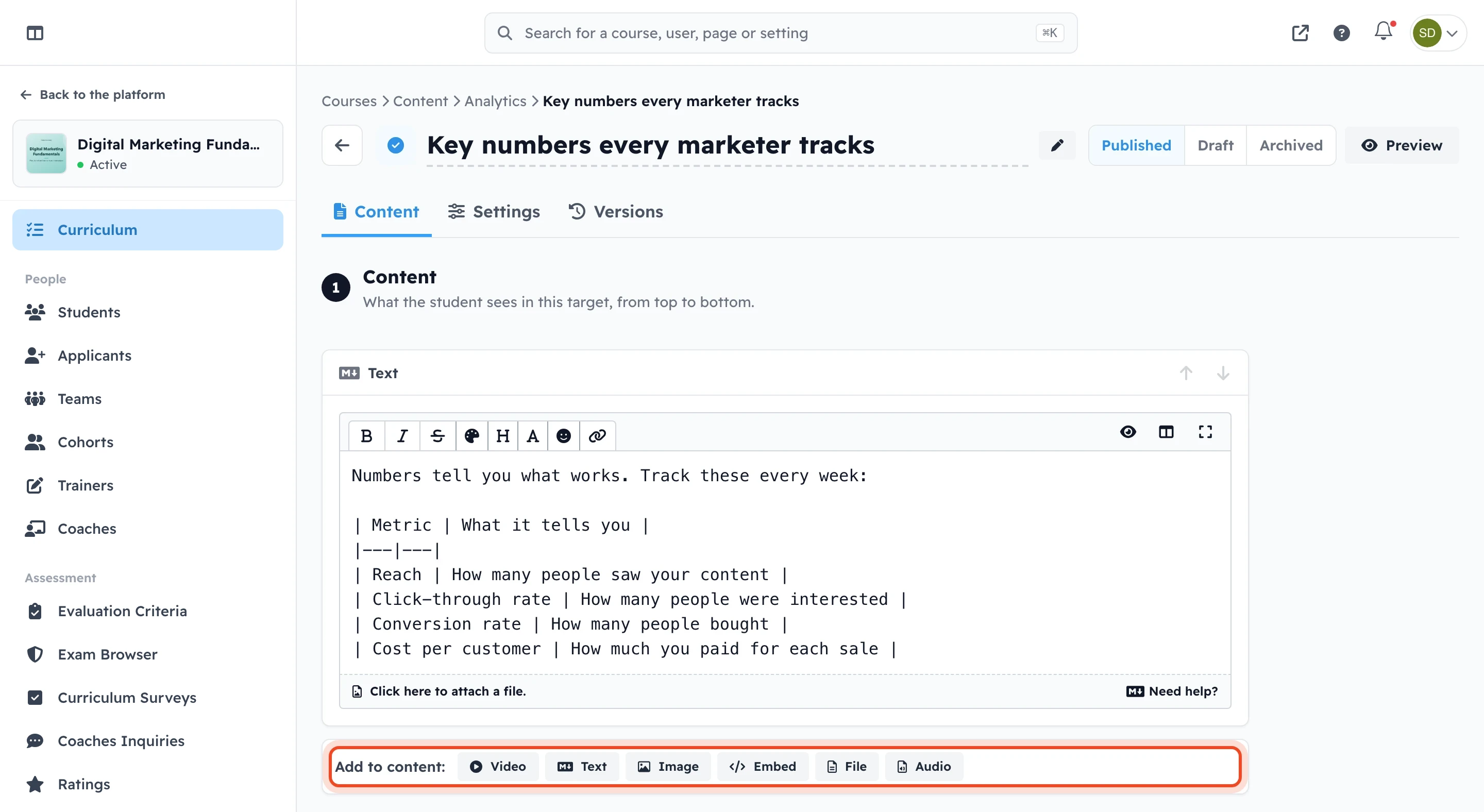
From the Content tab of the target, you can add different types of content. Click a type next to Add to content:.
Content types you can add
- Text: add new text.
- Image: add images.
- Embed: add links from YouTube, SlideShare, Google Drive and Microsoft 365.
- Video: upload a video with Zamn Stream. Each video uses your platform's storage space. This button shows only on the Growth, Pro and Organizations website plans, and during the free trial.
- File: add different kinds of files. The largest file size is 100 MB.
- Audio: upload an audio clip. The largest audio file size is 100 MB.
To change the order of the content, use the up and down arrows at the top of each block.
Target settings
From the Settings tab of the target:
-
Change the Target group if you want to move the target to another group.
-
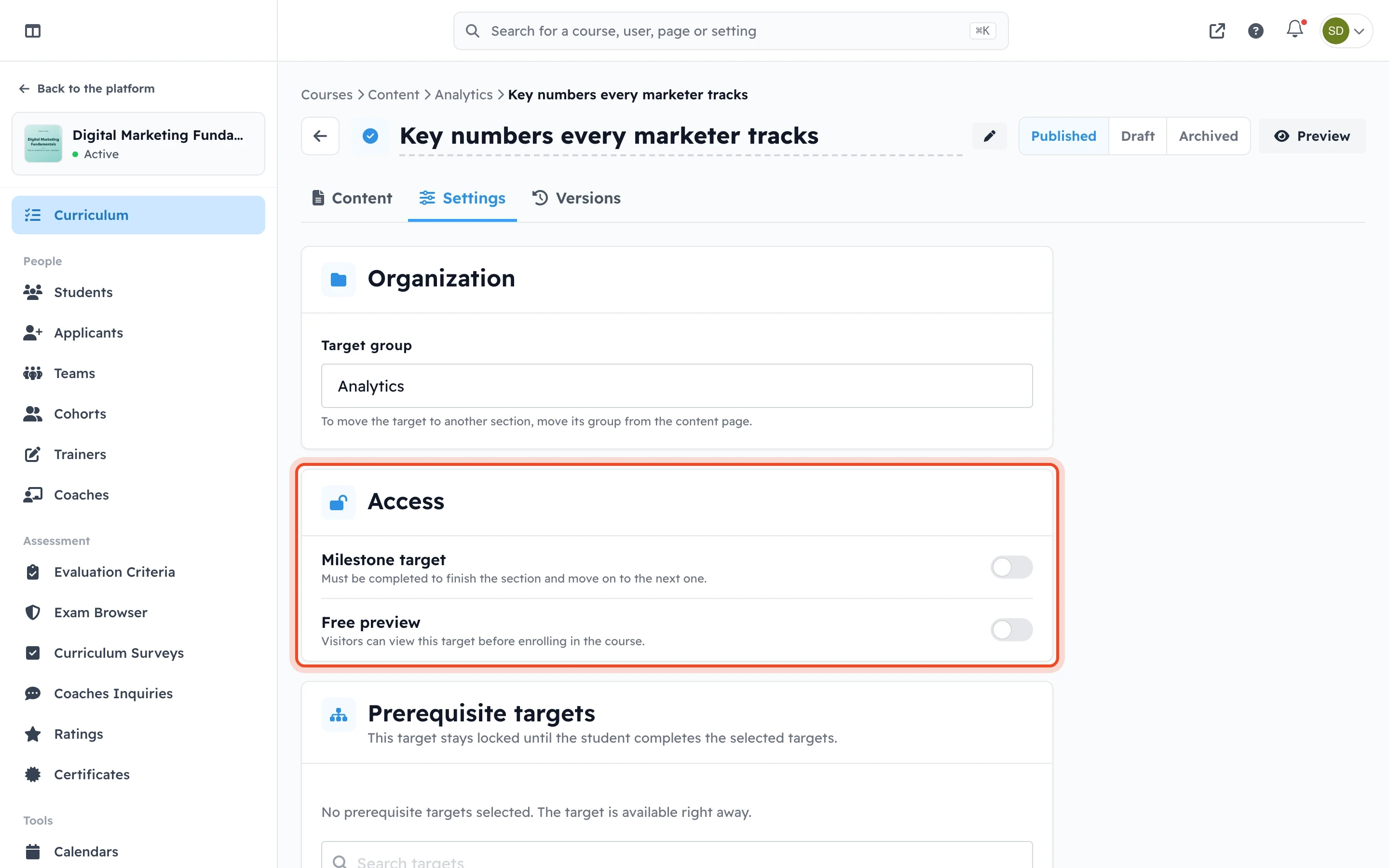
Turn on Milestone target if the target is a milestone. Students must complete a milestone target to finish the section and move on to the next one.
tipYou can also turn on Free preview, so visitors to your platform can view this target before they sign up.
-
Choose the targets the student must complete before this target, under Prerequisite targets.
-
Choose how teams handle the target, under Team work.
-
Add completion instructions for the student if you want, under Completion instructions.
Publish the target
-
In the Content tab, choose how the student completes the target, under Completion and evaluation.
-
To change the target name, click the pencil next to the title at the top of the page.
-
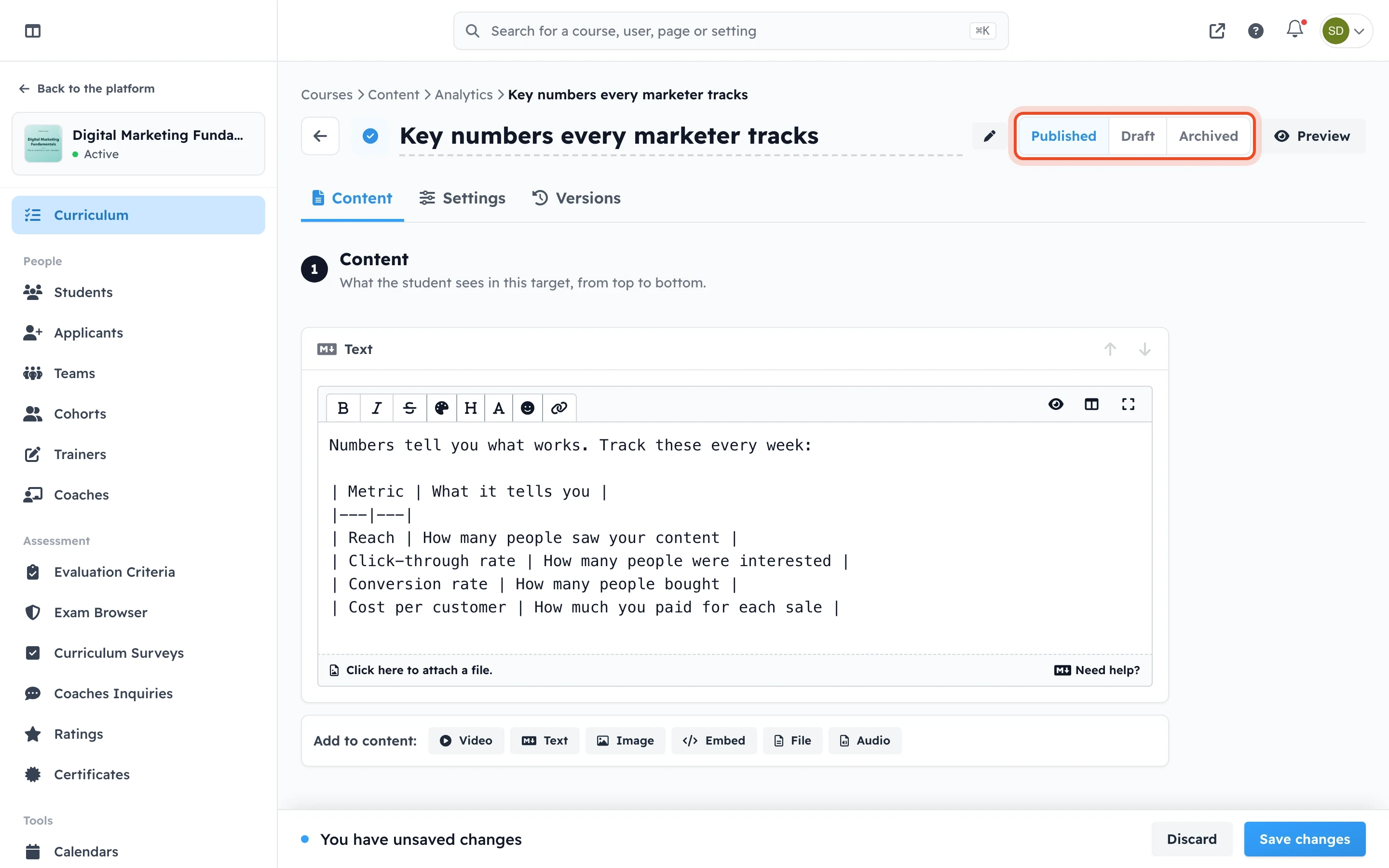
At the top of the page, click Published, so students can see the target.
-
Click Save changes in the bar at the bottom of the page.