Send an announcement popup to your students and coaches
Announcements let you show a popup message to your students and coaches when they open your platform. Each user sees an announcement once: it stays until they click Close or the announcement's button. This article is for platform admins.
Announcements work on the Growth, Pro and Organizations plans. On other plans, such as Basic, the New announcement button does not show, and the page shows the message Upgrade your platform to the Growth plan or higher to send announcements. Announcements you added before also stop showing until you upgrade.
Create an announcement
-
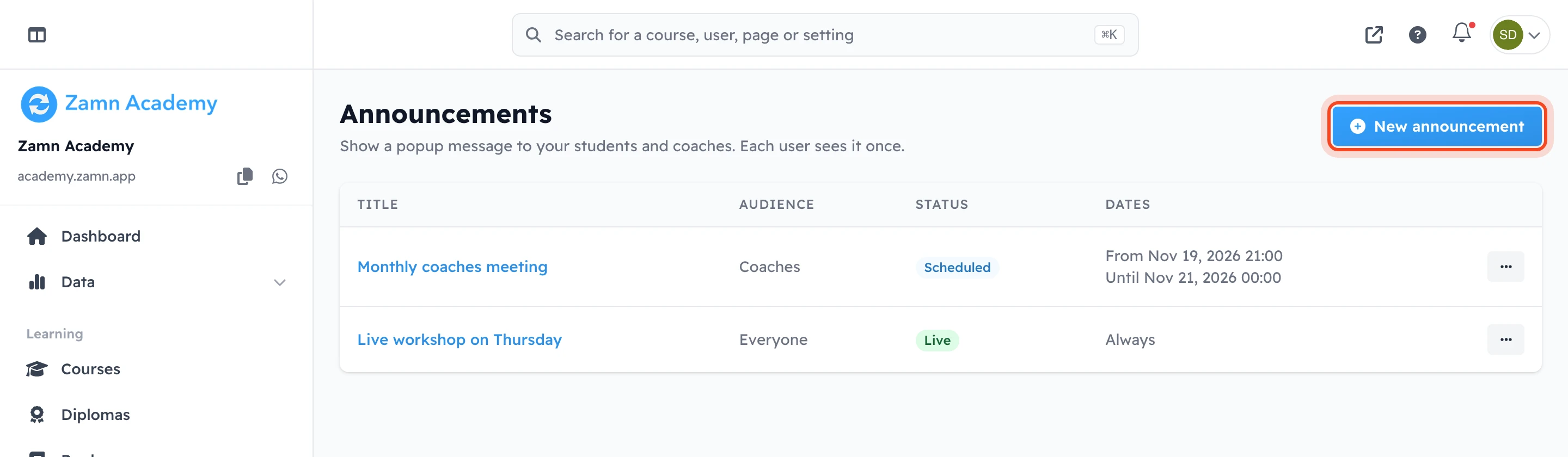
In the side menu of the dashboard, under People, click Announcements.
-
Click New announcement. The New announcement panel opens on the side.
-
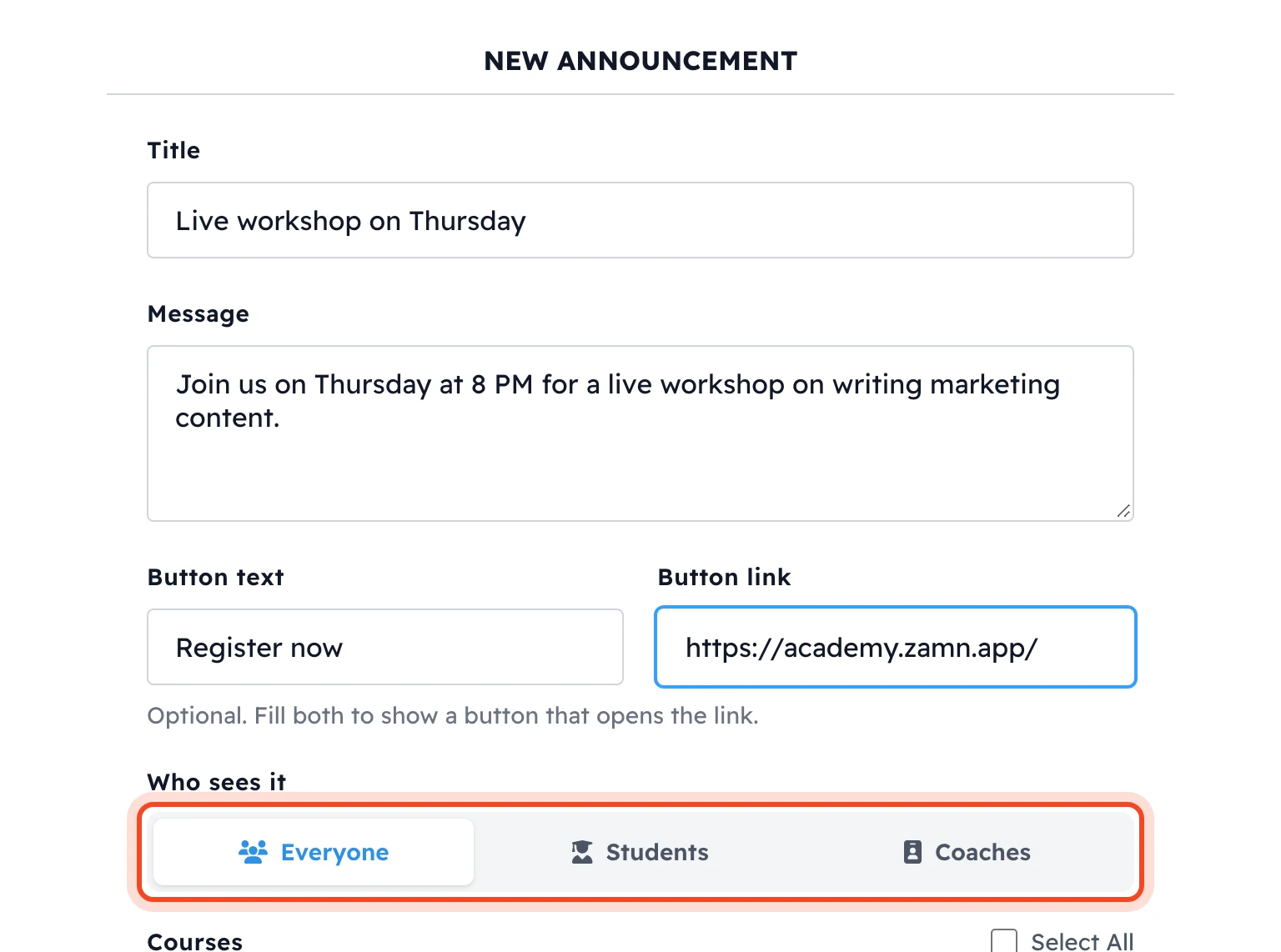
Type the Title of the announcement. You can also type a Message under it.
-
To show a button in the popup, fill in both Button text and Button link. The button opens the link in the same tab.
-
Under Who sees it, choose Everyone, Students or Coaches.
-
To show the announcement only to the students and coaches of some courses, choose them under Courses. Leave it empty to show it to everyone you chose in step 5.
-
To show it only for a while, choose the dates in Show from and Show until. Leave them empty to show it now, until you turn it off.
-
Make sure the On switch is on, then click Save announcement.
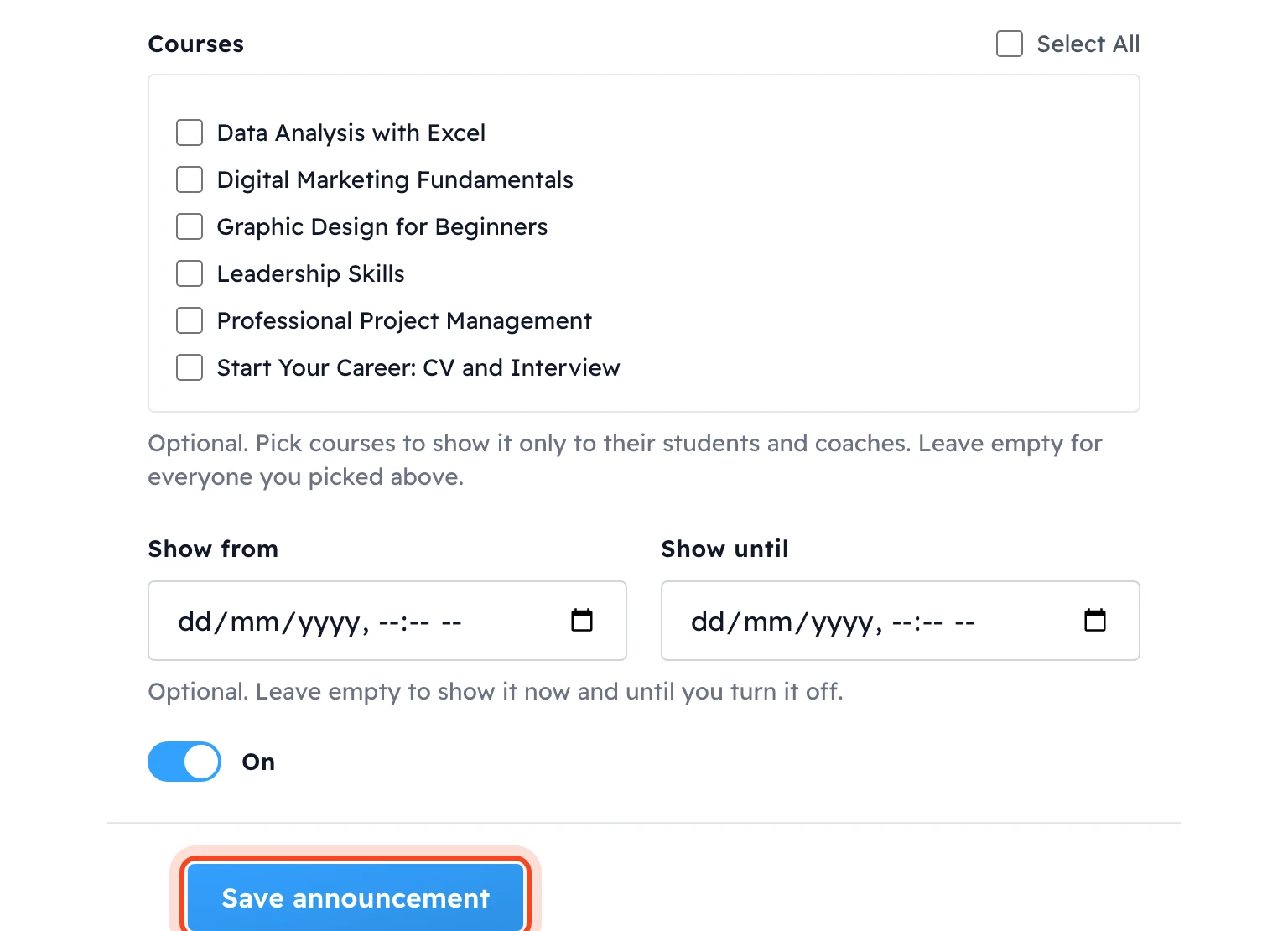
The message Announcement created appears, and the announcement shows in the table.
Announcement status
The Status column of the table shows:
- Live: users see the announcement now.
- Scheduled: its Show from date has not come yet.
- Ended: its Show until date has passed.
- Off: its On switch is off.
Edit or delete an announcement
To edit an announcement, click its title, or click ⋯ at the end of its row and choose Edit. Users who already closed the announcement do not see it again after you edit it. To show a changed message to everyone again, create a new announcement.
To delete an announcement, click ⋯ at the end of its row and choose Delete, then confirm the message Delete this announcement? It will stop showing to users.
How users see the announcement
Signed-in users see the popup on the pages of your platform, such as the home page, their dashboard and the course pages. It does not show in the admin dashboard. If several announcements are live, users see one at a time, the newest first.
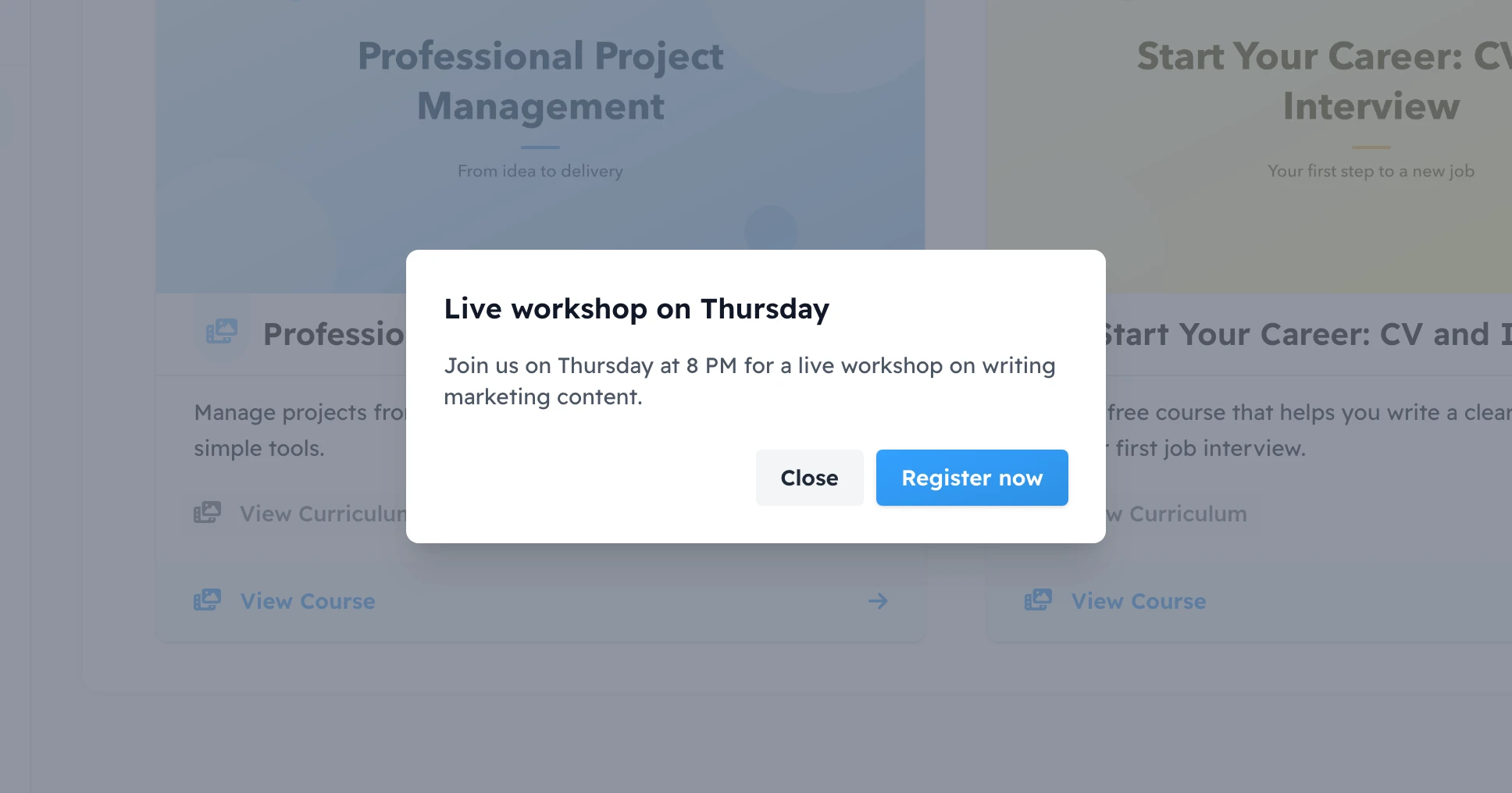
When you choose Students without choosing courses, the popup also shows to platform admins and parents, because they are not coaches.