Zamn API
The API integration with Zamn virtual rooms is only available in these Virtual Classroom plans: Advanced, Professional: 5 virtual rooms and Professional Plus: 10 virtual rooms. It is also available during the free trial. Without one of these plans, the API card does not show on the Integrations page.
The API integration lets you connect your website or app to Zamn virtual rooms. The developers on your team program your website or app to talk to the rooms. The API key belongs to your platform, and it works only with your platform's address.
How to get the API key
-
From the dashboard, choose Settings.
-
Go to Integrations.
-
Click API.
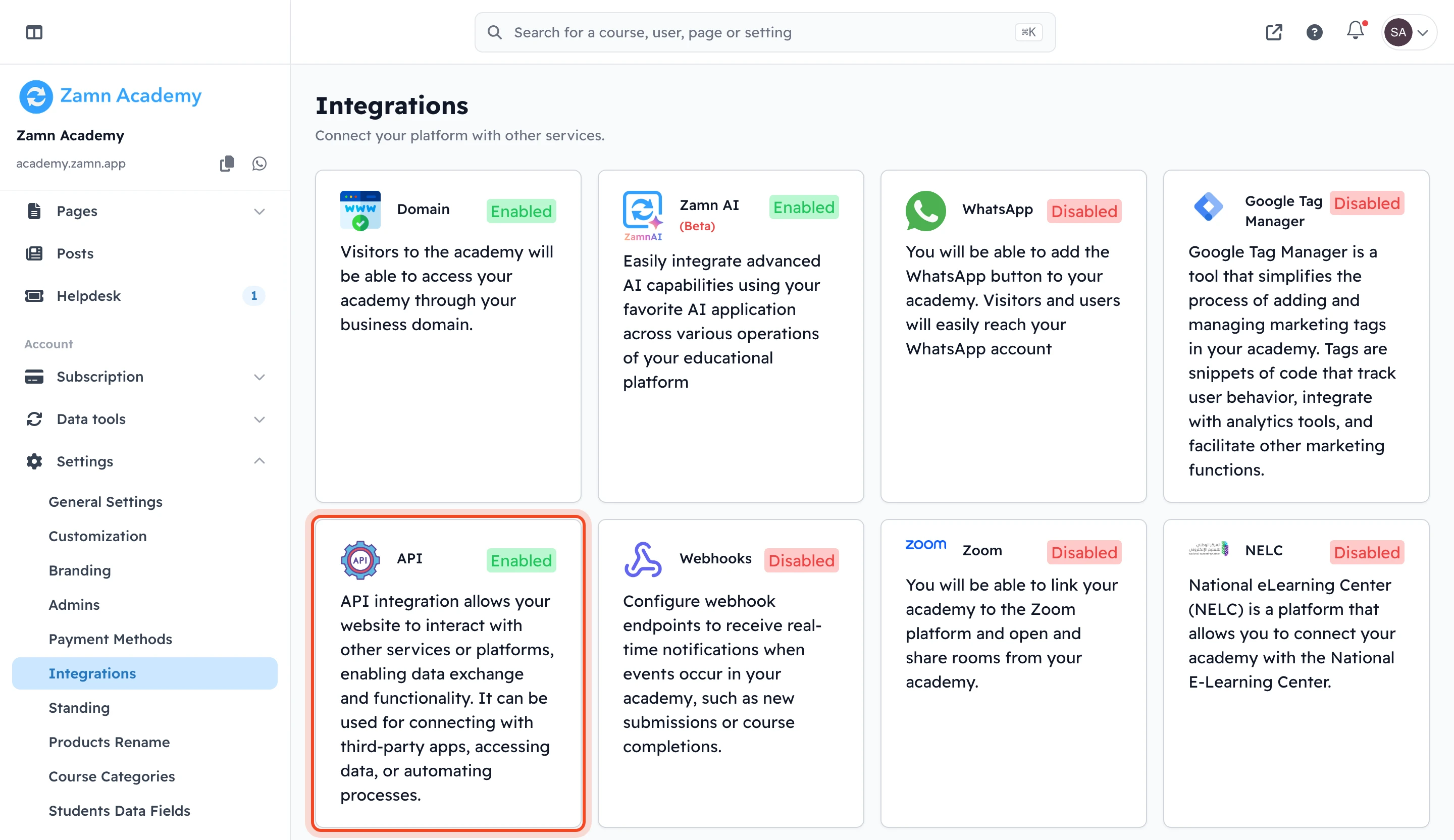
-
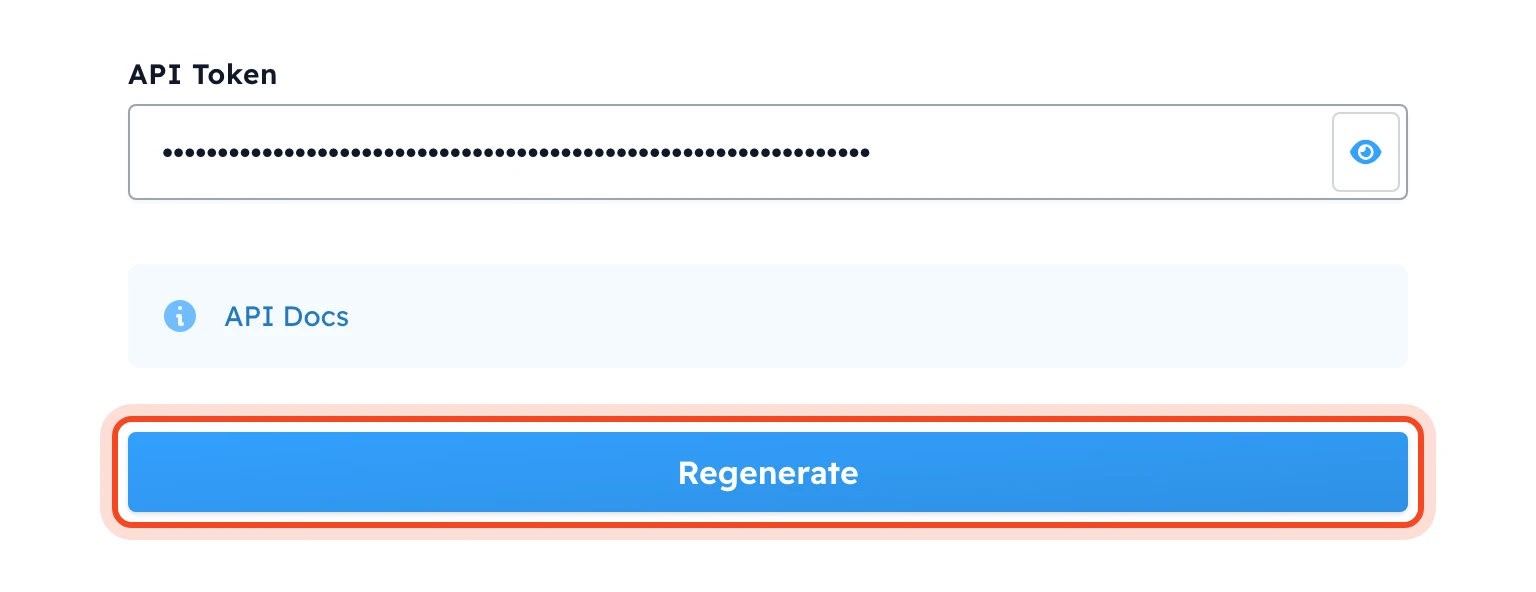
Click Regenerate.
 warning
If you already have a key, Regenerate replaces it with a new one. Any website or app that uses the old key stops working until you give it the new key.
-
A confirm window shows. Click OK.
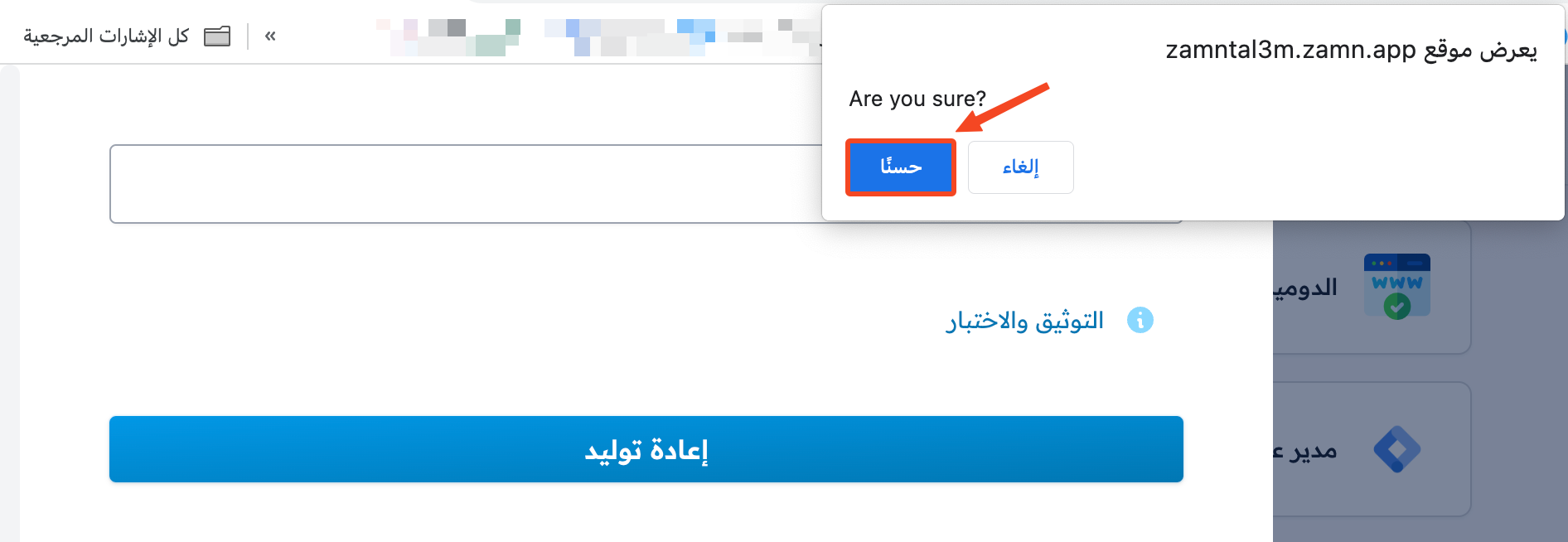
When the key is made, a success message shows.
-
Click API again.
-
Click the eye icon to show the key, then select it and copy it to use in your integration.

Test the connection from the docs page (for developers)
-
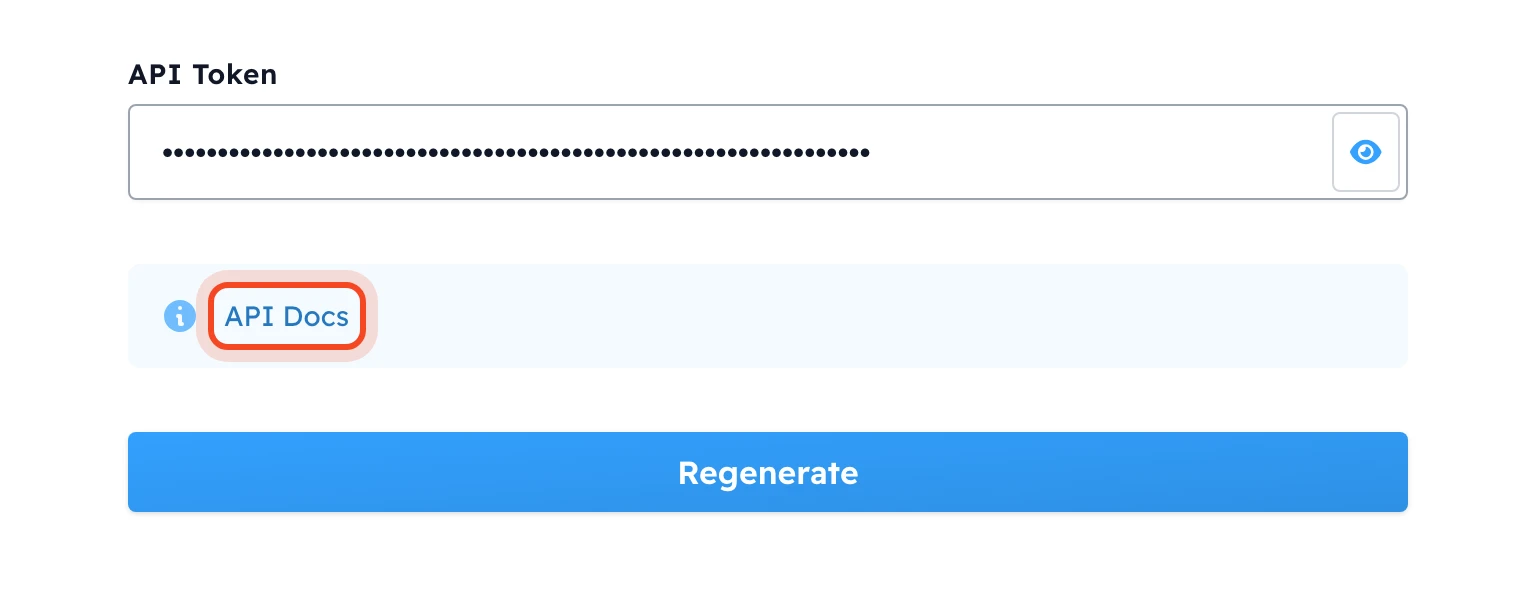
Click API Docs.
-
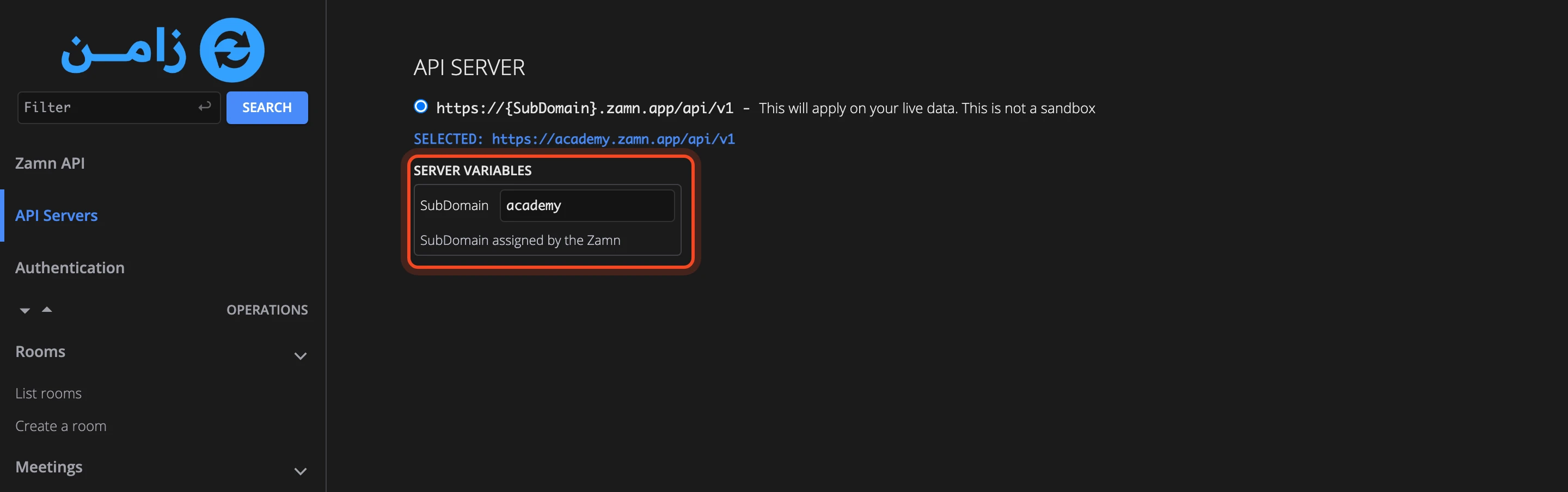
Go to the API Servers section.
-
Type the subdomain of your platform in the SubDomain field.
-
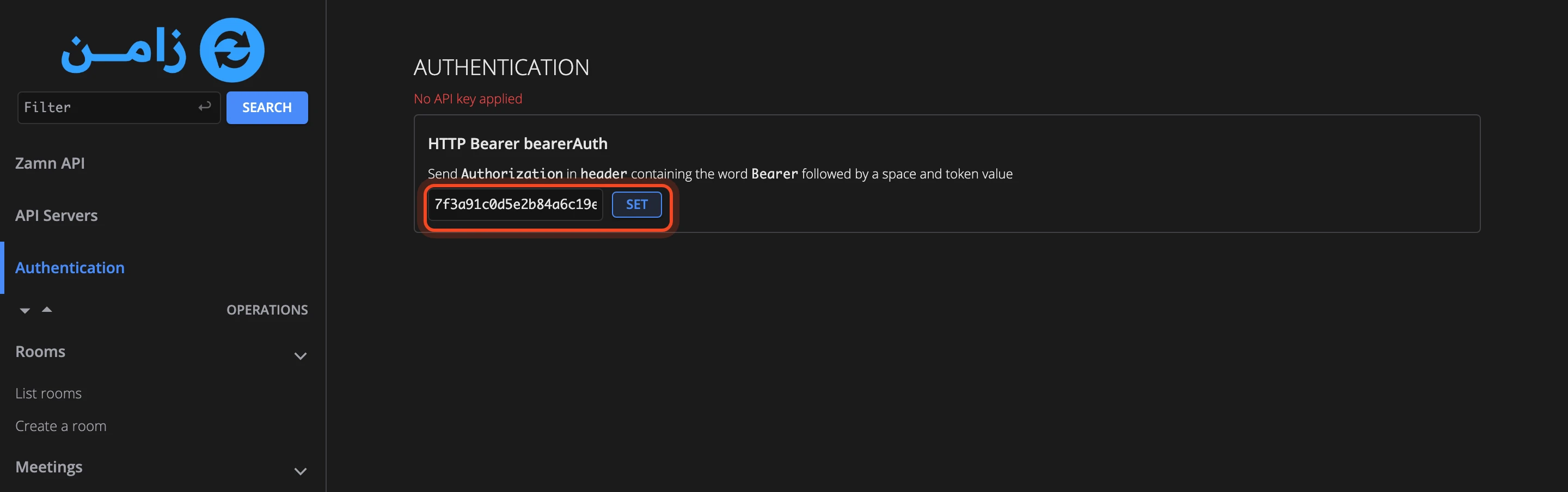
Go to the Authentication section.
-
To sign in, paste the API key you copied into the field, then click SET.
-
Go to List rooms, then click TRY.
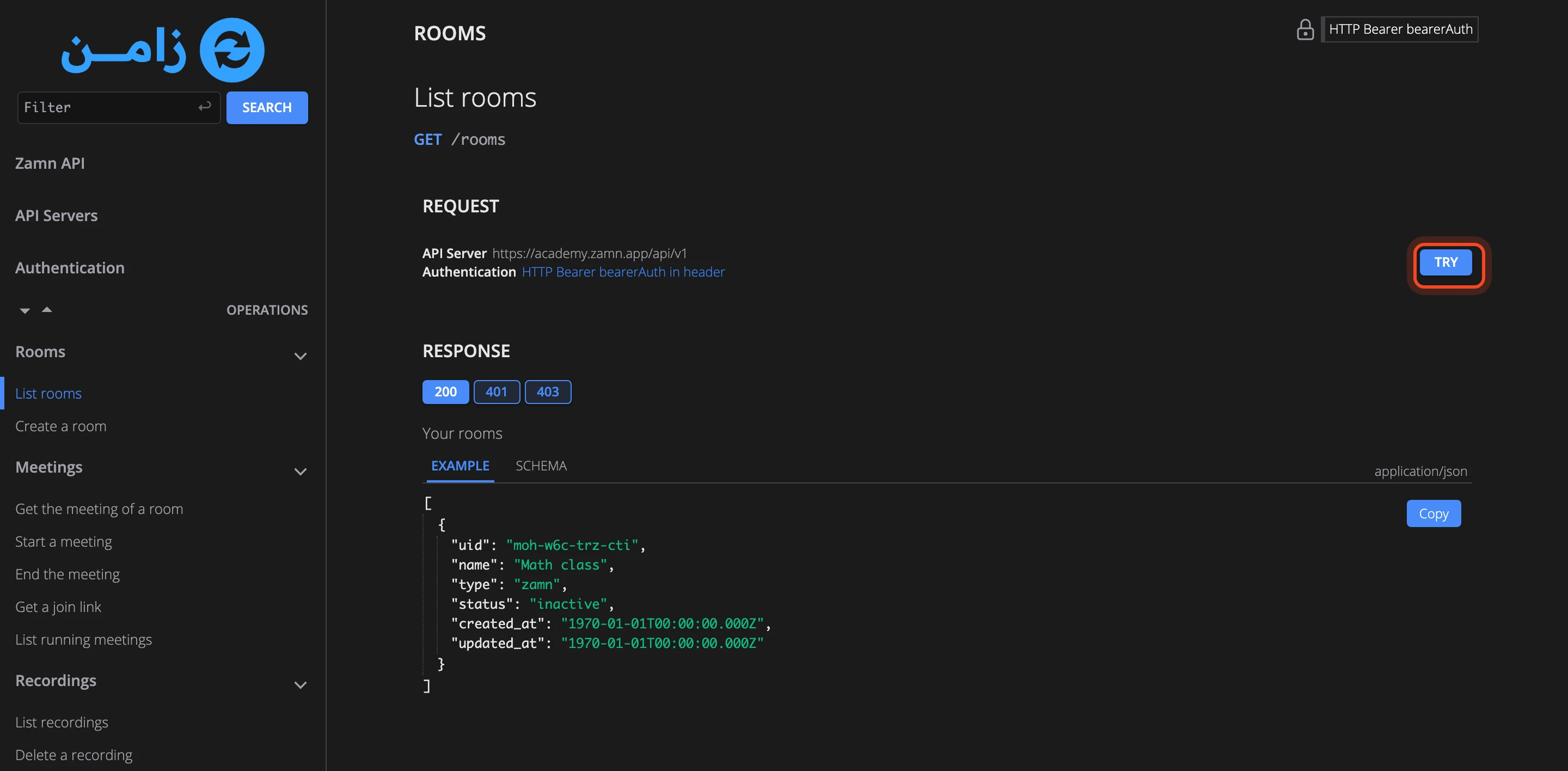
The list of your rooms shows in the response.
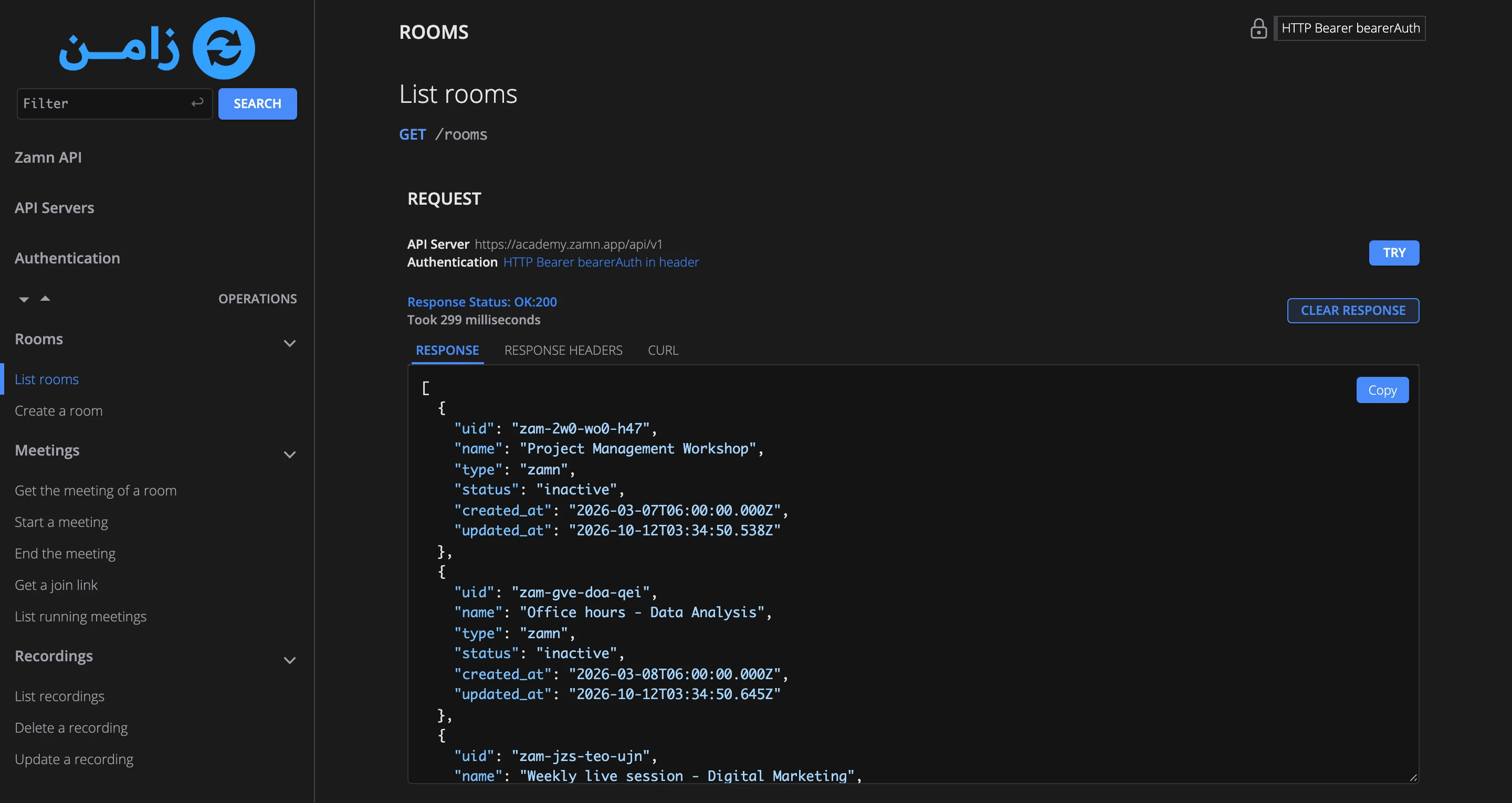
The docs page also shows the other requests of the API, for example to create a room, start a meeting, get a join link and manage recordings.