Trainer permissions and how to add a trainer to a course
A trainer is a person you add to a course so they can add, edit and preview its content.
Steps to add a trainer
-
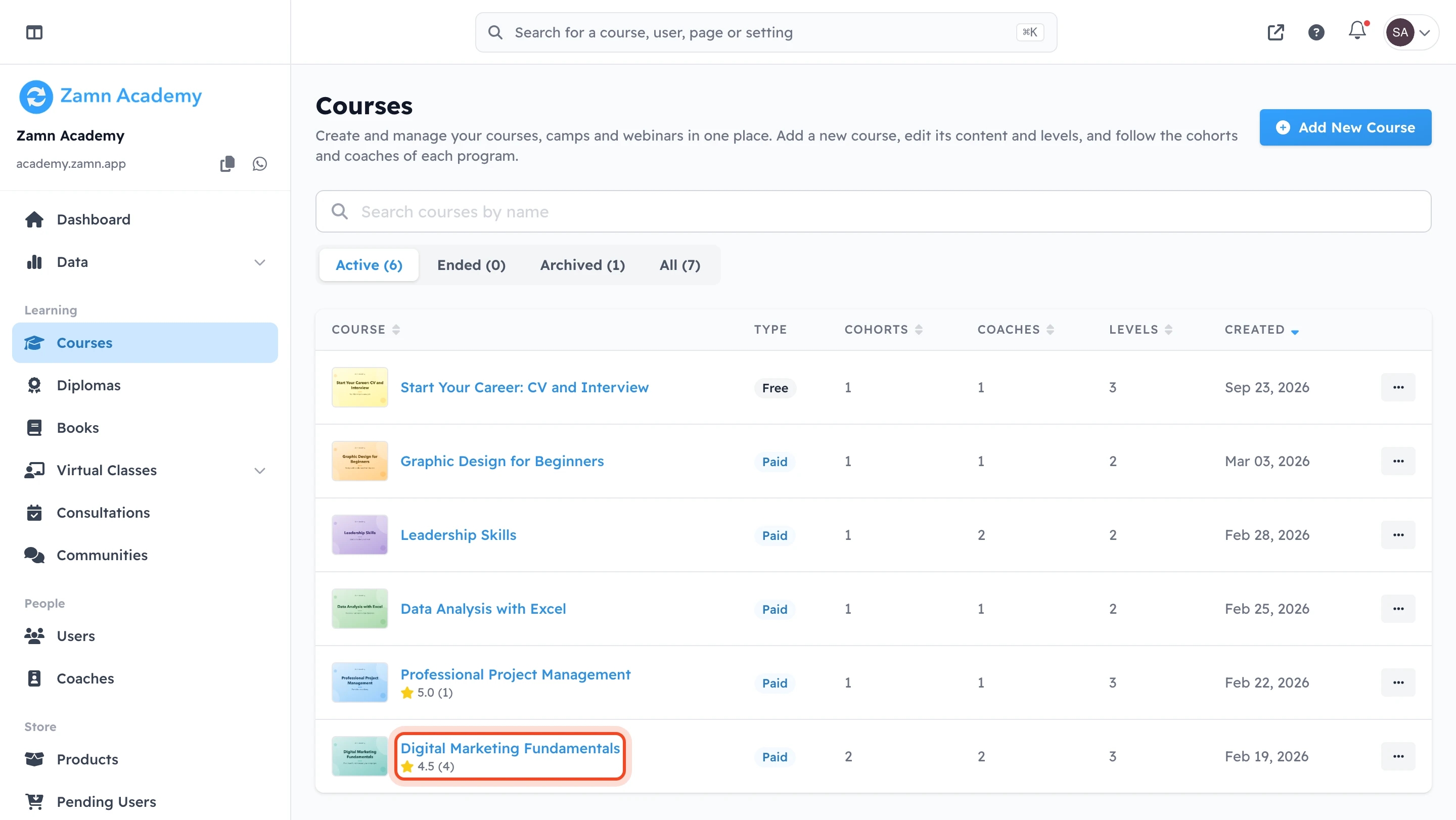
On the Courses page in the dashboard, click the name of the course you want to add the trainer to. You can also click ⋯ at the end of its row, then Edit Curriculum.
-
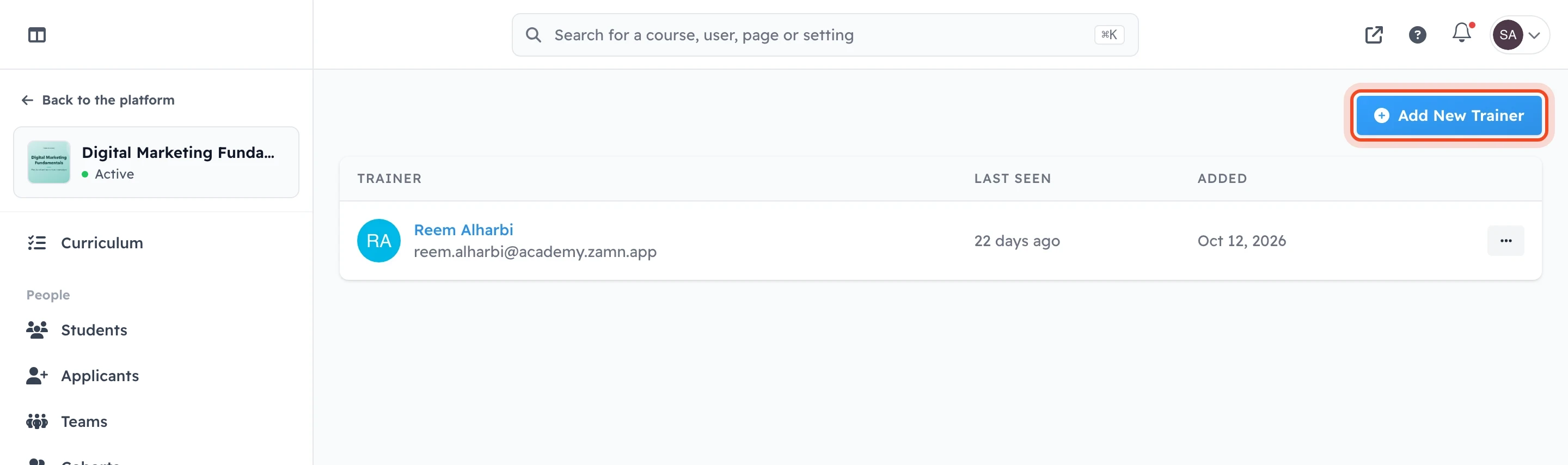
From the Trainers page in the course dashboard, click Add New Trainer.
-
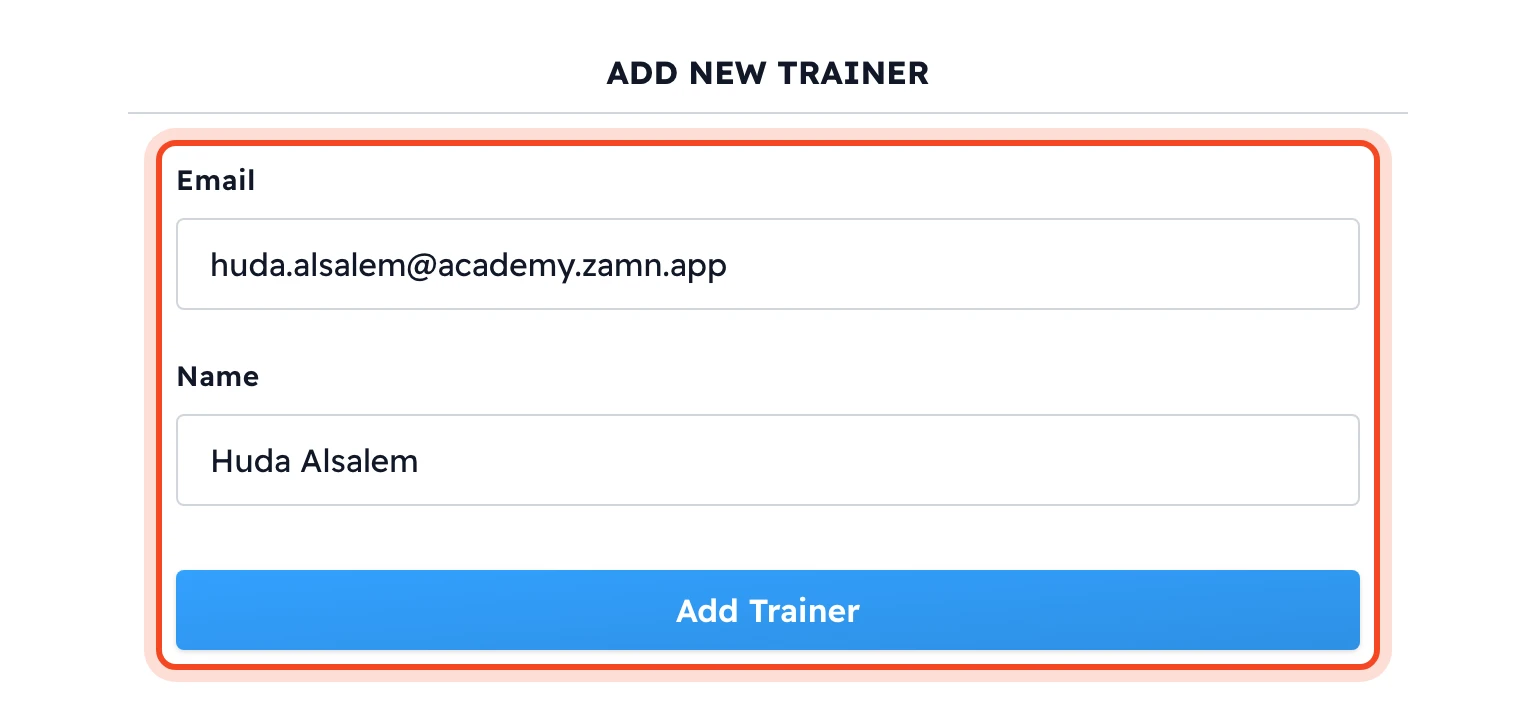
Enter the trainer's Email and full Name, then click Add Trainer.
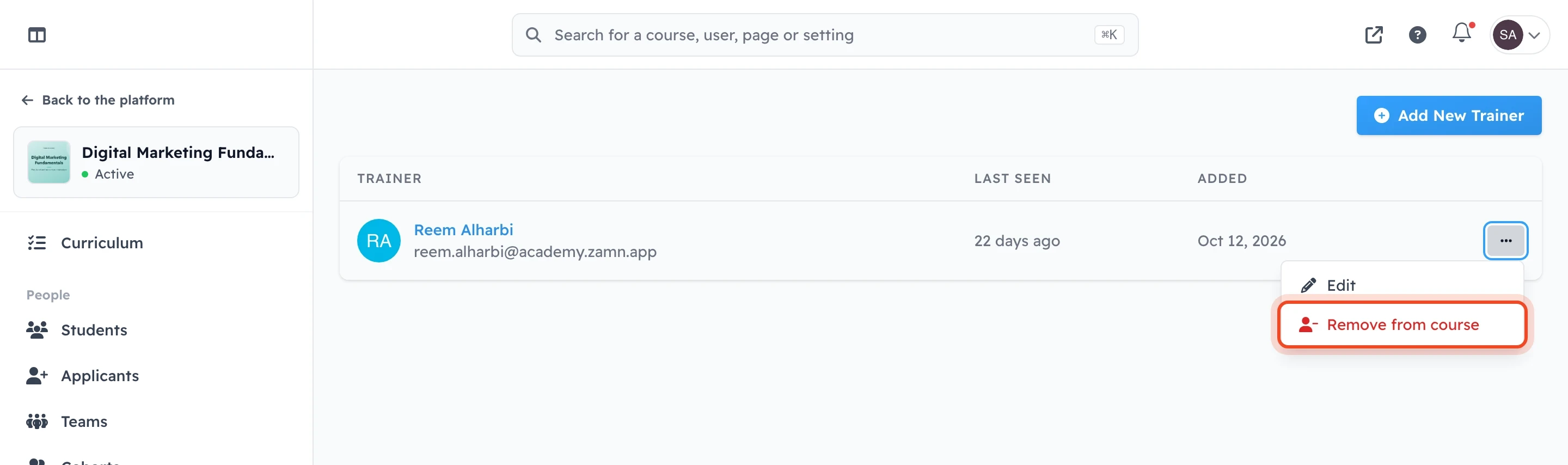
The trainer shows in the list, and you can remove them from it at any time: click the ⋯ (Actions) button at the end of their row, then click Remove from course.
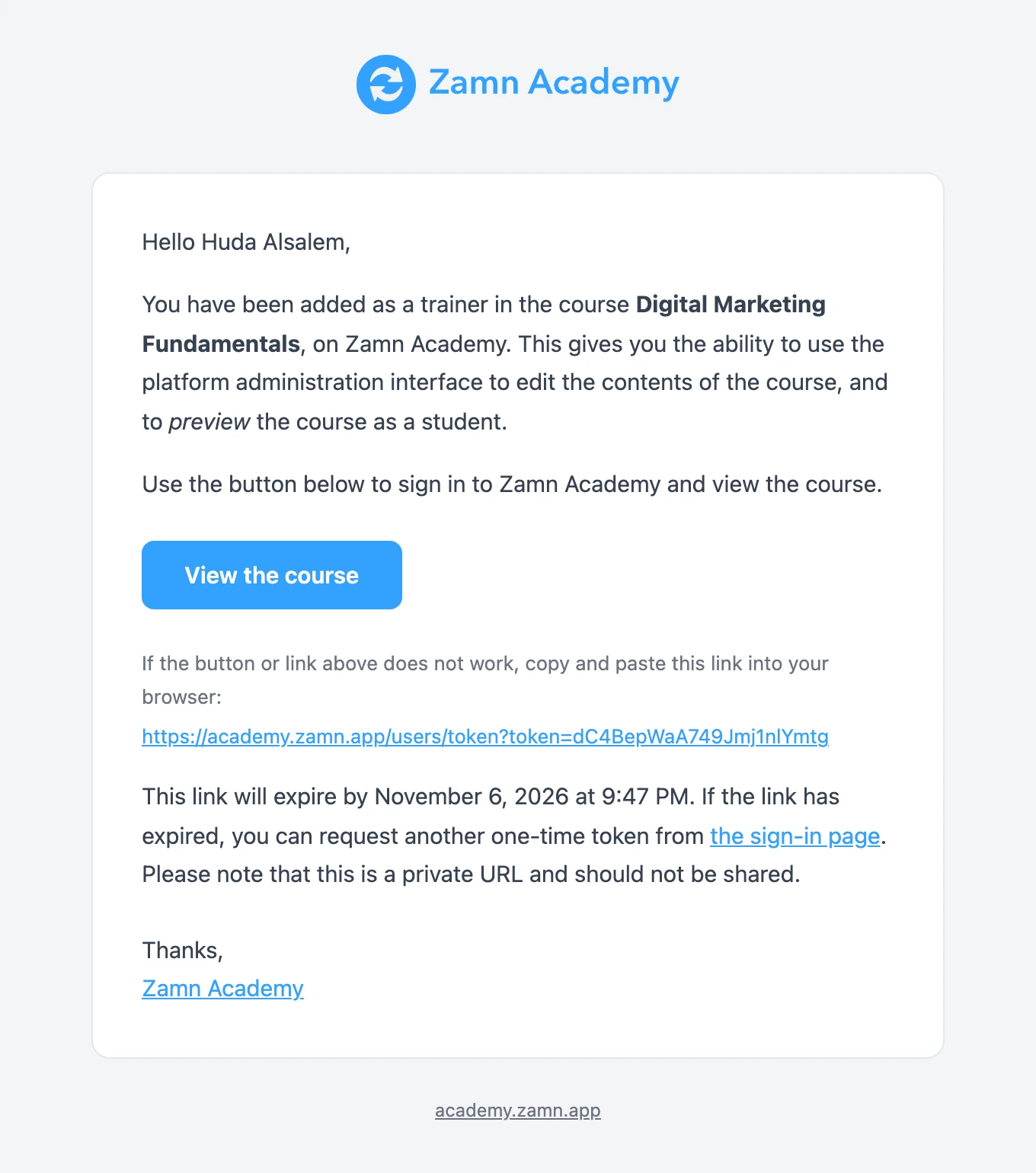
An email is sent to the added address to tell them they were added as a trainer in the course, with a View the course button to sign in to the platform.
Trainer permissions
The trainer sees the course on the My Courses page. Their permissions are:
- Preview the content.
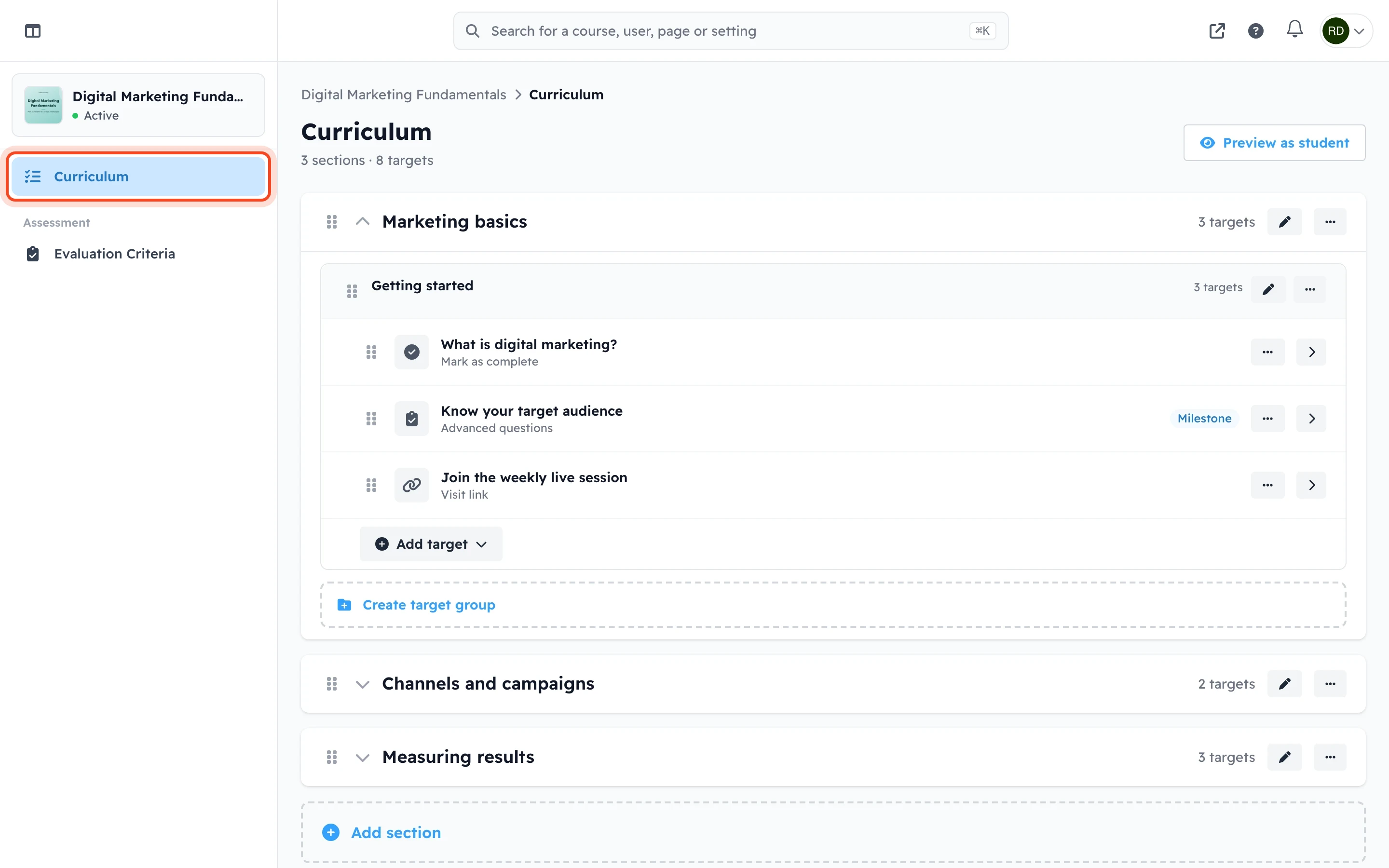
- Edit the content:
- Add content to the course.
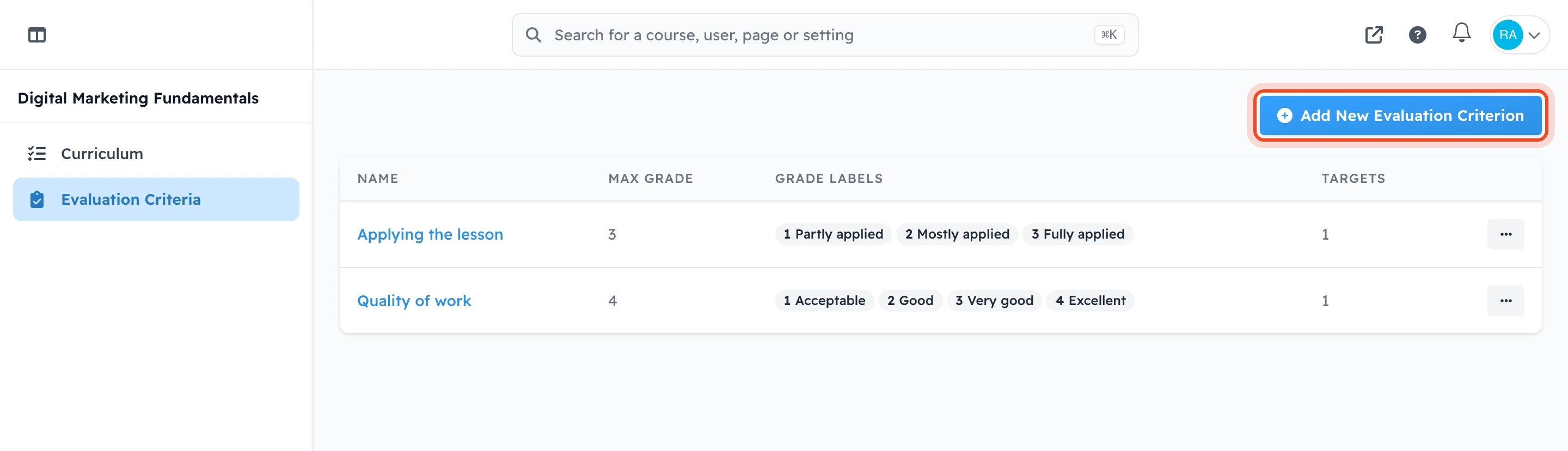
- Add evaluation criteria.
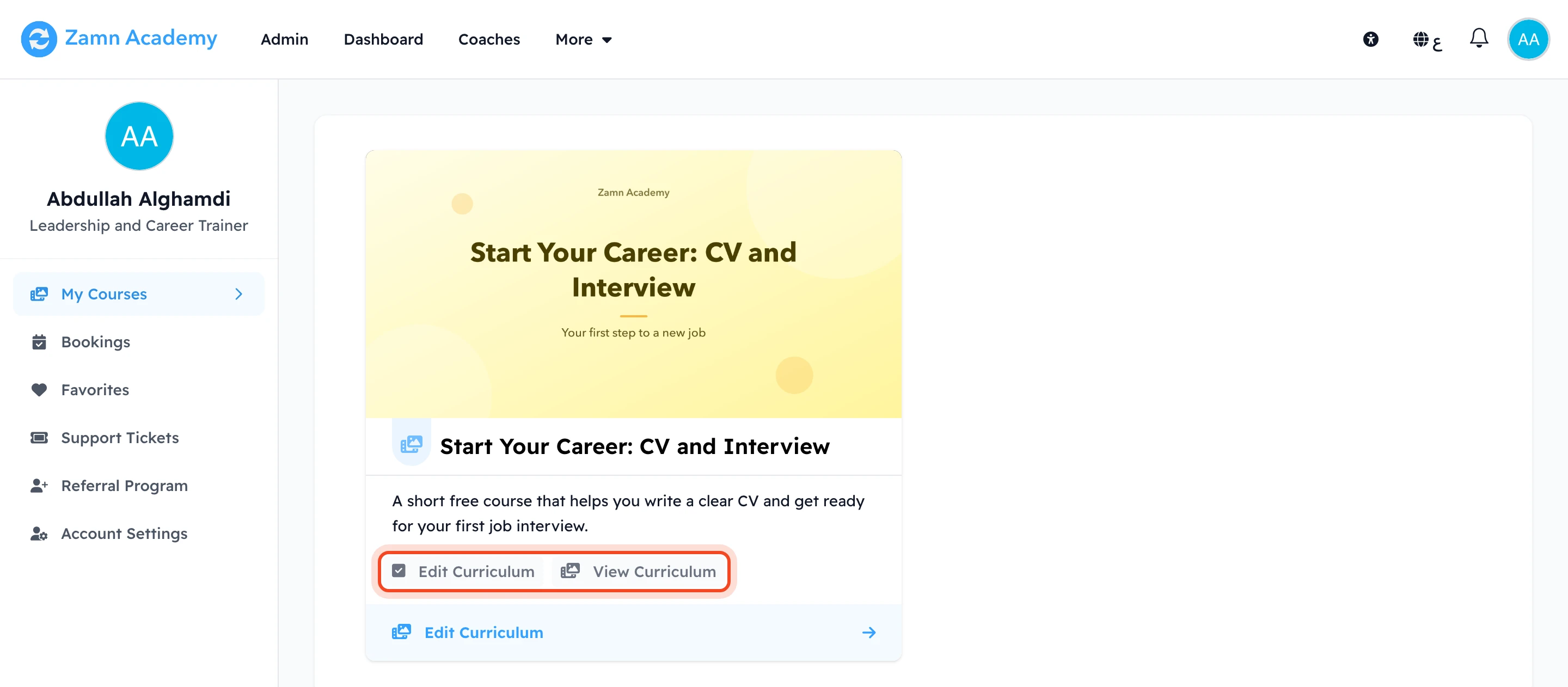
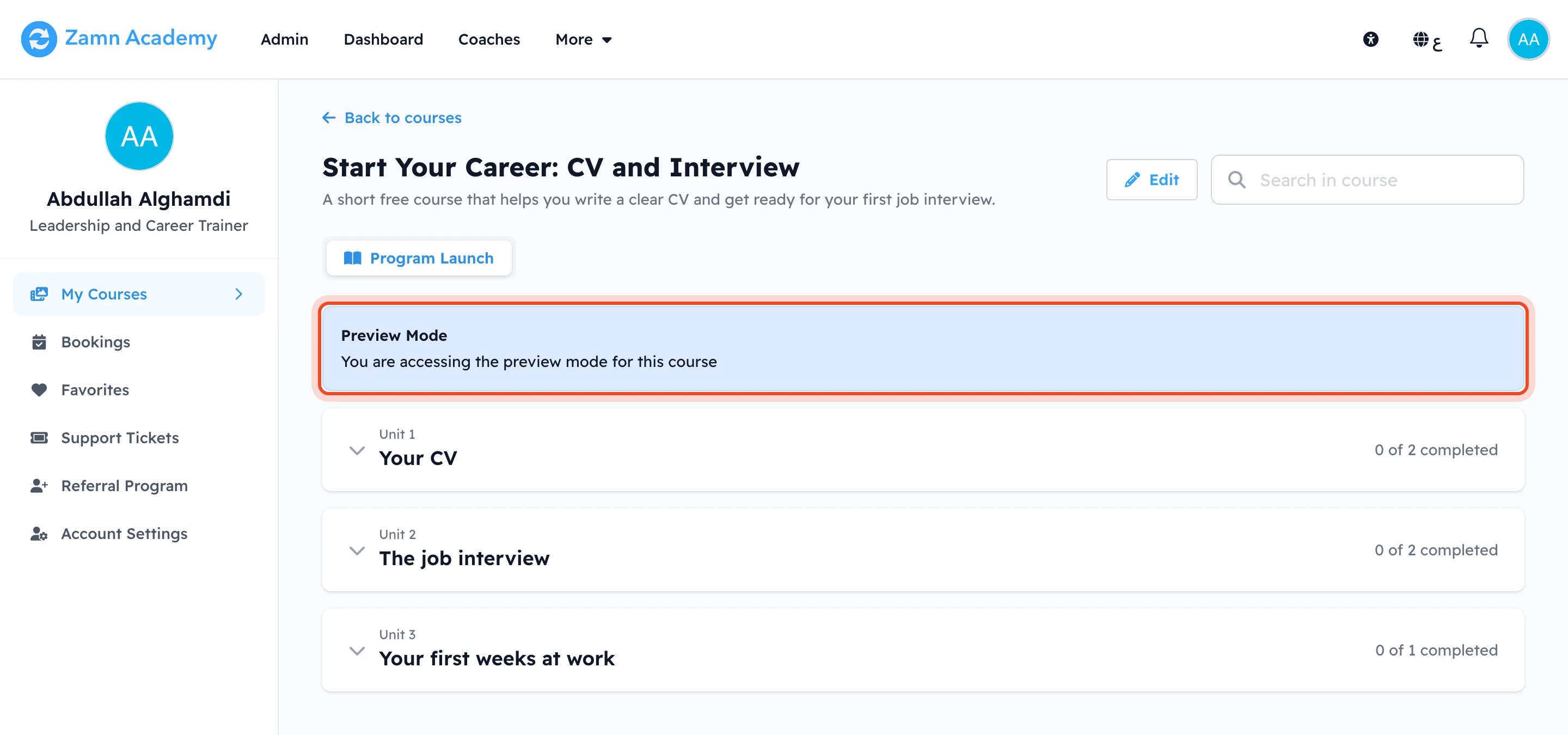
Preview the content
The trainer sees the course content the same way a student sees it, in Preview Mode.