Change your account email
You can change your account email from the Account settings page, and then confirm the new email from a message sent to it.
Steps to change your account email
-
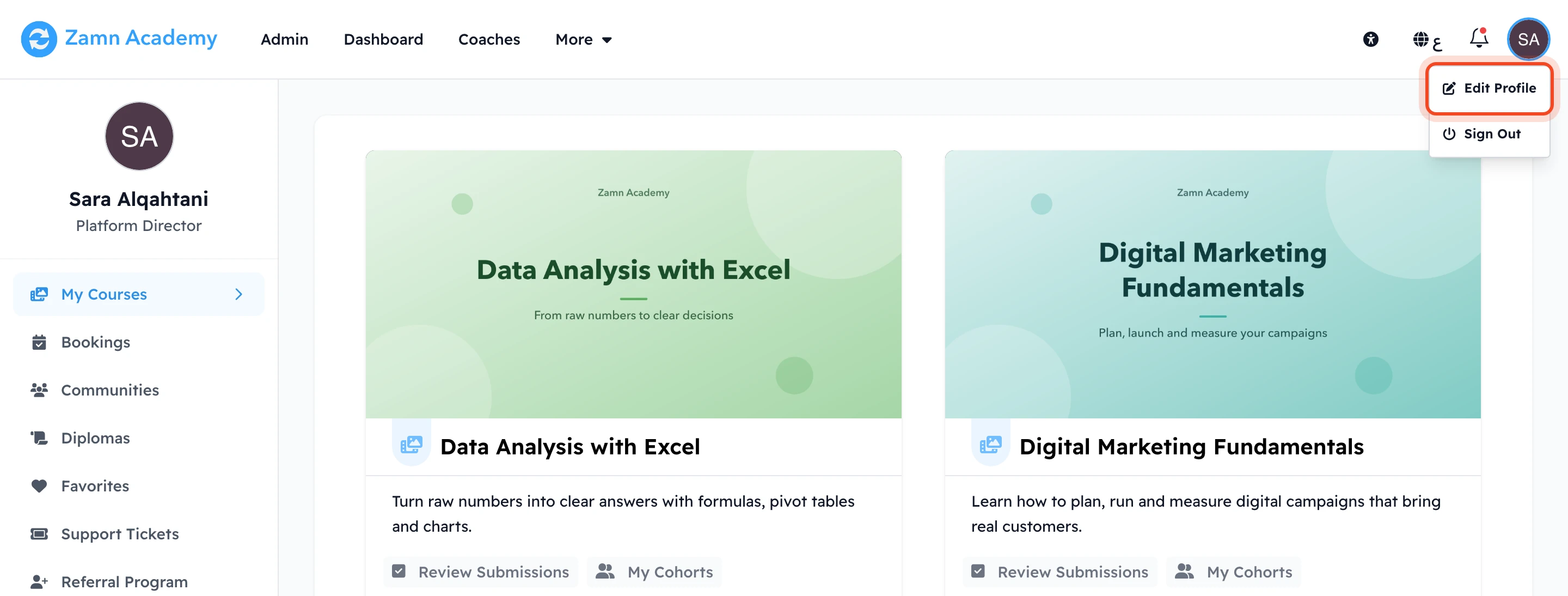
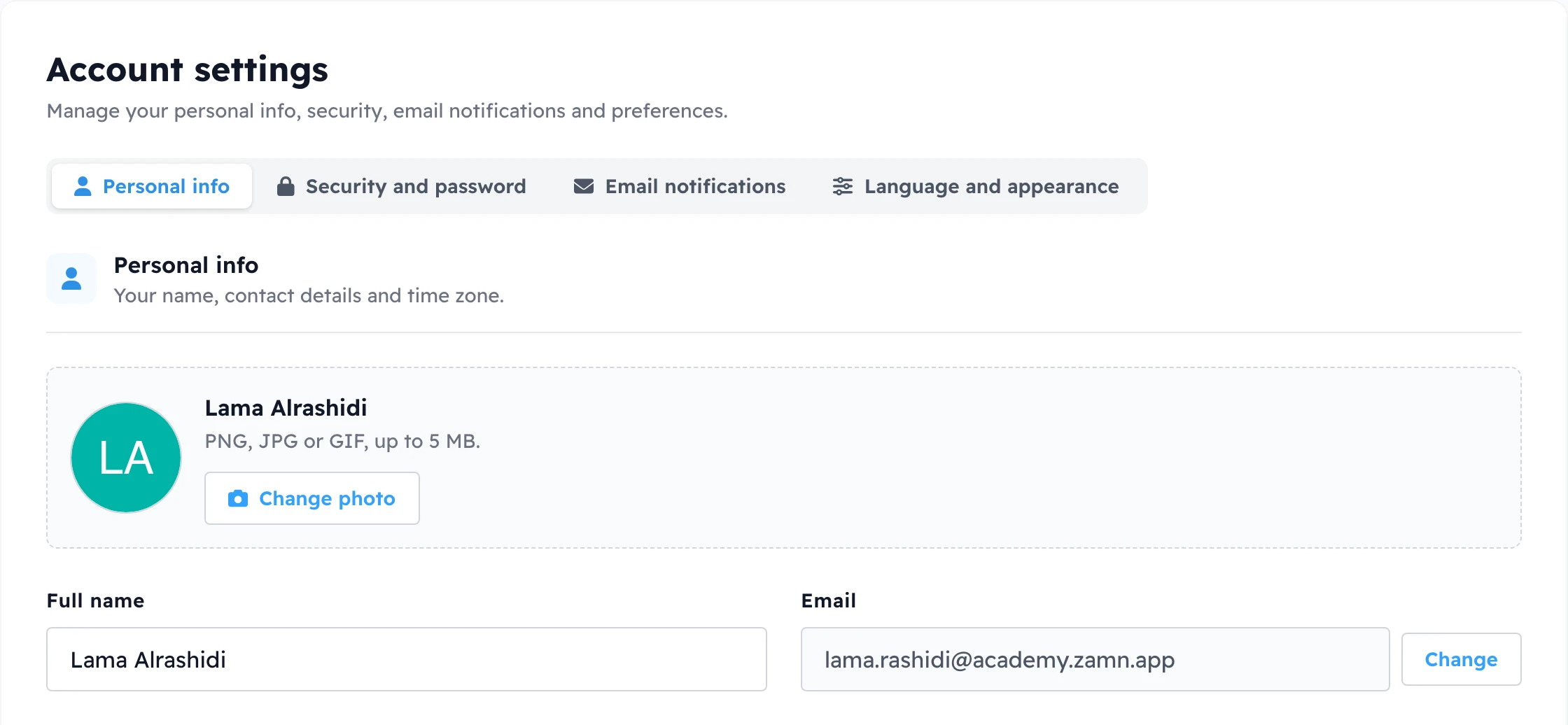
Click your profile icon, then choose Edit Profile. On the admin pages, this option is called Profile.
-
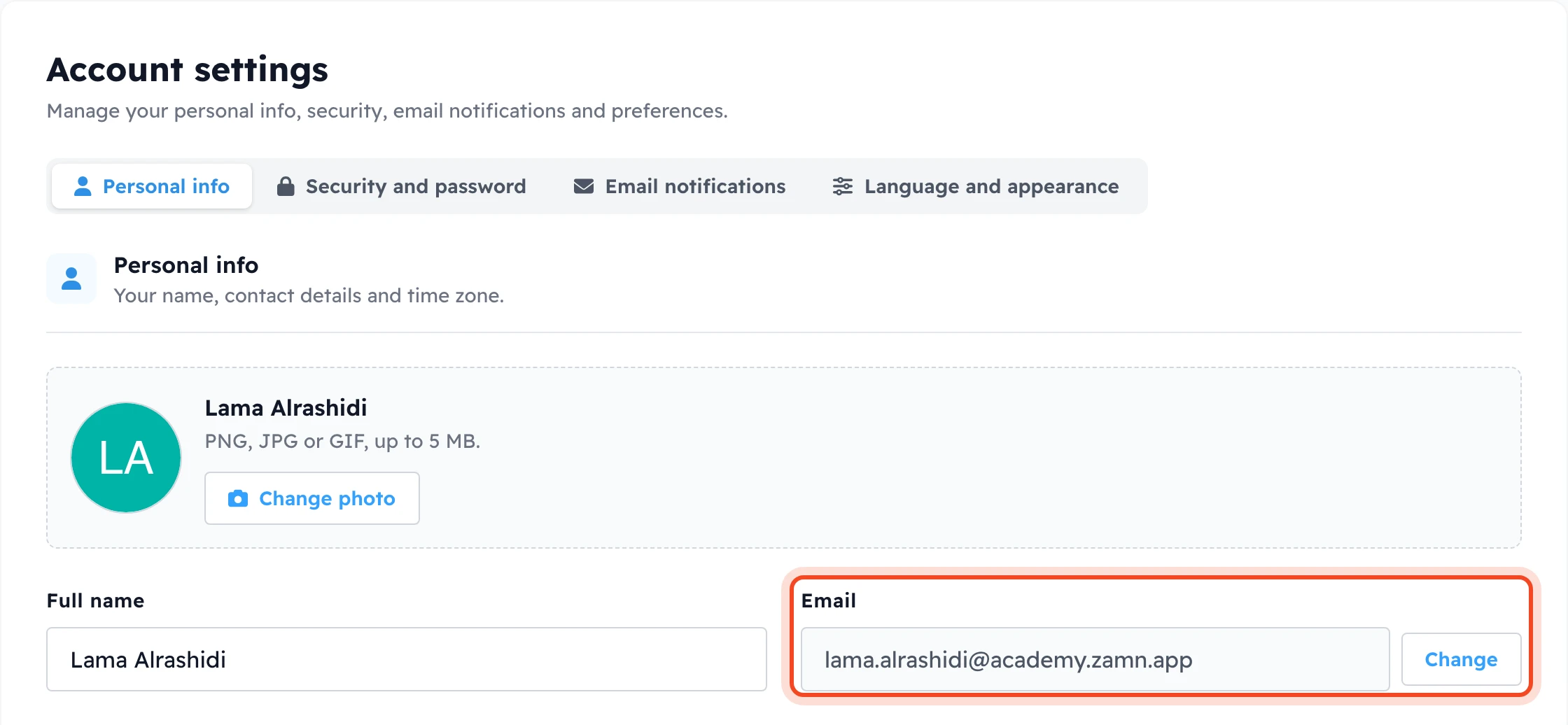
Go to the Email field and click Change.
NoteYou must set a password before you can change your account email address.
-
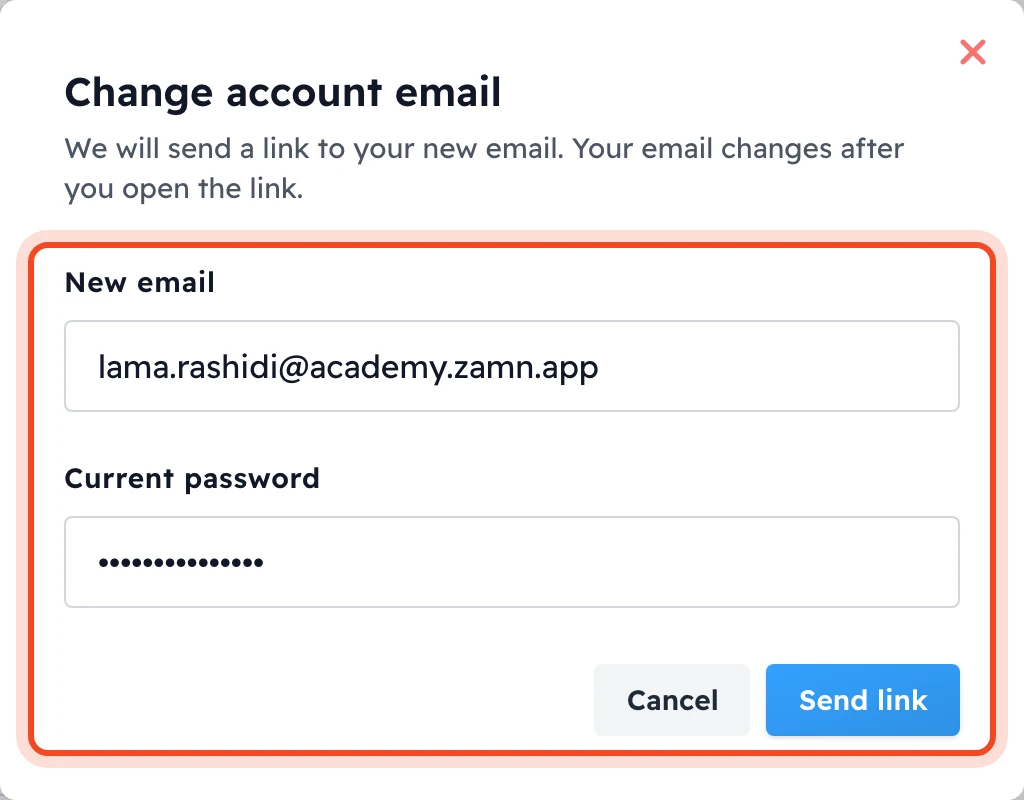
In the Change account email window, enter the New email and your Current password, then click Send link.
A confirmation message is sent to the new email.

-
Open the email update message, and click the Update email button to confirm the new email. The link is valid for 30 minutes only.
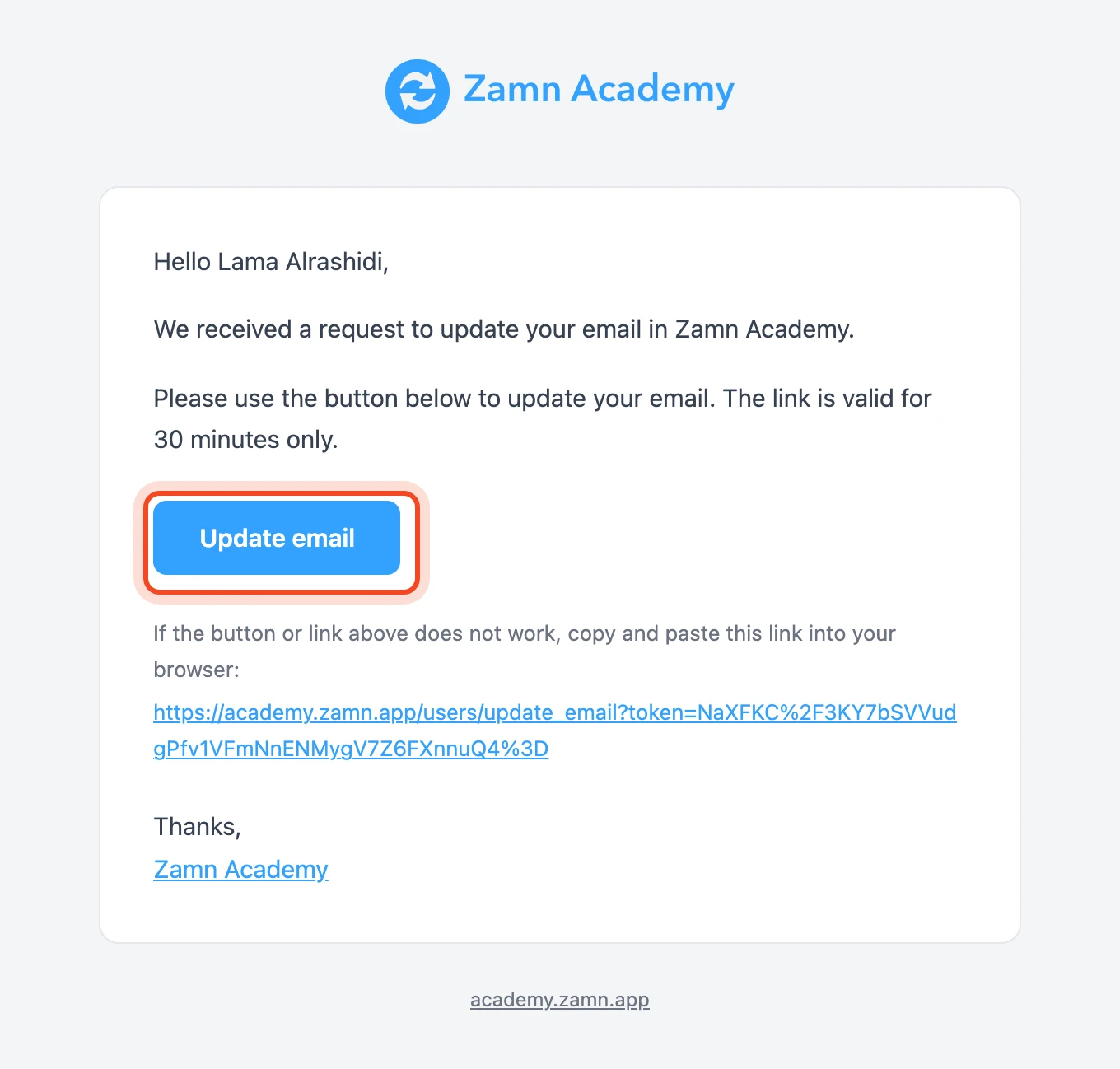
After you click the button, your email changes right away and you go back to the Account settings page. You don't need to click Save changes.
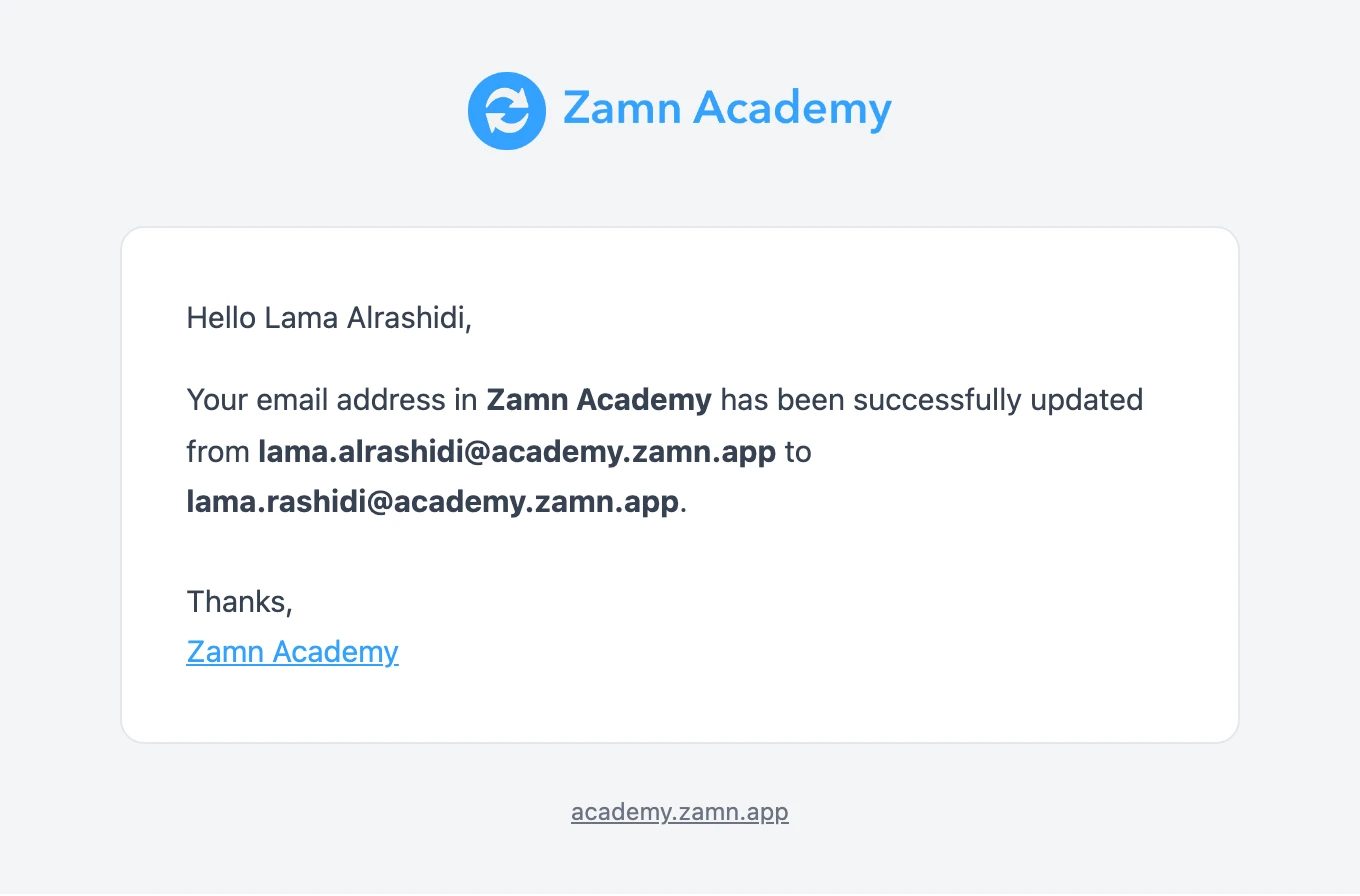
You will get a message confirming that your email changed from the old email to the new one, on both emails.
If you signed up with your phone number only, the Email field is empty. Click Add email to add your email, then click Send code, and enter the code you get by email to confirm it.