Change the platform color
You can change the main color of your platform to match your brand. These steps are for the platform admin.
Steps to change the brand color
-
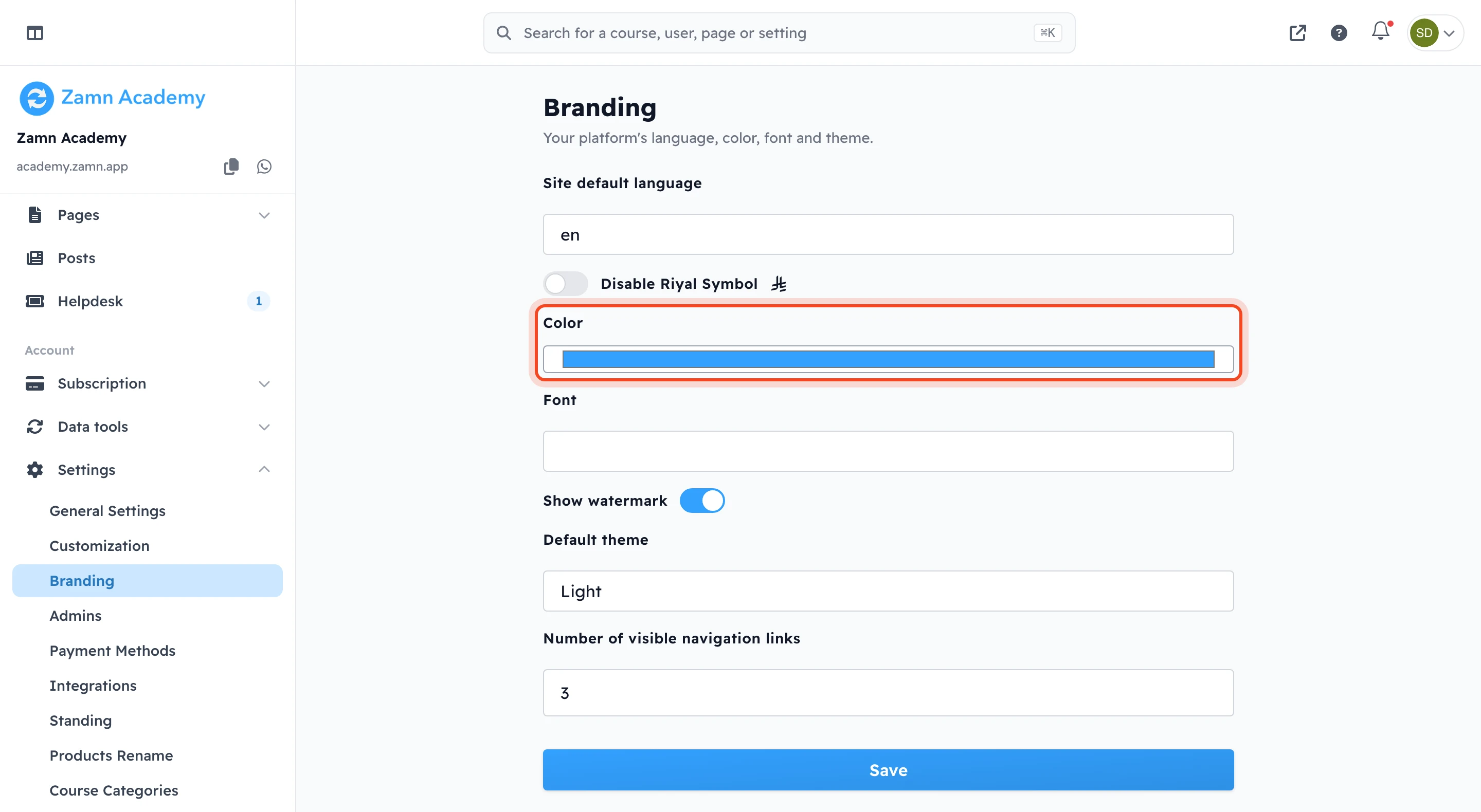
From the dashboard, click Settings, then go to the Branding page.
-
Click the Color box.
-
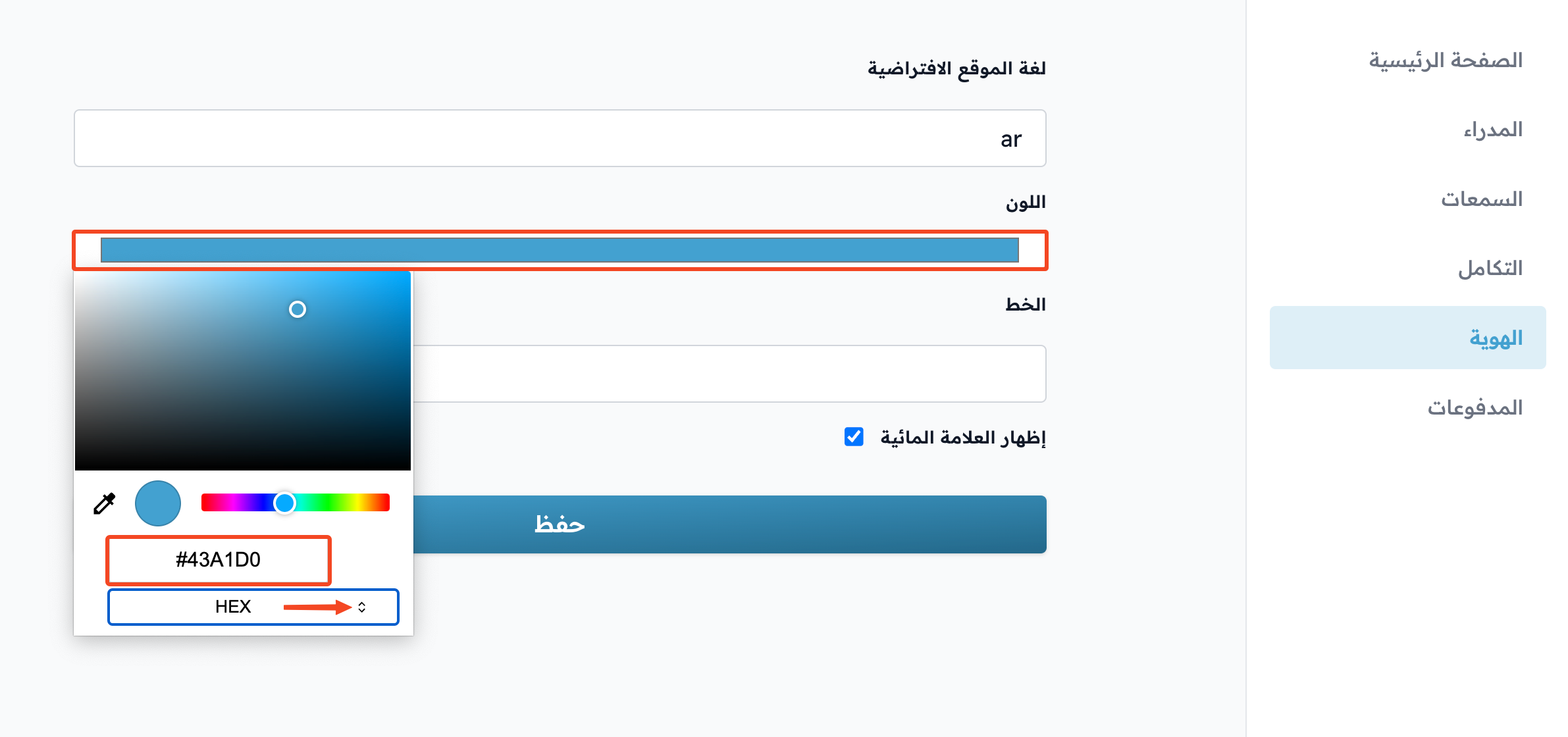
Choose the color system you want (HEX, RGB or HSL).
-
Type the color code in the box above the name of the color system you chose.
-
Click Save to apply the color.
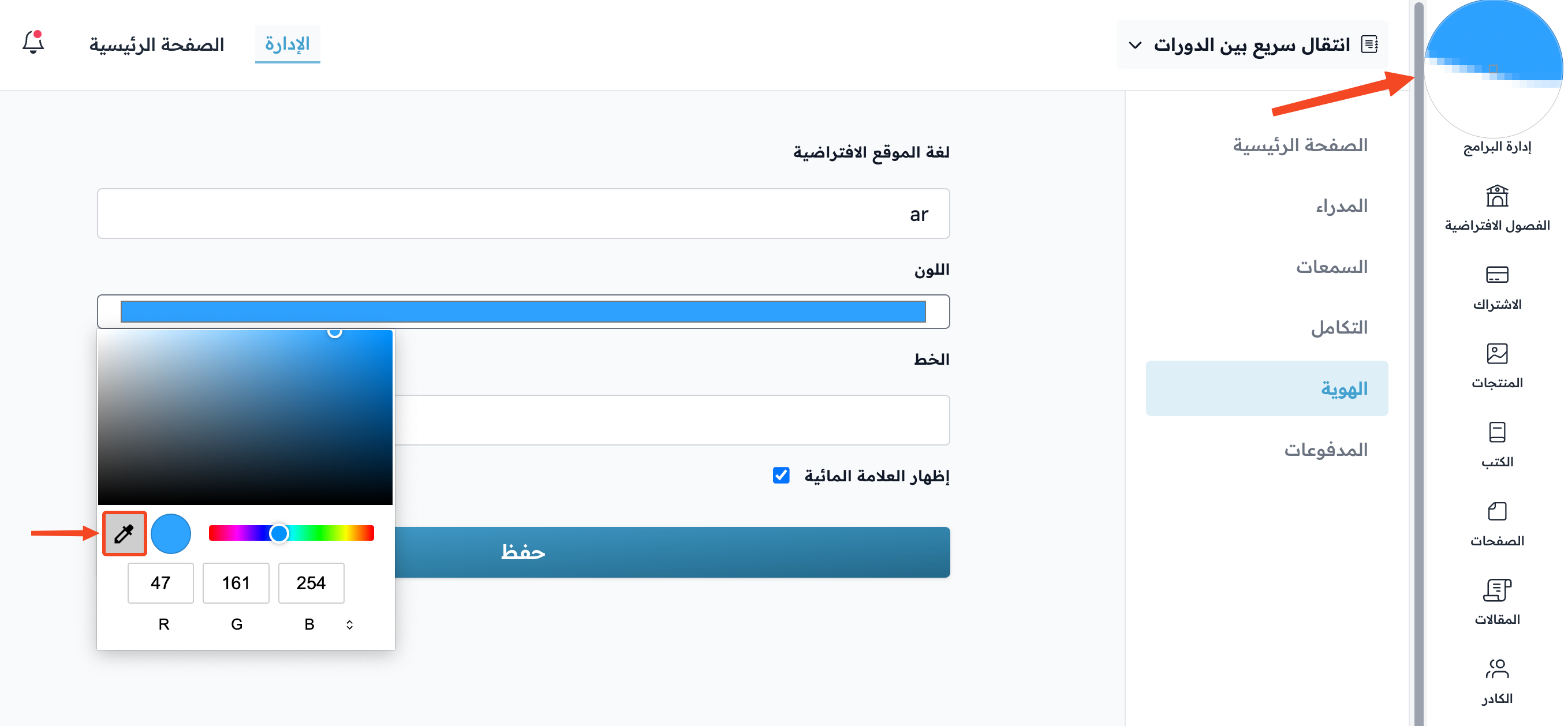
You can use the eyedropper to pick a color from anywhere on the screen, such as your platform logo or an image.
Changing the platform color is available on the Growth, Pro and Organizations plans, and during the free trial. On the Basic plan, the color field is disabled.
If your color is very dark, visitors who use dark mode see a lighter shade of it, so prices, links and buttons stay easy to read. In light mode, your color shows as you chose it.