Chat between teachers and students
Chat lets students and their teachers (the coaches of their courses) send each other private messages and files from the dashboard. As the platform admin, you turn chat on, and you can read all chats. This article is for platform admins.
Chat works on the Growth, Pro and Organizations plans, and during the free trial. If your plan does not include chat, the Chat switch does not show in General Settings, and the Chats page shows Your plan does not include chat with a See plans button.
Turn on chat
-
In the side menu of the dashboard, under Settings, click General Settings.
-
Turn on the Chat switch, then click Save.
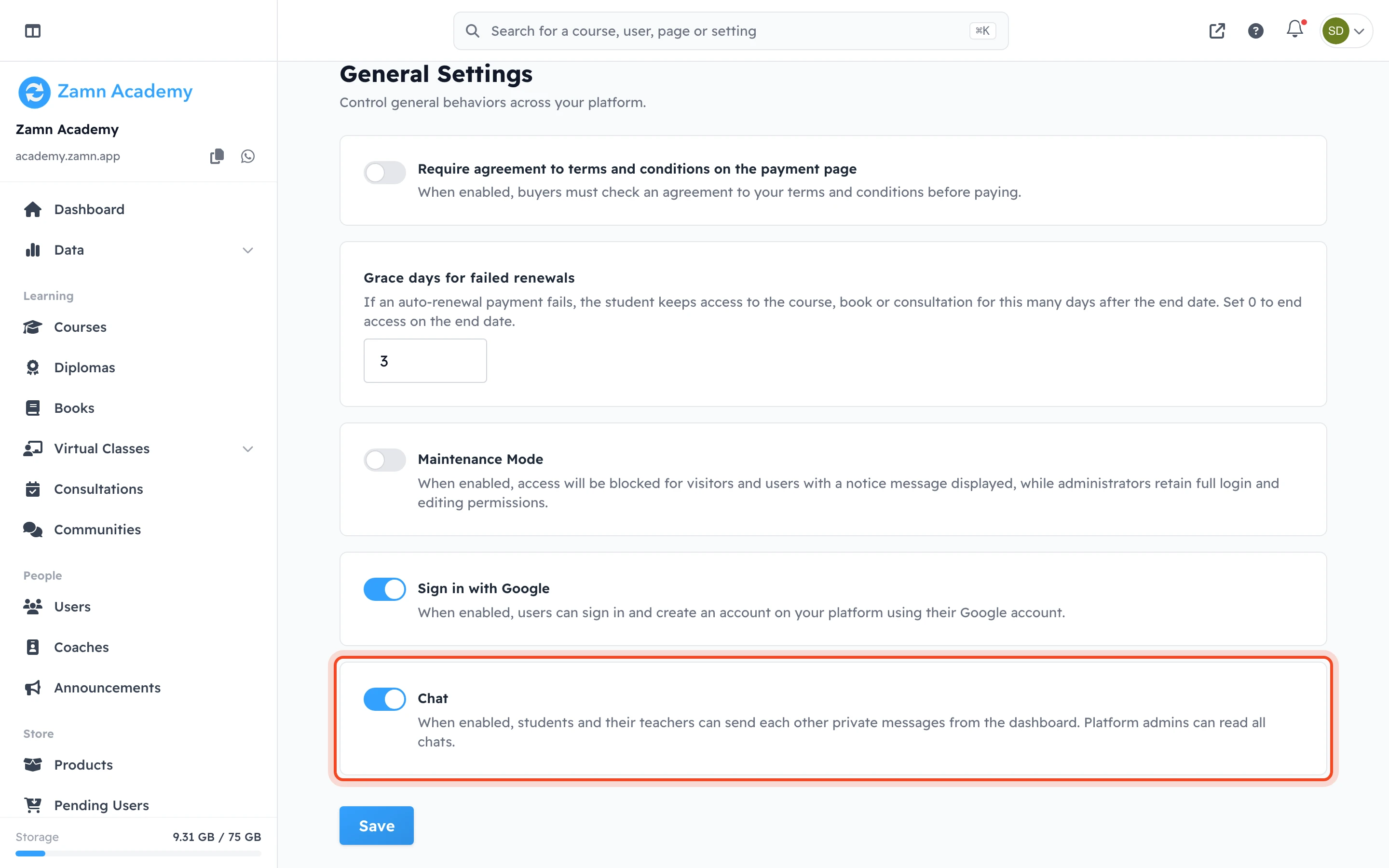
Chat is off until you turn it on. After that, students and coaches see Messages in their dashboard. If you turn chat off again, they can no longer open their messages.
Read the chats
-
In the side menu, under Website, click Chats. The page lists all chats, with the People in each chat, the number of Messages and the date of the Last message.
-
To find a chat, type a name in Search by name.
-
Click Open next to a chat.
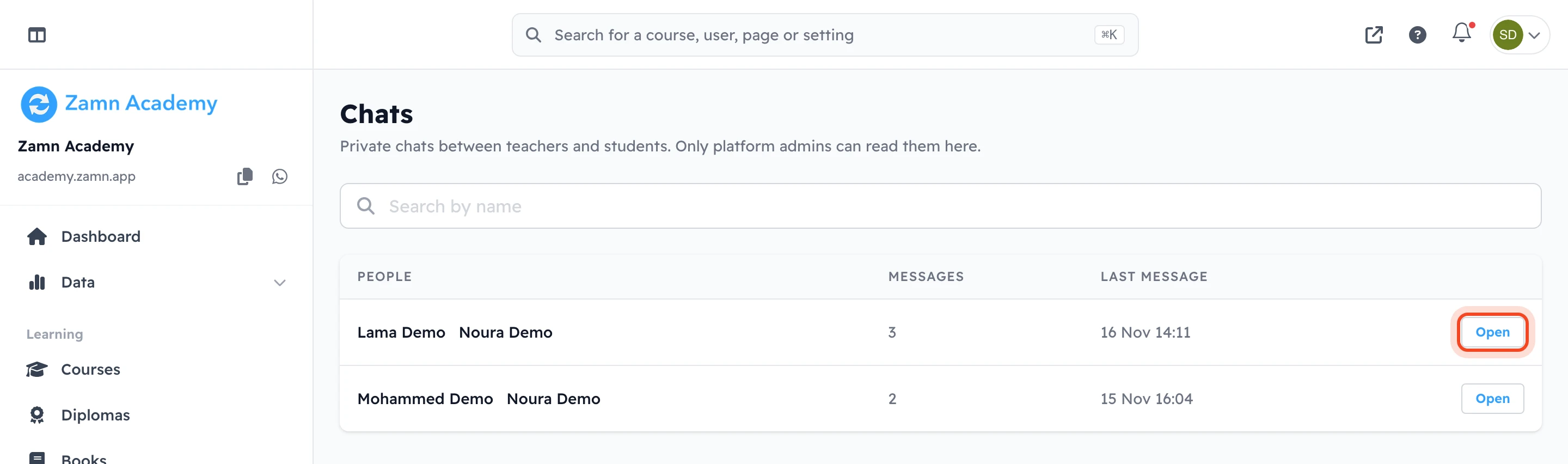
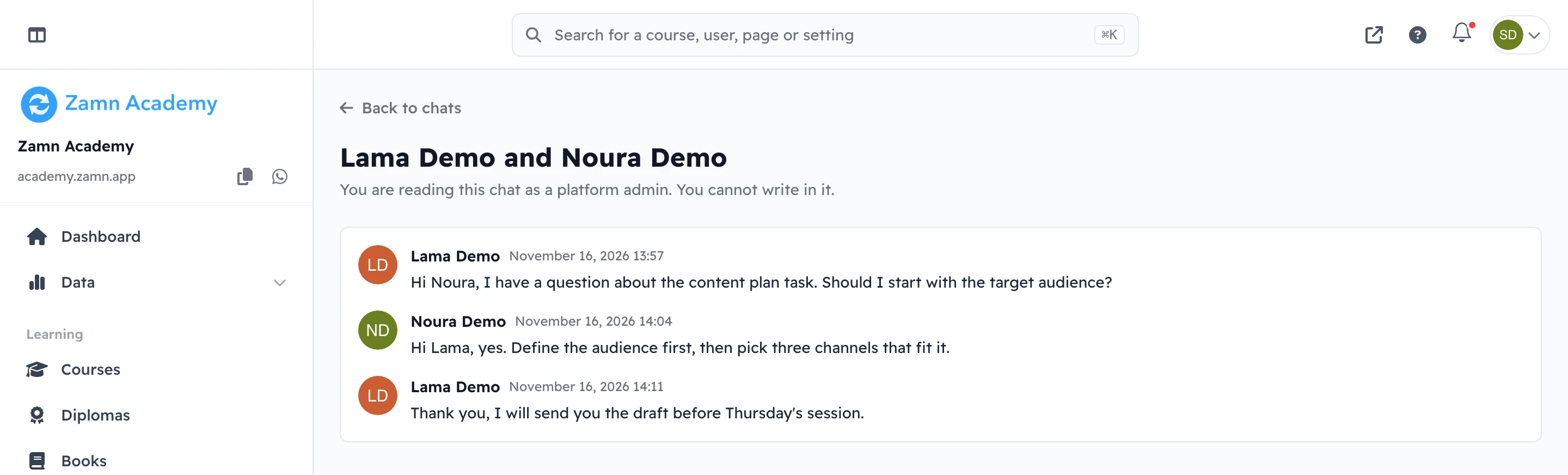
The chat opens for reading only. You see each message with its sender, date and time, and its files. You cannot write in the chat.
Students and coaches see the line Platform admins can read this chat. in every chat.
Turn chat off for one person
-
On the Chats page, click the person's name in the People column. The page then shows Chats of and their name, with their chats only.
-
Click Turn chat off for this person.
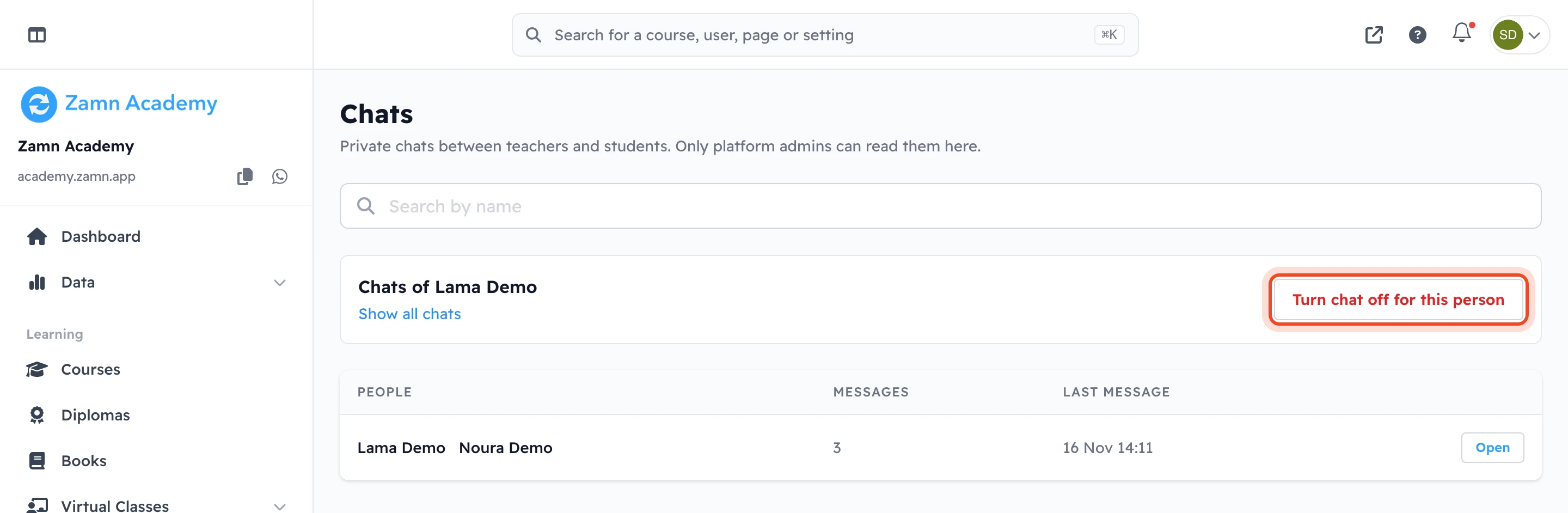
The person can still read their chats, but they cannot send messages, and no one can start a new chat with them. To allow them again, click Turn chat on for this person. To go back to all chats, click Show all chats.
Who can chat with whom
- A student can chat with the coaches of their courses, and with the coaches assigned to them.
- A coach can chat with the students of their courses, and with the students assigned to them.
- Students cannot chat with other students. A platform admin who is not a coach cannot chat.
- If the student leaves the course, the course ends or the coach leaves, the chat stays, but no new messages can be sent in it.
Files sent in chats count toward your platform's storage. They show as Chat files on the Storage page.