How to copy a course
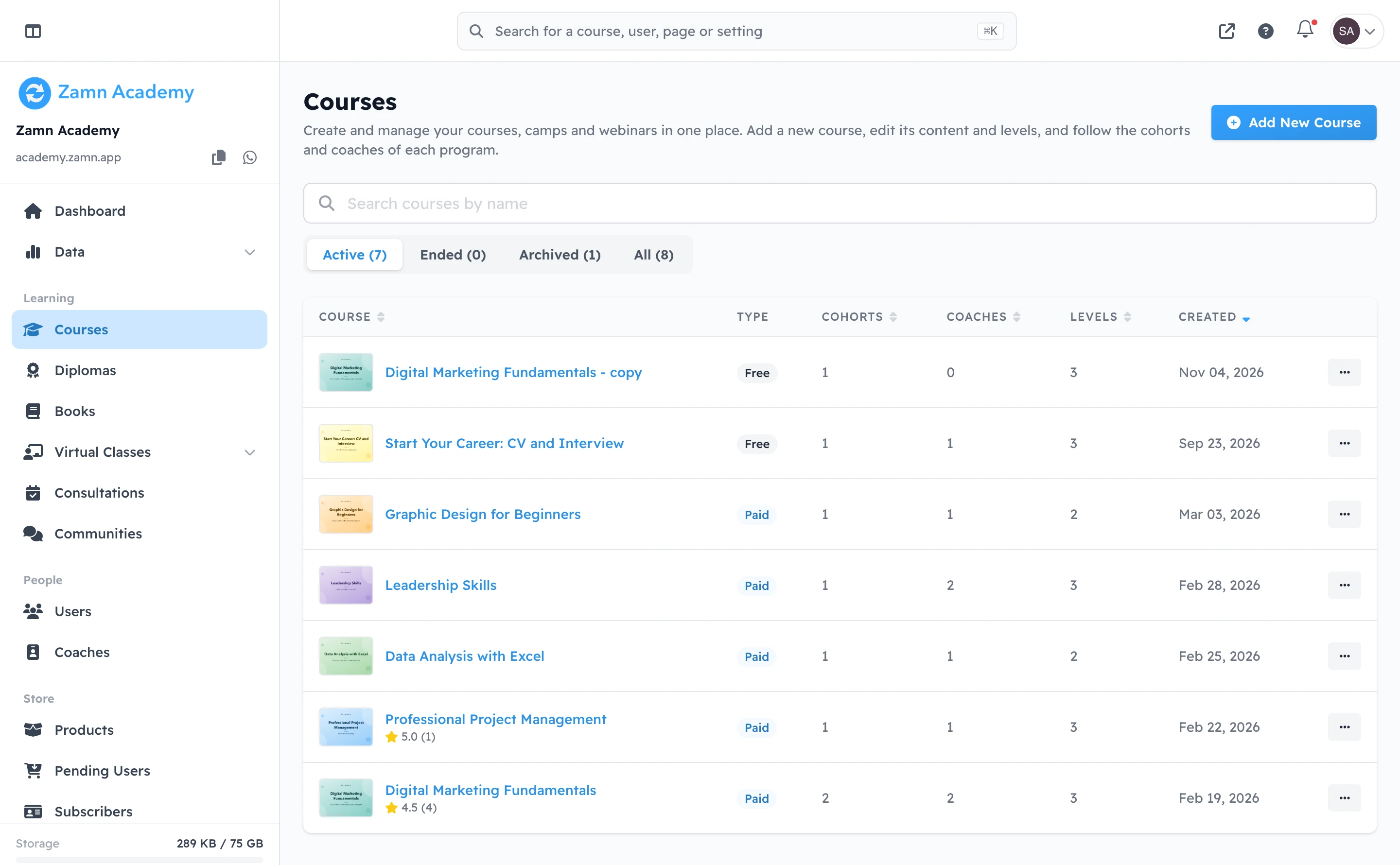
You can make a copy of an existing course with all its content, instead of building it from the start. Cohorts and students do not move to the copy, so you need to add a cohort to it before it becomes active.
The copy does not keep the course price, so it shows as Free. Set its price again before you sell it.
Steps to copy a course
-
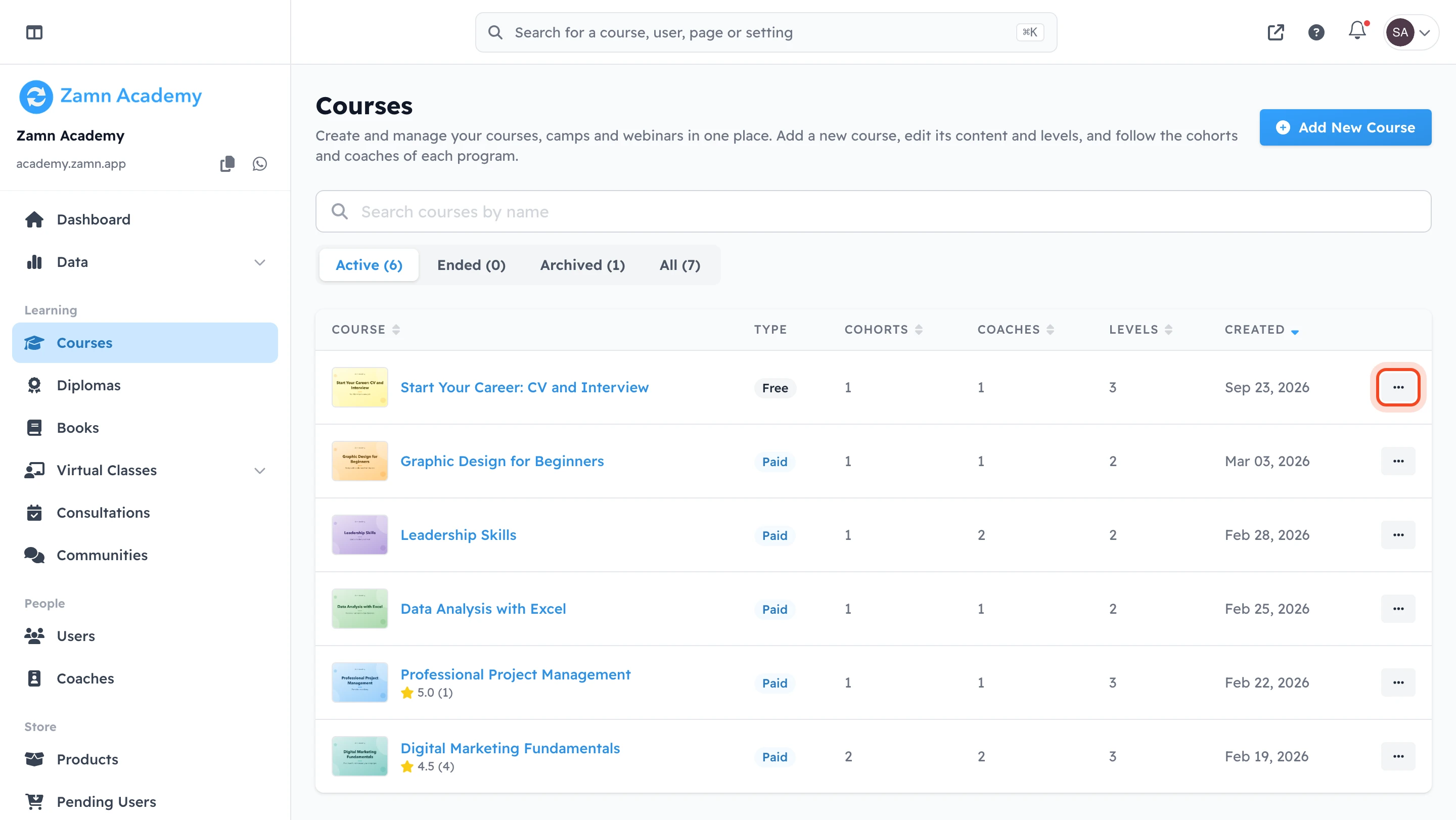
On the Courses page, click ⋯ at the end of the row of the course you want to copy.
-
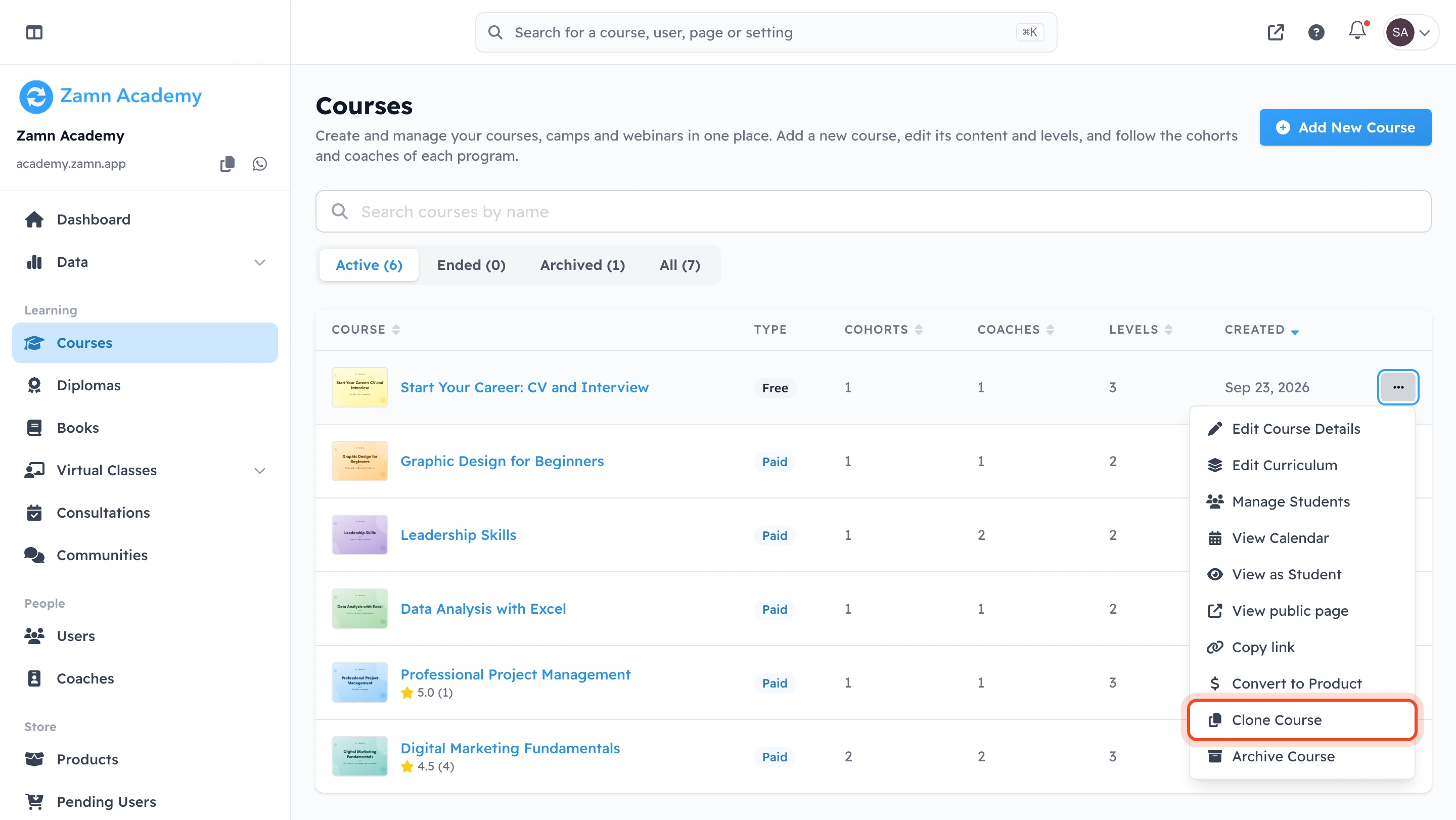
Click Clone Course.
-
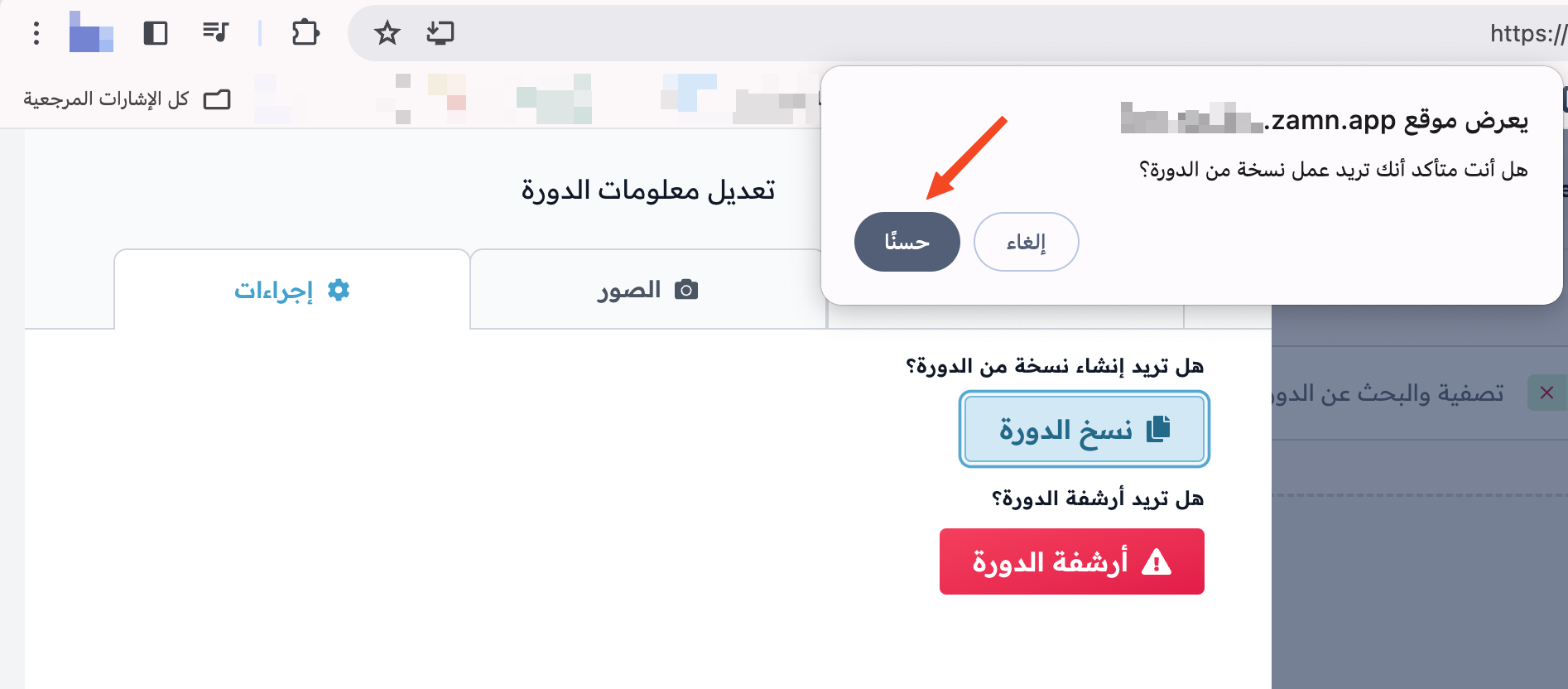
A confirmation message shows: Are you sure you want to make a copy of the course? Click OK to agree. The message Course copy requested. It will appear here soon! then shows.
-
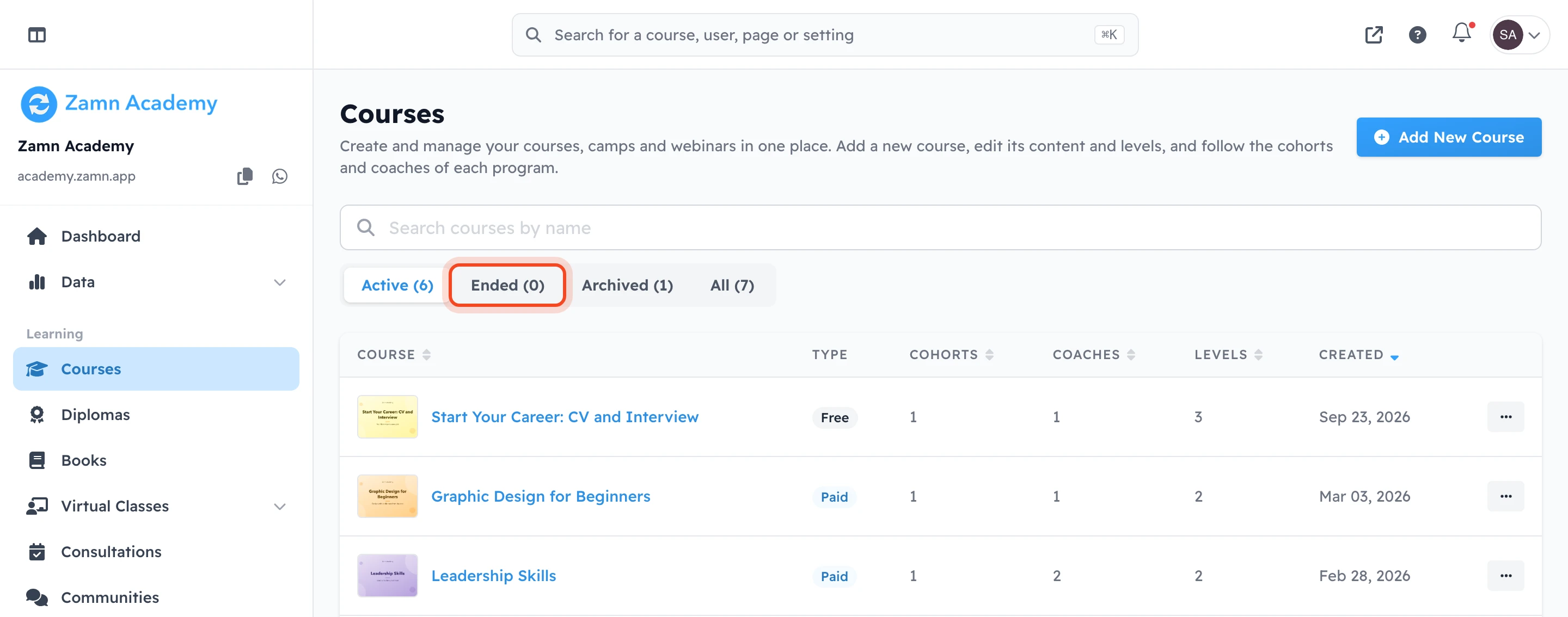
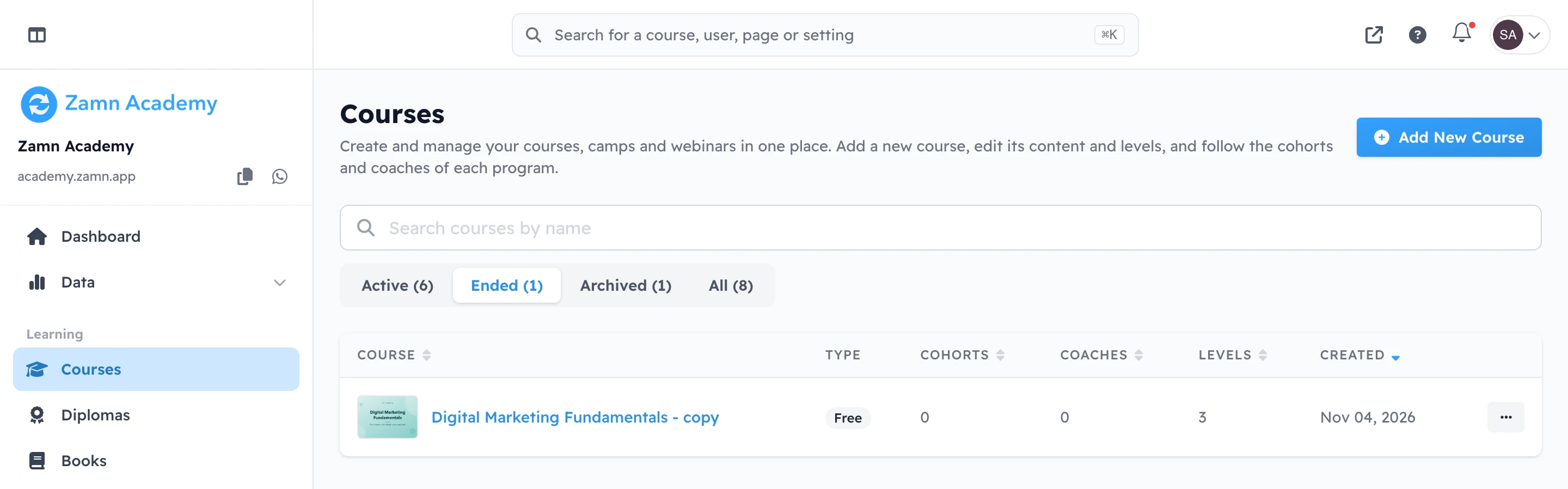
Wait a few moments for the copy to appear, then click the Ended tab above the courses list to see the copied course. Its name ends with - copy.
Steps to activate the copied course
-
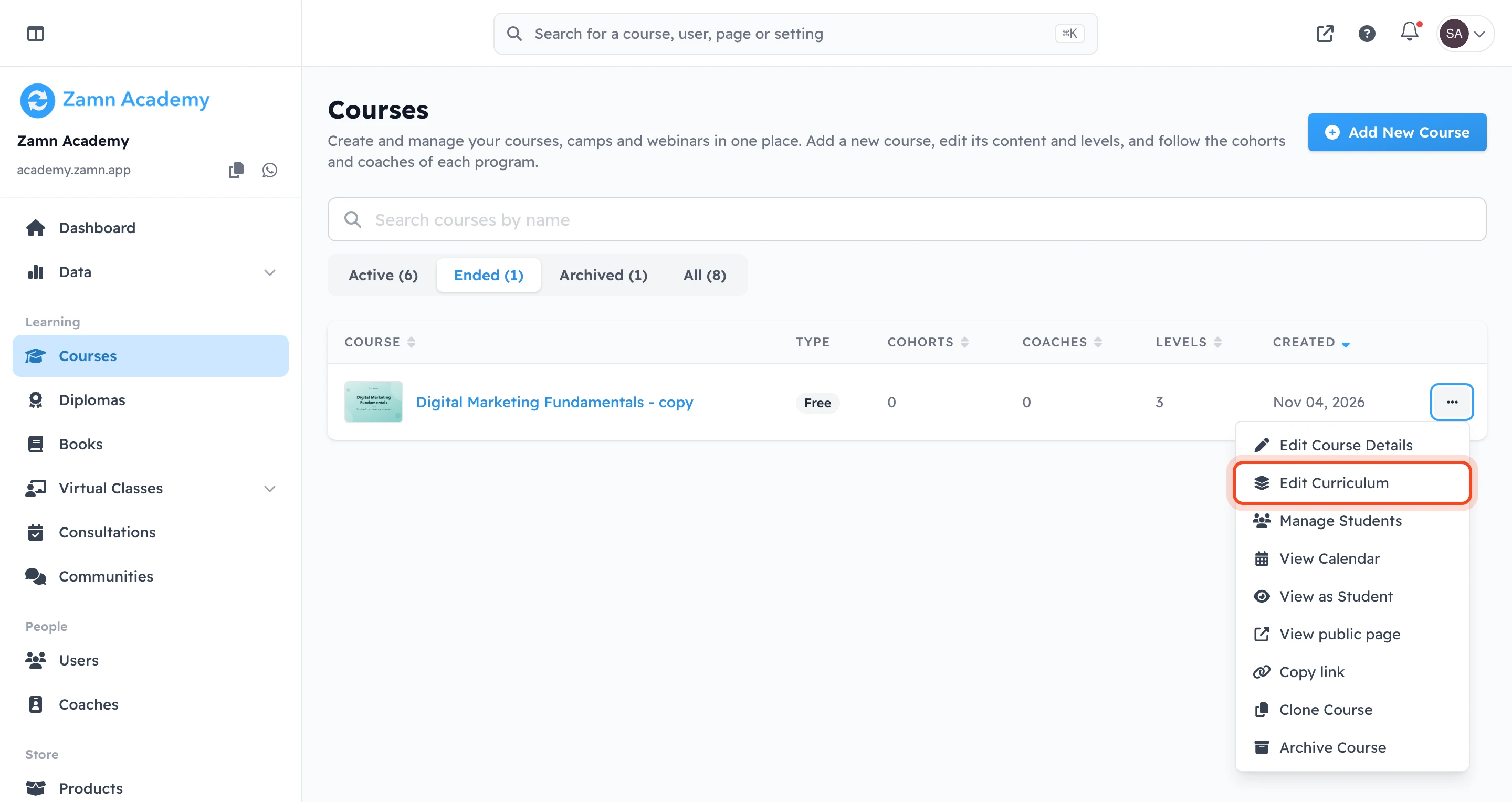
Click the name of the copied course. You can also click ⋯ at the end of its row, then Edit Curriculum.
-
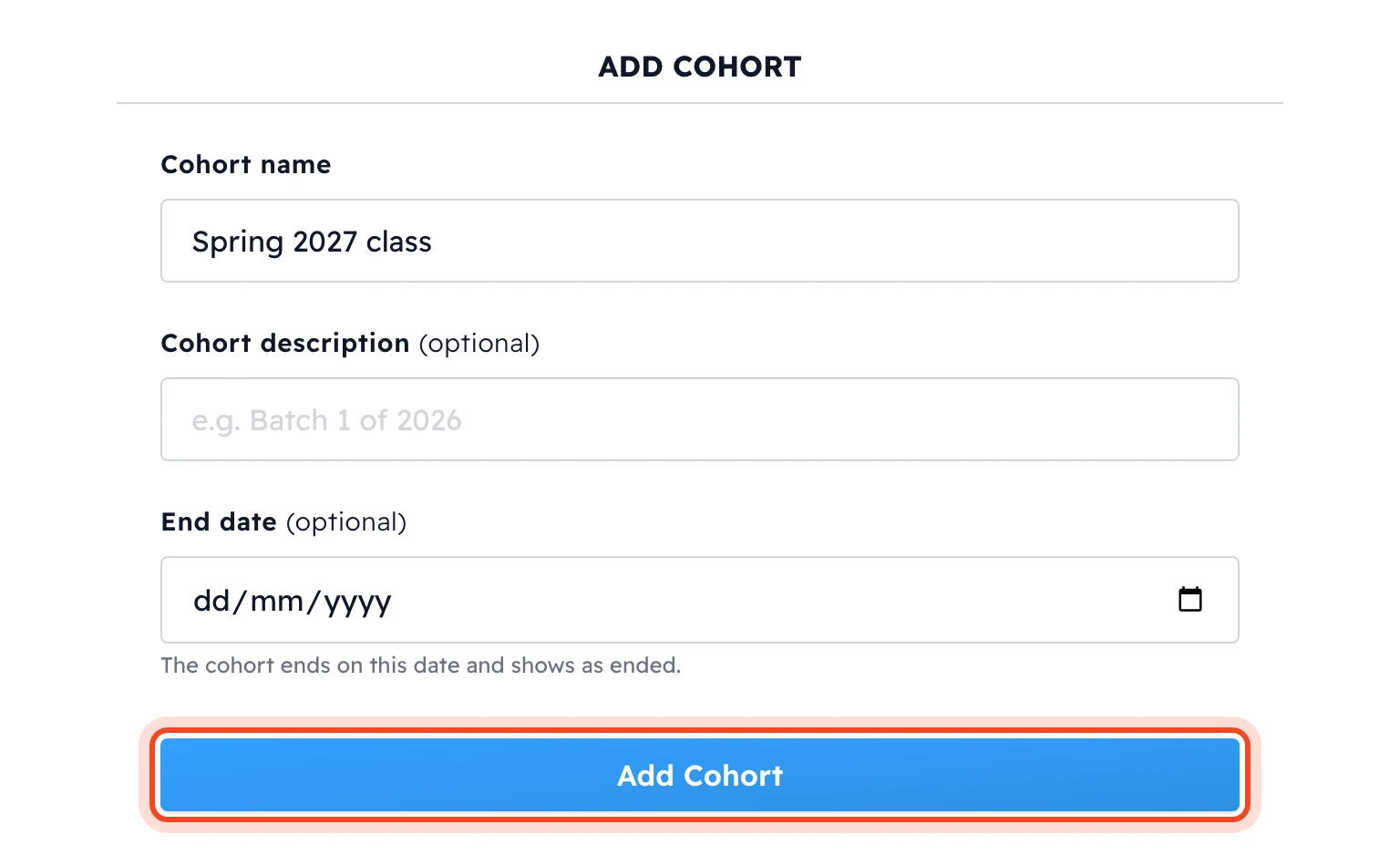
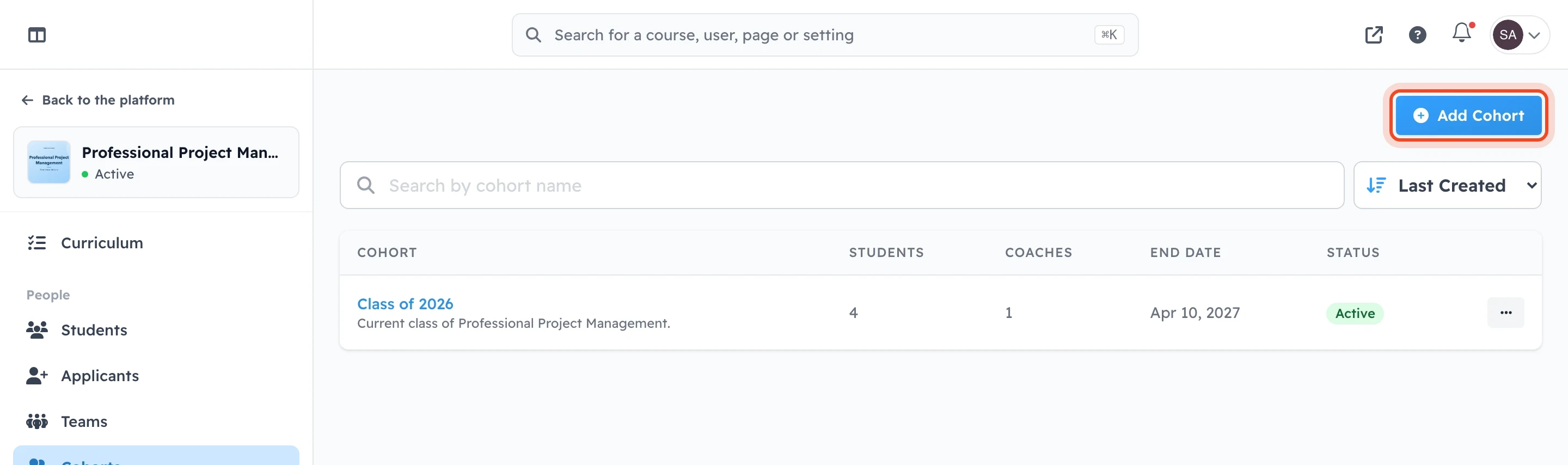
From the course menu, go to the Cohorts page, then click Add Cohort. A side panel opens.
-
Type a name for the cohort, then click Add Cohort. The course then moves to the Active tab.
tipAdding a cohort description and a cohort end date is optional.