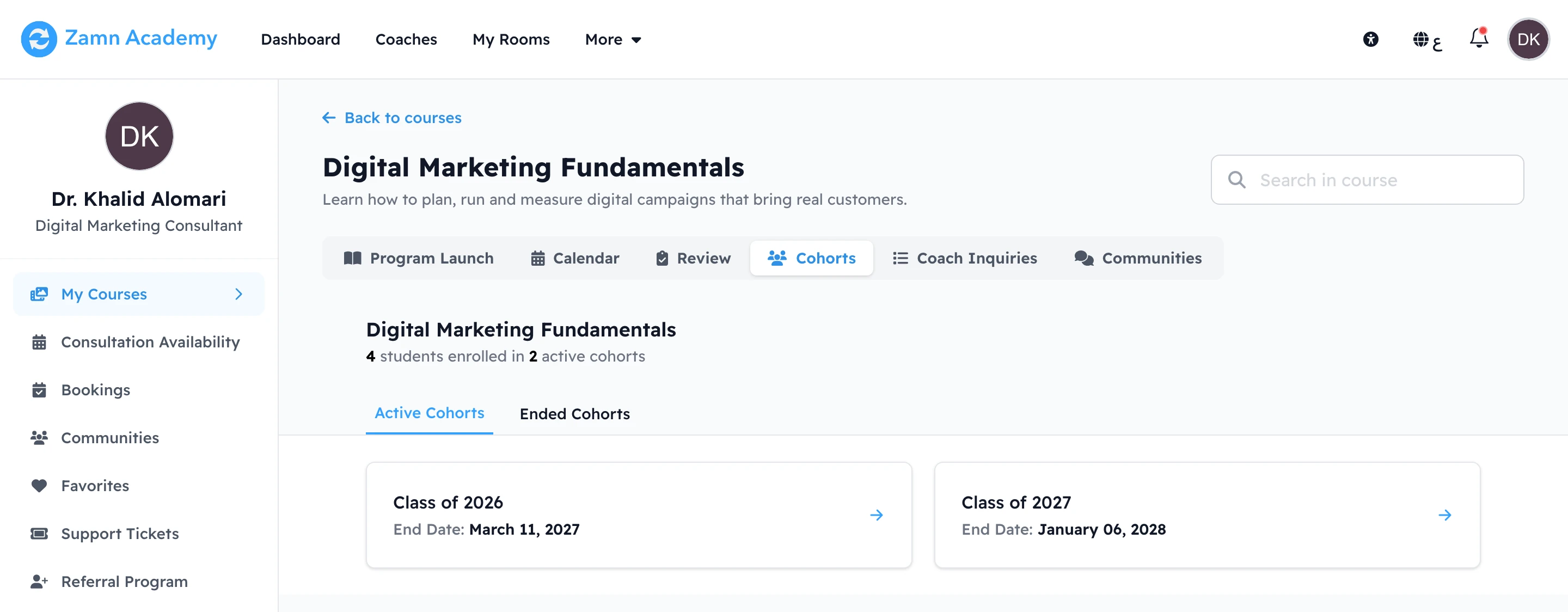
Coach permissions and how to add a coach to a course
A coach follows the students of a course and reviews their submissions. This article is for platform admins. It shows how to add a coach to a course and what a coach can do.
Steps to add a coach
-
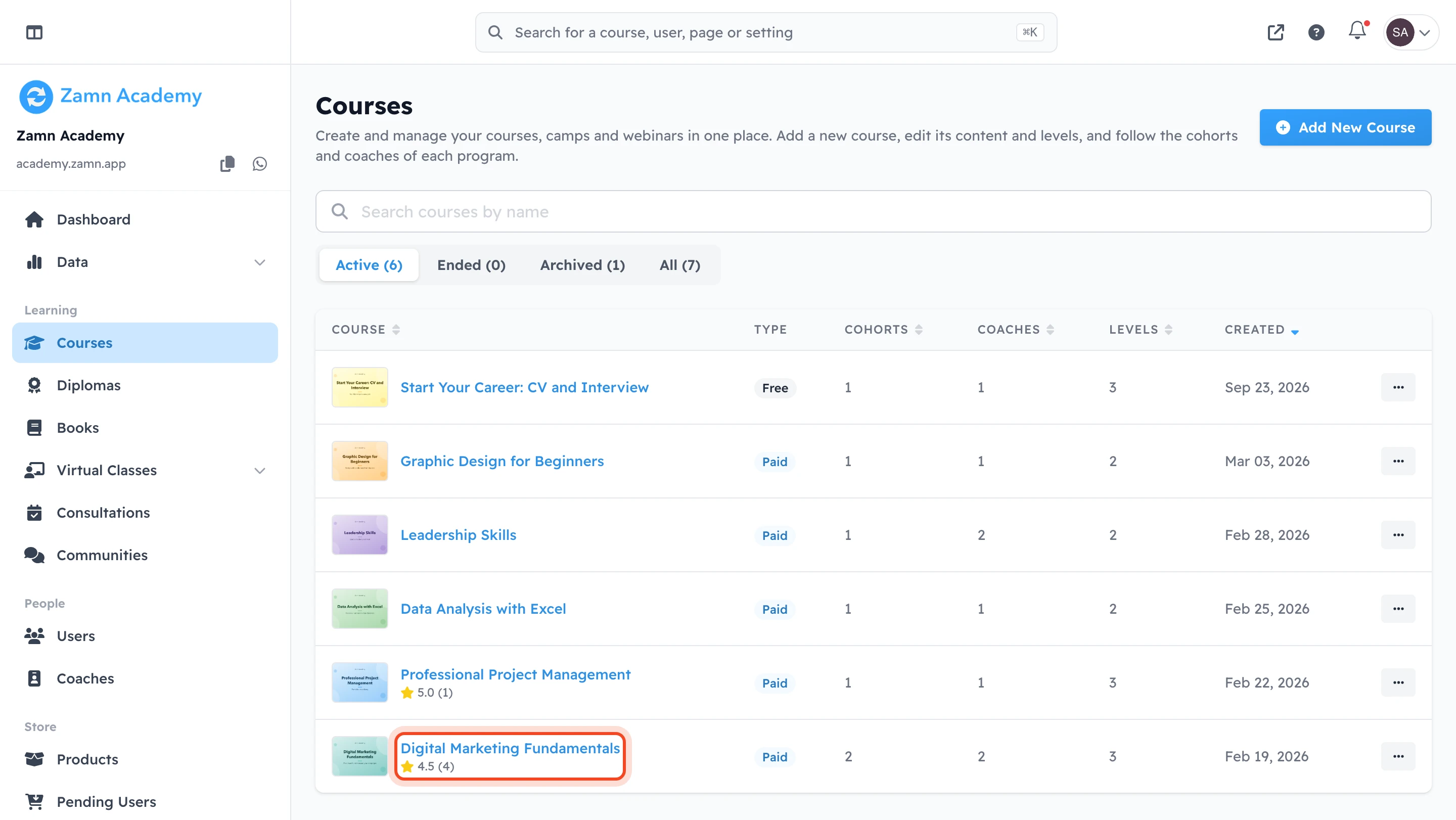
Go to the Courses page, then click the name of the course you want. You can also click ⋯ at the end of its row, then Edit Curriculum.
-
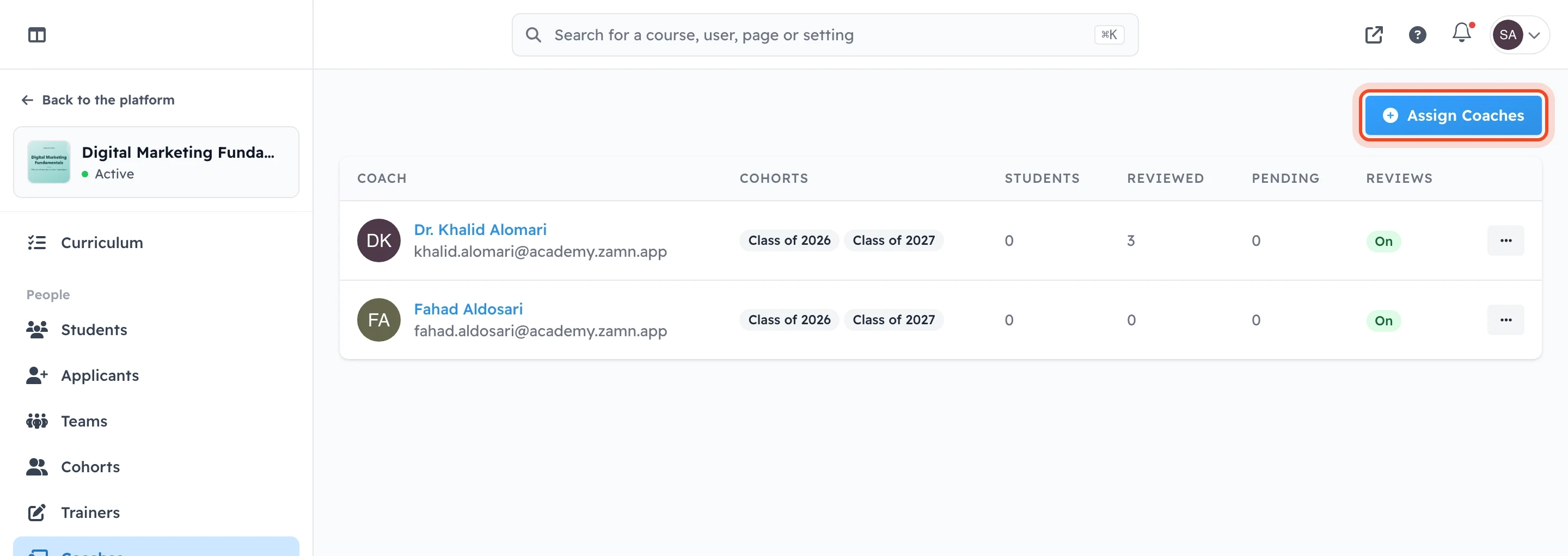
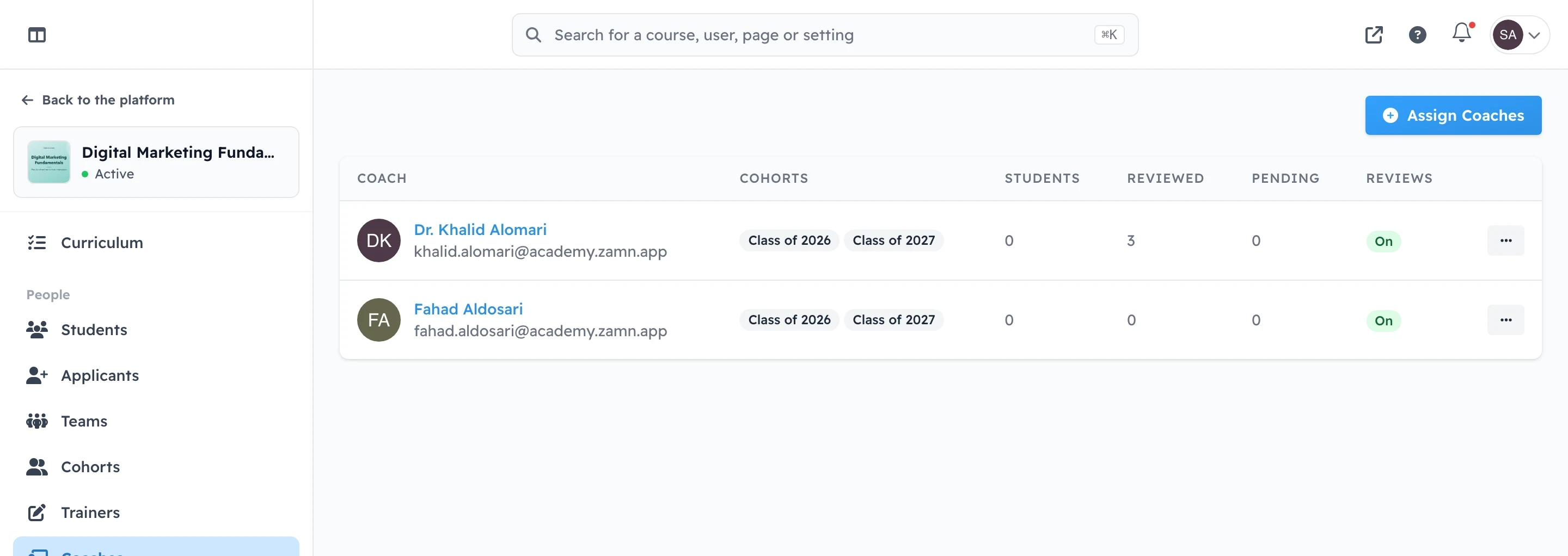
From the course menu, go to the Coaches page, then click Assign Coaches.
NoteYou must first add coaches to your platform, so you can choose the course coaches from them.
-
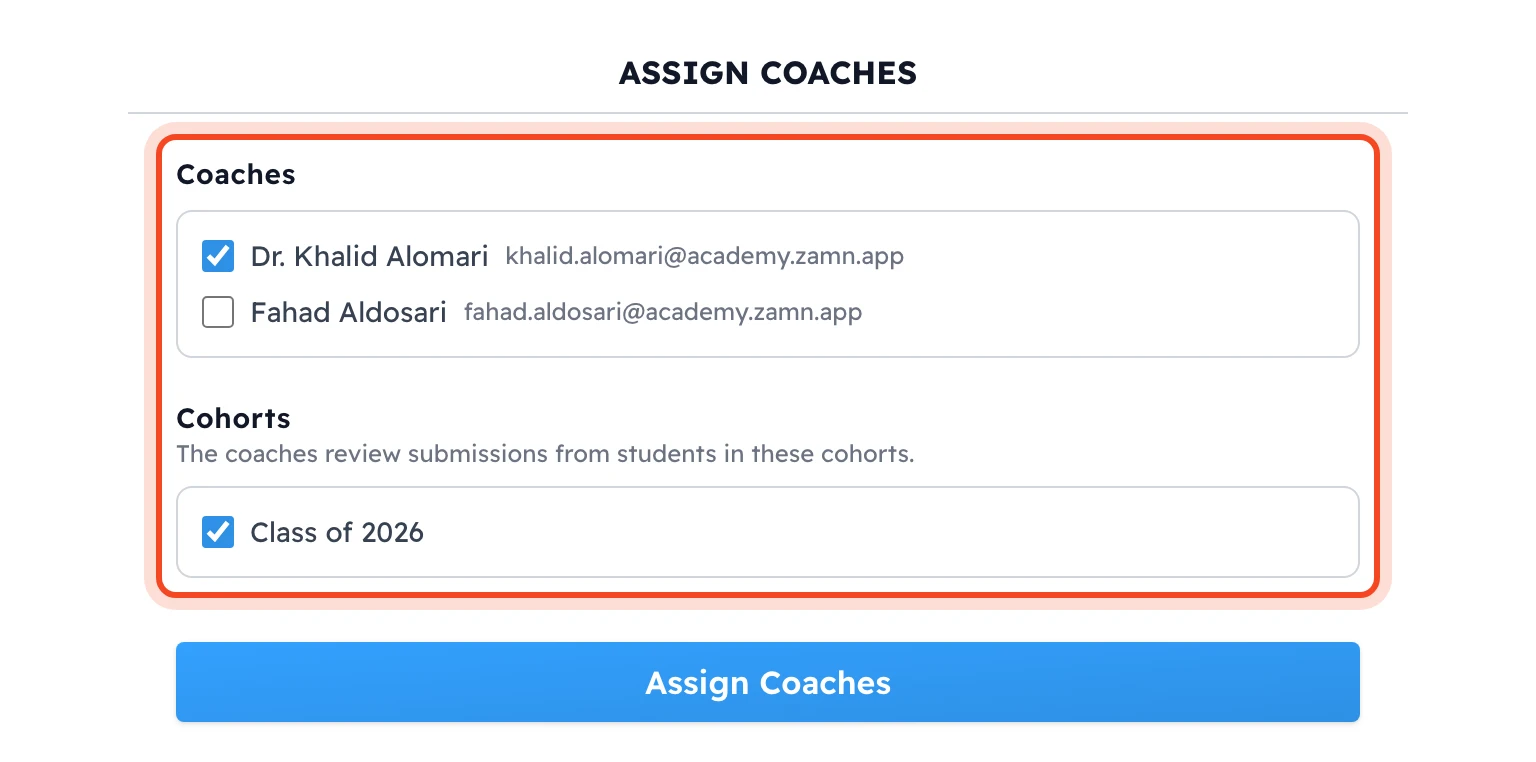
Under Coaches, select the coaches you want.
-
Under Cohorts, select the cohorts they will be responsible for.
-
Click Assign Coaches.
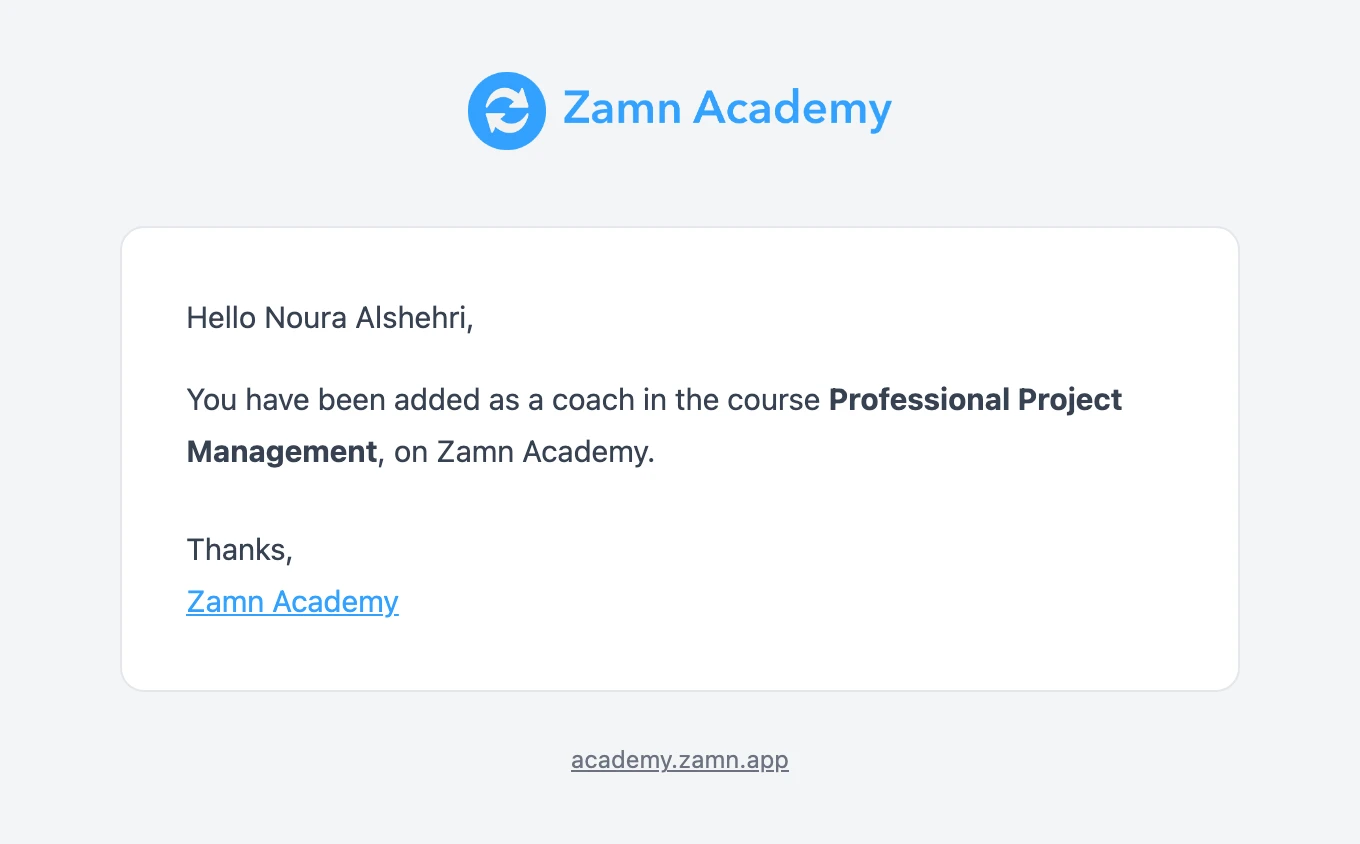
The coach gets an email telling them they were added as a coach in the course.
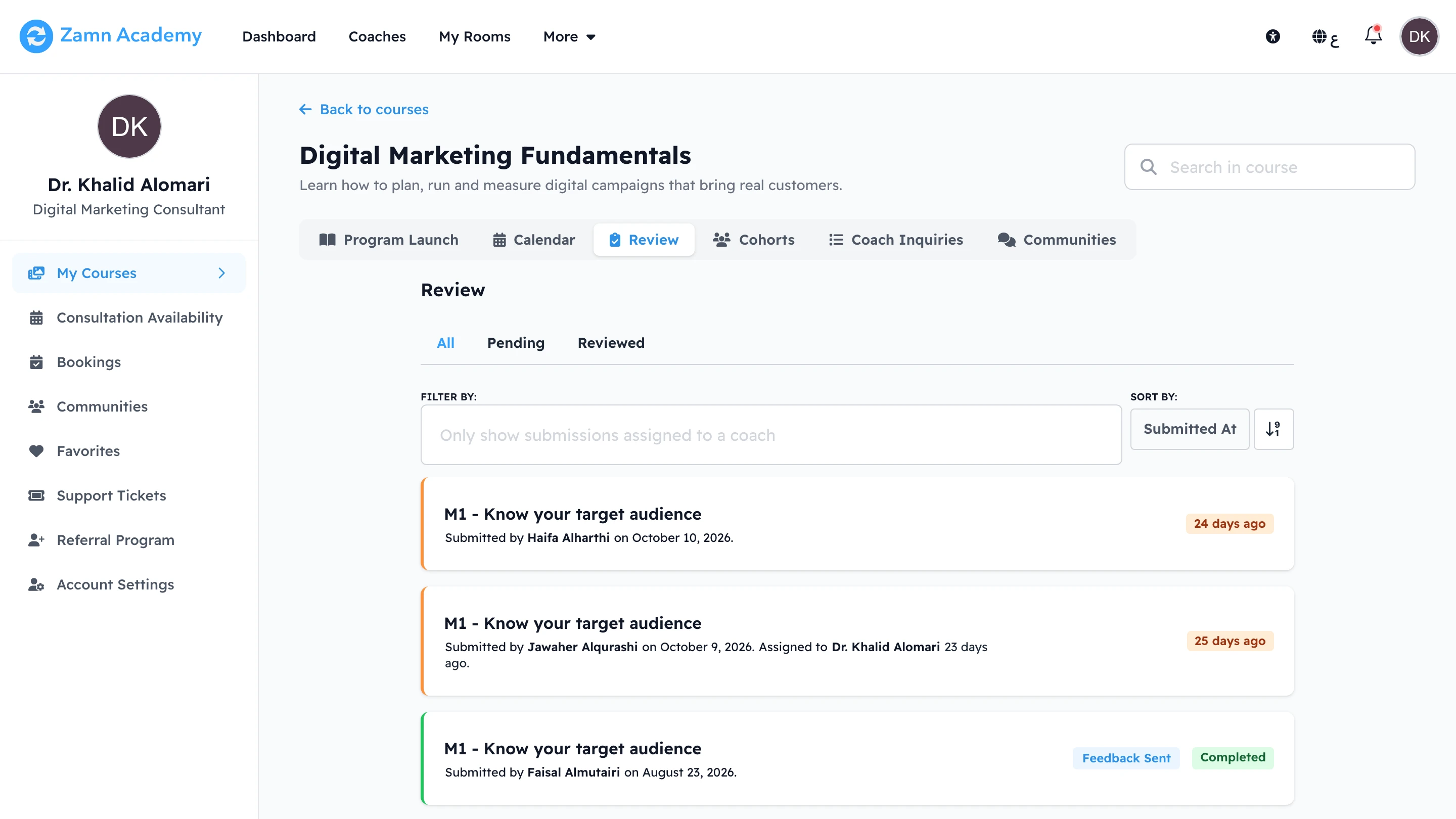
Coach permissions
-
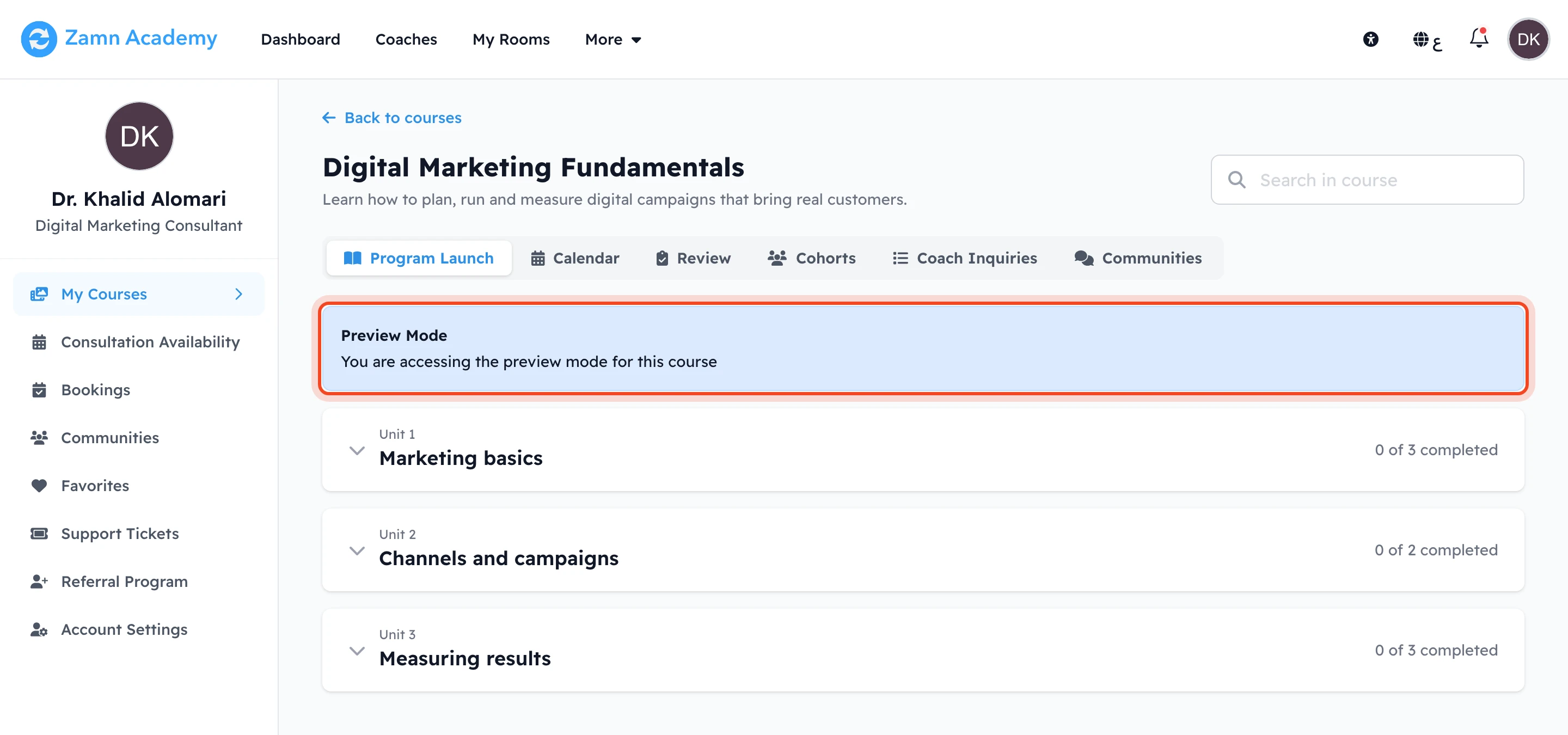
Preview the course content.
-
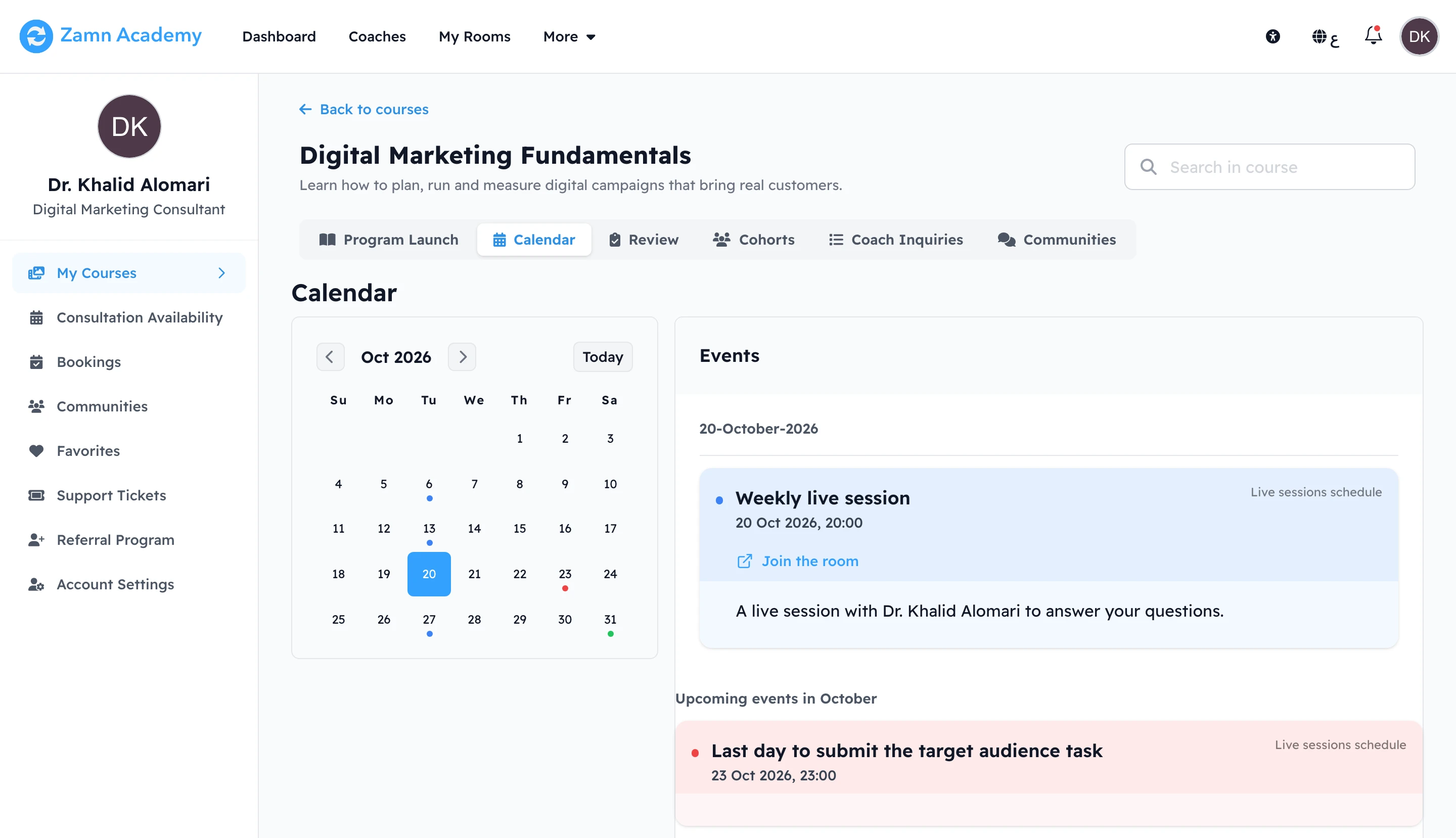
See the course calendar.
-
-