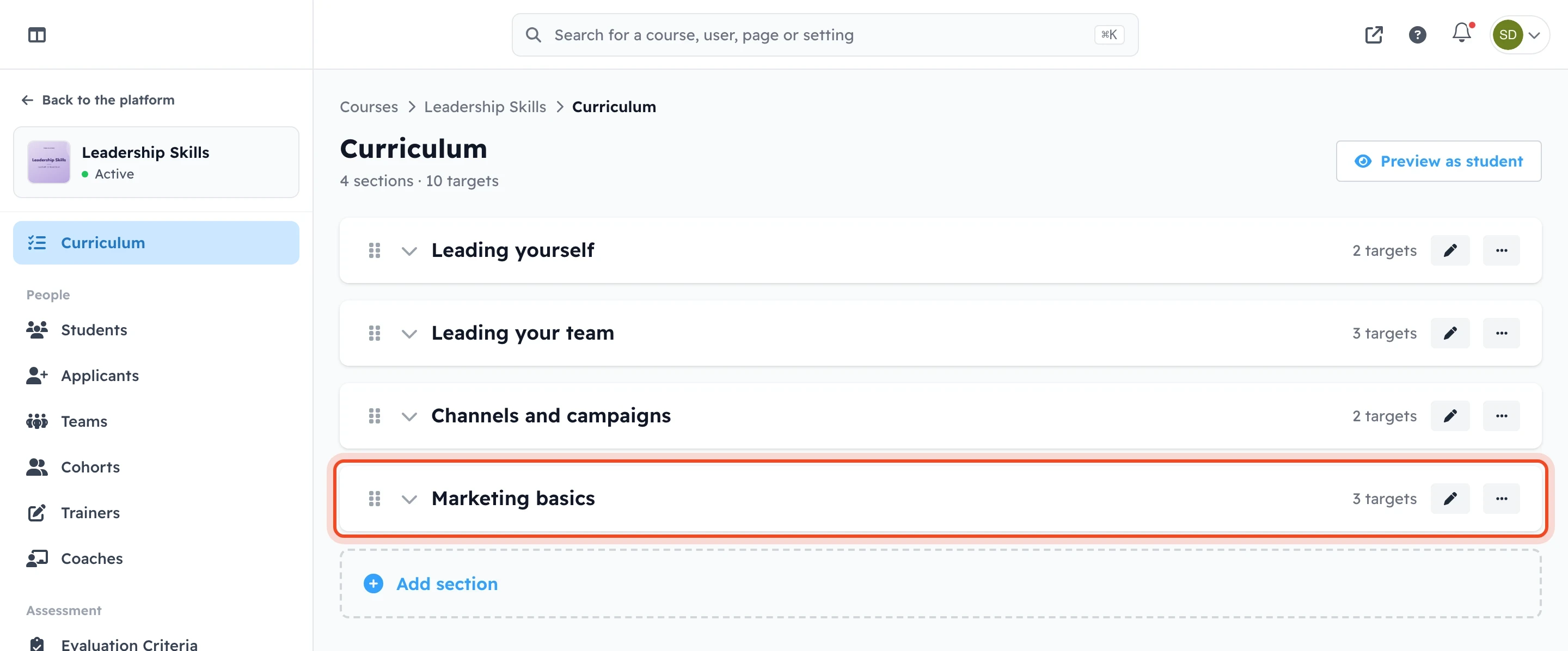
How to copy a level from a course
You can copy a level (section) of a course, with all its targets, into another course on your platform.
Steps to copy a level (section) of a course
-
On the Courses page, click the name of the course you want to copy a level from, or click ⋯ at the end of its row, then click Edit Curriculum.
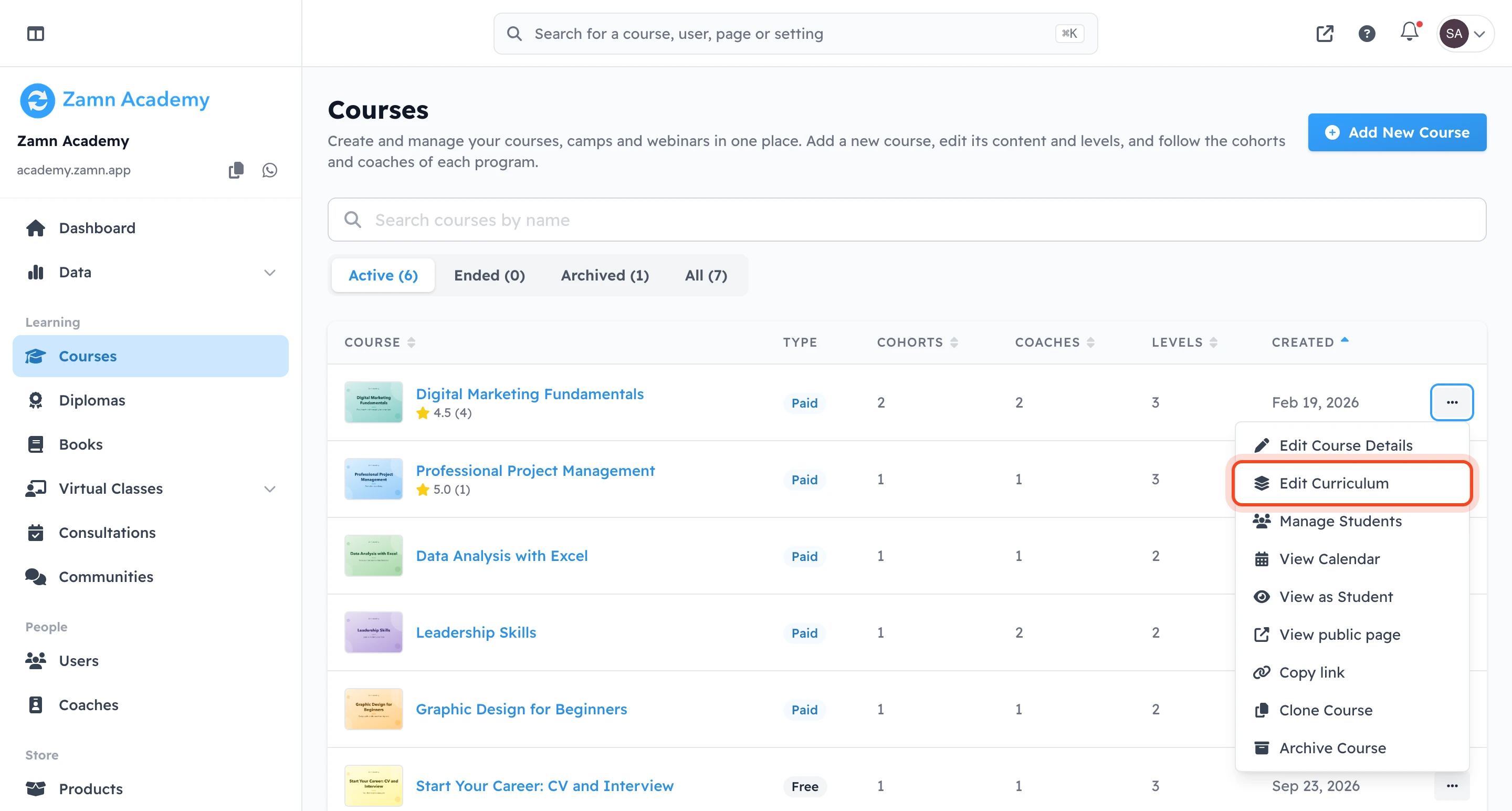
-
Click ⋯ next to the section you want to copy, then click Copy to another course.
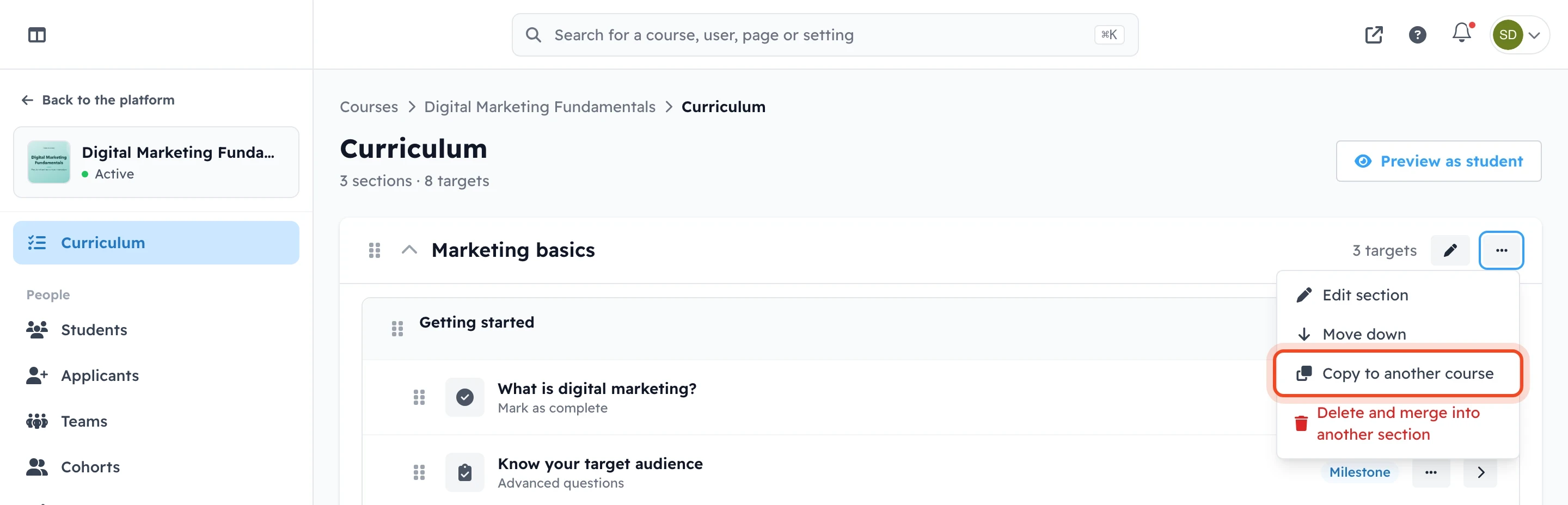
-
In Copy into, choose the course you want to copy the section into, then click Copy section.
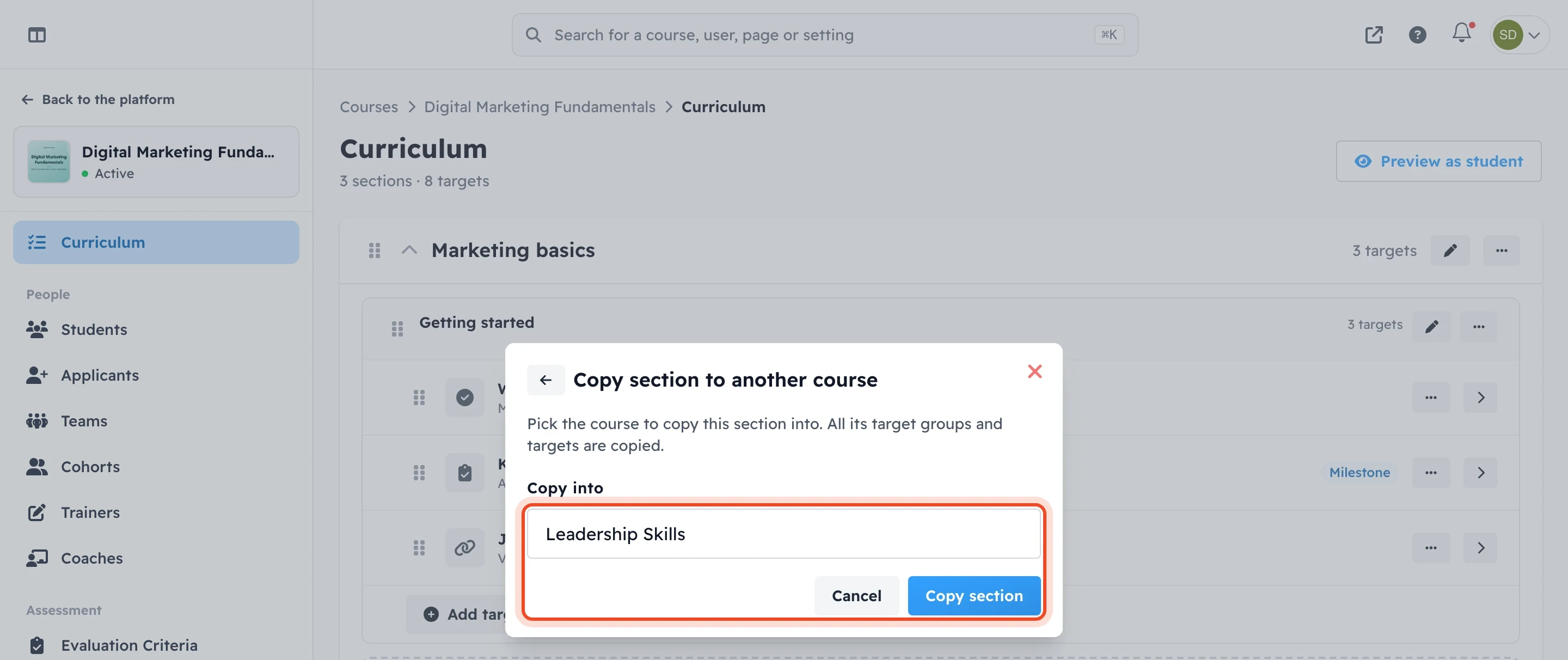
The message The section is being copied to the course shows. The section is copied in the background, and the copied section shows in the course you chose after a short time.