Arrange courses on your platform home page
This article explains which courses show on your platform home page, and in which order. It is for platform admins.
How courses are ordered on the home page
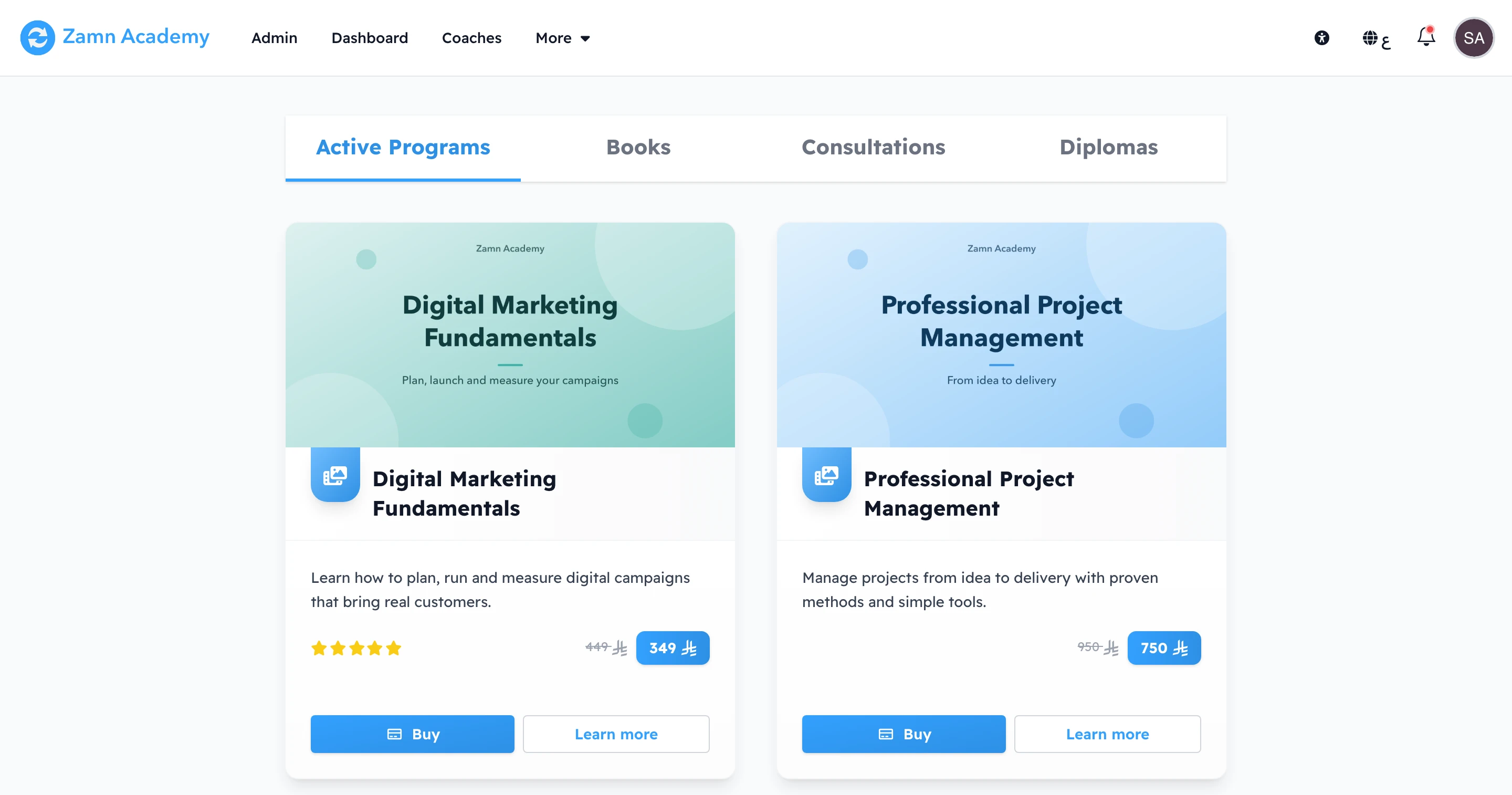
- The default home page shows only the courses that have Add to homepage turned on.
- The courses show in a fixed order, and each new course you add with Add New Course goes to the end of the list. A copy you make with Clone Course has Add to homepage turned on, and it shows first in the list.
- The Courses page in your dashboard no longer has the order arrows, so you cannot change this order from the dashboard.
Show a course on the home page
-
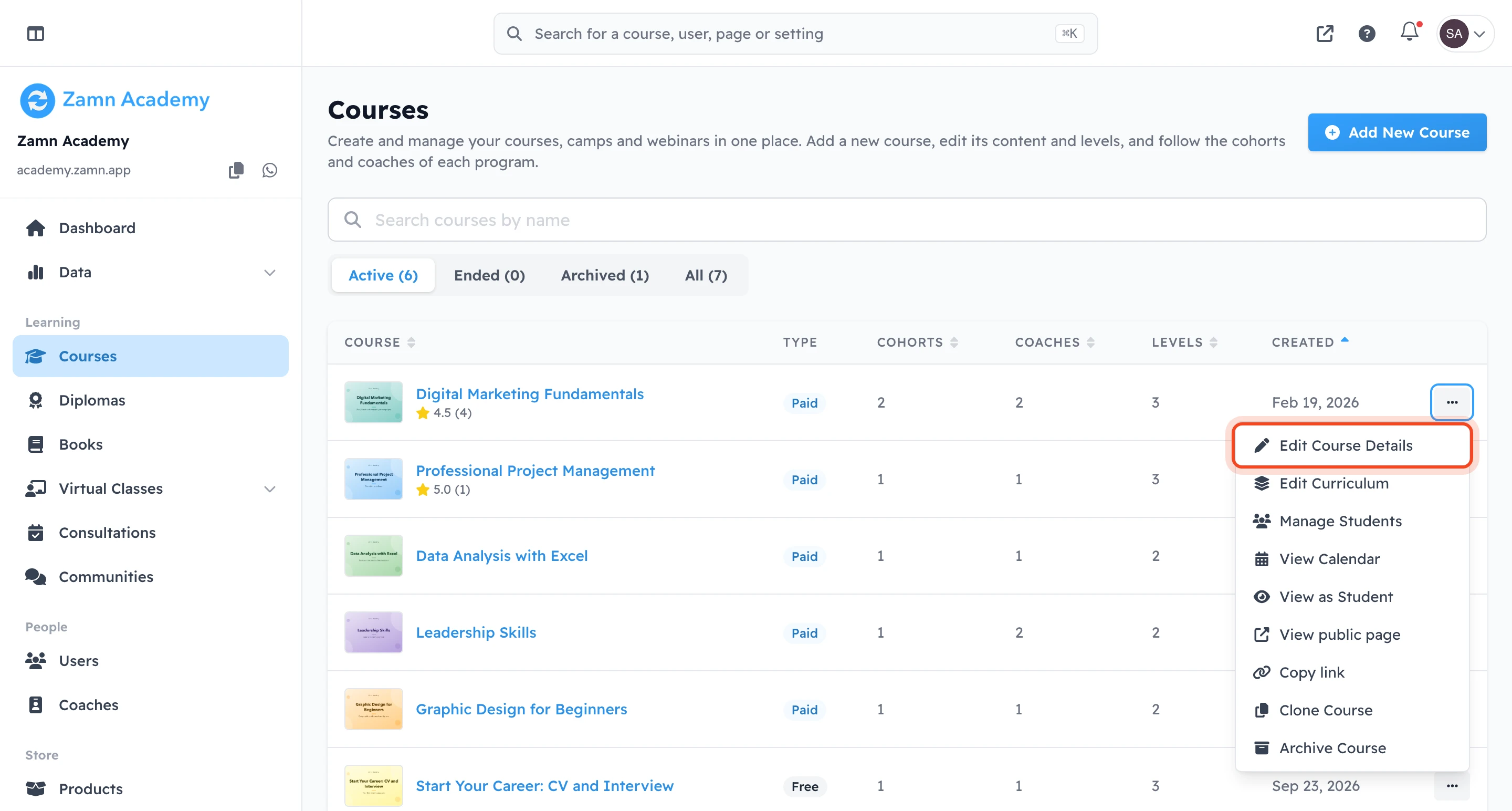
On the Courses page, click ⋯ at the end of the course row, then click Edit Course Details.
-
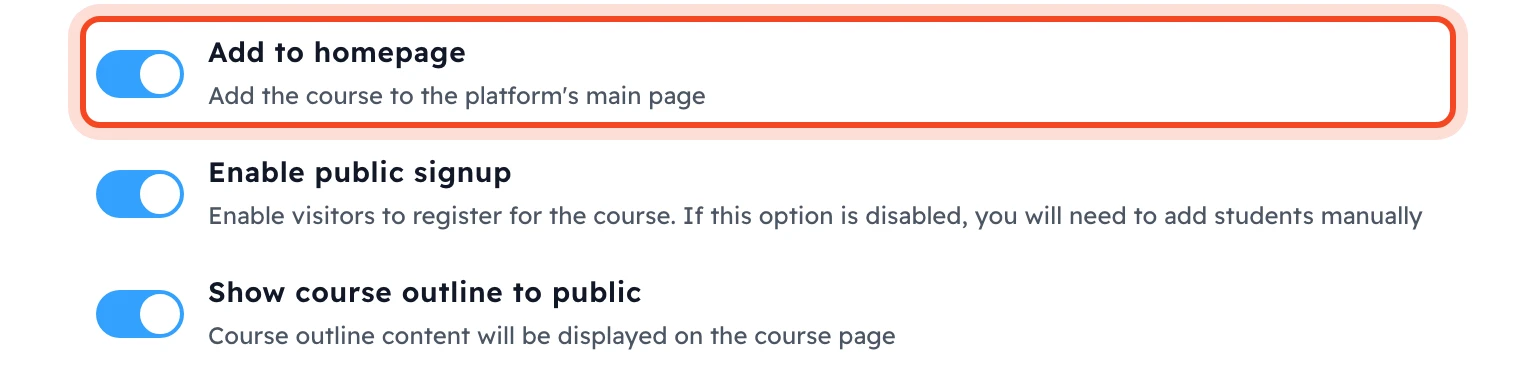
In the Details tab, turn on Add to homepage.
-
Click Update Course at the bottom of the window to save.
Choose the order yourself
If you want your own order, design your home page with the page builder, add a Courses Grid section, and place the courses in it in the order you want. Learn more: How to add a course product with the page builder.
Note
If you designed your home page with the page builder and it is visible to visitors, courses show in the order you placed them in the page builder, not in the order of the default home page.