Course dashboard guide
The course dashboard is where you manage everything about a course: content, students, trainers, certificates and more. This guide is for platform admins.
Open the course dashboard
-
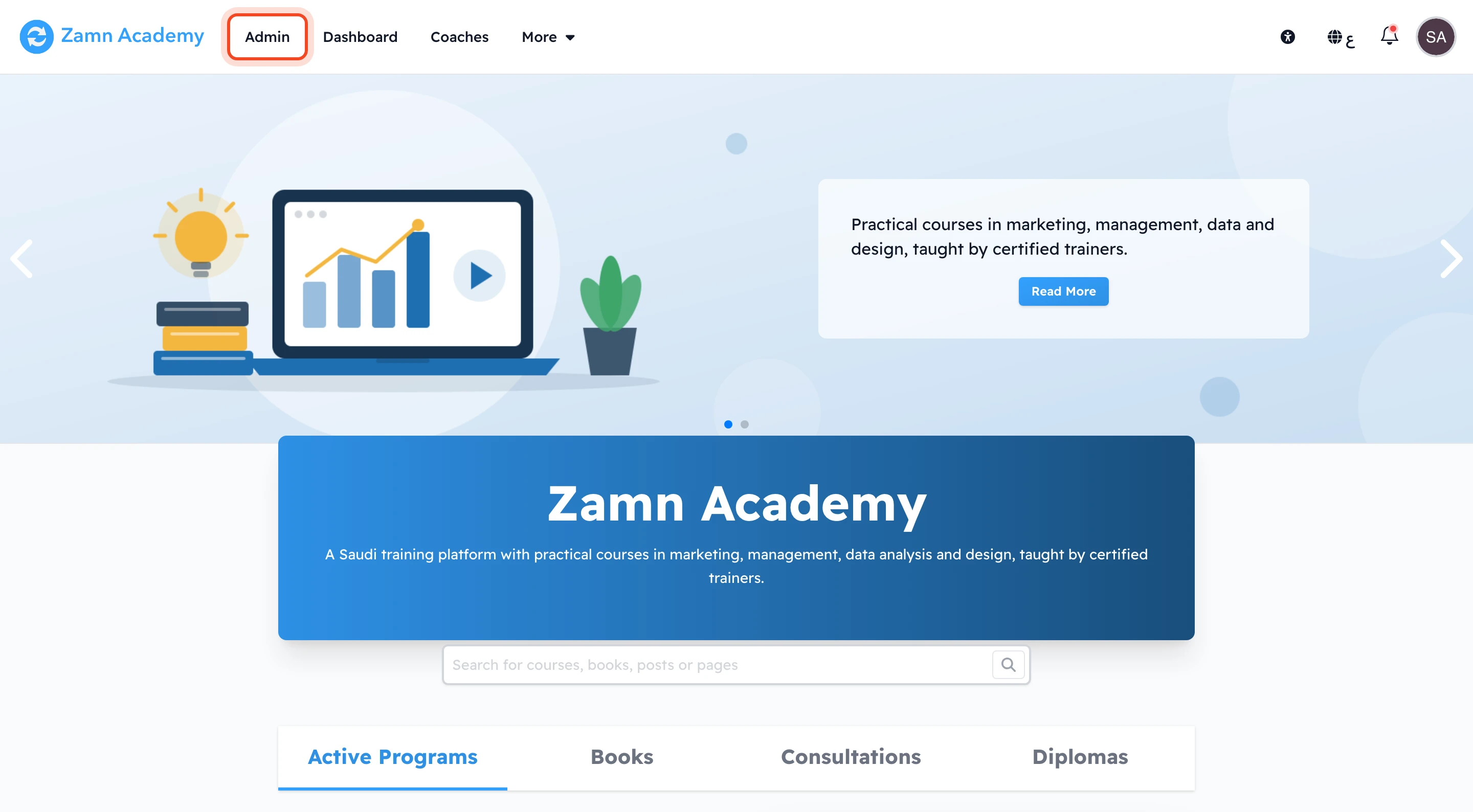
Click Admin in the top bar of your platform.
-
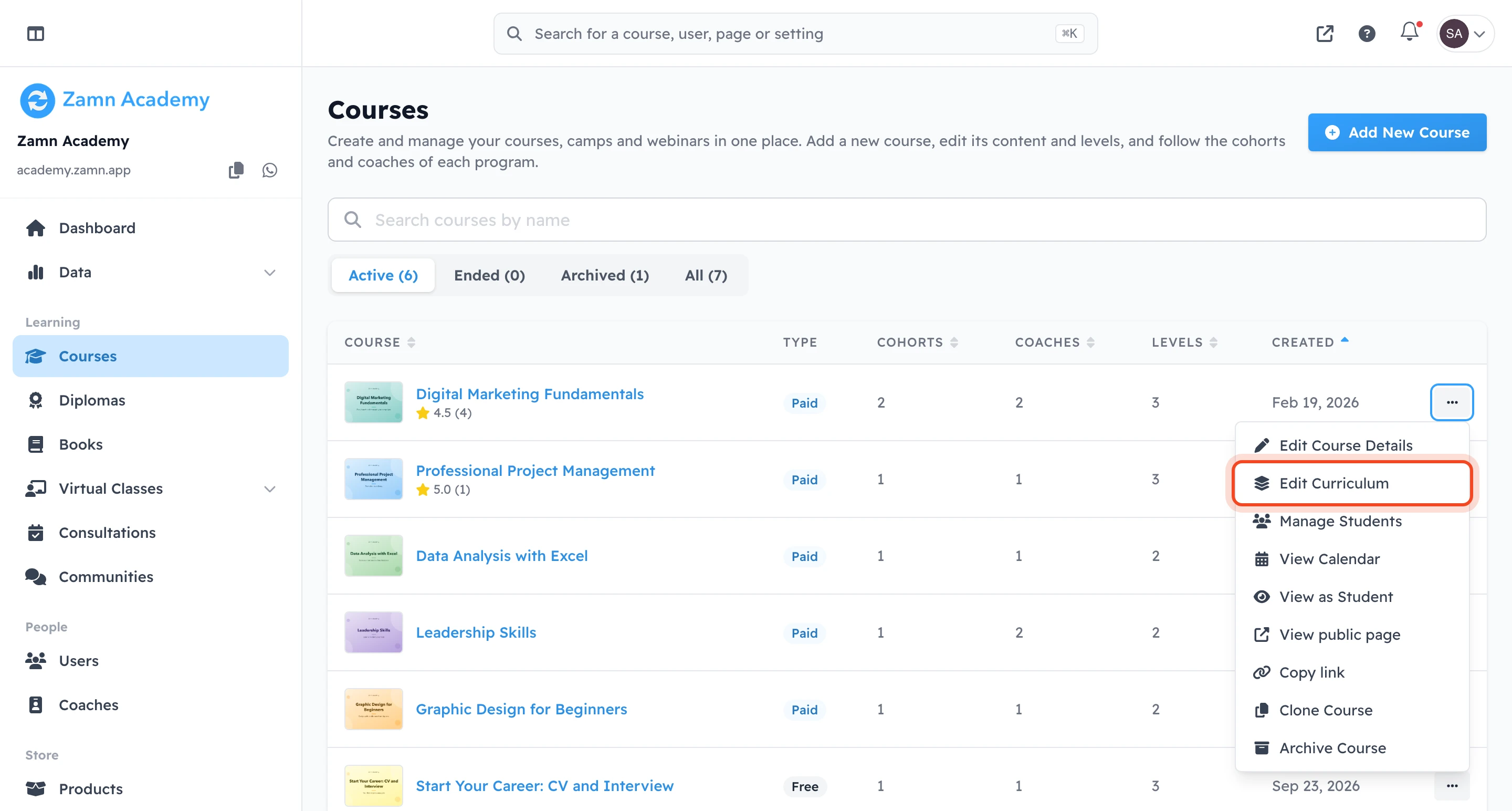
On the Courses page, click the name of the course whose dashboard you want to open, or click ⋯ at the end of its row, then click Edit Curriculum.
Pages of the course dashboard
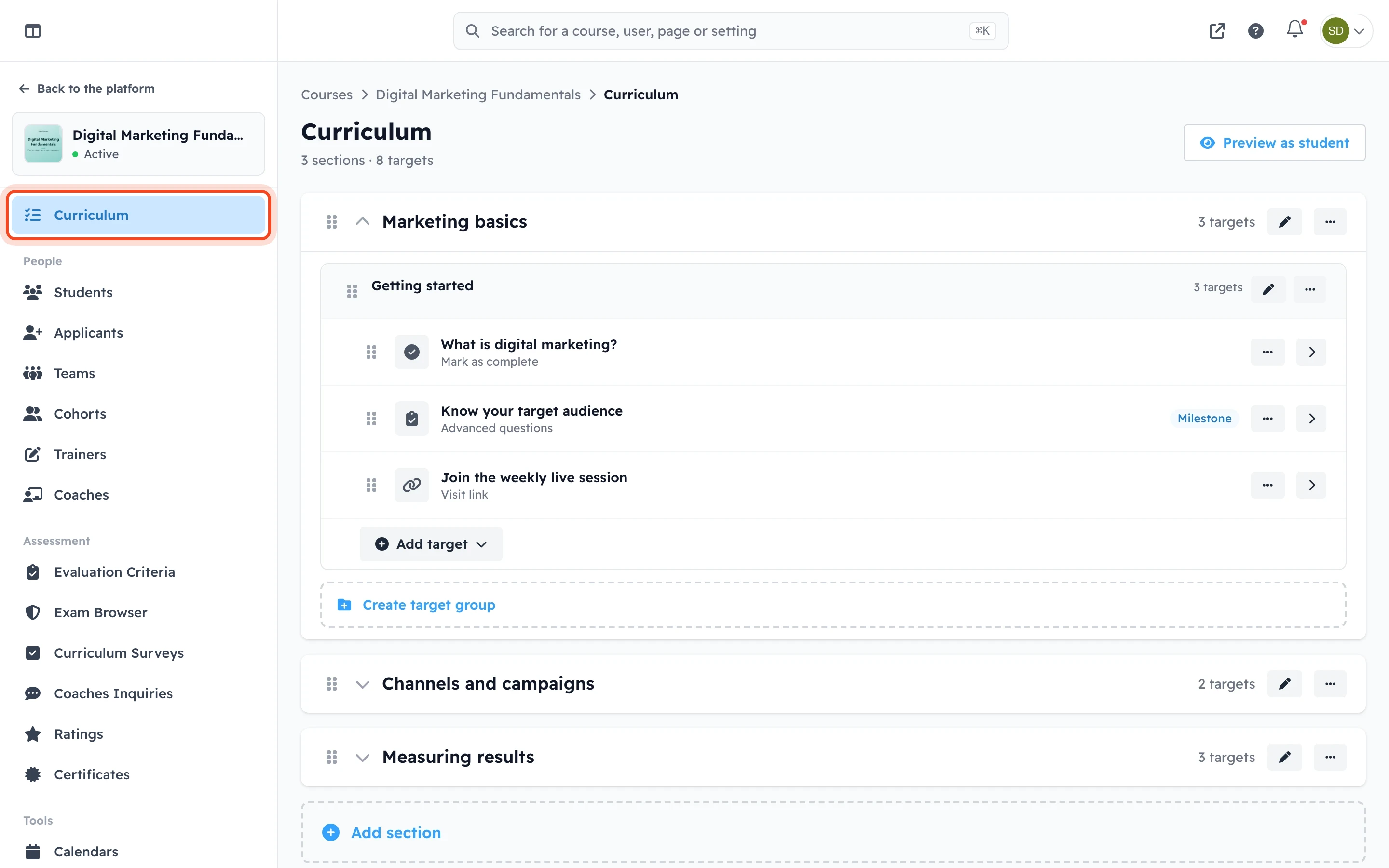
At the top of the course side menu, a card shows the course picture, its name and its state: Active, Ended or Archived. To go back to your platform dashboard, click Back to the platform above the card.
Under the card, Curriculum comes first. The other pages are in three groups: People, Assessment and Tools. This guide follows the same order.
Curriculum
Add the course content: sections, target groups and lessons.
Learn more: How to add content to a course
People
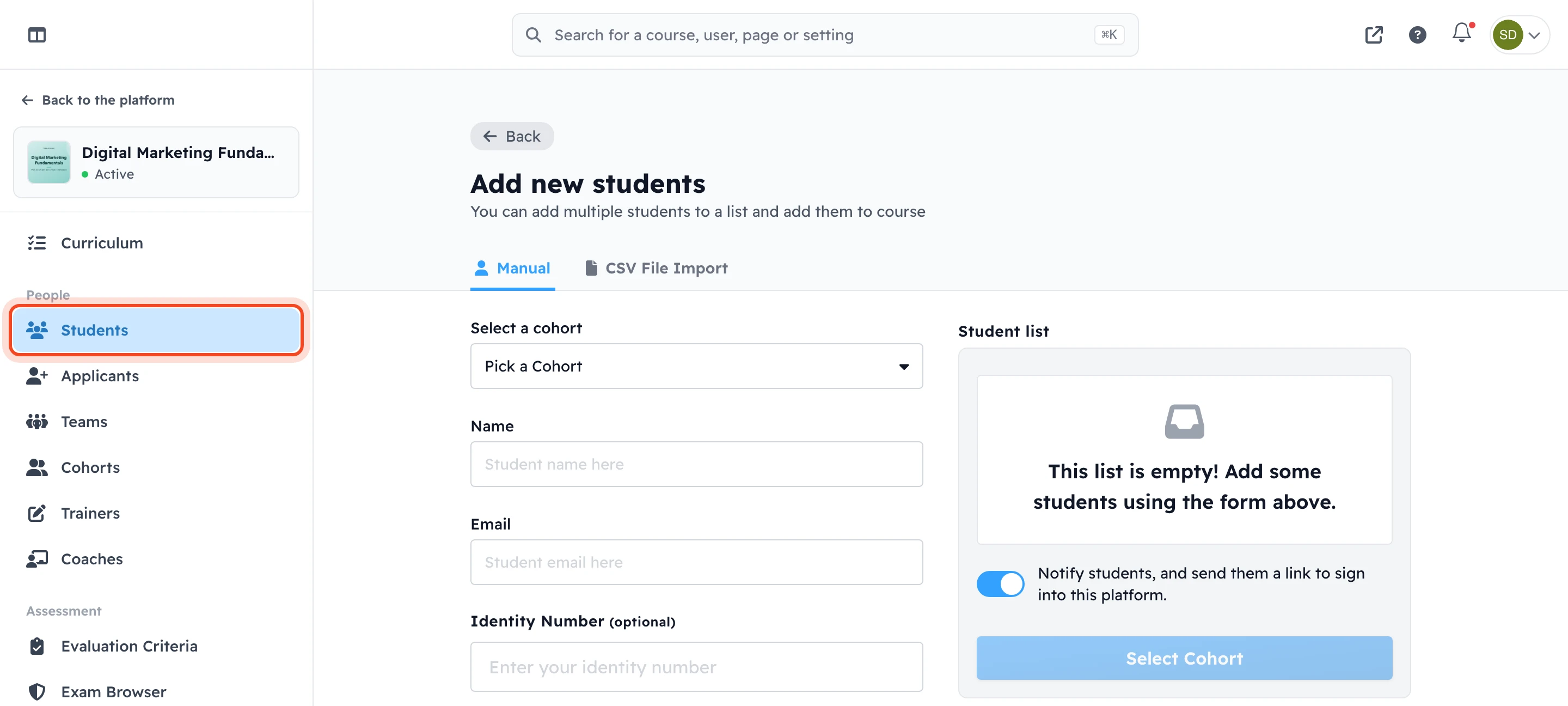
Students
Add students to the course in two ways: enter each student's details by hand, or import a CSV file with the details of a group of students to add them all at once.
Learn more: How to add students to a course
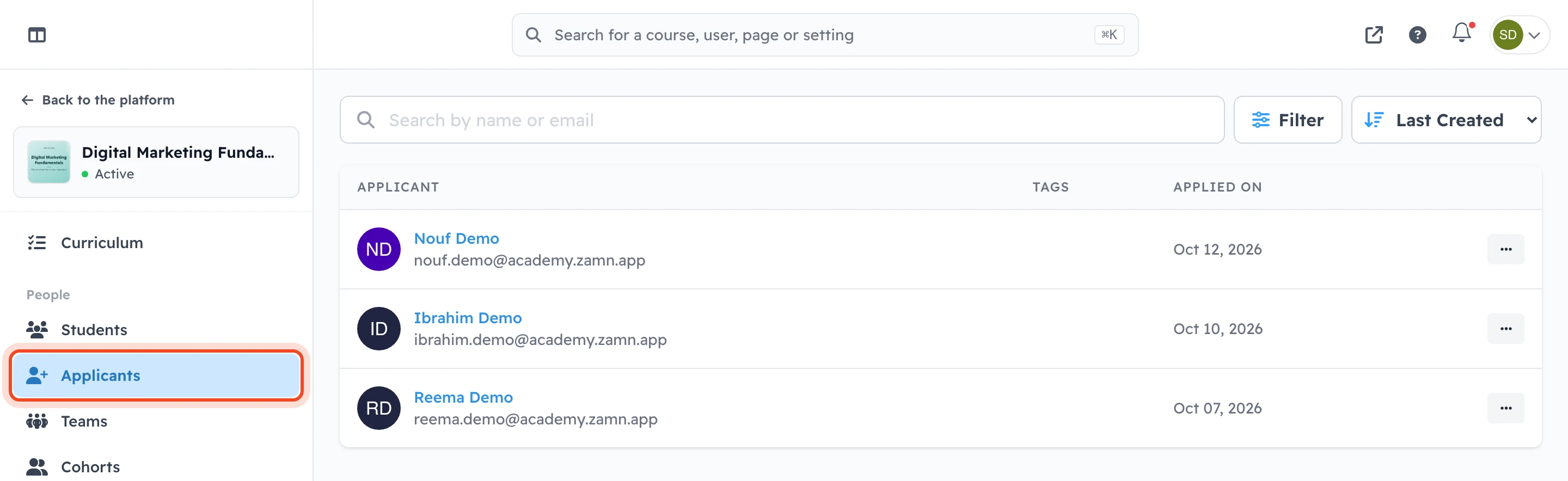
Applicants
If you turn on Process applicant info before enrollment in the course settings, this page shows the applications to the course and the applicants' details. This option shows only after you turn on Enable public signup.
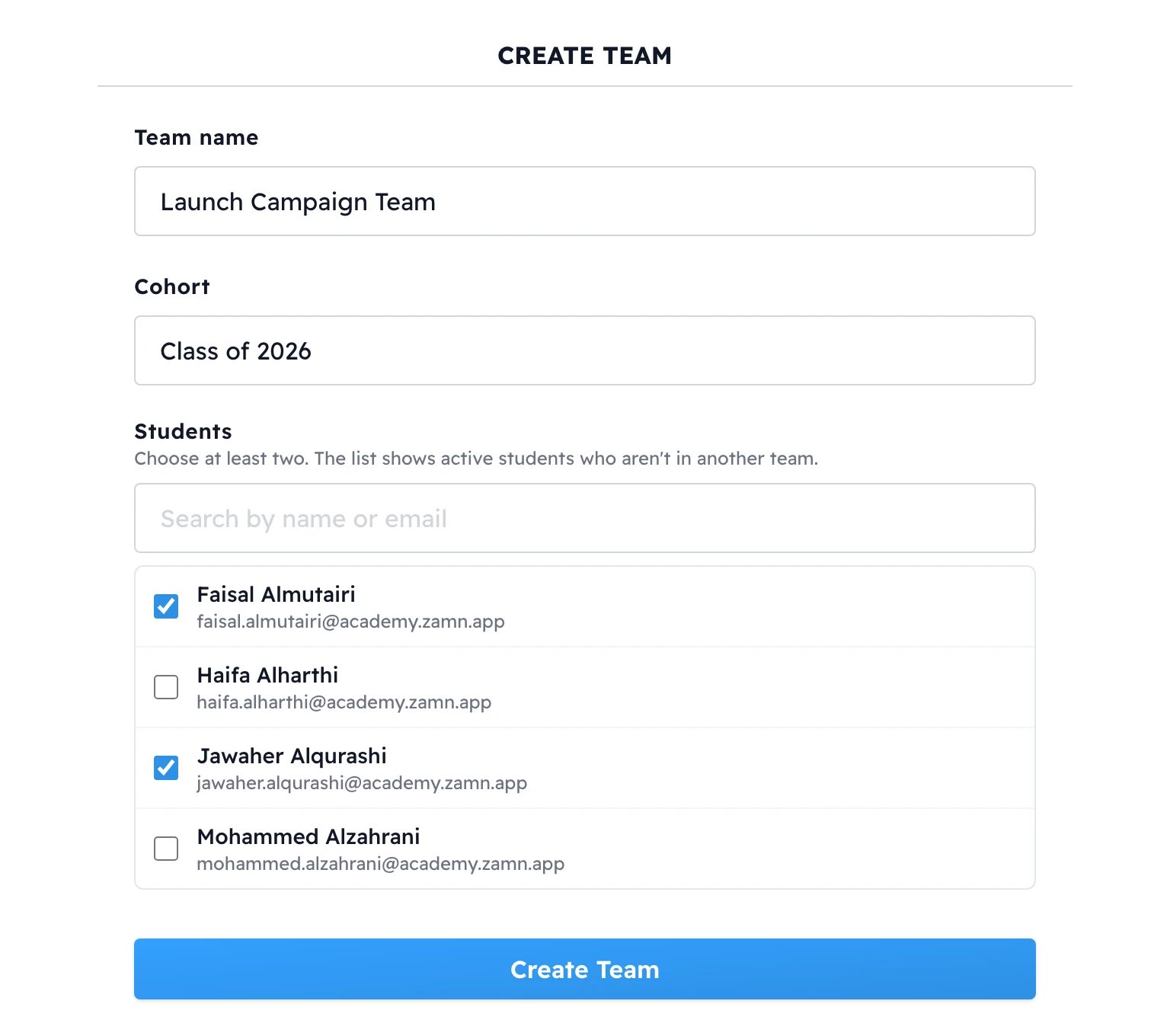
Teams
Create teams of students in the course.
Learn more: How to create teams in a course
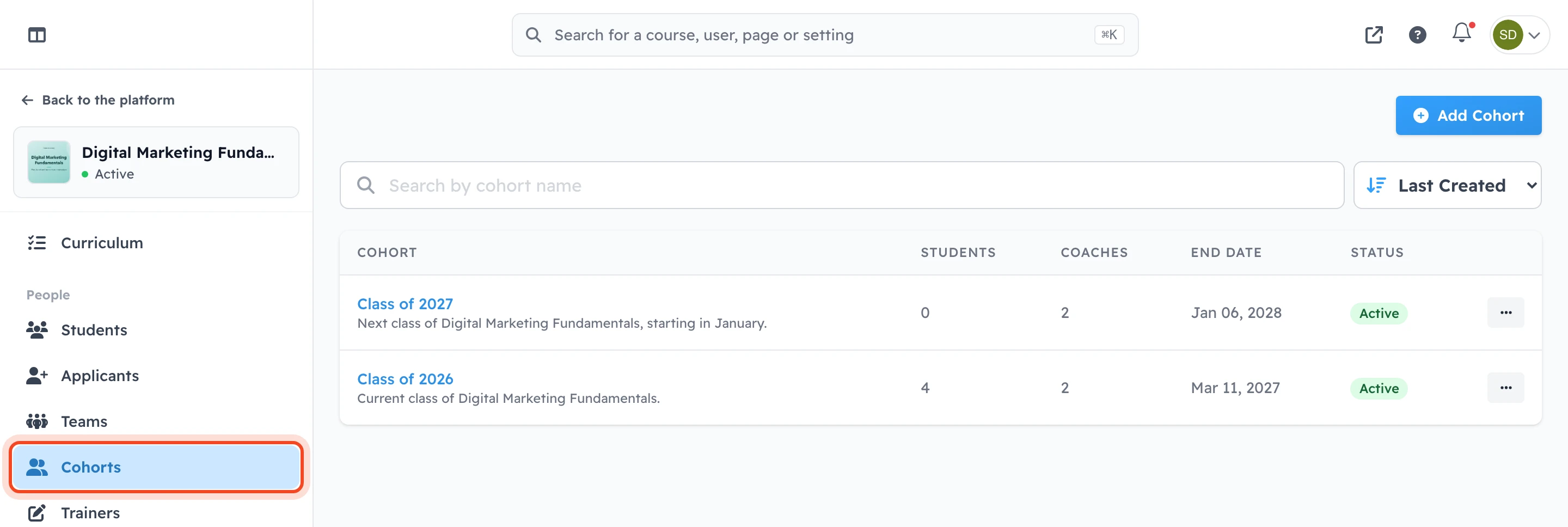
Cohorts
Create student cohorts for the course. You can create several cohorts for one course, and each cohort can have a different end date. If a student does not finish the targets before their cohort's end date, they cannot finish them after that date.
Learn more:
- How to create a cohort and set its end date
- How to create several cohorts in a course and assign them to several coaches
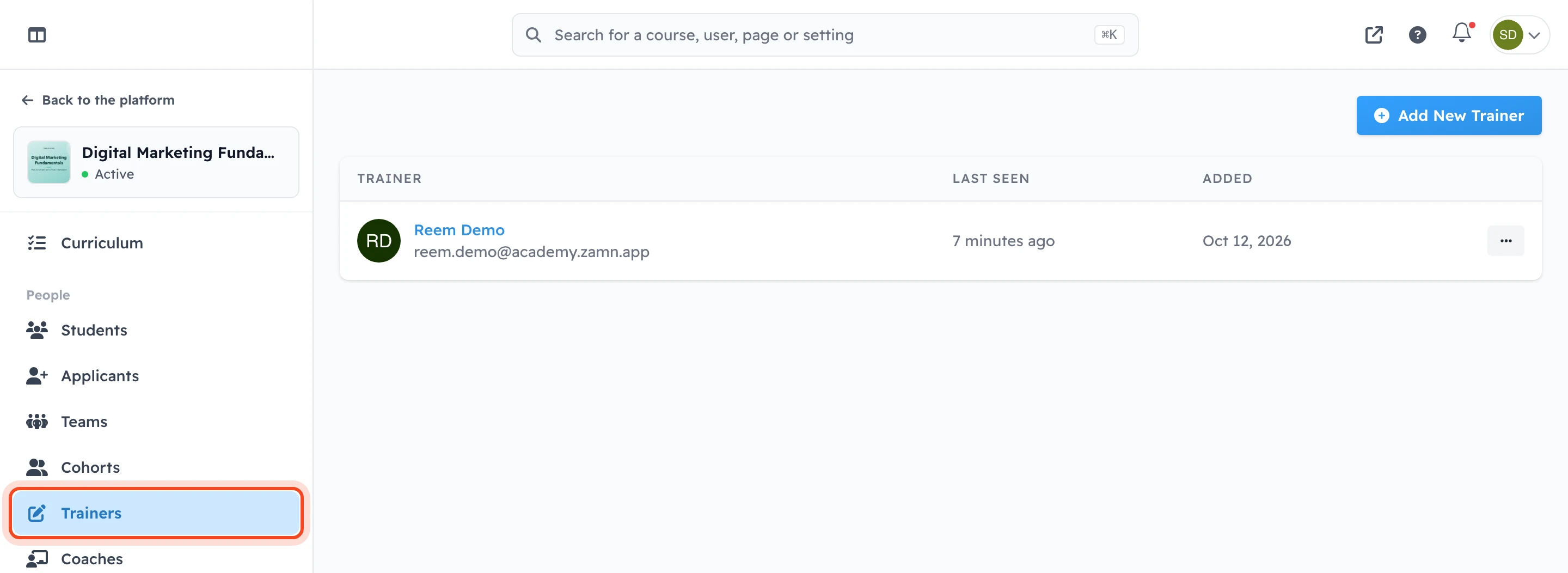
Trainers
Add trainers to the course. A trainer can only:
- Preview the content.
- Edit the content: add content to the course, and create evaluation criteria.
Learn more: How to add a trainer to a course
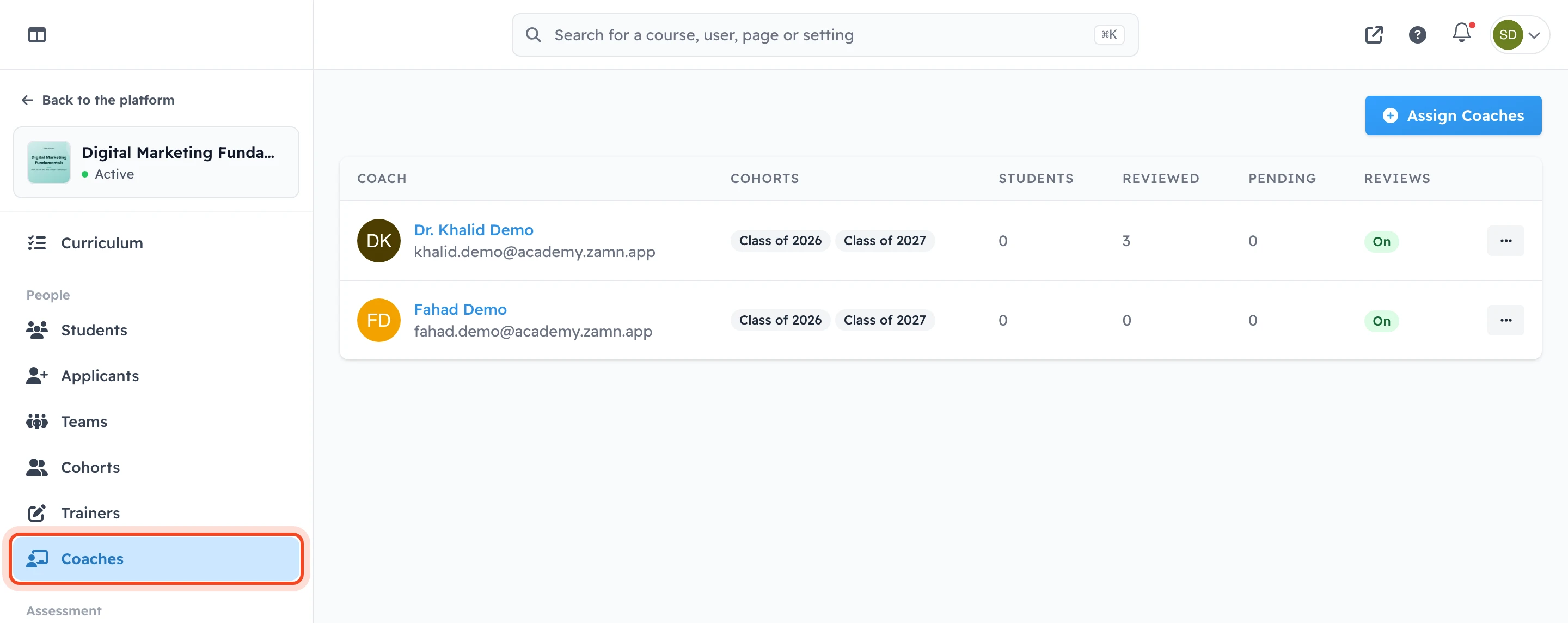
Coaches
Add coaches to the course. You pick them from your platform's coaches. A coach can preview the course content and review submissions.
Learn more: How to add coaches to your platform
Assessment
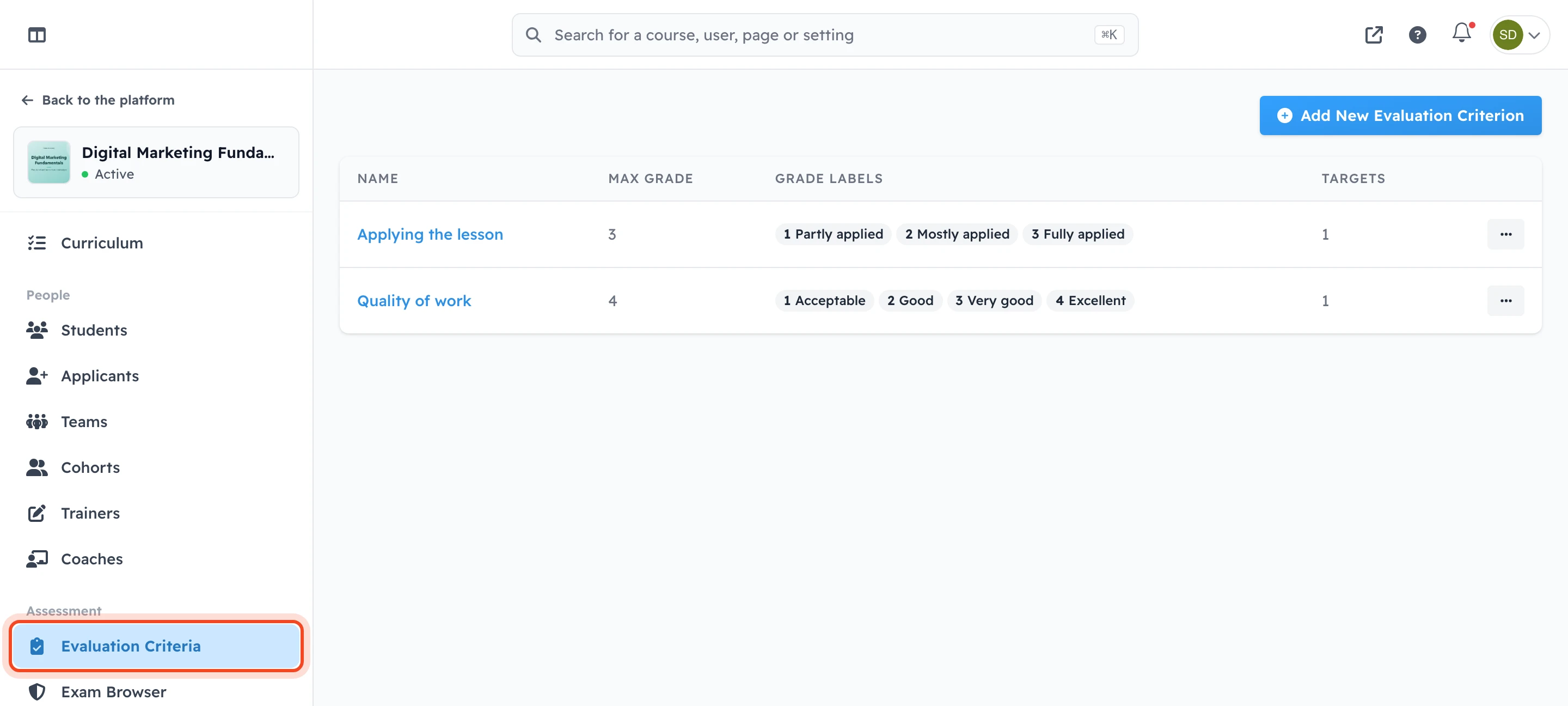
Evaluation Criteria
Create evaluation criteria to grade students' work in tests.
Learn more: How to create evaluation criteria
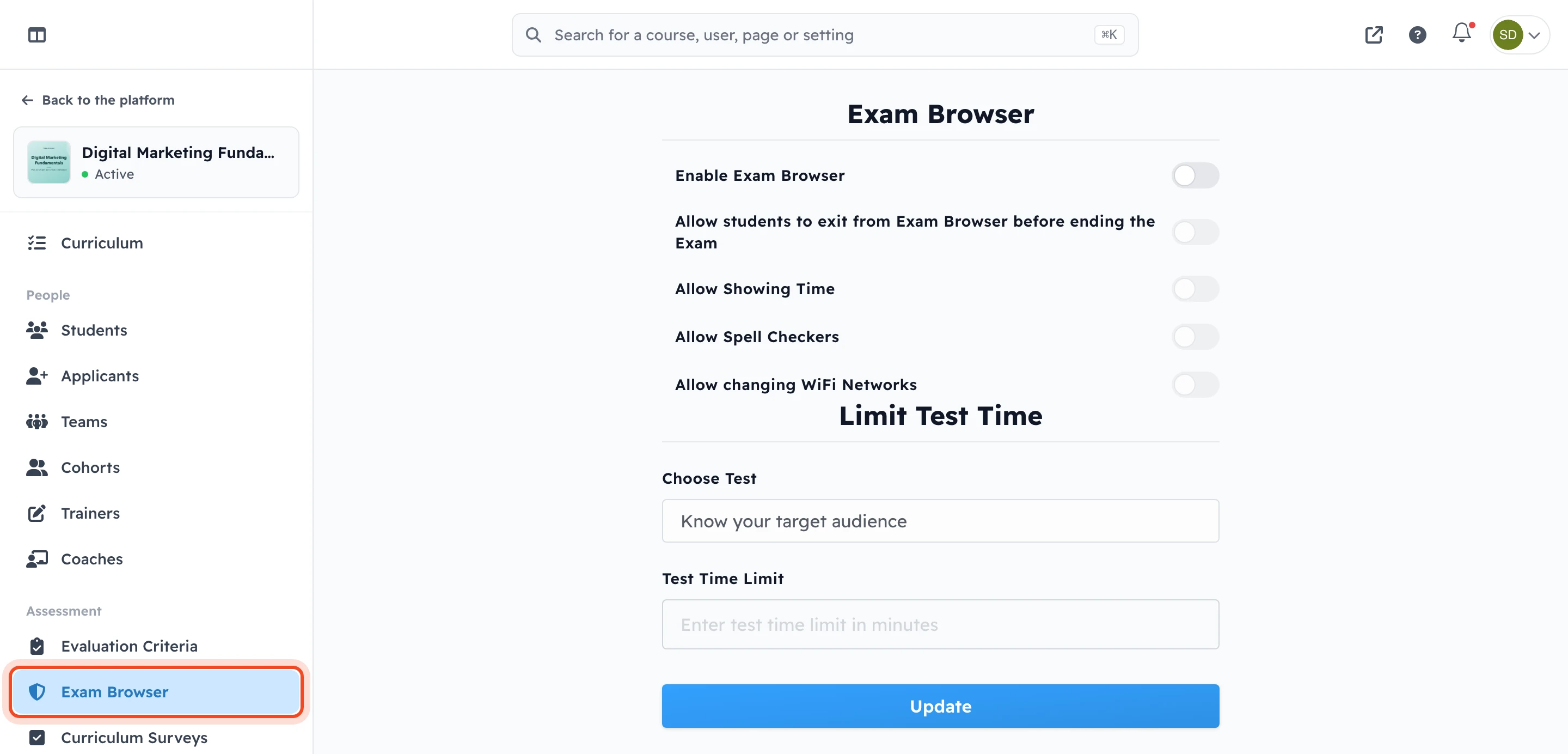
Exam Browser
Turn on safe exam mode.
Learn more: How to turn on the safe exam browser
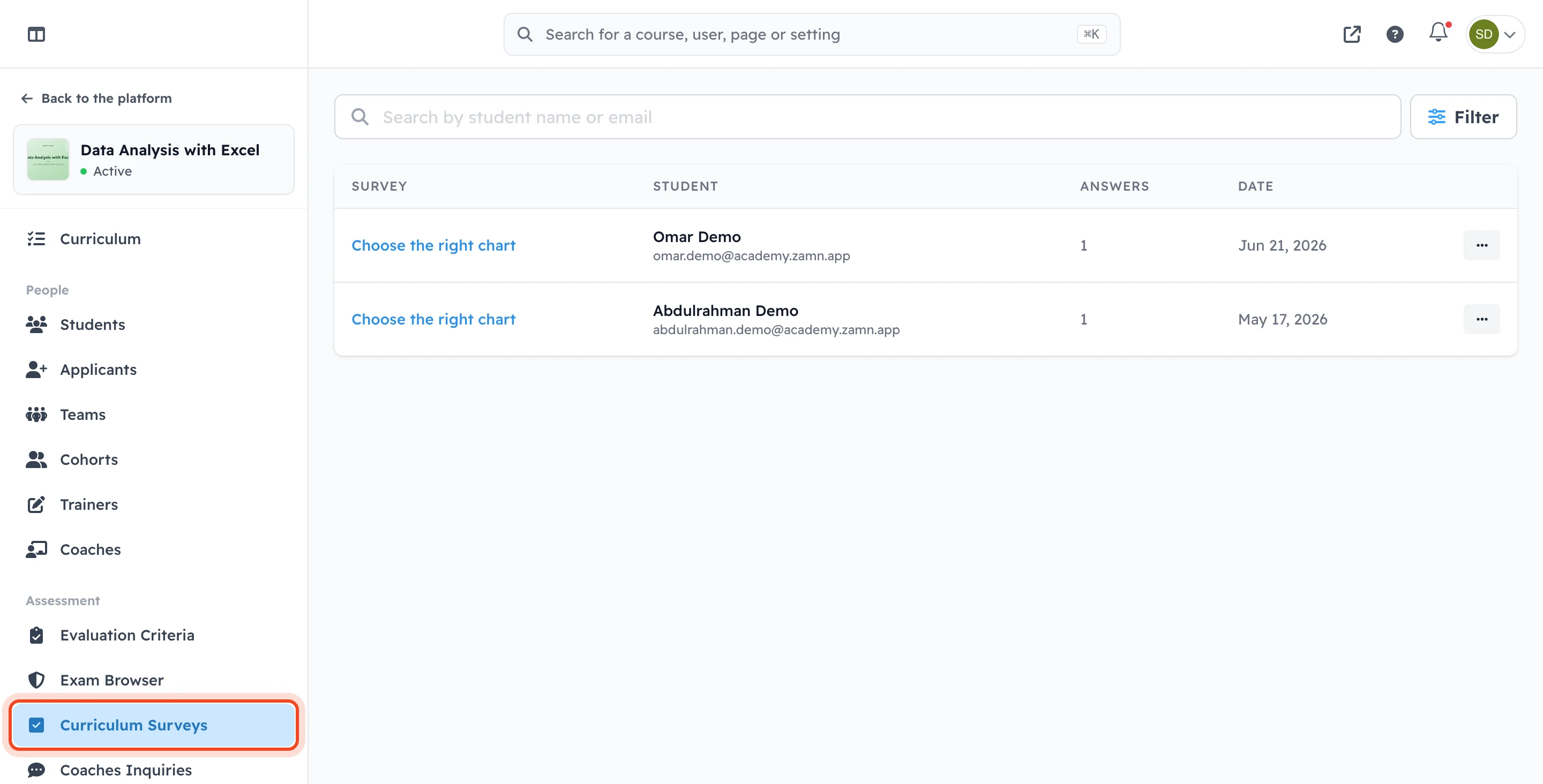
Curriculum Surveys
See the students' answers to the course surveys.
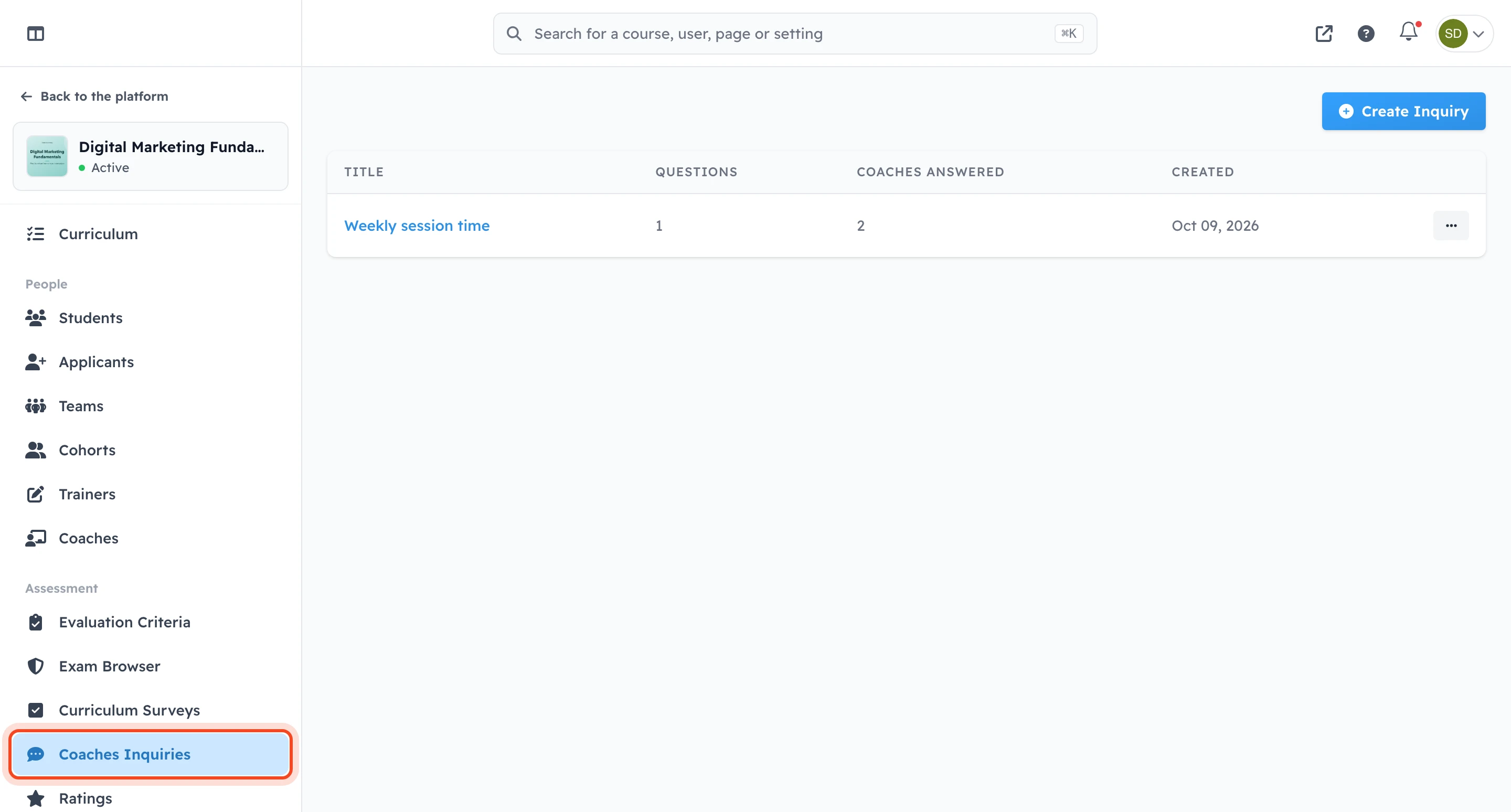
Coaches Inquiries
Create a survey to measure satisfaction with the coach, and see the answers.
Learn more: How to create a survey to measure satisfaction with the coach
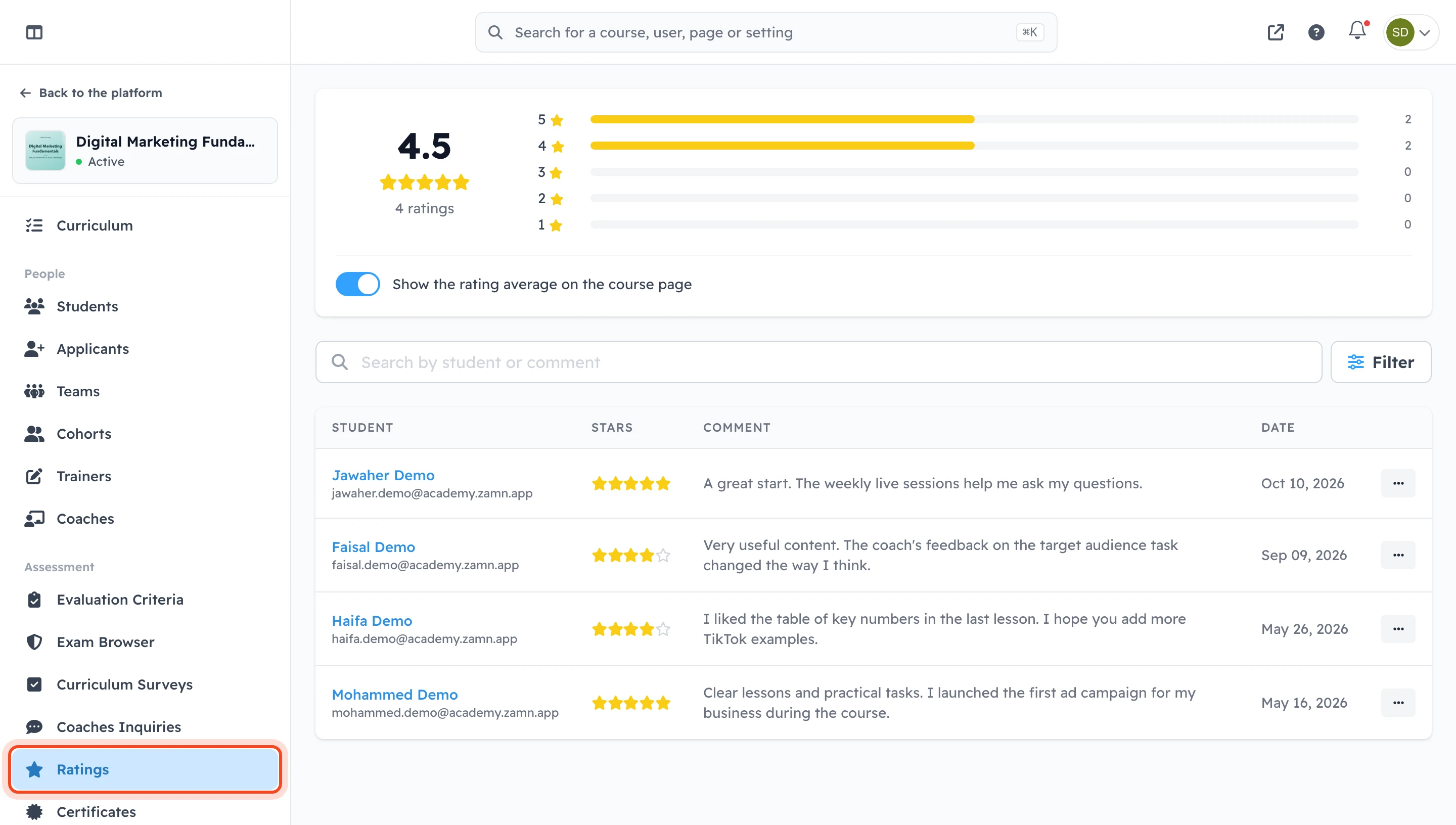
Ratings
See the students' ratings of the course.
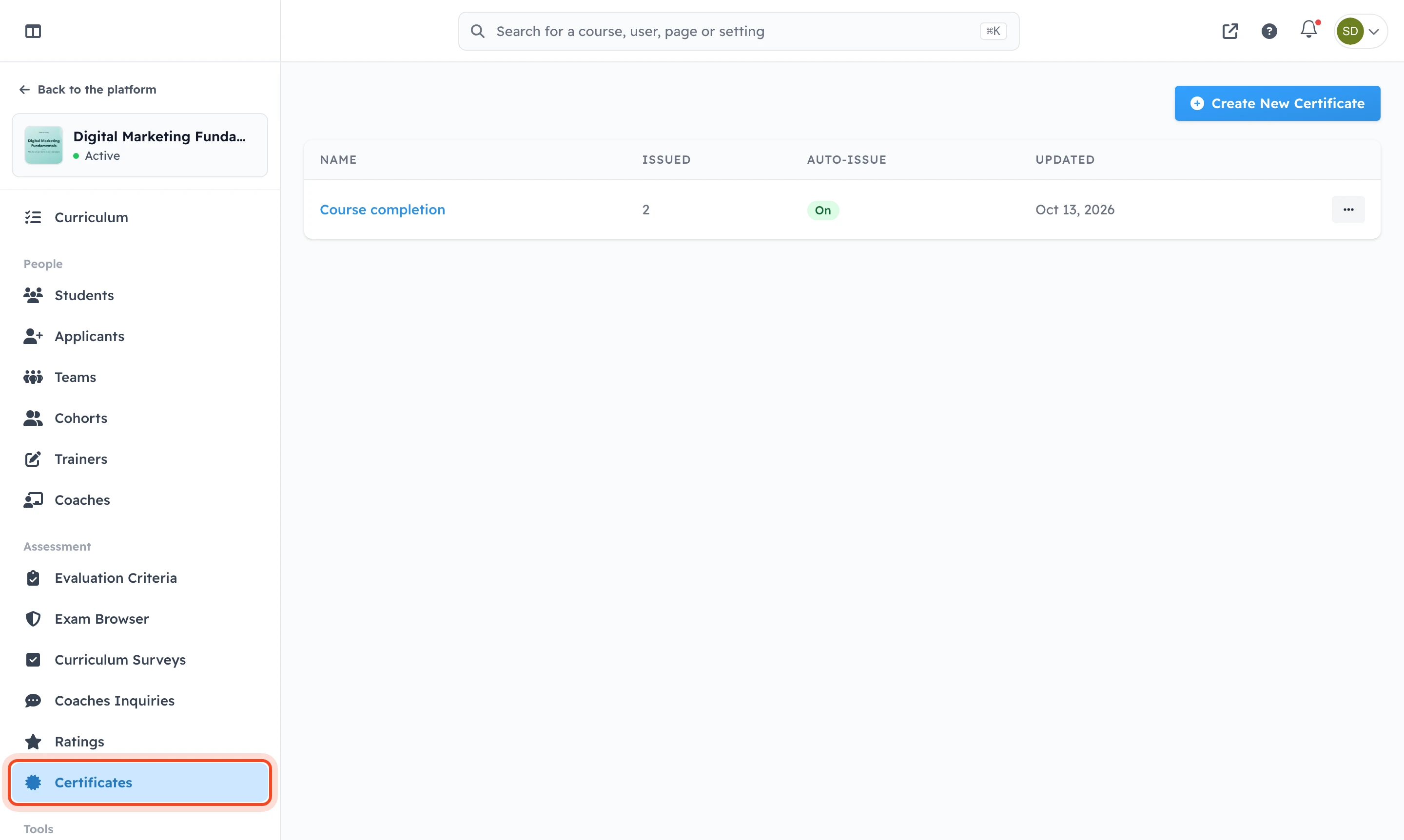
Certificates
Create and issue course certificates.
Learn more: How to issue a course certificate
Tools
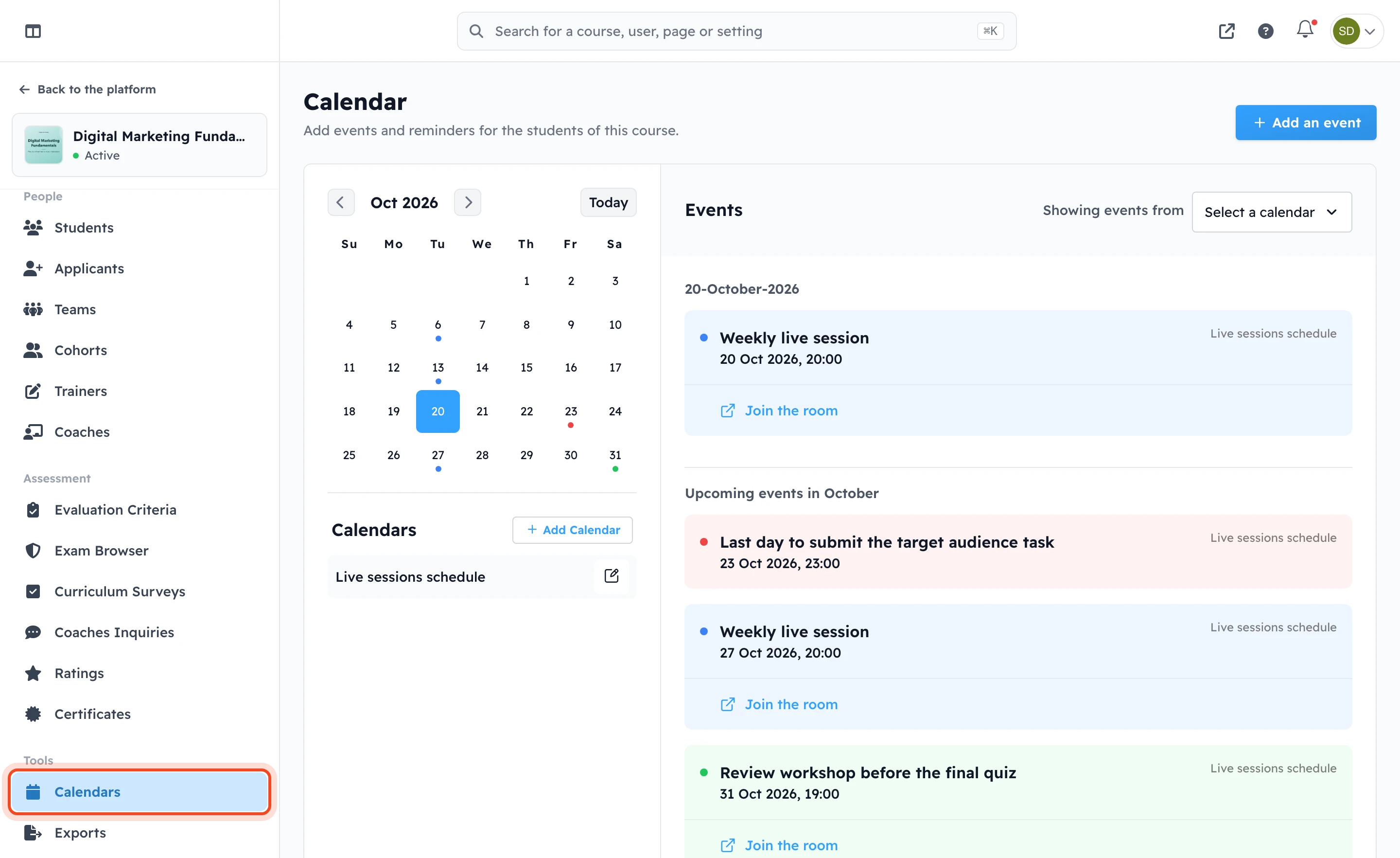
Calendars
Plan the course events and timeline.
Learn more: How to add a timeline to a course (calendar)
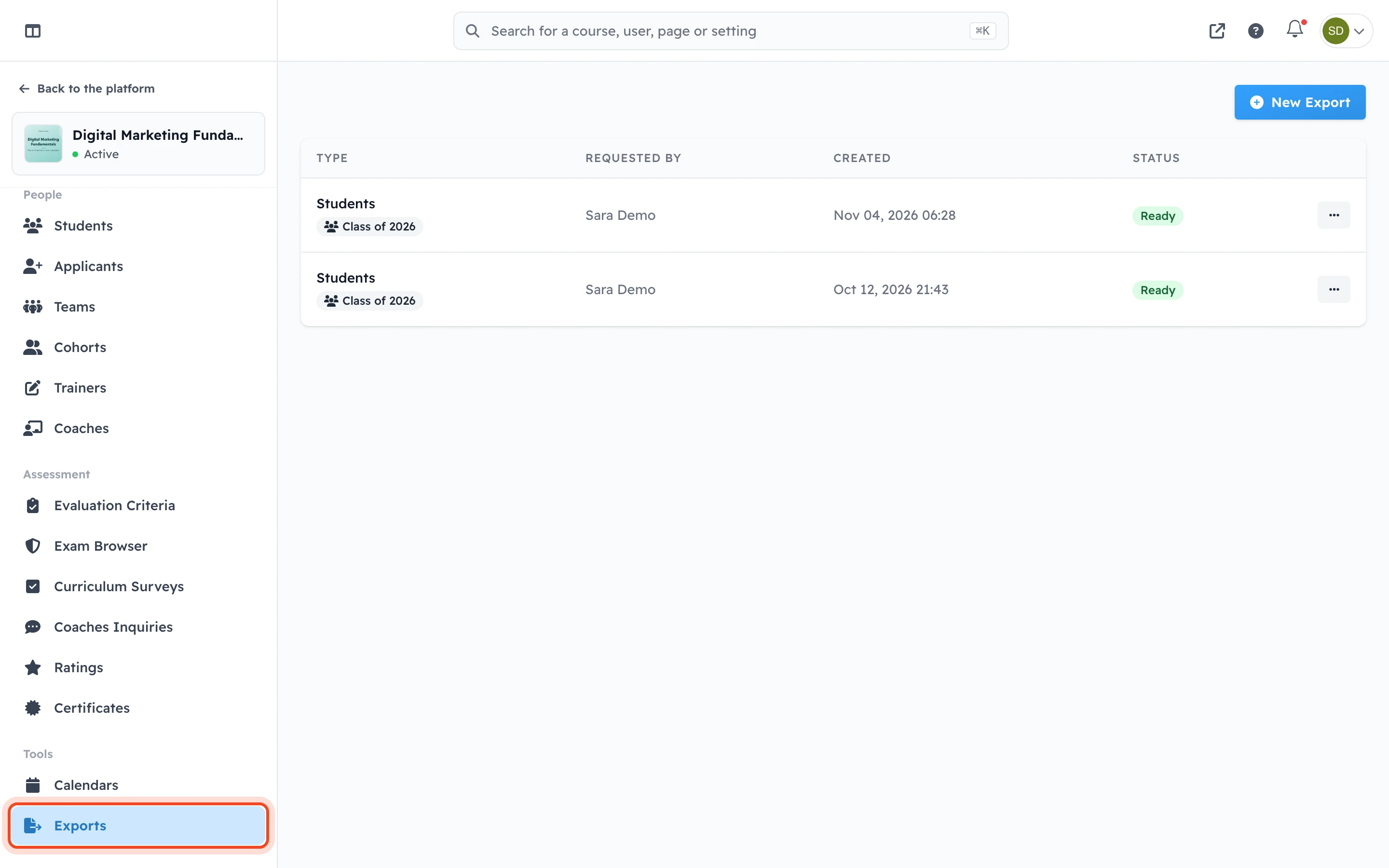
Exports
Export the course data.
Learn more: How to export course reports