Create a new student cohort for a course
You can split the students of a course into several cohorts, and choose the cohort that new students join on their own. This feature is for platform admins.
Steps to create a student cohort
-
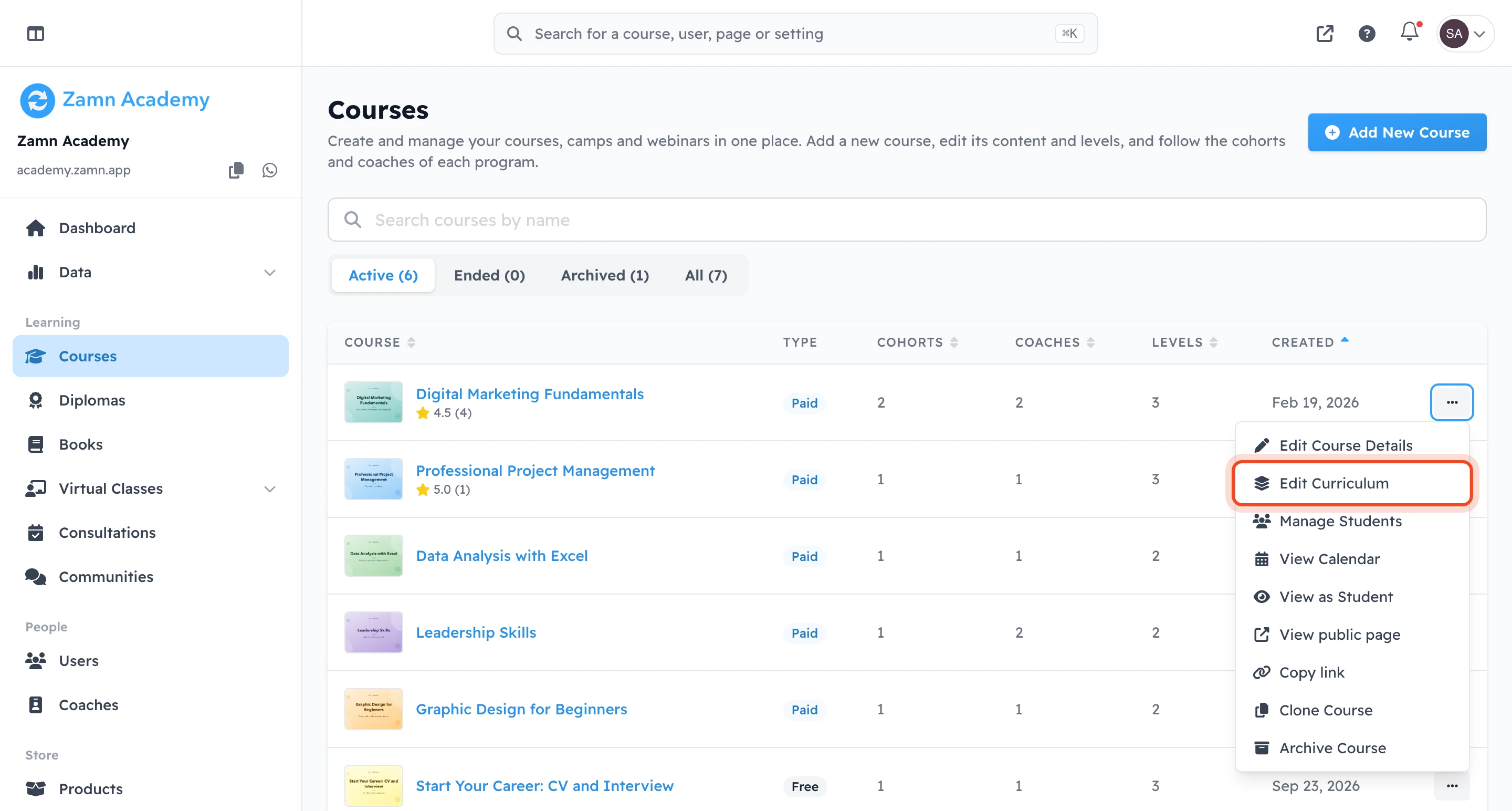
Go to the Courses page, then click the name of the course you want to add a new cohort to, or click ⋯ at the end of its row, then click Edit Curriculum.
-
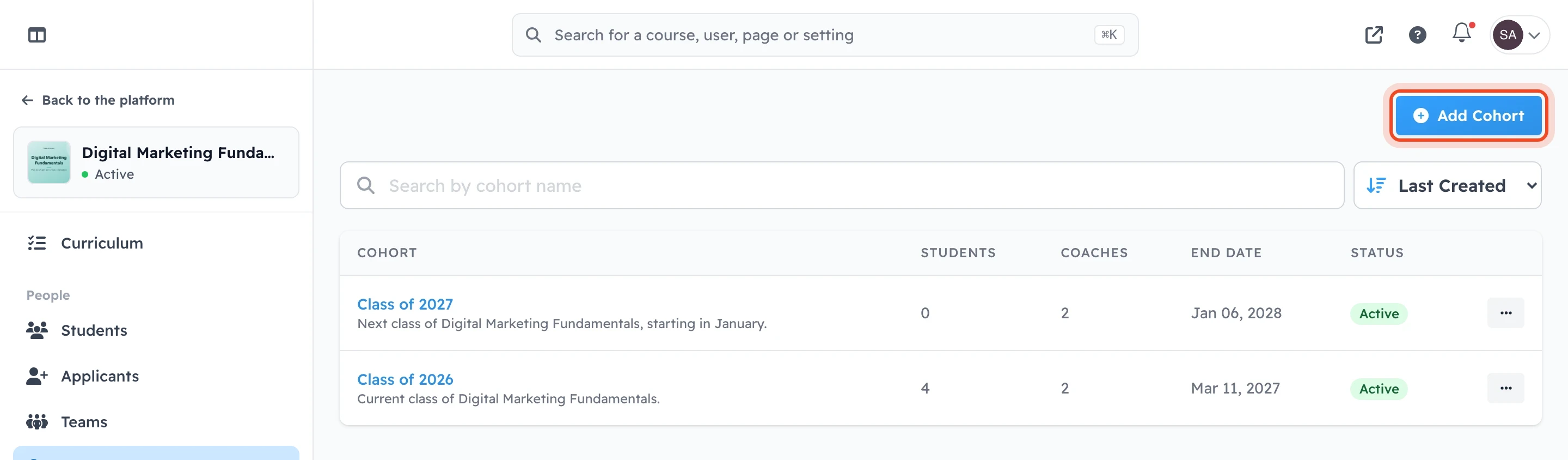
Go to the Cohorts page in the course dashboard, and click Add Cohort. A side panel opens.
-
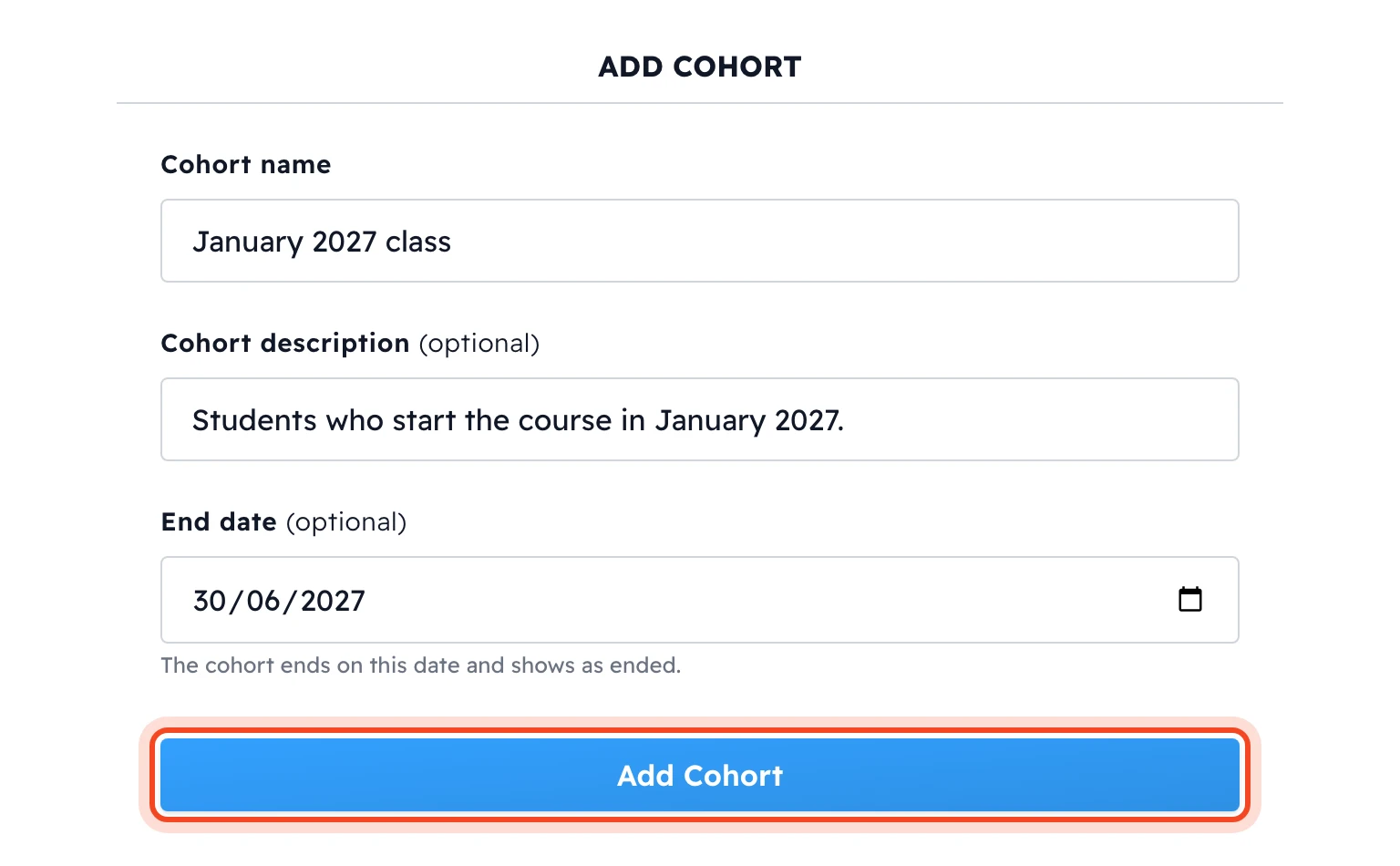
Enter the details:
- Cohort name.
- Cohort description, which is optional.
- End date, which is optional.
-
Click Add Cohort to save and create the cohort.
Choose the cohort students join on their own
-
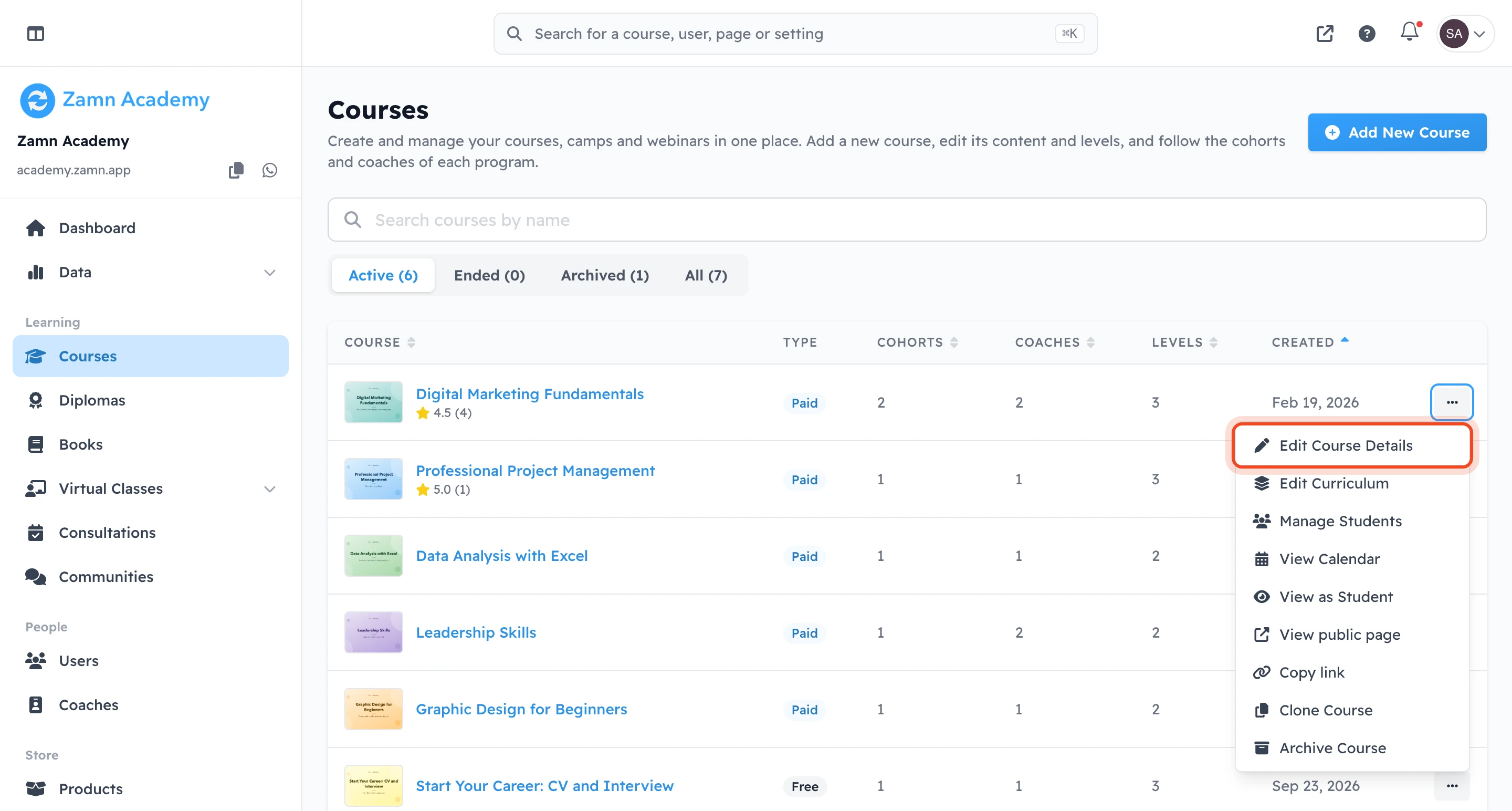
Go to the Courses page, then click ⋯ at the end of the course row, and click Edit Course Details.
-
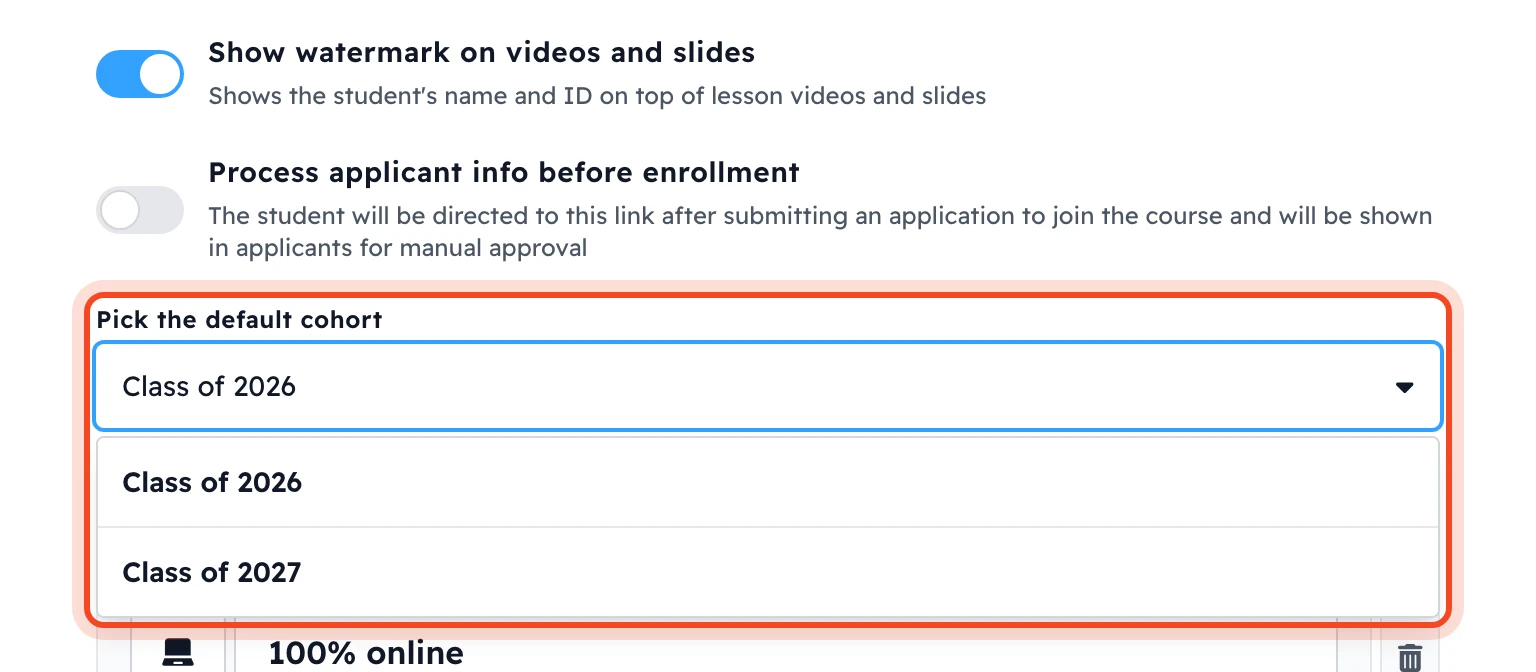
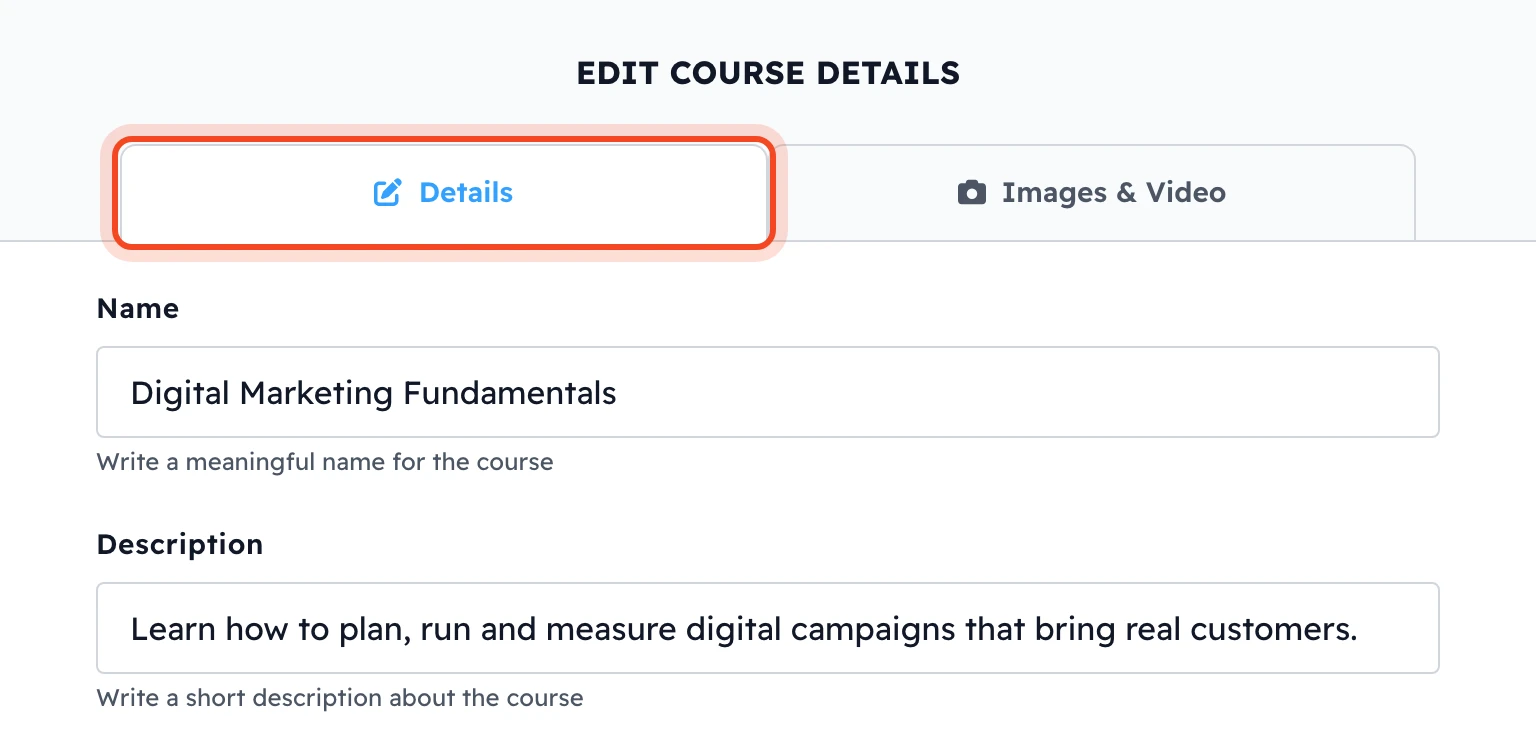
In the Details tab, click the Pick the default cohort list to open it.
-
Choose the cohort that students join on their own when they sign up for the course, then click Update Course to save.