How to create assignments (advanced questions)
This article shows how to create an assignment with advanced questions in a course. Students answer with text, a link, a file or an audio record, and then a coach reviews the answer.
Advanced questions are available on the Growth, Pro and Organizations plans, and during the free trial. On other plans, such as Basic, a message asks you to upgrade your plan when you save the target.
Steps to create an assignment with advanced questions
-
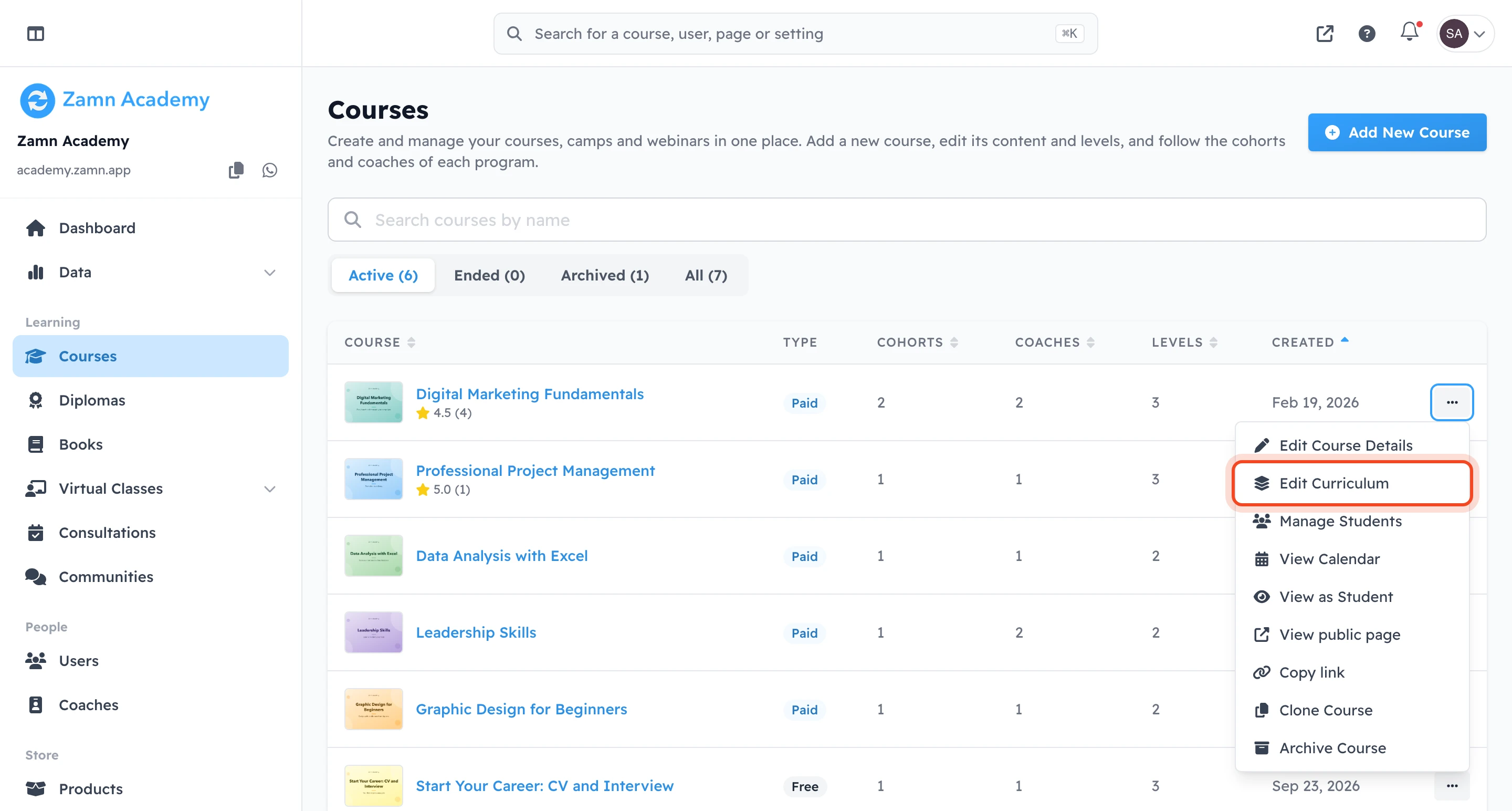
On the Courses page, click the name of the course you want, or click ⋯ at the end of its row, then click Edit Curriculum.
-
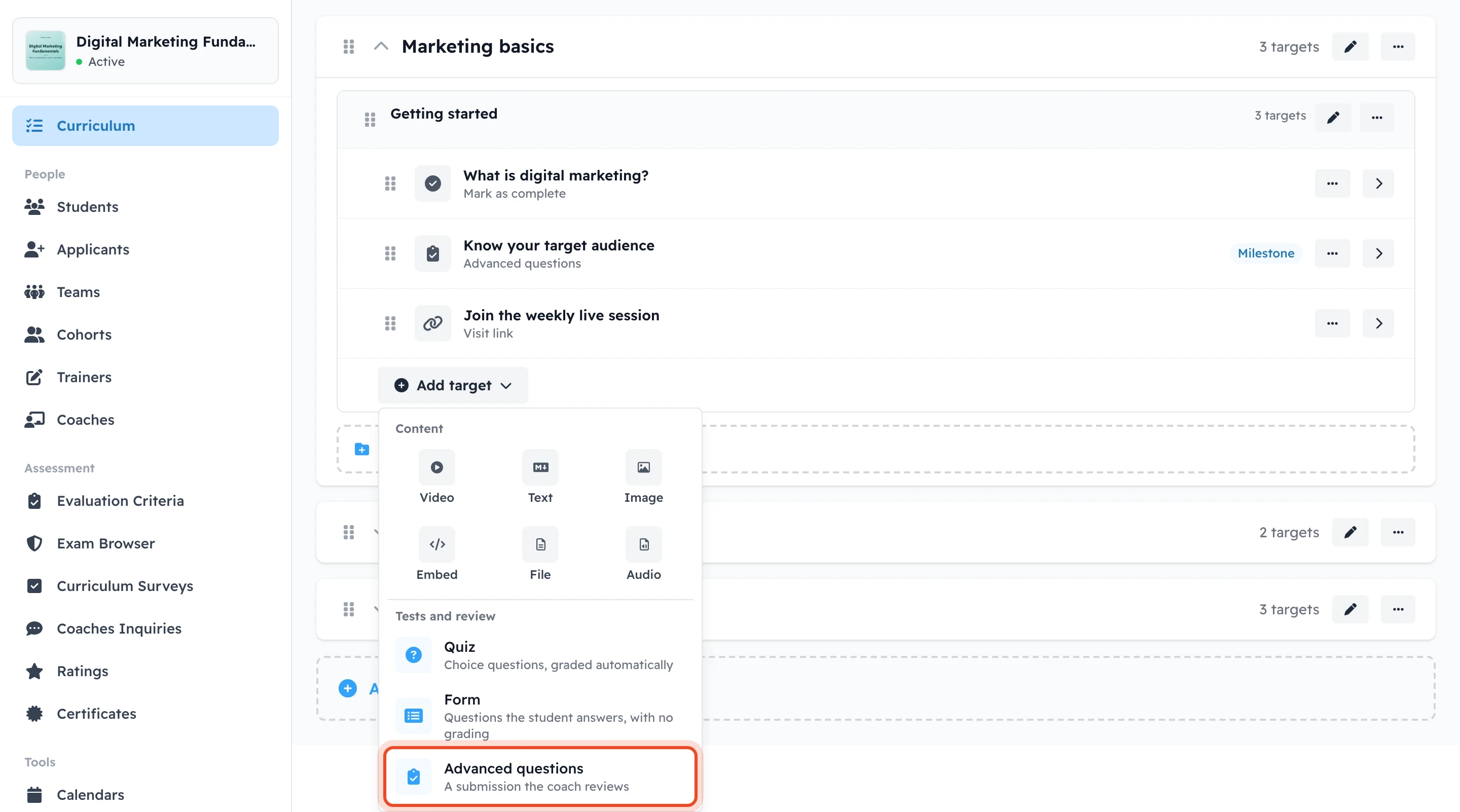
On the Curriculum page, click Add target at the end of a target group, then choose Advanced questions. Or open an existing target by clicking its name.
-
Click the pencil next to the title at the top of the page, and type the assignment name.
-
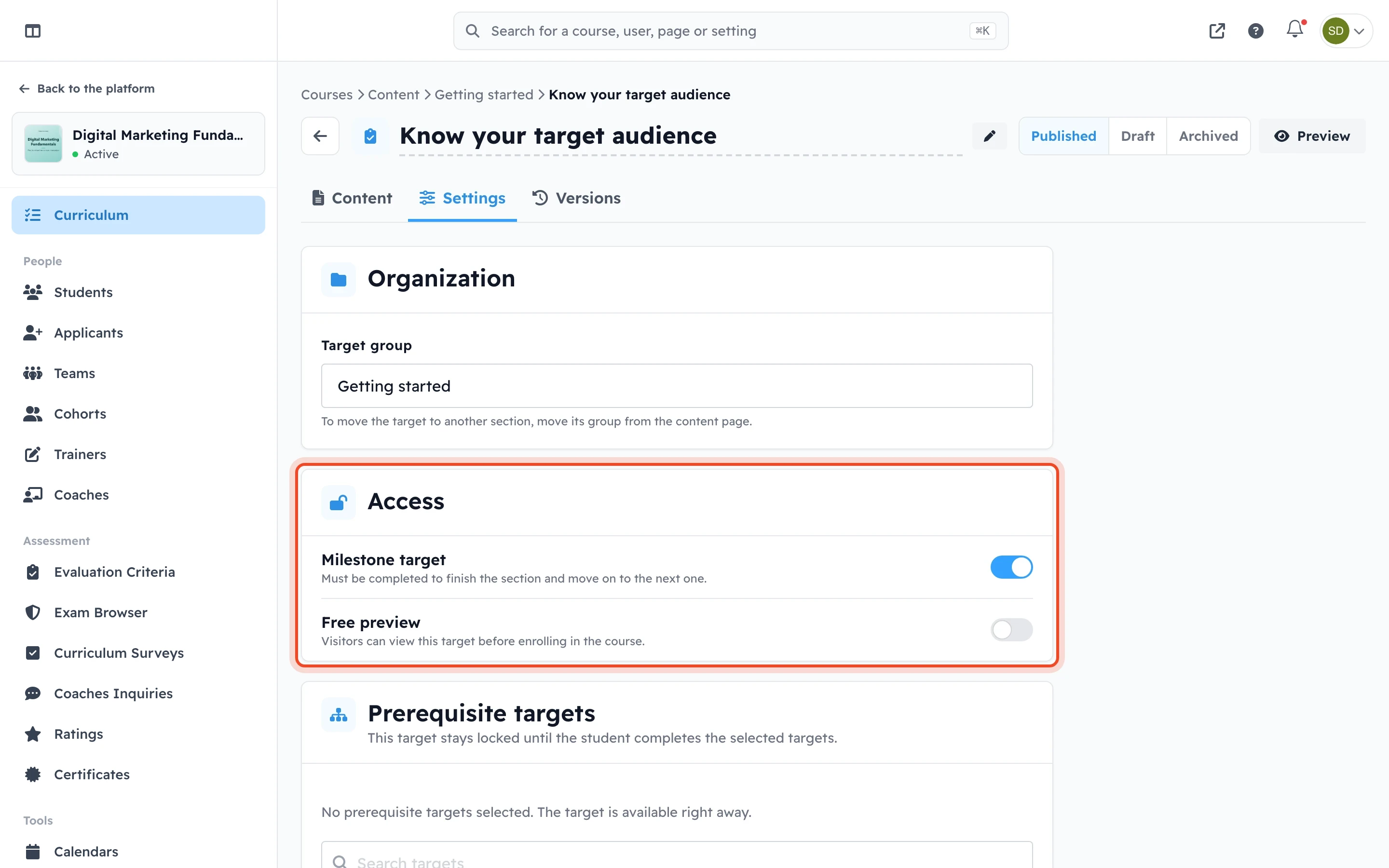
In the Settings tab, you can turn on Milestone target, and choose Prerequisite targets if there are any. You can also write instructions for the student in Completion instructions (optional).
-
In the Content tab, under Completion and evaluation, make sure Advanced questions is chosen.
-
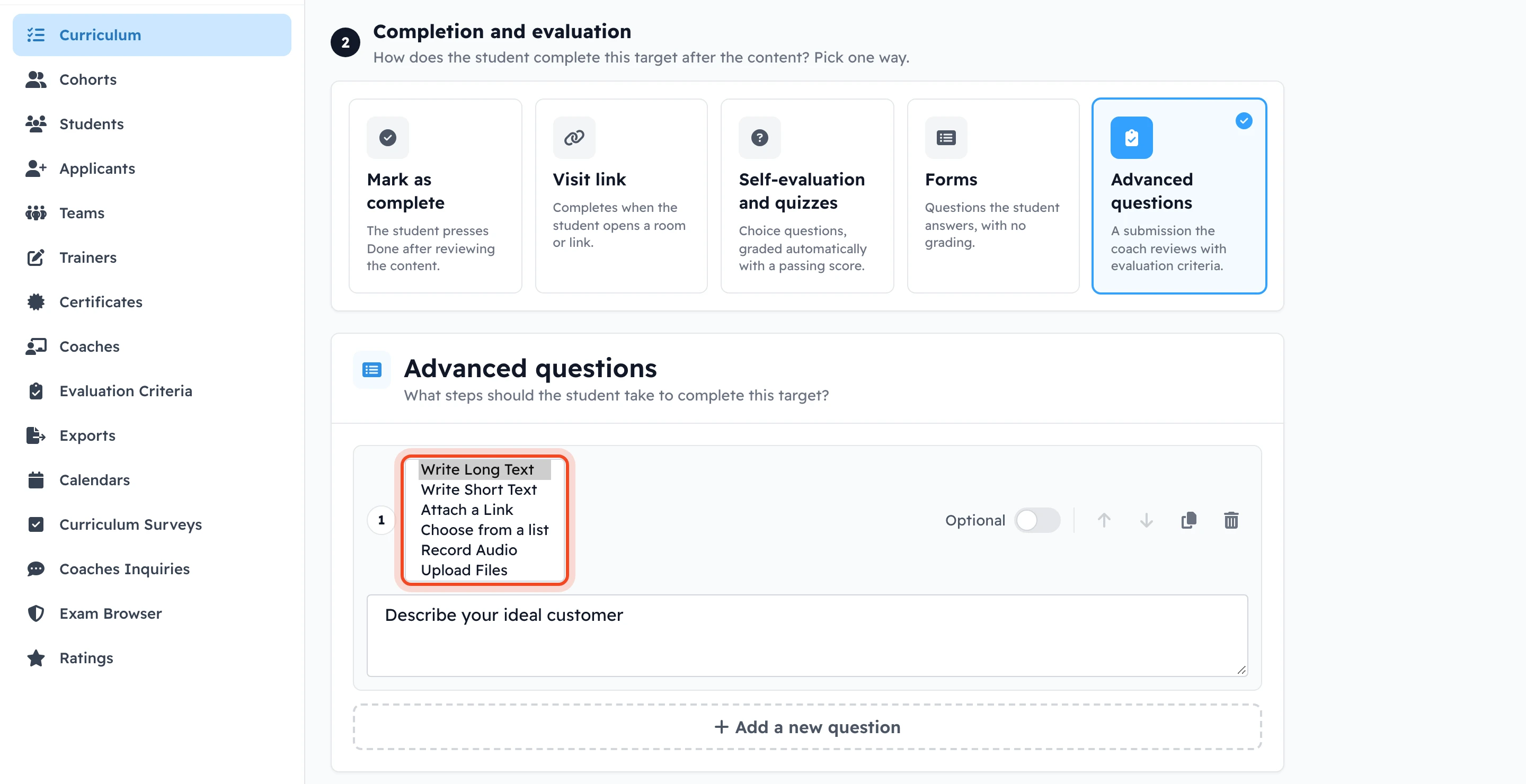
Under Advanced questions, choose how the student answers each question: Write Short Text, Write Long Text, Attach a Link, Choose from a list, Record Audio or Upload Files. Then type the question. Turn on Optional if the student can leave the question without an answer.
-
To add another question, click Add a new question. You can add up to 40 questions.
-
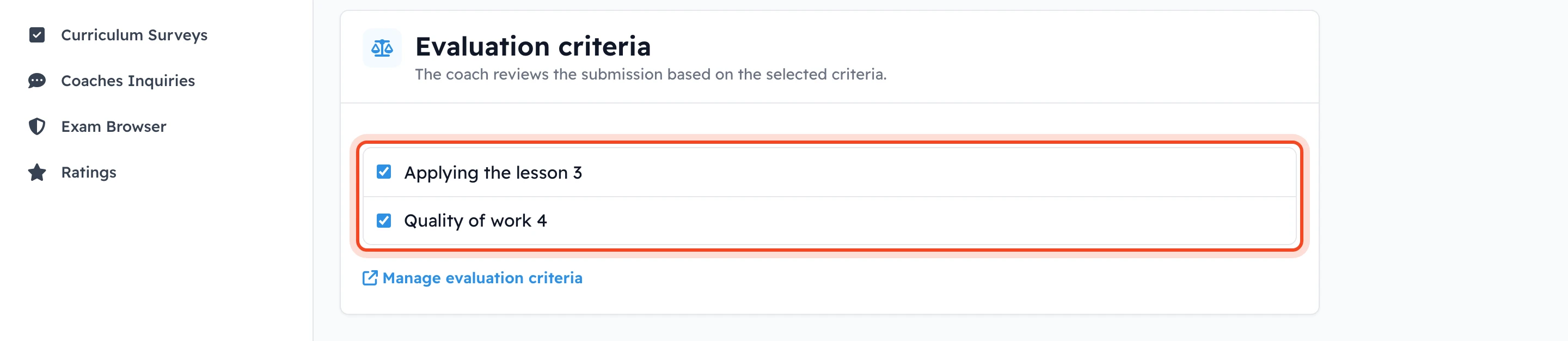
Under Evaluation criteria, choose the evaluation criteria. You must choose at least one.
-
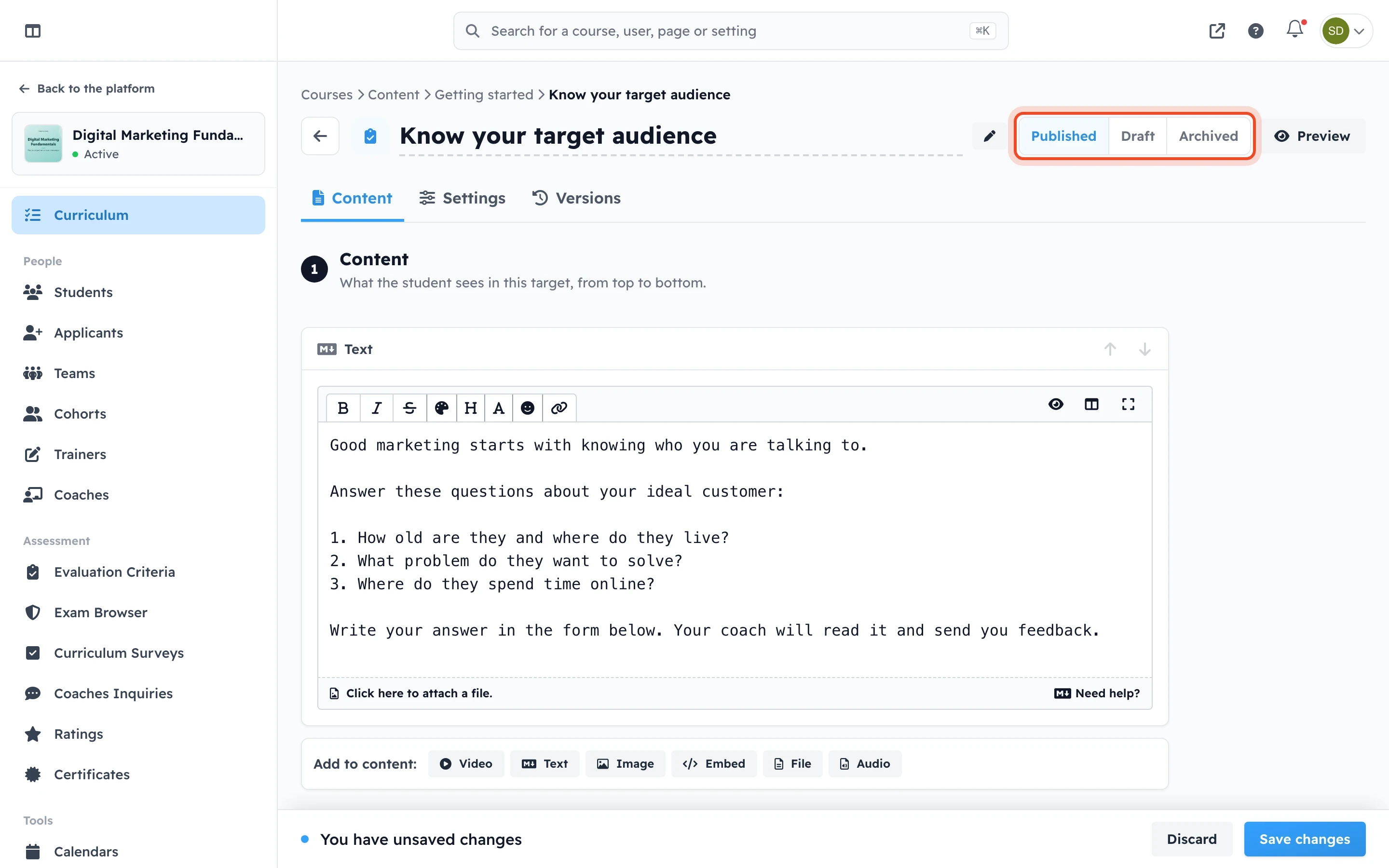
At the top of the page, click Published.
-
Click Save changes in the bar at the bottom of the page.
When students answer the assignment questions, a coach must review and grade their submissions. The target is complete for the student only when the coach accepts the submission.