How to create cohorts in a course and assign coaches to them
This article shows how to create cohorts in a course, how to assign coaches to these cohorts, and how to change a coach's cohorts later.
Steps to create cohorts in a course
-
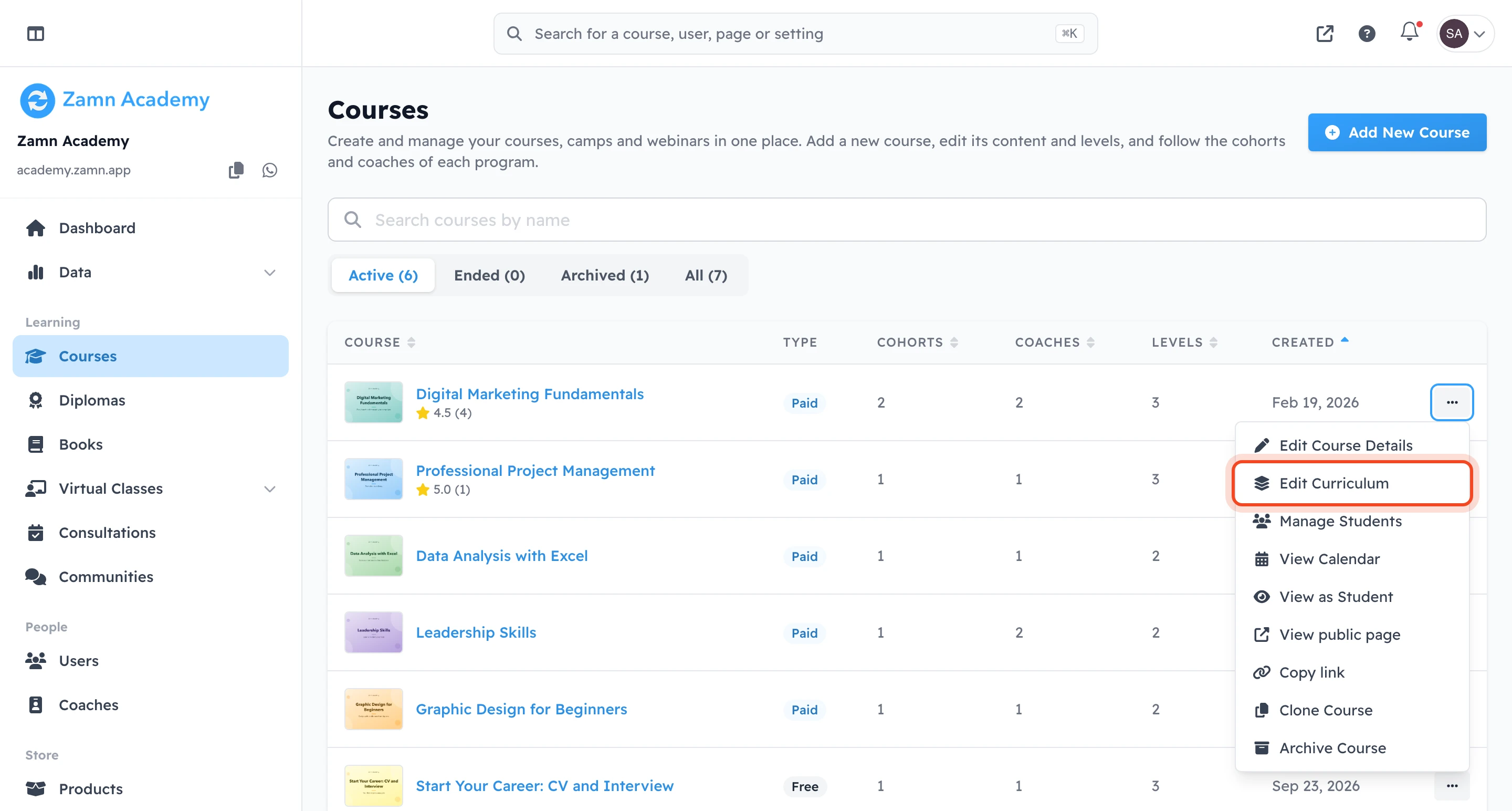
On the Courses page, click the name of the course you want to create cohorts for, or click ⋯ at the end of its row, then click Edit Curriculum.
-
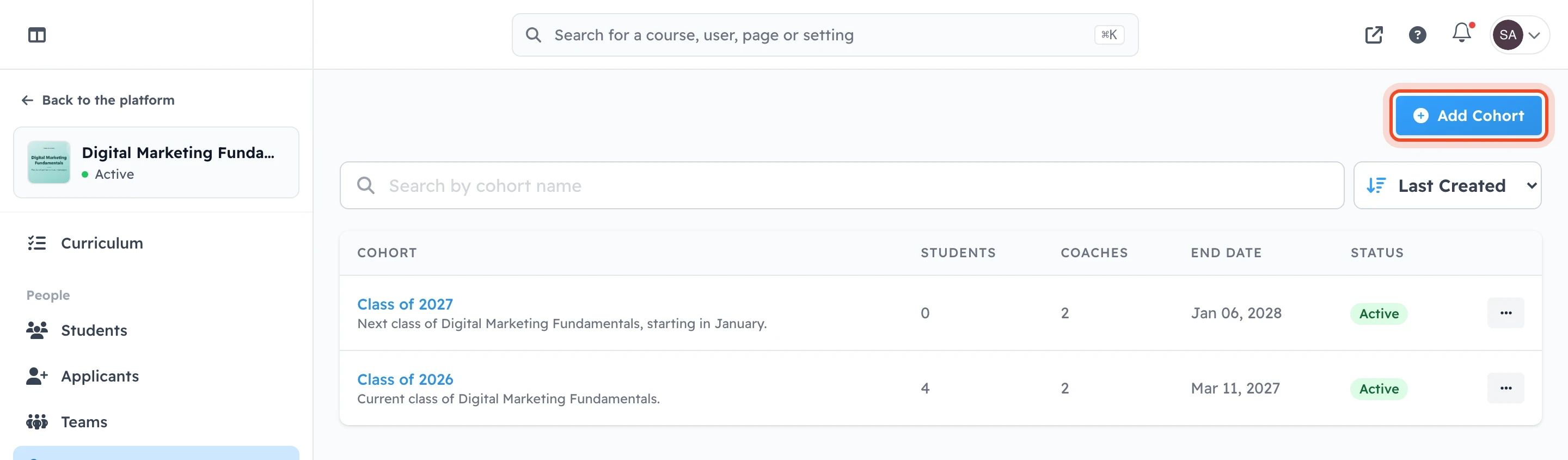
In the course side menu, go to Cohorts, then click Add Cohort.
-
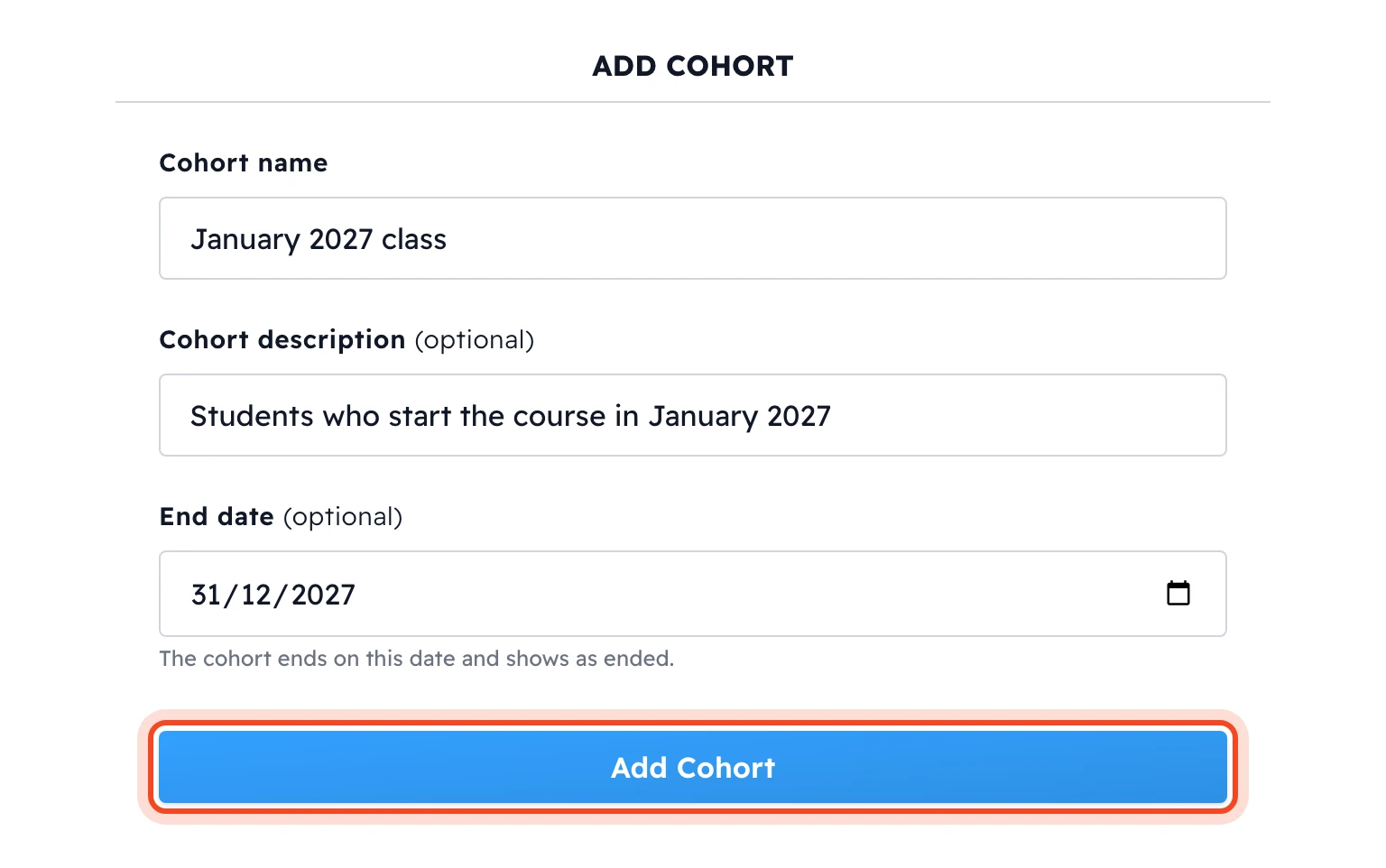
Enter these details:
- Cohort name
- Cohort description
- End date: optional. The cohort ends on this date and shows as ended.
-
Click Add Cohort to save the cohort.
How to assign coaches to cohorts
You must first add the coaches to your platform faculty, so you can choose them here.
-
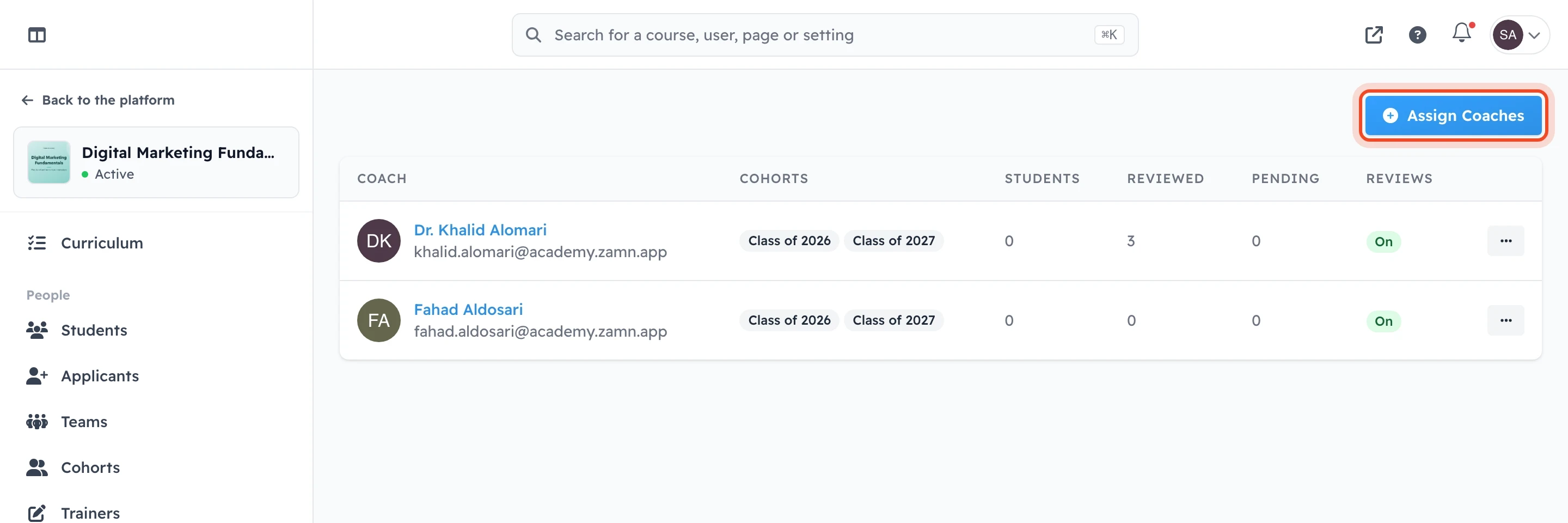
In the course side menu, go to Coaches, then click Assign Coaches.
-
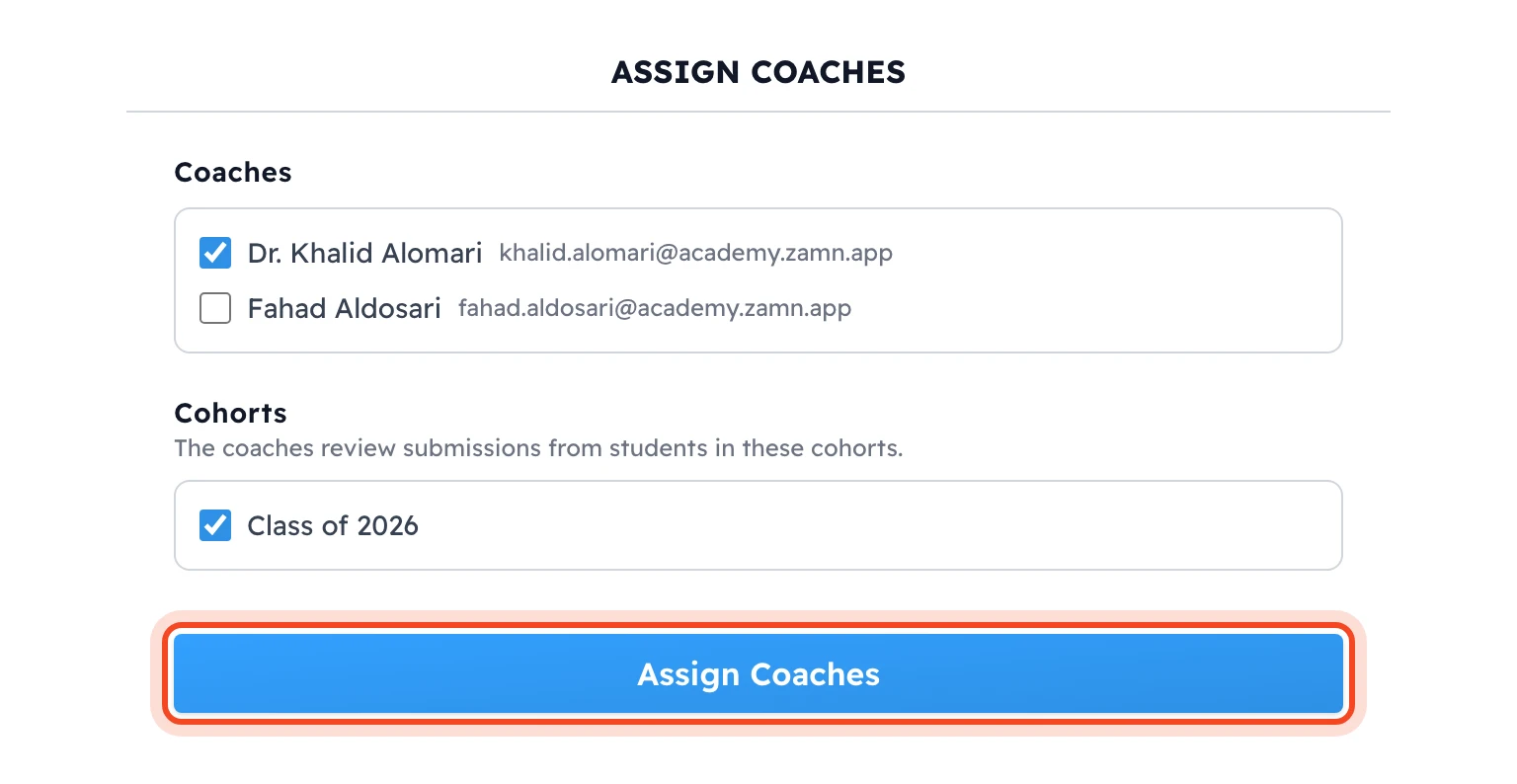
Under Coaches, select the coaches.
-
Under Cohorts, select the cohorts they will coach.
-
Click Assign Coaches.
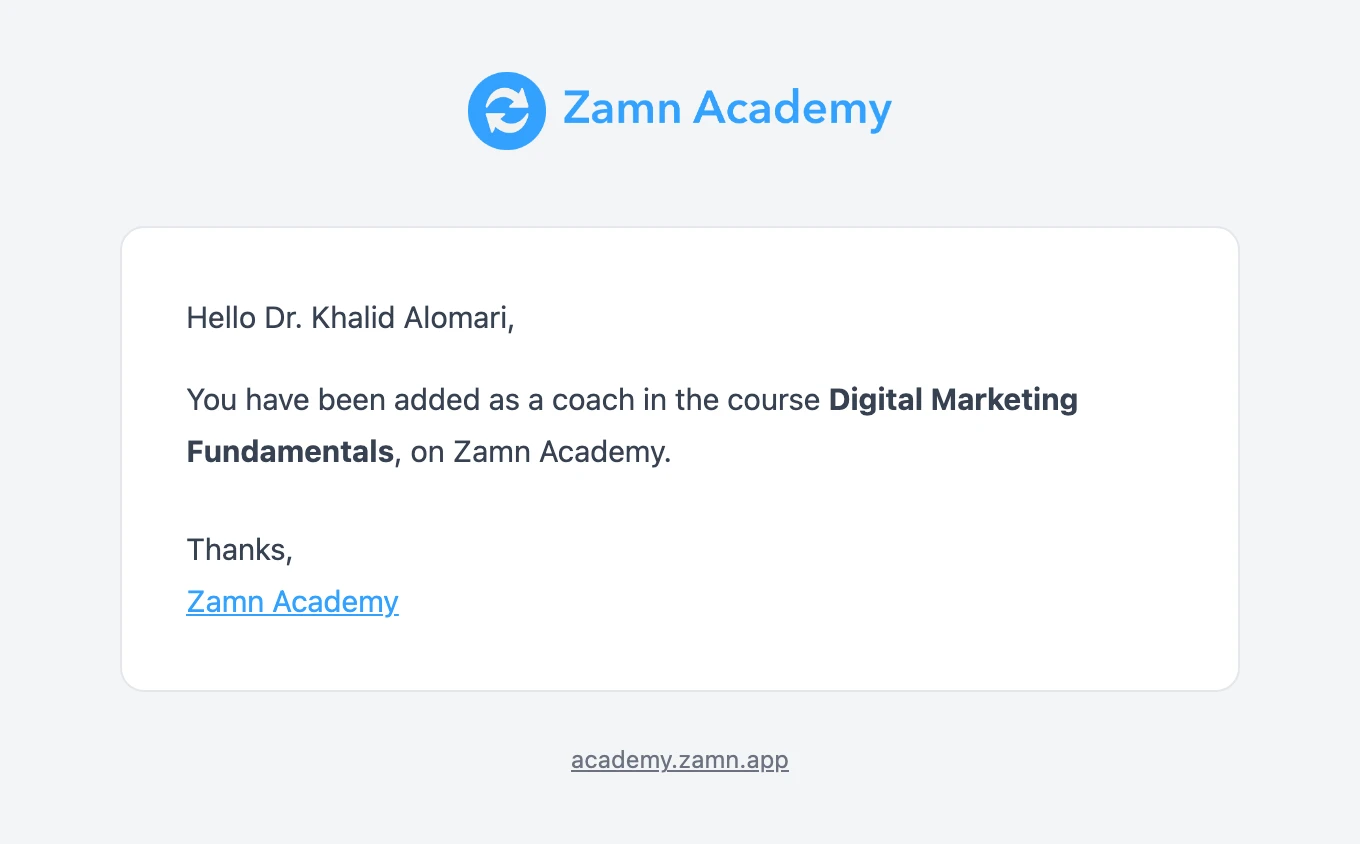
Each coach will get an email telling them that they are now a coach in the course.
How to change the cohorts assigned to a coach
-
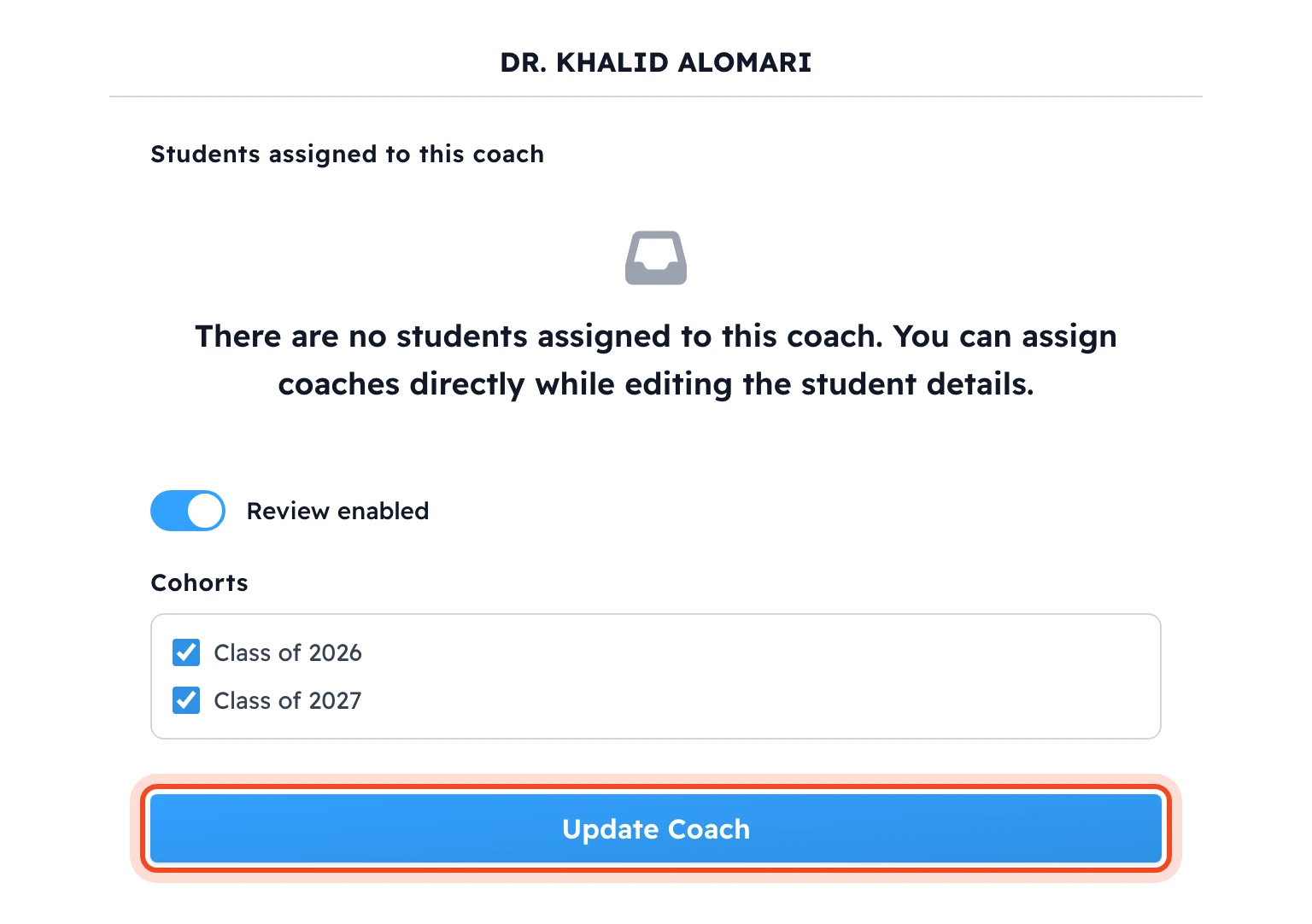
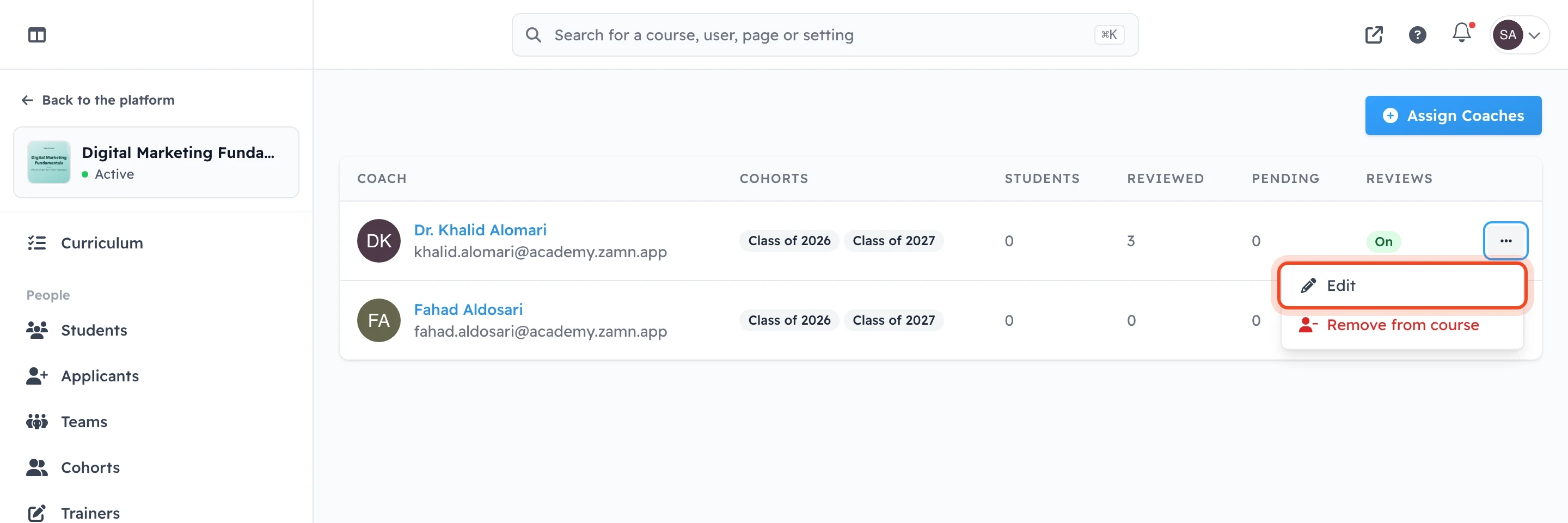
On the Coaches page, click the name of the coach whose cohorts you want to change, or click the ⋯ (Actions) button at the end of their row, then click Edit.
-
Under Cohorts, select the cohorts you want, and clear the ones you don't want.
-
Click Update Coach.