Remove a student from a course
If you want to stop a student's access to a course, you can mark them as dropped out of it. These steps are for platform admins.
Steps to remove a student from a course
-
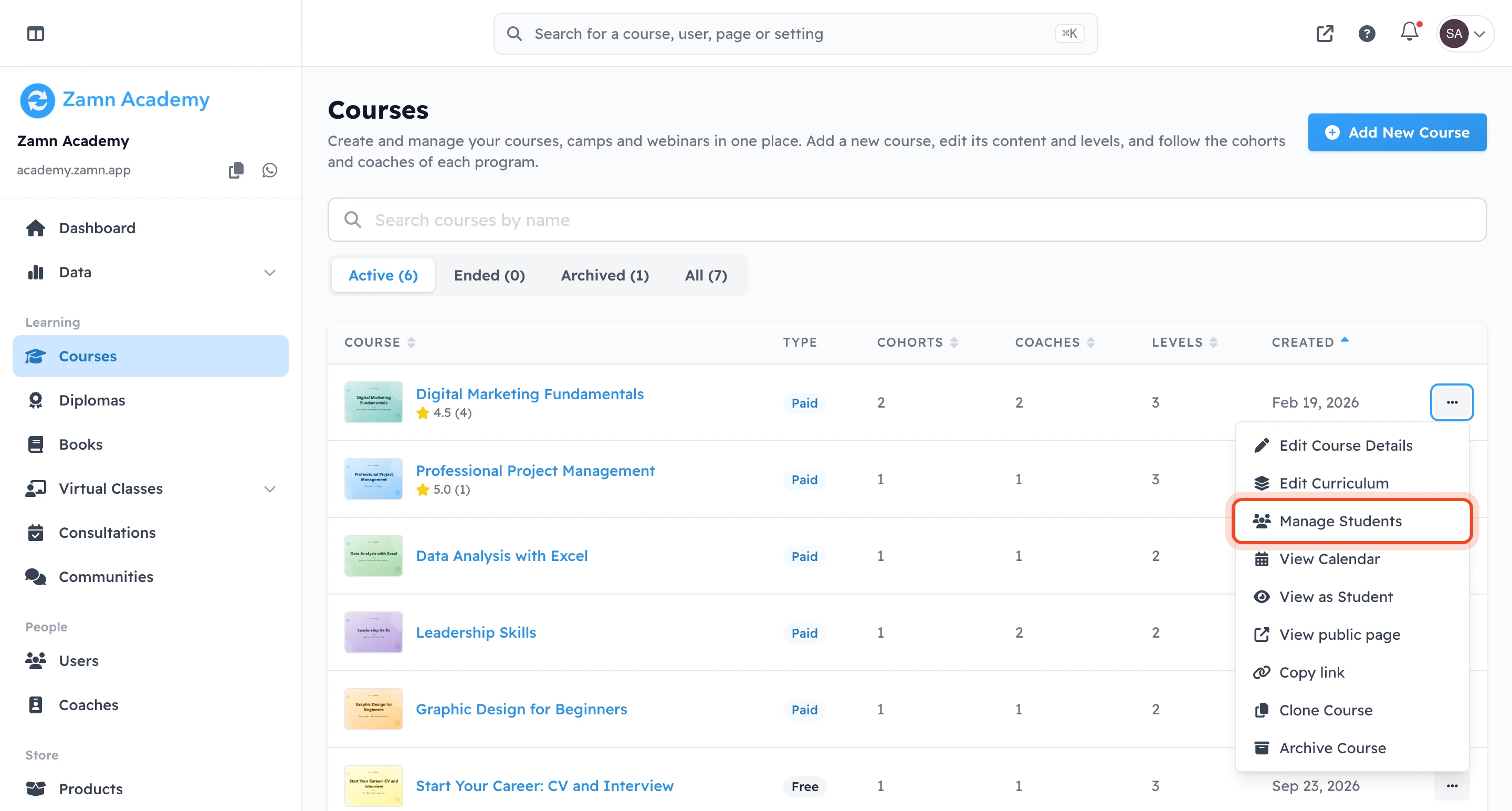
From the side menu in the dashboard, click Courses. Click ⋯ at the end of the row of the course you want to remove the student from, then click Manage Students.
-
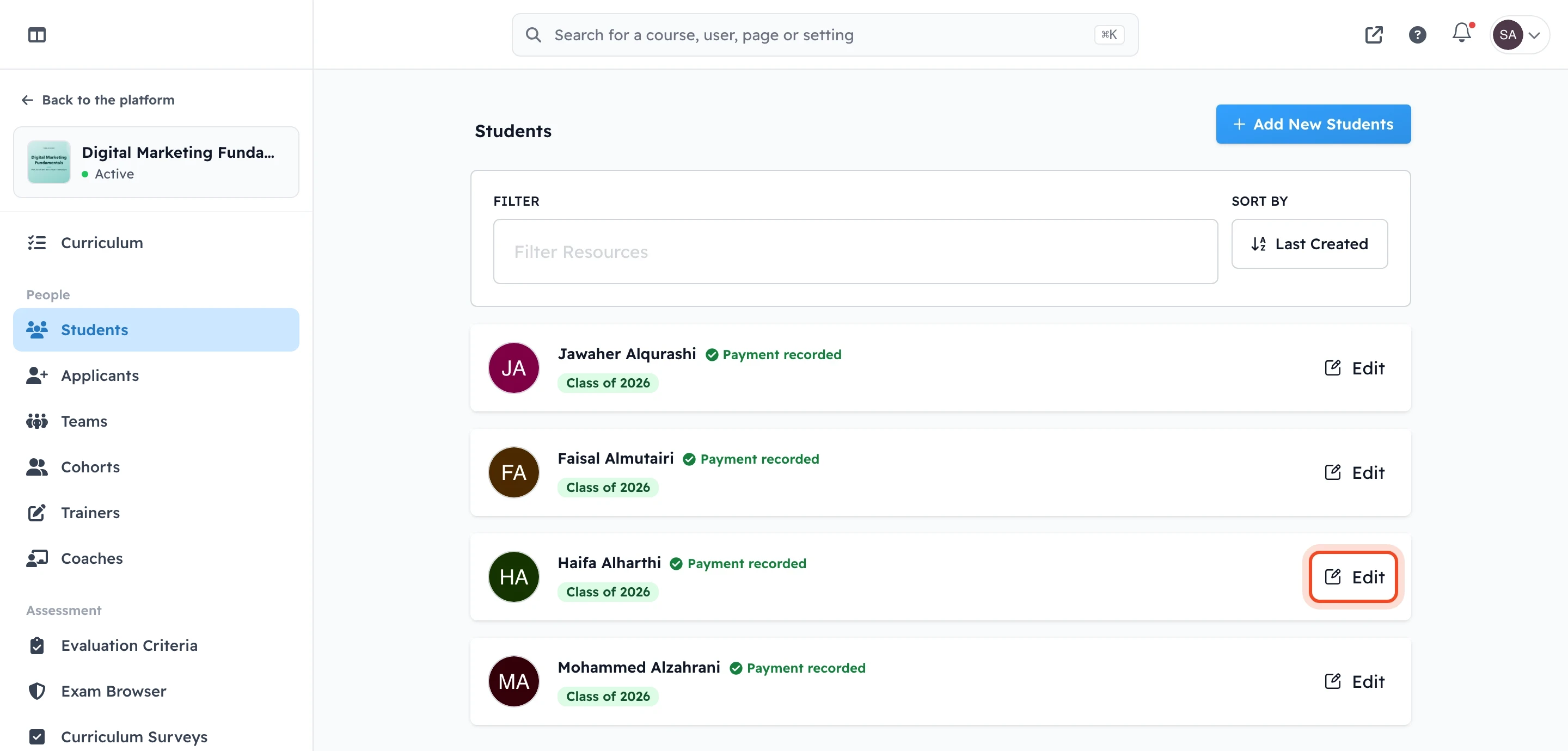
On the Students page, click Edit next to the name of the student you want to remove.
-
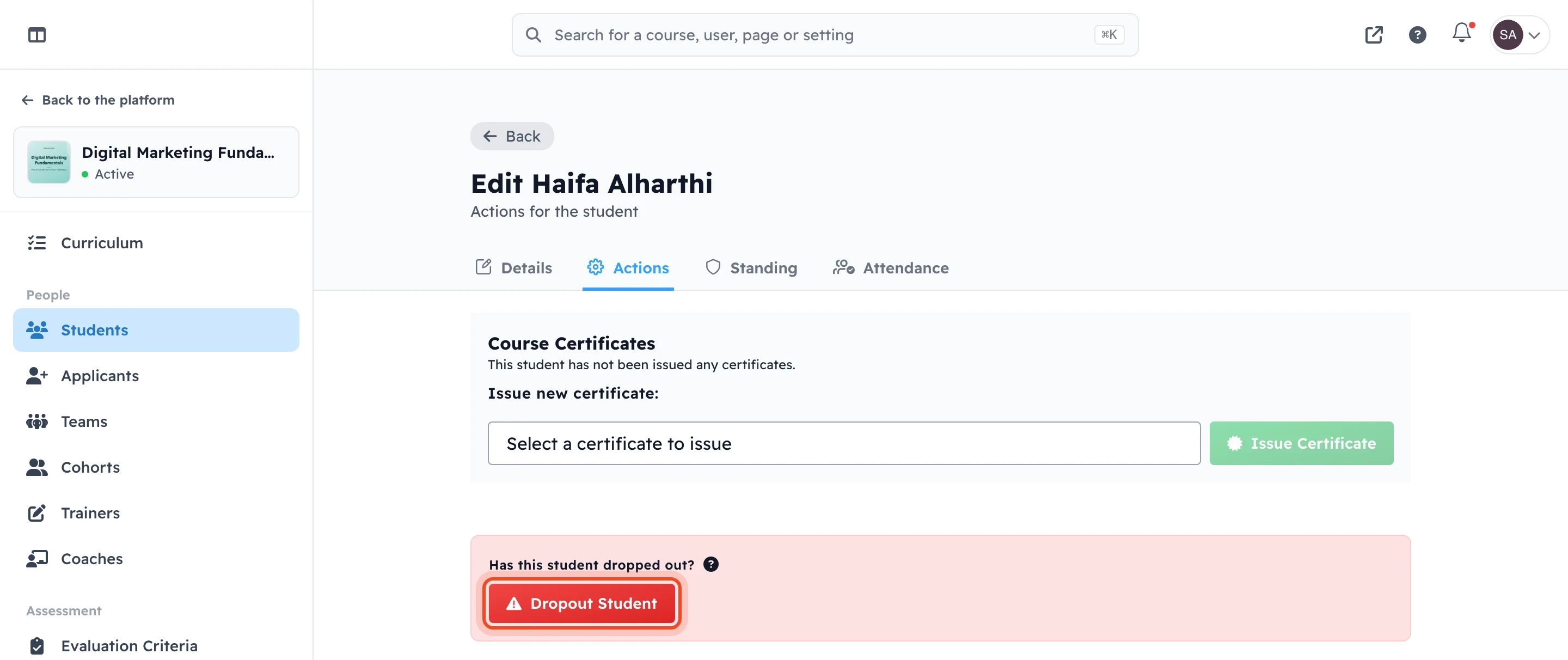
Open the Actions tab, then click Dropout Student.
Note
After you mark the student as dropped out, they cannot open the course. To give them access again, open the same tab and click Re-Activate Student.