Cancel your membership or delete your admin account
If you are an admin on a platform and want to delete your account from it, first check the conditions below, then follow the steps.
Conditions to delete an admin account
- There must be another admin on the platform. You cannot delete the last admin left.
- The platform owner's account cannot be removed from the list of admins, so the platform owner cannot delete their account. If you are the platform owner, contact the Zamn technical support team.
- If you are the only admin, you cannot remove yourself from the admins, so you cannot delete your account.
- If you want to delete the account and the platform, contact the Zamn technical support team.
The Delete account part shows at the bottom of the Security and password tab on the Account settings page only for accounts that have no admin rights and no payment records. If you do not see this part, your account is still an admin on the platform, or it has subscriptions or sales.
Steps to delete your account when there is another admin
If you ever bought anything on this platform, or you have a subscription, removing your admin access will not let you delete your account. Contact the Zamn technical support team before you start.
-
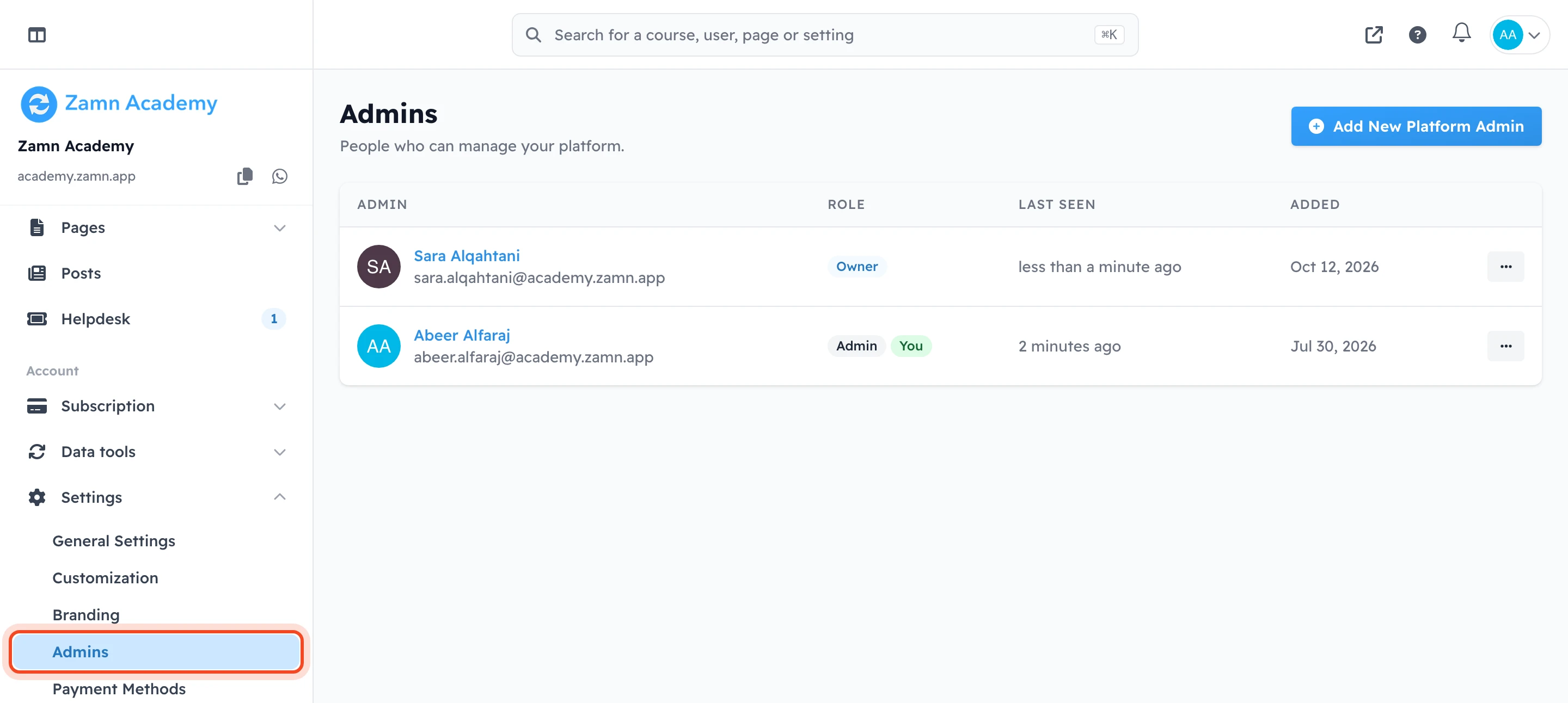
In the side menu of the dashboard, open Settings under Account.
-
Click Admins.
-
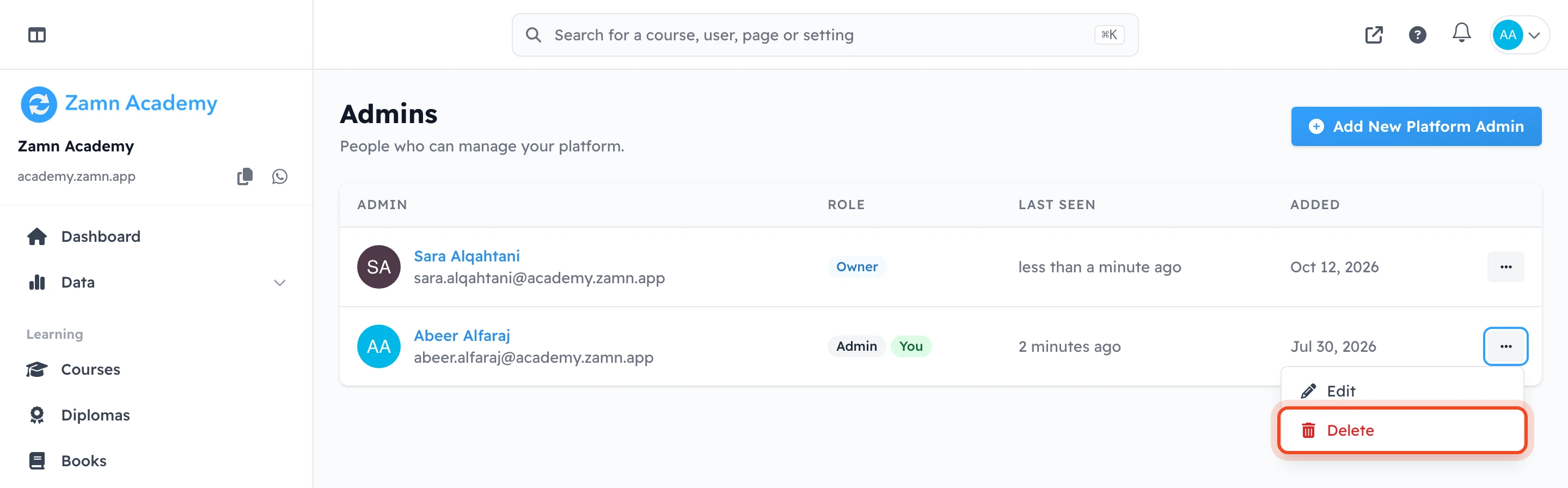
In the row with the You label, click the ⋯ (Actions) button, then click Delete.
-
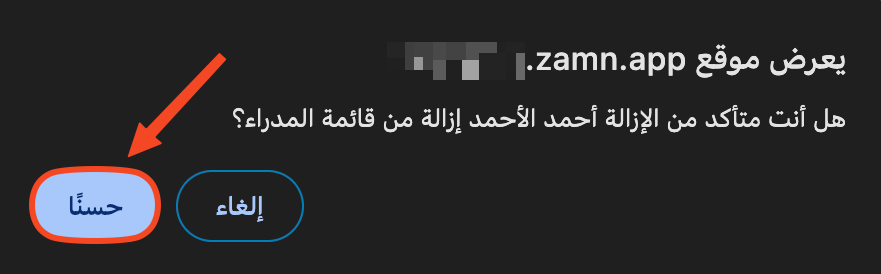
The message You are about to remove your own admin access. You will be signed out right away. Continue? shows. Click OK.
-
You are signed out of the platform. Sign in again with the same account.
-
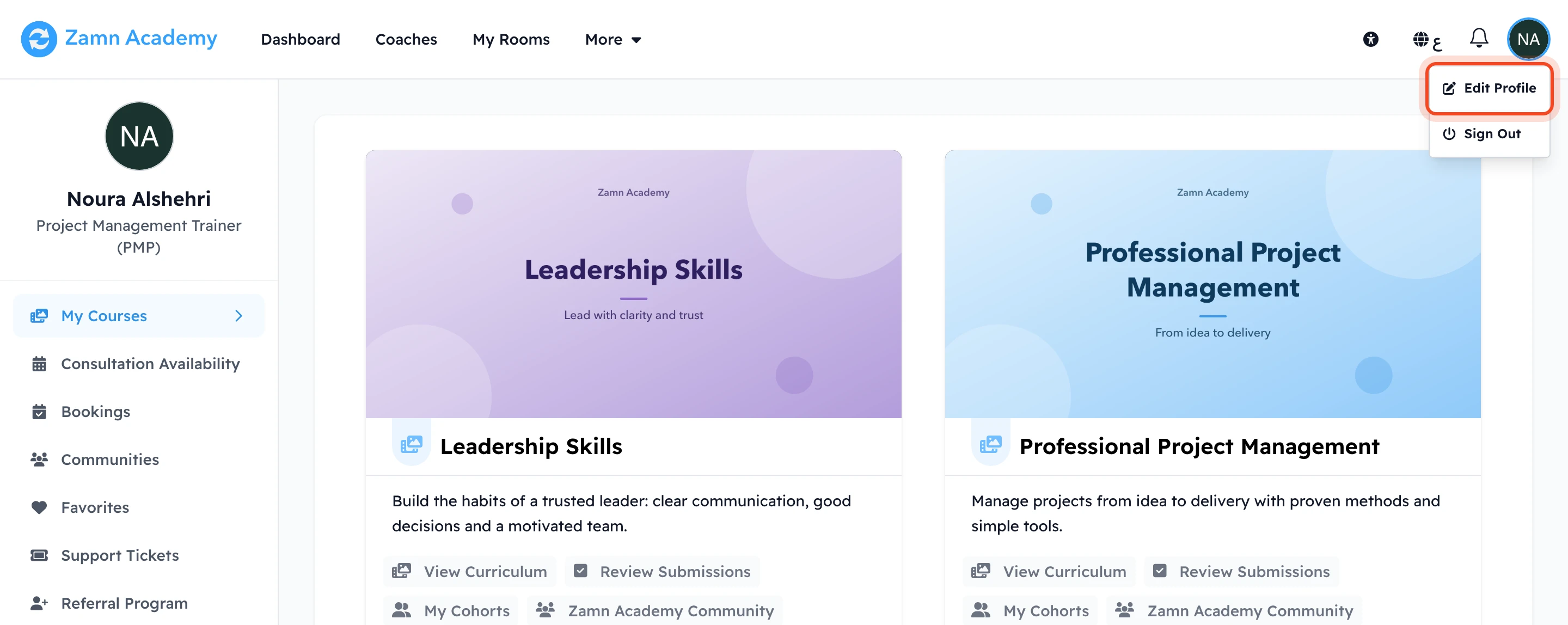
Click your profile icon, then choose Edit Profile. The Account settings page opens.
-
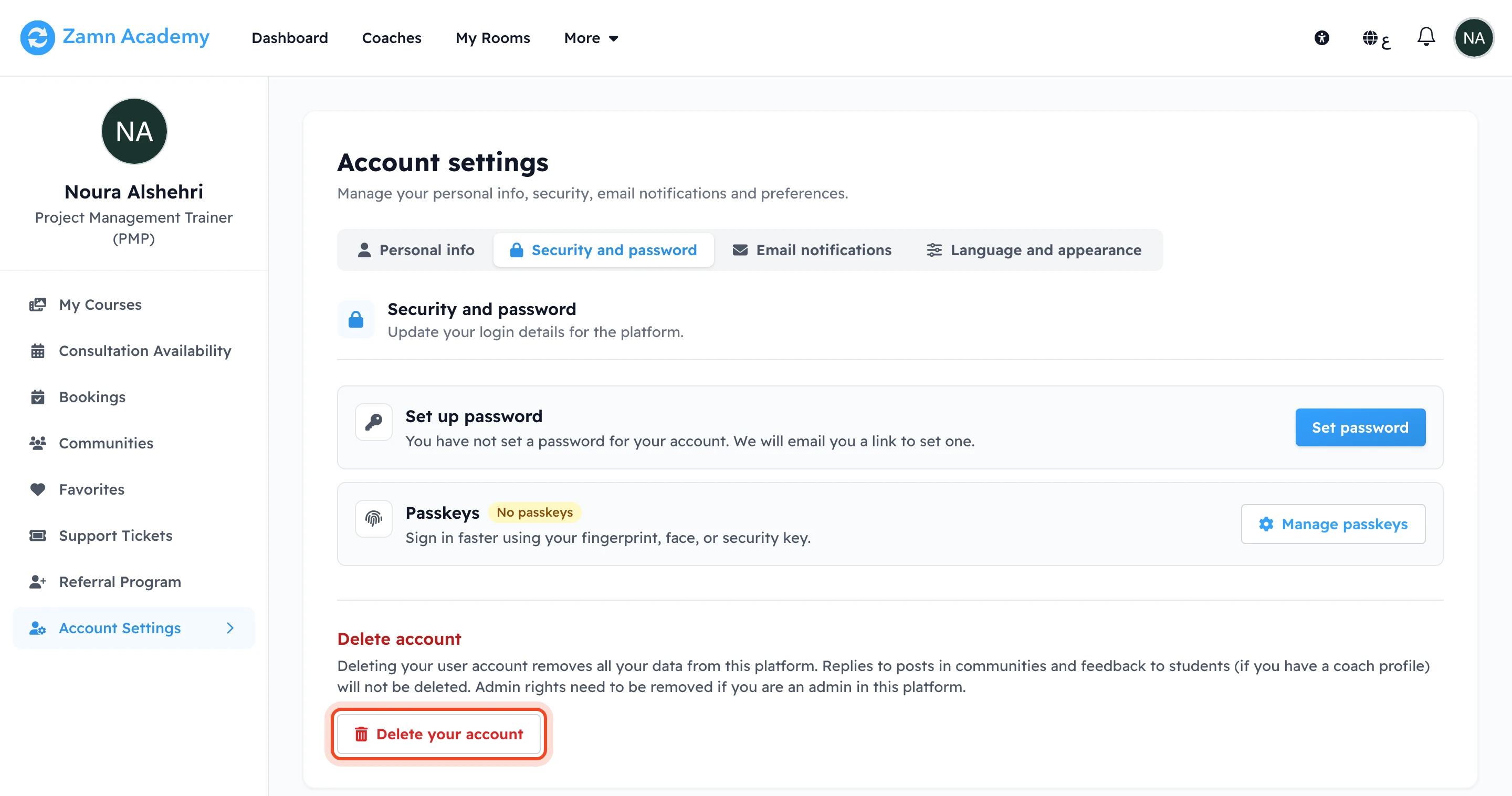
Open the Security and password tab. Go to the Delete account part at the bottom of the tab, and click Delete your account.
-
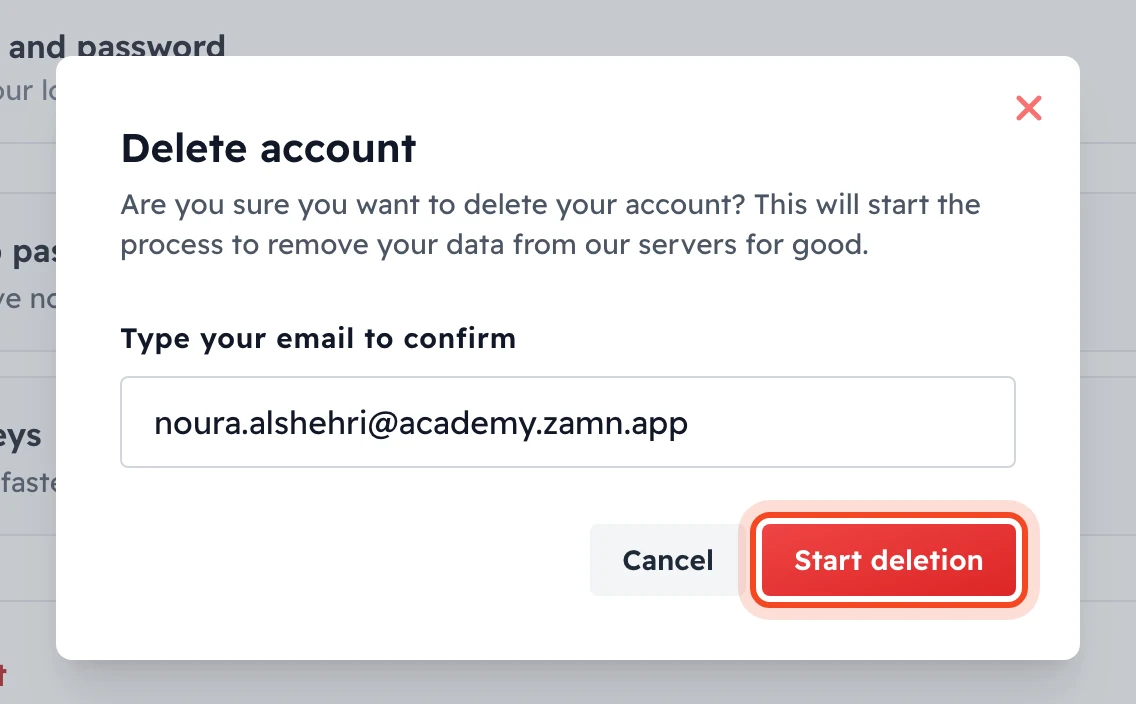
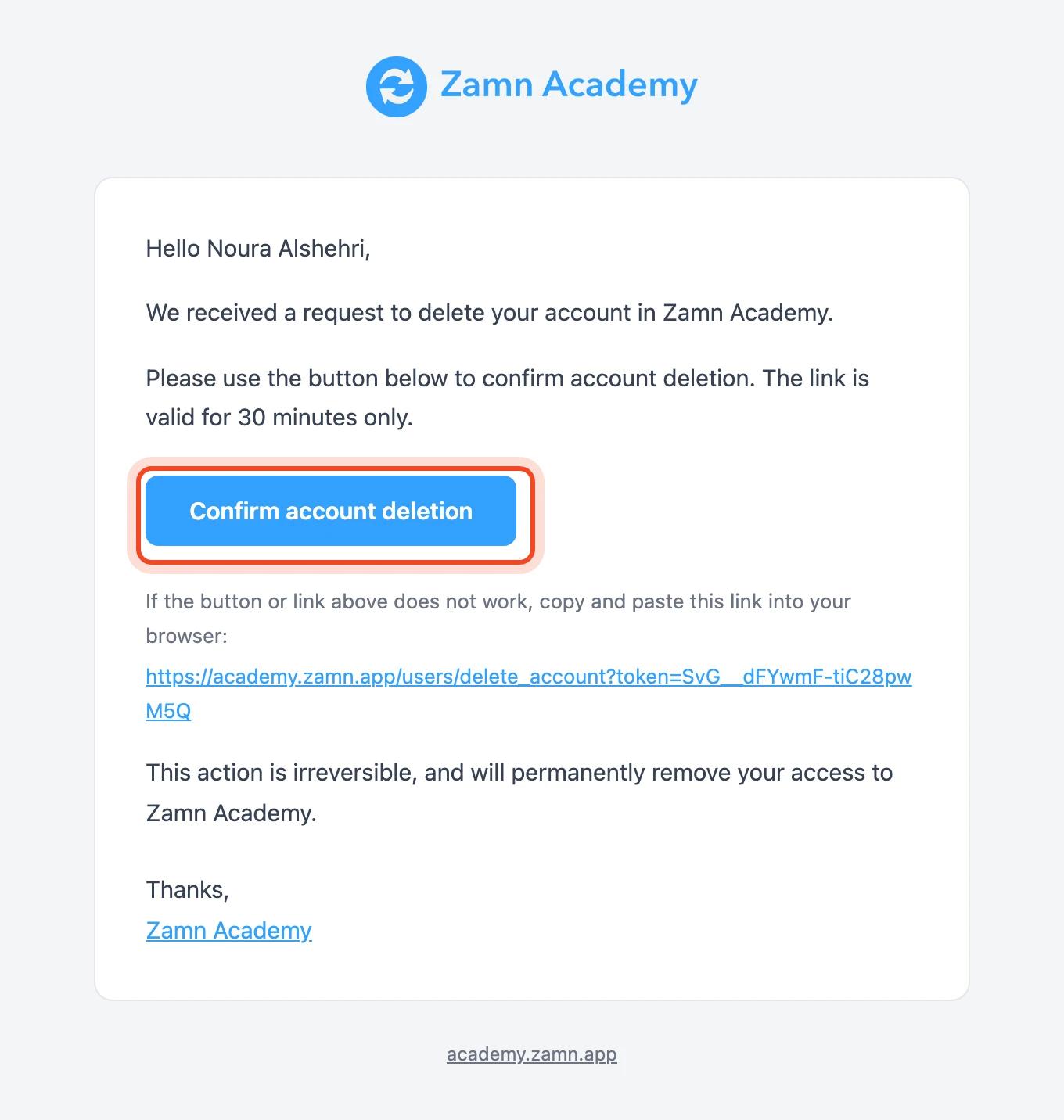
Type your email in the Type your email to confirm field, then click Start deletion. You get an email to confirm the account deletion.
-
Open your email and click the Confirm account deletion button in the message to go to the deletion confirmation page. The link works for 30 minutes only.
-
Click Delete Account.
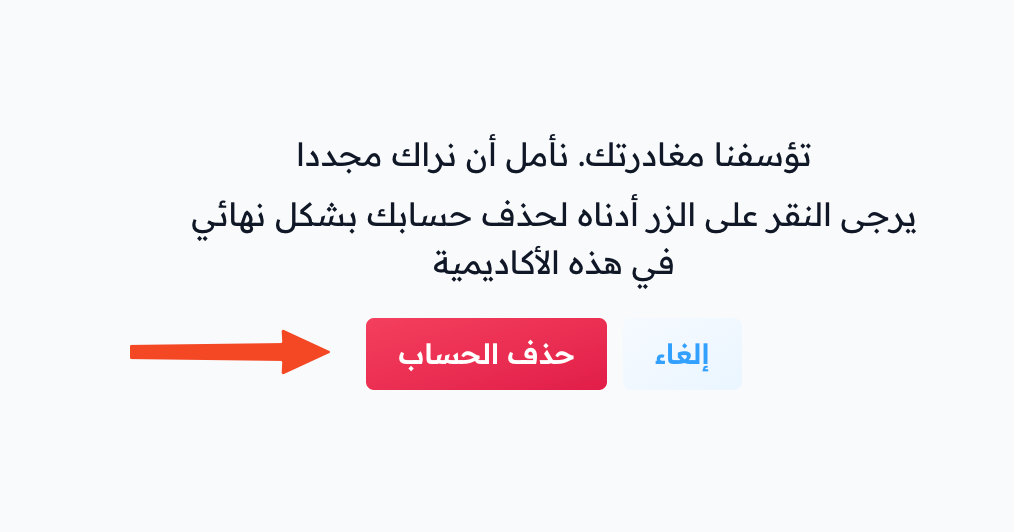
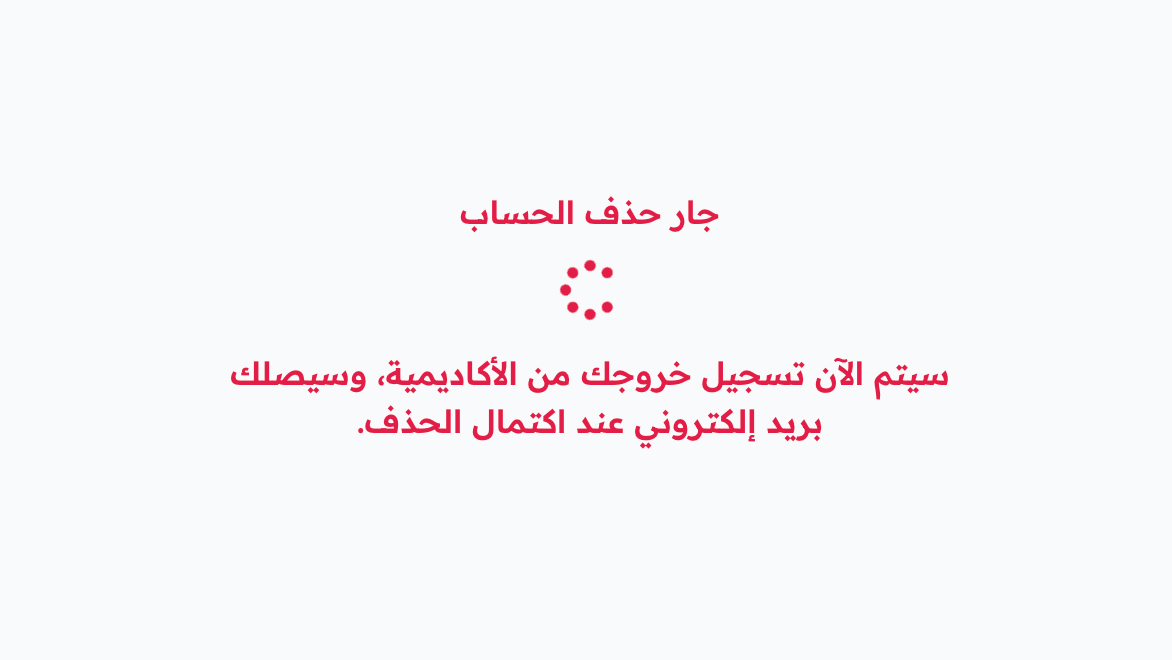
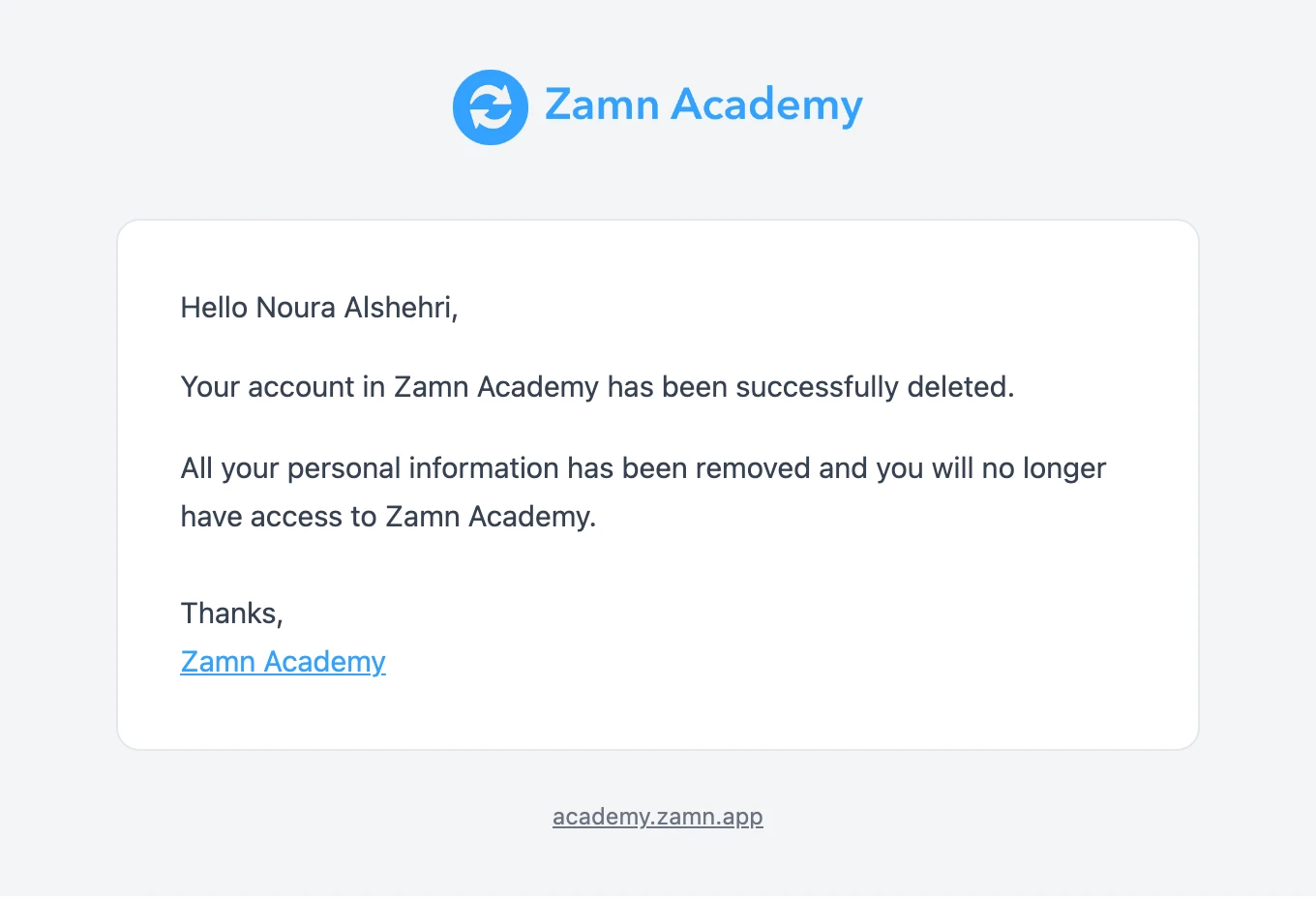
You are signed out. After a few minutes, you get an email that confirms the account was deleted.