Turn on and add digital products
To sell your courses, books, consultations and diplomas on your platform, first turn on an online payment method, then add them as products. This article is for platform admins.
How to turn on digital products
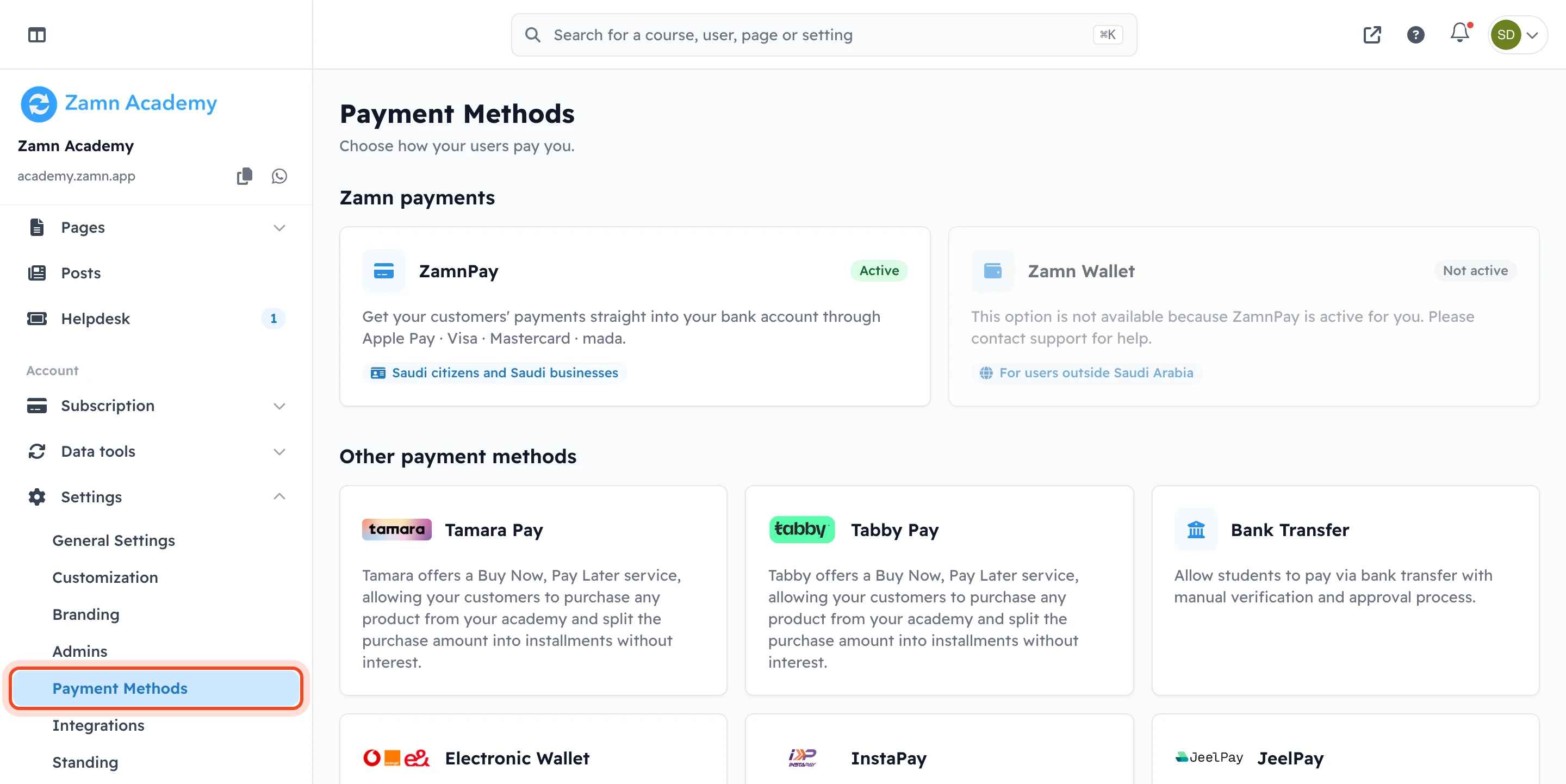
In the side menu of the dashboard, under Account, click Settings, then Payment Methods.
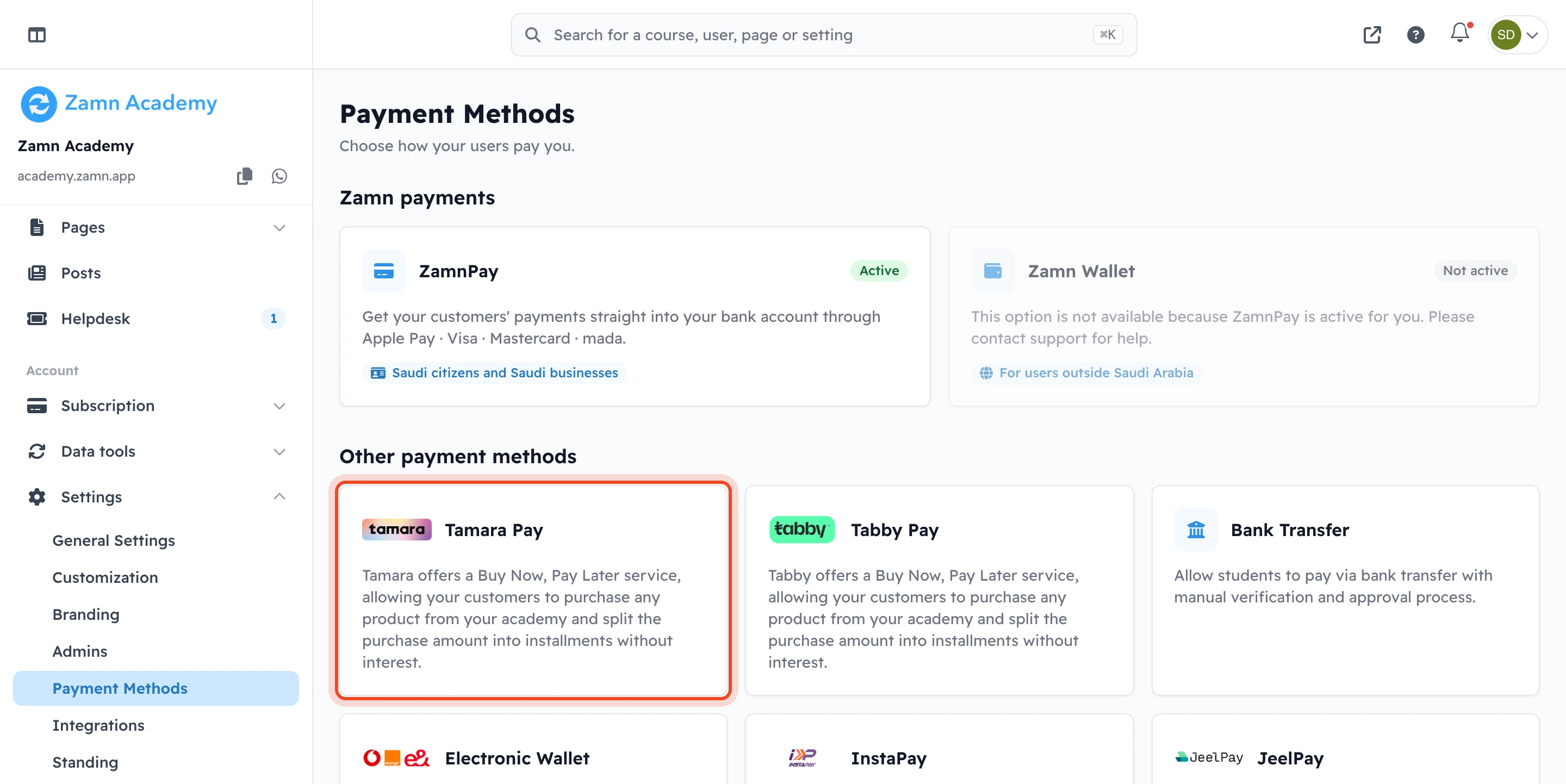
Send a request for ZamnPay or connect with Tamara. ZamnPay is for Saudi citizens and Saudi businesses. If you are outside Saudi Arabia, use Zamn Wallet instead. The same page also shows other payment methods, such as Tabby and Bank Transfer.
Steps to send a ZamnPay request
-
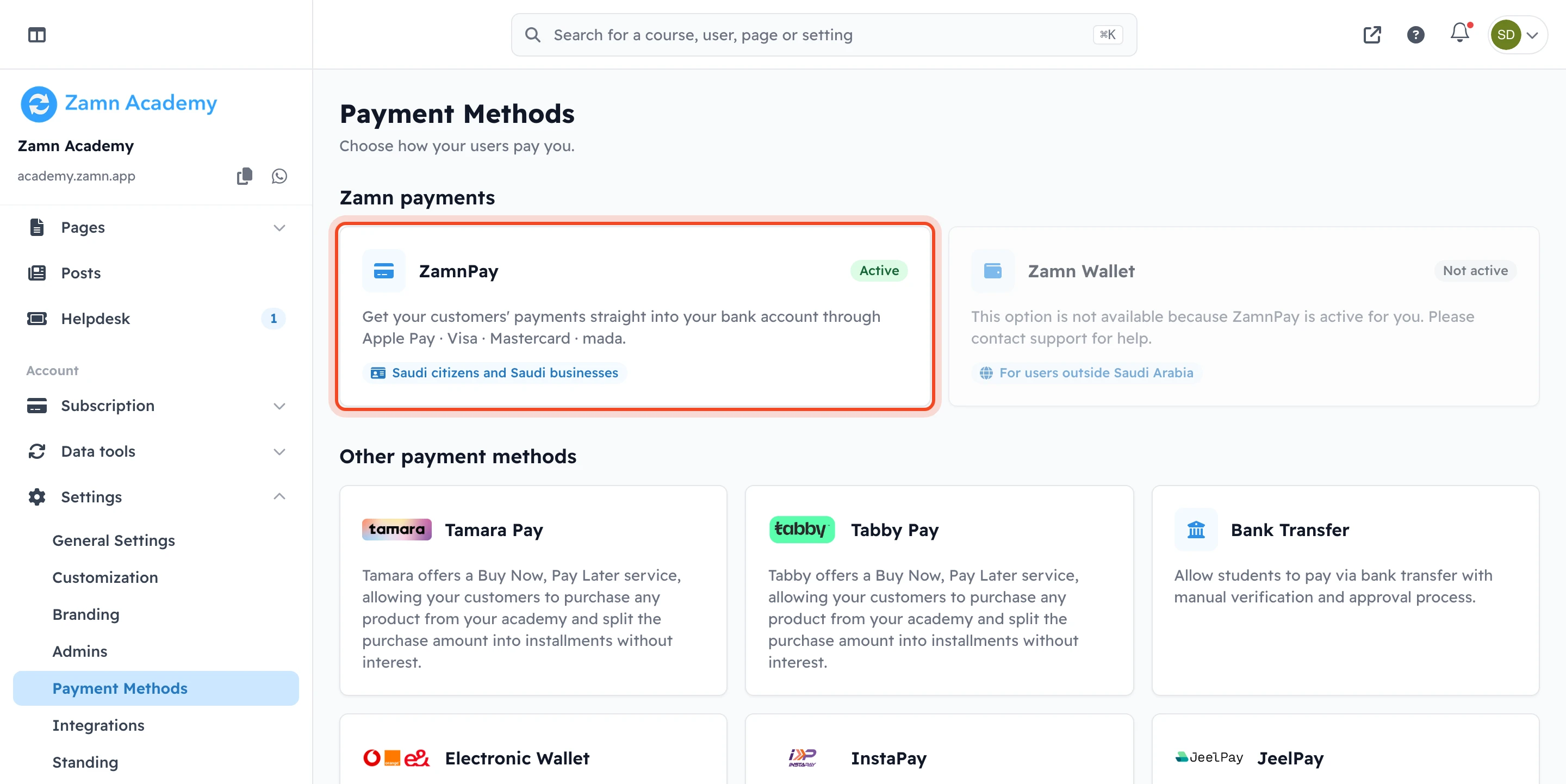
Click the ZamnPay card.
-
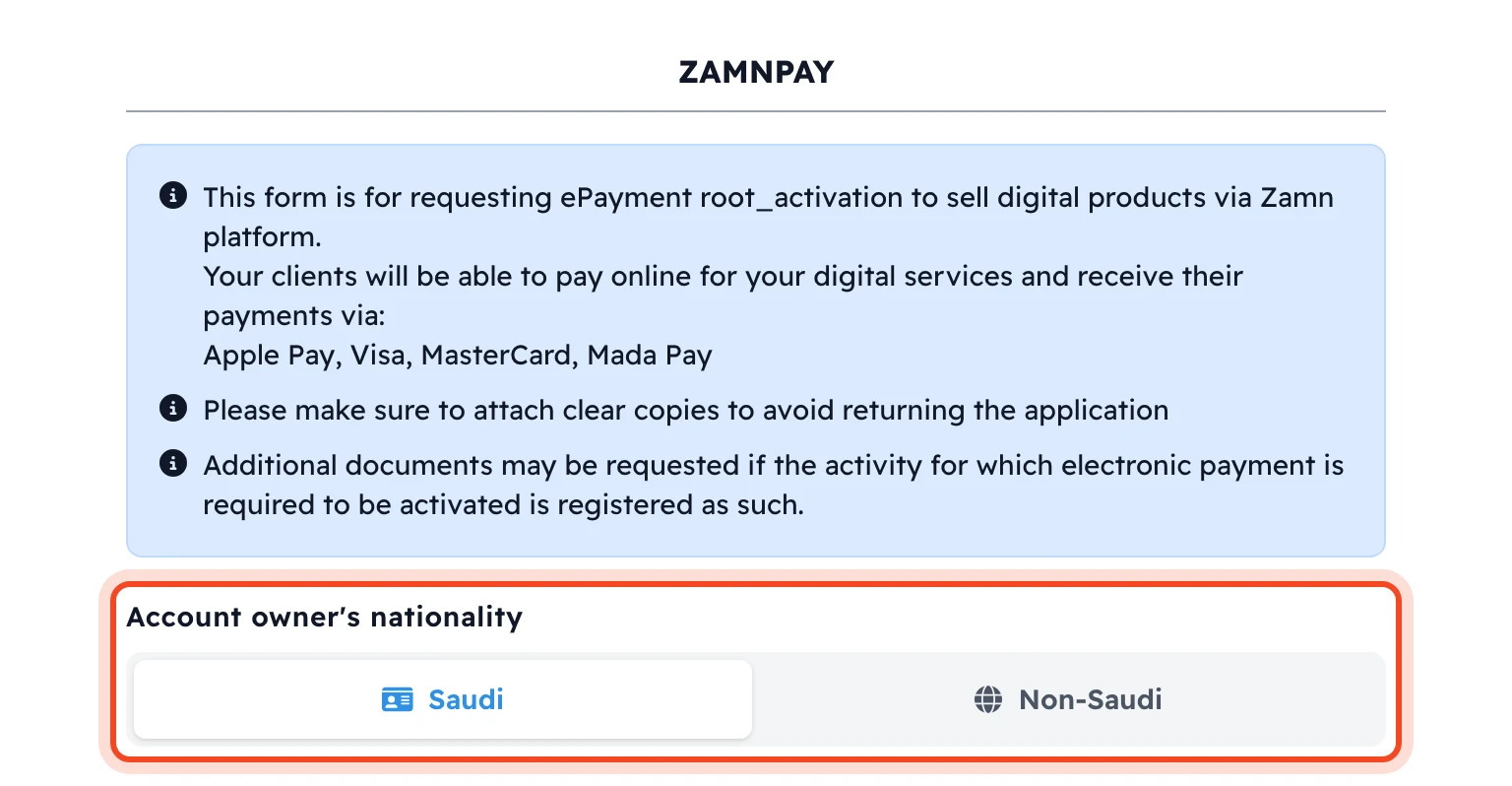
Under Account owner's nationality, choose Saudi. The request form shows under it. If you choose Non-Saudi, you see the Activate Zamn Wallet button instead, because ZamnPay is for Saudi citizens and Saudi businesses.
-
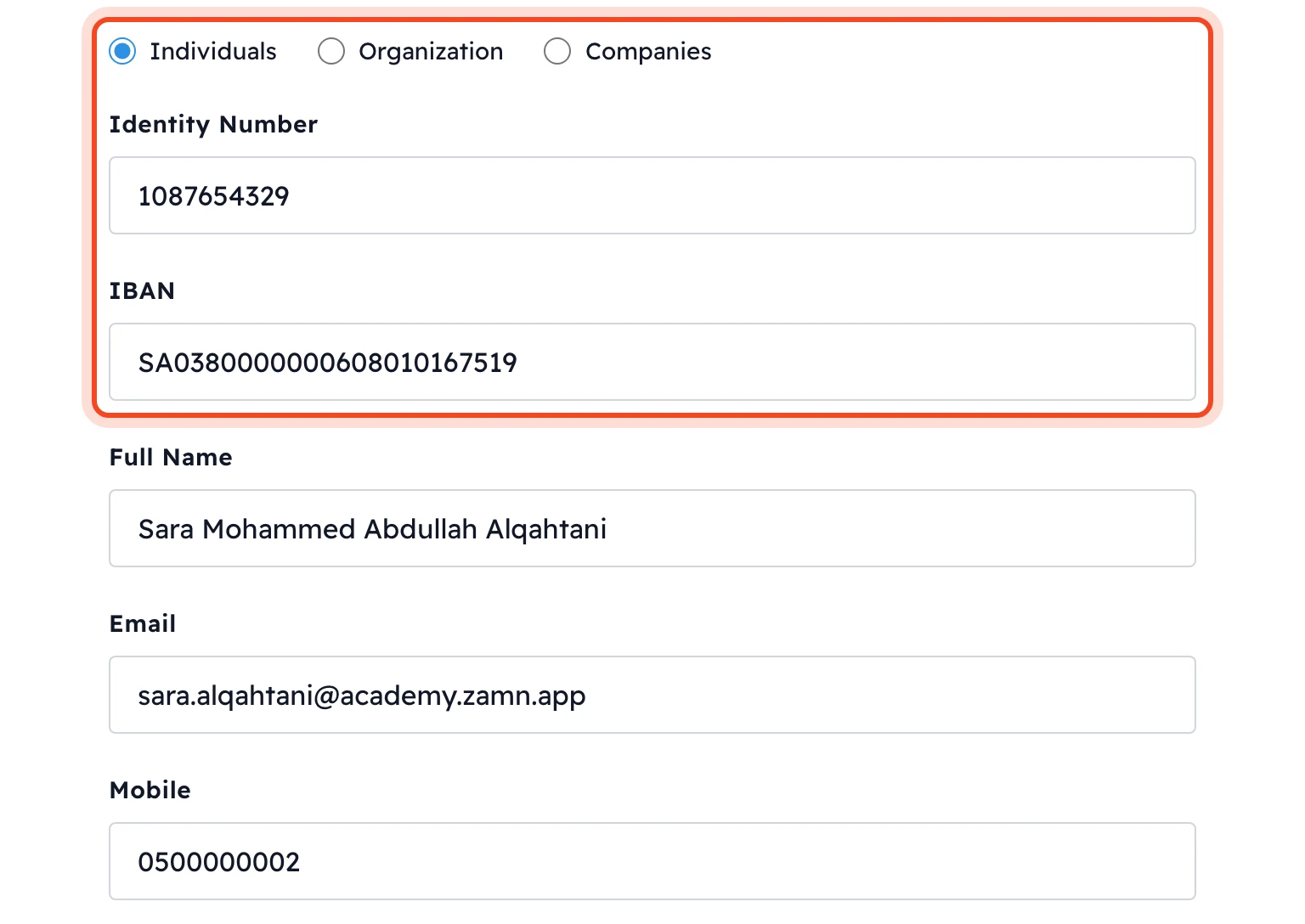
Choose whether your platform belongs to Individuals, an Organization or Companies, then fill in the required details, including the Identity Number and IBAN.
-
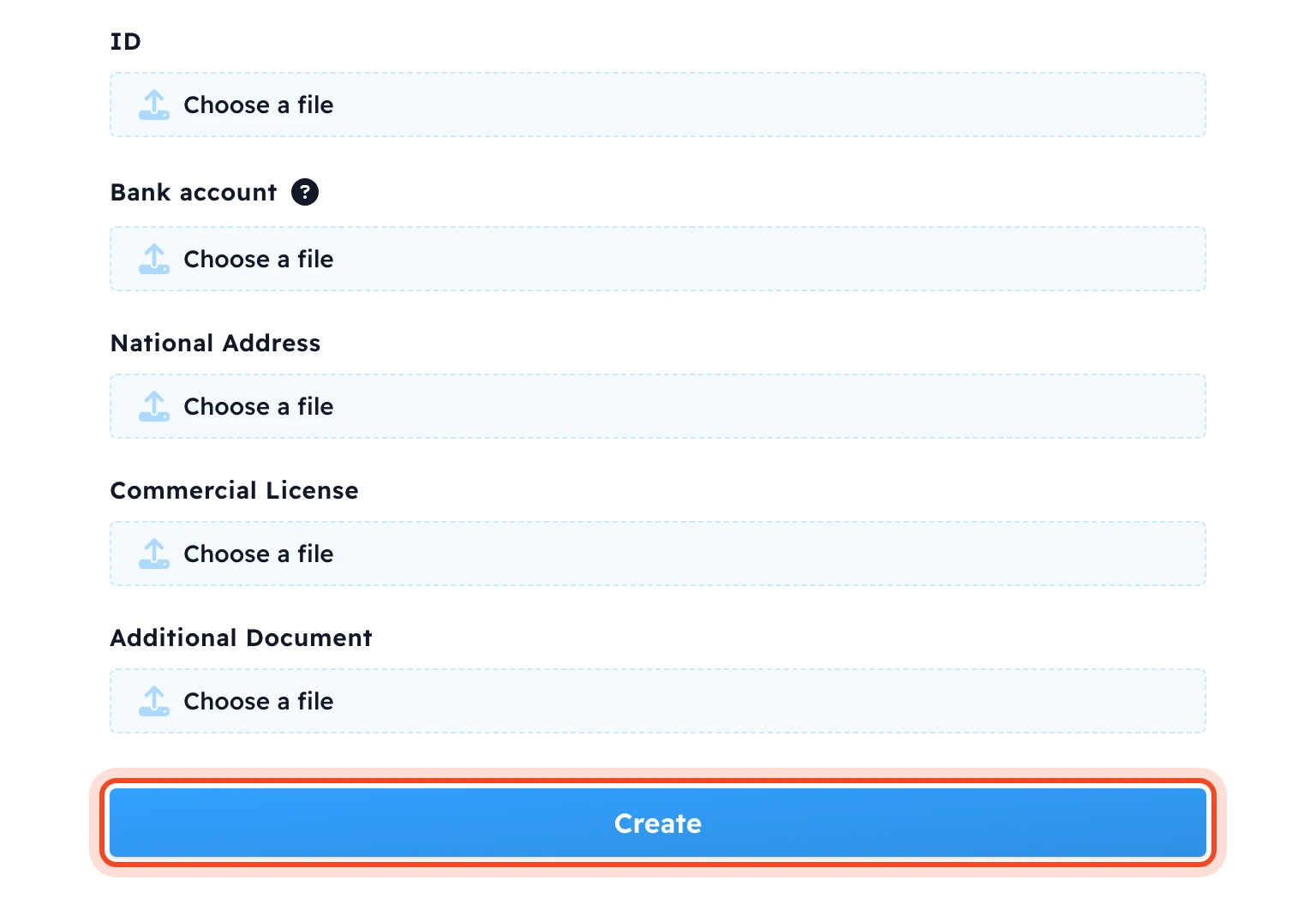
Upload clear copies of the required files.
-
Click Create to send the request.
Steps to connect with Tamara
First create an account on Tamara Pay and copy the integration keys, then follow these steps:
-
Click Tamara Pay.
-
Enter the integration keys that Tamara sent you in the Tamara Access Token, Notifications Key and Public Key fields.
-
Click Create to save. If you saved Tamara settings before, the button shows as Update.
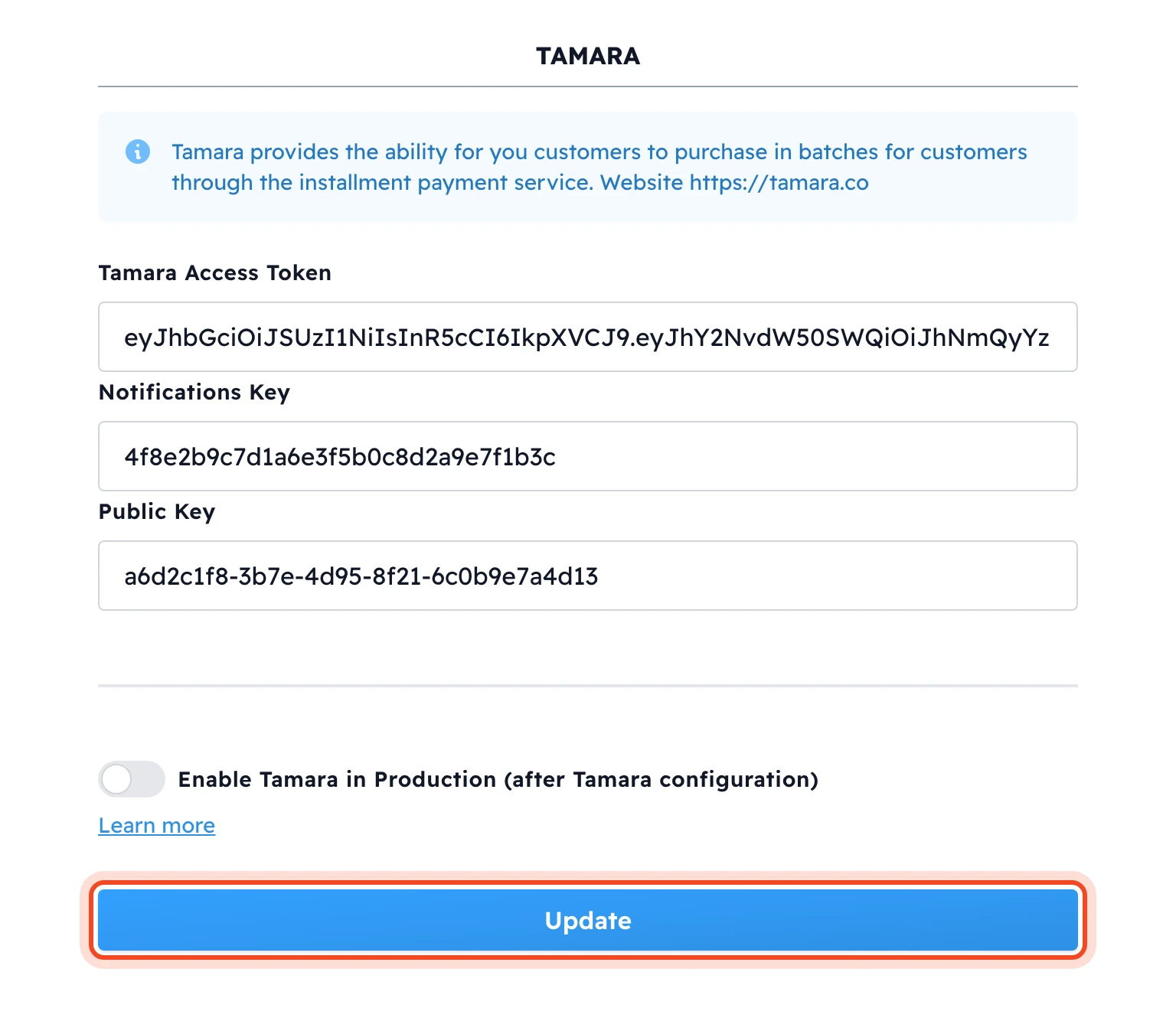
After you get the live integration keys (Production) from Tamara, enter them and turn on Enable Tamara in Production (after Tamara configuration), then click Update.
How to add digital products
In the side menu of the dashboard, under Store, click Products, then click Create Product.
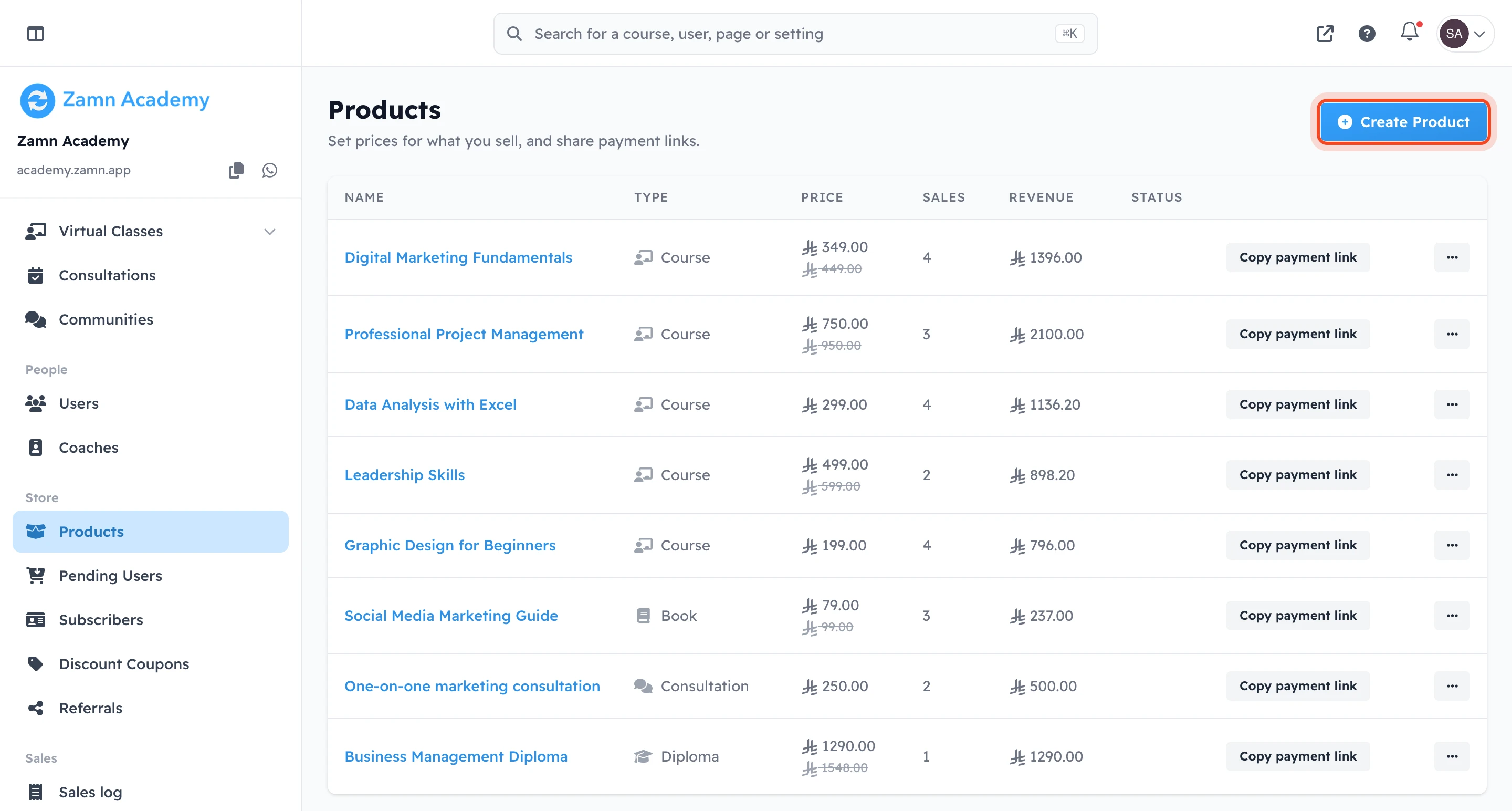
There are four types of products:
- Course.
- Book.
- Consultation.
- Diploma.
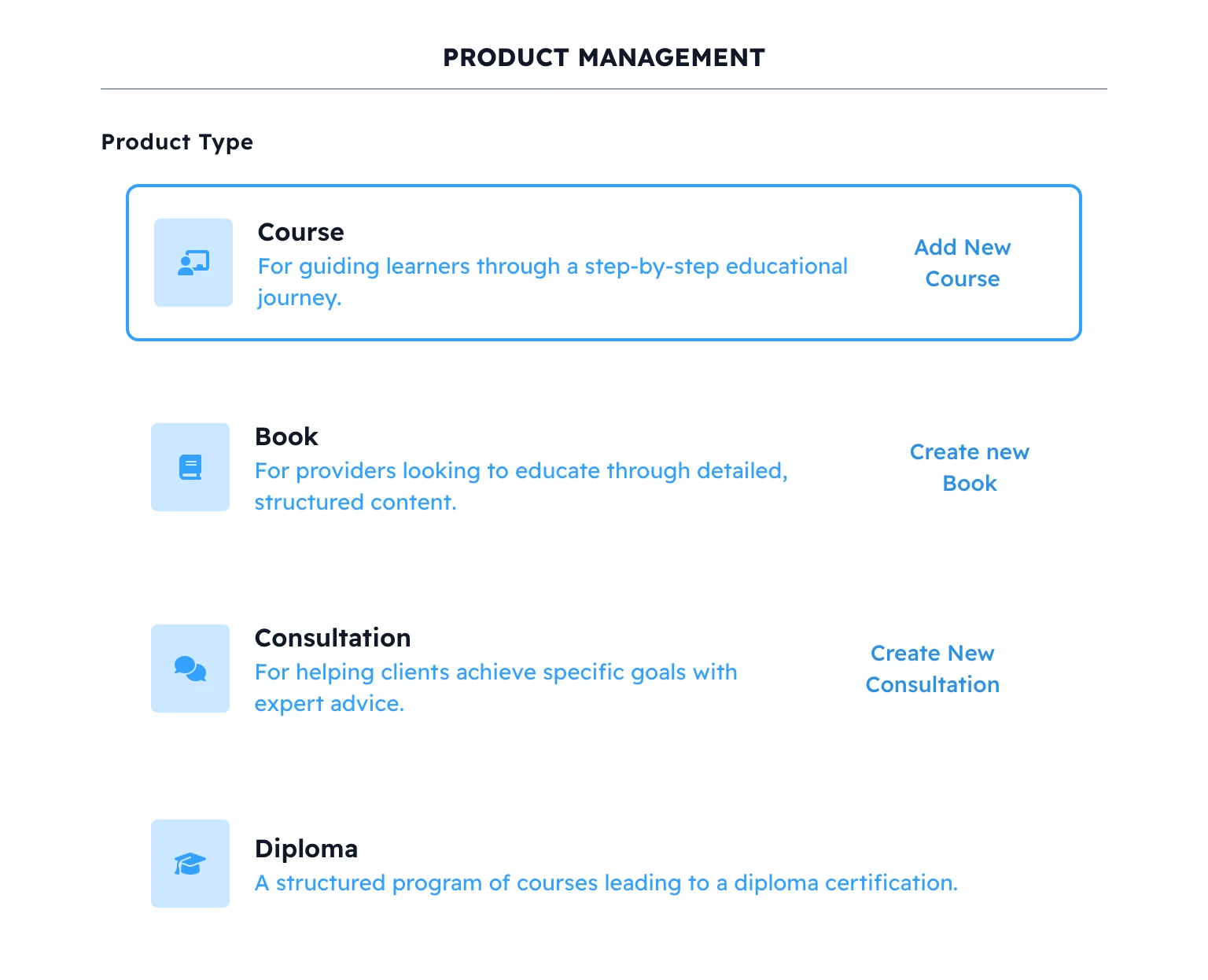
Steps to add a product (course, book or diploma)
-
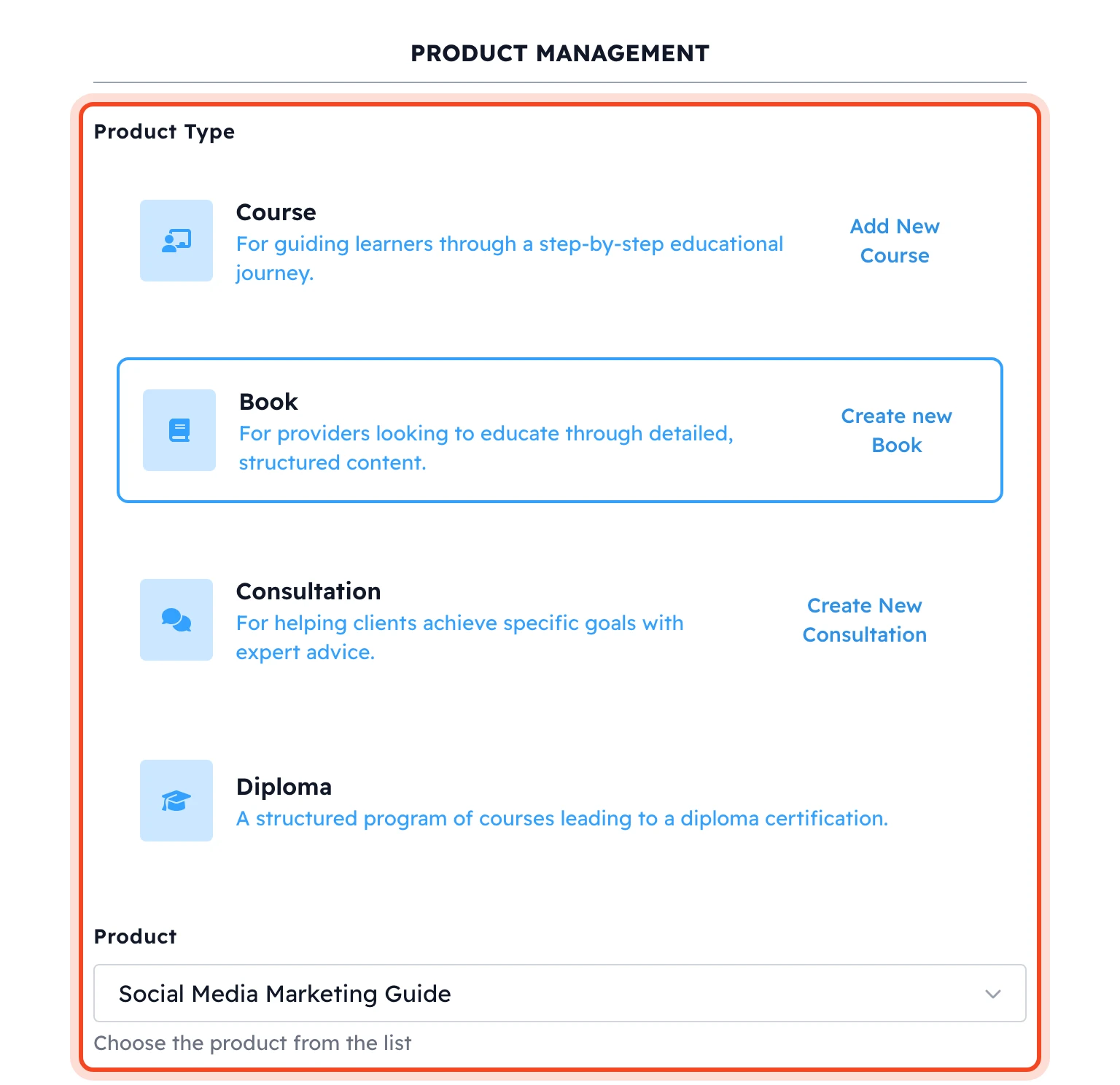
Choose the product type (course, book or diploma).
-
Choose the product from the Product list.
-
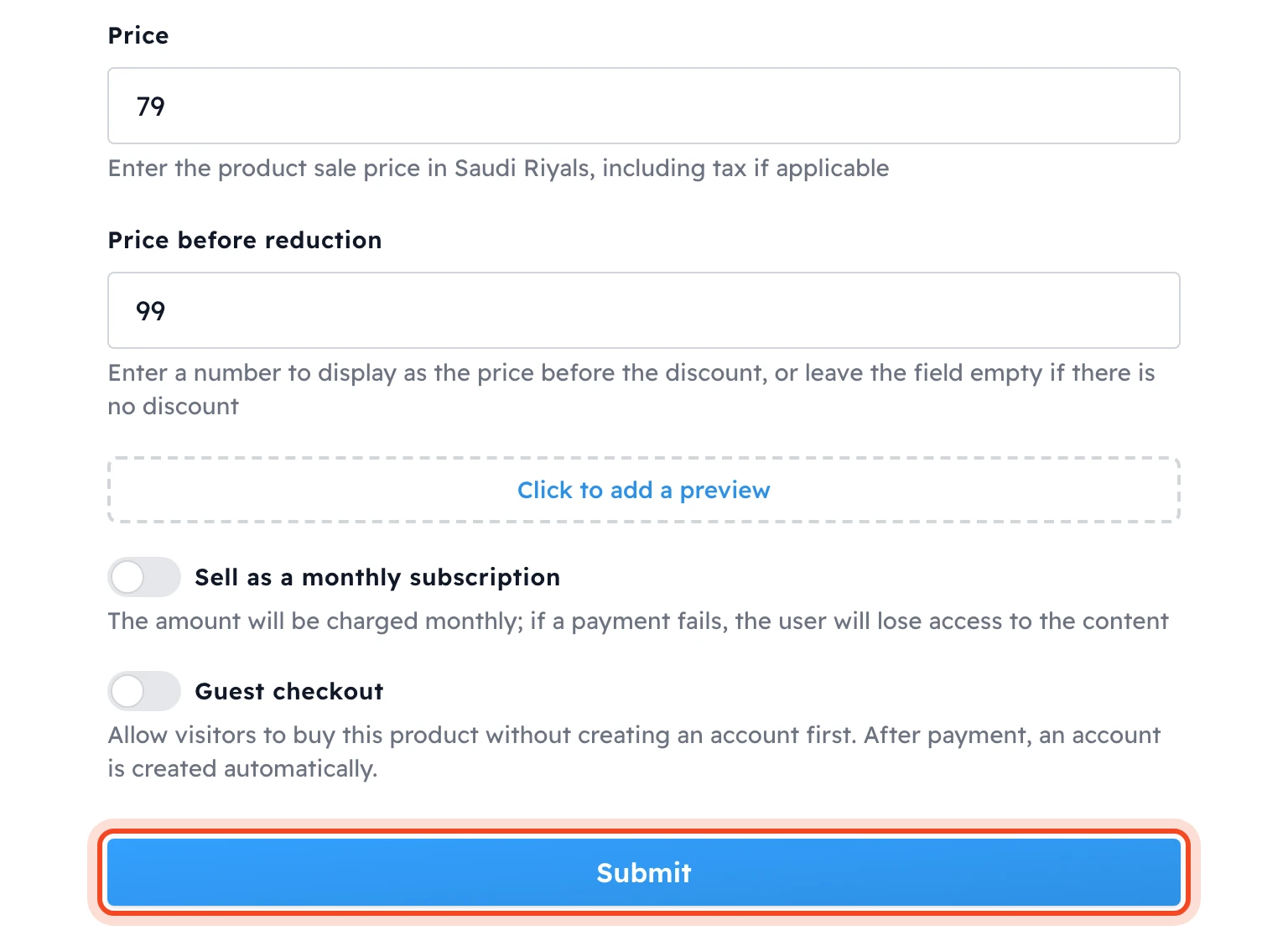
Enter the current product price in the Price field, in Saudi Riyals, including tax if there is any.
-
You can add a Price before reduction if there is a discount.
-
Click Submit.
Steps to add a consultation
First turn on the consultations service, then create the consultation from the Consultations page in the side menu. When you create it, you add its image, title, description and status, and choose how people book it, such as an event from Calendly (from the events you already created in Calendly).
Then follow these steps:
-
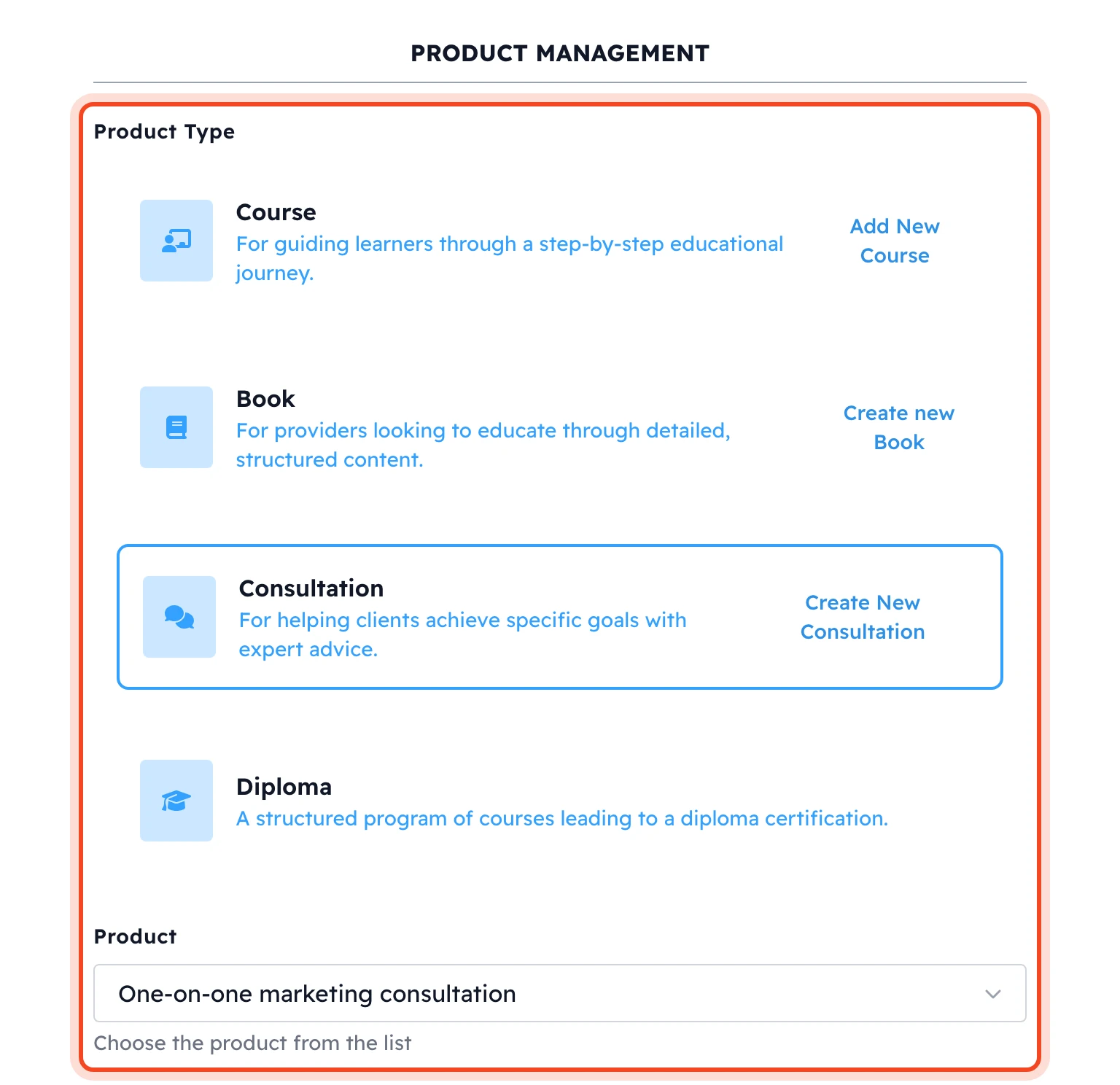
On the Products page, click Create Product and choose the Consultation product type.
-
Choose the consultation from the Product list.
-
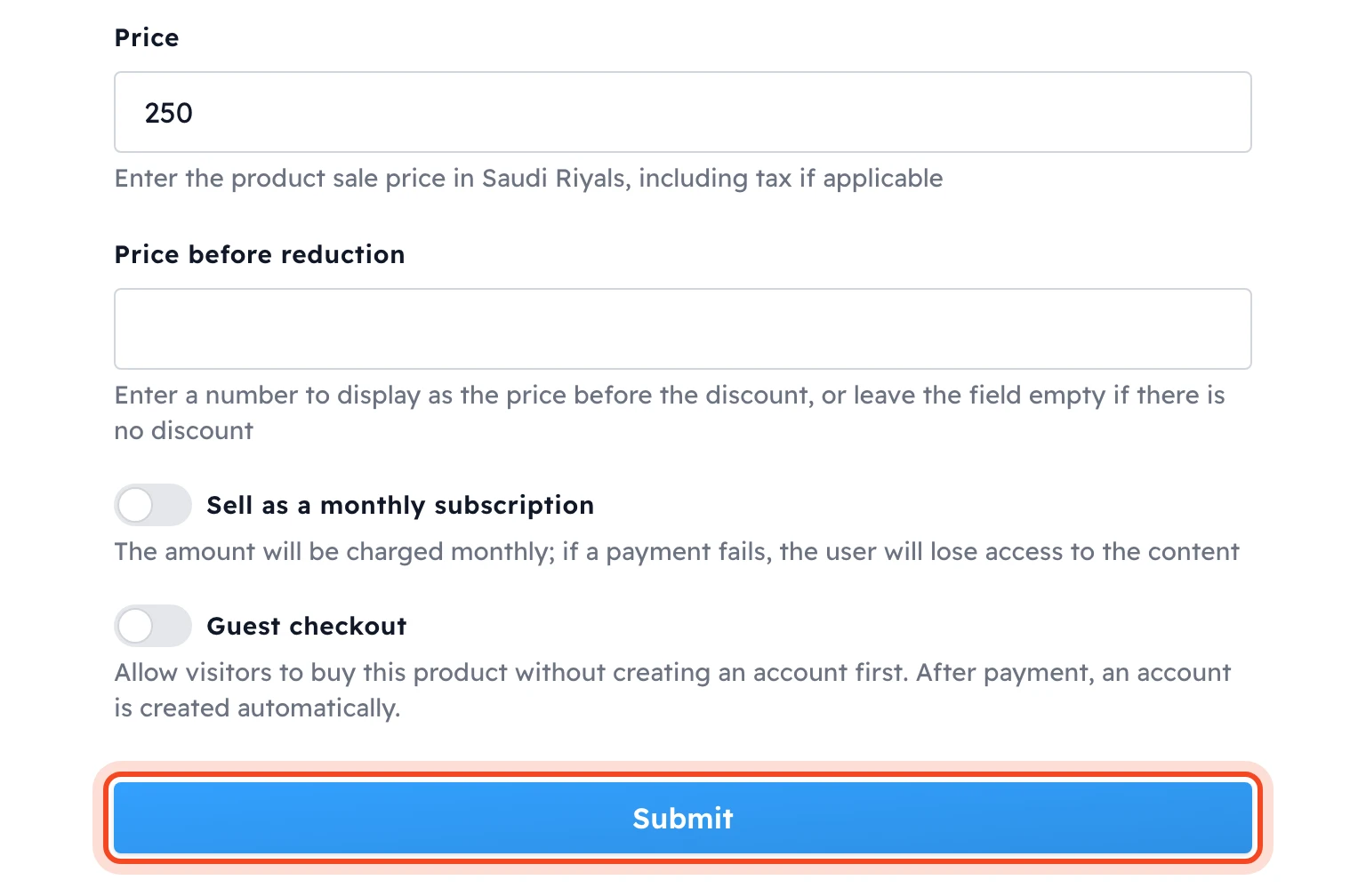
Add the Price, and the Price before reduction if there is a discount.
-
Click Submit.
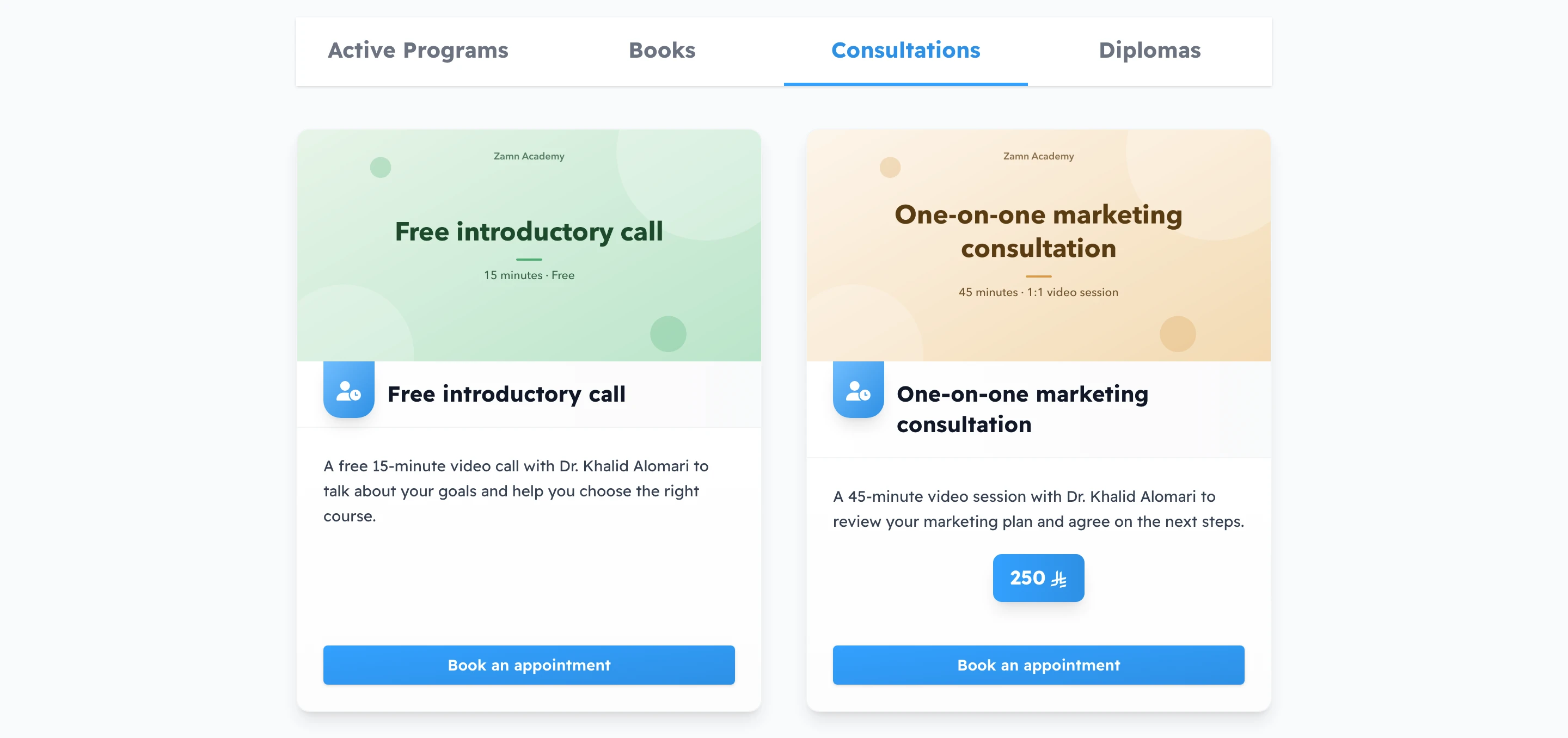
An example of how the consultation shows on your platform page:
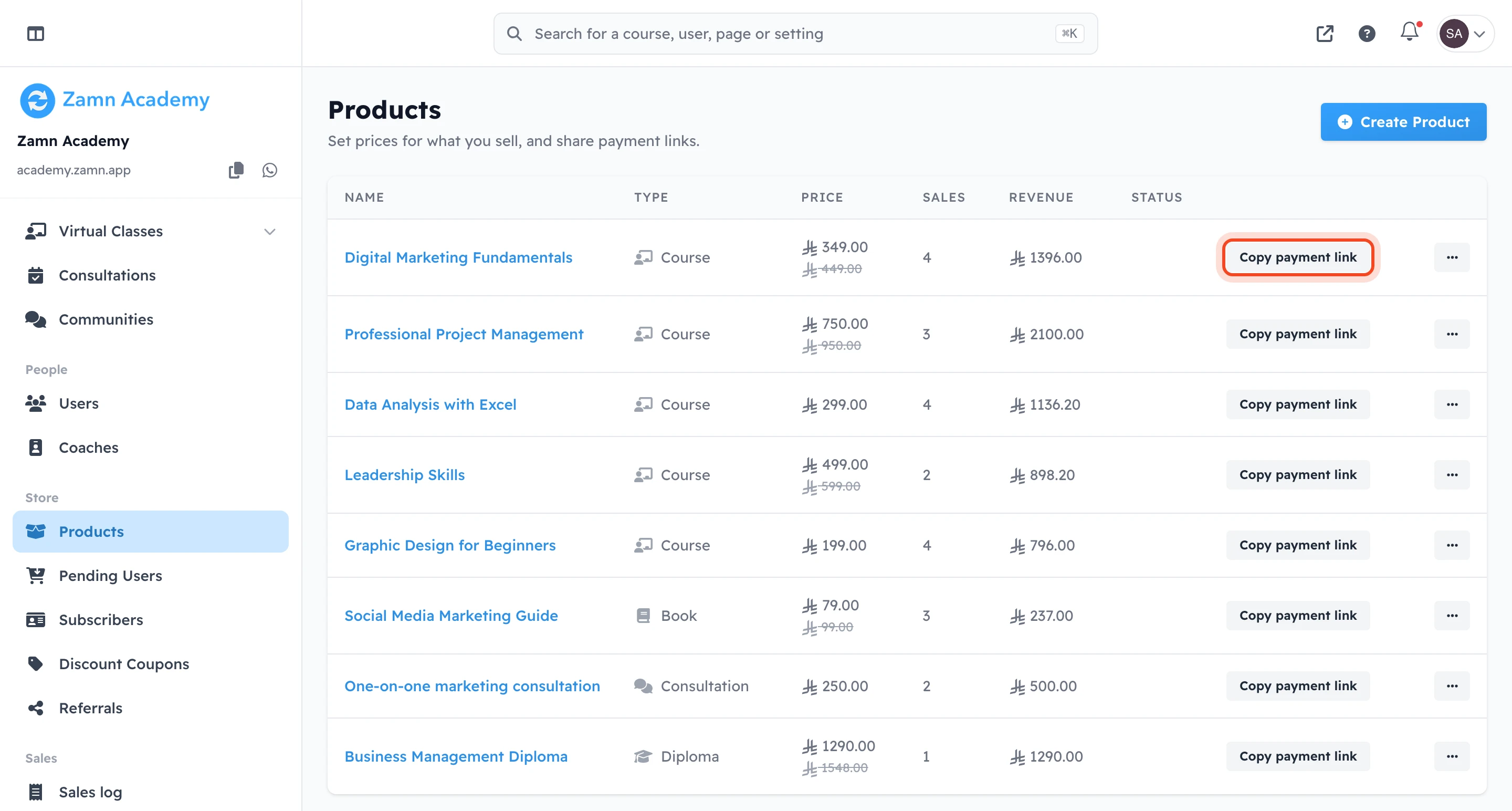
Copy the payment link of a product
Each product has its own payment link. Share it with your customers, so they go straight to the payment page of the product.
-
In the side menu, under Store, click Products.
-
Click Copy payment link in the row of the product. The link is copied.
-
Paste the link where you want to share it, such as WhatsApp or your social media accounts.