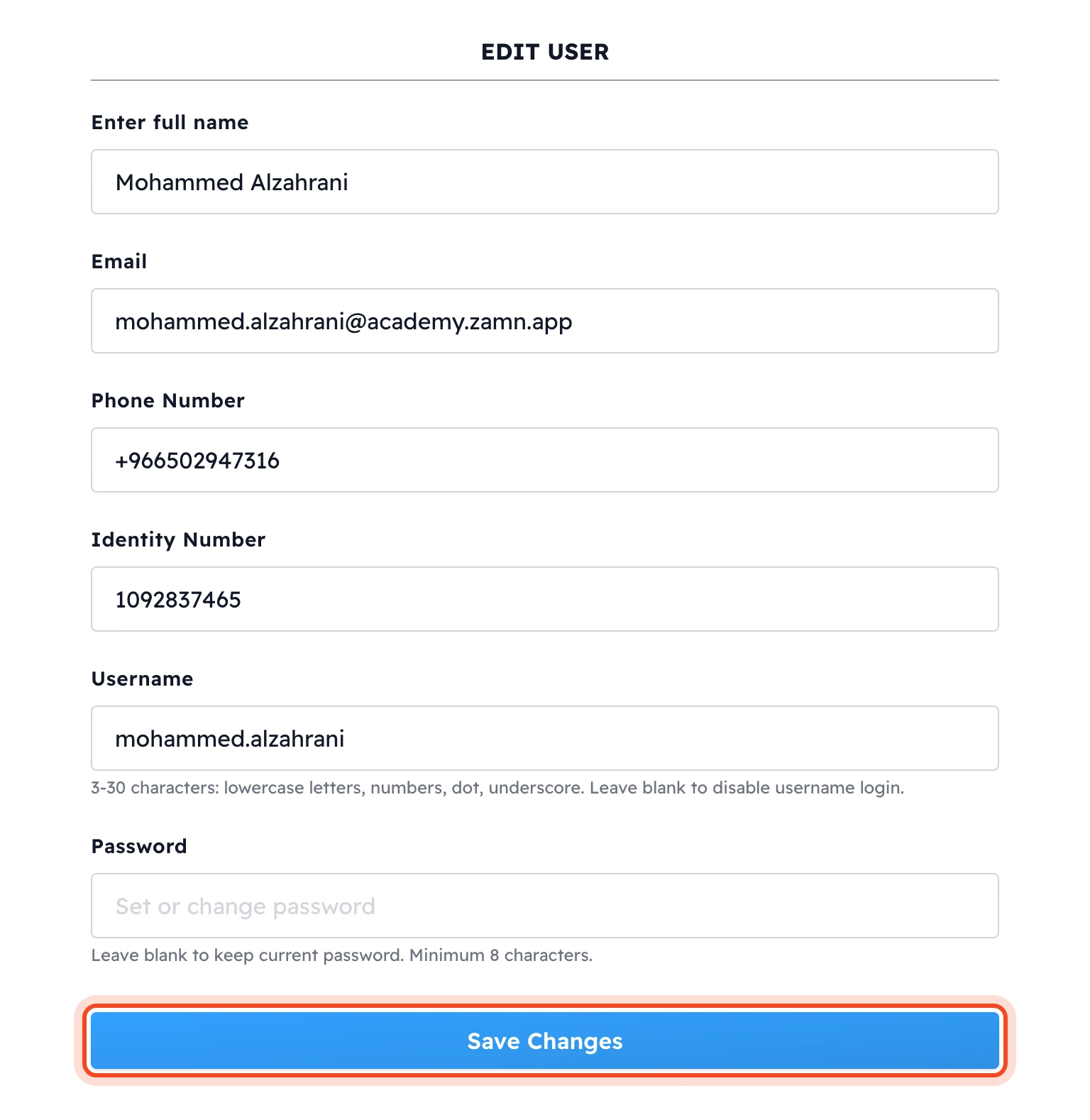
Edit user details
As a platform admin, you can edit the details of any user from the dashboard.
Steps to edit user details
-
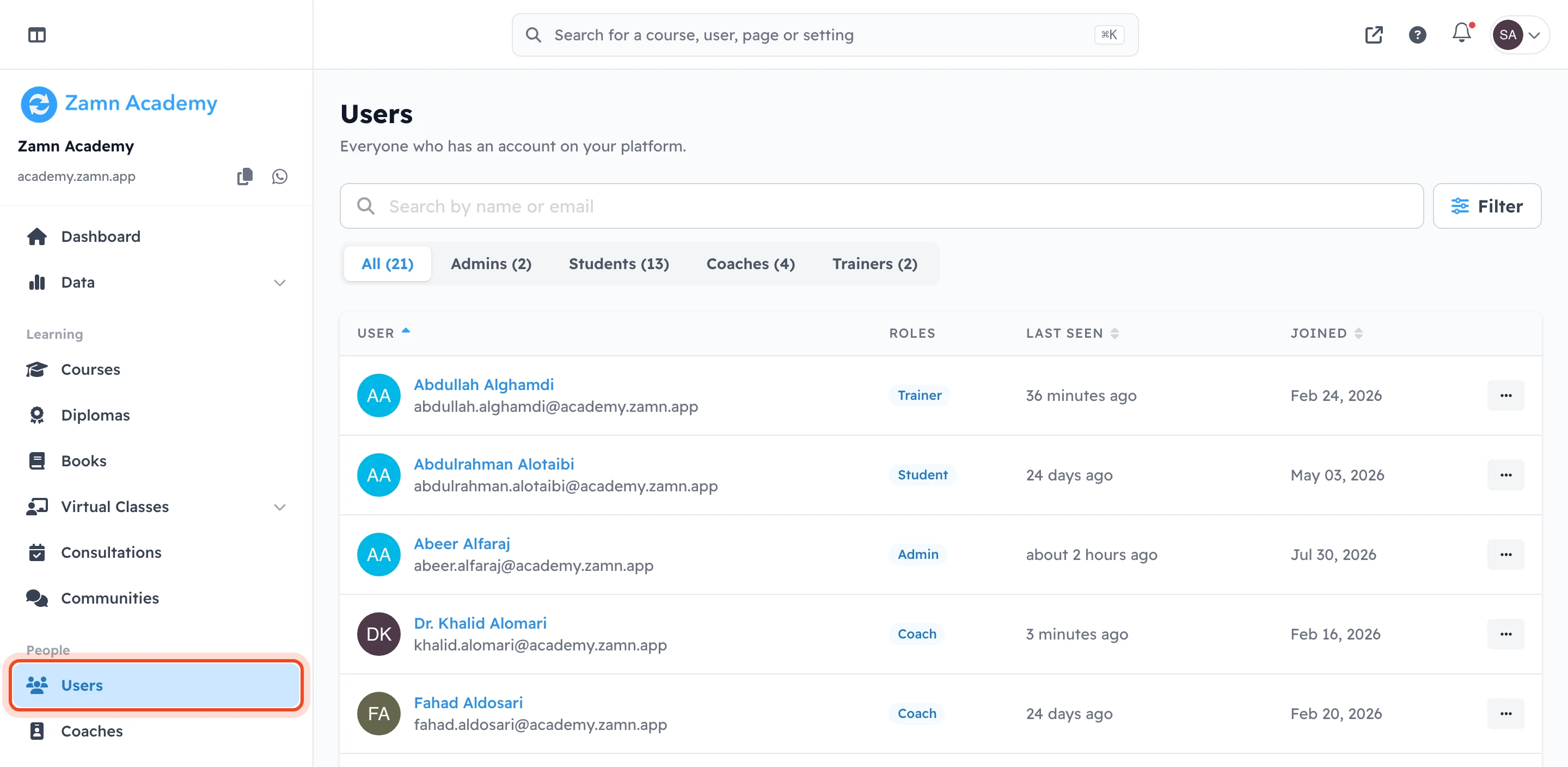
From the dashboard, go to the Users section.
-
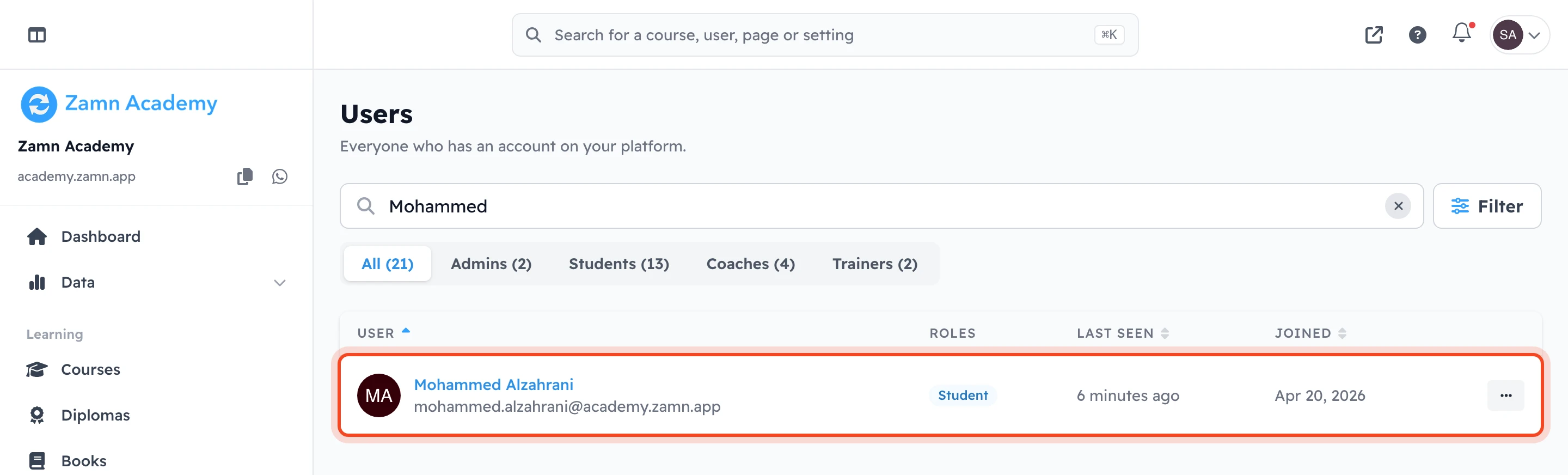
Find the row of the user whose details you want to edit. You can search by name or email.
-
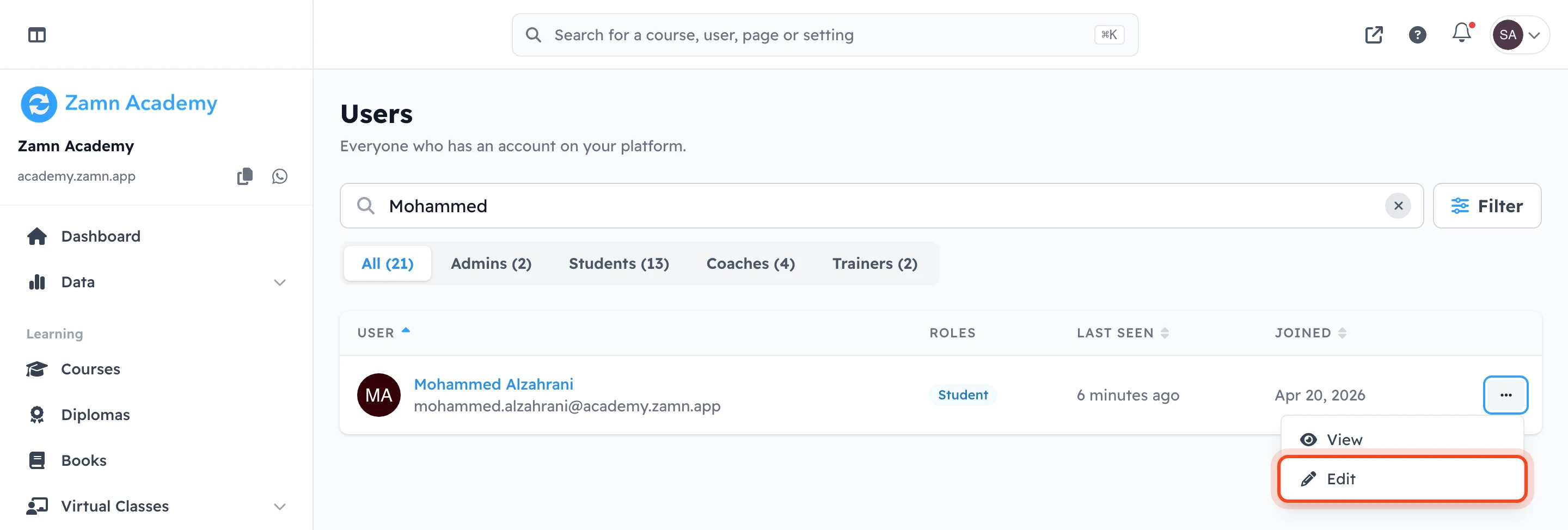
Click the ⋯ (Actions) button at the end of the user's row, then click Edit. The Edit User side panel opens.
-
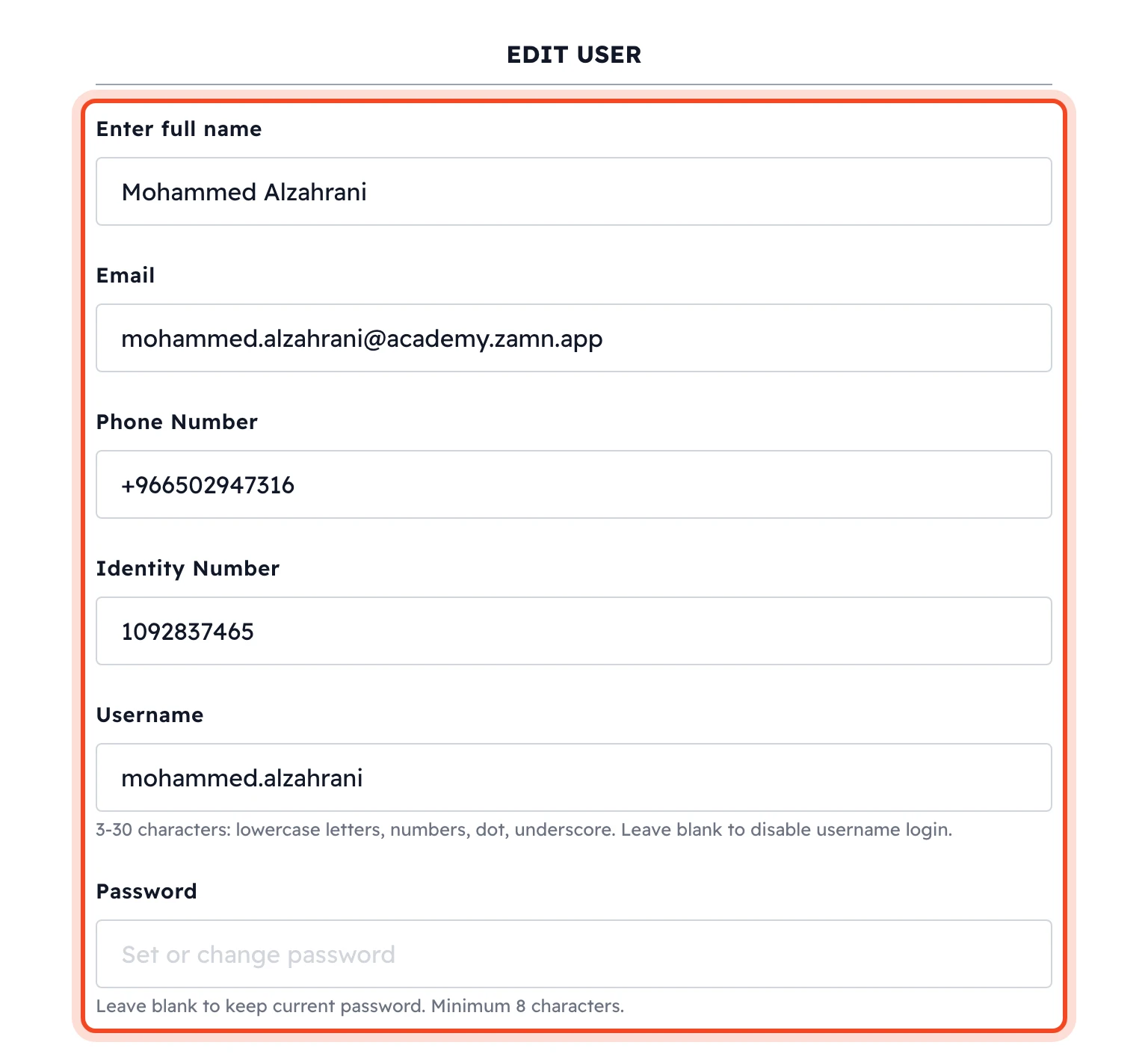
Edit the details you want. You can edit the name, Email, Phone Number, Identity Number, Username and Password. Leave the Password field empty if you do not want to change it.
-
Click Save Changes to save your edits.