Embed links in course content
The Embed option lets you show content from other sites inside the targets of a course, so students can watch it without leaving your platform. You can embed links to:
- Zoom cloud recordings.
- Recordings of your rooms on Zamn.
- YouTube videos.
- SlideShare.
- Files from Google Drive.
- Files from Microsoft 365.
- Guides from scribehow.
Steps to embed a link
-
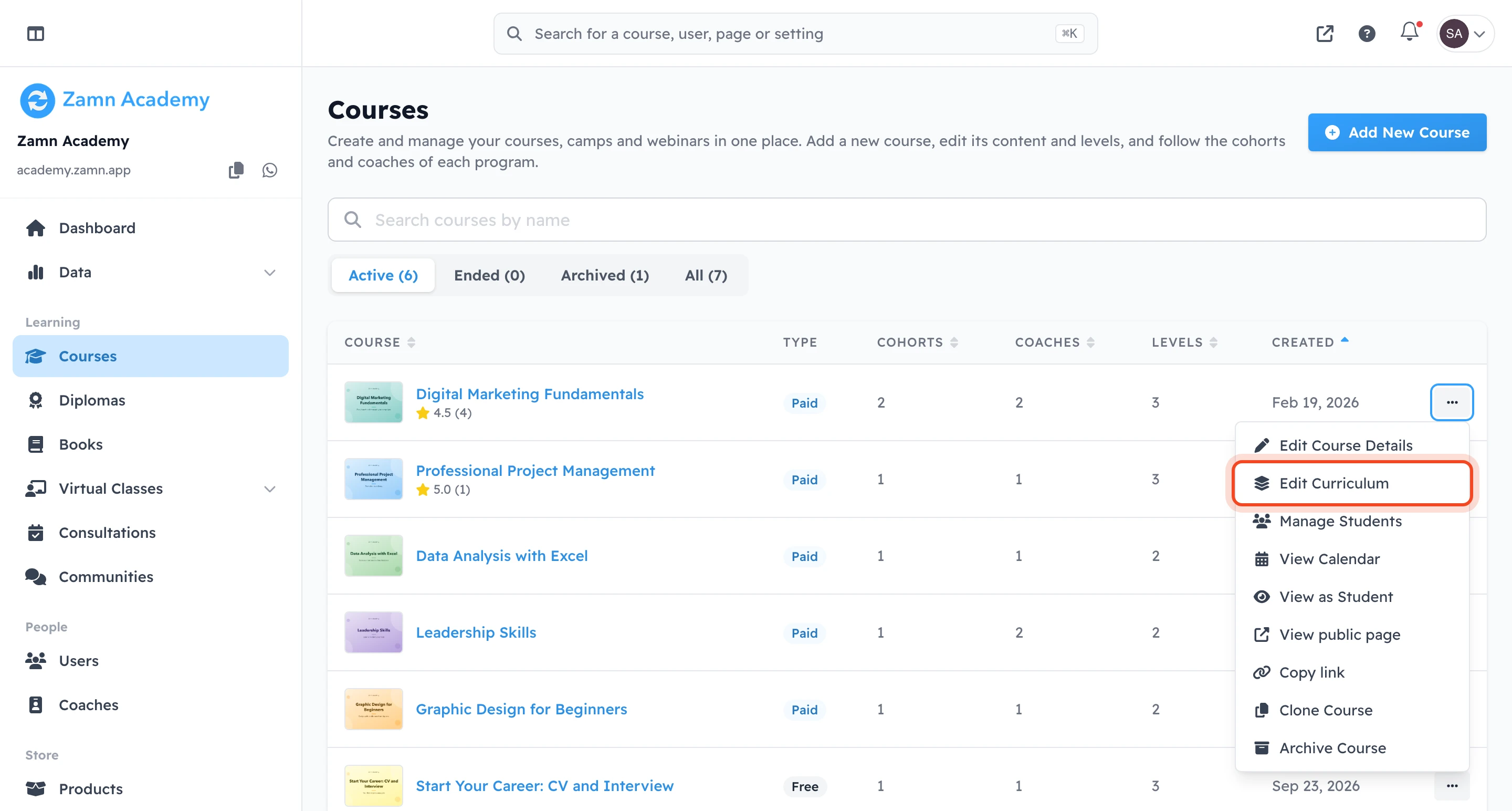
On the Courses page in the dashboard, click the name of the course where you want to embed links. You can also click ⋯ at the end of its row, then Edit Curriculum.
-
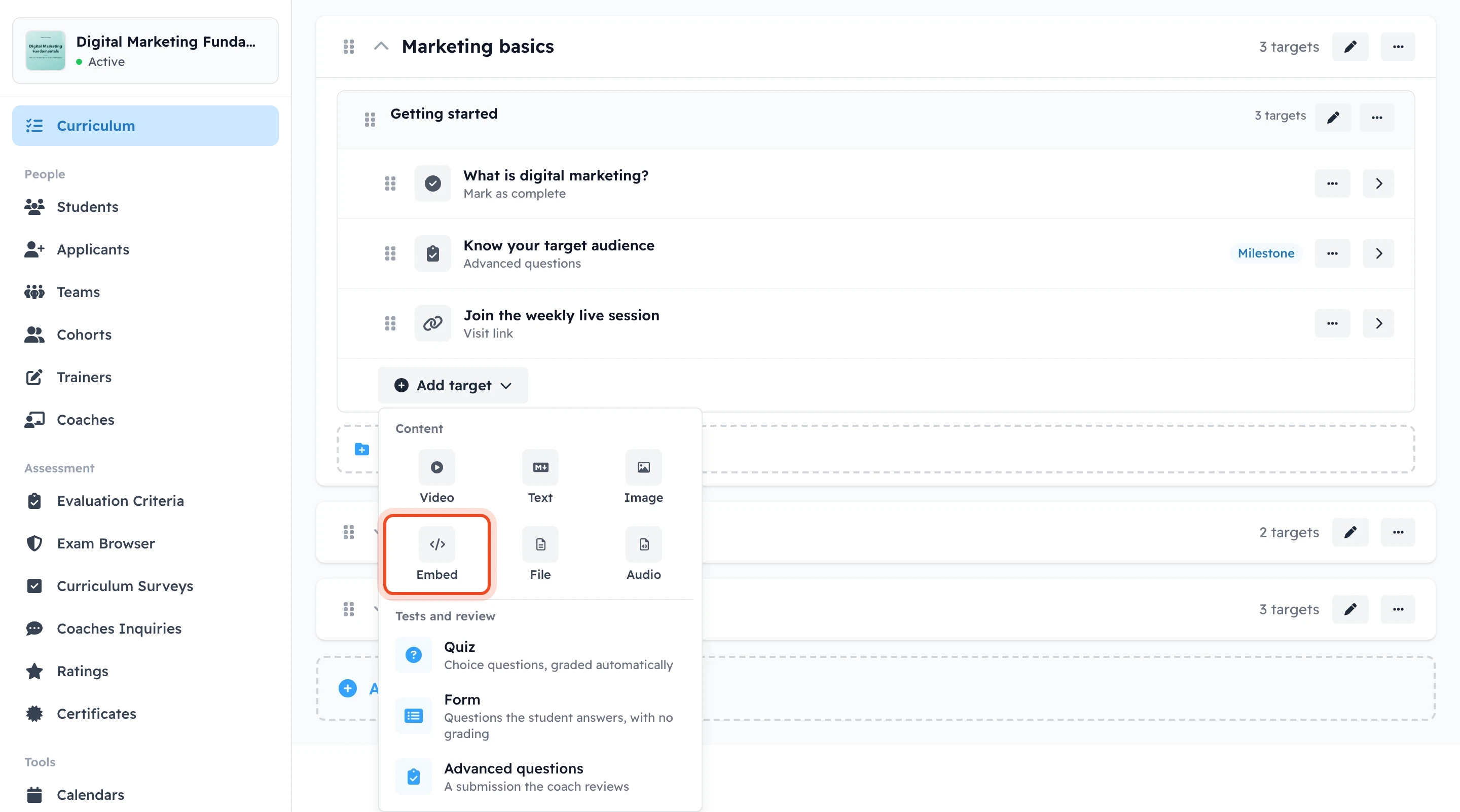
Click the name of an existing target to edit it. To make a new target, click Add target at the end of a target group, then choose Embed.
-
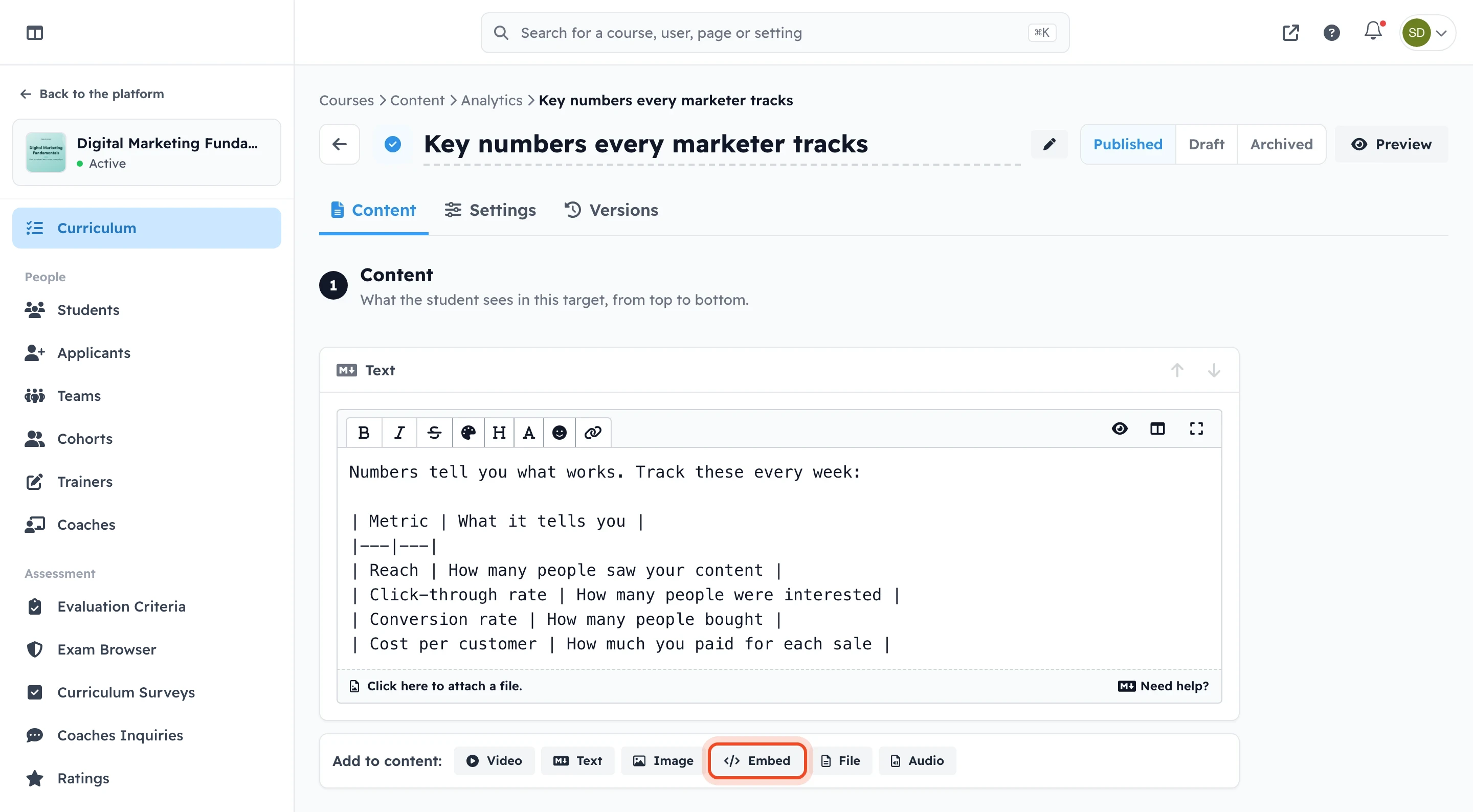
In the Content tab of the target, click Embed next to Add to content:.
-
Put the link in the Link to embed field, then click Add. The link is added to the target content.

A new target is a Draft. To show it to students, click Published at the top of the target page, then click Save changes.
How to copy the link of a room recording on Zamn
-
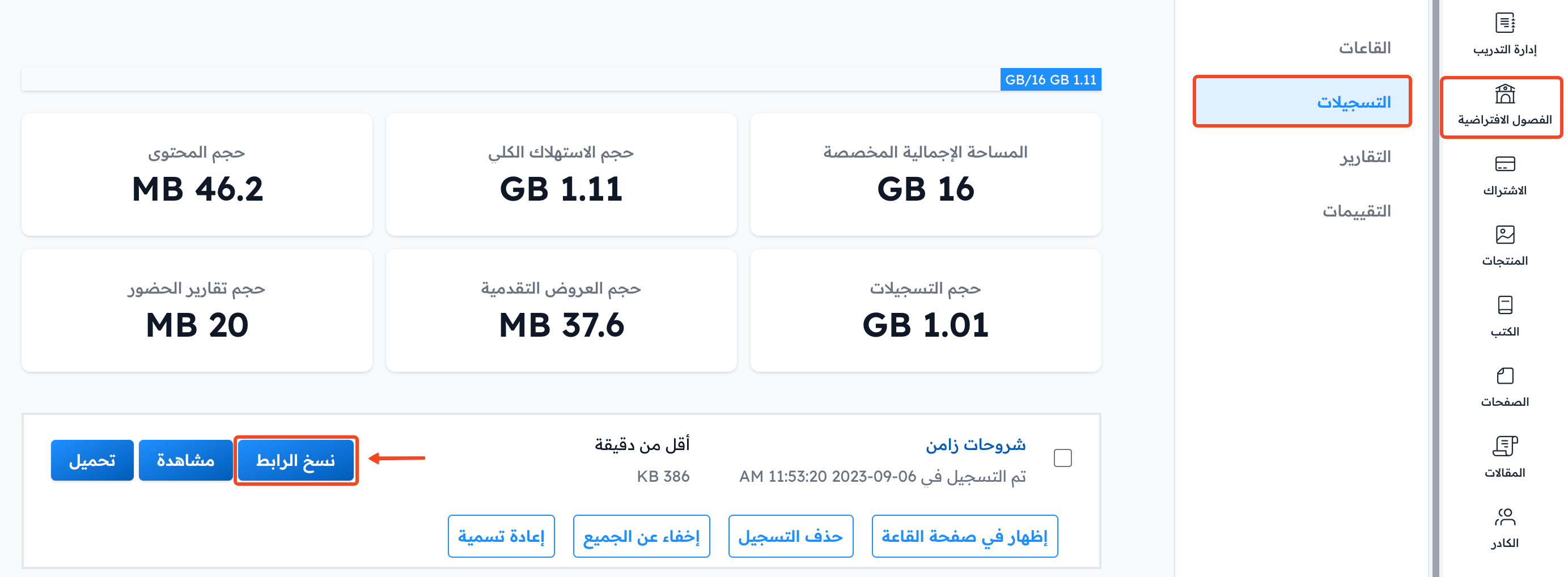
In the side menu of the dashboard, under Learning, click Virtual Classes, then Recordings.
-
Click the ⋯ (Actions) button at the end of the row of the recording you want to embed.
-
Click Copy link.
-
Open the target where you want to embed the recording.
-
In the Content tab, click Embed, paste the link in the Link to embed field, then click Add.

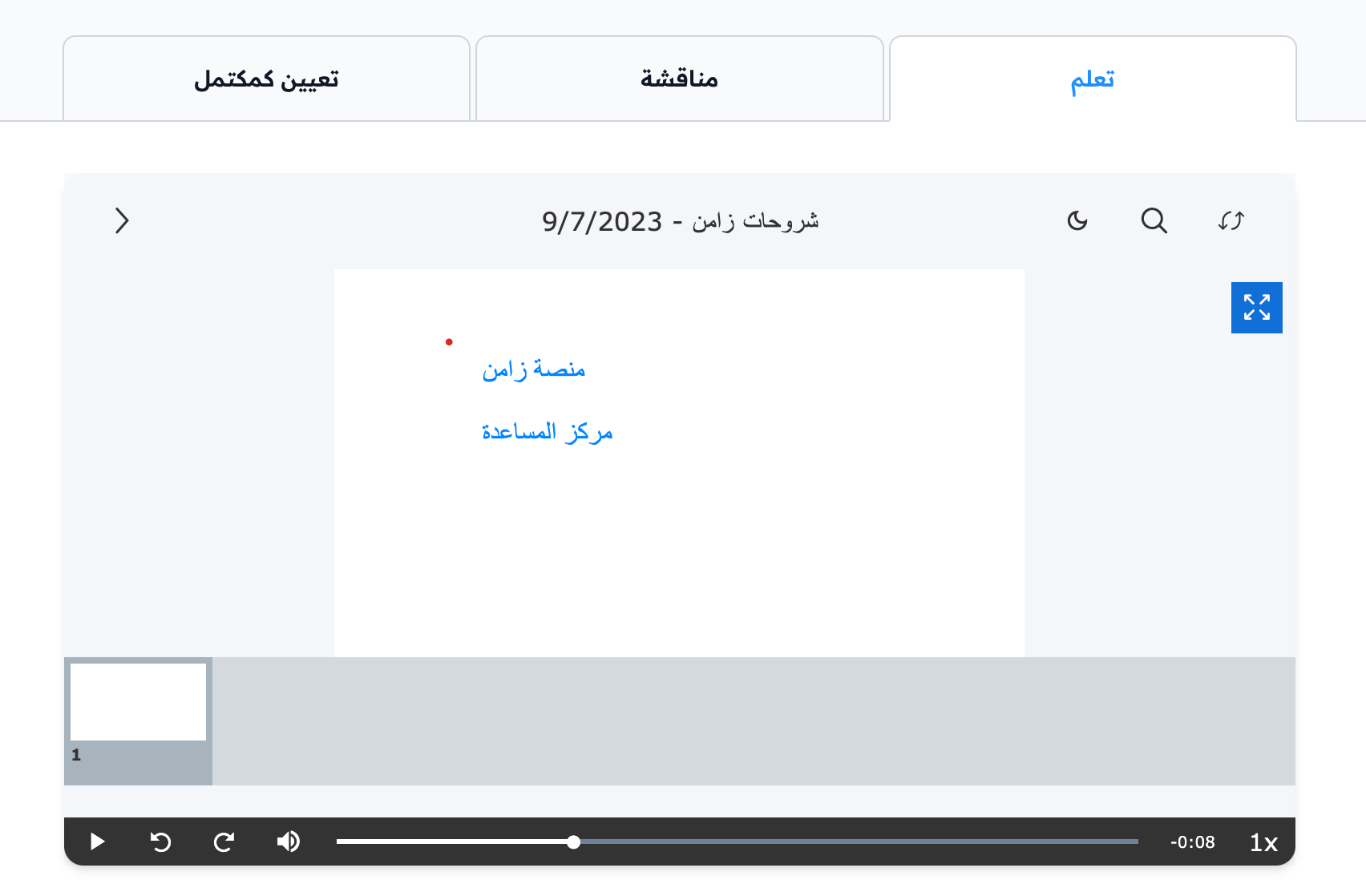
This is how the recording looks to the student:
How to copy the link of a Zoom cloud recording
-
In your account on the Zoom website, click Recordings.
-
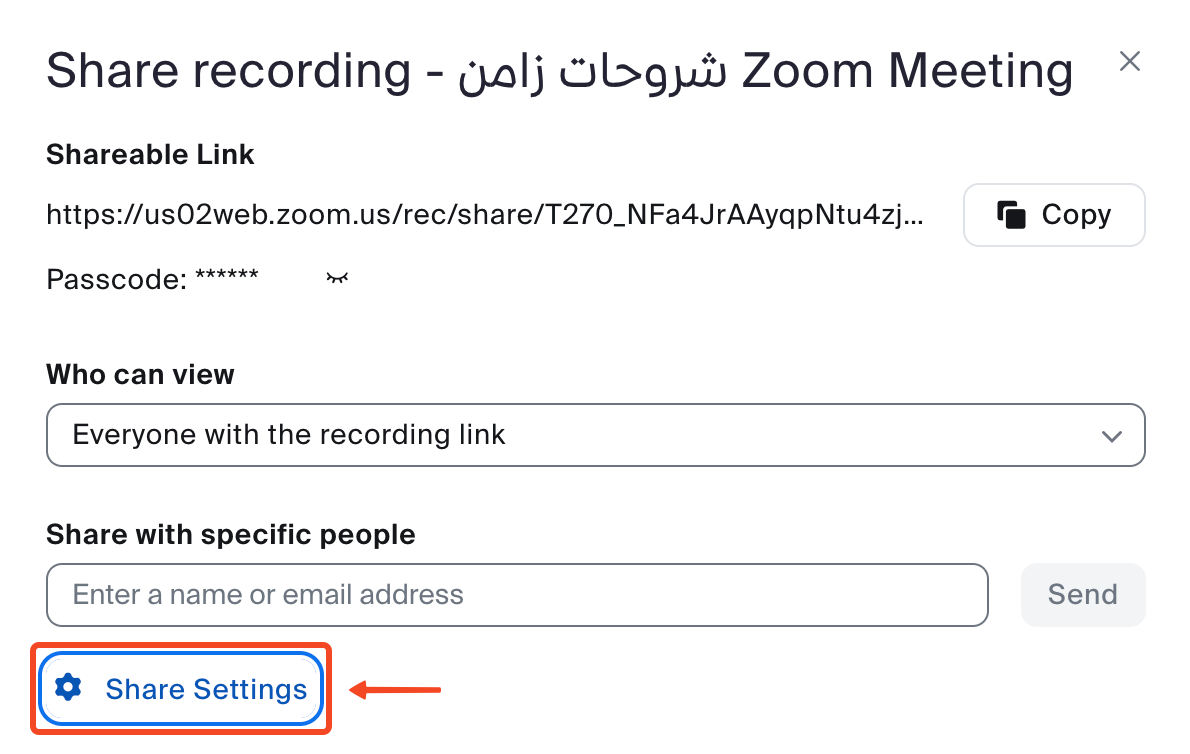
Click Share on the recording you want to embed.
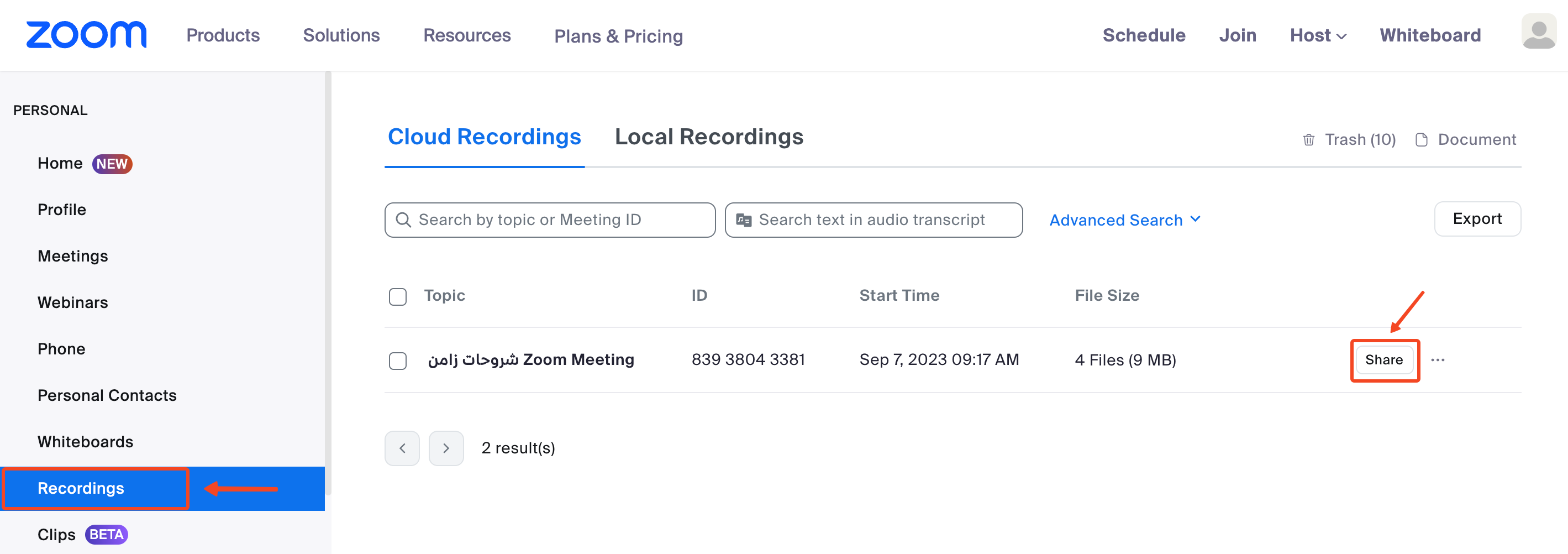
There are two ways to embed the recording:
- Embed a recording protected with a passcode.
- Embed a recording without a passcode.
To embed a recording with a passcode
-
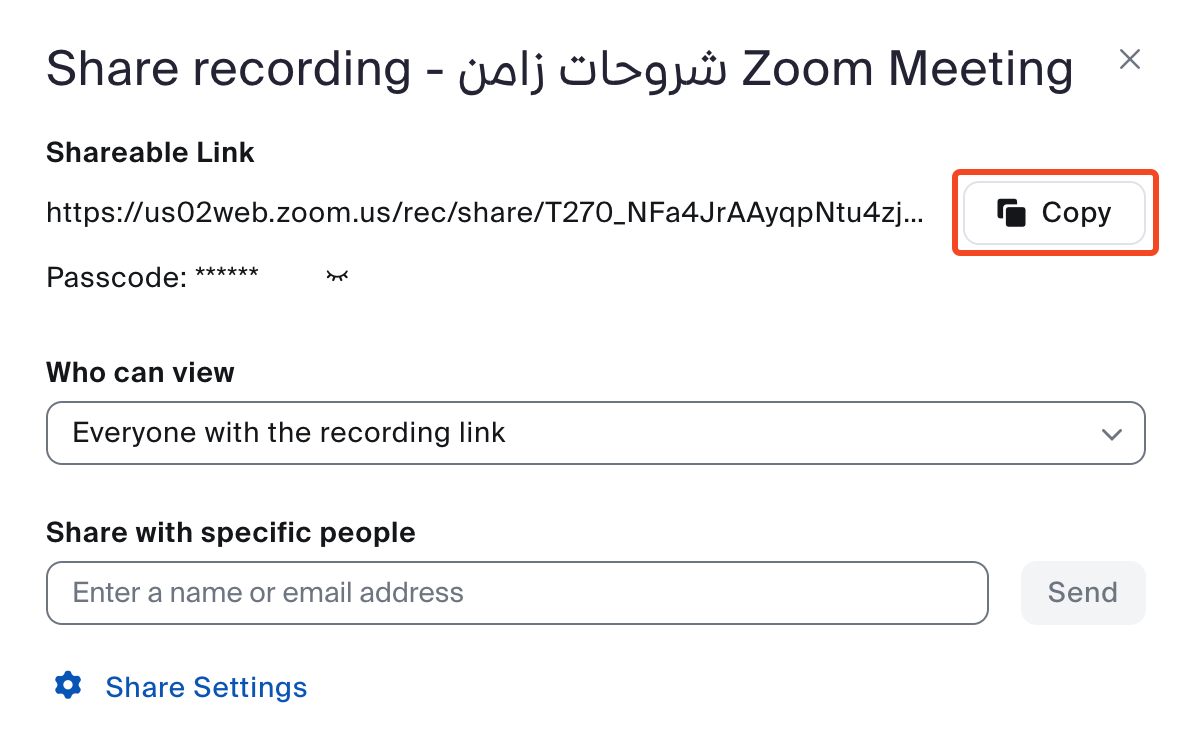
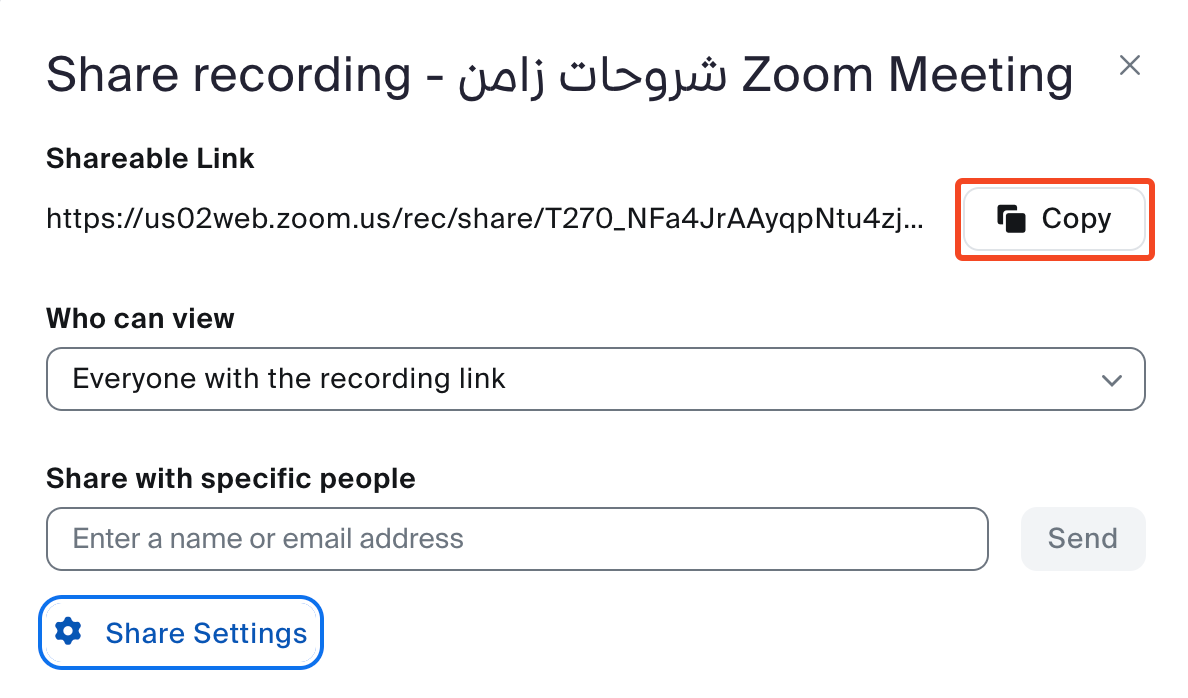
Click Copy.
-
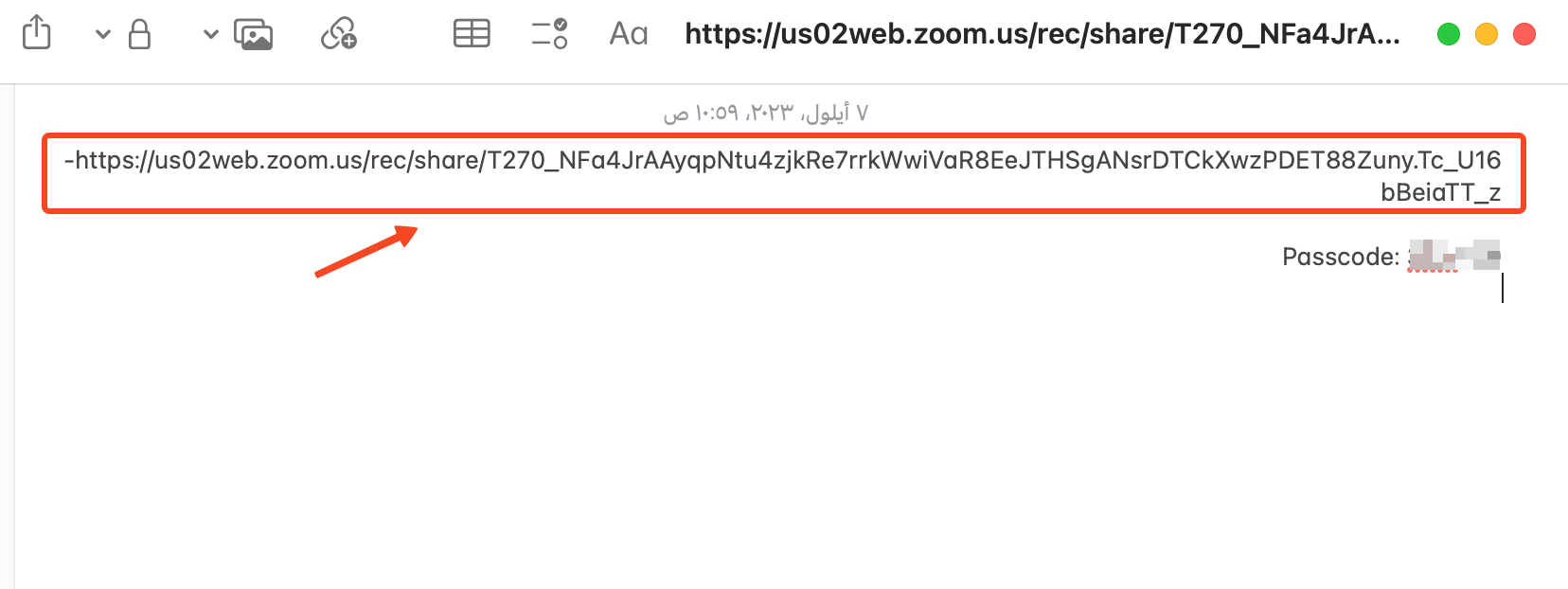
Paste what you copied in an empty page.
-
Select only the link, without the passcode, as shown in the image, then copy it.
-
Go back to your platform on Zamn.
-
In the Content tab of the target, click Embed, paste the link in the Link to embed field, then click Add.

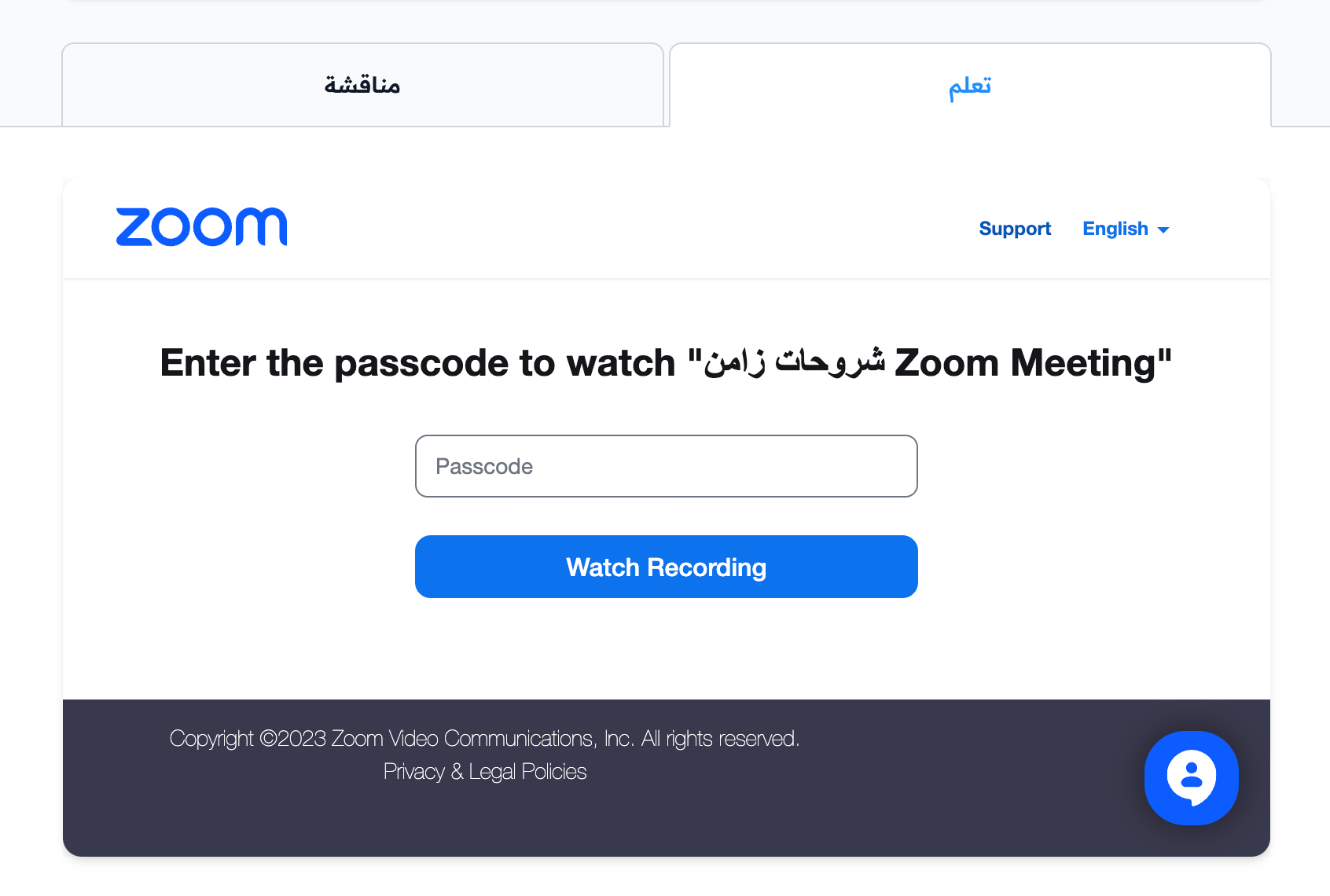
The student needs the passcode to open the recording. This is how the recording looks to the student:
To embed a recording without a passcode
-
Click Share Settings.
-
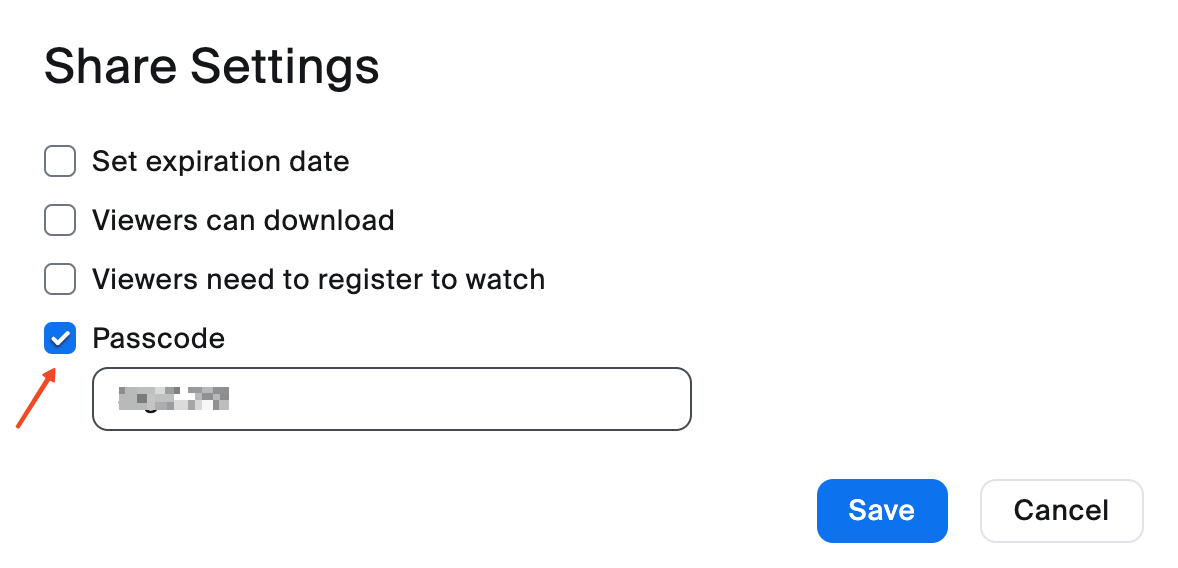
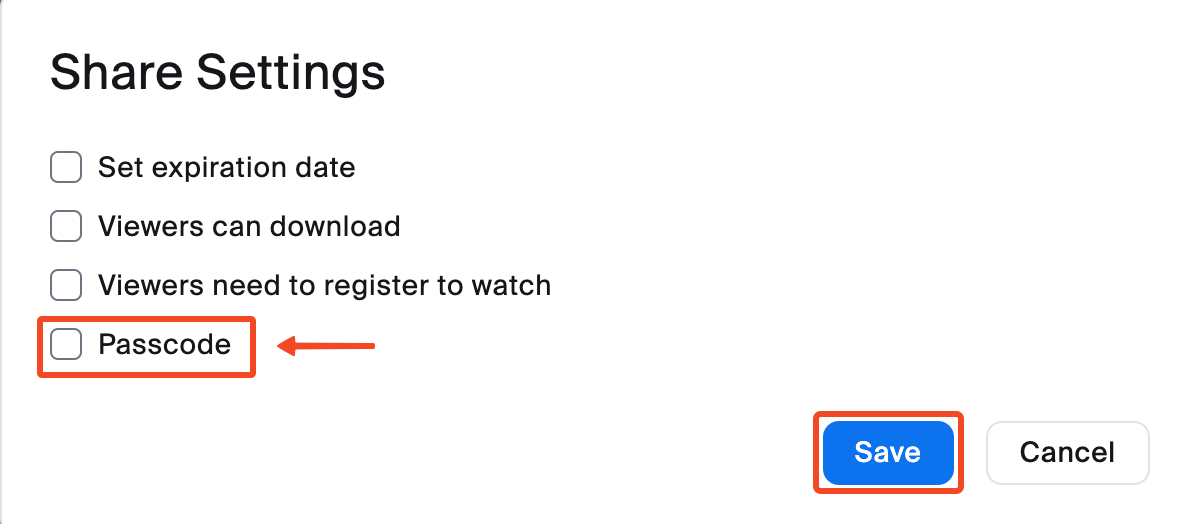
Clear the Passcode option, then click Save.
-
Click Copy to copy the link.
-
Go back to your platform on Zamn.
-
In the Content tab of the target, click Embed, paste the link in the Link to embed field, then click Add.

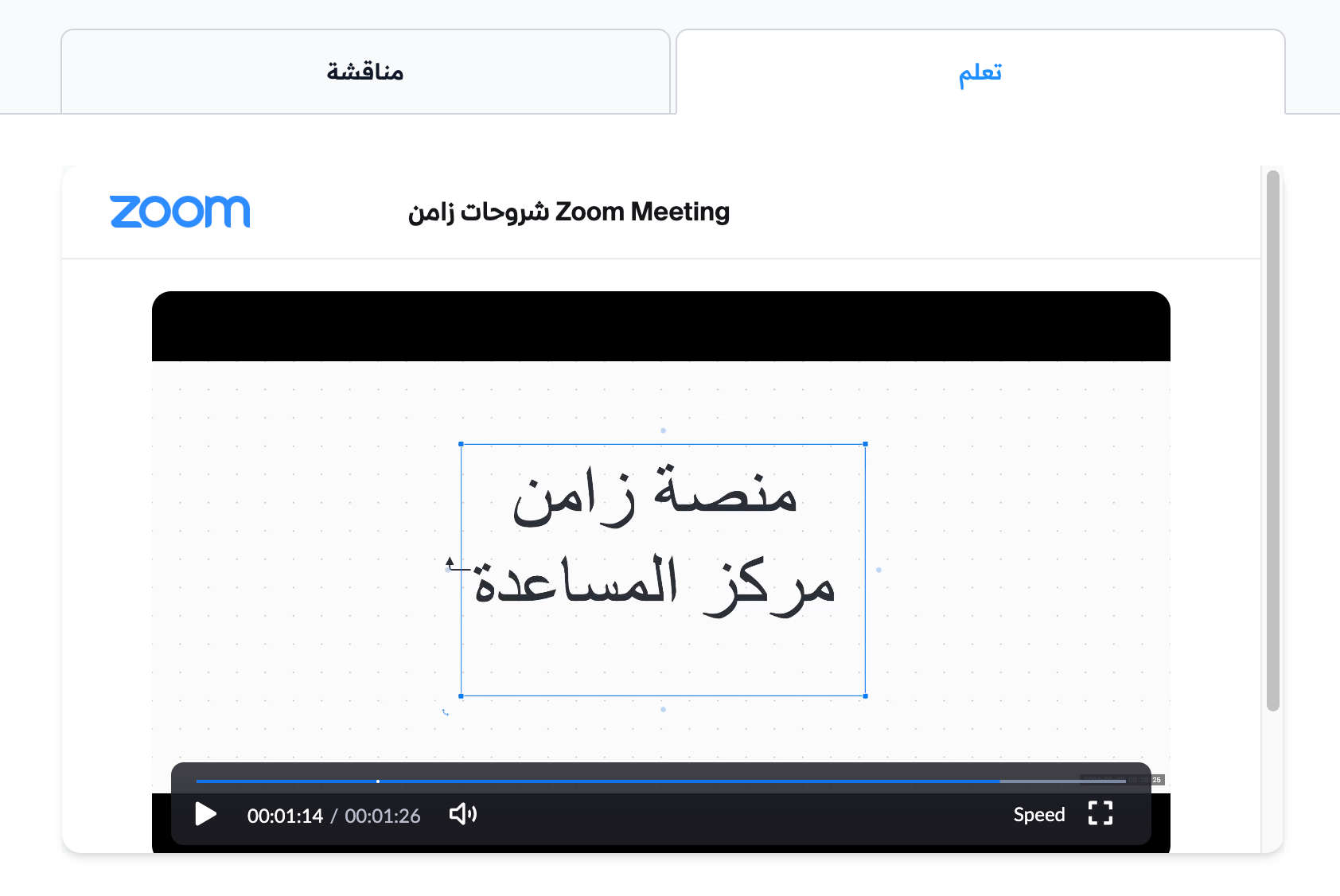
This is how the recording looks to the student:
How to copy the link of a YouTube video
-
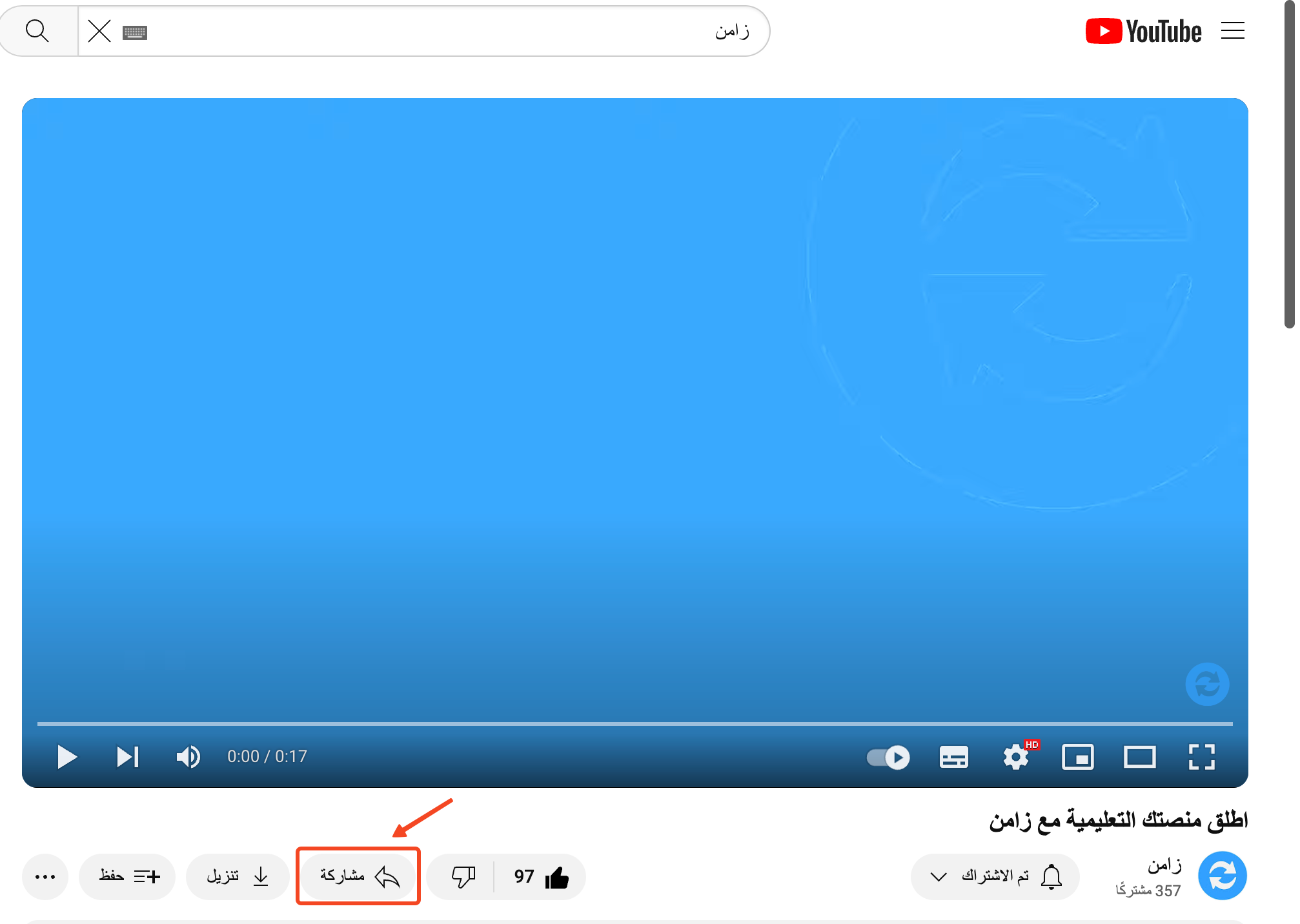
Click Share under the video you want to embed.
-
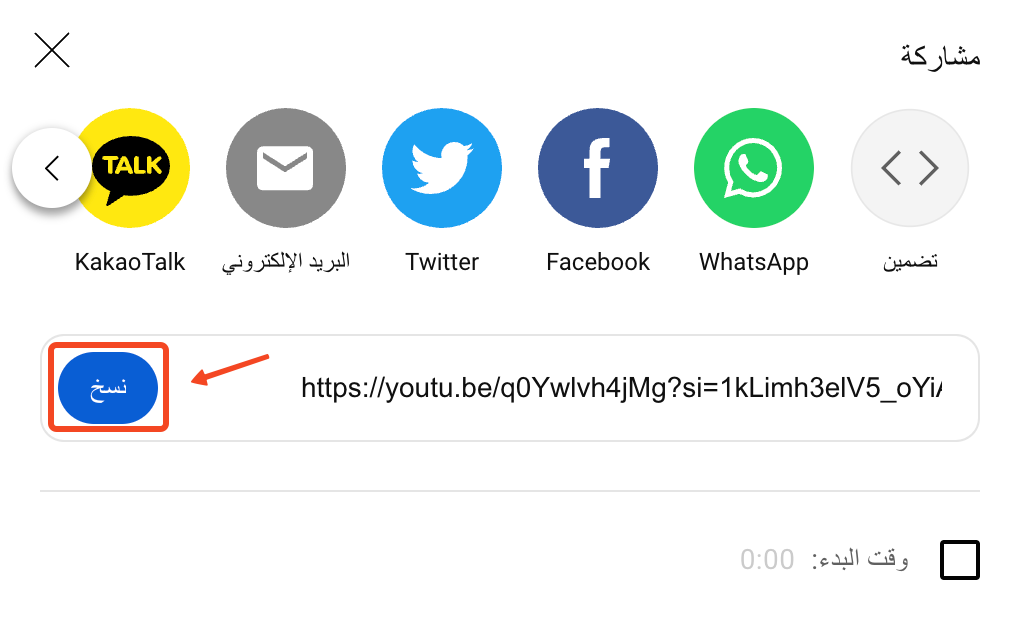
Click Copy to copy the video link.
-
Go back to your platform on Zamn.
-
In the Content tab of the target, click Embed, paste the link in the Link to embed field, then click Add.

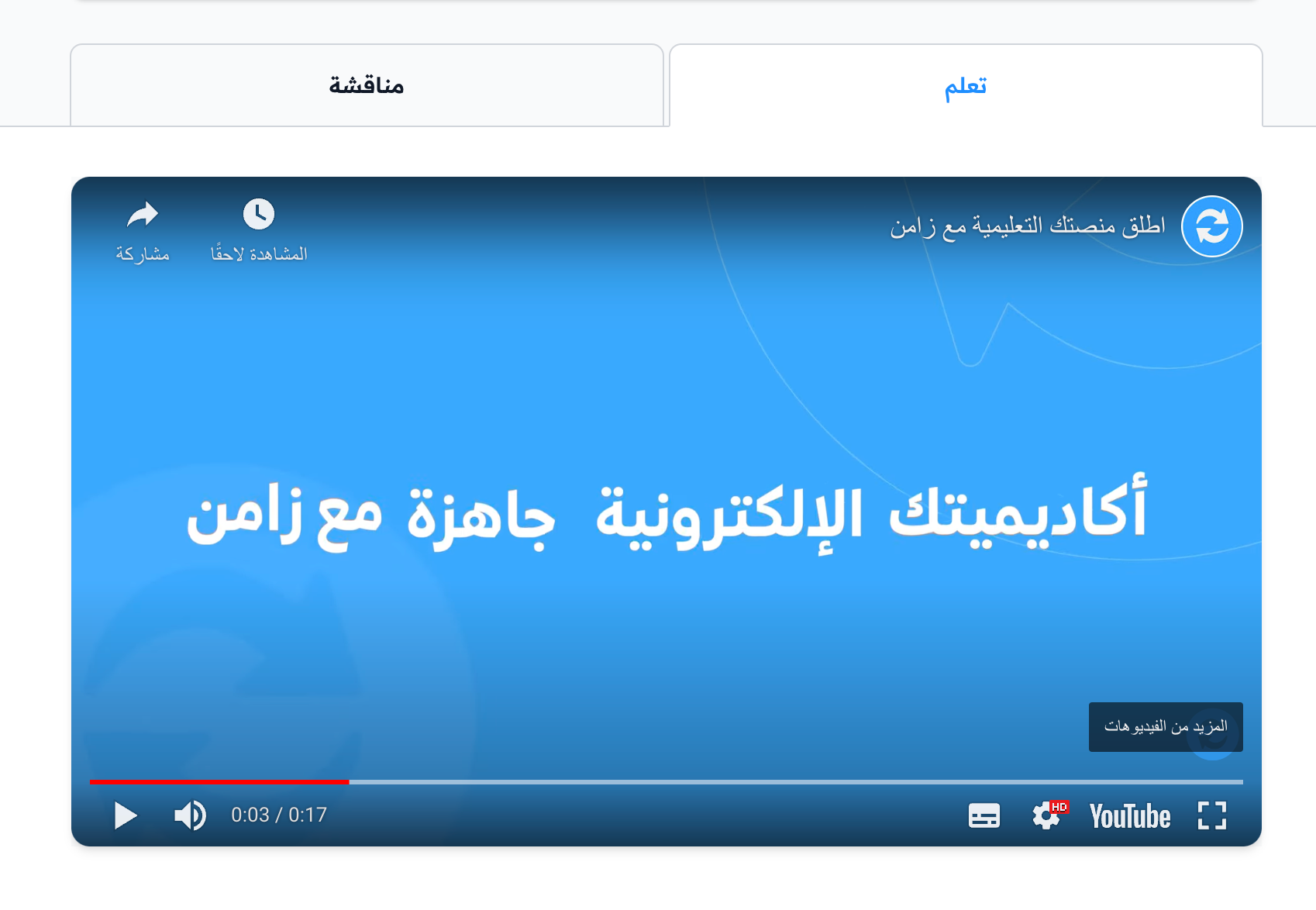
This is how the video looks to the student:
How to copy the link of a SlideShare file
-
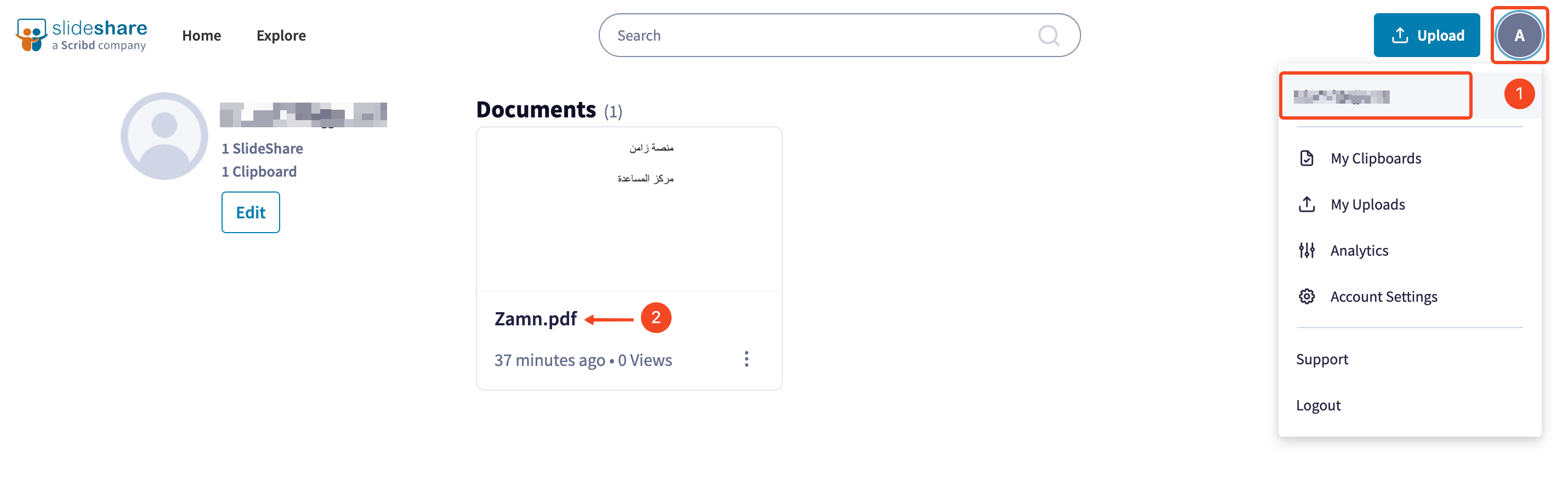
From the account icon, open your profile page.
-
Click the file you want to share.
-
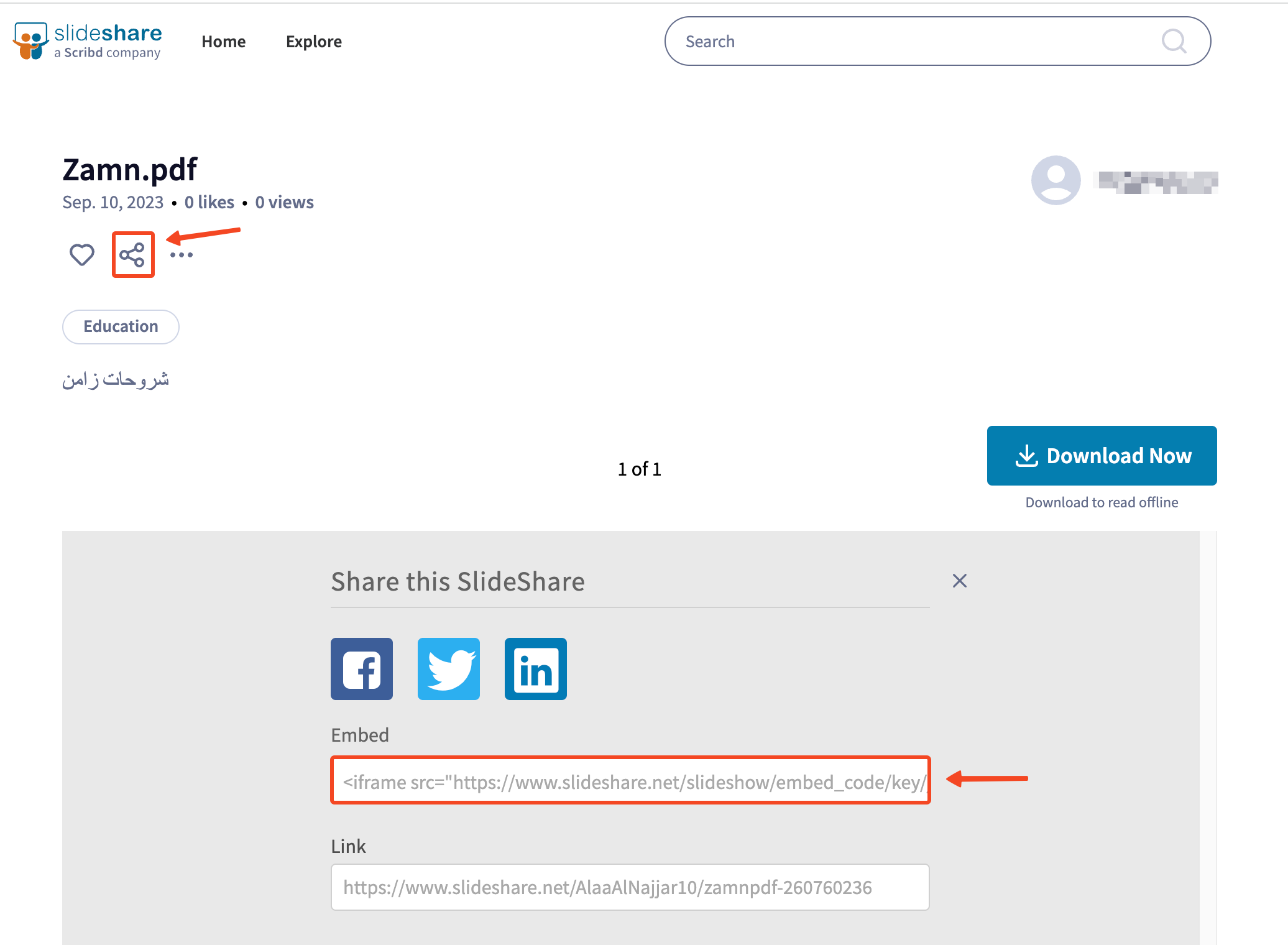
Click the share button.
-
Copy the embed code from the Embed field.
-
Go back to your platform on Zamn.
-
In the Content tab of the target, click iframe next to Add to content:.
-
Paste the code you copied in the Iframe code field, then click Add.

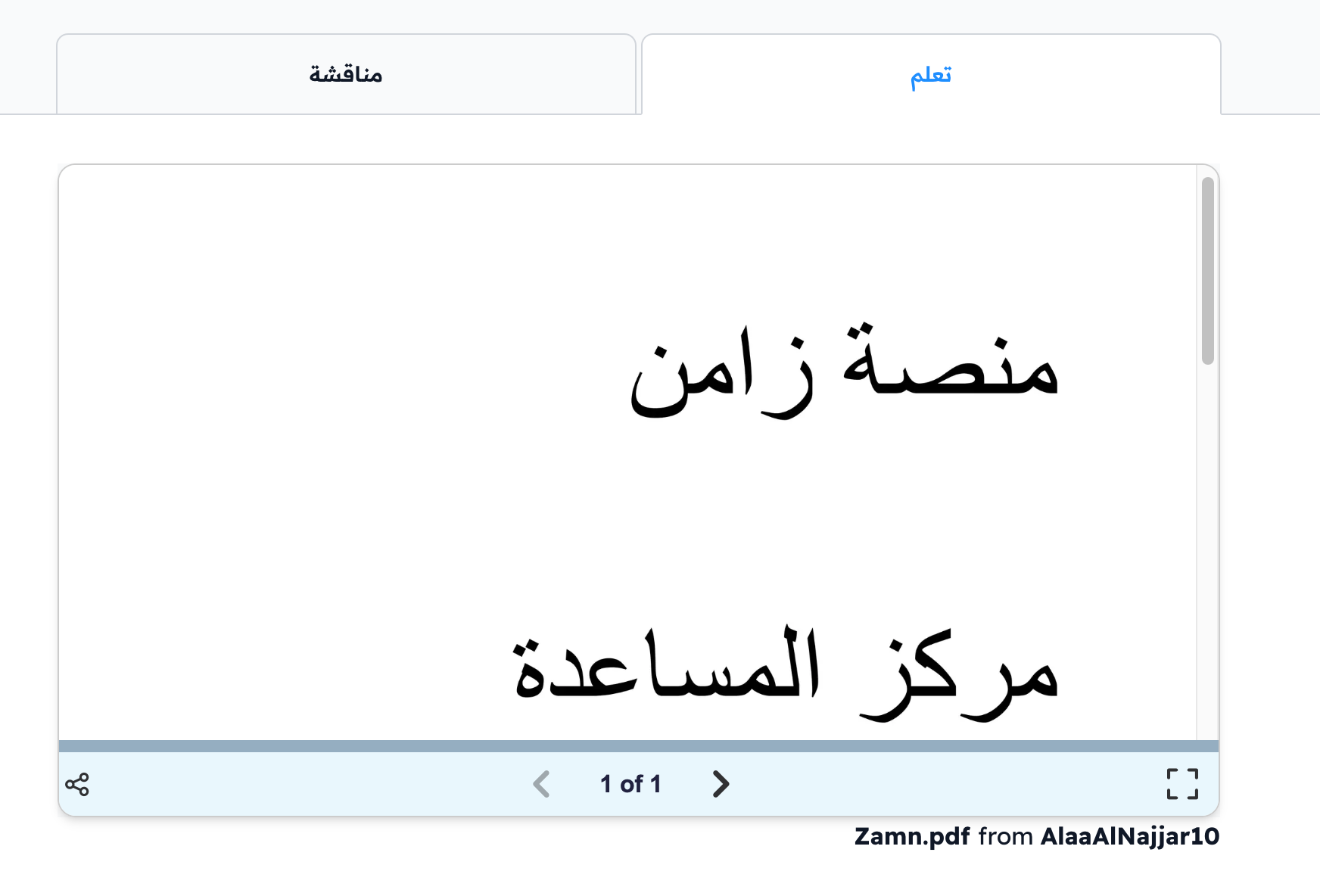
This is how the file looks to the student:
The iframe button shows only if your platform uses a custom domain. It does not show if your platform uses a subdomain. See: Add a domain to your platform. If your platform uses a subdomain, follow the steps in Embed a file from SlideShare instead.