Export sales reports
You can export the sales of your platform to a CSV file, for one month or for all sales.
The Sales export shows only if ZamnPay is active on your platform.
How to export sales reports
-
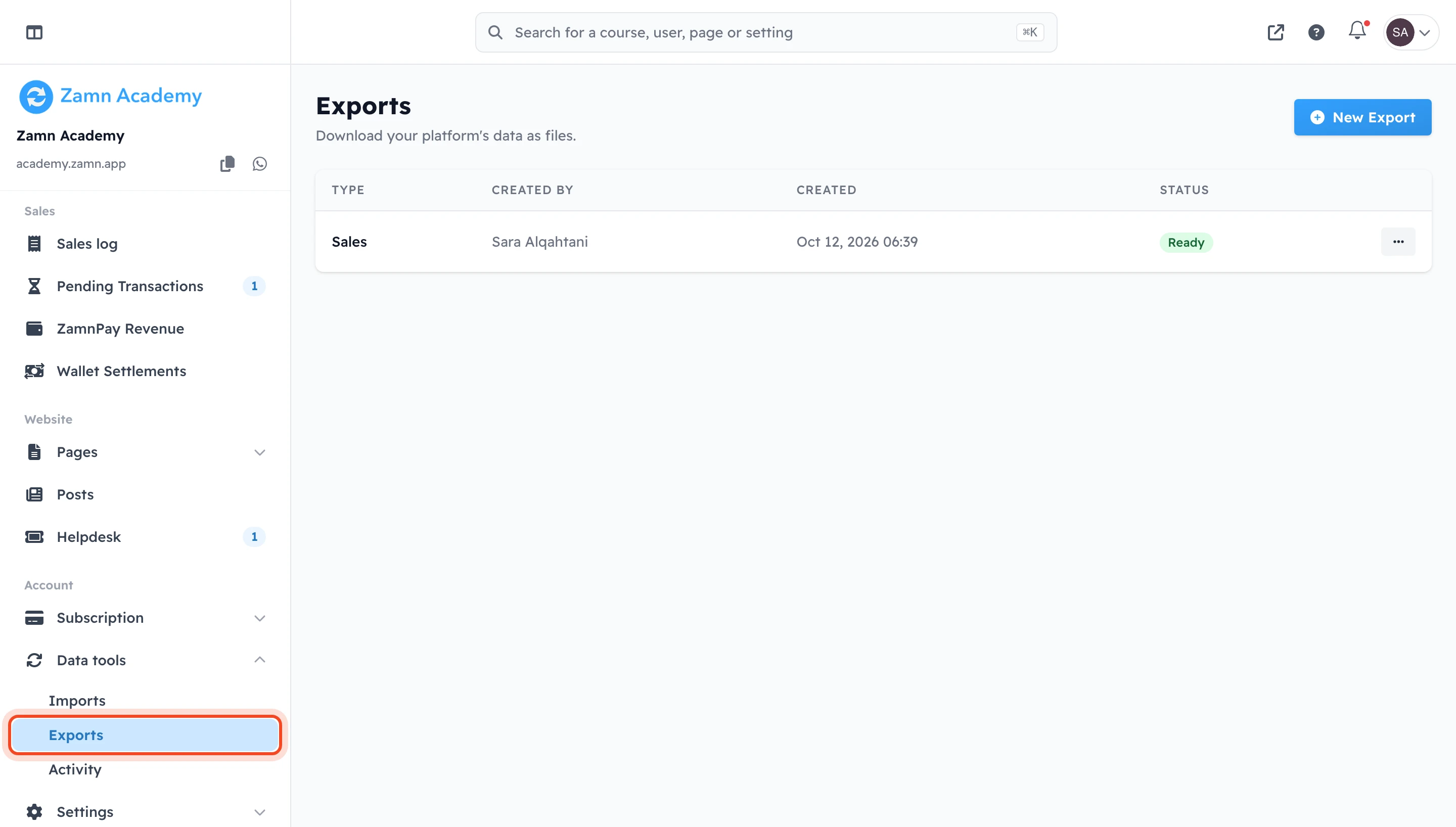
In the side menu of the dashboard, under Account, click Data tools, then Exports.
-
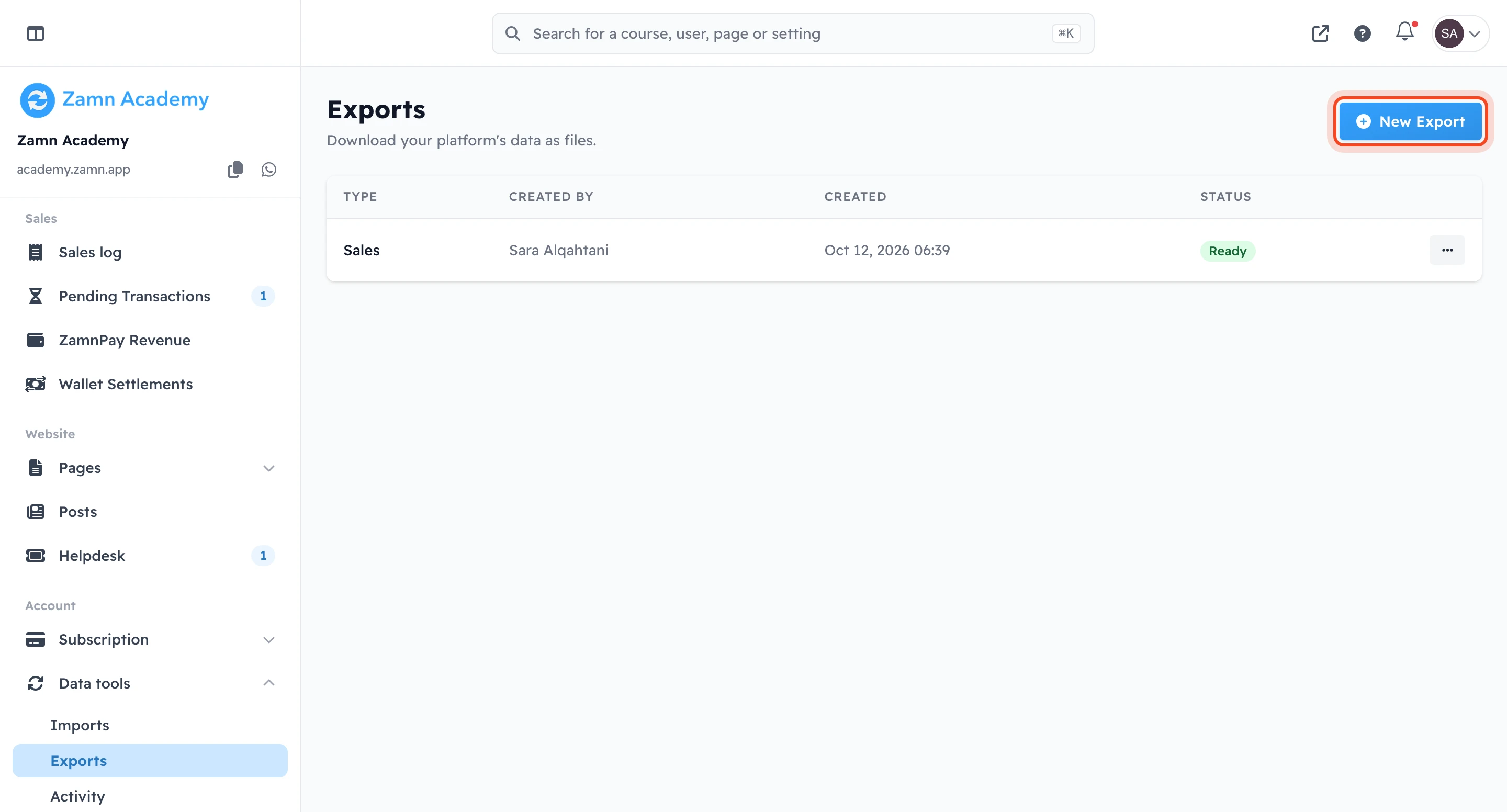
Click New Export. A side panel opens with the export types.
-
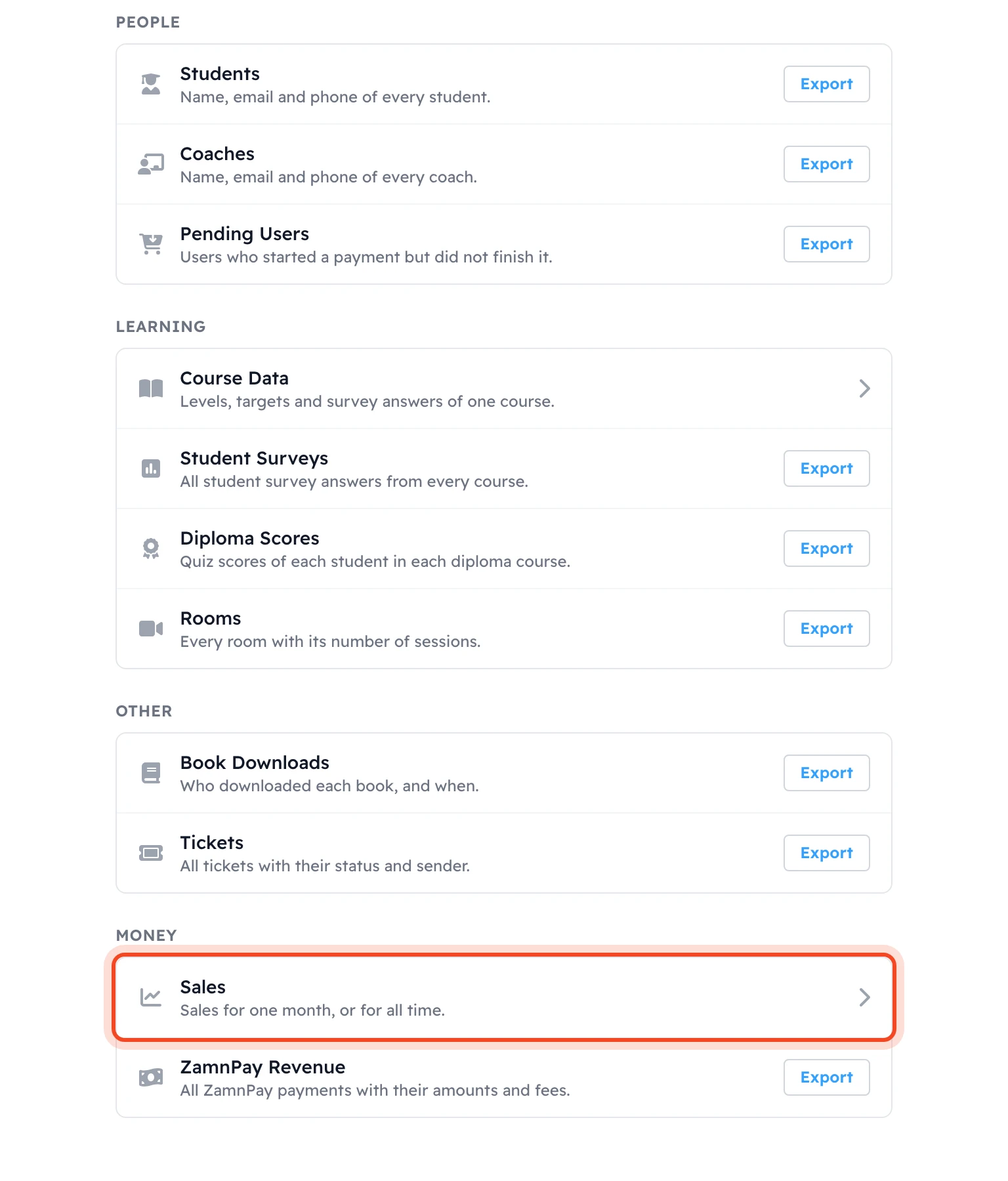
Under Money, click Sales.
-
Choose the export details:
- Year.
- Month.
Or turn on All Sales to export all sales.
-
Click Generate Report.
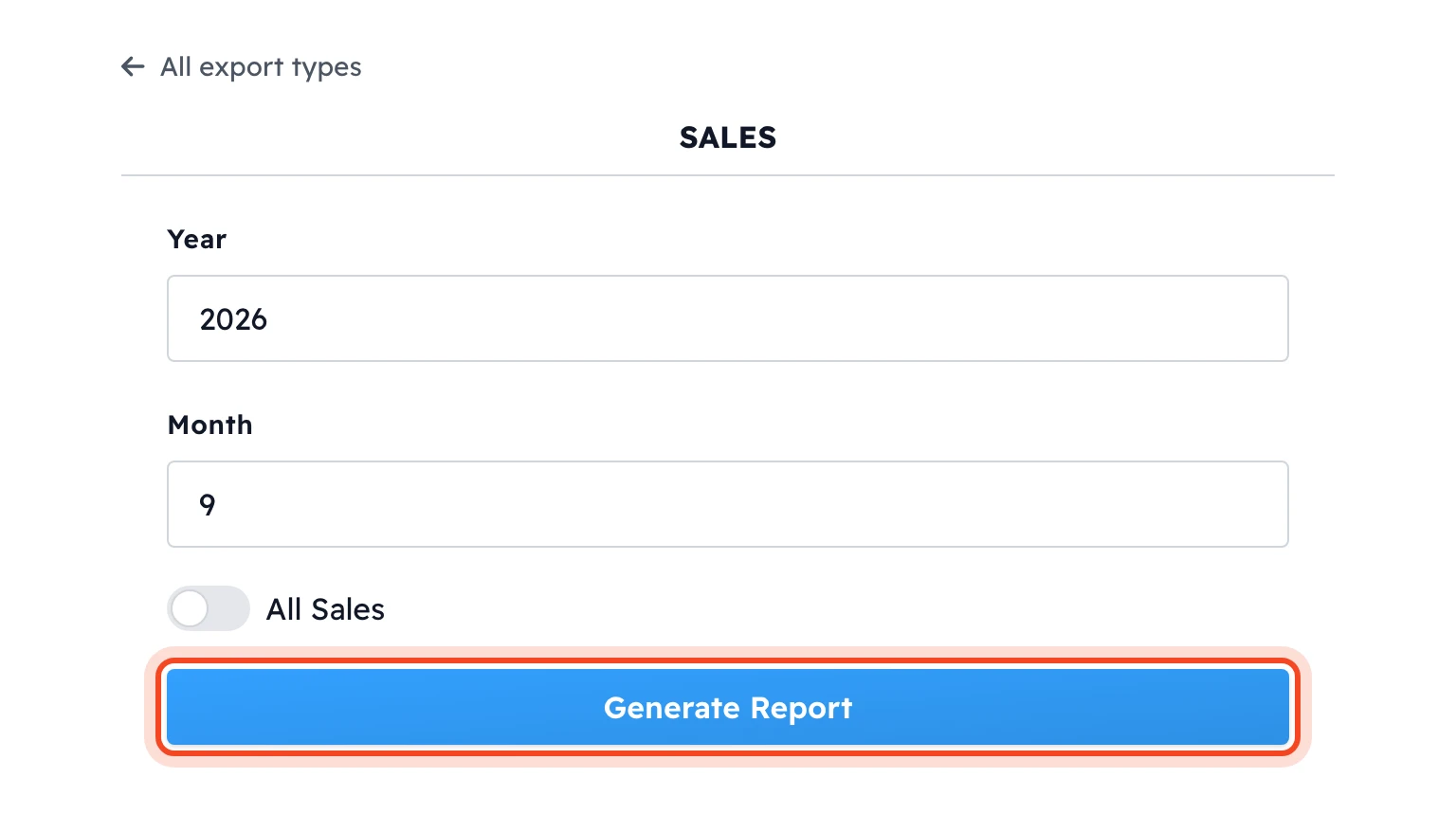
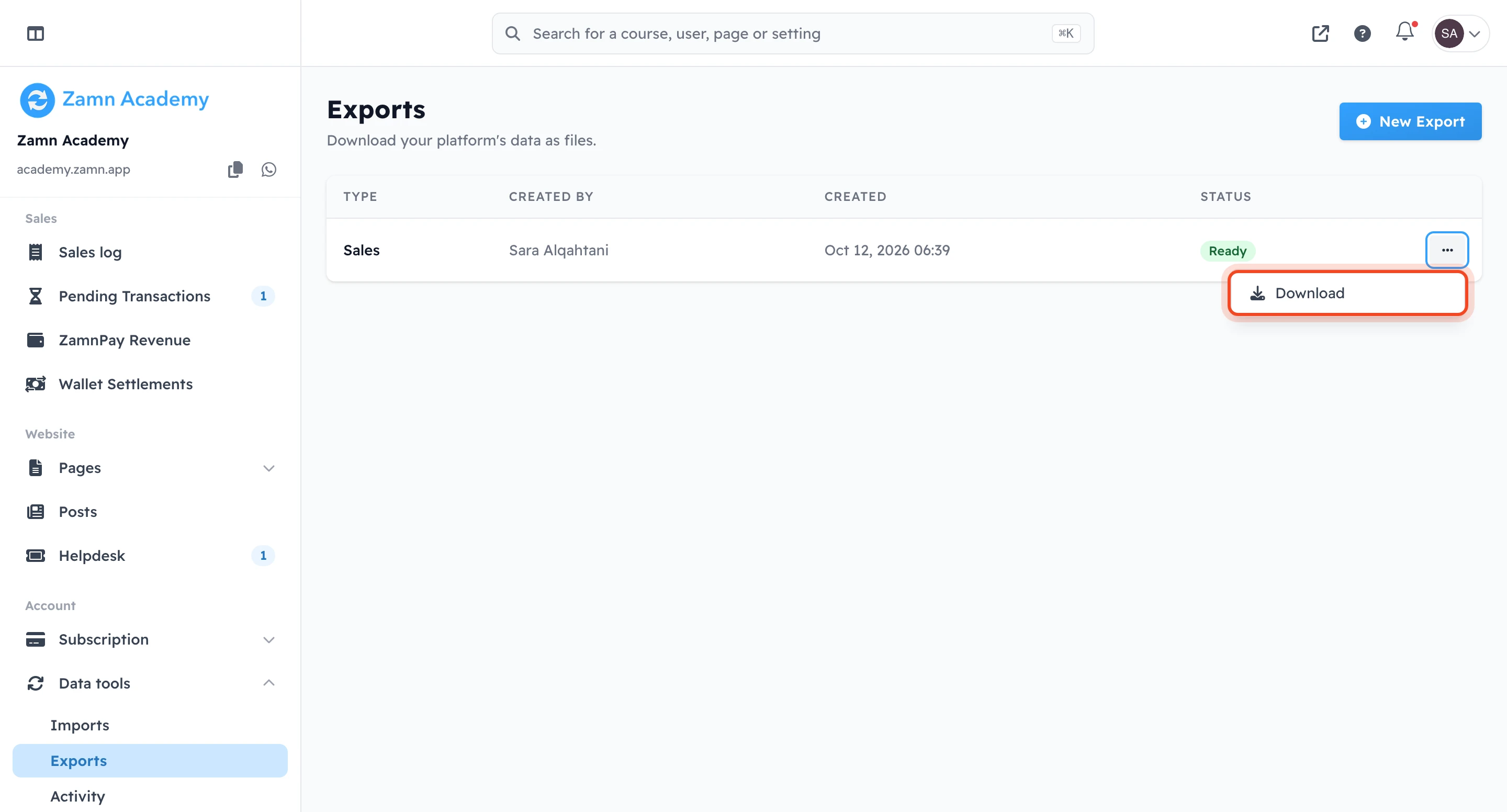
A message tells you that the export is being processed. The file shows right away as a row in the exports table, with the status Preparing, then Ready when the file is ready.
To download the file, click the ⋯ (Actions) button at the end of its row, then click Download.
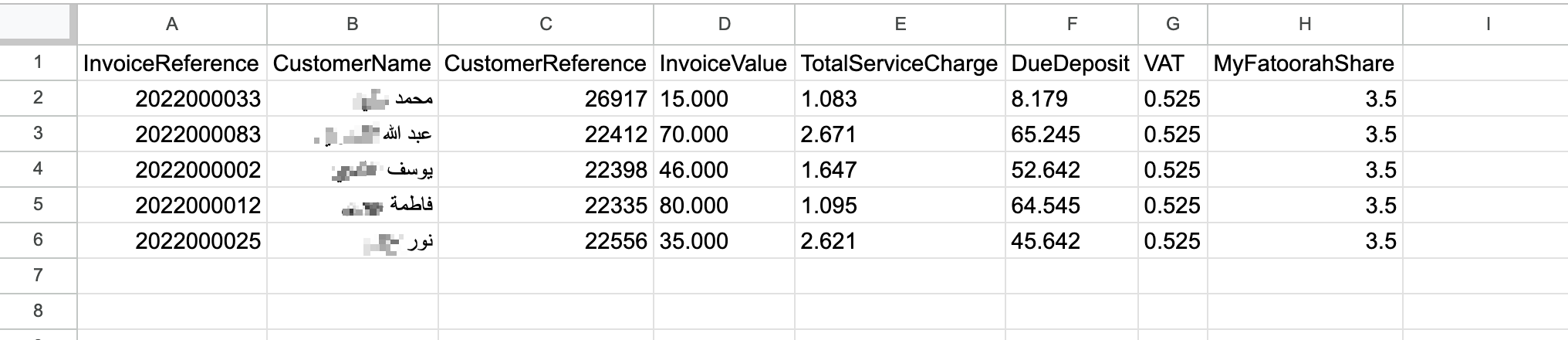
The sales file has one row for each payment. A monthly subscription has a row for each month that is paid. Each row has data such as the invoice number, the customer name, email and phone, the invoice value and fees, the product type and name, the payment gateway and the sale date. A ZamnPay refund shows as its own row, with a minus amount and the refund date, so the total of the file goes down. This is a sample of the file data: