Import students into a course
To add past students to a course more easily, search for them by name or email after you choose the course. You see a list of all students enrolled in your other courses (except the chosen course), with the last time each student was seen.
How to import students
-
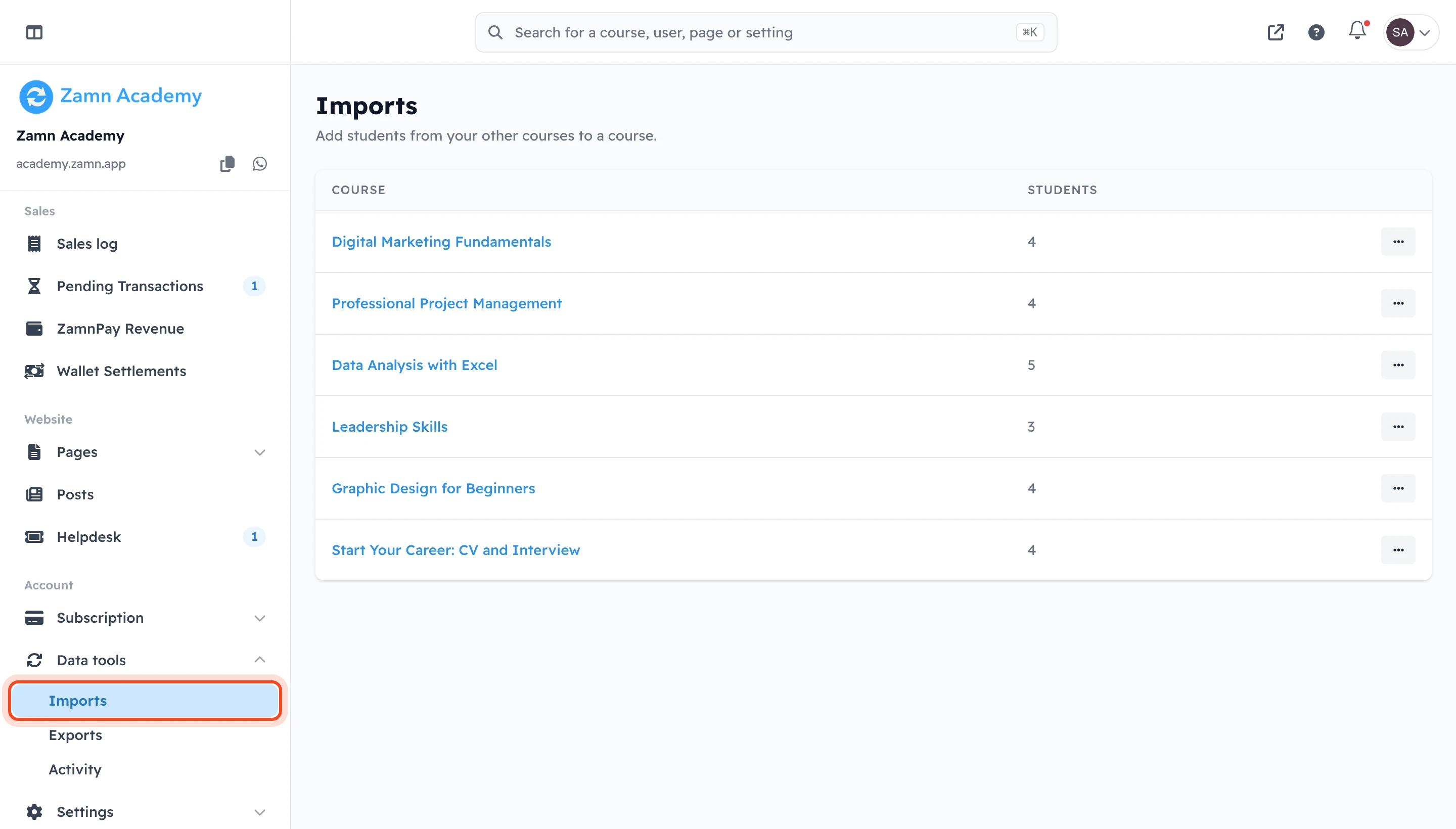
In the side menu of the dashboard, under Account, click Data tools.
-
Click Imports. Only active courses show on this page: archived courses and courses whose cohorts have all ended do not show.
-
Click the name of the course you want to add the students to, or click the ⋯ (Actions) button at the end of its row, then click Add students.
-
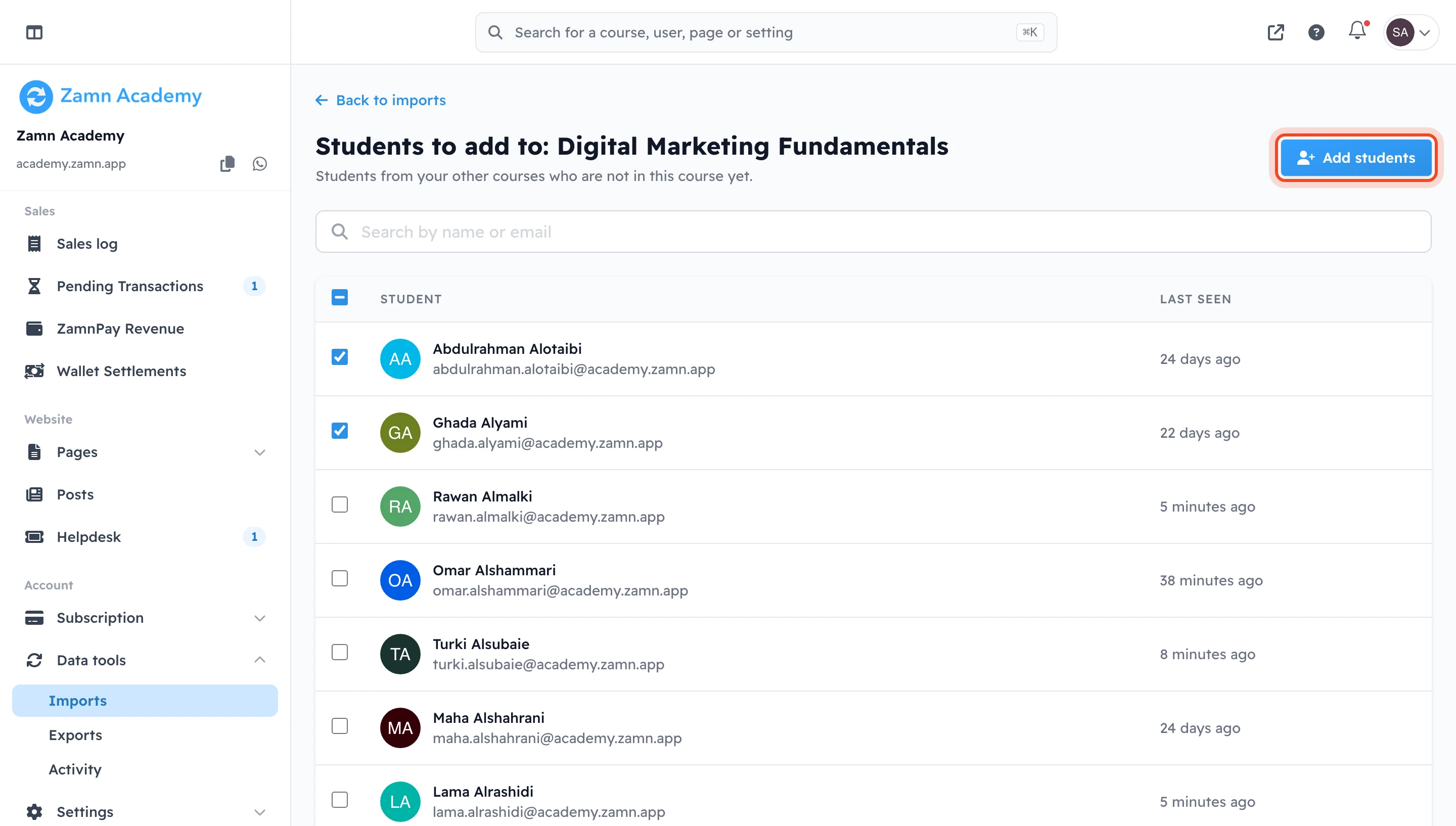
In the search box, search for the student by name or email. You see the student name and the last time they were seen on the platform.
-
Select the students you want to add, or check the box at the top of the table to select them all.
-
Click Add students at the top of the page, then confirm.
The message Students imported successfully! appears.
The students are added to the default cohort of the course.