Add getting started instructions to a course
You can write getting started (start here) instructions for your students in the title and description of a target group in the course.
Steps to add getting started instructions
-
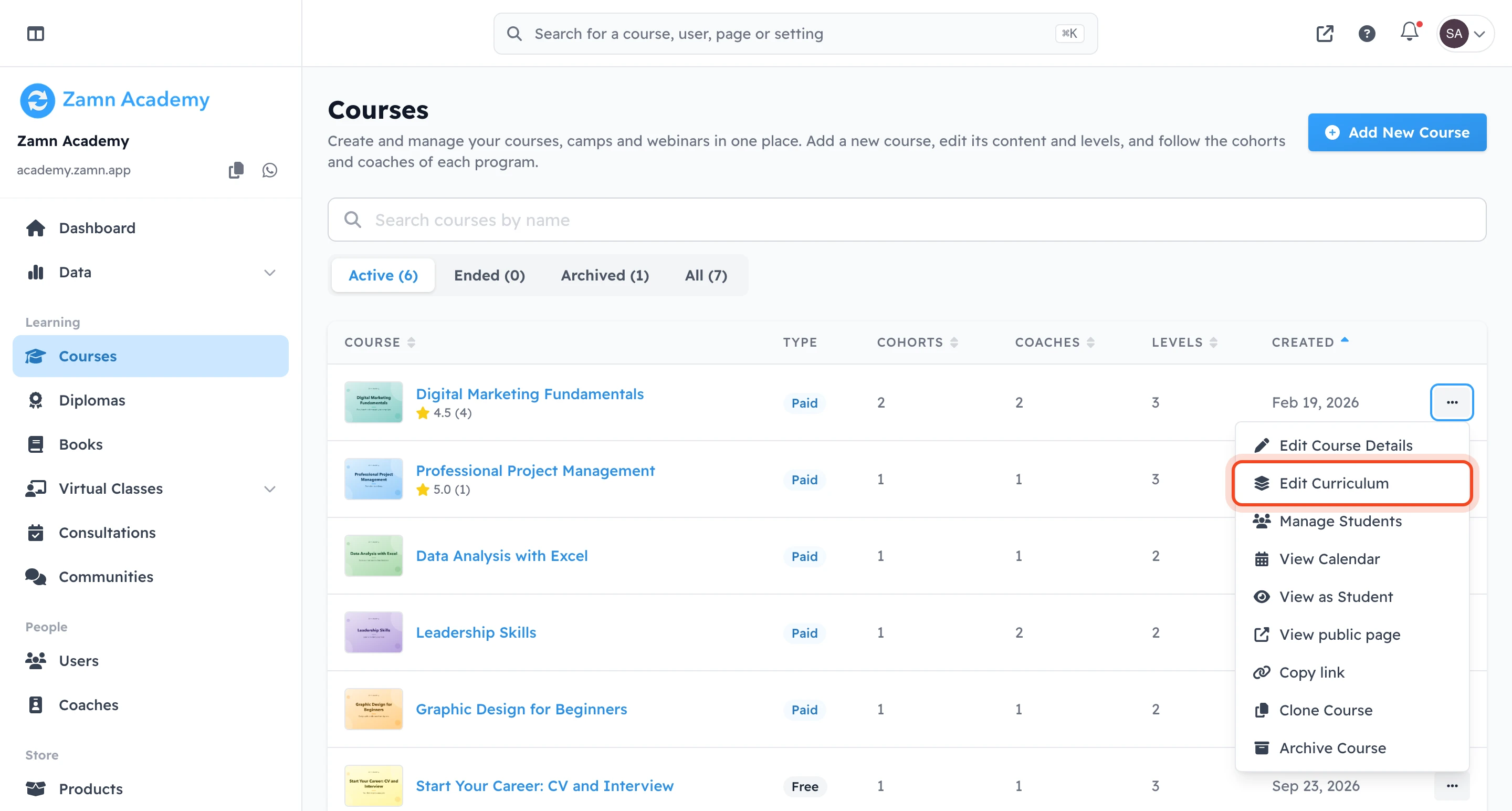
Go to the Courses page. Click the course name, or click ⋯ at the end of its row, then click Edit Curriculum.
-
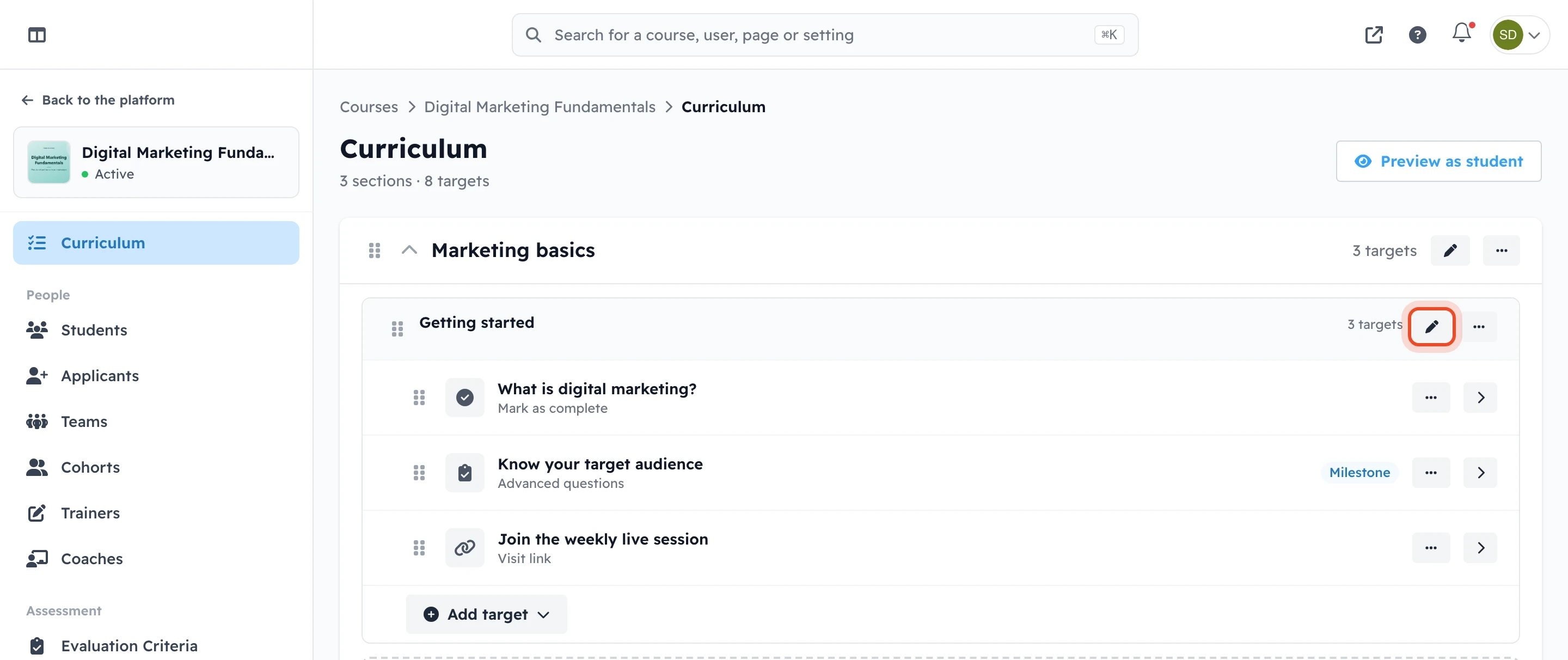
Click the edit button (pencil) next to the target group where you want to put the instructions, like the Getting started group in the screenshot.
-
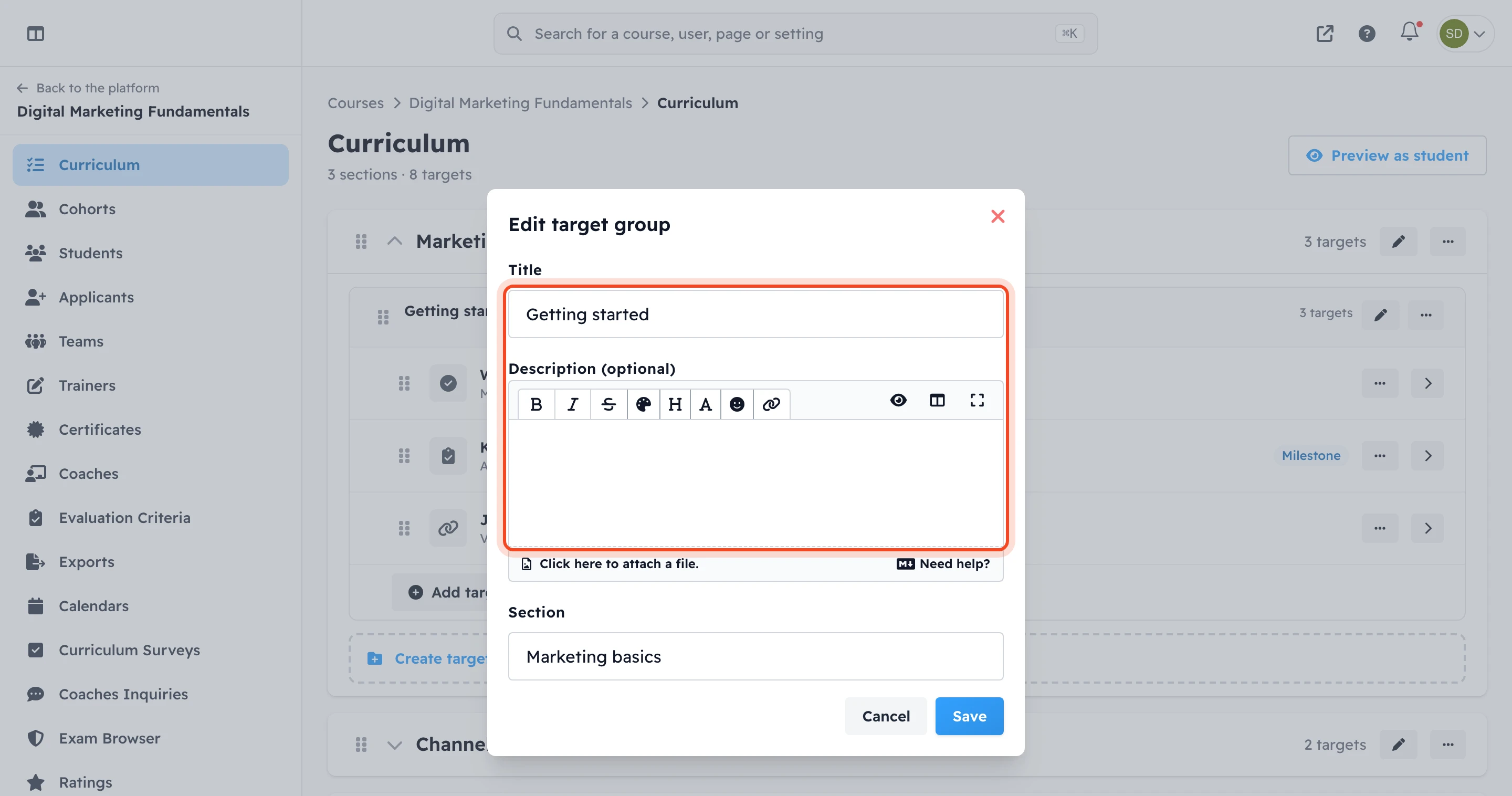
Type the title of the instructions in the Title field.
-
Write the getting started instructions in the Description field.
-
Click Save to save your changes.