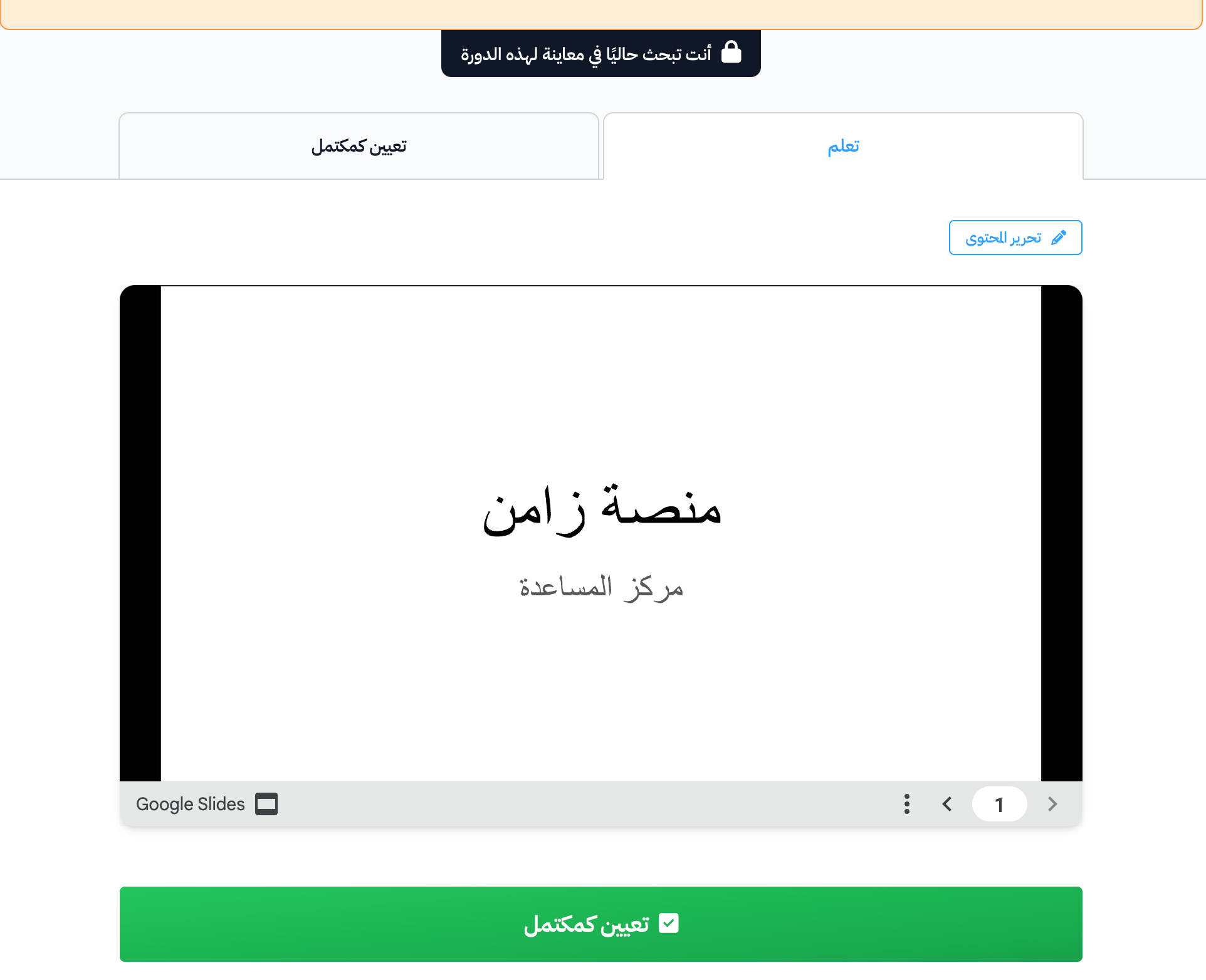
Embed a file from Google Drive
You can show a file from Google Docs, Google Slides or Google Sheets inside your course. Publish it to the web, then embed its link in the target content.
Steps to embed a Google Docs, Google Slides or Google Sheets file in a course
In the Google file
-
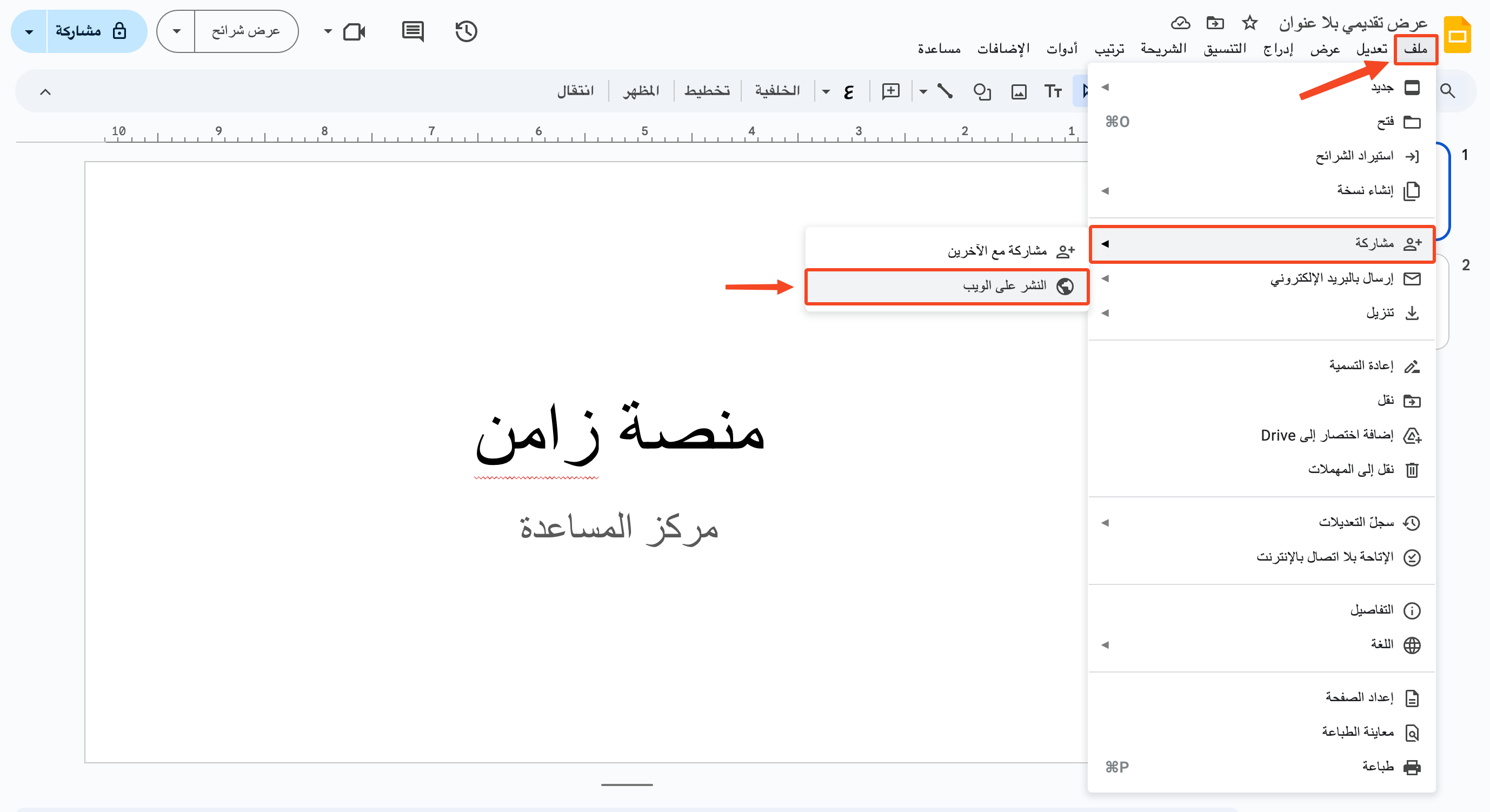
Open the file you want to share, then click File in the top bar.
-
Choose Share.
-
Click Publish to web.
-
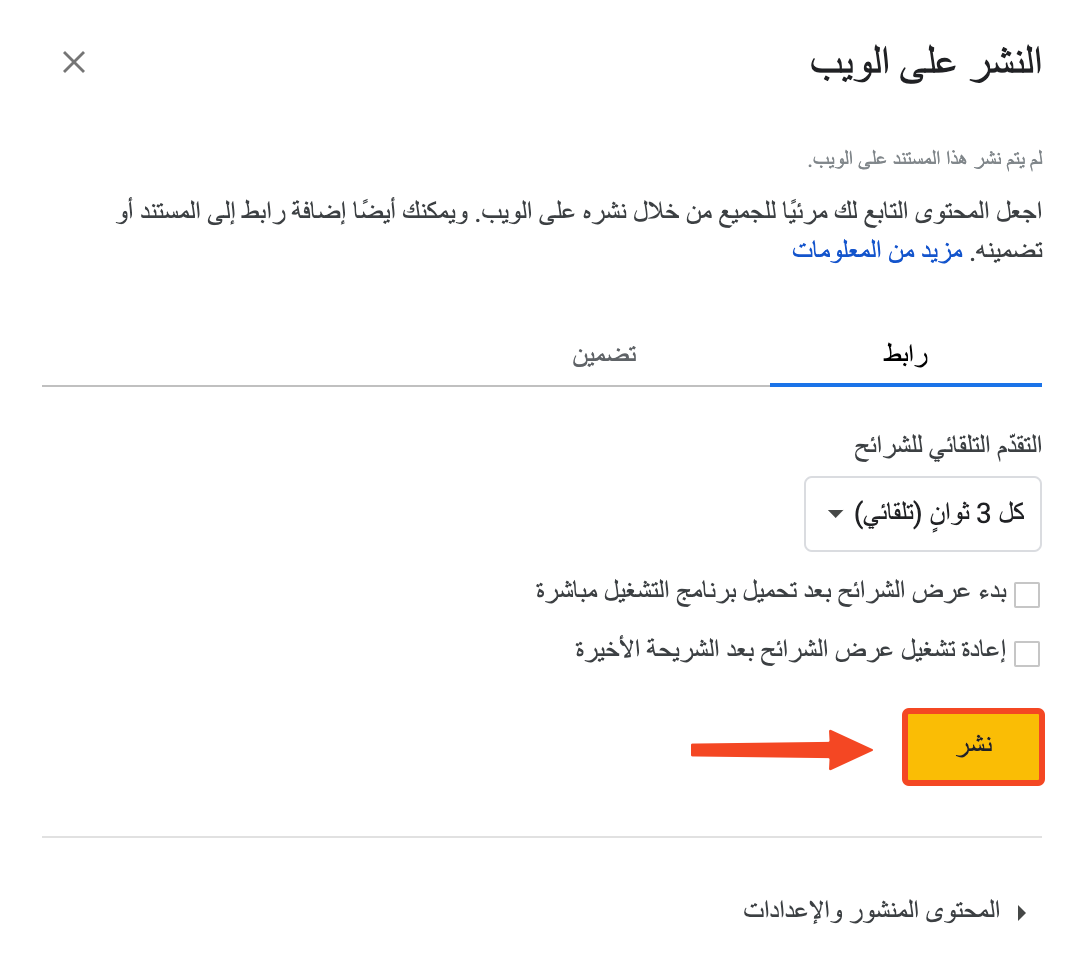
A window opens to confirm. Click Publish.
-
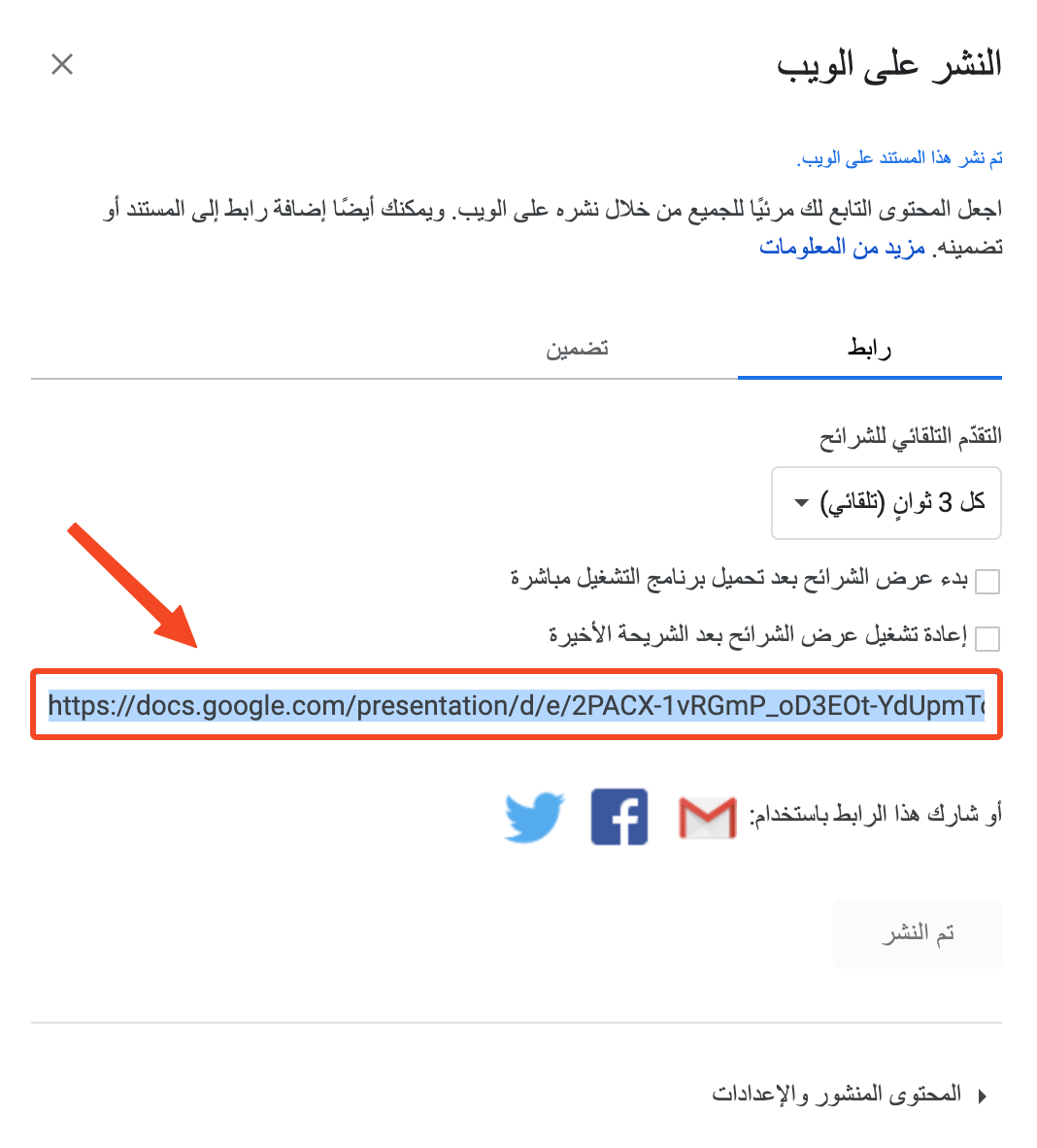
Copy the link that shows, then go back to your platform.
In your platform
-
From the dashboard, click Courses.
-
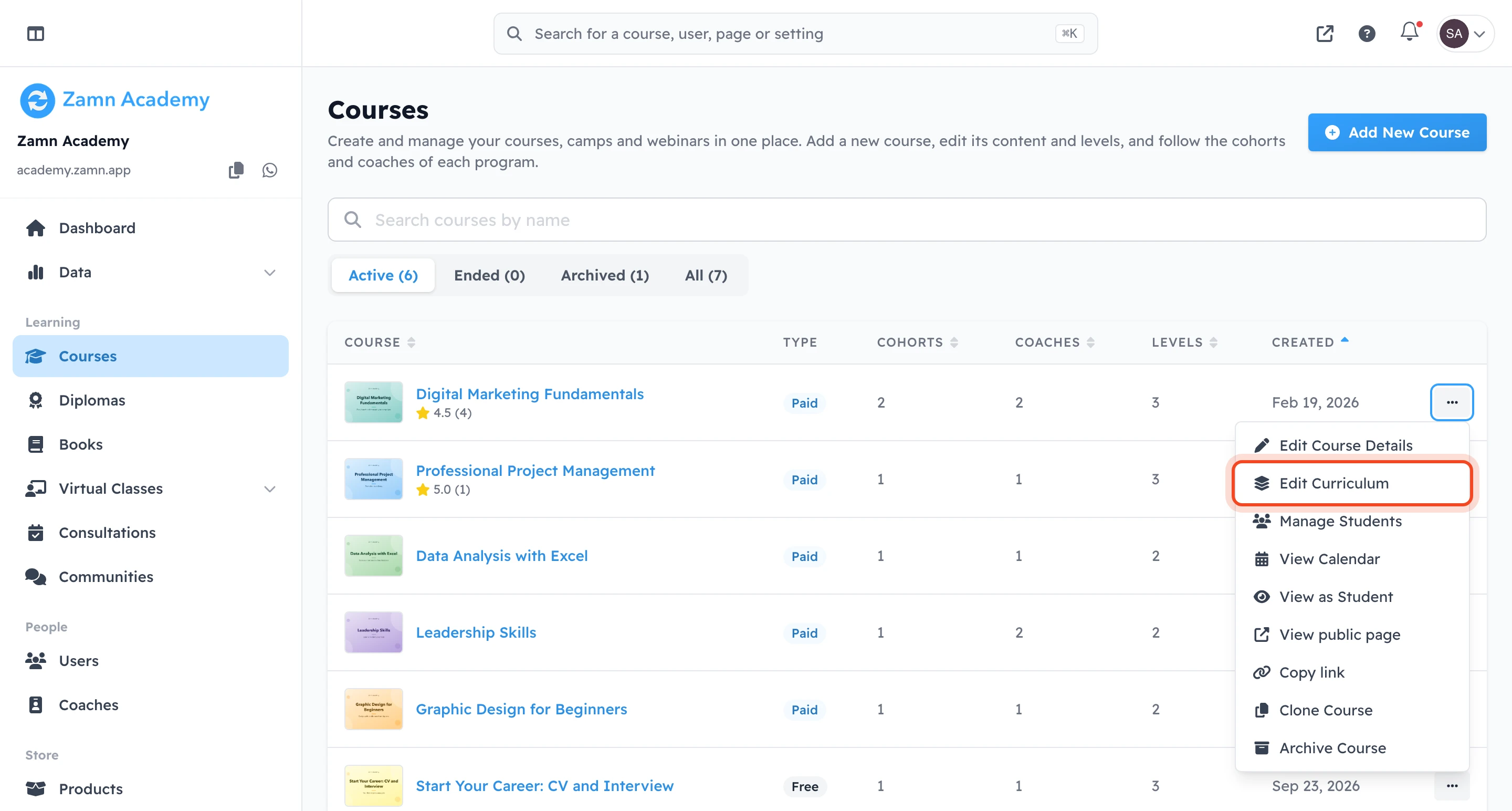
Click the course name, or click ⋯ at the end of its row, then click Edit Curriculum.
-
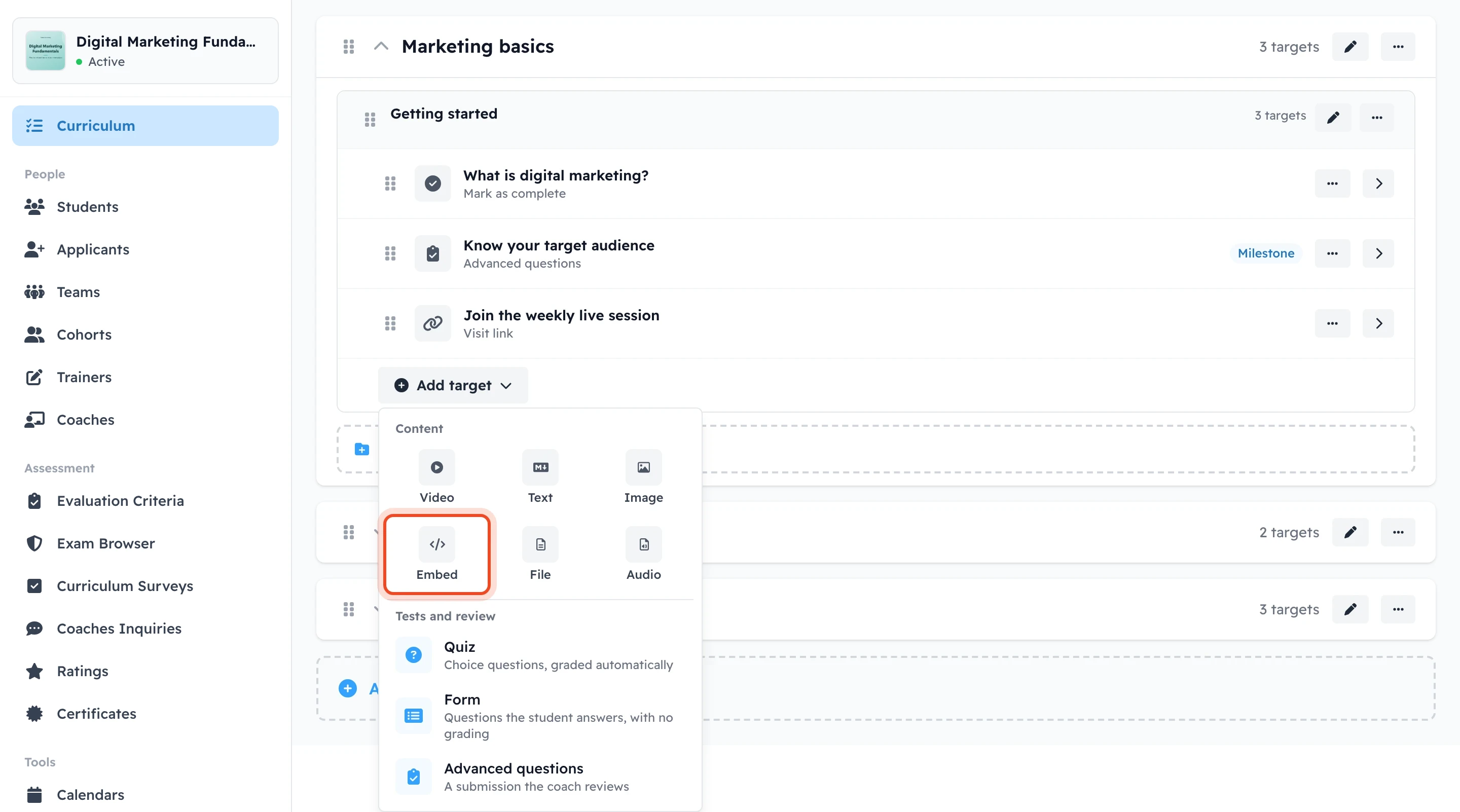
Click the name of the target you want to edit. To make a new target, click Add target at the end of a target group, then choose Embed.
-
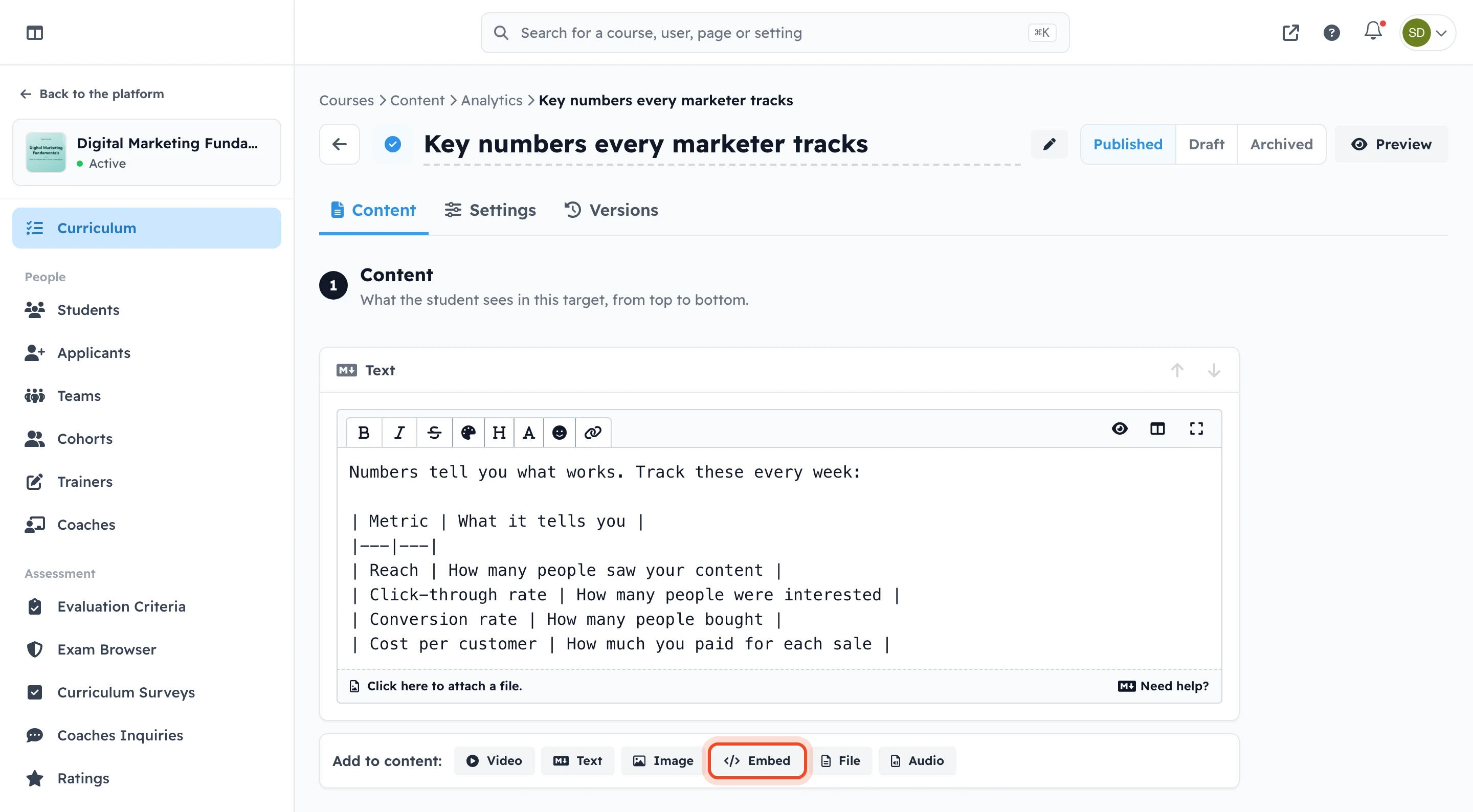
In the Content tab, click Embed next to Add to content:.
-
Paste the link you copied in the Link to embed field, then click Add.

The file shows inside the target for students.