Listening questions (audio clip) in quizzes
Yes, you can add listening questions to a quiz. You upload the audio clip to the content of a target, then add the questions to the same target. Students listen to the clip first, then answer the questions.
Steps to add listening questions
-
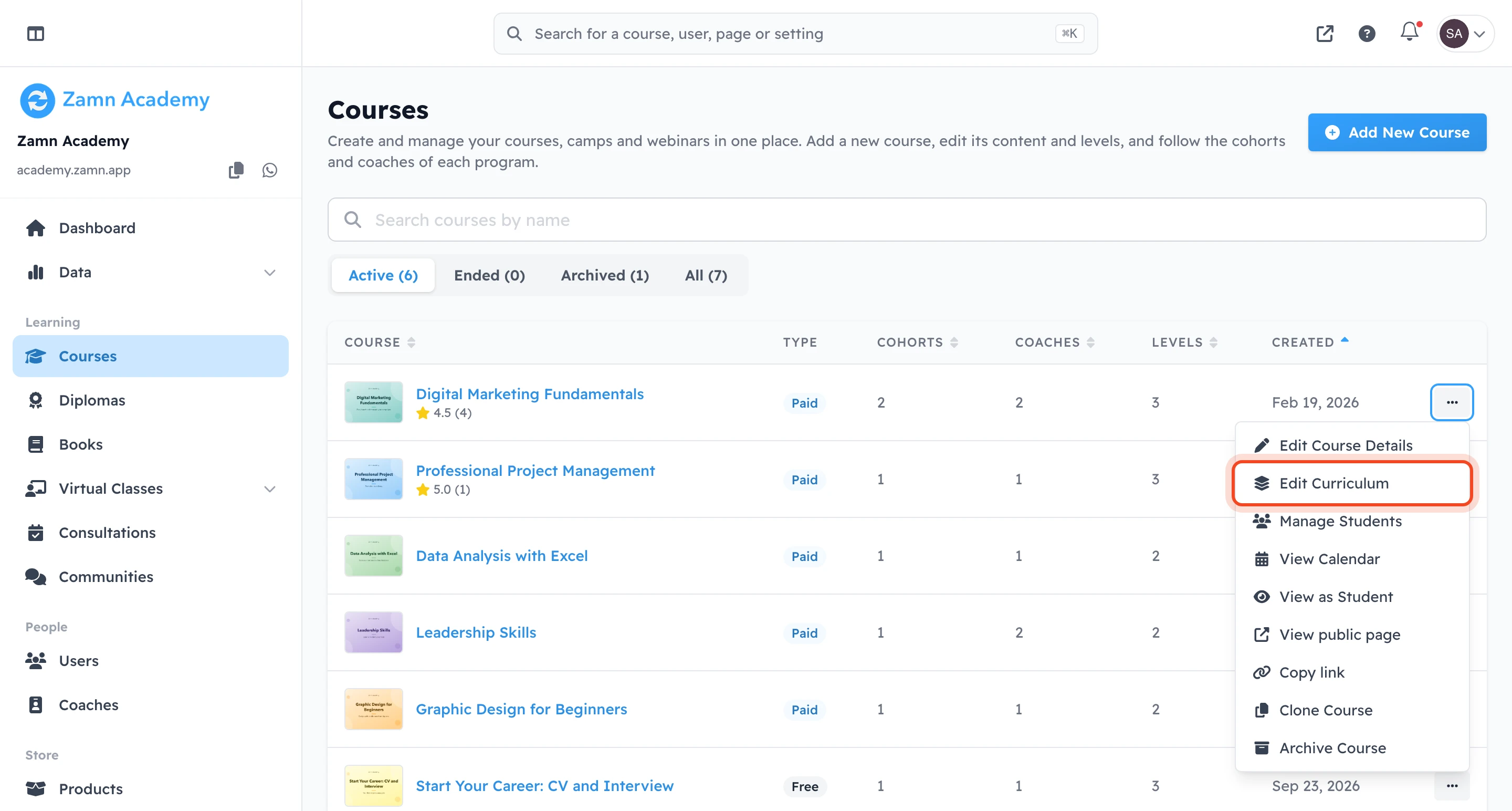
On the Courses page, click the name of the course, or click ⋯ at the end of its row, then click Edit Curriculum.
-
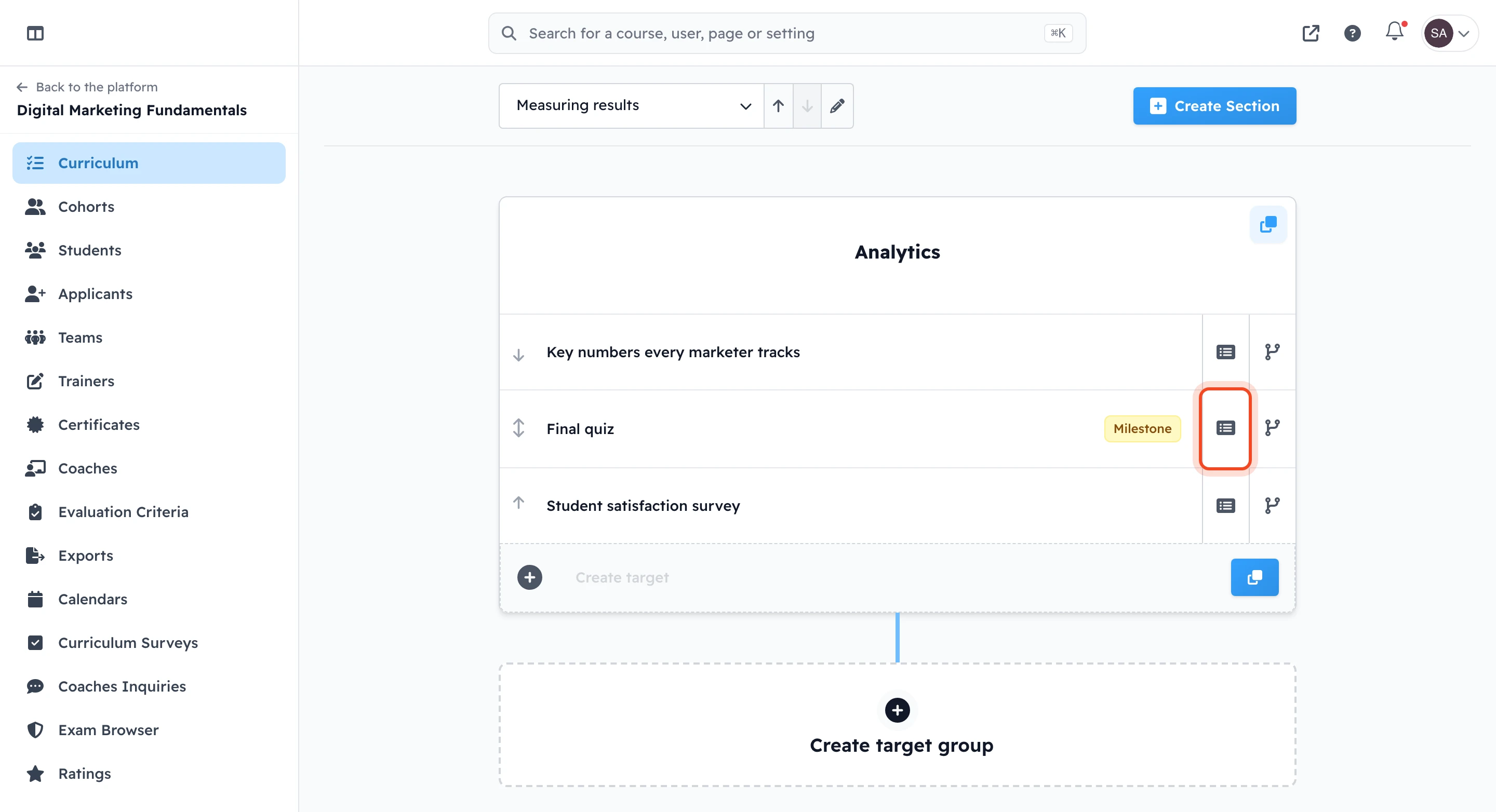
On the course Curriculum page, create a new target with Create target, or click an existing target.
-
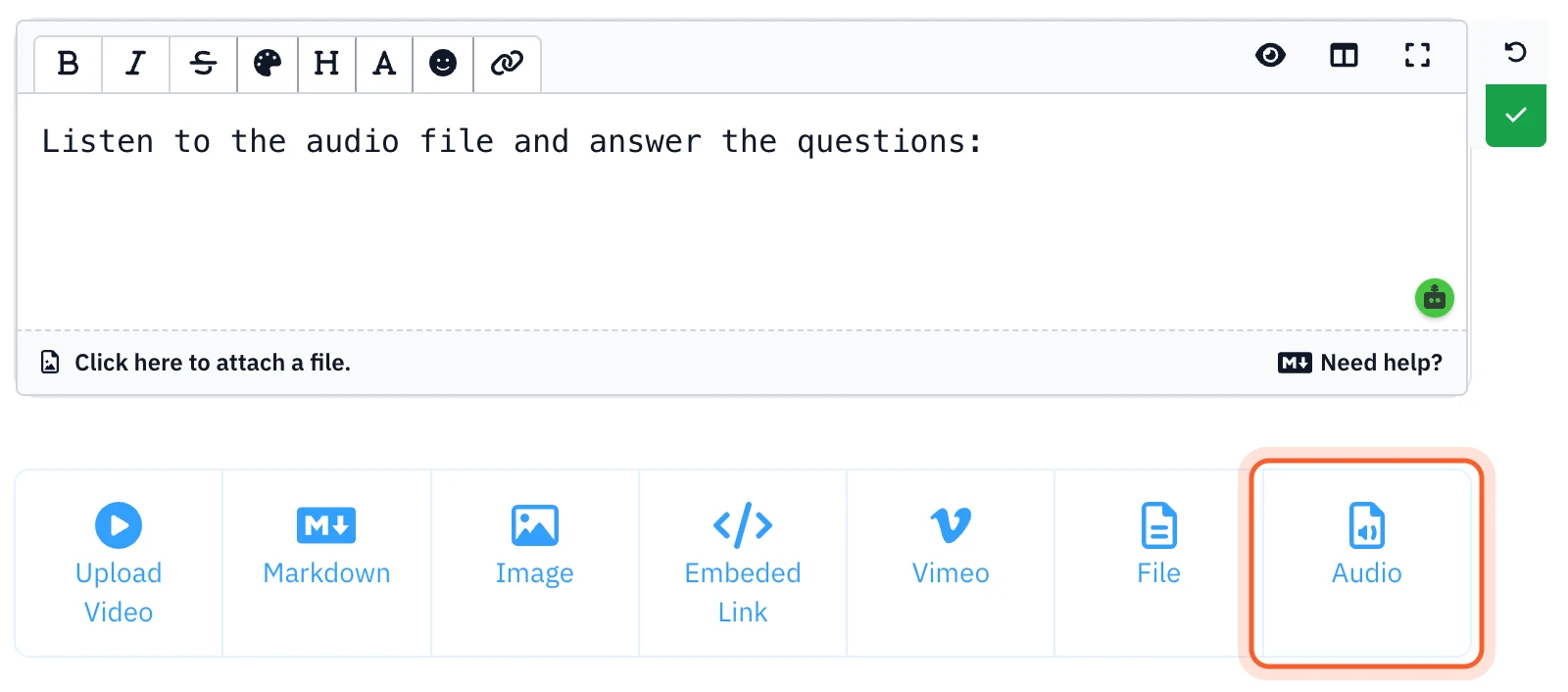
On the target's Content tab, click Markdown and type instructions for the student, such as "Listen to the audio file and answer the questions". Then click the ✓ mark to save.
-
Click Audio and choose the audio file from your device. Wait until the upload finishes and the audio player shows under the text.
-
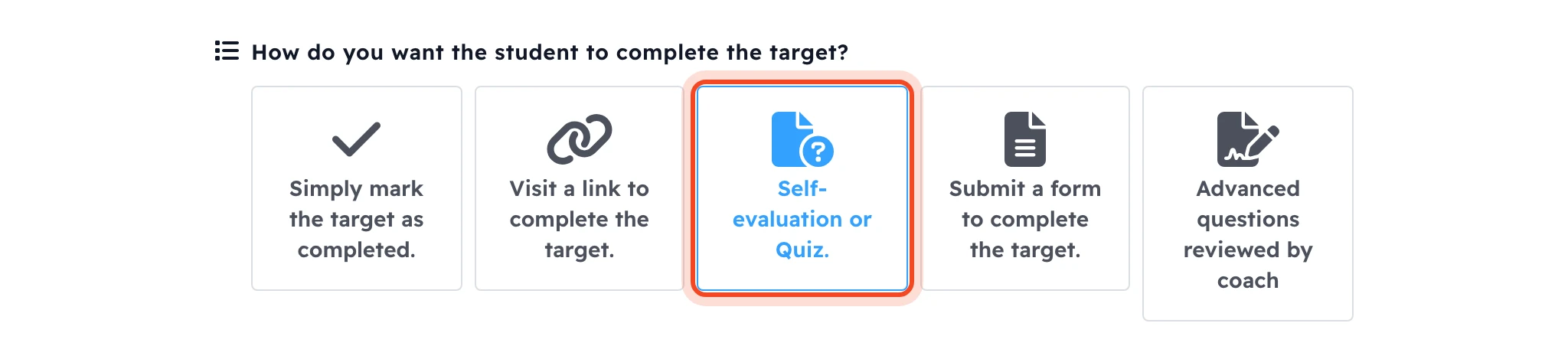
Go to the Details tab. Under How do you want the student to complete the target?, choose Self-evaluation or Quiz.
-
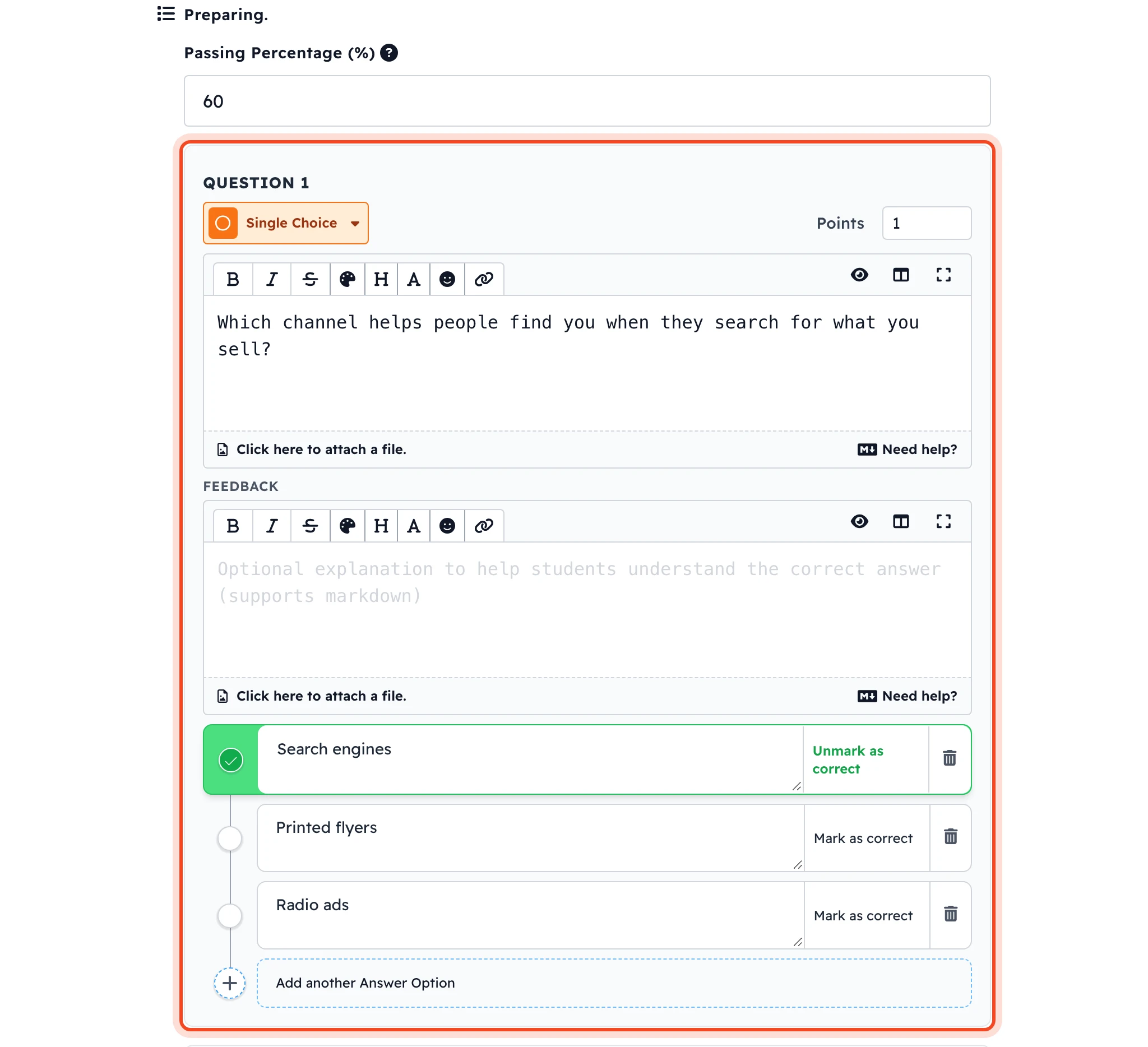
Add questions about the audio clip:
- Choose the question type: Single Choice or Multiple Choice.
- Type the question.
- Add the answers, and mark the correct answer.
- Add more questions the same way with Add another question.
-
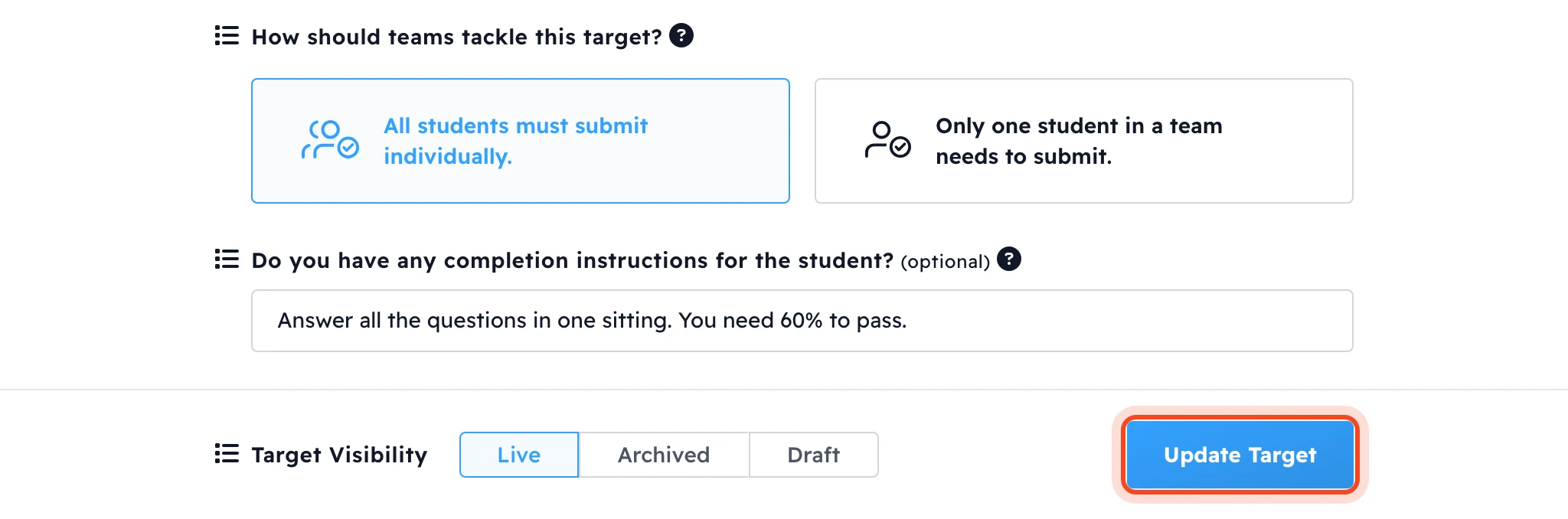
Choose Live under Target Visibility.
-
Click Update Target.
The largest audio file size is 100 MB.
The same steps work with advanced questions. In step 5, choose Advanced questions reviewed by coach, then choose the Choose from a list question type. With advanced questions, a coach reviews the students' answers. Learn more.
How students see a listening question
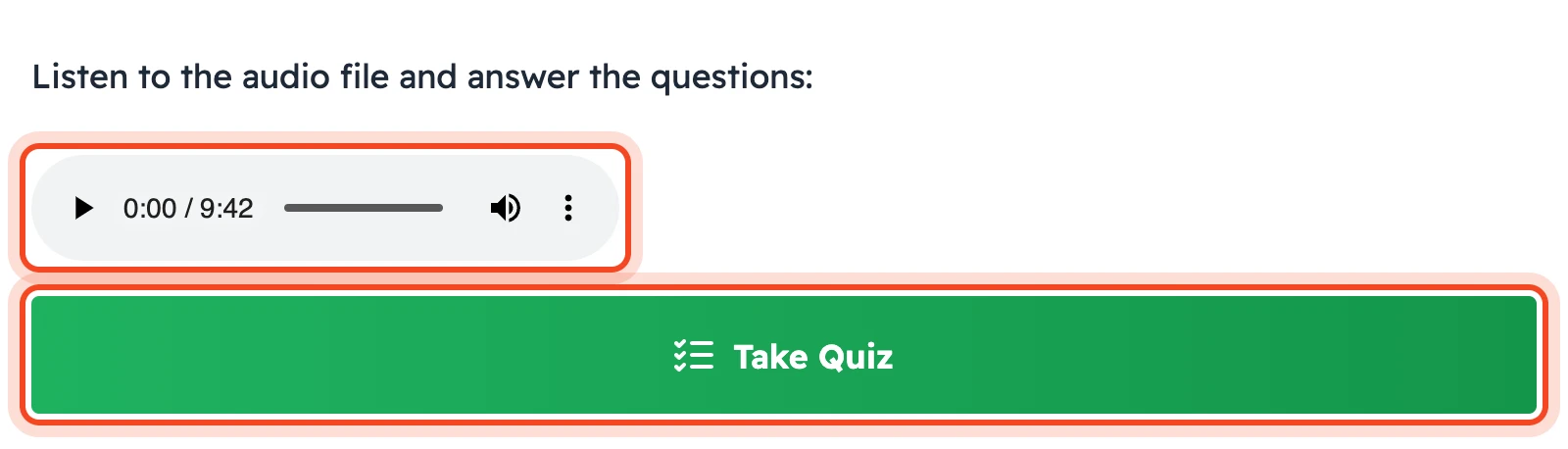
Students see the instructions and the audio player on the target page. They listen to the clip, then click Take Quiz to answer the questions.