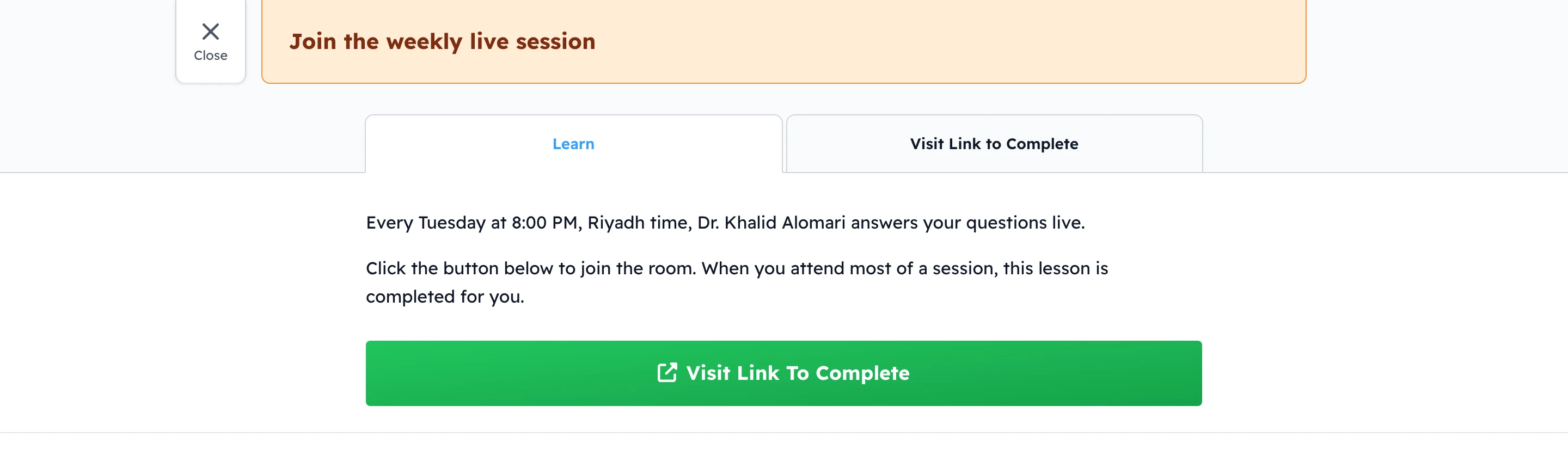
Add a live session to the course content
You can add a live lesson (a live session) to your course content. Your students use it to join a Zamn room or a Zoom room. This article is for platform admins.
Steps to add a live lesson to the course content
-
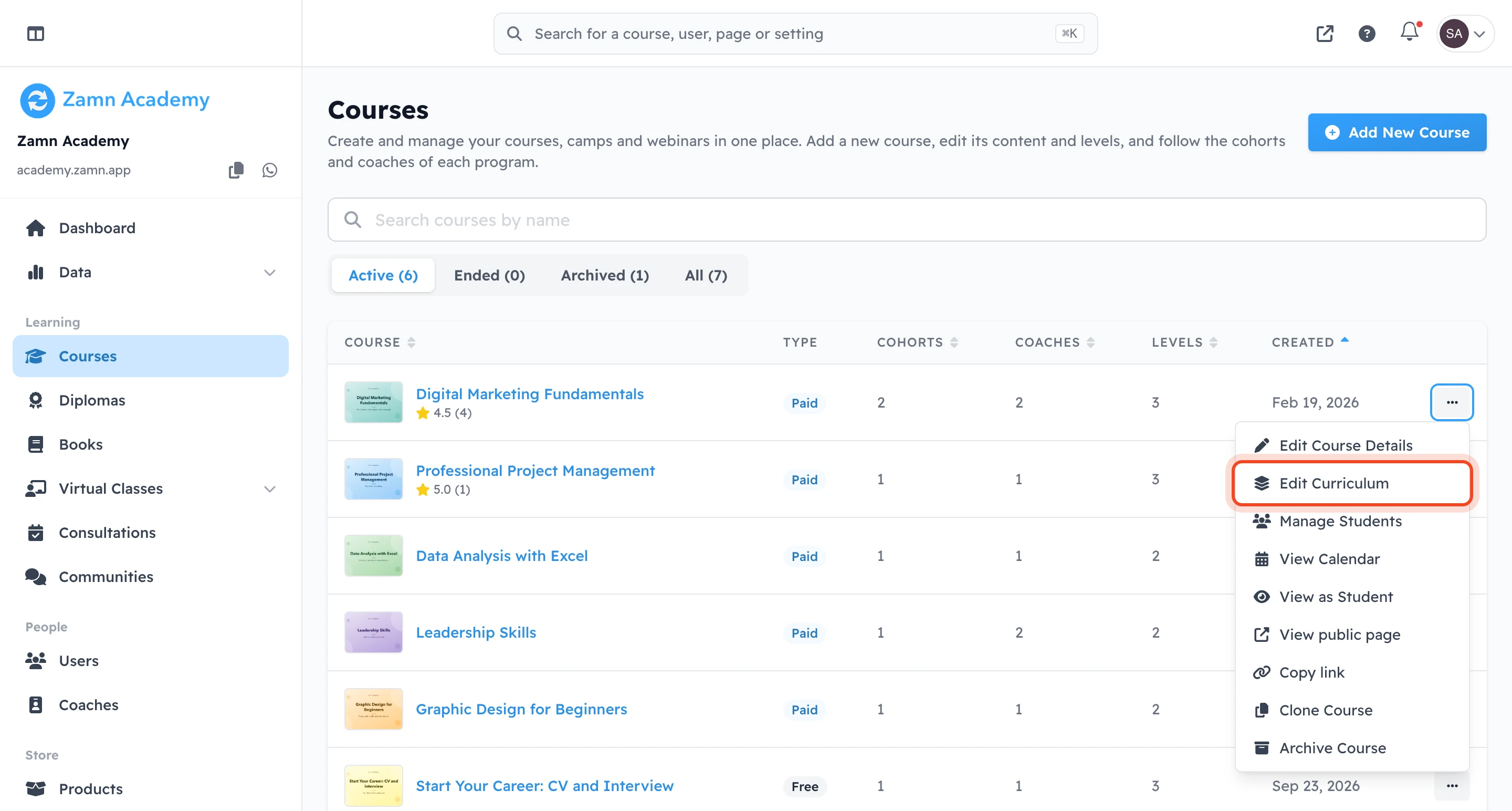
Go to the Courses page. Click the name of the course you want, or click ⋯ at the end of its row, then click Edit Curriculum.
-
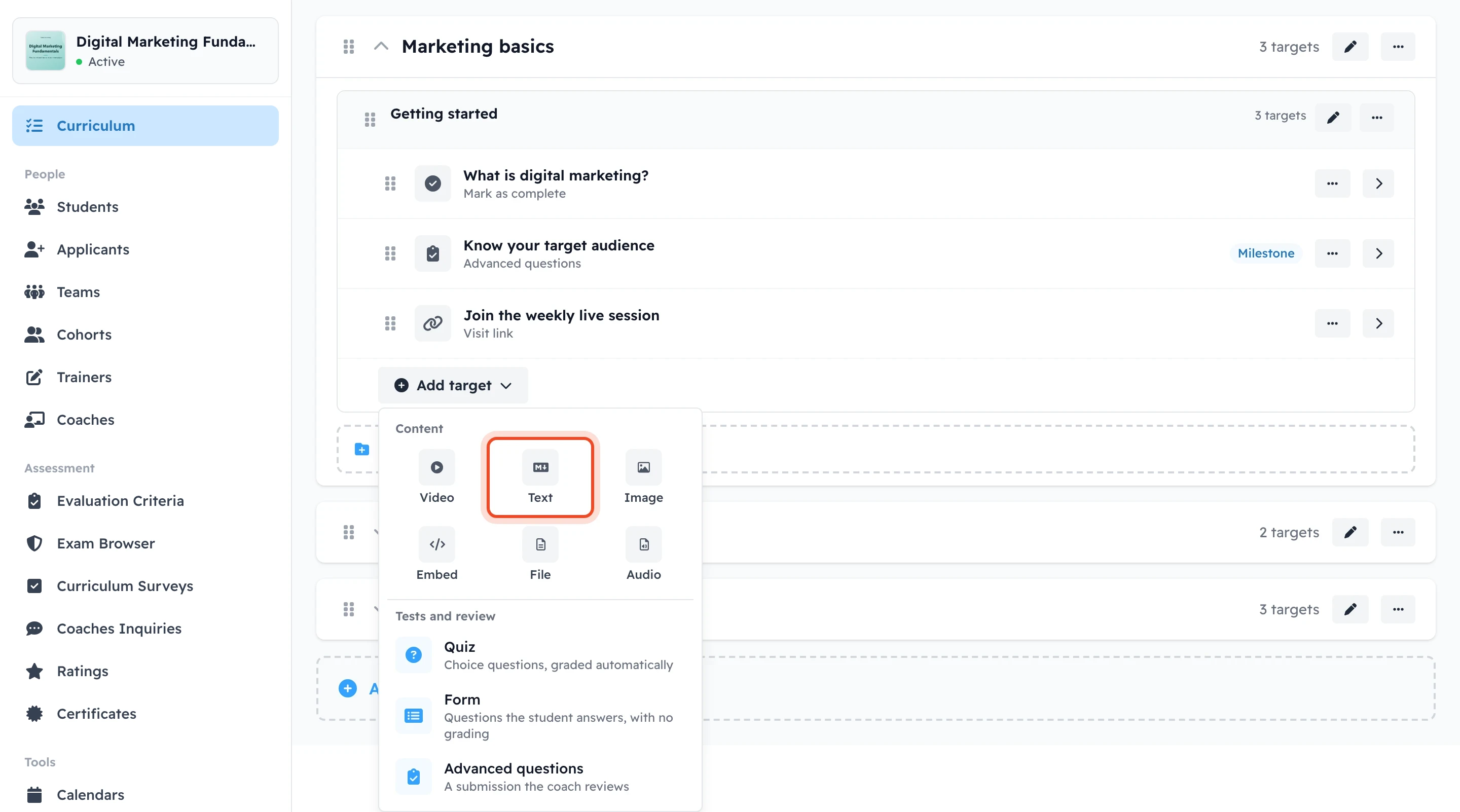
On the course Curriculum page, click Add target at the end of a target group, then choose Text. Or click the name of a target you already have.
-
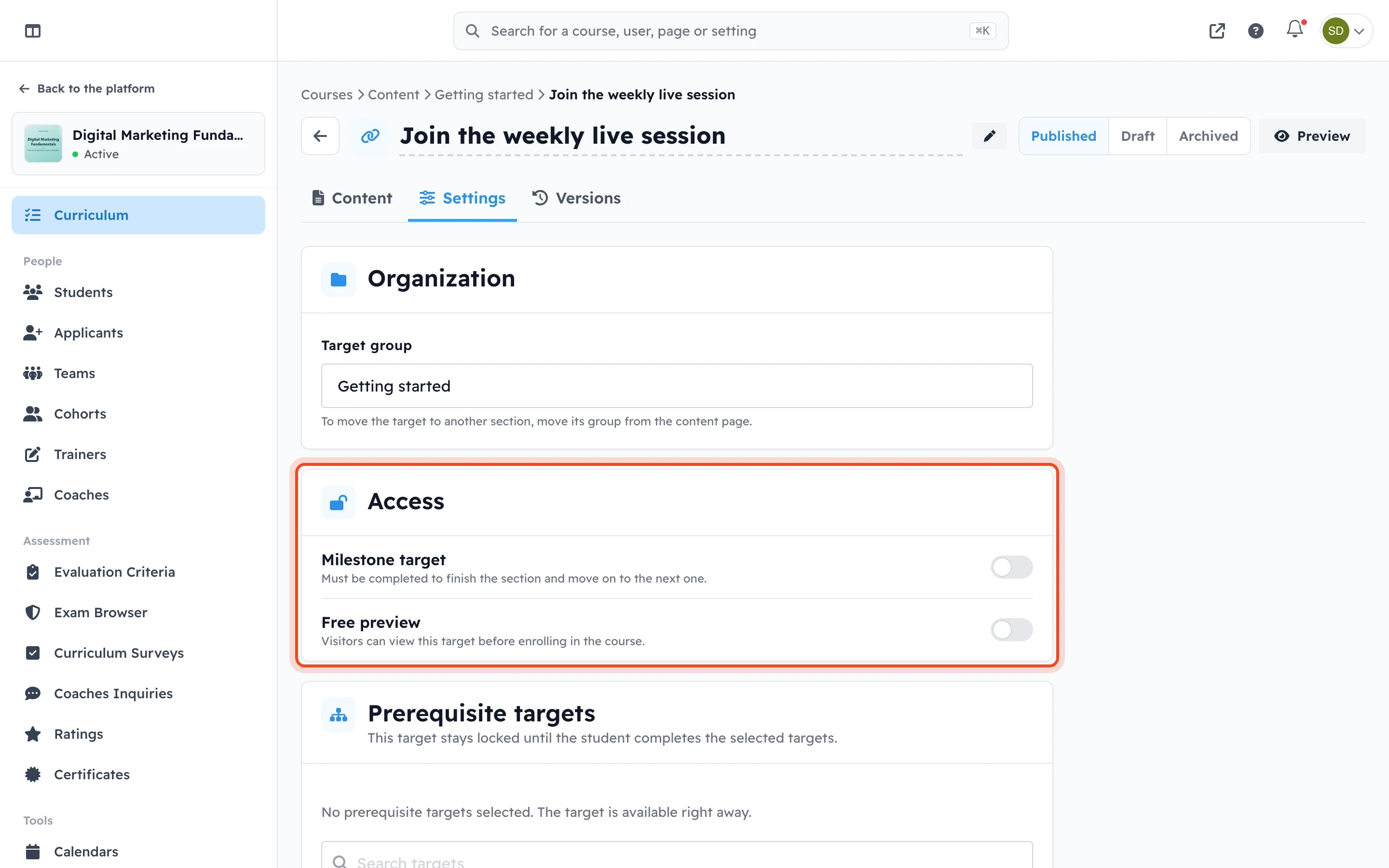
Click the pencil next to the title at the top of the page to change the lesson name. In the Settings tab you can turn on Milestone target, pick Prerequisite targets if you need them, and add instructions for your students in Completion instructions.
-
In the Content tab, under Completion and evaluation, choose Visit link.
-
From the Room or link list, choose a Zamn room or a Zoom room. The room link is added to the Completion link field for you.
NoteTo choose a Zoom room, you must first link your Zoom account to your platform.
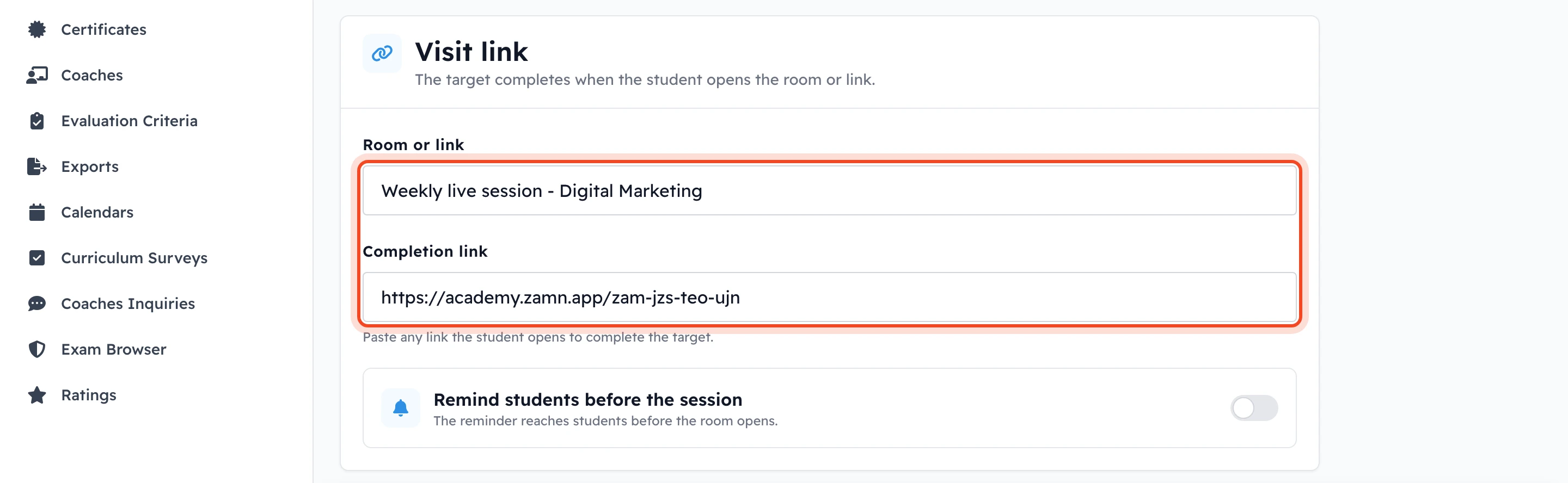
-
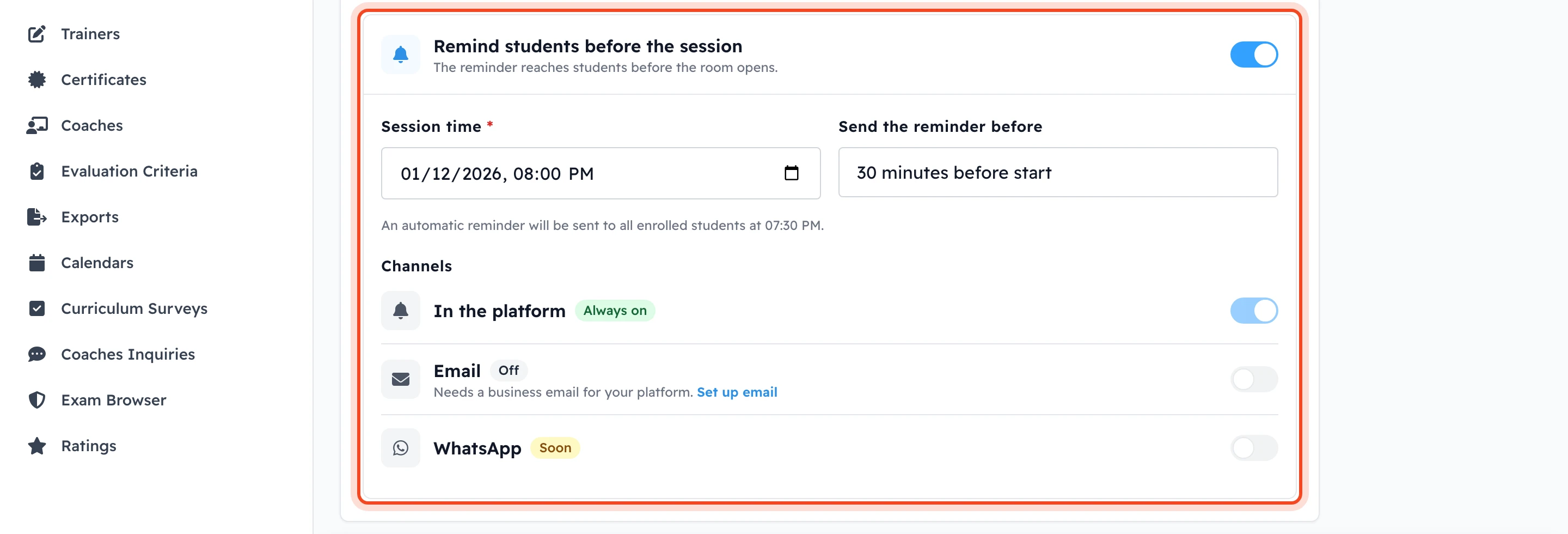
To remind students before the lesson, turn on Remind students before the session under the link field. Then choose the Session time, and choose in Send the reminder before when the reminder goes out: 30, 20, 10 or 5 minutes before the start. All enrolled students get the reminder as an in-app notification, and also by email if you added a business email to your platform.
 Note
Lesson reminders work only if your platform has an active Websites plan. If it does not, the box shows a message that asks you to upgrade your plan. Reminders by WhatsApp are coming soon.
-
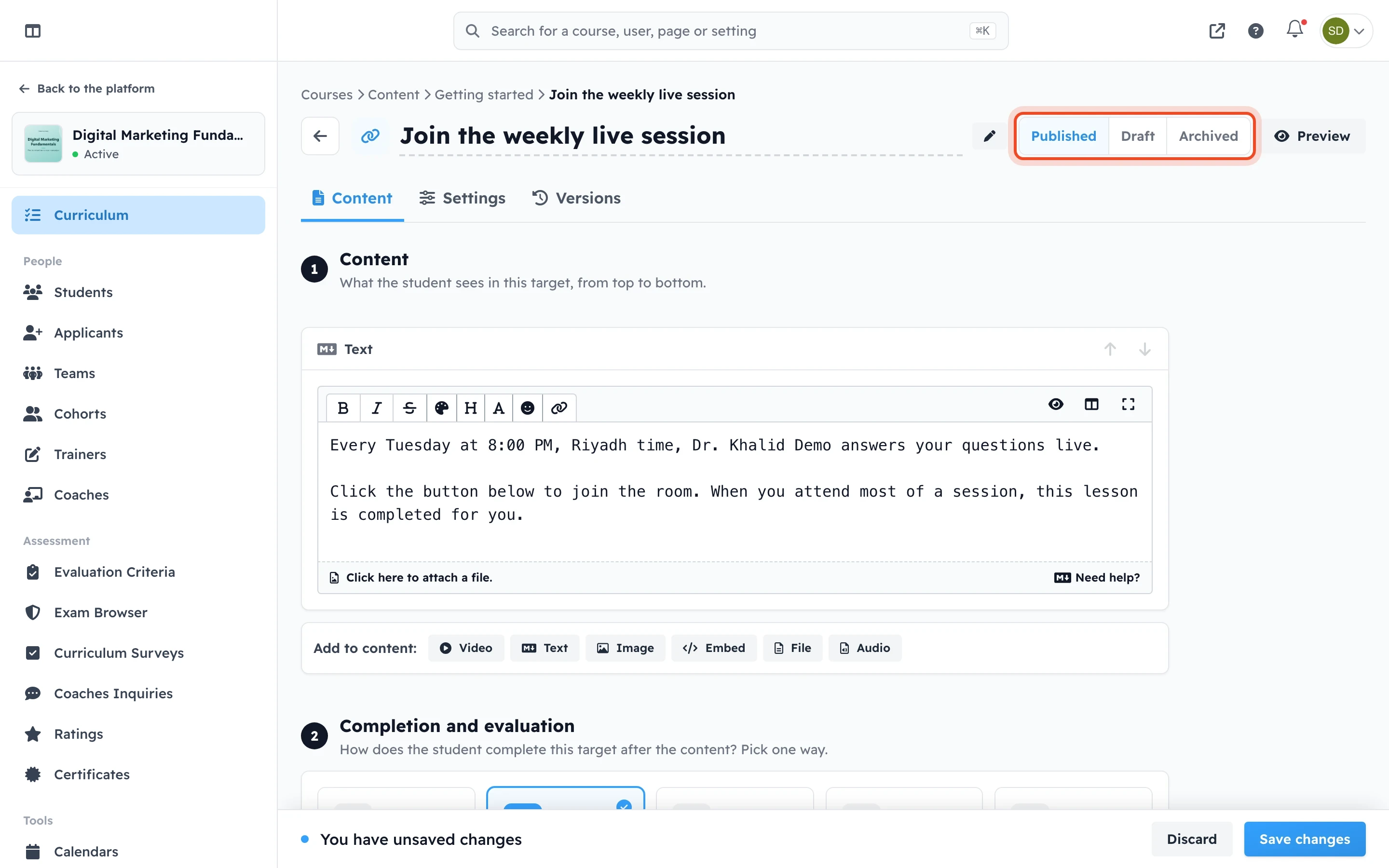
At the top of the page, click Published, then click Save changes in the bar at the bottom of the page.
Example
This is how the target looks to the student: