Connect your Zamn platform to the National eLearning Center
Zamn lets you connect your platform with the National eLearning Center (NELC). This article is for platform admins.
Steps to connect your platform to NELC
-
Click Settings in your platform dashboard.
-
Go to the Integrations page.
-
Click NELC.
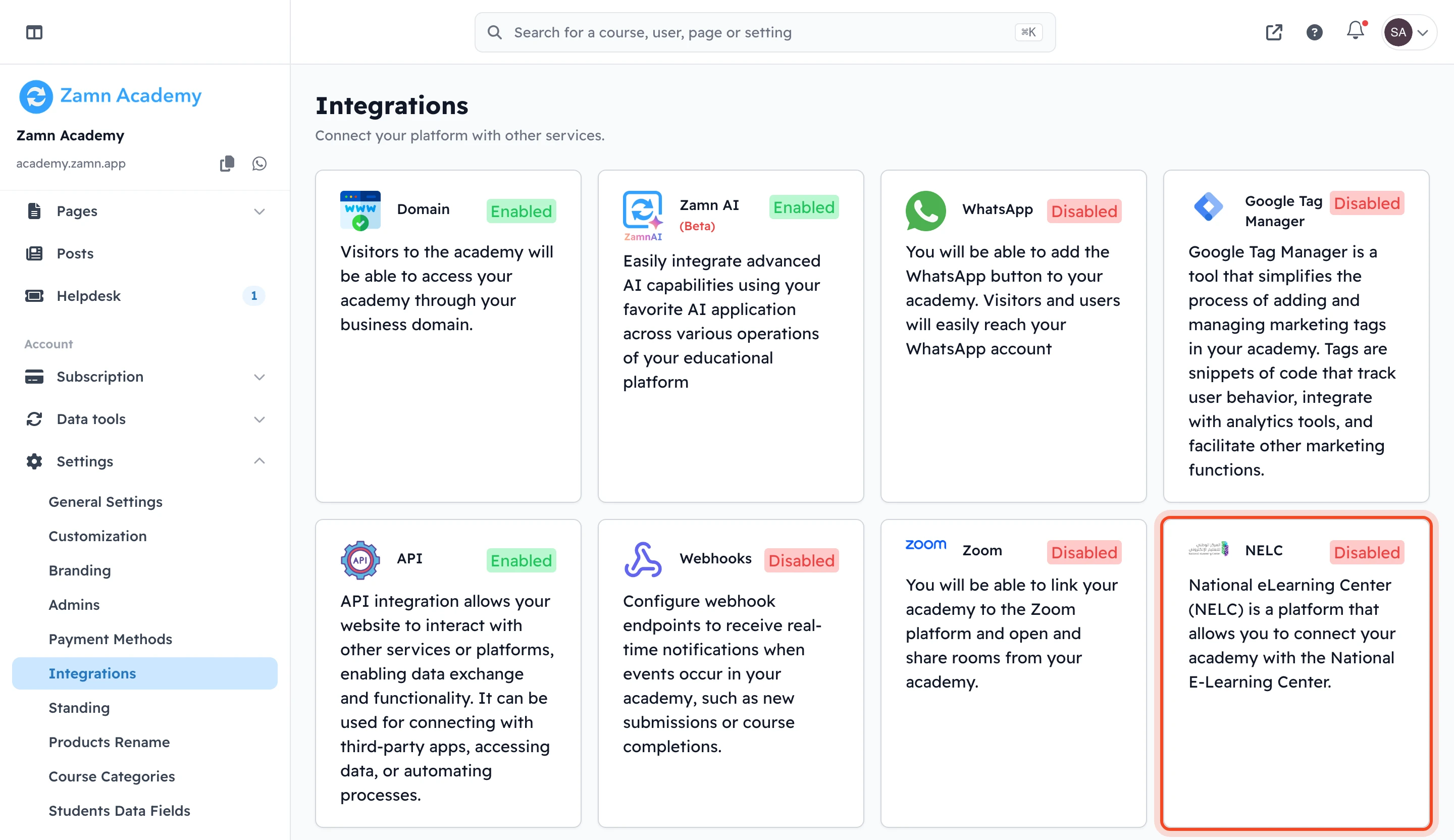
-
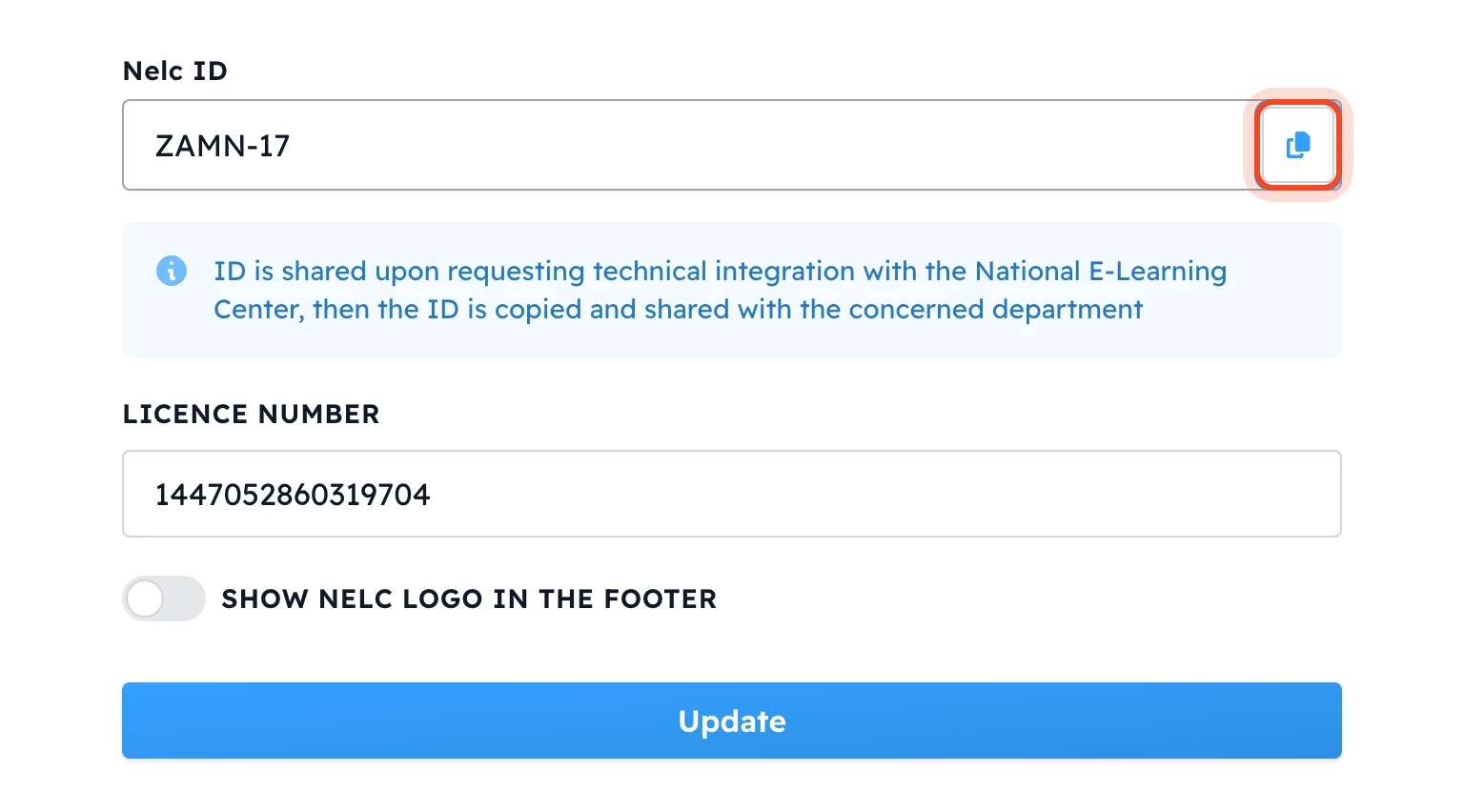
The ID in the Nelc ID field is hidden. Click the eye icon to show it.
-
Click the copy icon to copy the ID.
NoteYou share the ID when the technical integration team at the National eLearning Center asks to connect your organization with them. Copy the ID and share it with that team.
-
In the same window, you can also enter your Licence Number (16 digits) and turn on Show NELC logo in the footer, then click Update to save.
One embedded link in each target
When your platform sends learning data to NELC on a yearly Growth, Pro or Organizations plan, each target can have only one embedded link (added with Embed), such as a YouTube video. If you add a second one, you see the message This target can have only one video or embedded link. Videos you upload with Video are not part of this limit.