How to add a consultation product with the page builder
The page builder lets you build your pages easily and professionally. Among its sections, there are sections to show your consultations. This article is for platform admins.
Steps to add a consultation product in the page builder
-
From the sidebar, open Organize sections, then click Add a new section.
-
In the Add a section window, choose Consultations.

-
Choose the way you want to show your consultations. This article explains three of them: Consultation Details, Consultation Hero and Consultations Grid.
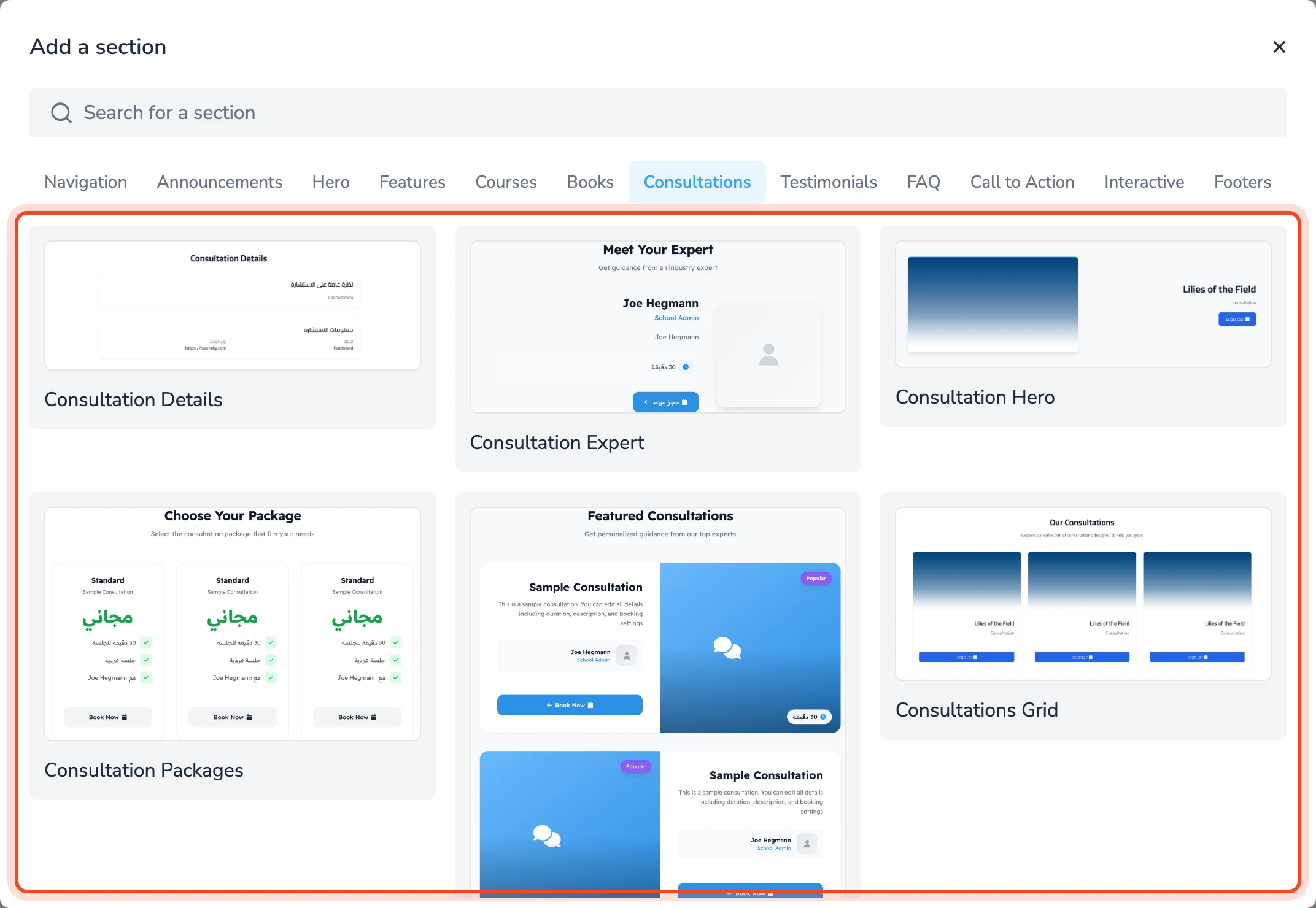
The section also has other designs: Consultation Packages, Consultation Expert and Consultations Featured. In each section you can also choose an Animation Type and an Animation Speed.
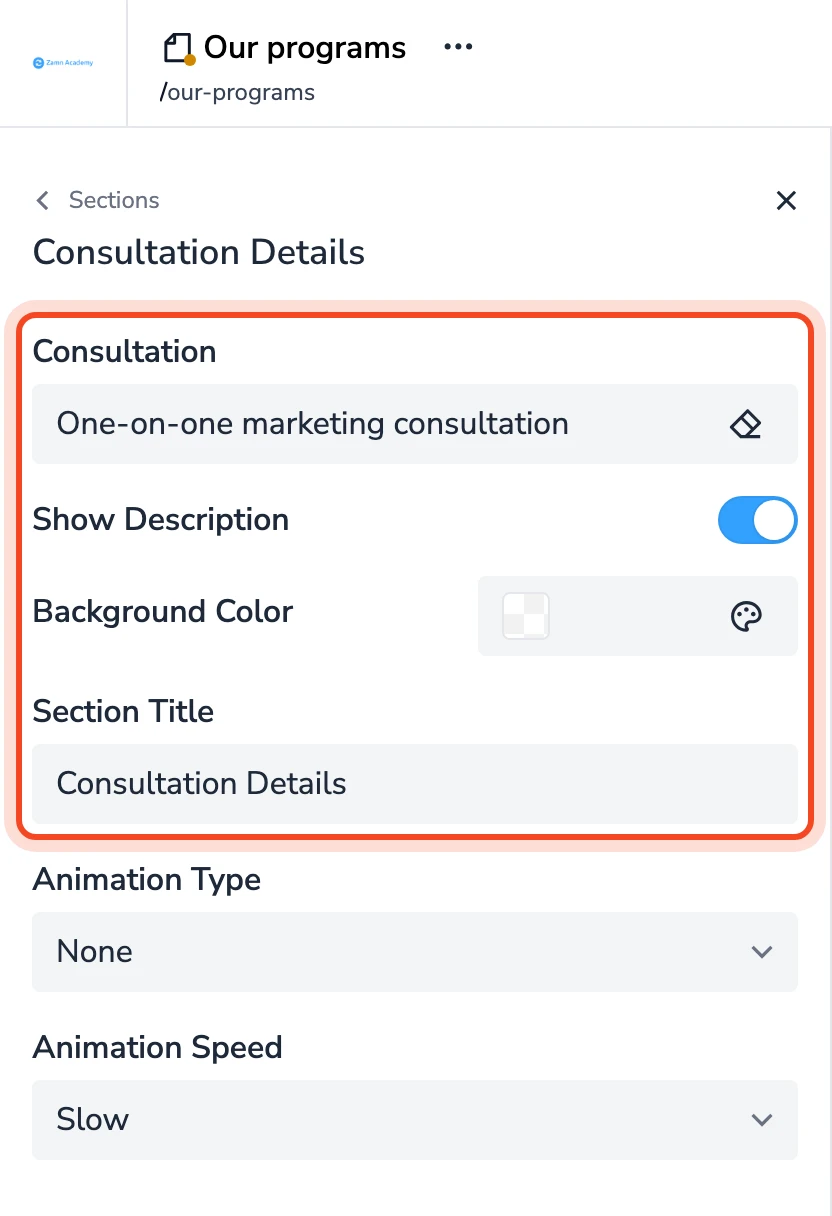
First design: Consultation Details
This design has these settings:
- Consultation: choose the consultation you want to show.
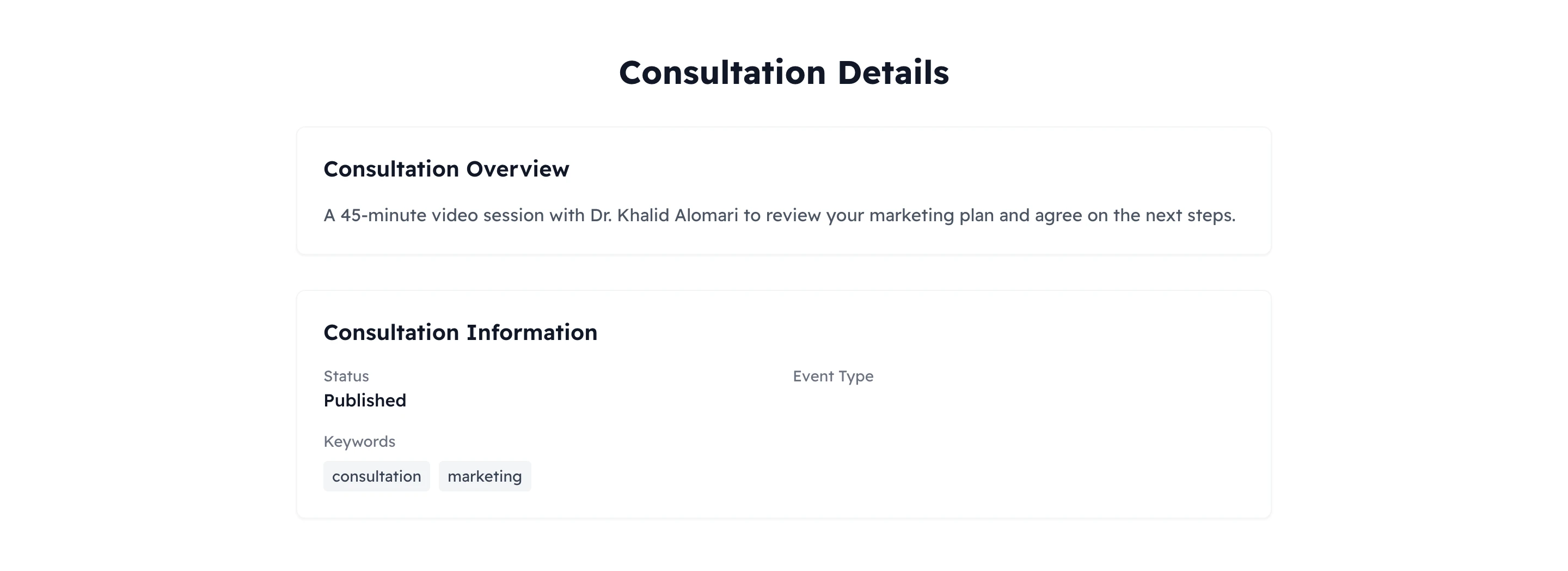
- Show Description: show or hide the consultation overview.
- Background Color: set the background color of the section.
- Section Title: write a title for the section.
Second design: Consultation Hero
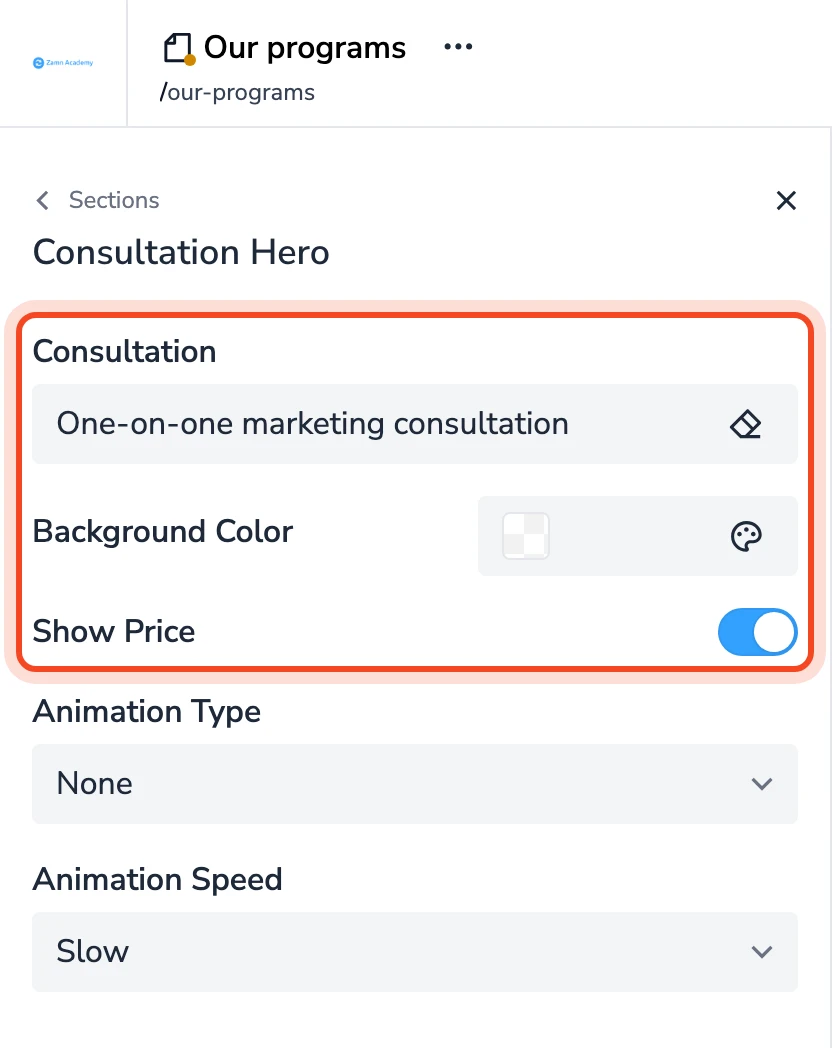
This design has these settings:
- Consultation: choose the consultation you want to show.
- Background Color: set the background color of the section.
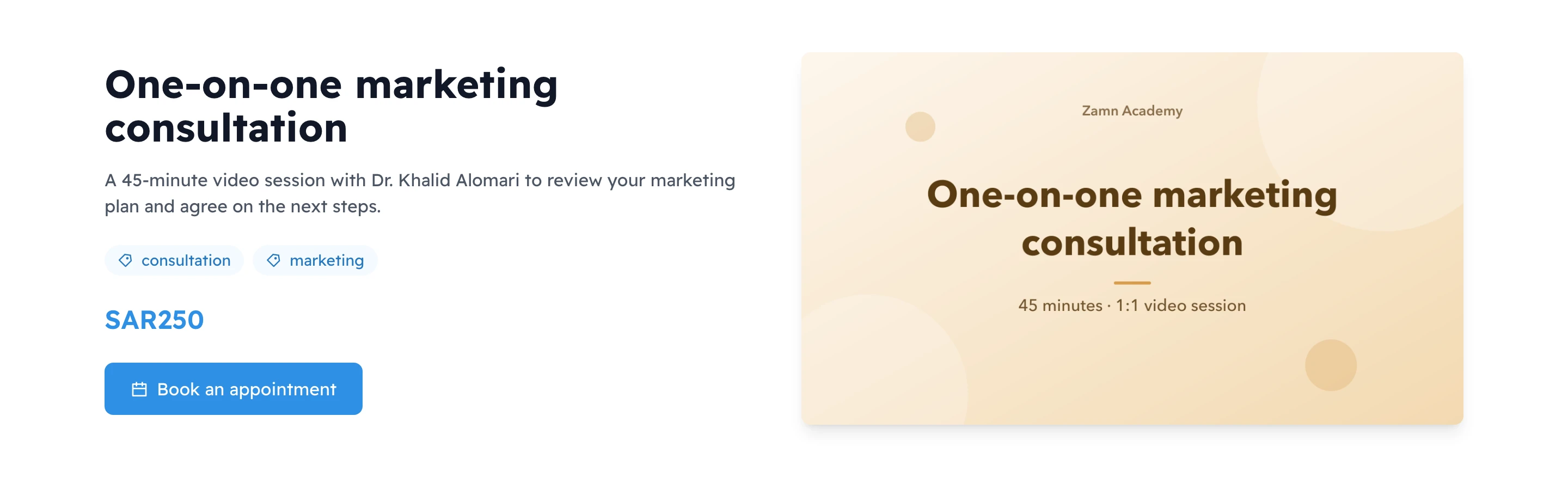
- Show Price: show or hide the consultation price.
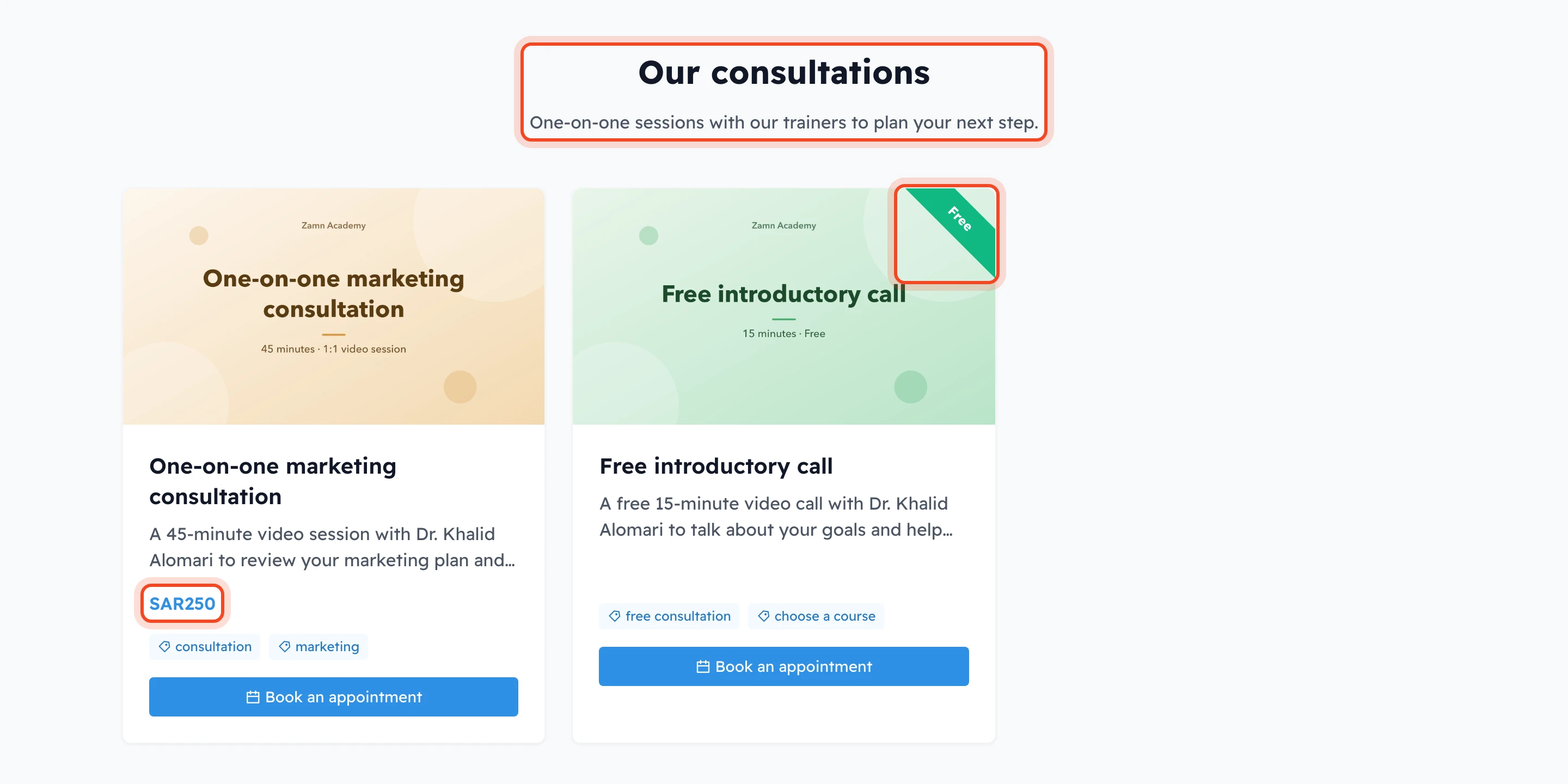
Third design: Consultations Grid
From the Content tab:
- Title: write a title for the section.
- Description: write a description for the section.
- Background Color: set the background color of the section.
- Consultations Per Row: choose how many consultations show in each row.
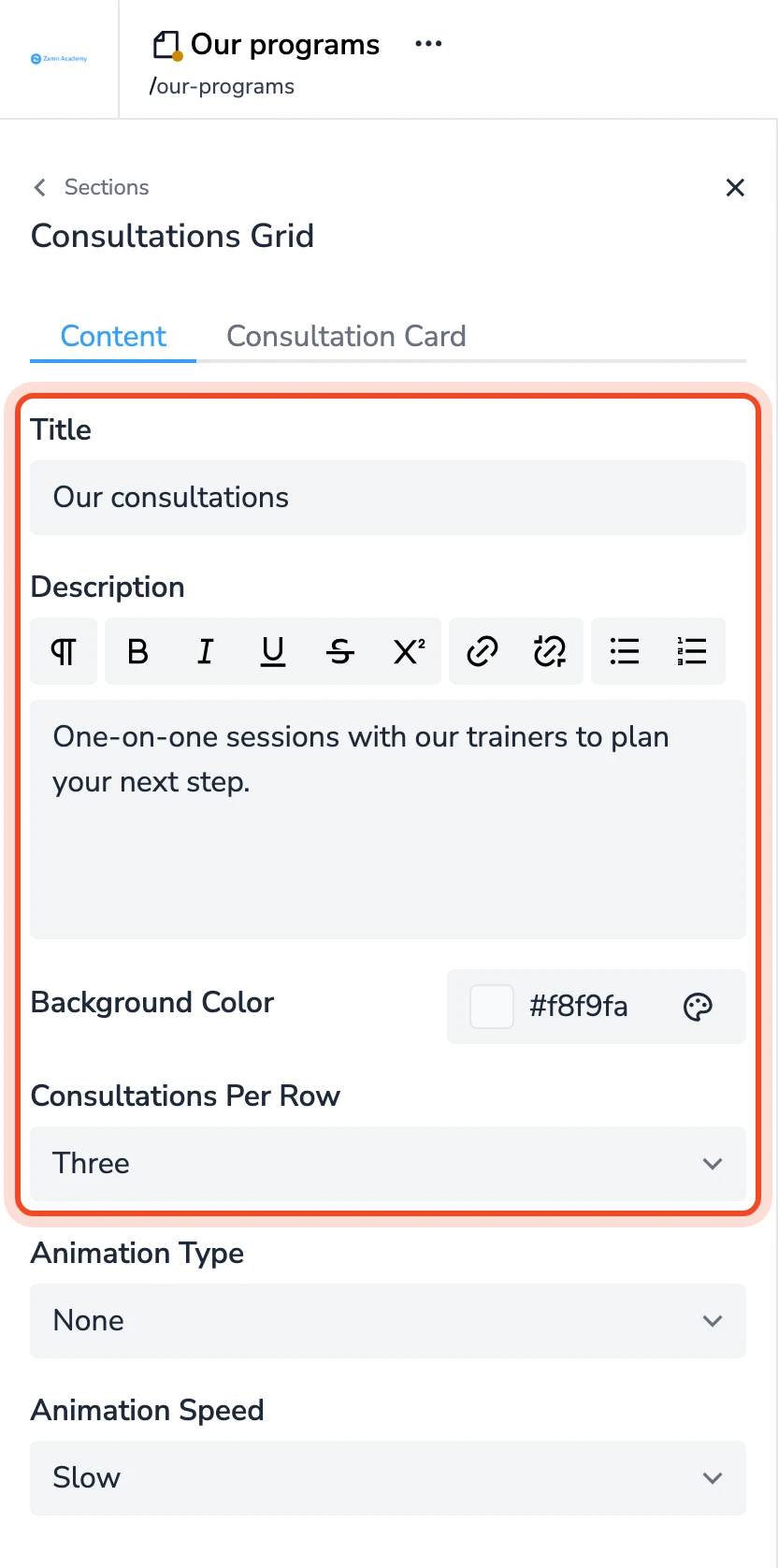
From the Consultation Card tab:
- Click a consultation card to choose the consultation you want to show.
- To remove a consultation, click the trash icon next to it.
- To add a new consultation, click Add a new item.
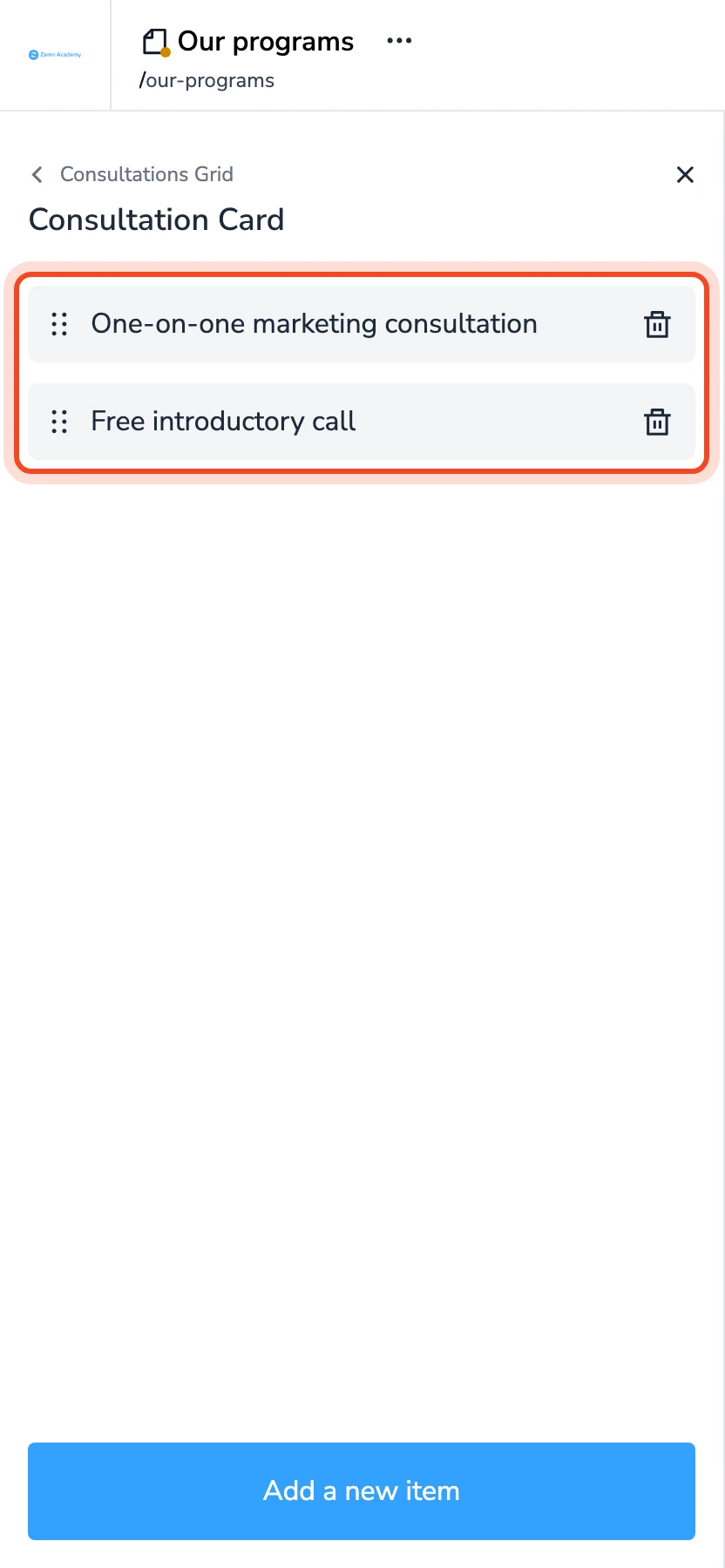
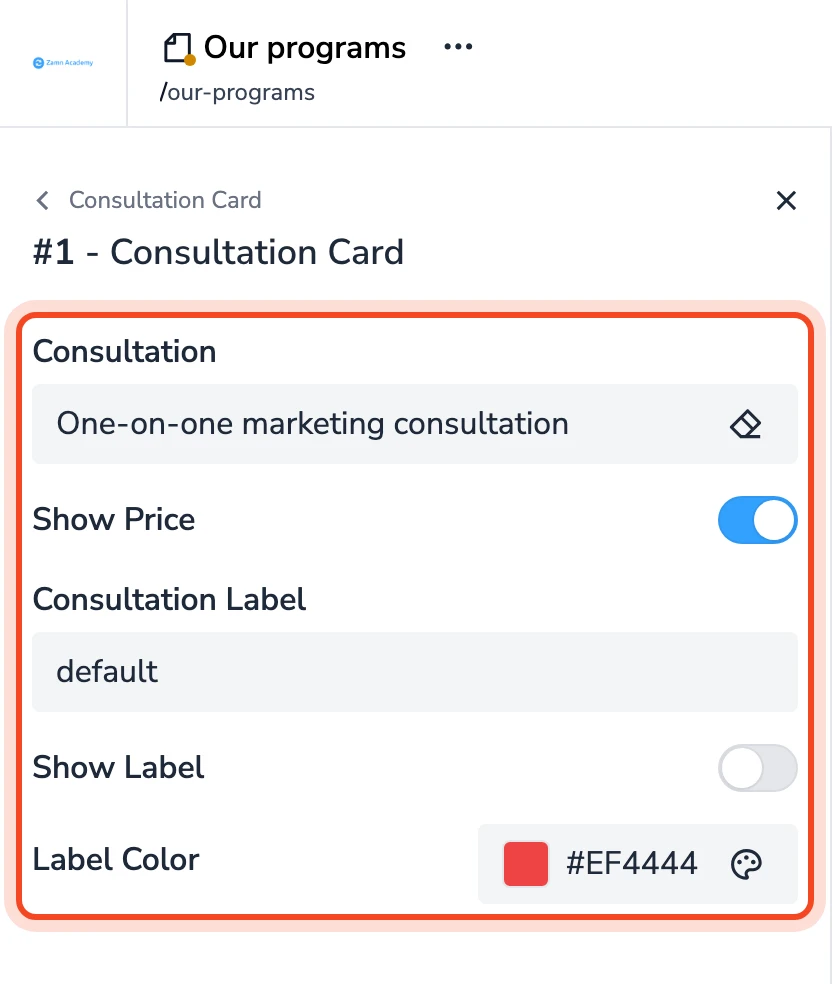
Consultation Card settings
The card shows the consultation information. It has:
- Consultation: choose the consultation you want to show.
- Show Price: show or hide the price.
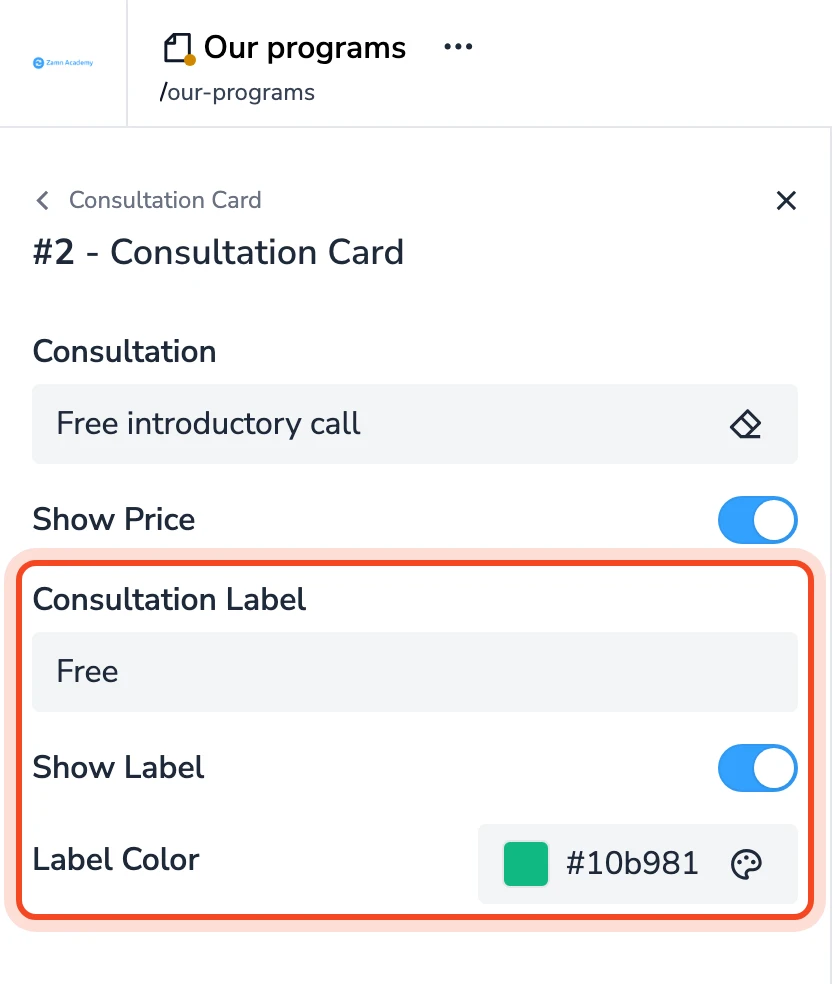
- Consultation Label: write a short note about the consultation, such as: Free or Limited.
- Show Label: show the consultation note.
- Label Color: choose the background color of the note.