Create a page without a header and footer
You can hide the header or the footer from any page of your platform, or hide both, by adding a custom CSS section to the page in the page builder.
Steps
-
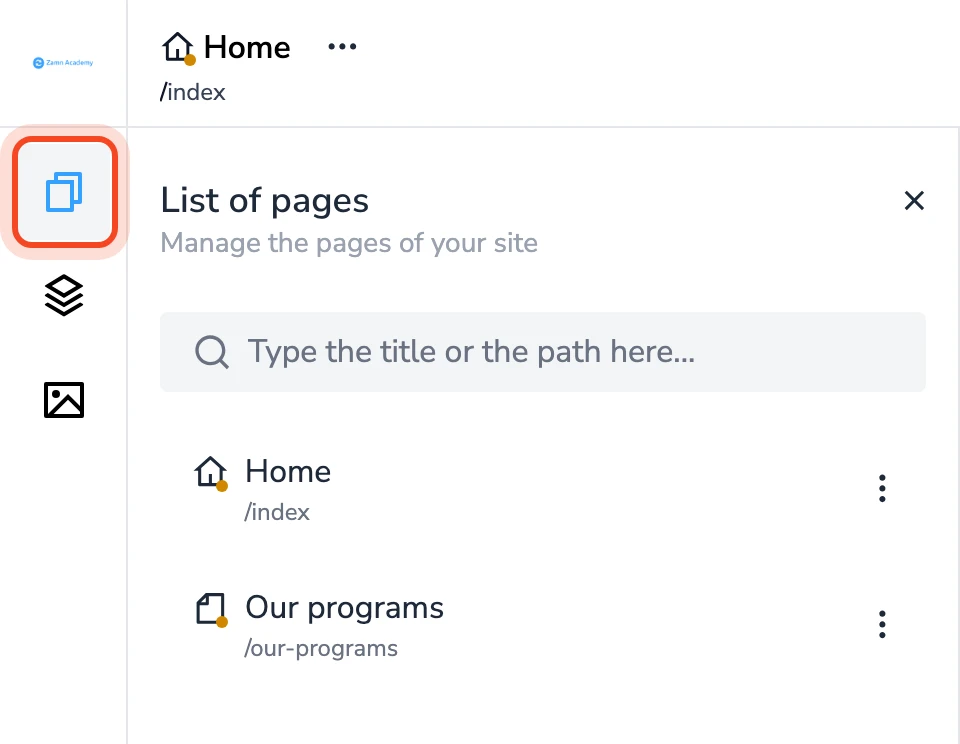
In the side menu, click Manage the pages of your site, then choose the page you want to hide the header or footer from.
-
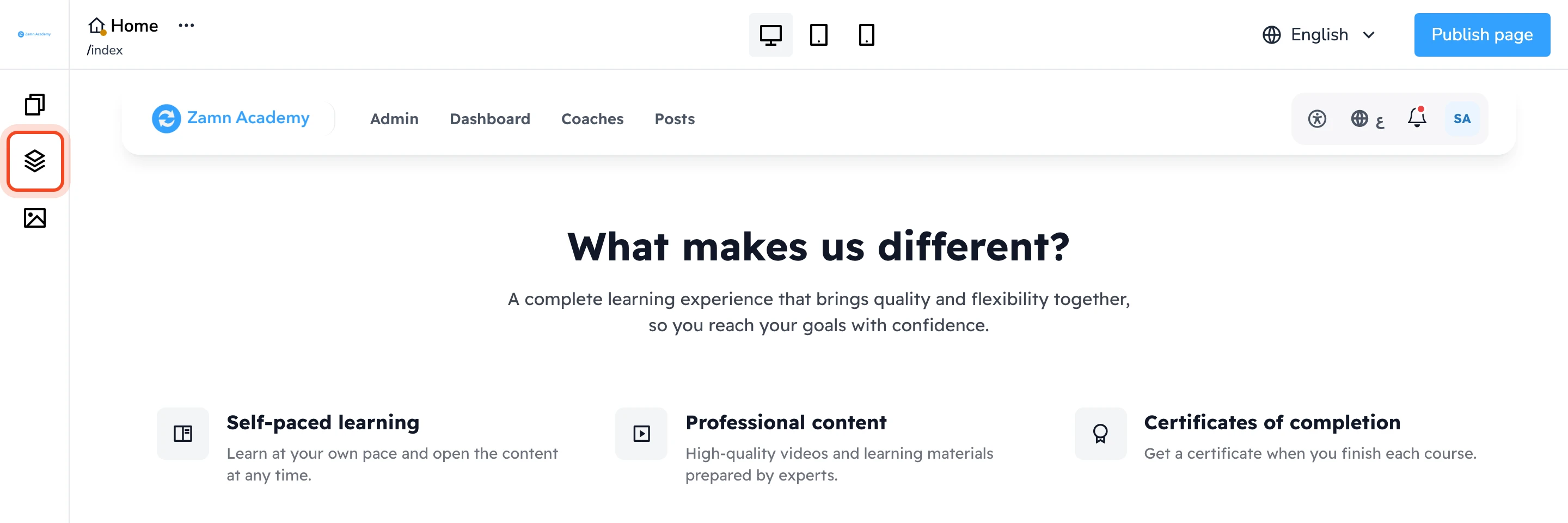
In the side menu, click Re-order / delete the sections of the page.
-
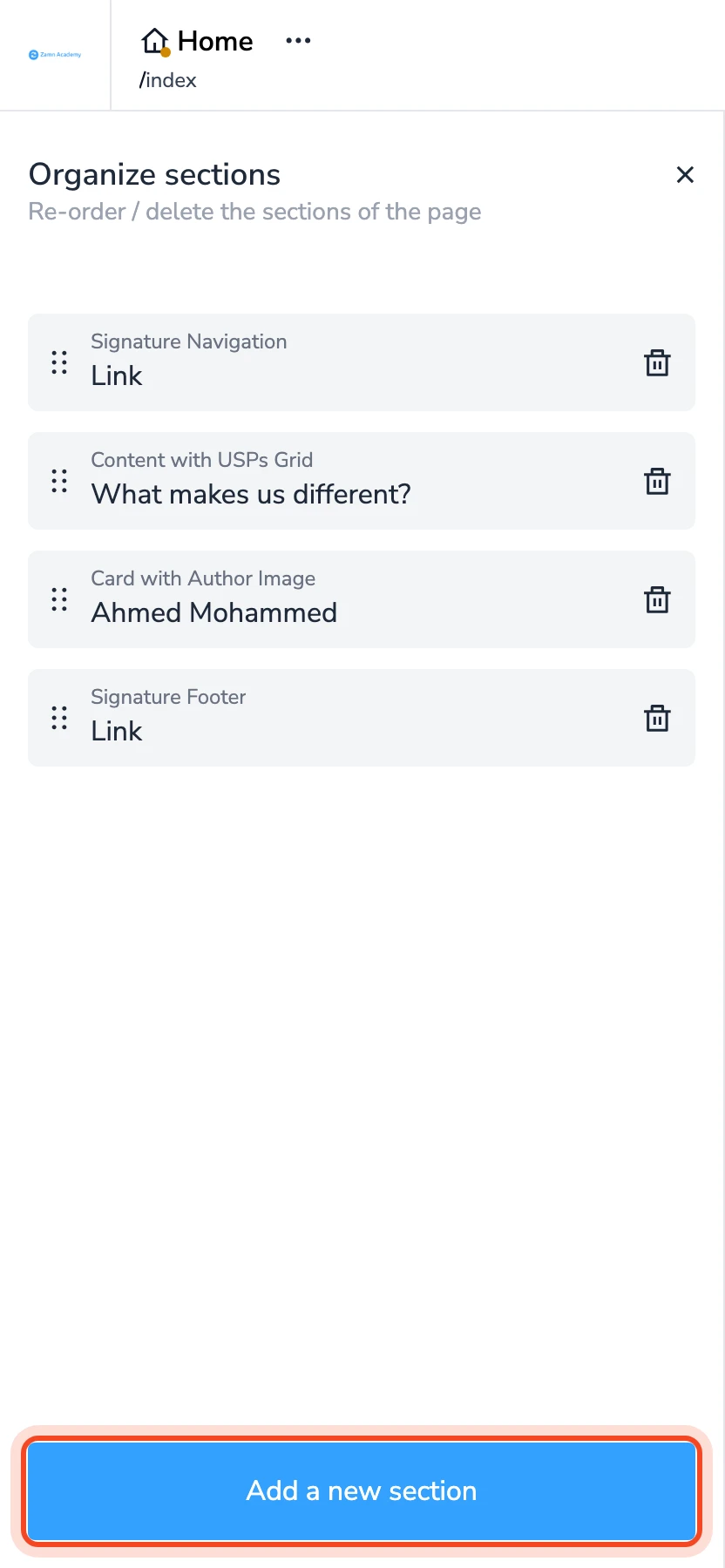
Click Add a new section.
-
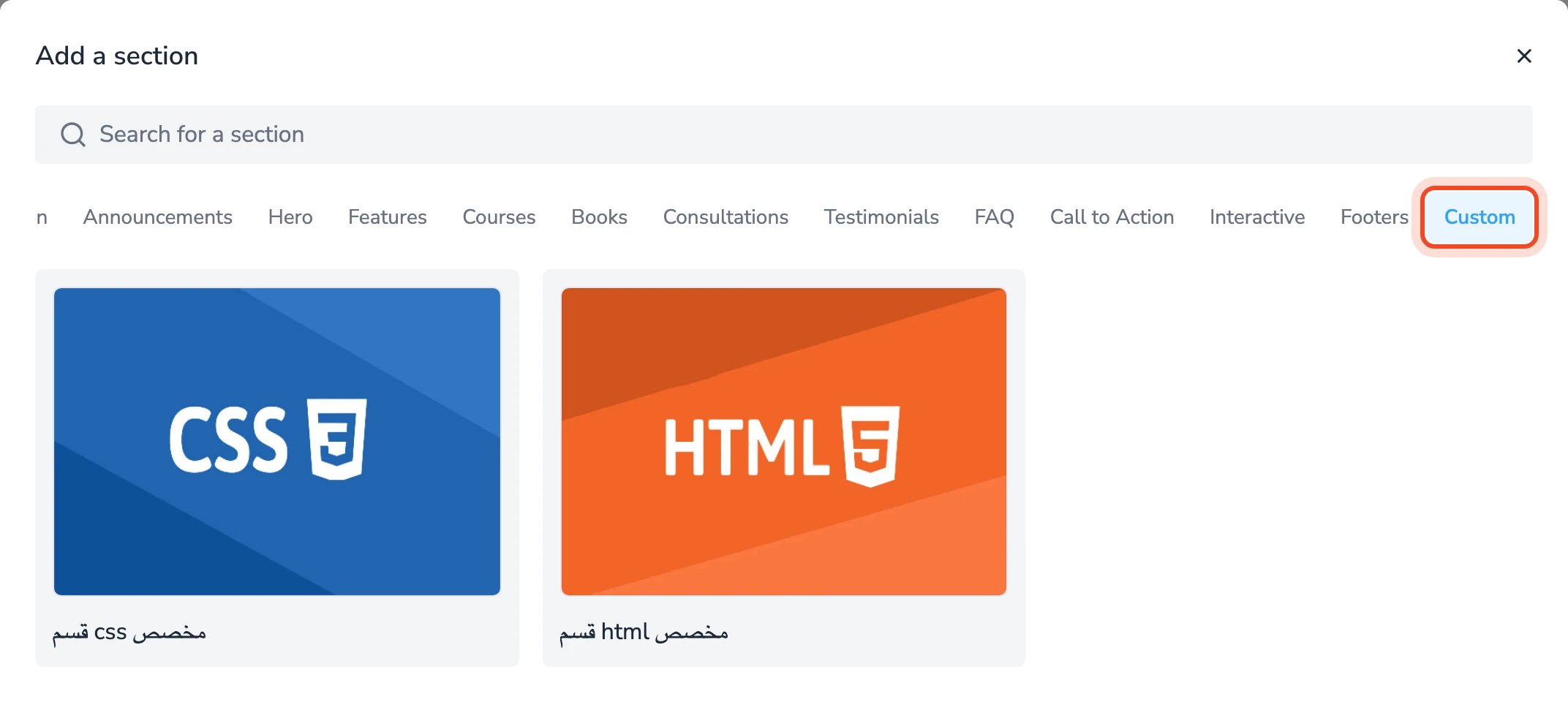
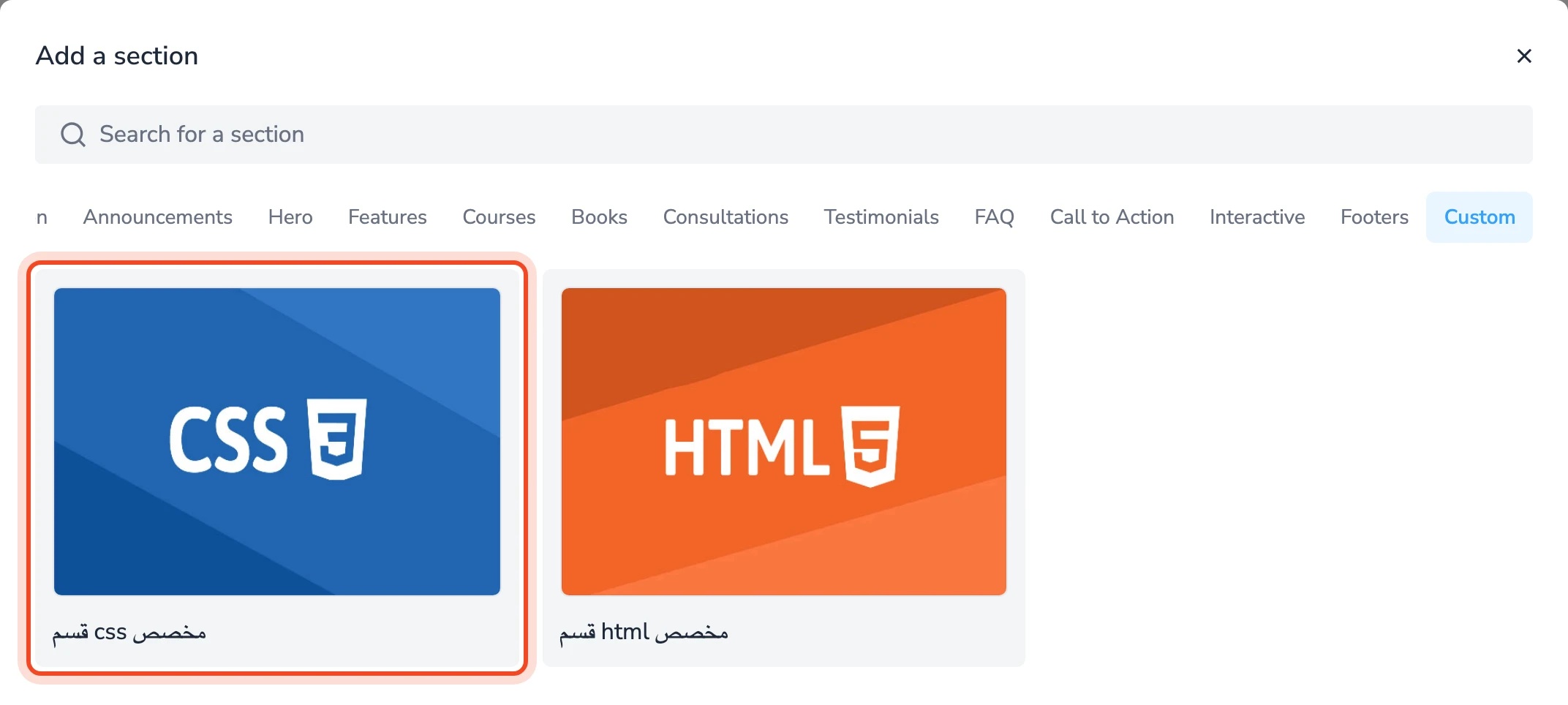
In the Add a section window, choose the Custom tab, then choose the Custom CSS section. This is the blue CSS card. Its name shows in Arabic.
 Note
A page can have only one Custom CSS section. If the page already has one, it does not show in this window, so click it in the list of page sections and add your code there.
-
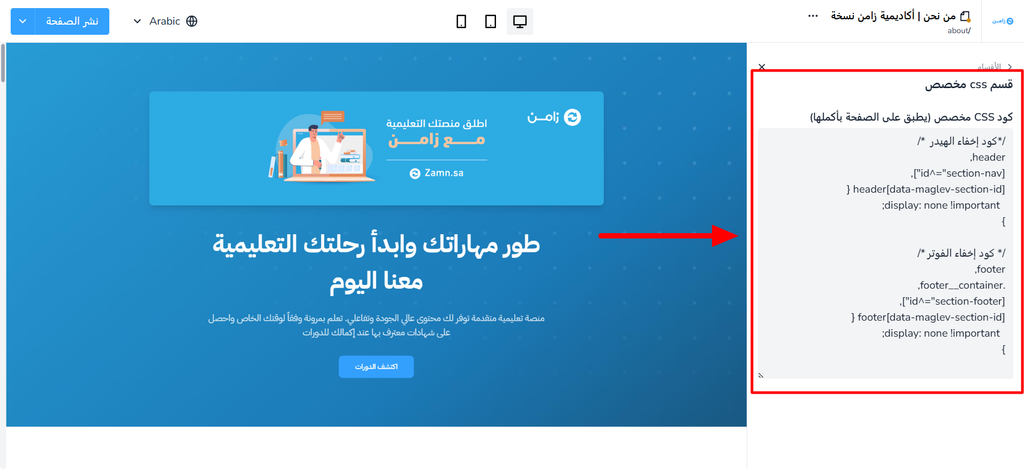
In the Custom CSS code (applies to the whole page) field, add the code for the part you want to hide.
To hide the header:
header,[id^="section-nav"],header[data-maglev-section-id] {display: none !important;}To hide the footer:
footer,.footer__container,[id^="section-footer"],footer[data-maglev-section-id] {display: none !important;}To hide both the header and the footer, add both codes.
-
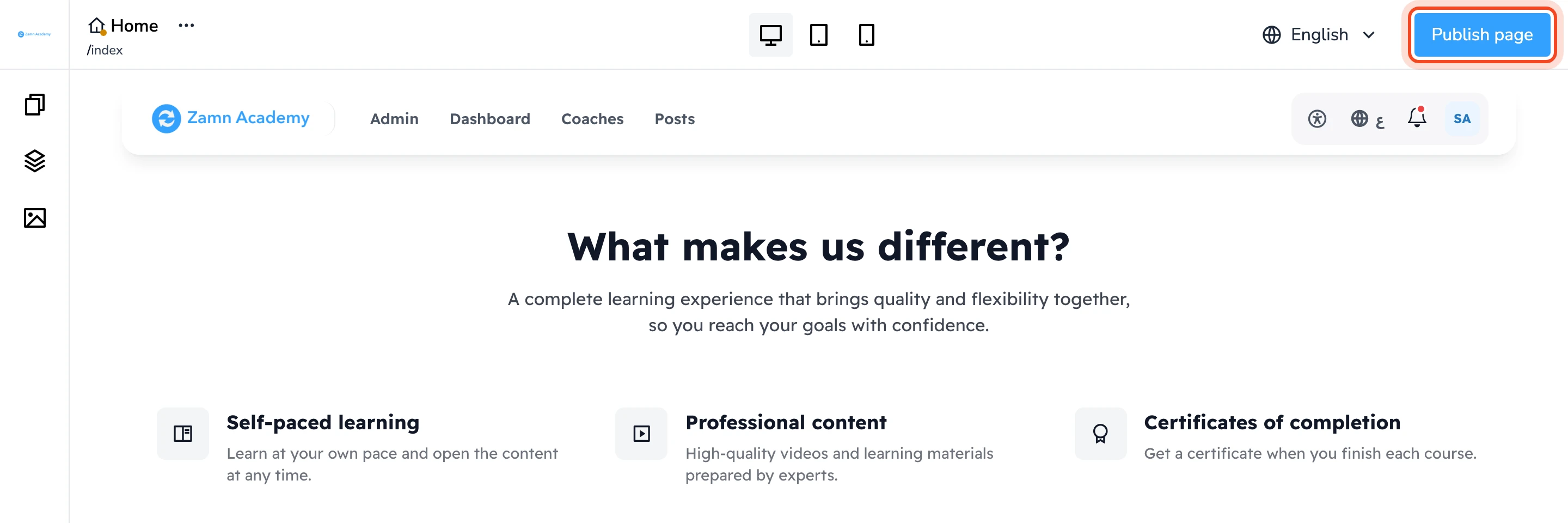
Click the Publish page button to save your changes and apply them to the page.