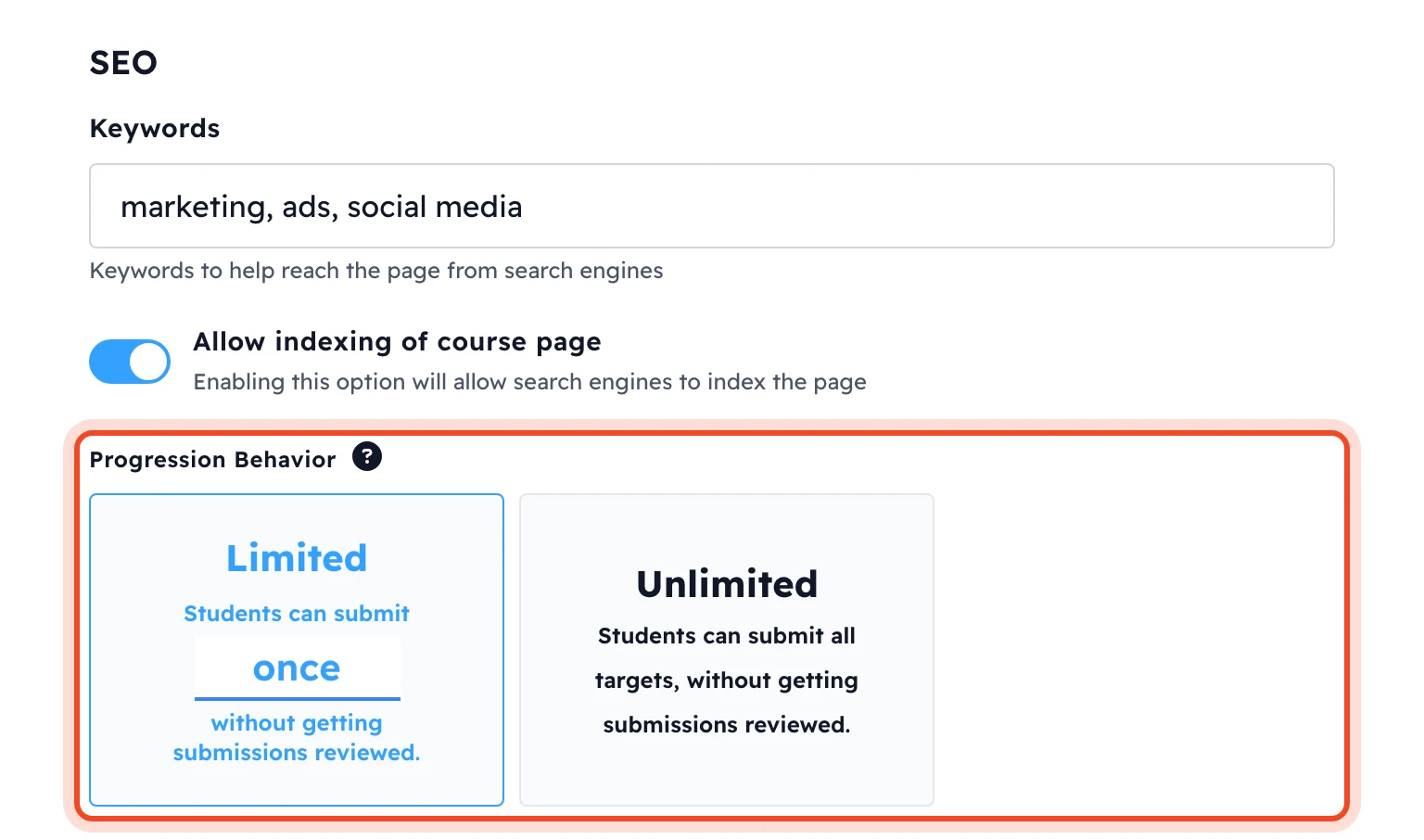
Progression behavior
Progression behavior decides if students can keep submitting work in a course without waiting for coaches to review it, and how far. You can choose one of two ways.
Progression behavior applies only to targets where students submit their work for coaches to review.
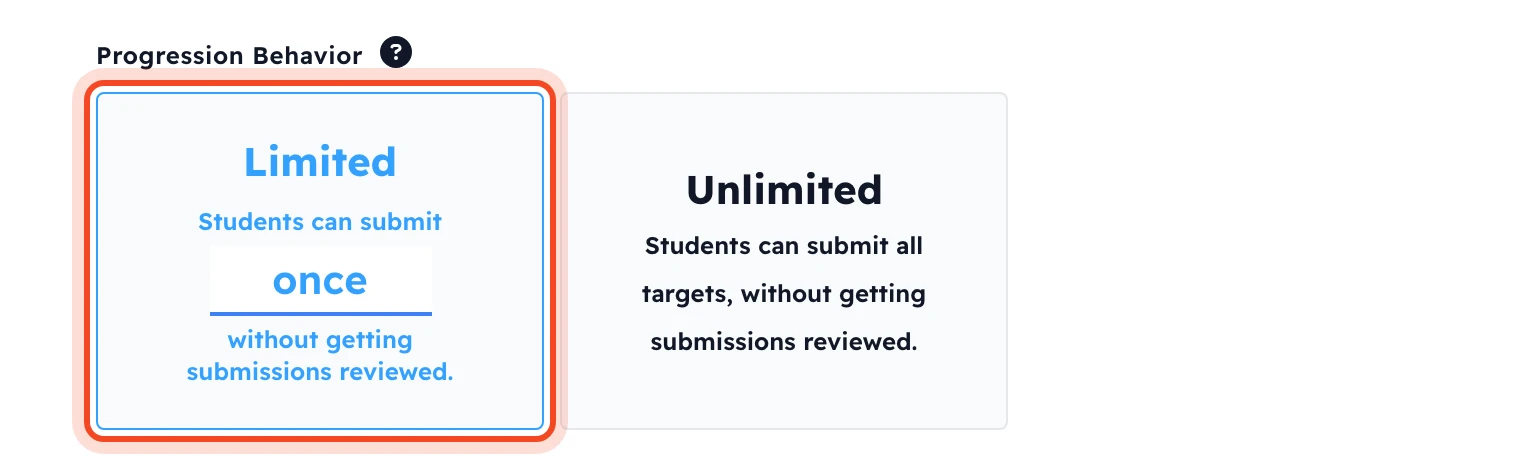
1. Limited (default)
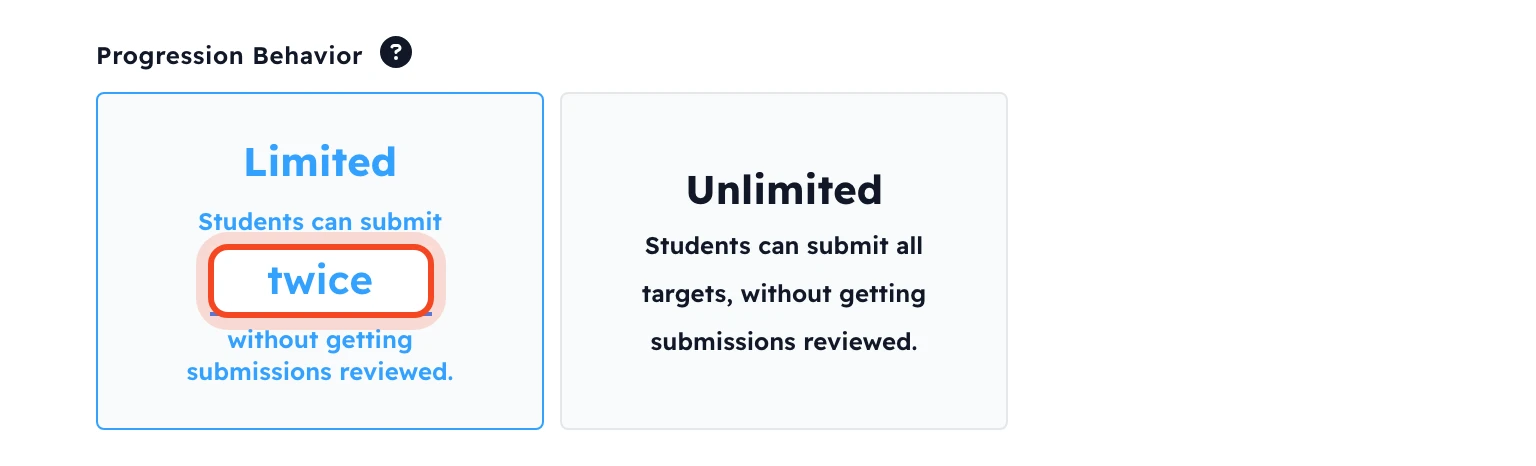
This option lets students submit their work a set number of times without waiting for a coach review. Choose the number from the list: once, twice, thrice or four times.
When the number of a student's submissions waiting for review reaches this number, the other targets that need a review are locked. The student cannot submit them until a coach reviews their submissions.
This option is recommended, because it gives coaches time to review submissions, and does not stop students from working on the next content. At the same time, it stops students from moving through the whole course without their work being reviewed.
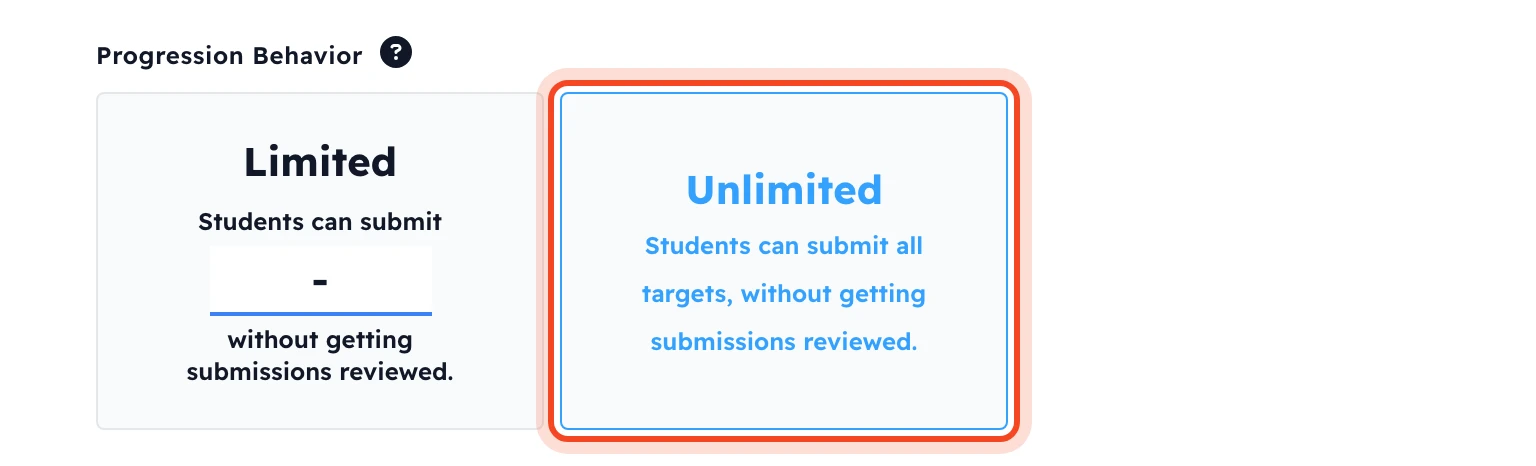
2. Unlimited
This option lets students submit their work on all targets until the end of the course, without waiting for coaches to review it.
Where to find progression behavior
You find Progression Behavior only when you edit a course. It is not in the Add New Course form: every new course starts with Limited, once. To change it:
-
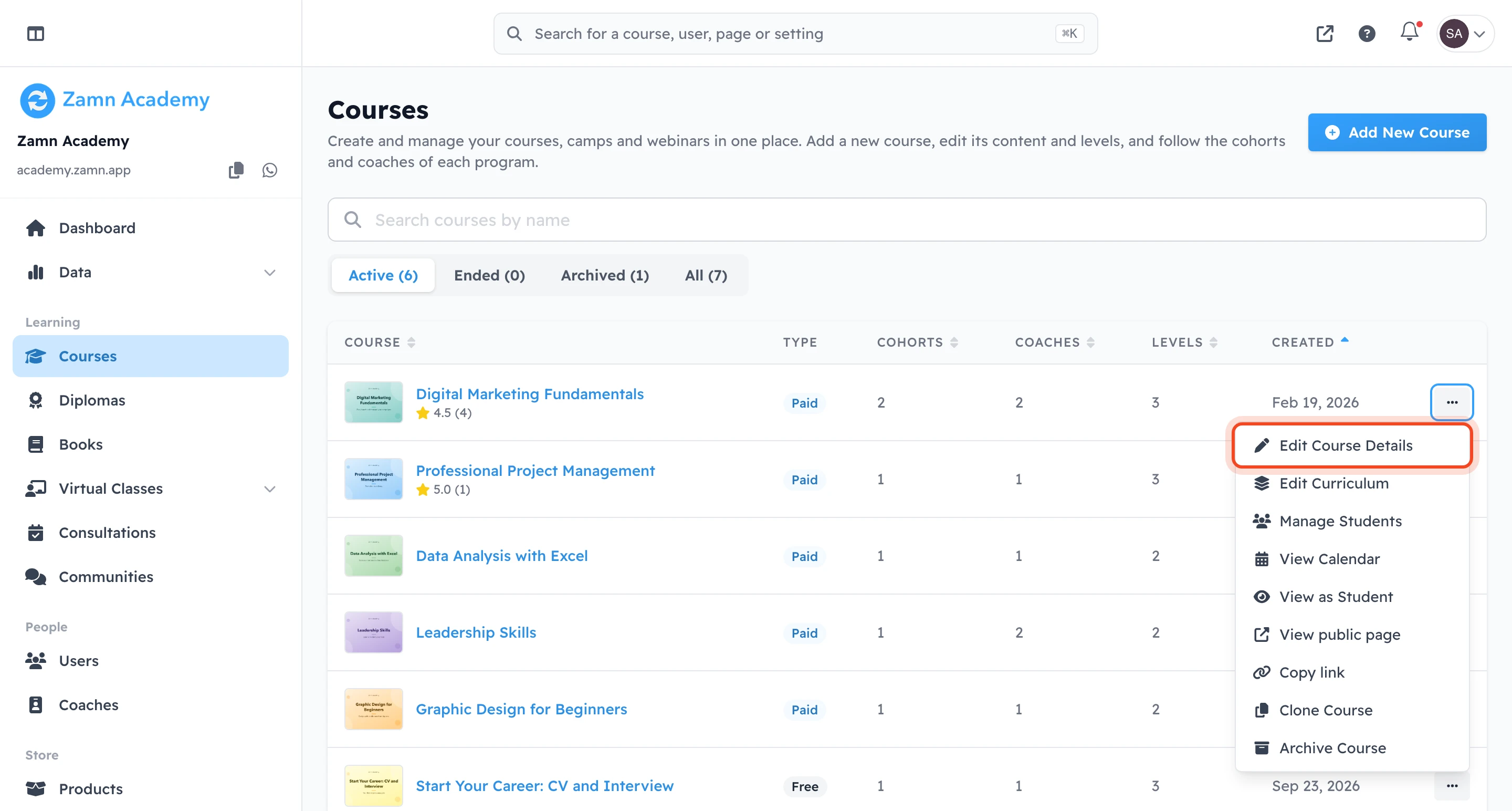
On the Courses page, click ⋯ at the end of the course row, then click Edit Course Details.
-
In the Details tab, choose the progression behavior you want under the SEO settings, then click Update Course.