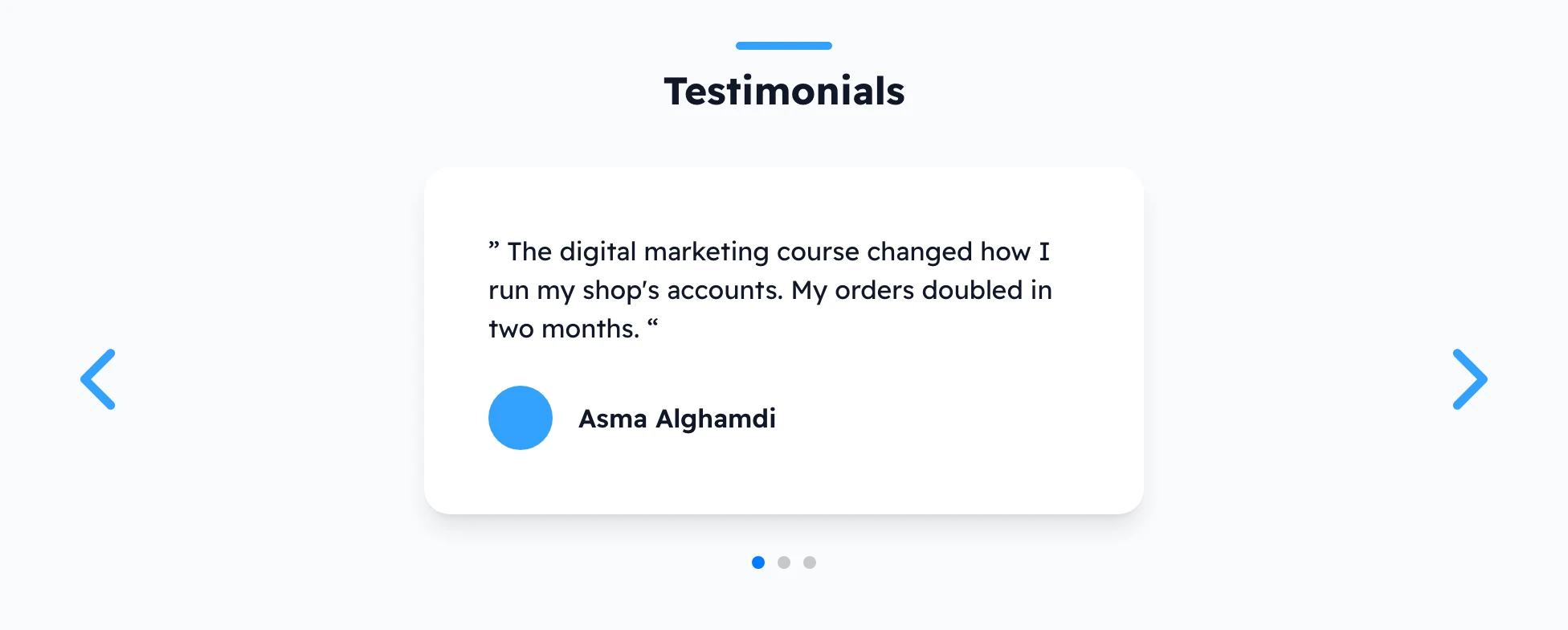
Add testimonials to the home page
You can show testimonials and reviews from your customers and students in the Testimonials section on your platform's home page.
Steps to add a testimonial
-
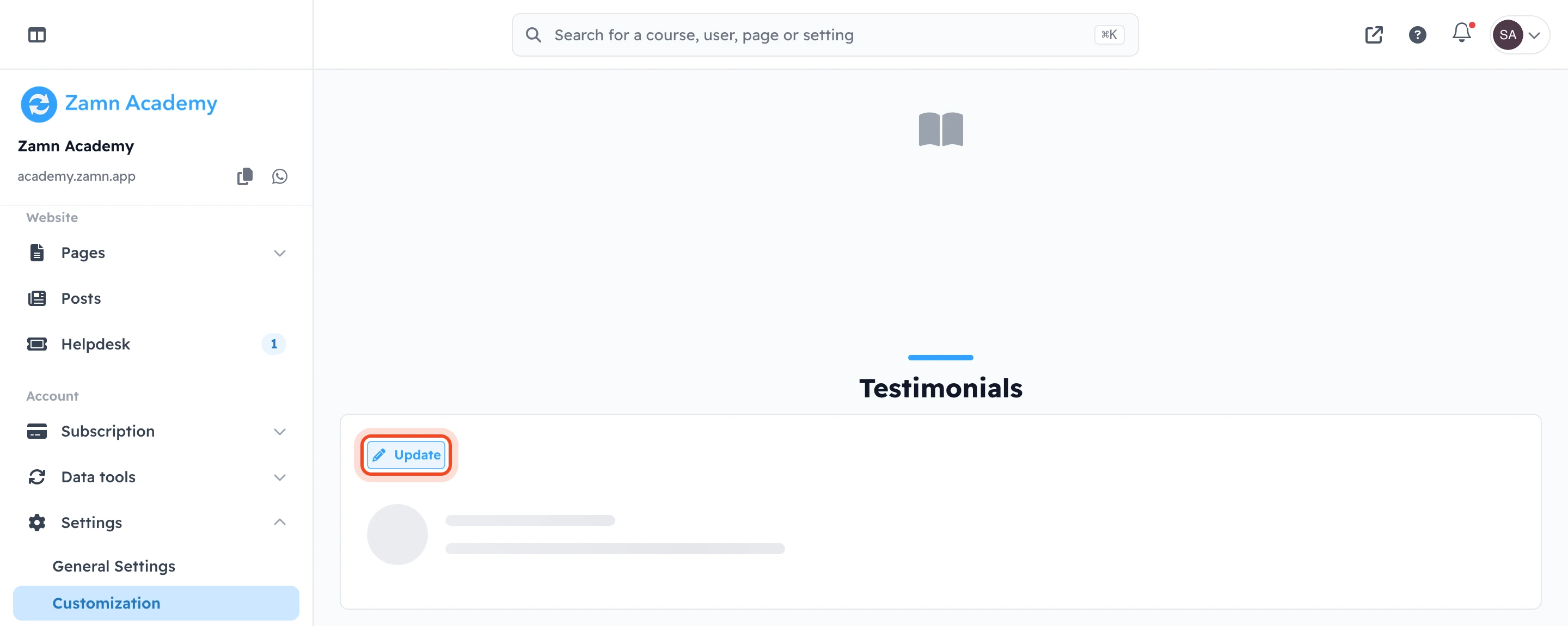
From the dashboard, click Settings, then choose Customization.
-
Go to the Testimonials section, and click Update.
-
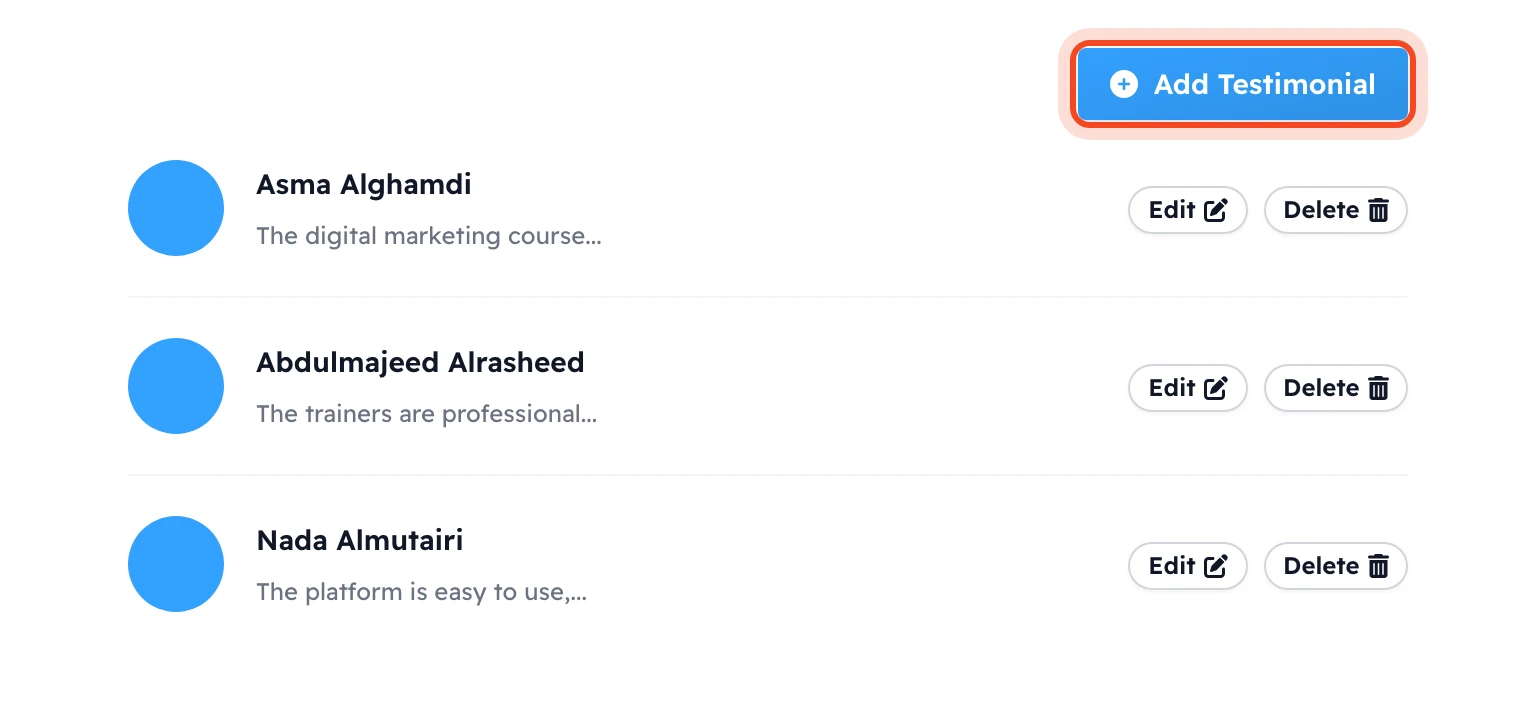
Click Add Testimonial.
 Note
The Add Testimonial button shows only on the Growth, Pro and Organizations plans, and during the free trial.
-
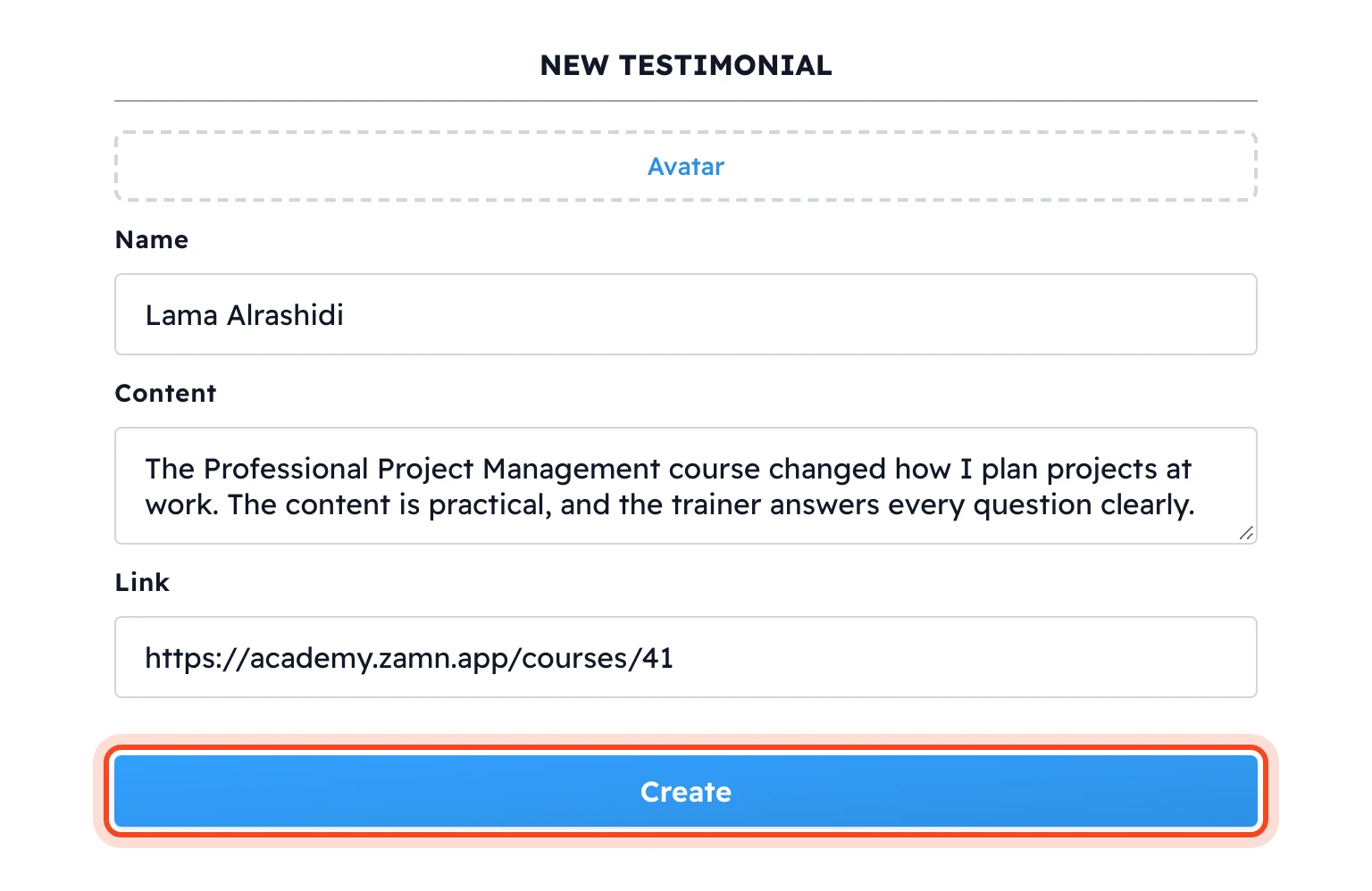
Add the needed details:
- Avatar: a picture of the person who gave the testimonial.
- Name: the name of the person who gave the testimonial.
- Content: the testimonial text, as the person wrote it.
- Link: a link to where the testimonial was posted (optional).
-
Click Create to publish the testimonial.
The testimonial then shows in the Testimonials section on your platform's home page.