Rename your products
You can change the names of the product sections that show on your platform's home page, such as programs, books and consultations, to fit your business. This guide is for the platform admin.
Steps to rename your products
-
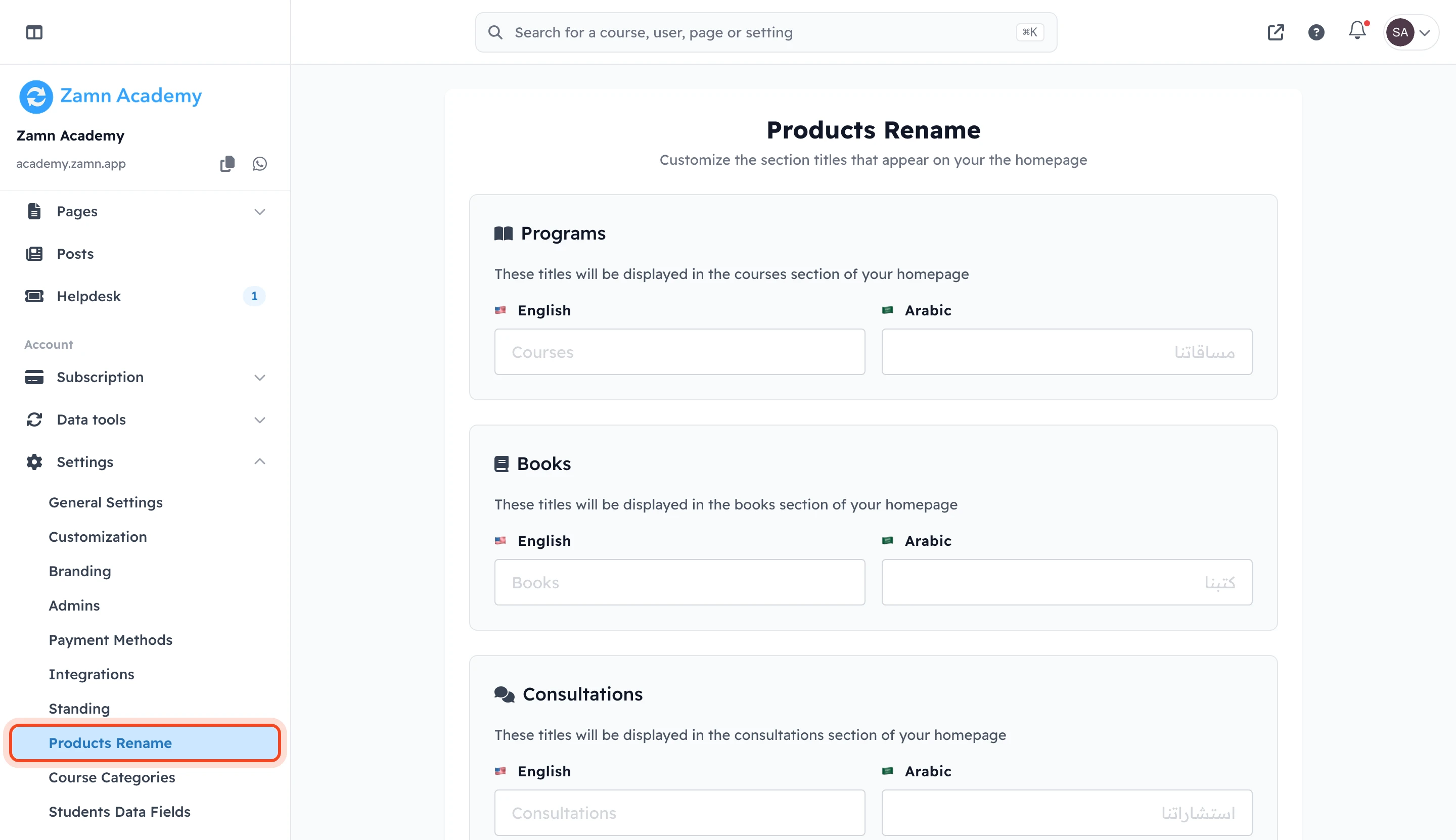
From the dashboard, click Settings.
-
Click Products Rename.
-
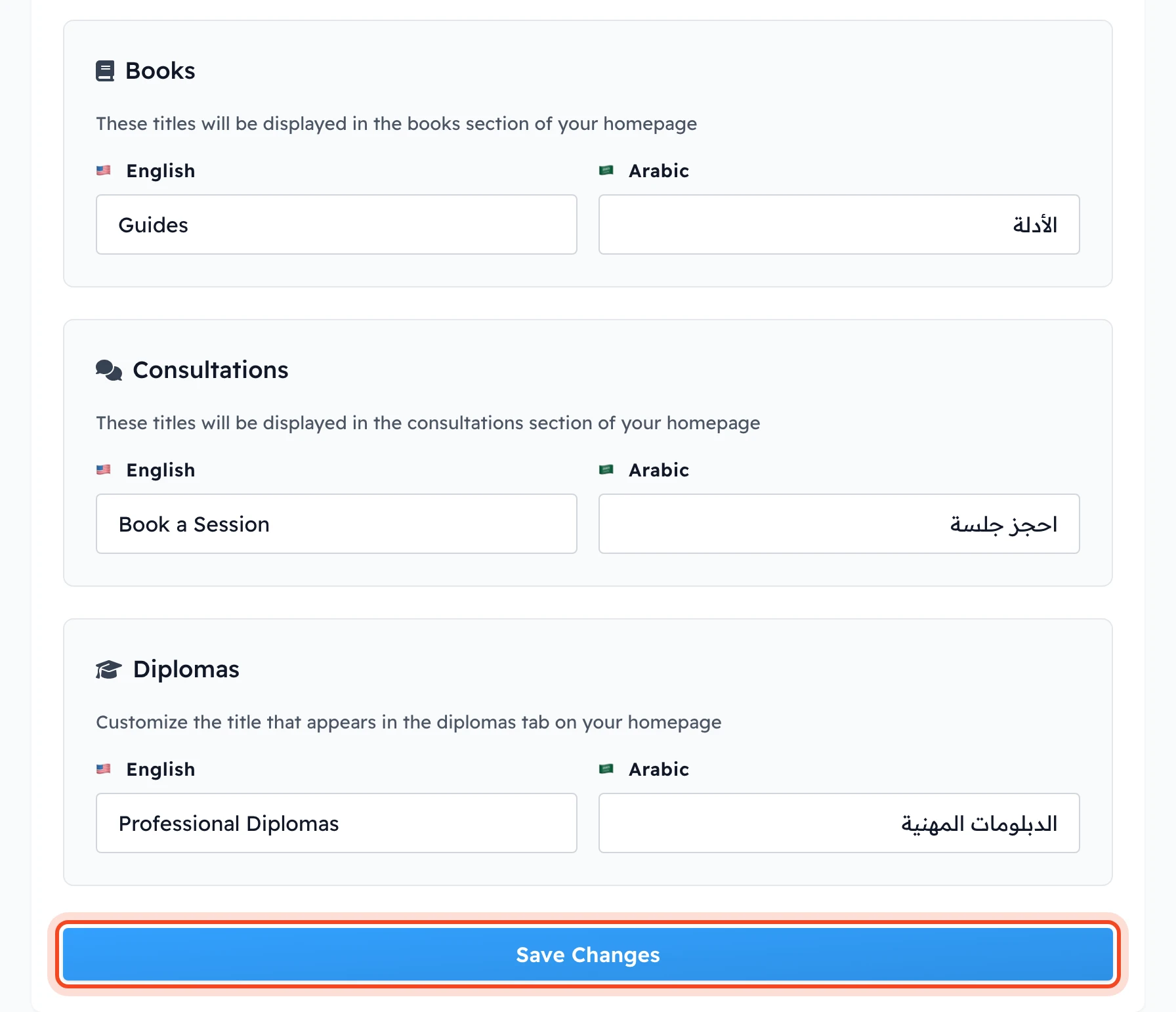
Type the new name in the section of the product you want to rename: Programs, Books, Consultations or Diplomas. Each section has two fields, English and Arabic. Each name shows when a visitor browses your platform in that language.
-
Click Save Changes.
Note
The names in the screenshots are only examples.
Example
The default section names on the home page:

The section names after the change:
