Product sales
On the Sales page you follow your product sales and your balance, and you see who bought each product. This guide is for the platform admin.
Open the Sales page
-
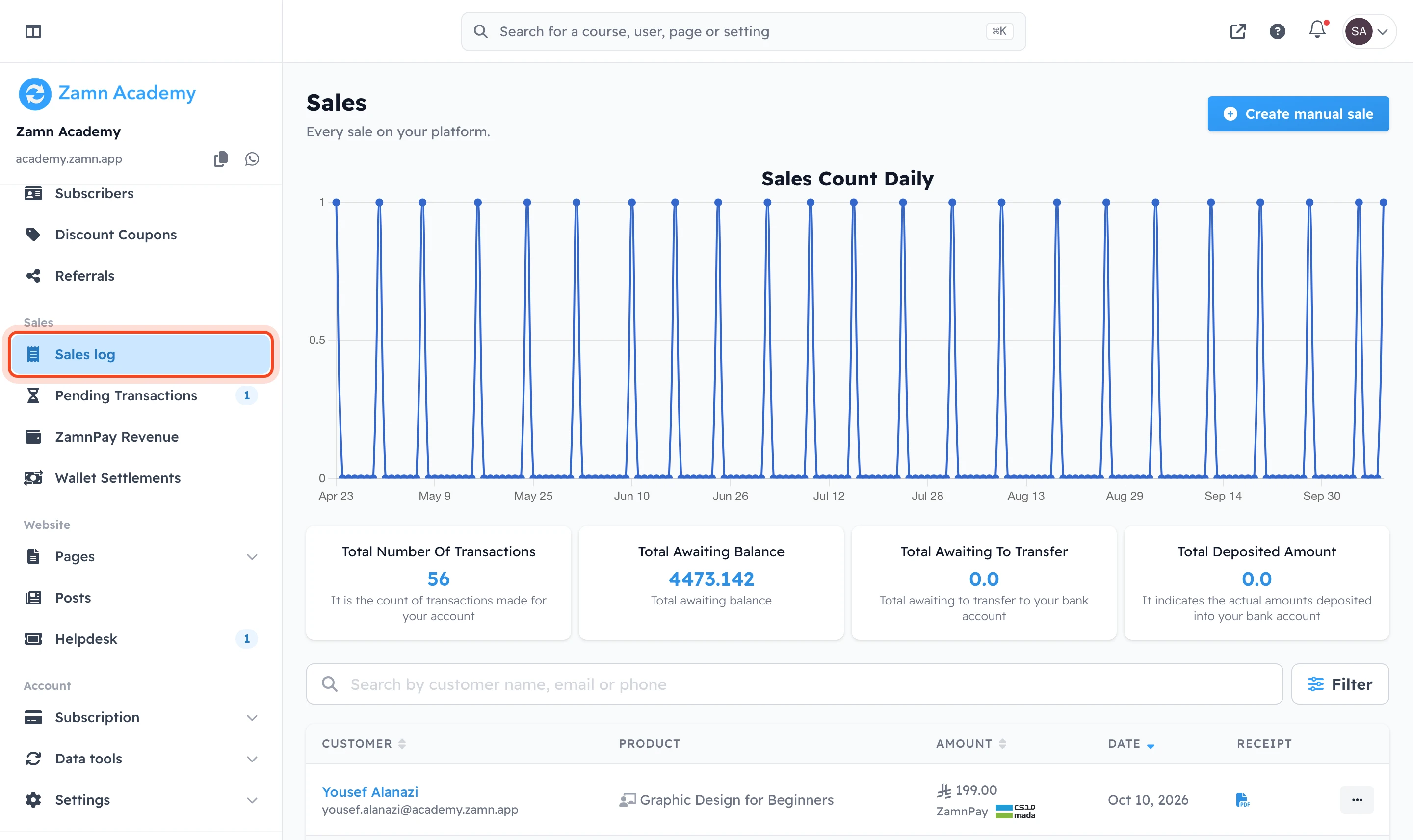
In the side menu of the dashboard, go to the Sales group.
-
Click Sales log.
Sections of the Sales page
The Sales page has a few sections that help you follow your business.
Chart
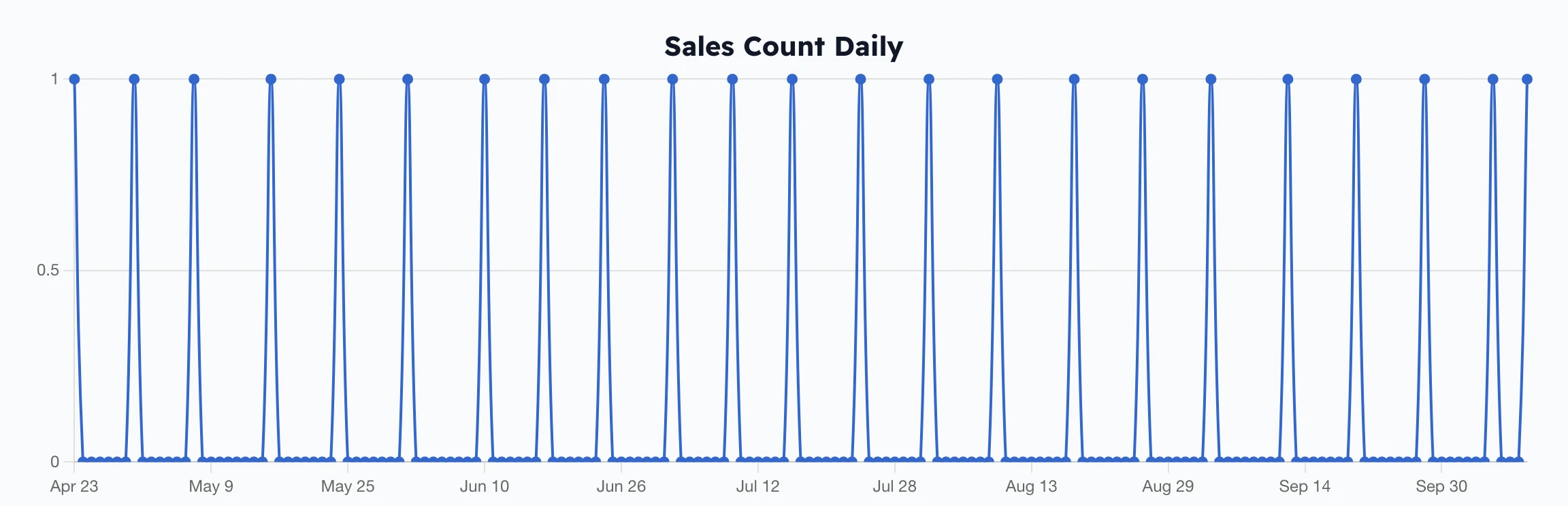
A chart called Sales Count Daily shows the number of sales on each day. It helps you see your busiest days and follow your sales clearly.
Statistics
Under the chart you see these numbers:
- Total Number Of Transactions: the number of payments made through Zamn Pay.
- Total Awaiting Balance: the amount held in your account until the hold period set for your account ends.
- Total Awaiting To Transfer: the balance ready to be sent to your bank account. It must be more than the minimum set in the integration terms.
- Total Deposited Amount: the total amount that was actually sent to your bank account.
These numbers come from your Zamn Pay account. If you do not use Zamn Pay, they show 0.

Sales table
Under the statistics you find a table of all the sales of your platform.
- To find a buyer, type their name, email or phone in the search box.
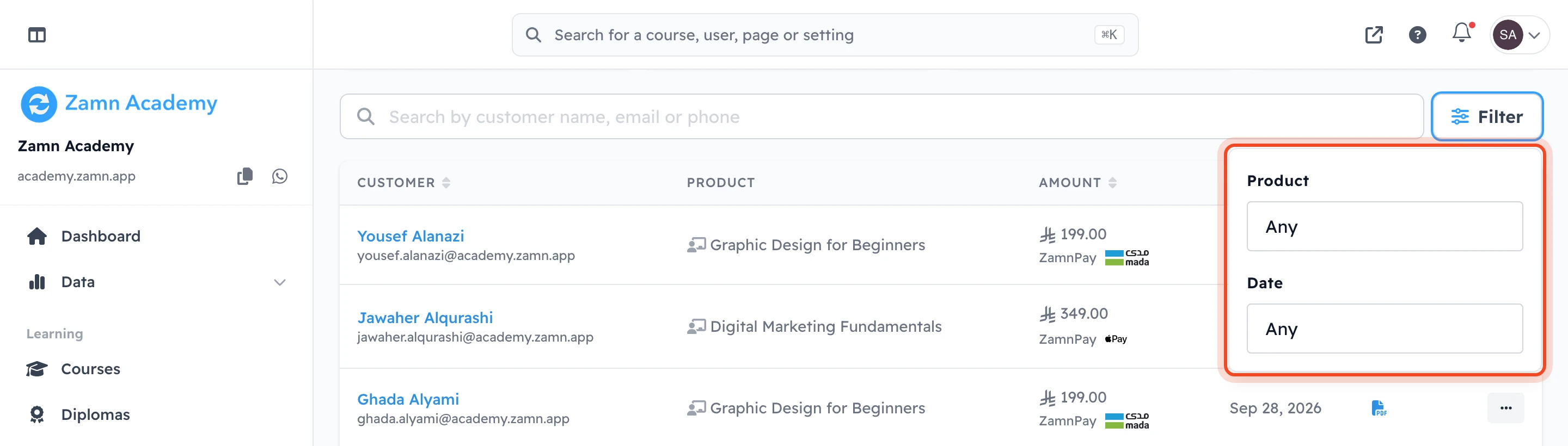
- To see the sales of one product, click Filter, then choose the product in Product.
- To see the sales of a period, click Filter, then choose Today, Last 7 days, Last 30 days or Last 3 months in Date.
- To sort the table, click Customer, Amount or Date at the top of the table. Click it again to change the order.
You find the number of sales and the price of each product on the Products page.
Purchase details
Each row in the table is one purchase. It shows:
- Customer: the buyer name, and their email or phone.
- Product: the product they bought.
- Amount: the purchase price. Under it you see the payment method, and the discount coupon code next to Coupon if the buyer used one.
- Date: the purchase date. On a small screen, the date shows under the product name.
- Receipt: the receipt icon, to generate the purchase receipt and then download it.
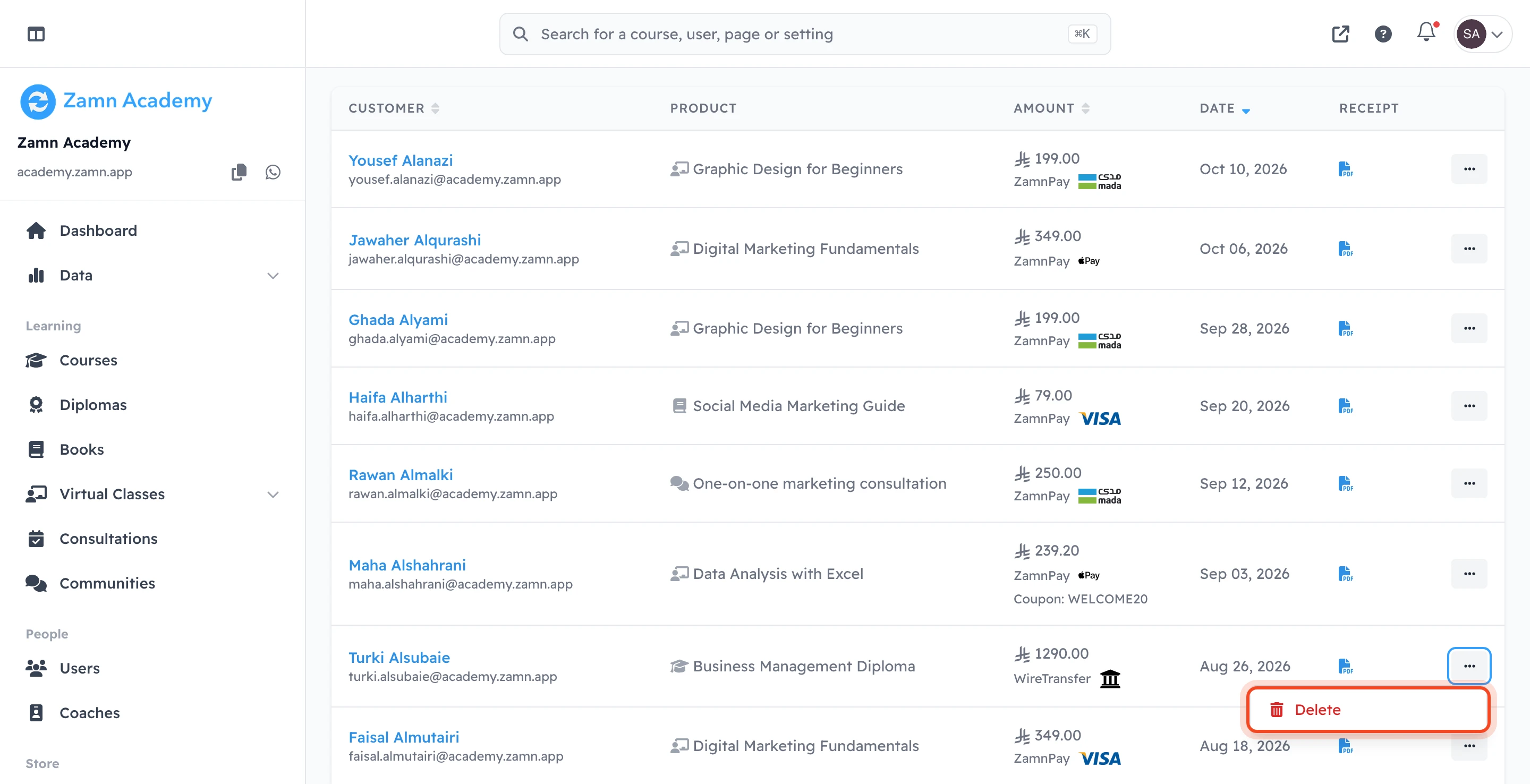
To delete a purchase that you added by hand, click the ⋯ (Actions) button at the end of its row, then click Delete. Other sales cannot be deleted: for them, Delete is grey, with the note Only sales added by hand can be deleted.
The Receipt column shows only if you added your platform's VAT Registration Number in the Saudi Business Center integration.
You can add a buyer who paid for a course another way, such as a bank transfer. Click Create manual sale at the top of the page, next to the page title, then choose the course in Course.