Student satisfaction survey
You can add a survey to your course to measure how happy students are with it, and then see their answers. This guide is for whoever manages course content on your platform.
Steps to create a student satisfaction survey
-
From the dashboard, go to the Courses page.
-
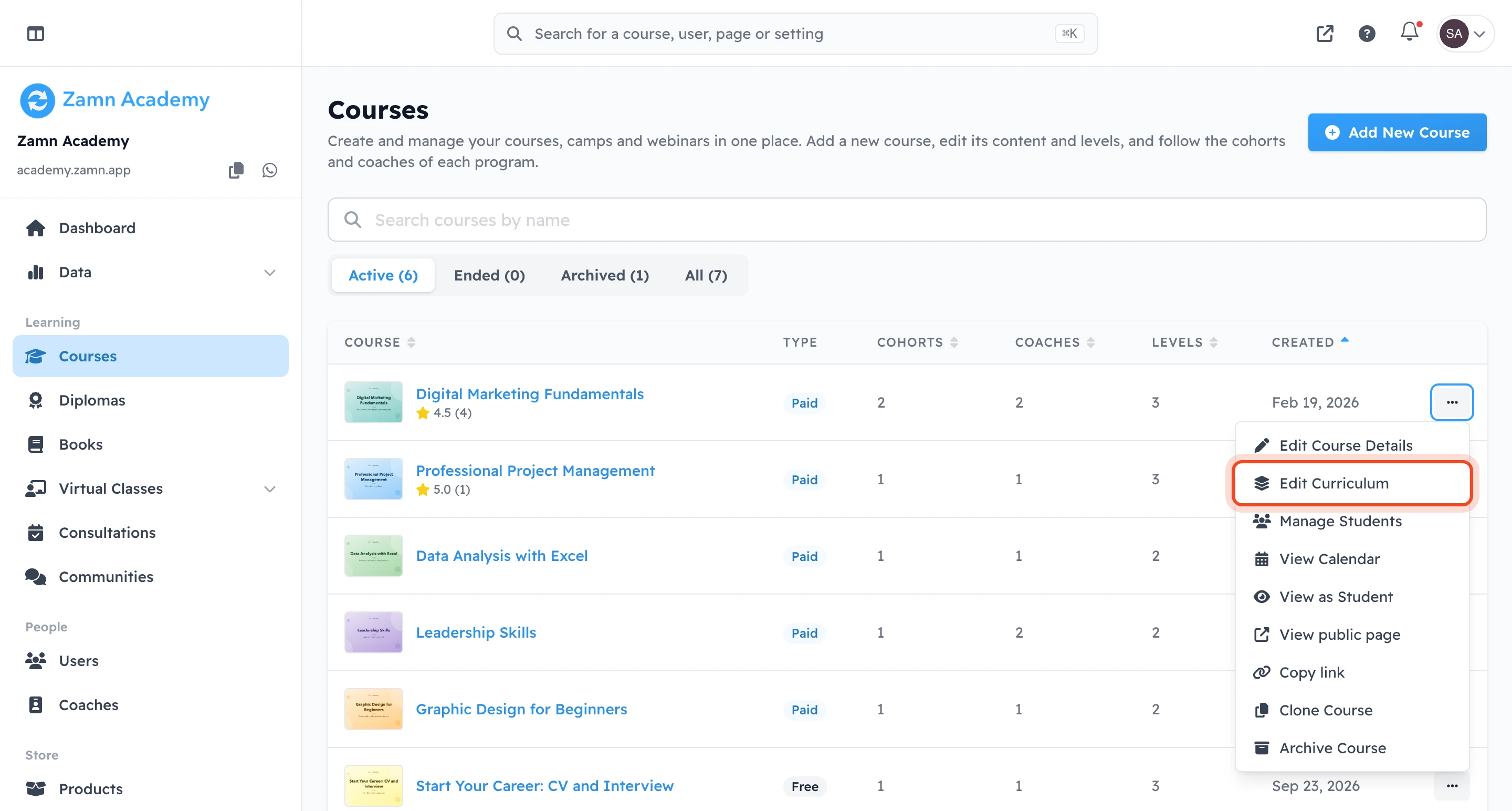
Click the name of the course, or click ⋯ at the end of its row, then click Edit Curriculum.
-
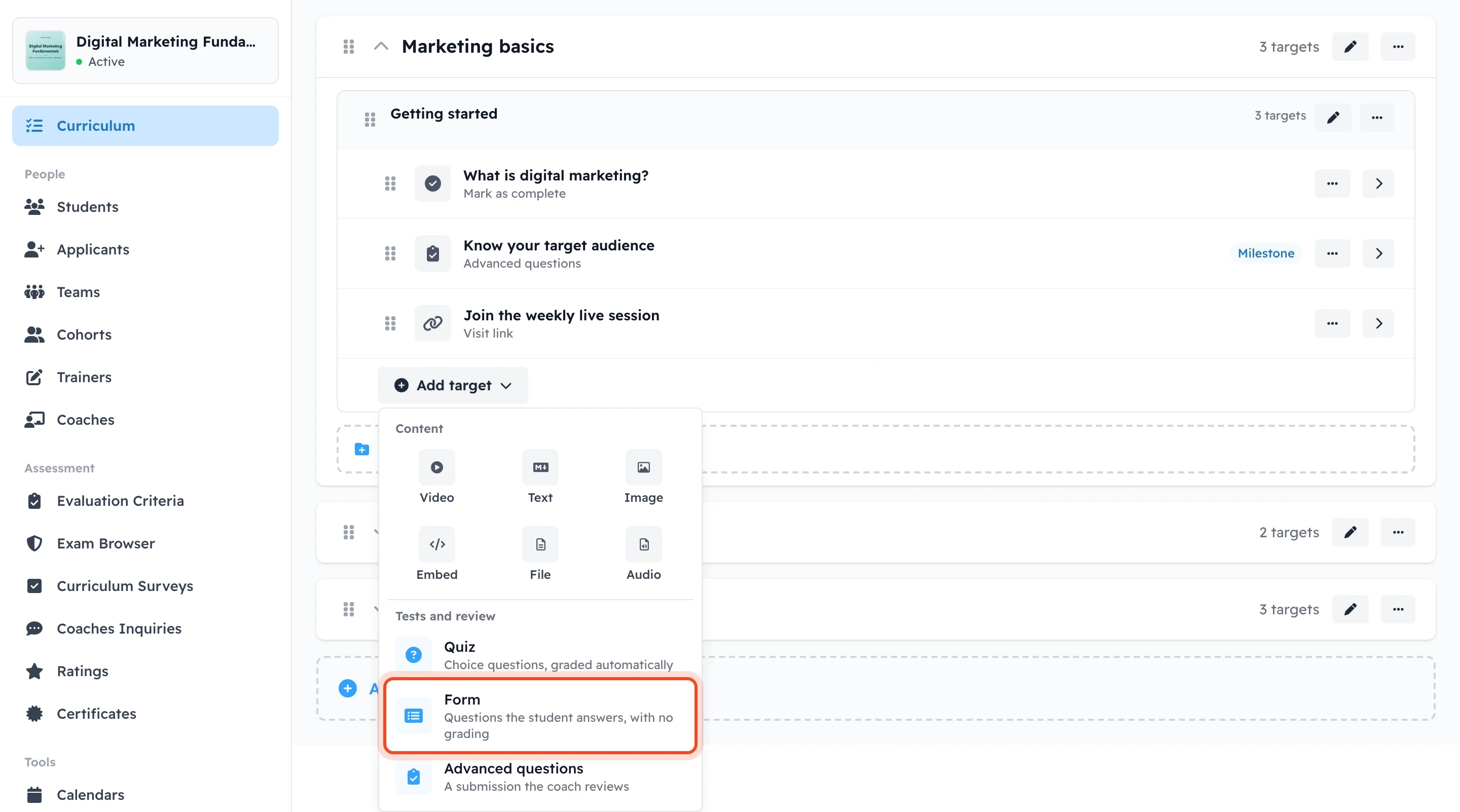
Click Add target at the end of a target group, then choose Form. The new target opens right away, and it is a Draft.
tipPut the satisfaction survey at the end of the course.
-
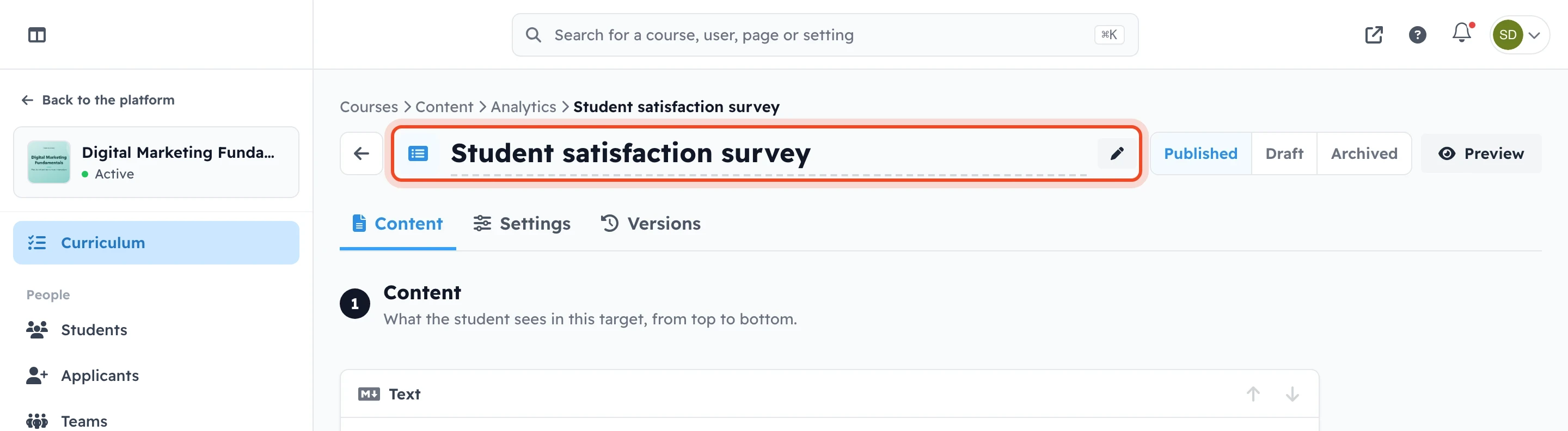
Click the pencil next to the title at the top of the page, and type the survey title.
-
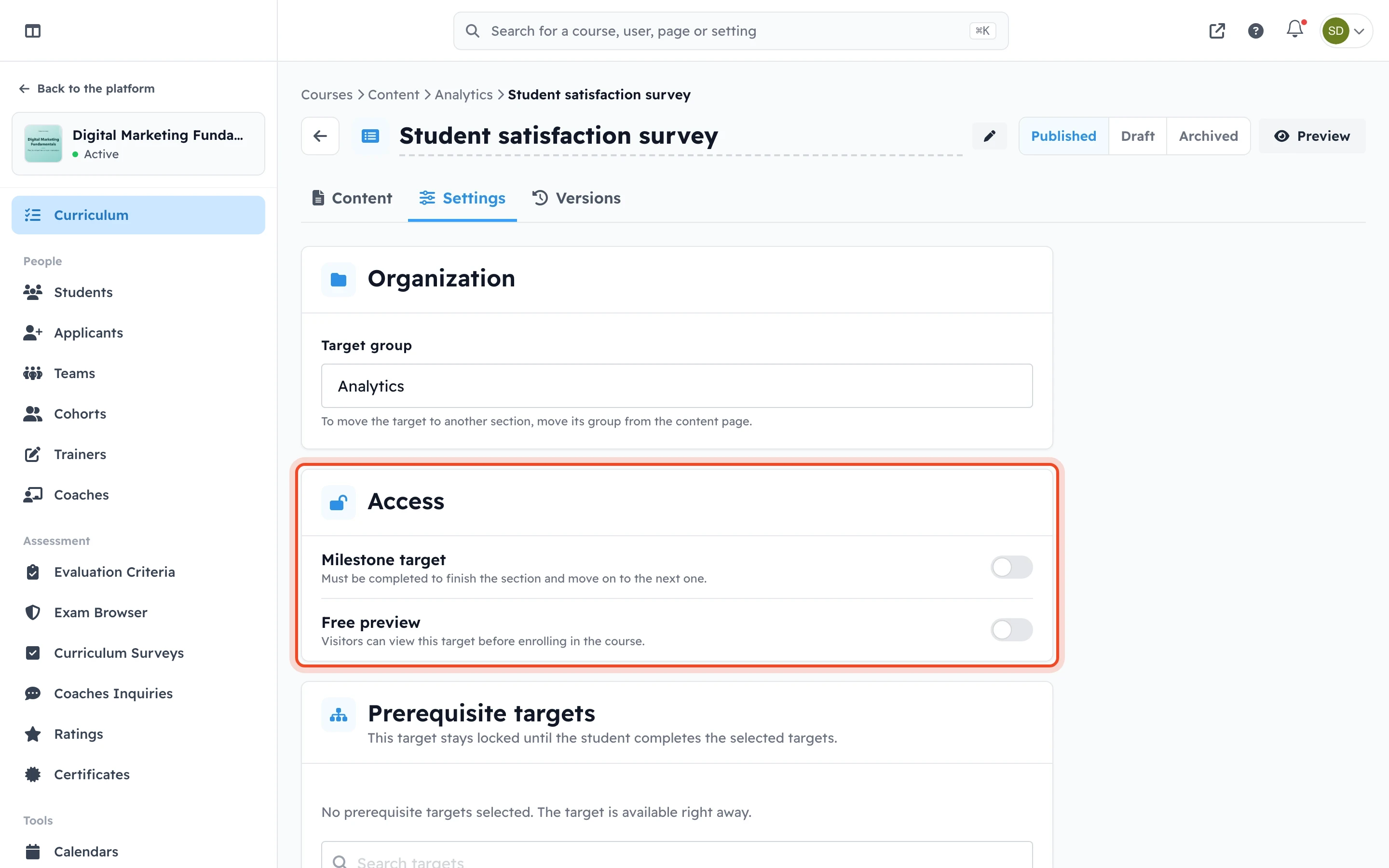
Set up the target on the Settings tab:
- Change the Target group if you want.
- Turn on Milestone target if the target is a milestone.
- Choose the targets that must be done before this one, under Prerequisite targets.
-
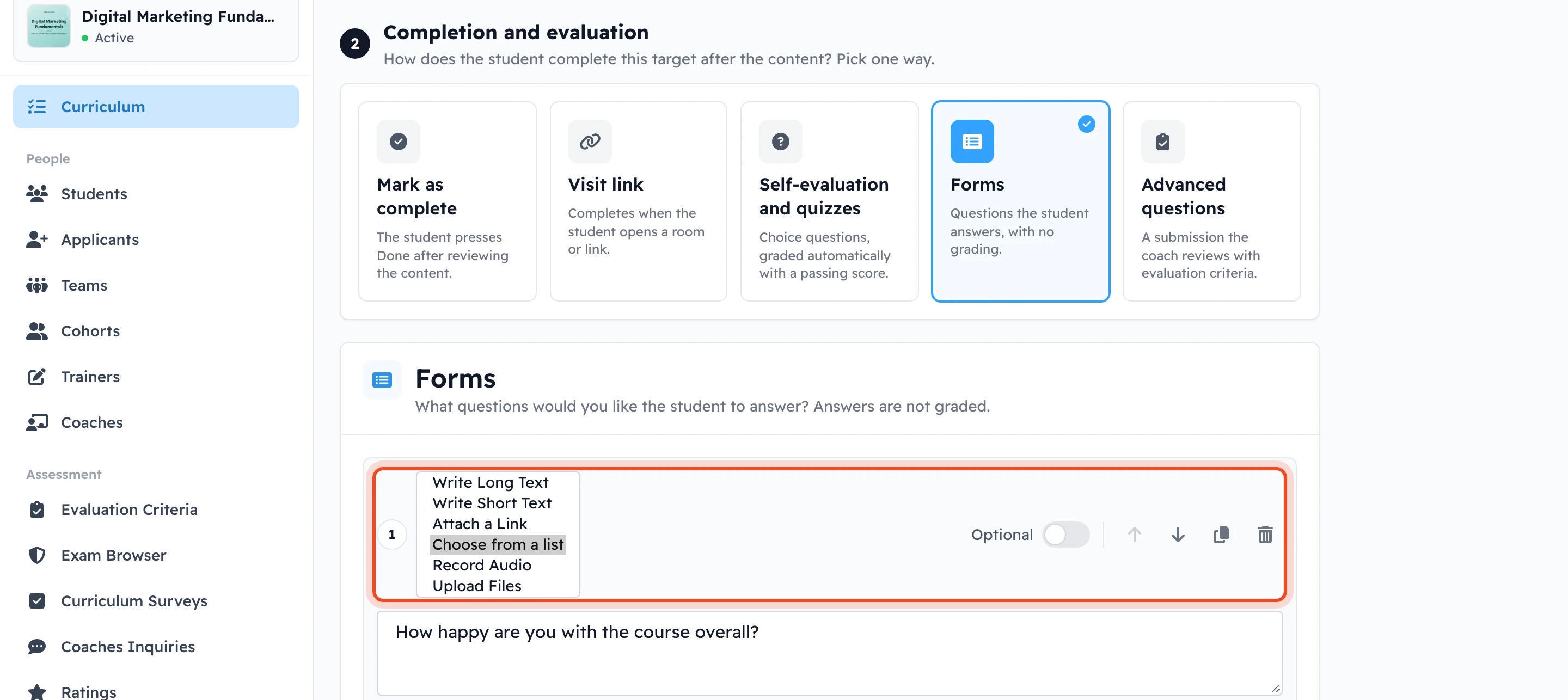
In the Content tab, under Completion and evaluation, make sure Forms is chosen.
-
Under Forms, choose the answer type of the question from the list.
-
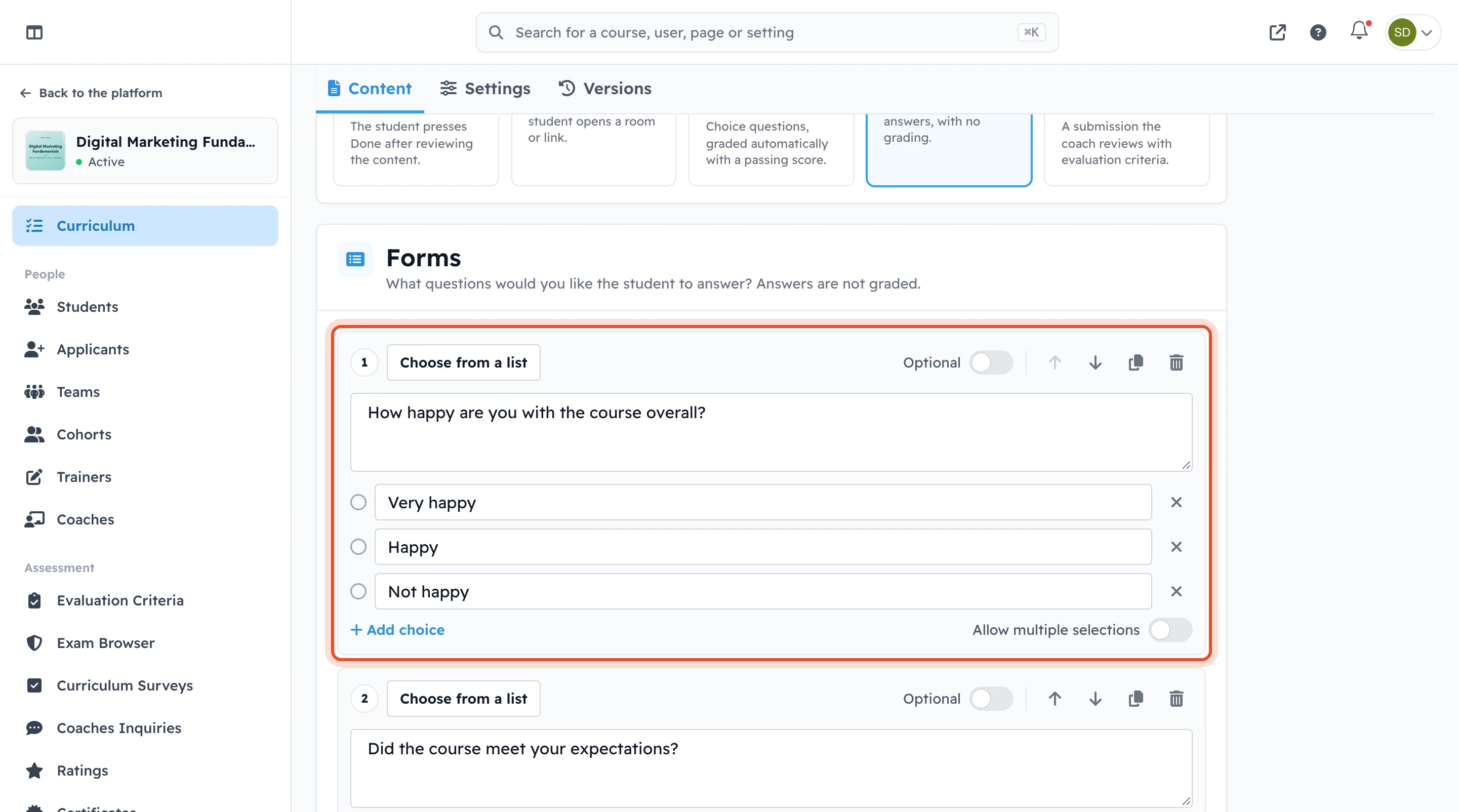
Type the question in its box.
-
To add another question, click Add a new question. You can add up to 40 questions.
-
At the top of the page, click Published.
-
Click Save changes in the bar at the bottom of the page.
NoteFor Choose from a list questions, you can edit the answer choices, or add more choices by clicking Add choice.
See the survey answers
-
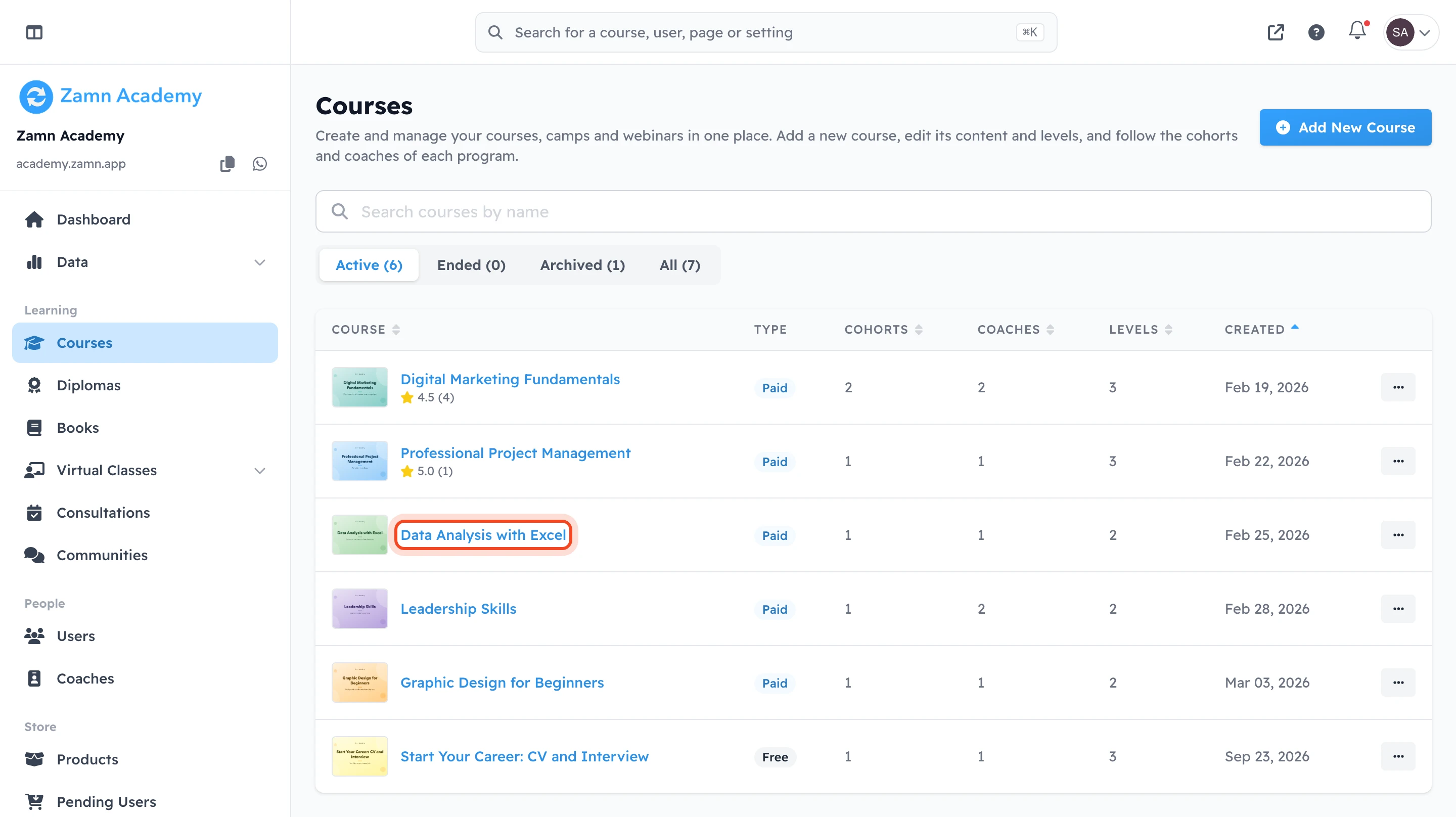
From the dashboard, go to the Courses page.
-
Click the name of the course, or click ⋯ at the end of its row, then click Edit Curriculum.
-
From the course menu, go to the Curriculum Surveys page.
-
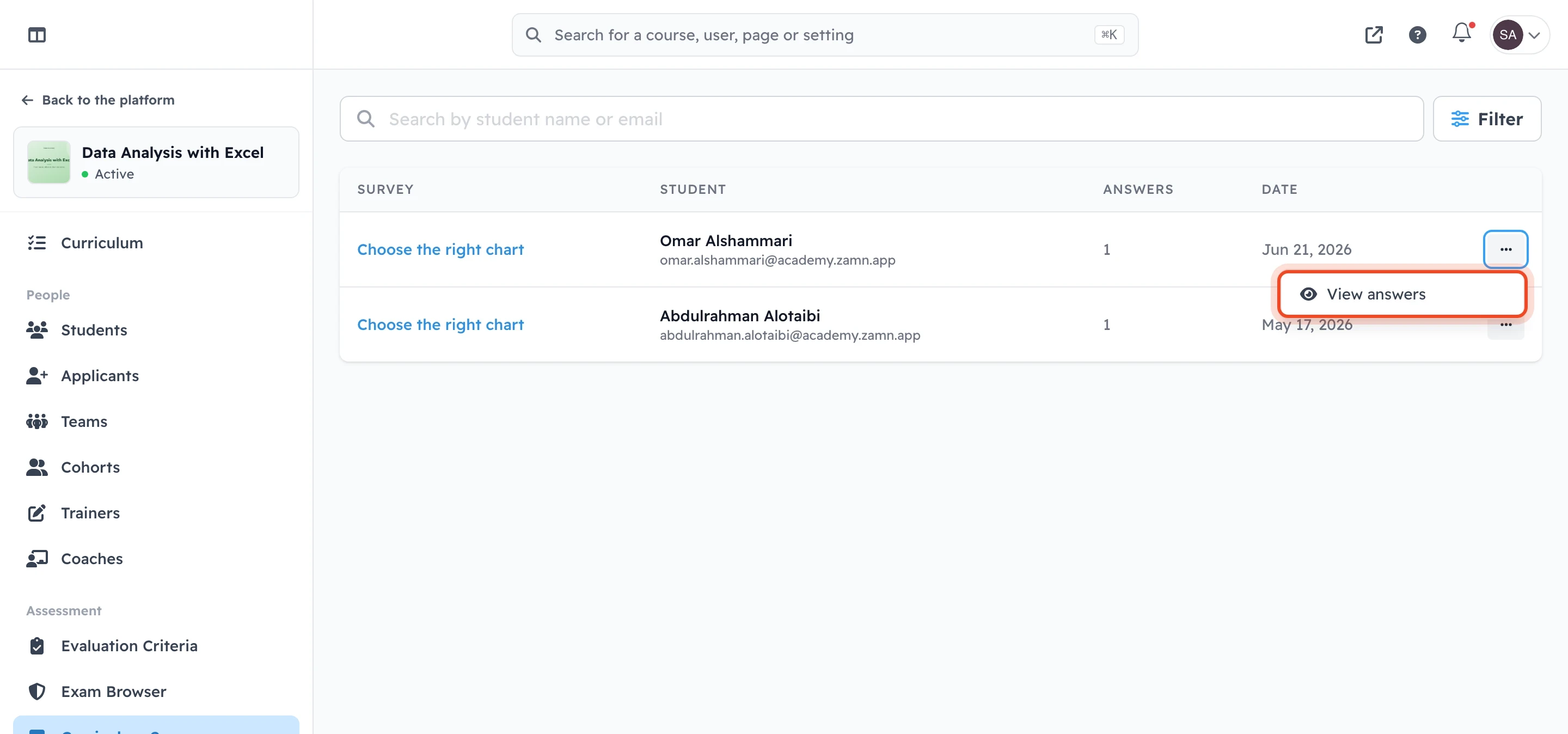
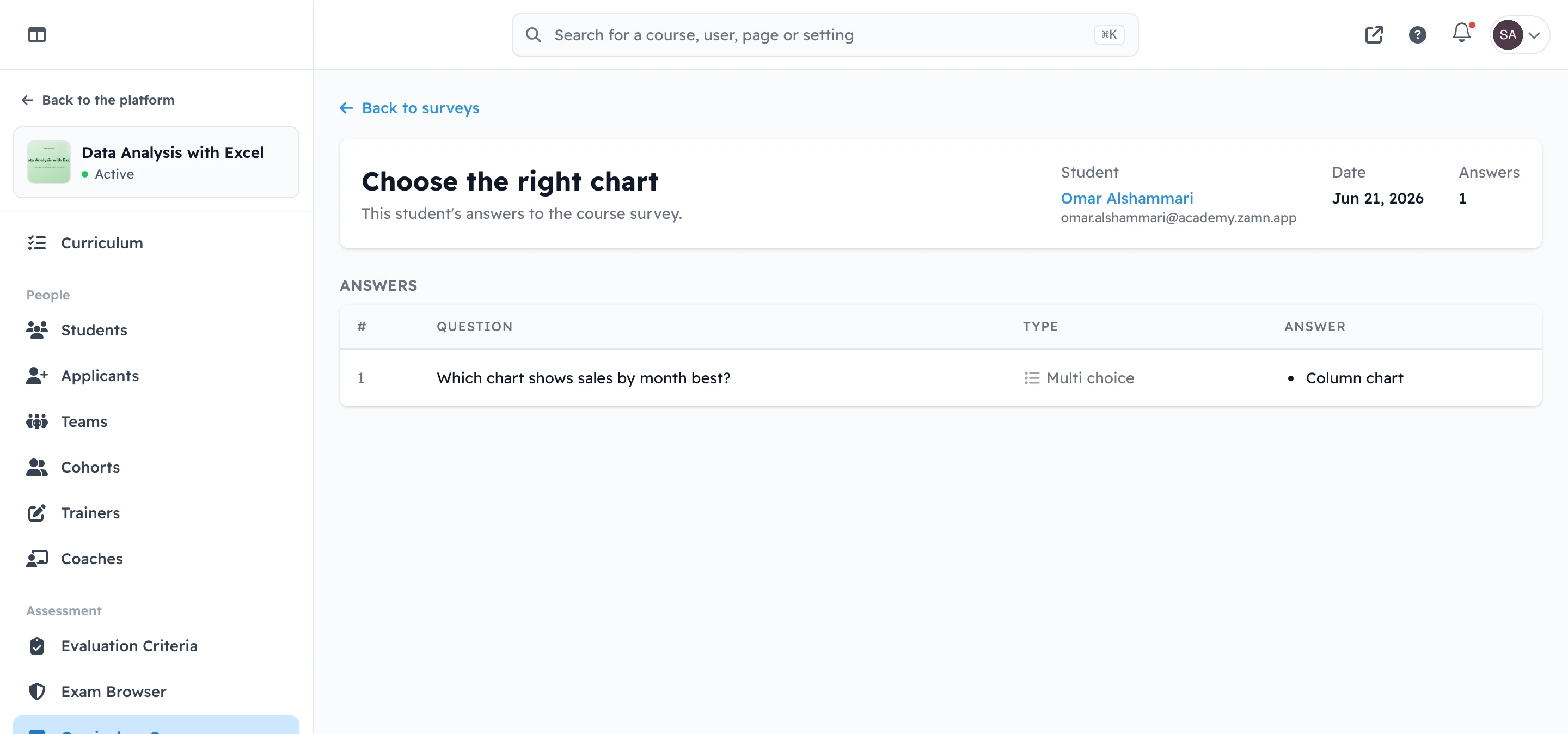
To see a student's answers, click the survey name in the student's row, or click the ⋯ (Actions) button at the end of the row, then click View answers. The answers open on their own page.