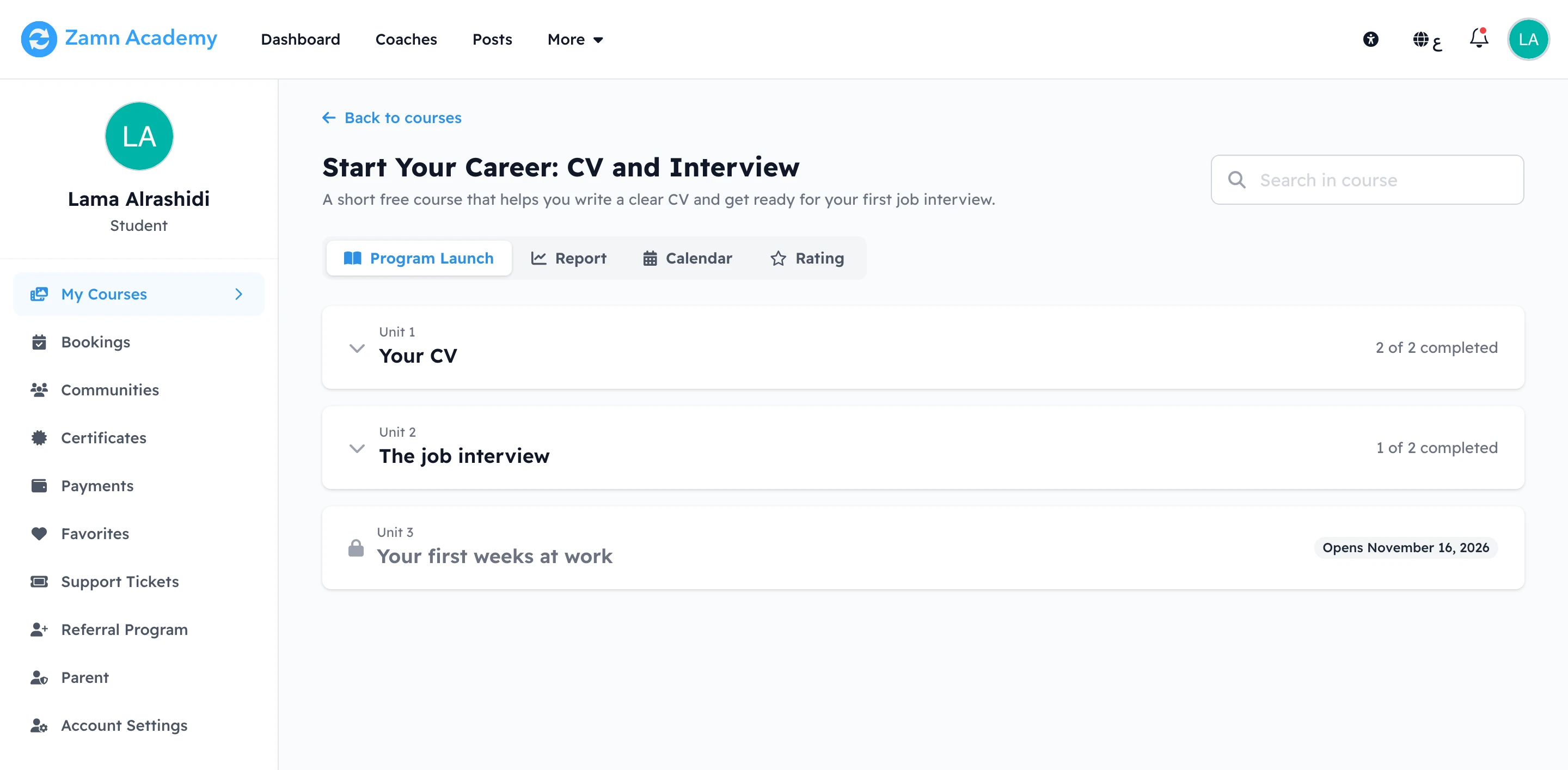
Set a section opening date
You can choose a date when a section (level) of a course opens. The section stays locked for students until that date.
Steps to set a section opening date
-
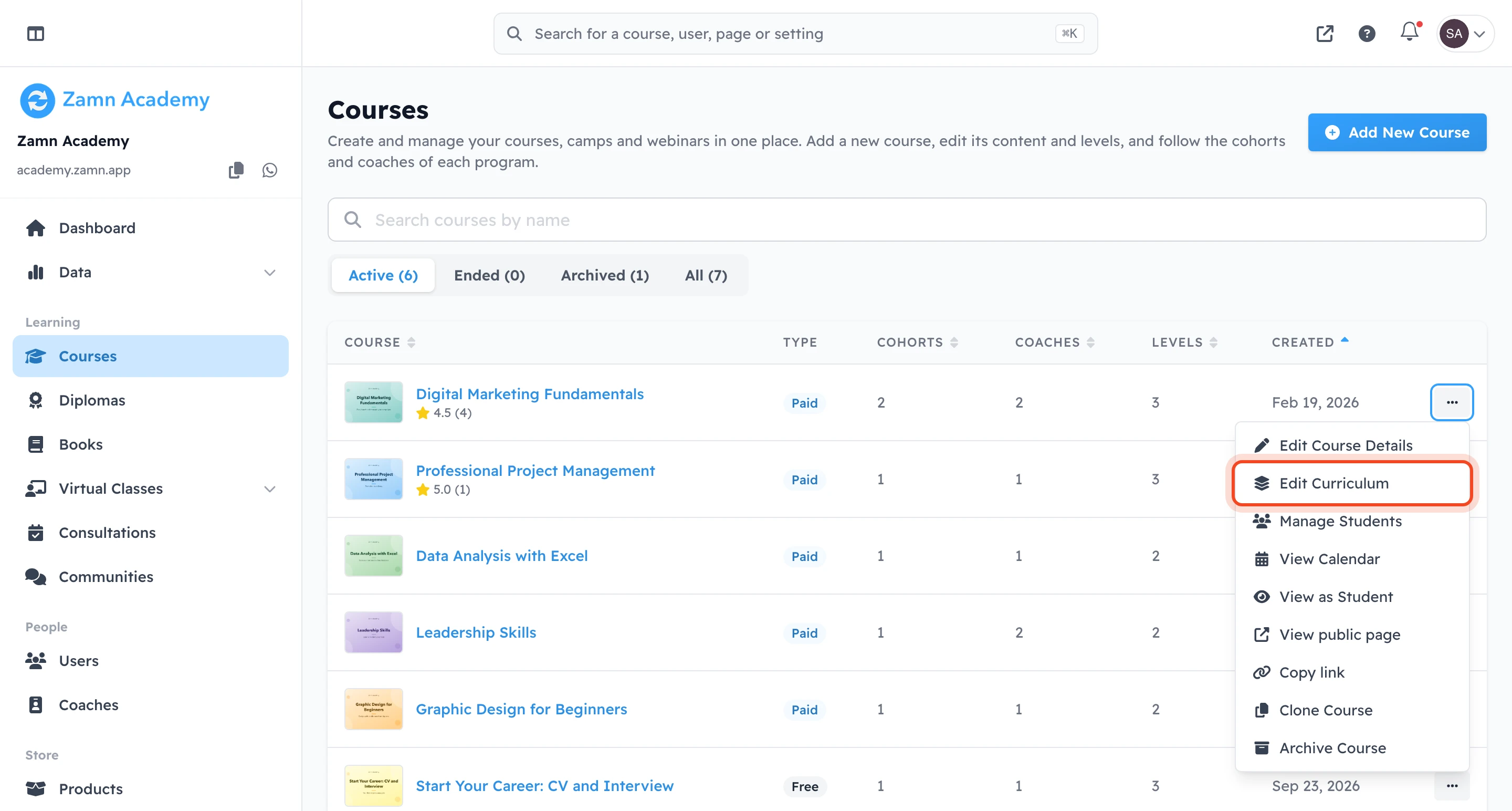
On the Courses page, click the name of the course whose sections you want to schedule, or click ⋯ at the end of its row, then click Edit Curriculum.
-
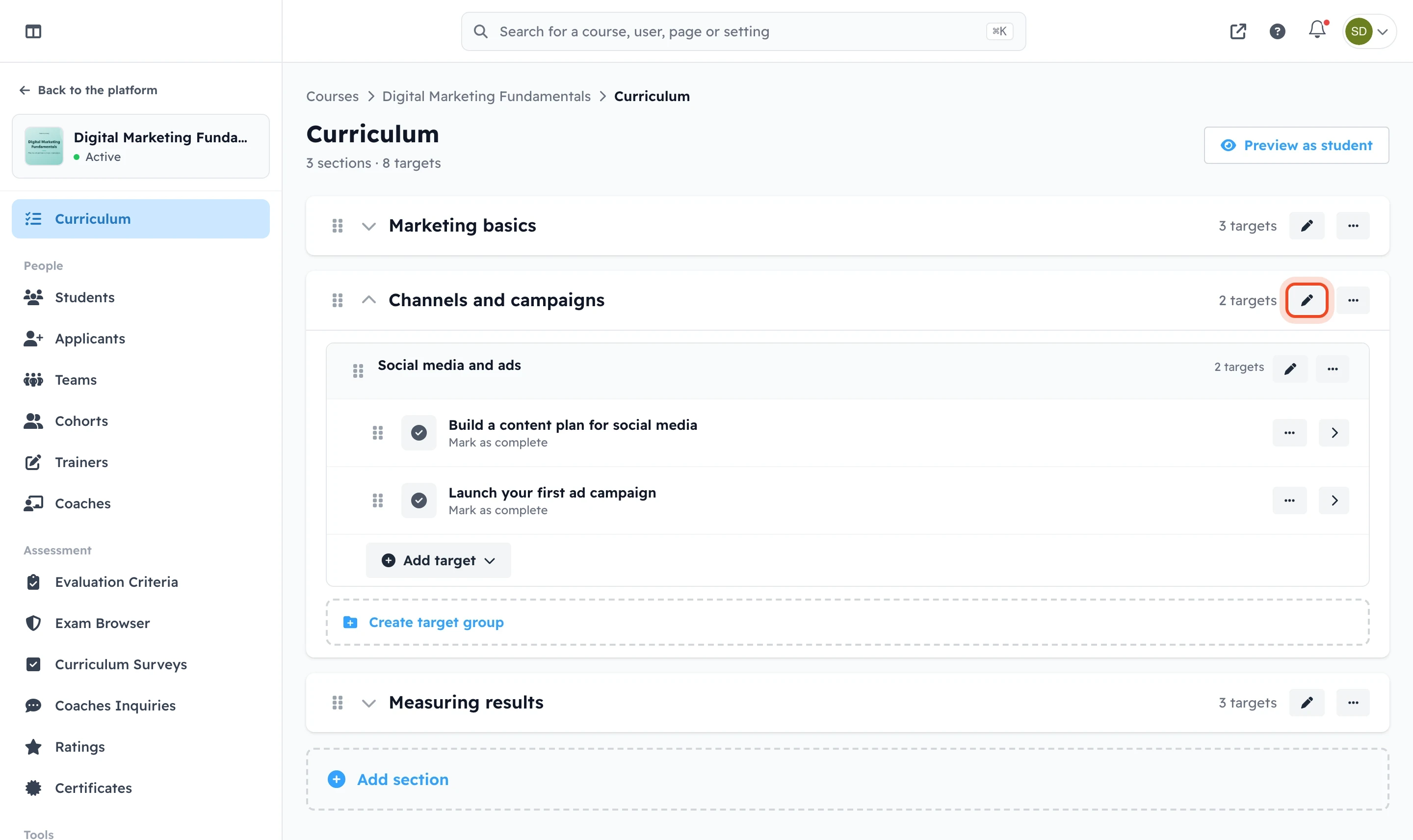
On the Curriculum page, click the edit button (pencil icon) next to the section you want to schedule.
-
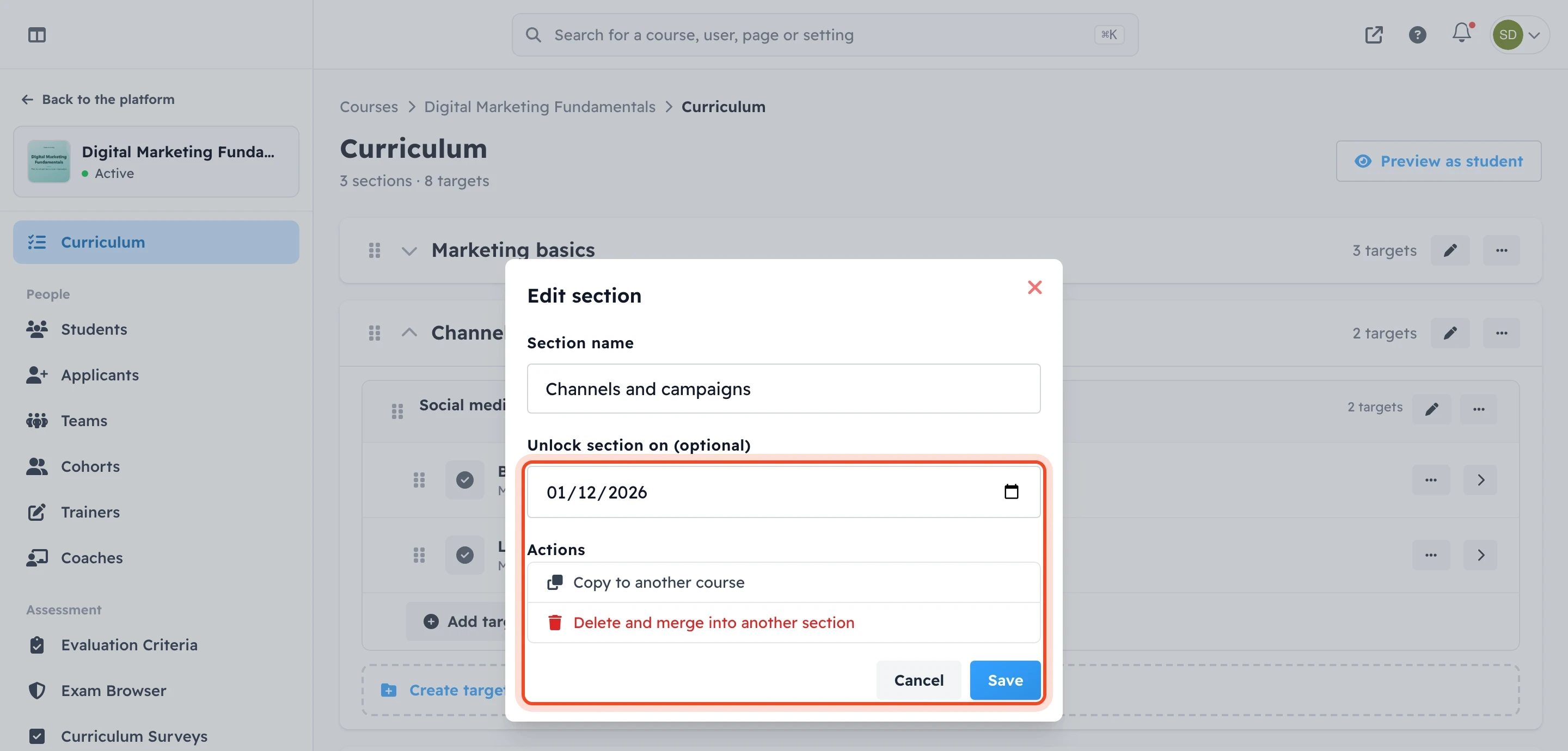
In the Edit section window, choose the opening date in the Unlock section on field.
-
Click Save.
On the Curriculum page, the section shows Opens on with its date.
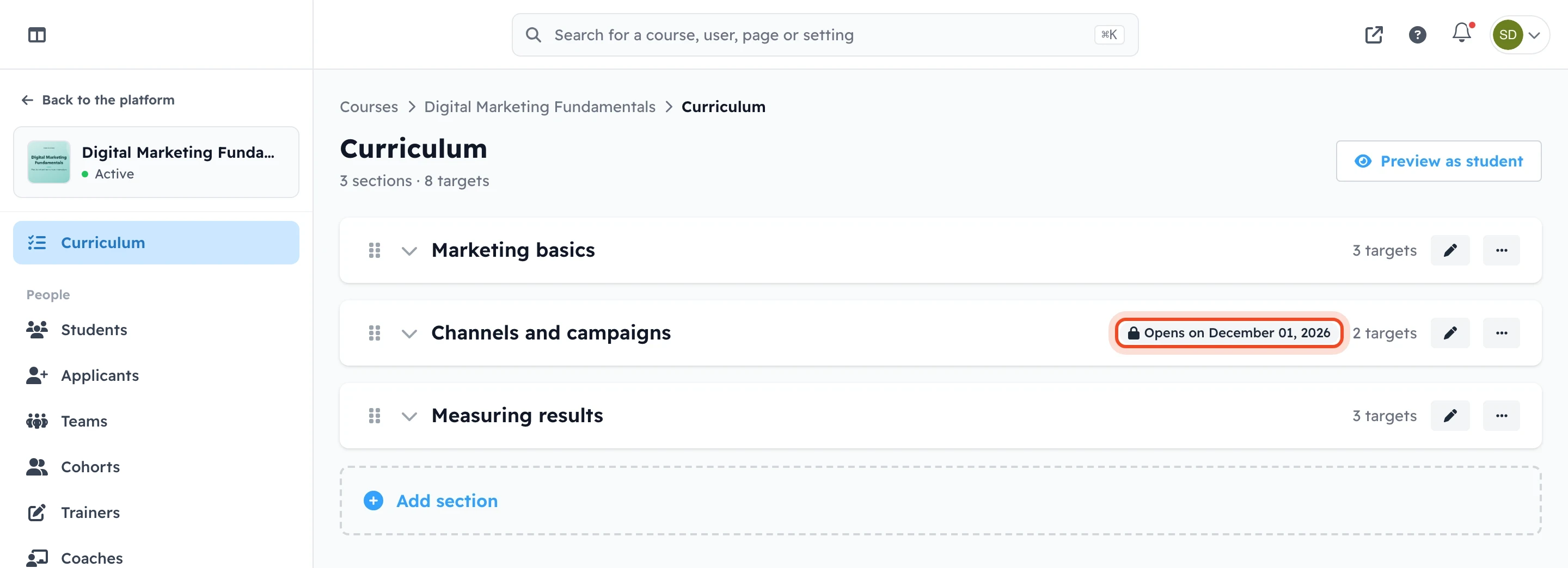
Students see the section with a lock and the label Opens with its date, so they know when they can open its content.