Alert students when you publish a new target
This article shows how to alert the students of a course about a new task. They get the alert when you publish a new target in the course. This feature is for platform admins.
Steps to send the alert
-
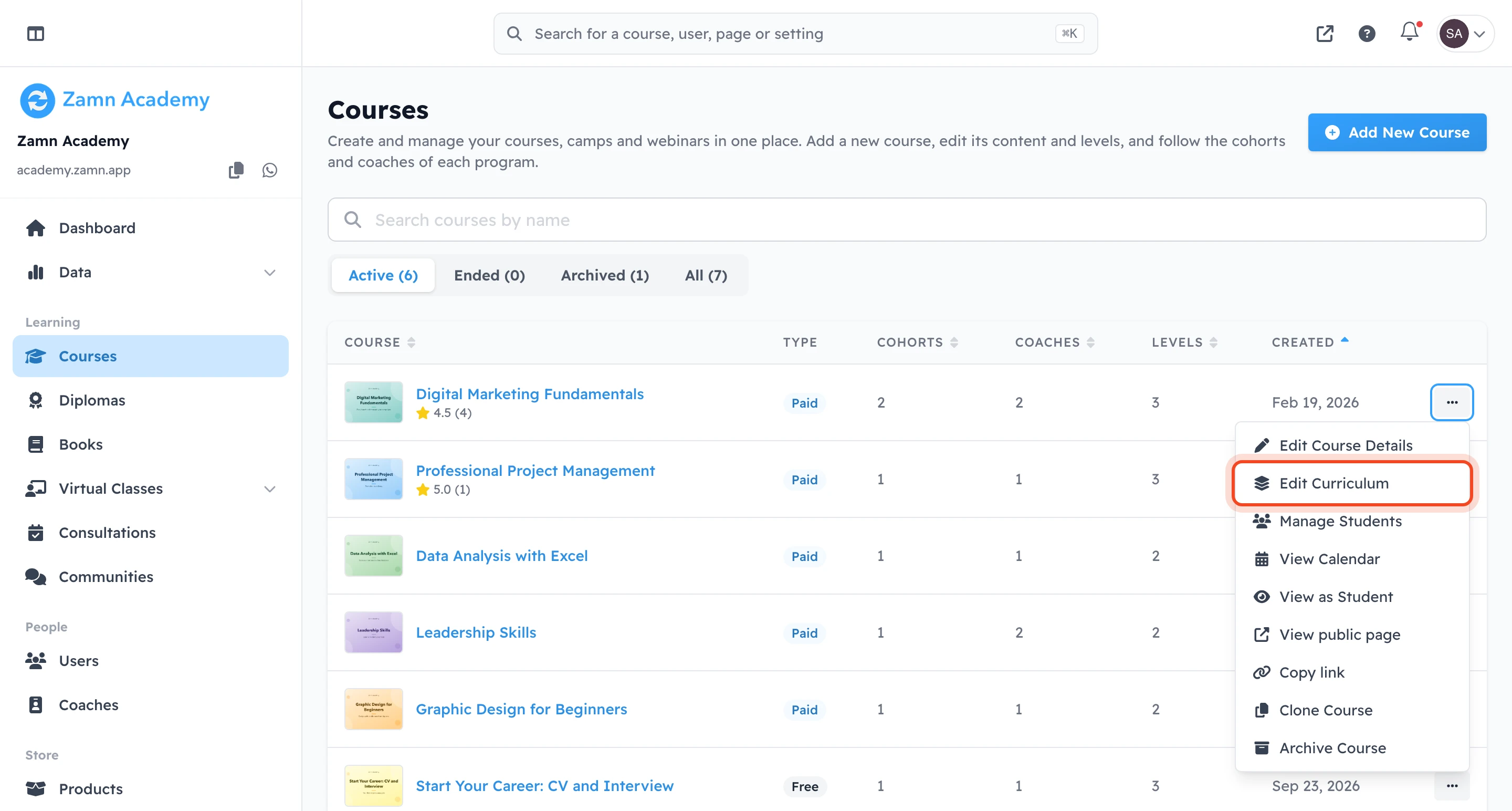
In your dashboard, go to the Courses page, then click the name of the course, or click ⋯ at the end of its row, then click Edit Curriculum.
-
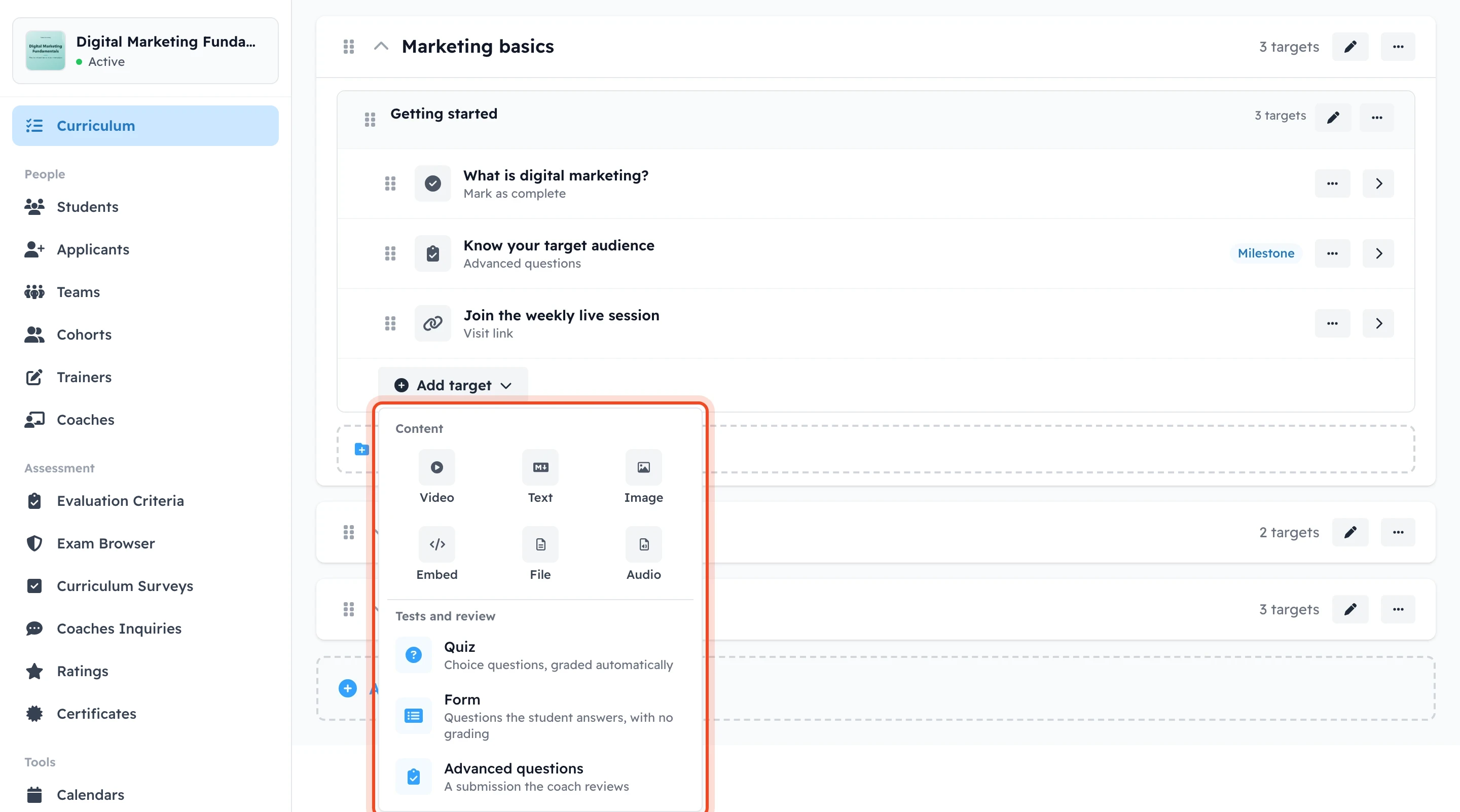
At the end of the target group, click Add target, then choose the type of the target. The new target opens right away, and it is a Draft.
-
Add the target title, content and settings.
-
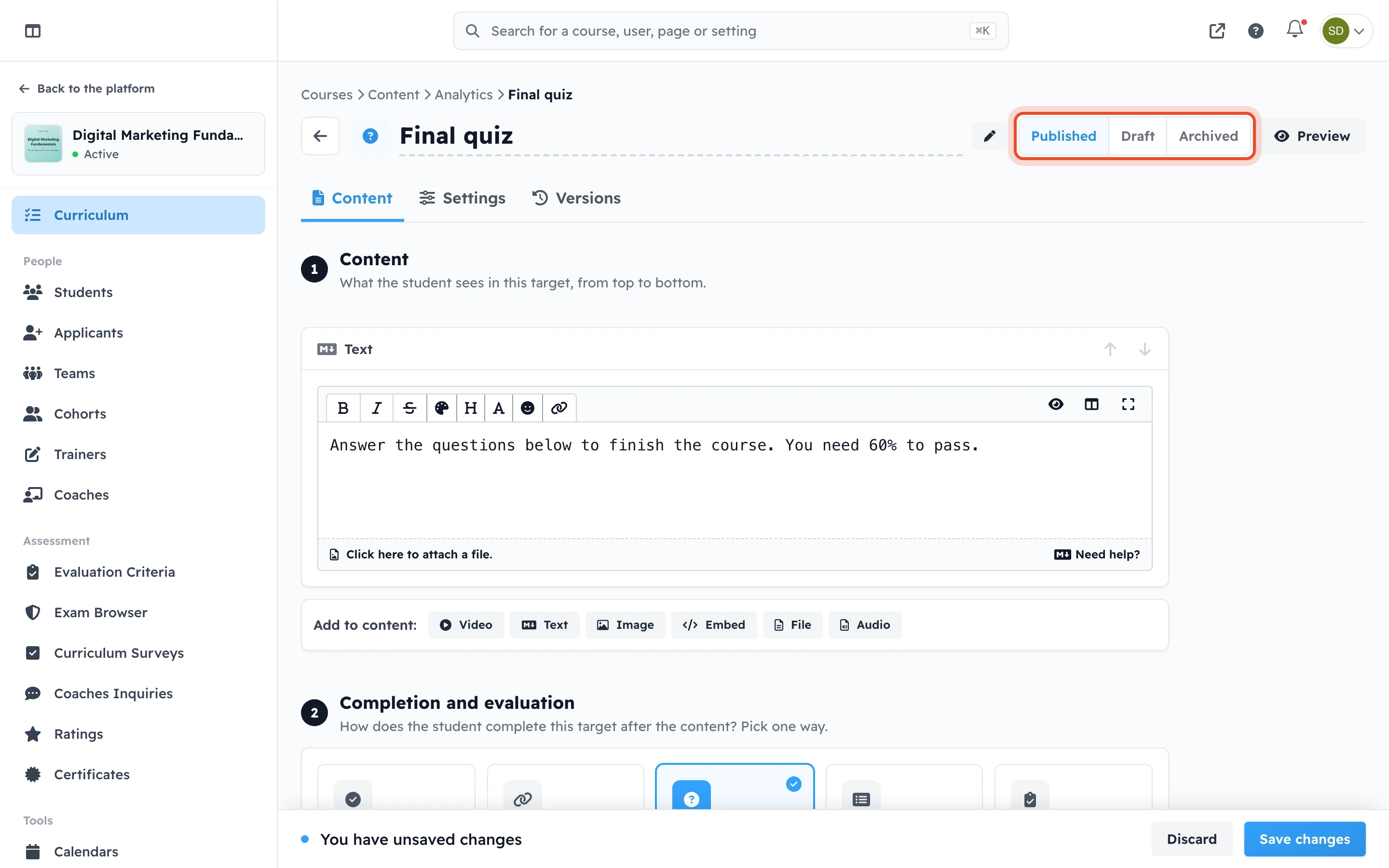
At the top of the page, click Published, then click Save changes in the bar at the bottom of the page. An alert about the new target is then sent to the course students.
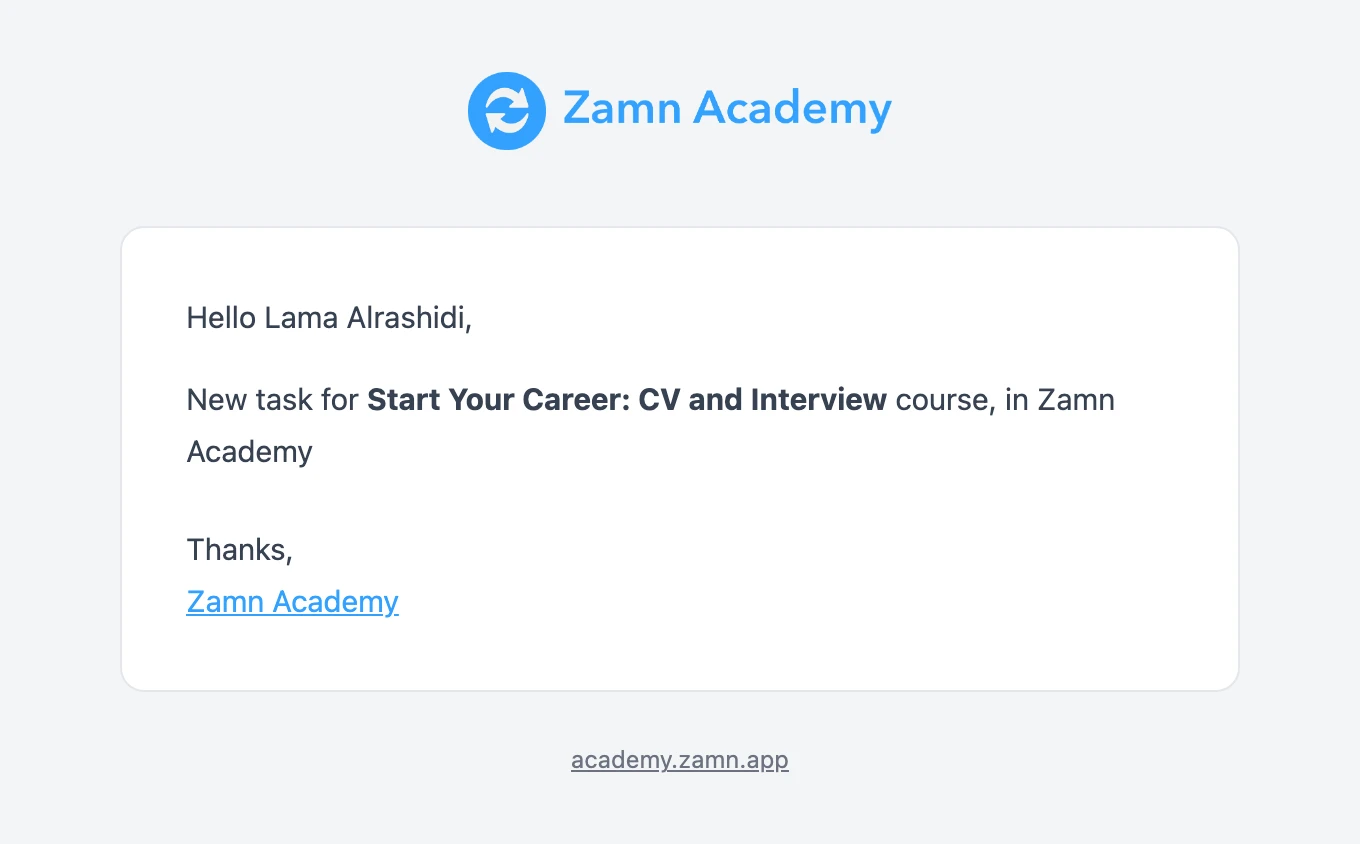
Students get the alert in the platform notifications, and they may also get it by email, as in the picture below:
- The alert is sent only once, when the target status changes to Published. Editing a target that is already published does not send a new alert.
- Alerts in the platform work on the Pro and Organizations plans, and during the free trial. The email alert works only on the Organizations plan and during the free trial.