Add a virtual room link as a course target
If you are creating a course that uses live sessions, such as a Zoom meeting or a Zamn virtual room, you can easily link the room to a target in the course. These steps are for platform admins.
Steps
-
Open the target from the course Curriculum page by clicking its name.
-
In the Content tab, under Completion and evaluation, choose Visit link.
-
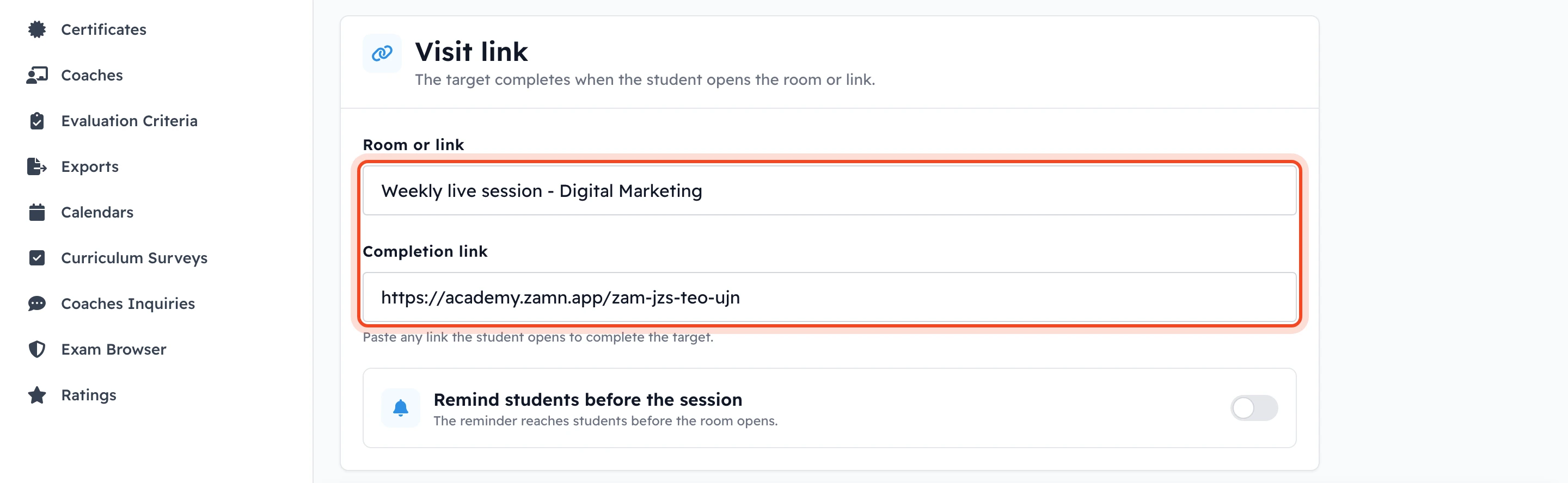
A drop-down list named Room or link shows. This list has all the rooms you created in Zamn.
-
Choose the room you want. Its link is added by itself in the Completion link field.
 tip
Under the link, the Remind students before the session box shows. You can use it to remind students before the lesson starts. To learn how, read Add a live session to the course content.
-
Click Save changes in the bar at the bottom of the page.
This feature lets you link your course to live sessions quickly and correctly, with no need to copy links by hand. This makes managing content easier and saves you time.