Embed a file from SlideShare
You can show a file that you uploaded to SlideShare (Word, PowerPoint or Excel) inside your course content, so your students can see it without leaving your platform. This article is for platform admins.
Steps to embed a SlideShare file in a course
After you upload the file to SlideShare, follow these steps:
-
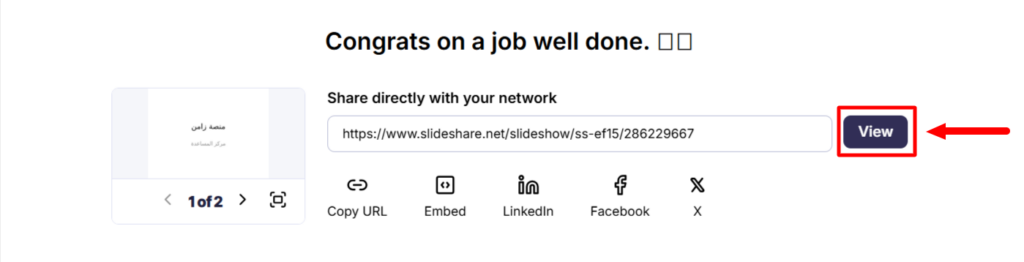
Click View for the file.
-
Click Embed.

-
Copy the link inside the
srcattribute of the embed code.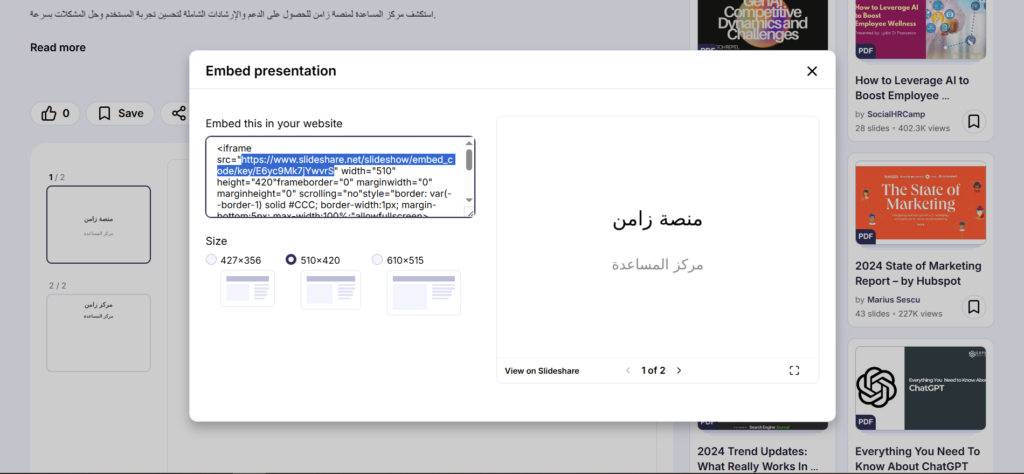
-
Go to your platform dashboard.
-
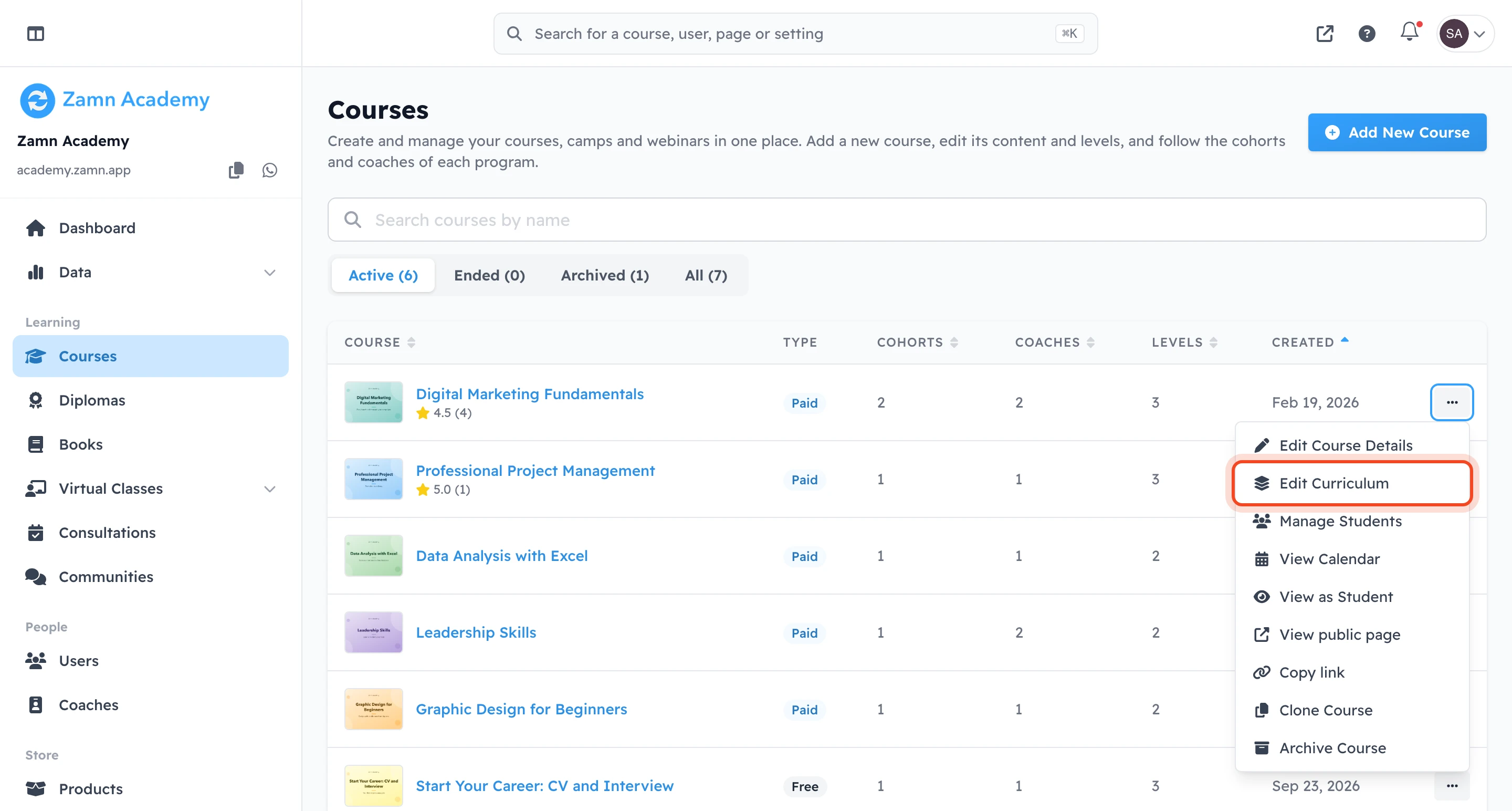
Go to the Courses page, then click the name of the course, or click ⋯ at the end of its row, then click Edit Curriculum.
-
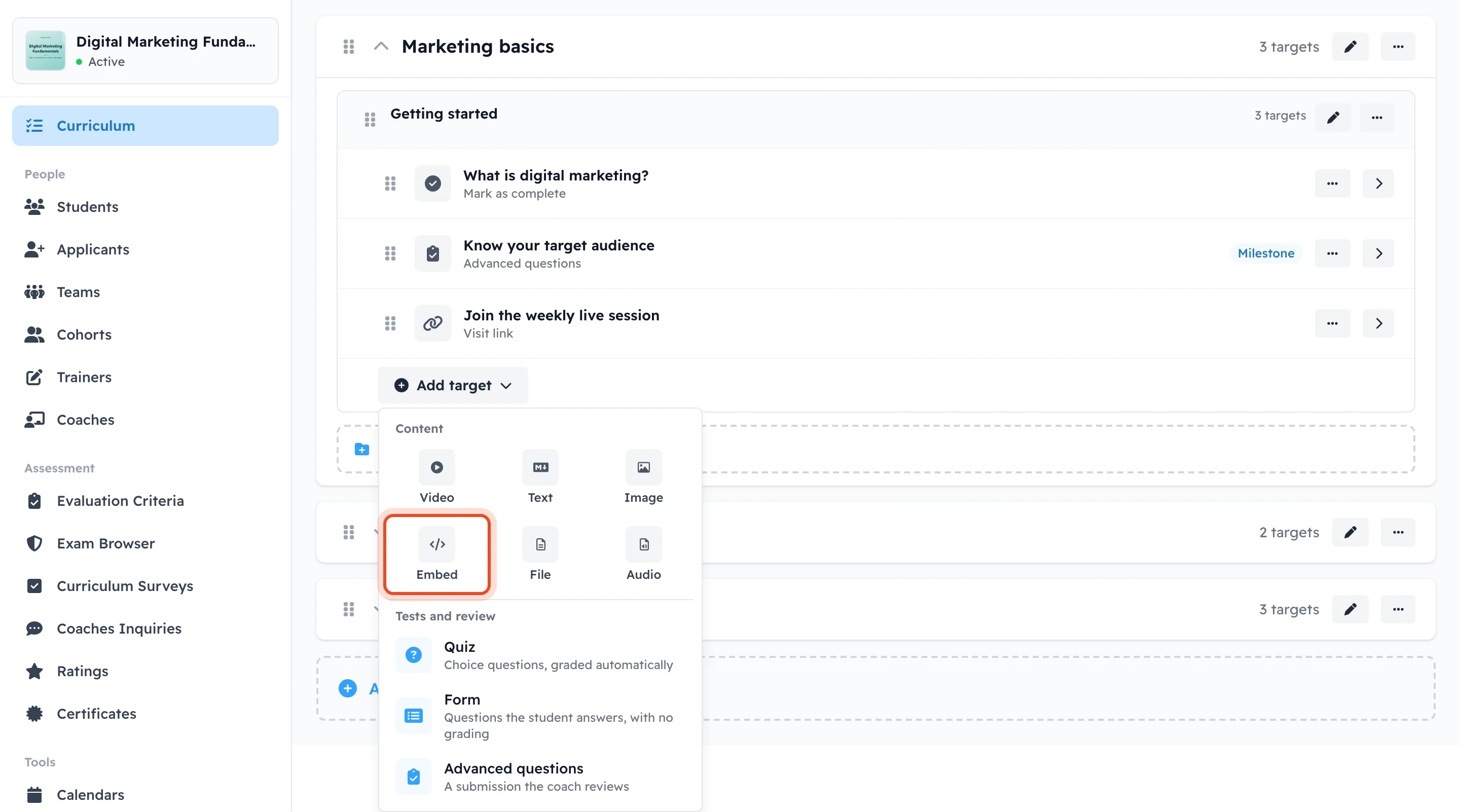
On the Curriculum page, click the name of a target you already have. To make a new target, click Add target at the end of a target group, then choose Embed.
-
In the target's Content tab, click Embed next to Add to content:.

-
Paste the link in the Link to embed field, then click Add. The file shows inside the target for students.
