How to use the text tool (Markdown)
The text tool is the Text block in the content editor. It uses Markdown. Use it to add written text to any target in a course. This article is for platform admins.
-
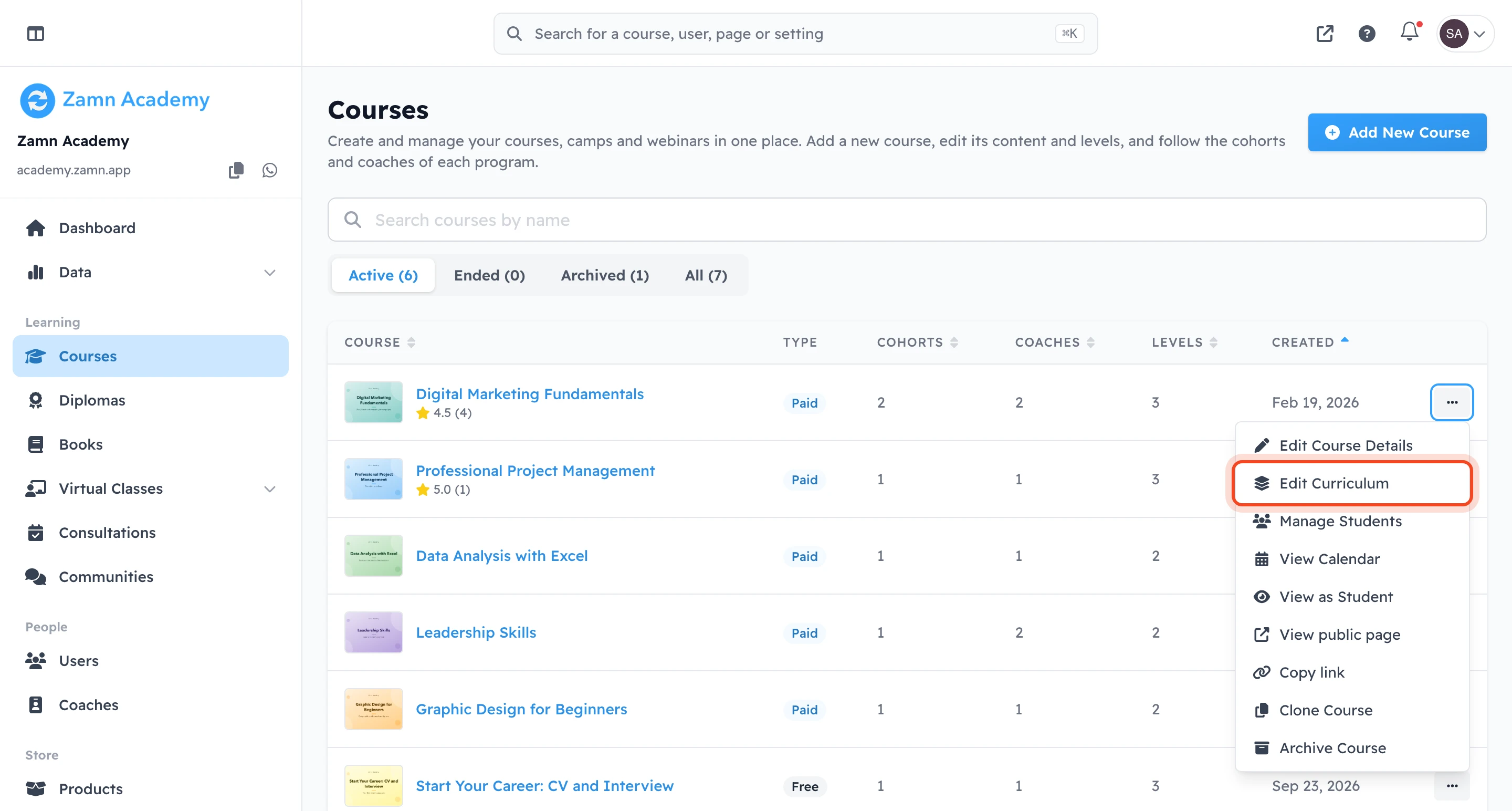
From the dashboard, click Courses. Click the course name, or click ⋯ at the end of its row, then click Edit Curriculum.
-
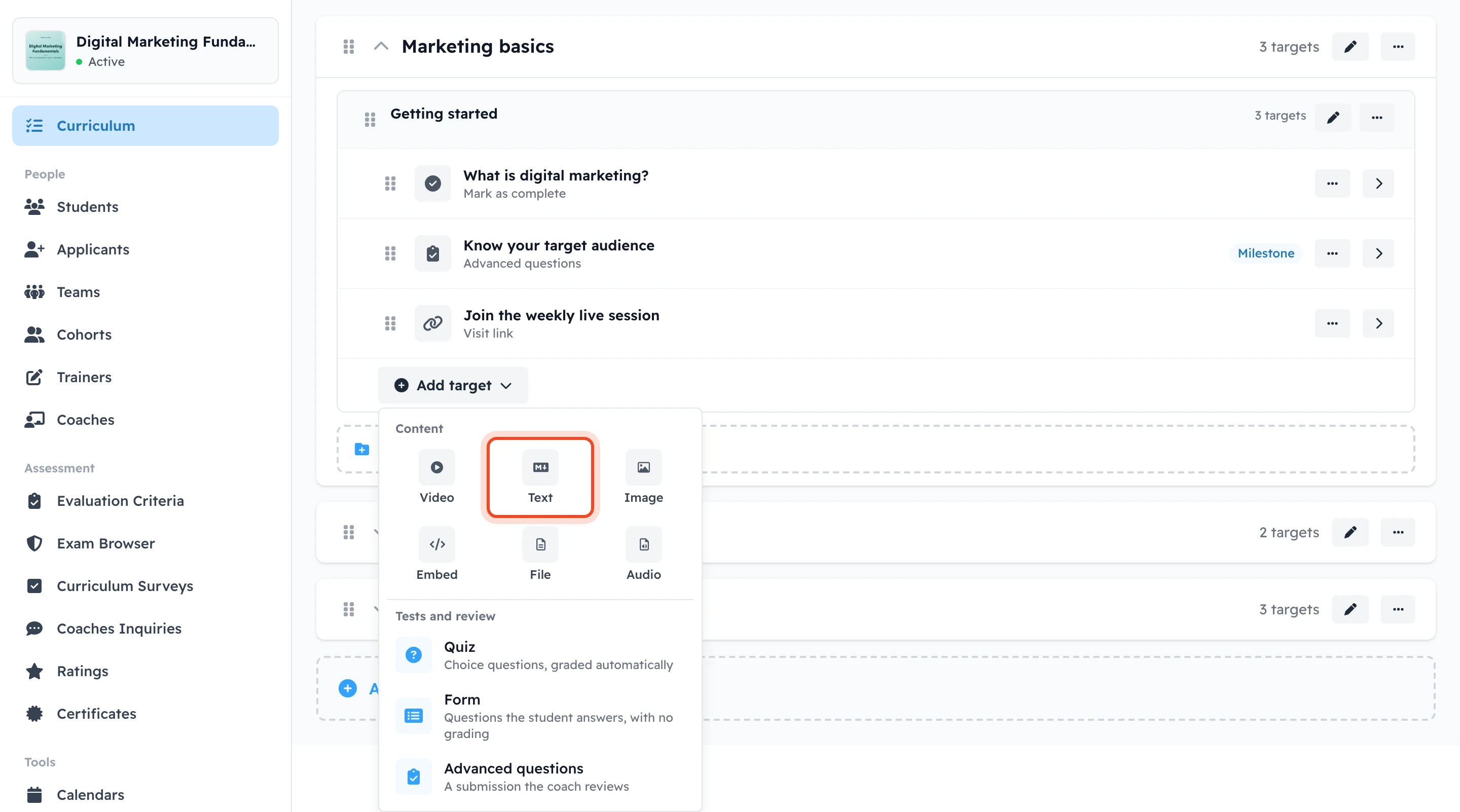
On the Curriculum page, click the name of the target you want to add text to. To make a new target, click Add target at the end of a target group, then choose Text. The new target opens right away.
-
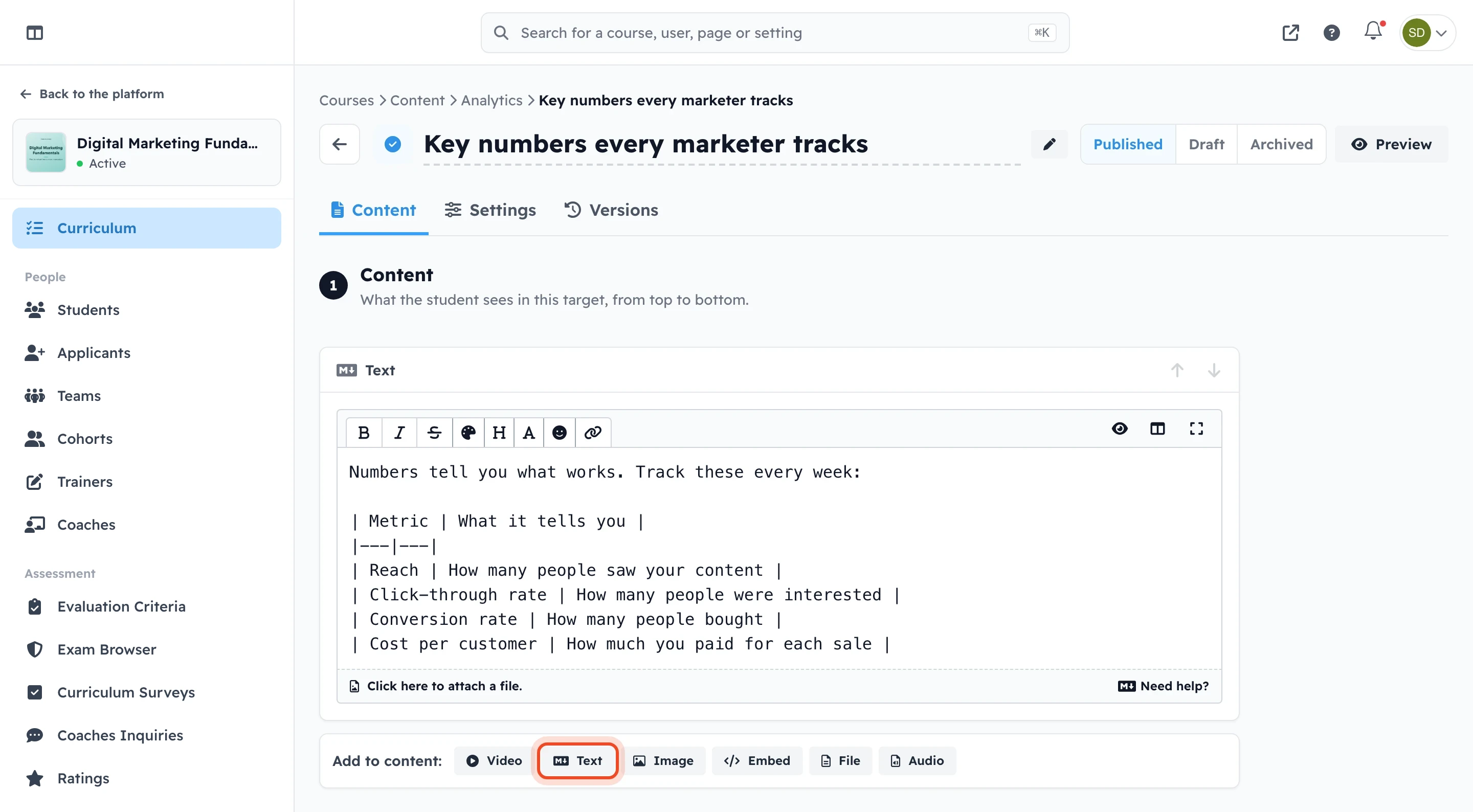
The target opens on the Content tab. Type your text in the text box.
-
To add more text, click Text next to Add to content:, then type the text in the new box.
-
Click Save changes in the bar at the bottom of the page to save the text. Students see the text in the target right away.
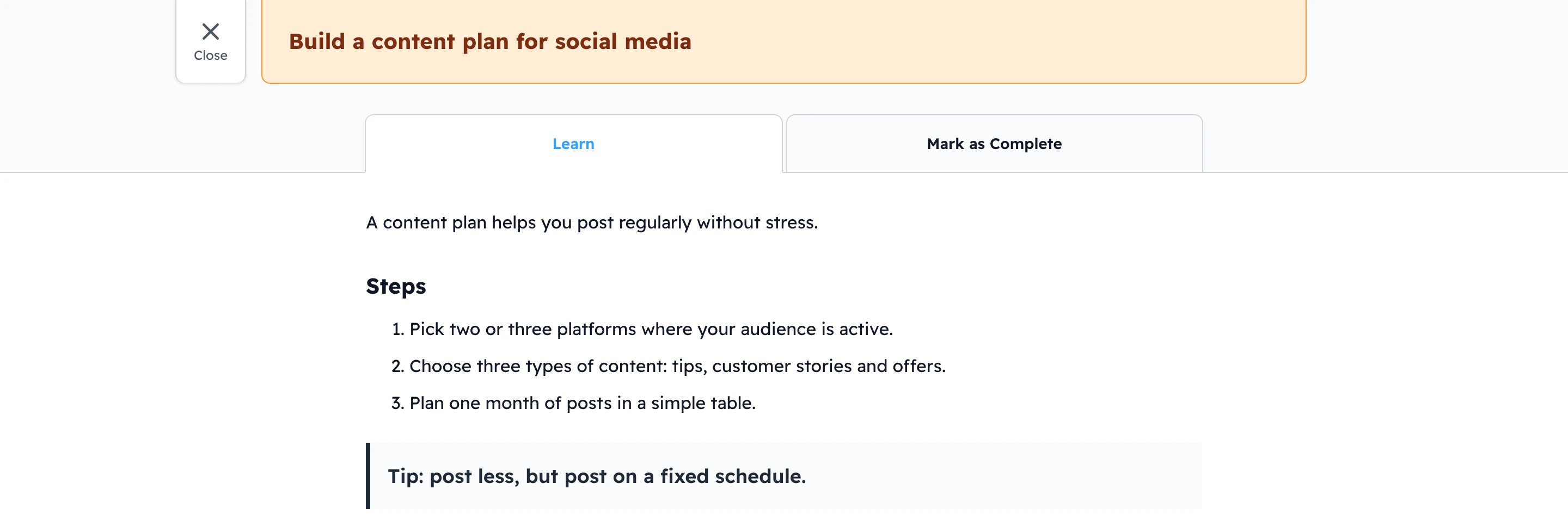
A new target is a Draft, and students cannot see it. To publish it, click Published at the top of the target page, then click Save changes.