Add a recorded video to a course
You can add a recorded video to the content of any target in a course, either by embedding the video link, or by uploading the video straight to Zamn.
Steps to open the target content
-
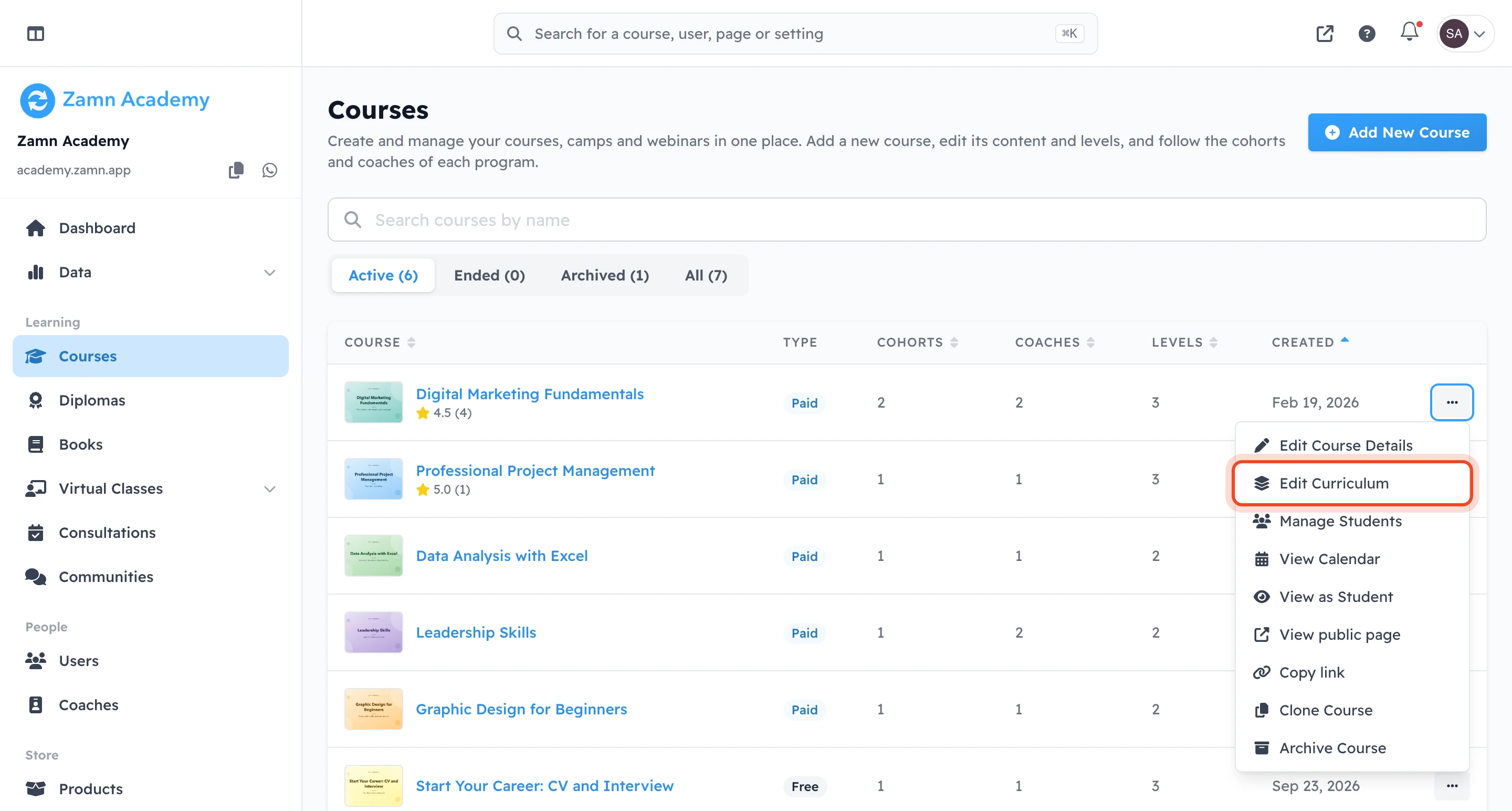
From the dashboard, go to the Courses page. Click the name of the course you want to add the video to, or click ⋯ at the end of its row, then click Edit Curriculum.
-
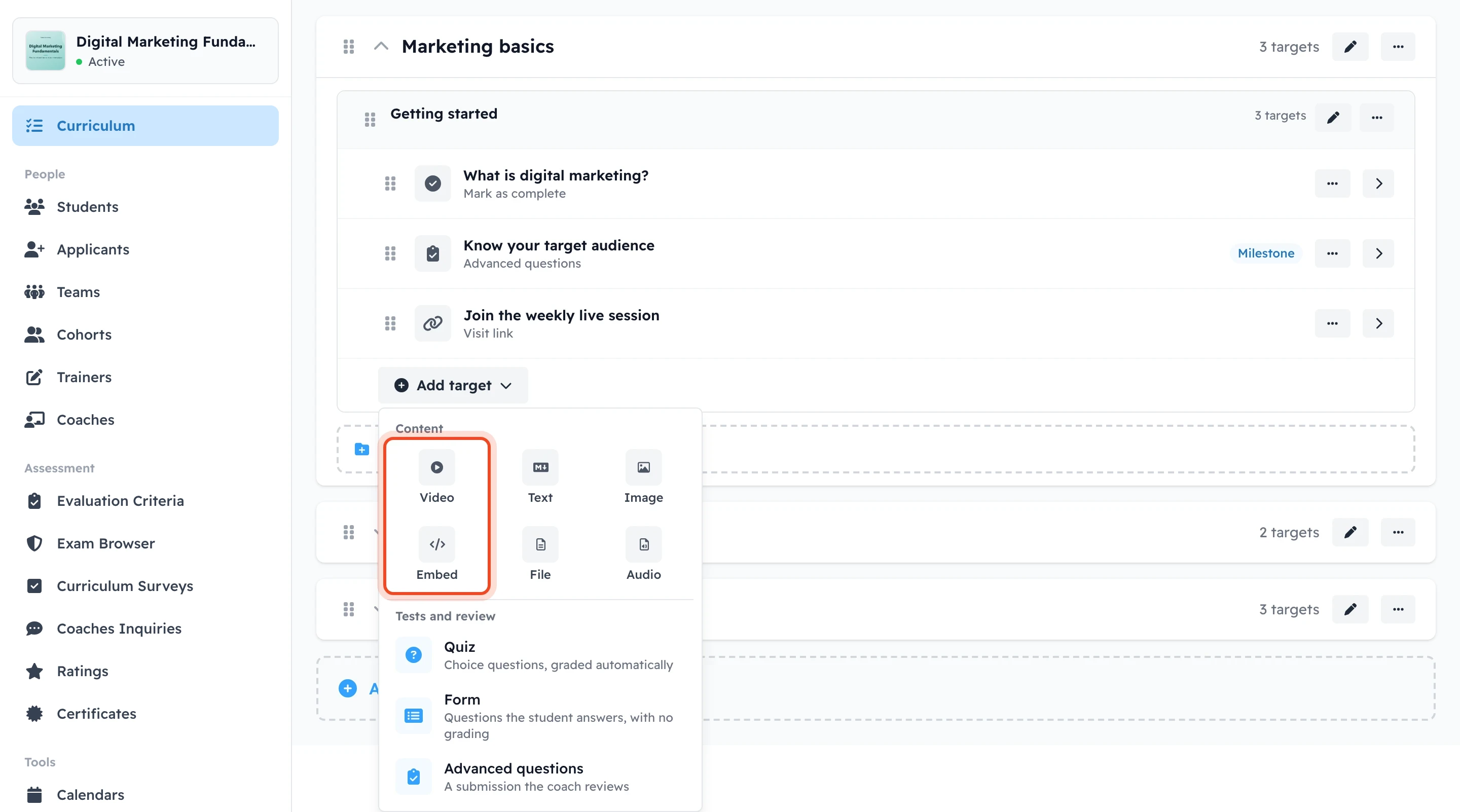
Click the name of the target you want to add the video to. To make a new target, click Add target at the end of a target group, then choose Video or Embed.
-
Go to the Content tab of the target.
Add a video by embedding
-
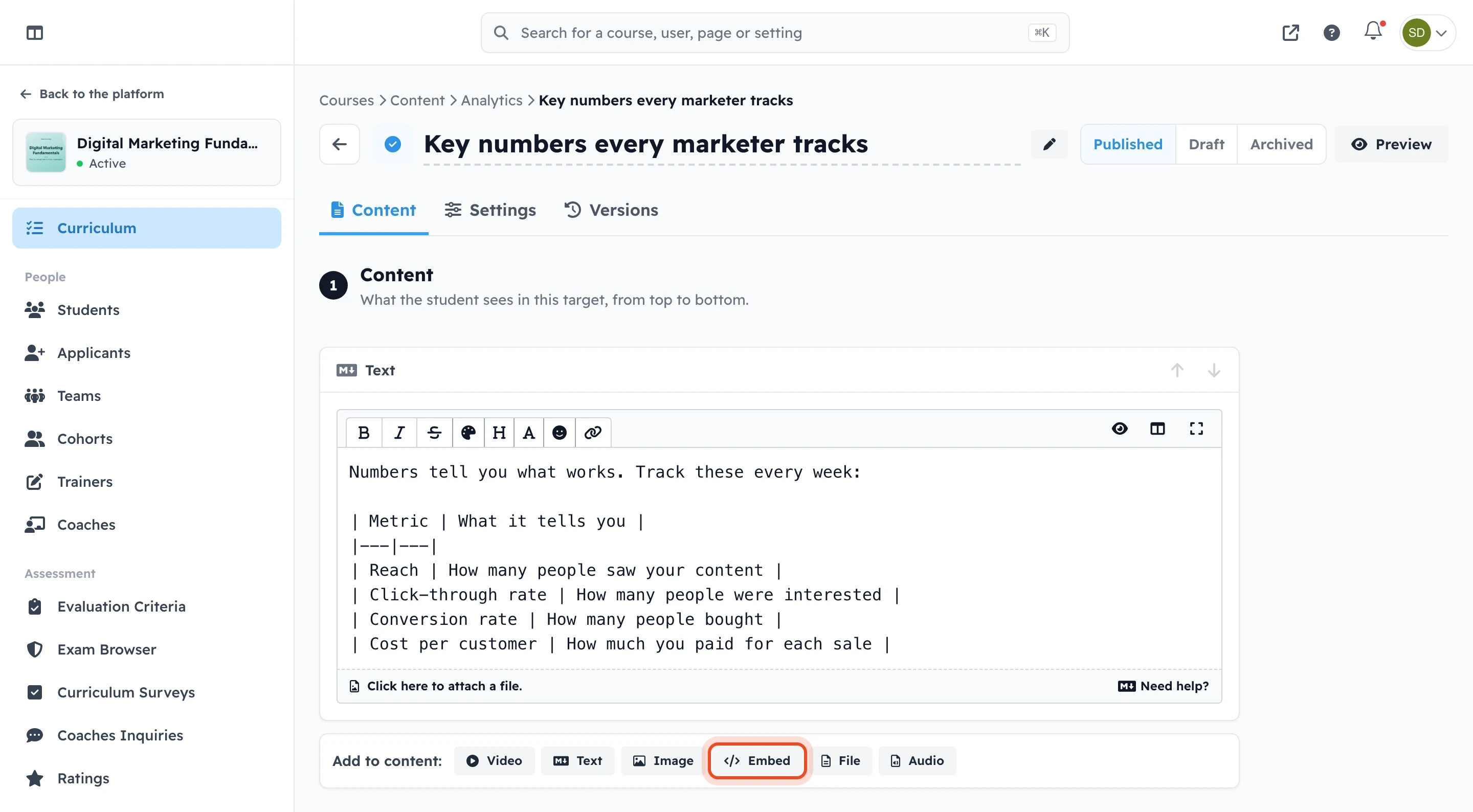
Click Embed next to Add to content:.
-
In the Link to embed field, paste the video link from YouTube, then click Add to add the video.

Upload a video to Zamn
-
Click Video next to Add to content:.
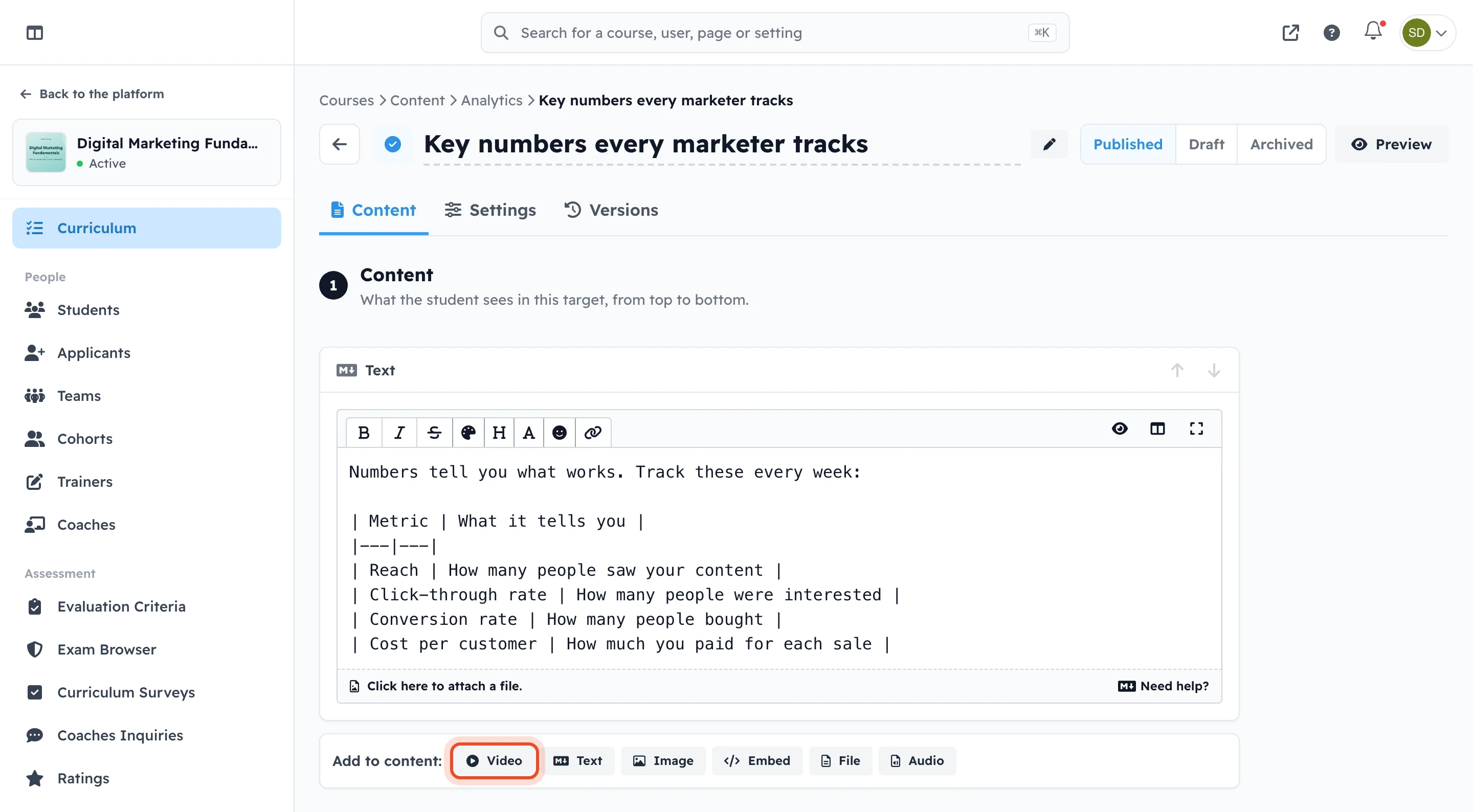
-
Click Choose a video and choose the video from your device, or drag the video into the box.

-
Wait until the upload finishes. Then the video is added to the target content. If you try to leave the page while the video is still uploading, a message warns you that the upload will stop.
- Each video you upload uses your platform's storage space.
- The Video button shows only if you have an active subscription to the Growth, Pro or Organizations plan from the Websites plans, or during the free trial.
How the video looks after you add it
The video as the student sees it: