Show student ratings on the course page to visitors
You can show the average of student ratings for a course on its public page, so your platform's visitors can see it.
Steps to show the ratings
-
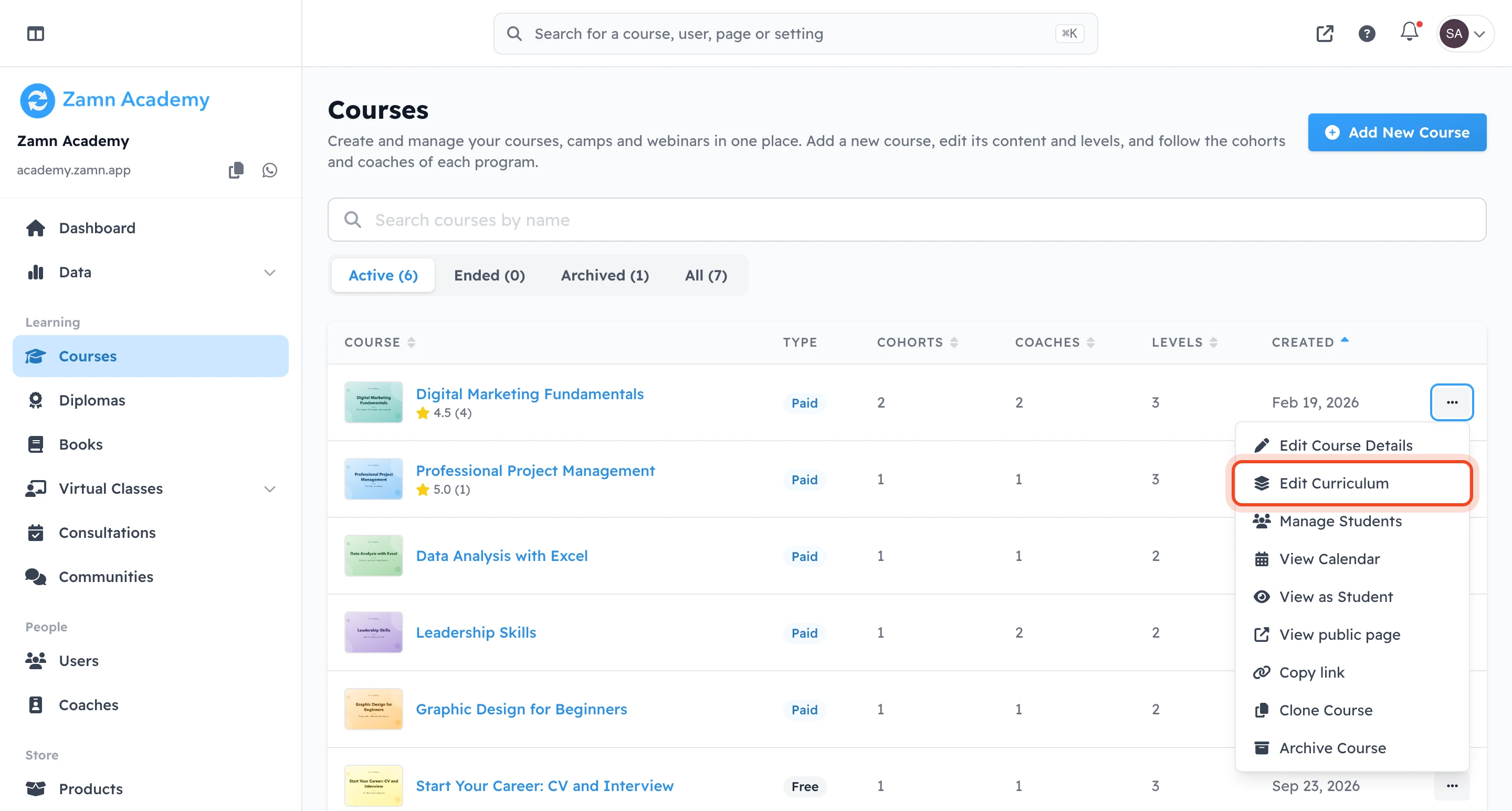
From the dashboard, go to Courses. Click the name of the course whose ratings you want to show, or click ⋯ at the end of its row, then click Edit Curriculum.
-
From the course side menu, go to the Ratings page.
-
At the top of the page, turn on Show the rating average on the course page.
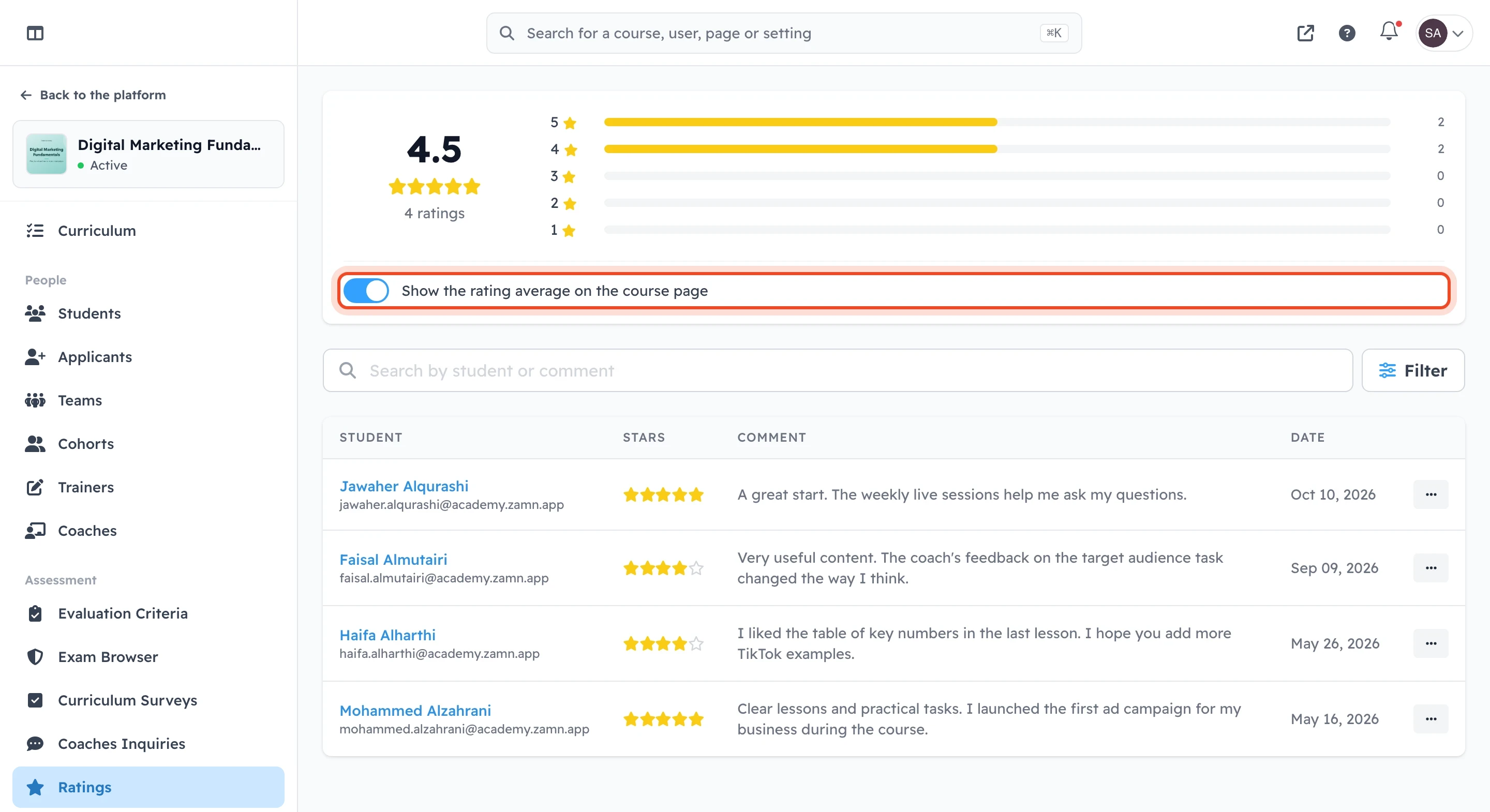
The average of student ratings shows on the course's public page, in the Reviews part: the stars, the average out of 5 and the number of reviews, then the students' comments, as in the image.

The Reviews part shows only when at least one student wrote a comment with their rating.
To hide the rating average from the course page, turn off the same option on the Ratings page.